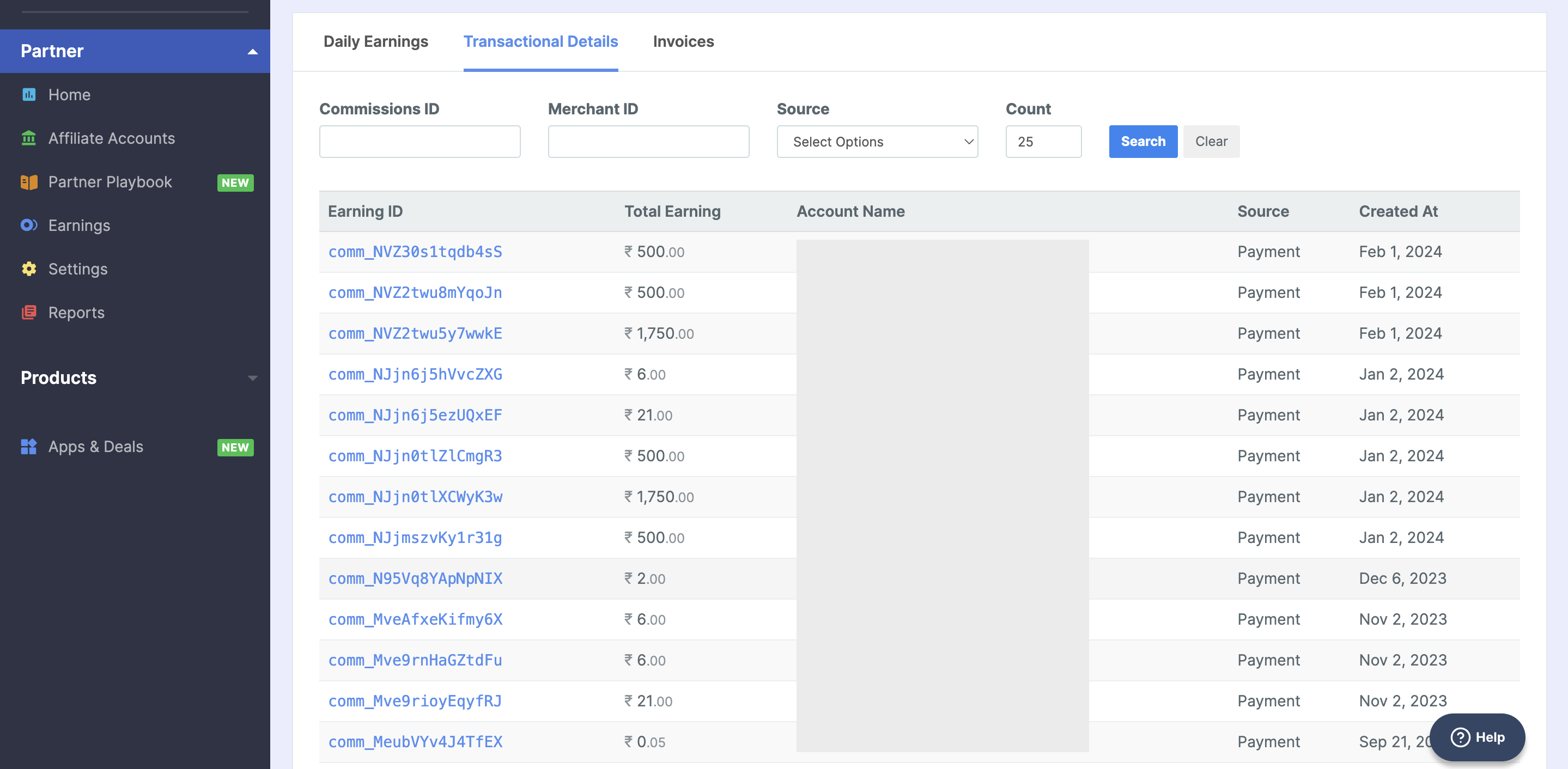
 ## Transactional Details
You can view the earnings details from each transaction made by your affiliate accounts. This report is available only for the partner types `Aggregator` and `Technology Partner`.
## Transactional Details
You can view the earnings details from each transaction made by your affiliate accounts. This report is available only for the partner types `Aggregator` and `Technology Partner`.
 ## Check Auto-generated Invoices
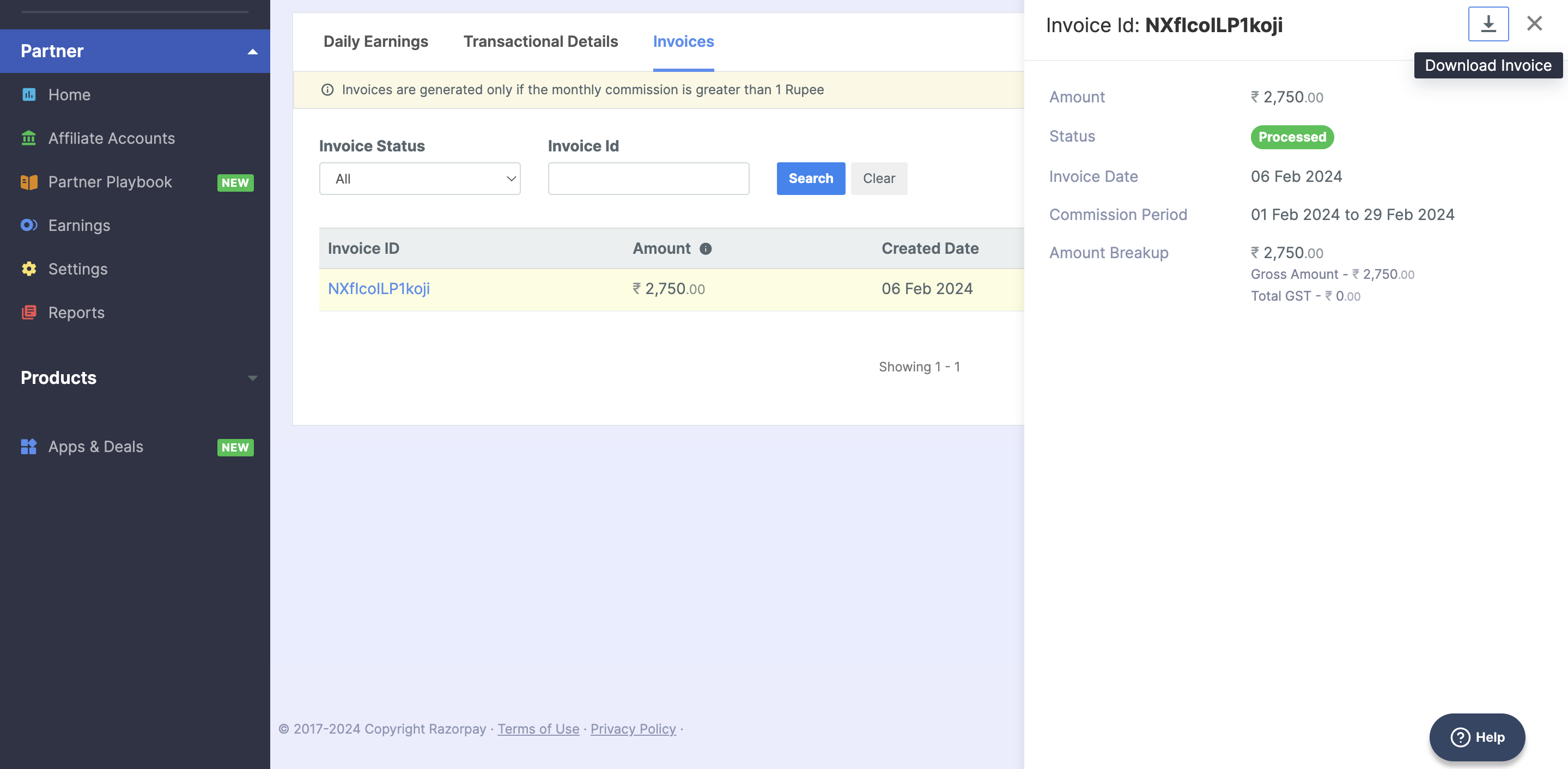
The **Invoices** section is available for partners who have commissions processed using the [Commission Payout with Auto-generated Invoice](/docs/partners/commissions/settlement-process#automated-invoice-commission-payout-recommended) process. The following columns are displayed:
* **Invoice ID**: This is the unique identifier of the invoice. Click **Invoice Id** to view **Commission Period**, **Invoice Date**, **Status** and detailed commission **Amount Breakup** displayed in the side panel.
* **Amount**: This is the commission receivable balance (Base Commission + GST - TDS).
* **Created Date**: The date at which the invoice is created.
* **Status**: The status of the invoice. Possible states are **Issued**, **Under Review** and **Processed**.
You can download the commission invoice details in PDF format.
## Check Auto-generated Invoices
The **Invoices** section is available for partners who have commissions processed using the [Commission Payout with Auto-generated Invoice](/docs/partners/commissions/settlement-process#automated-invoice-commission-payout-recommended) process. The following columns are displayed:
* **Invoice ID**: This is the unique identifier of the invoice. Click **Invoice Id** to view **Commission Period**, **Invoice Date**, **Status** and detailed commission **Amount Breakup** displayed in the side panel.
* **Amount**: This is the commission receivable balance (Base Commission + GST - TDS).
* **Created Date**: The date at which the invoice is created.
* **Status**: The status of the invoice. Possible states are **Issued**, **Under Review** and **Processed**.
You can download the commission invoice details in PDF format.
 ### Related Information
* [Commission for Payment Products](/docs/partners/commissions)
* [Referral Bonus for RazorpayX powered Current Accounts](/docs/partners/commissions/referral-bonus)
* [Commission Settlement Process](/docs/partners/commissions/settlement-process)
### Related Information
* [Commission for Payment Products](/docs/partners/commissions)
* [Referral Bonus for RazorpayX powered Current Accounts](/docs/partners/commissions/referral-bonus)
* [Commission Settlement Process](/docs/partners/commissions/settlement-process)