> ## Documentation Index
> Fetch the complete documentation index at: https://razorpay-881012b3.mintlify.site/llms.txt
> Use this file to discover all available pages before exploring further.
# Perform Client KYC
> Know how to perform KYC for your clients from the Partner Dashboard.
Available in
🇮🇳 India
Offer a smooth onboarding experience by assisting your client with their KYC.
You can request KYC access from your client:
* [When sending an invite](#request-kyc-access-when-sending-an-invite)
* [During client onboarding](#request-kyc-access-during-client-onboarding)
After the client approves your request, you can [perform their KYC](#perform-kyc).
#### Advantages
* **Decreases Onboarding Time by 50%**
Partner performing KYC for sub-merchants decreases onboarding time by half and ensures a seamless onboarding experience.
* **Value Added Service**
Partner performing KYC acts as a delight feature for your clients.
## Request KYC Access When Sending an Invite
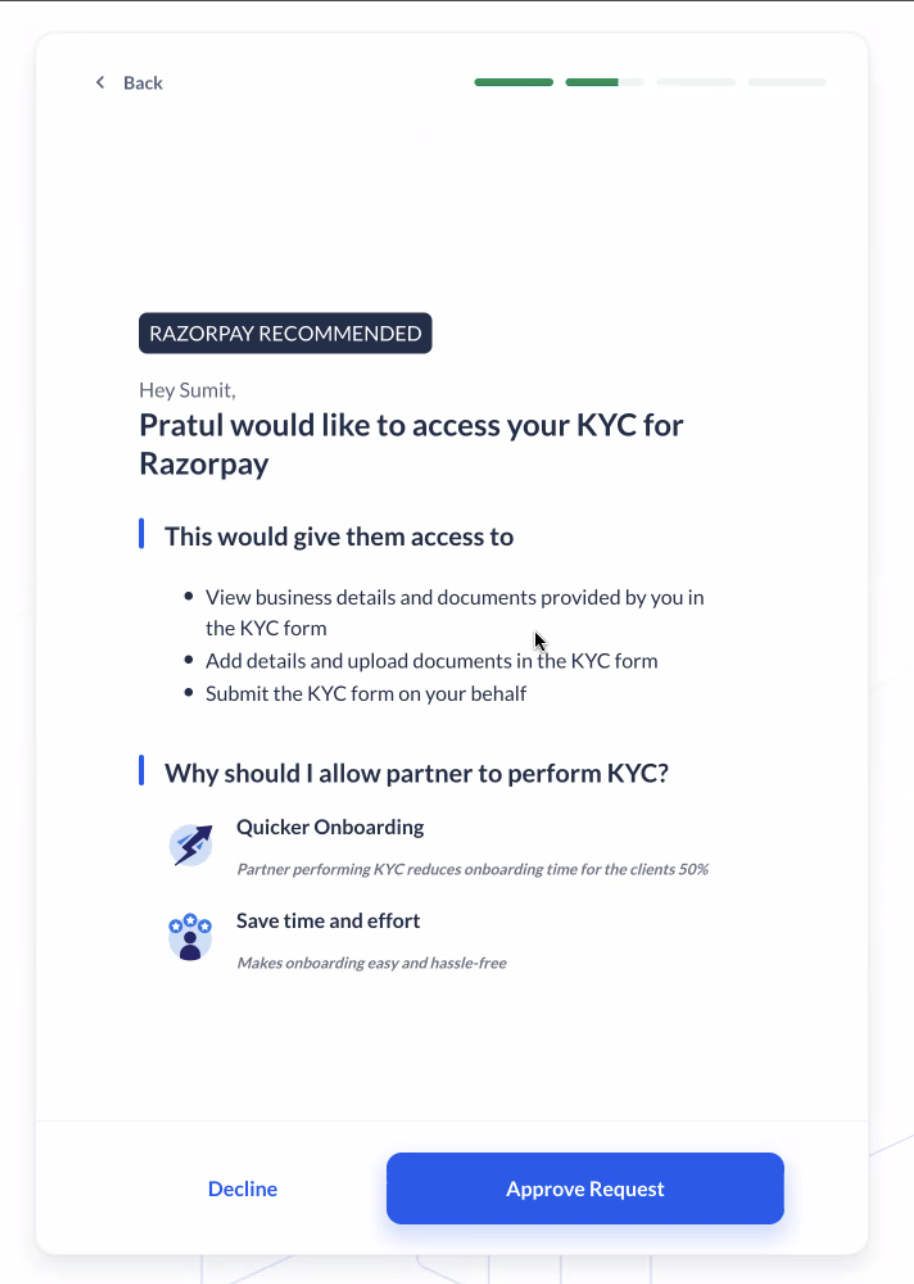
You can request to perform KYC for your client when inviting them. During onboarding, your client will see a consent screen to allow you the access to perform KYC. They need to approve it for you to submit the KYC form on their behalf.
 ### Invite Using Email
When inviting a client using email, you can opt in to assist their KYC by selecting **Yes, I will assist my client with their KYC** in the **Assist the client with their KYC screen**.
### Invite Using Email
When inviting a client using email, you can opt in to assist their KYC by selecting **Yes, I will assist my client with their KYC** in the **Assist the client with their KYC screen**.
 1. Log in to the Dashboard.
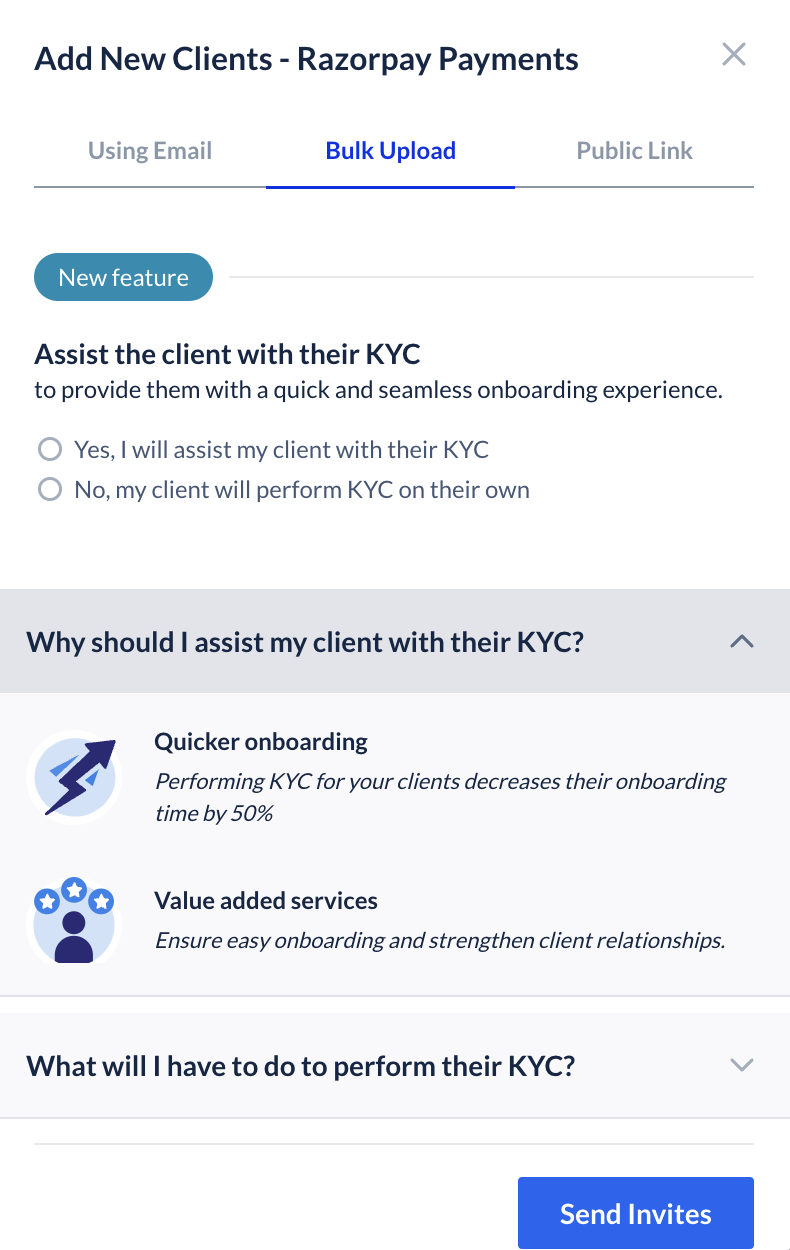
2. Click **Partner** and navigate to **Affiliate Accounts**.
3. Select the **Payments** or **RazorpayX** tab depending on the product you want to refer your affiliate.
4. Click **+ Add New Clients**.
1. Log in to the Dashboard.
2. Click **Partner** and navigate to **Affiliate Accounts**.
3. Select the **Payments** or **RazorpayX** tab depending on the product you want to refer your affiliate.
4. Click **+ Add New Clients**.
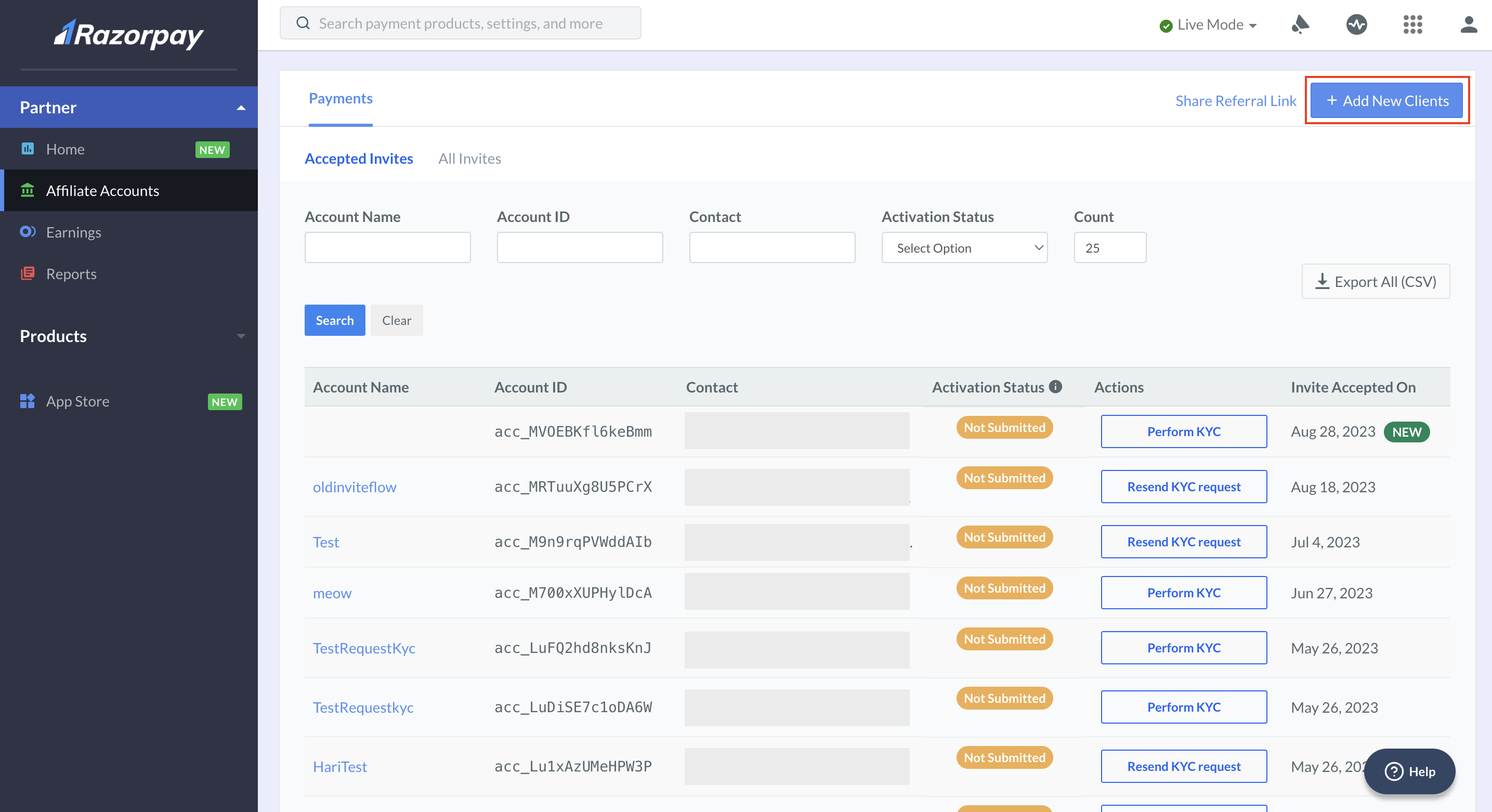 5. Under the **Using Email** tab, enter the **Client Name**, **Email ID** and **Contact number** (*optional*) to which the invite link must be sent. Click **Next**.
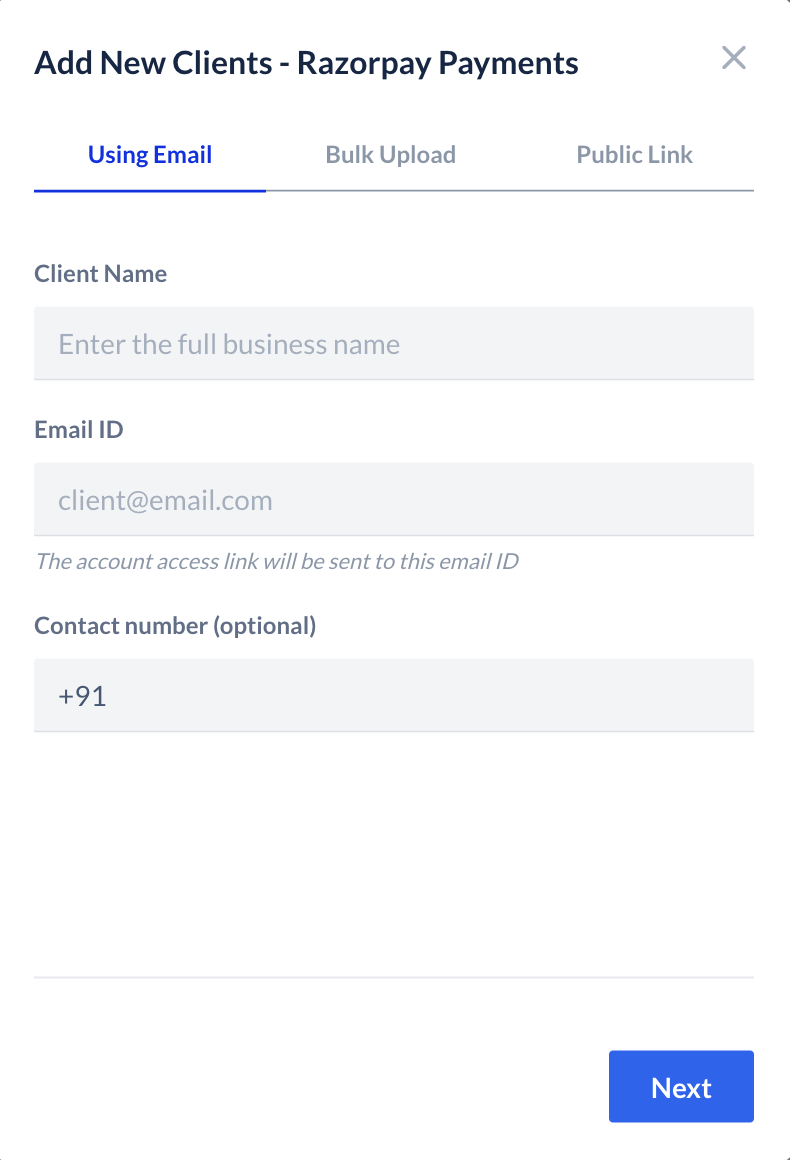 6. Select **Yes, I will assist my client with their KYC** and click **Send Invite**.
### Invite using Referral Link
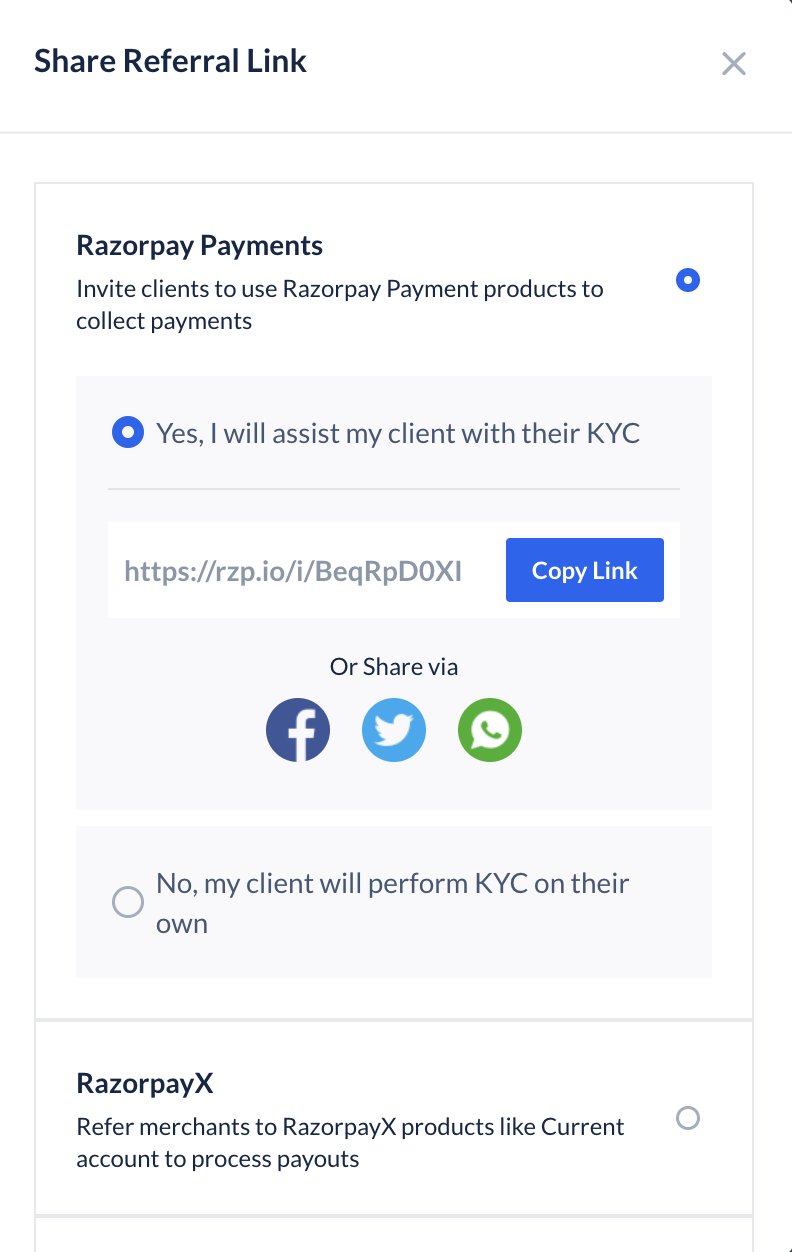
When inviting a client using referral link, you can opt-in to assist their KYC by selecting **Yes, I will assist my client with their KYC**. This will generate a new link initiating a request for KYC access from the client during the onboarding process
6. Select **Yes, I will assist my client with their KYC** and click **Send Invite**.
### Invite using Referral Link
When inviting a client using referral link, you can opt-in to assist their KYC by selecting **Yes, I will assist my client with their KYC**. This will generate a new link initiating a request for KYC access from the client during the onboarding process
 1. Log in to the Dashboard.
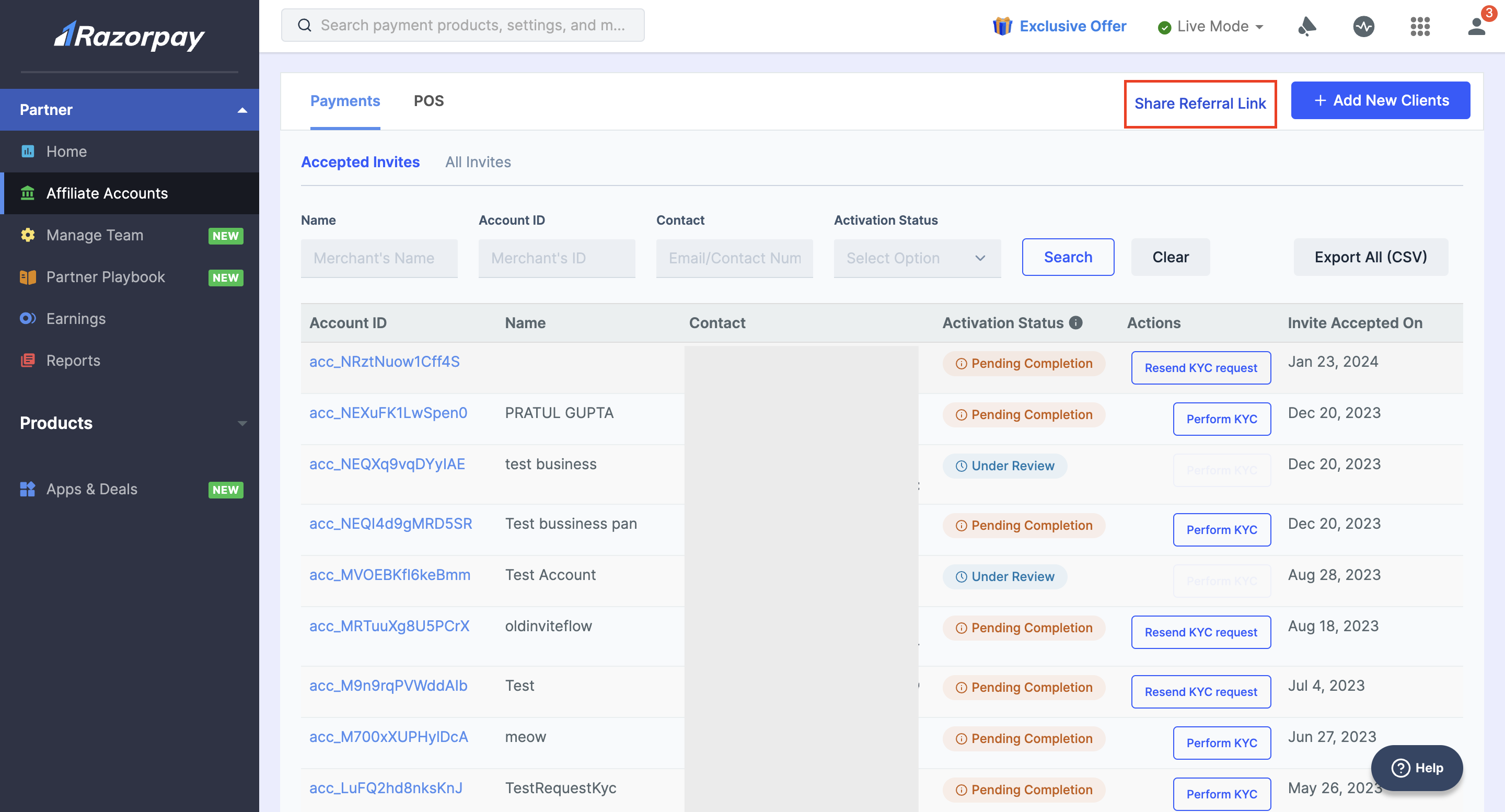
2. In the **Partner** section, navigate to **Affiliate Accounts**.
3. Click **Share Referral Link**.
1. Log in to the Dashboard.
2. In the **Partner** section, navigate to **Affiliate Accounts**.
3. Click **Share Referral Link**.
 4. For Partner accounts on which X referrals have been activated in the **Share Referral Link** modal, select Razorpay Payments or RazorpayX depending on the product you want to refer an affiliate.
5. Select **Yes, I will assist my client with their KYC**.
6. A drop-down page appears where you can share the link using:
* Copy button: This copies the referral link. You can copy-paste this link and send it via email or instant messaging apps such as WhatsApp.
* Facebook: Click the Facebook icon to share the referral link as a post on your Facebook account.
* Twitter: Click the Twitter icon to send a tweet with the referral link.
* WhatsApp: Click the WhatsApp icon to send a message with the referral link.
## Request KYC Access During Client Onboarding
You can request and re-request KYC access during your client's onboarding journey.
**Watch Out**
You can only raise 3 requests per client for completing the KYC on their behalf. If the client declines all the 3 requests, you cannot send any more requests.
To request KYC access:
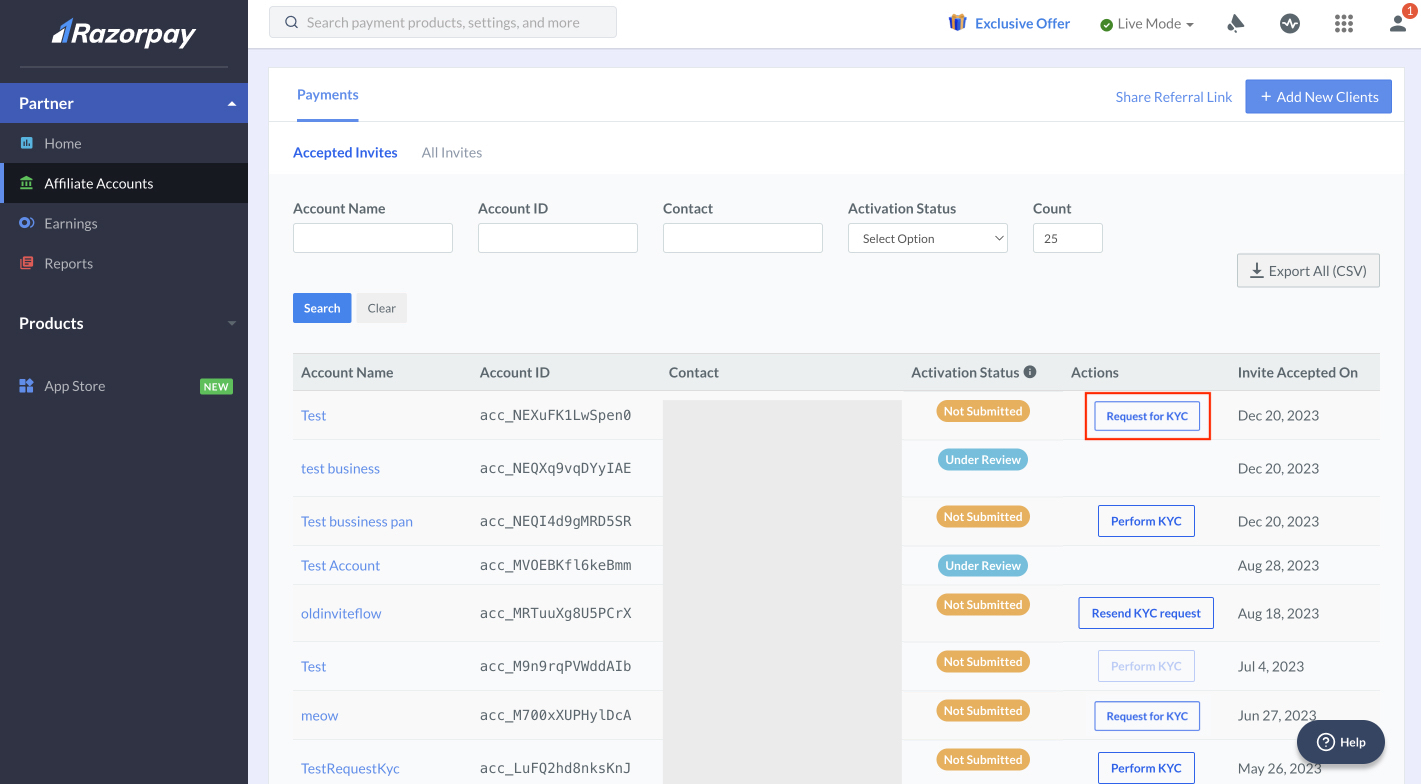
1. In the **Affiliate Accounts** section of your Dashboard, click **Request for KYC** under the **Actions** column for the client you want to perform KYC.
4. For Partner accounts on which X referrals have been activated in the **Share Referral Link** modal, select Razorpay Payments or RazorpayX depending on the product you want to refer an affiliate.
5. Select **Yes, I will assist my client with their KYC**.
6. A drop-down page appears where you can share the link using:
* Copy button: This copies the referral link. You can copy-paste this link and send it via email or instant messaging apps such as WhatsApp.
* Facebook: Click the Facebook icon to share the referral link as a post on your Facebook account.
* Twitter: Click the Twitter icon to send a tweet with the referral link.
* WhatsApp: Click the WhatsApp icon to send a message with the referral link.
## Request KYC Access During Client Onboarding
You can request and re-request KYC access during your client's onboarding journey.
**Watch Out**
You can only raise 3 requests per client for completing the KYC on their behalf. If the client declines all the 3 requests, you cannot send any more requests.
To request KYC access:
1. In the **Affiliate Accounts** section of your Dashboard, click **Request for KYC** under the **Actions** column for the client you want to perform KYC.
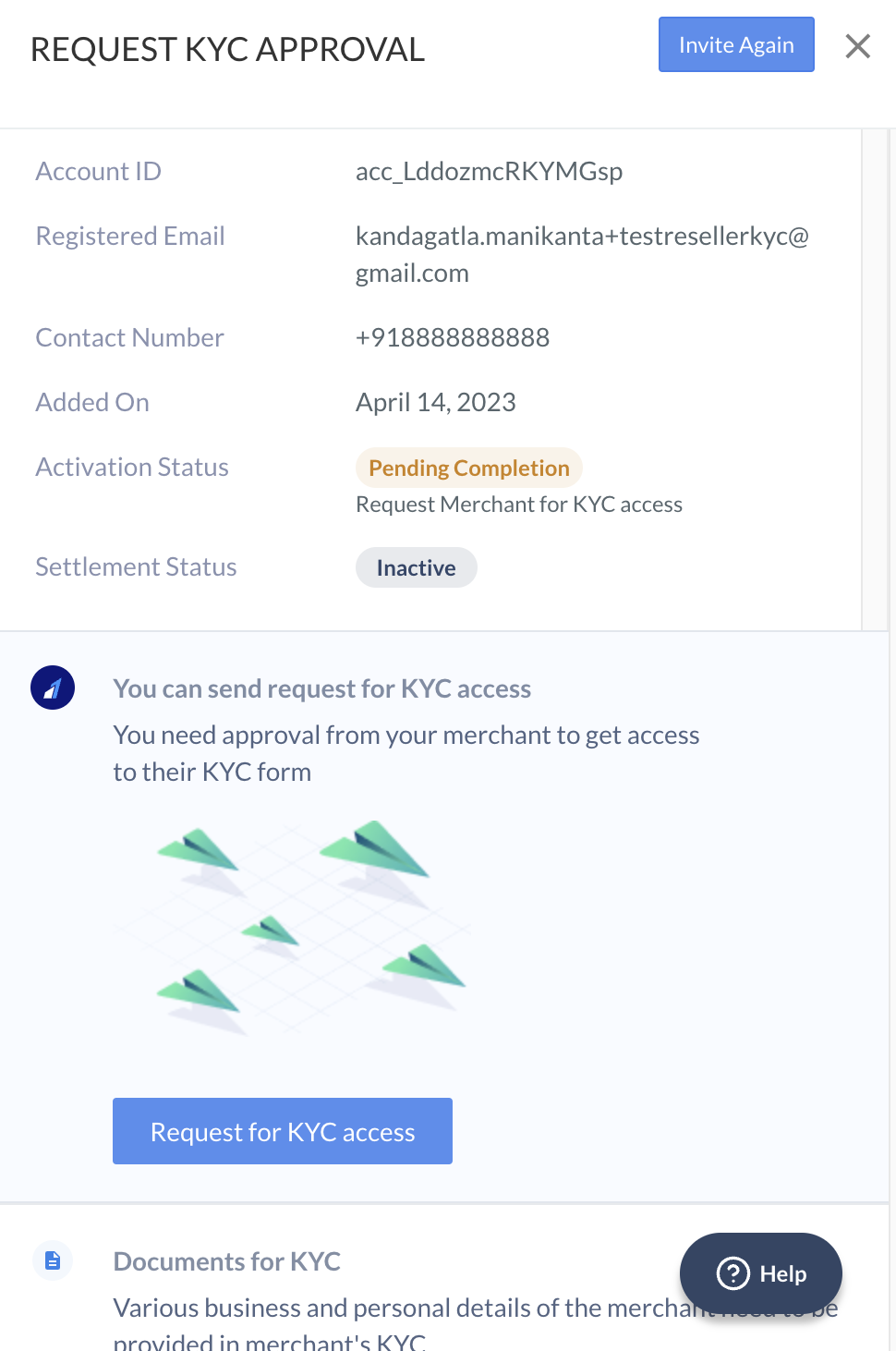
 2. After you click on **Request for KYC**, a side panel opens. Click **Request for KYC access** to raise a request. You can also find link to documentation for documents required for KYC in the side panel.
 ## Perform KYC
After you request for KYC access:
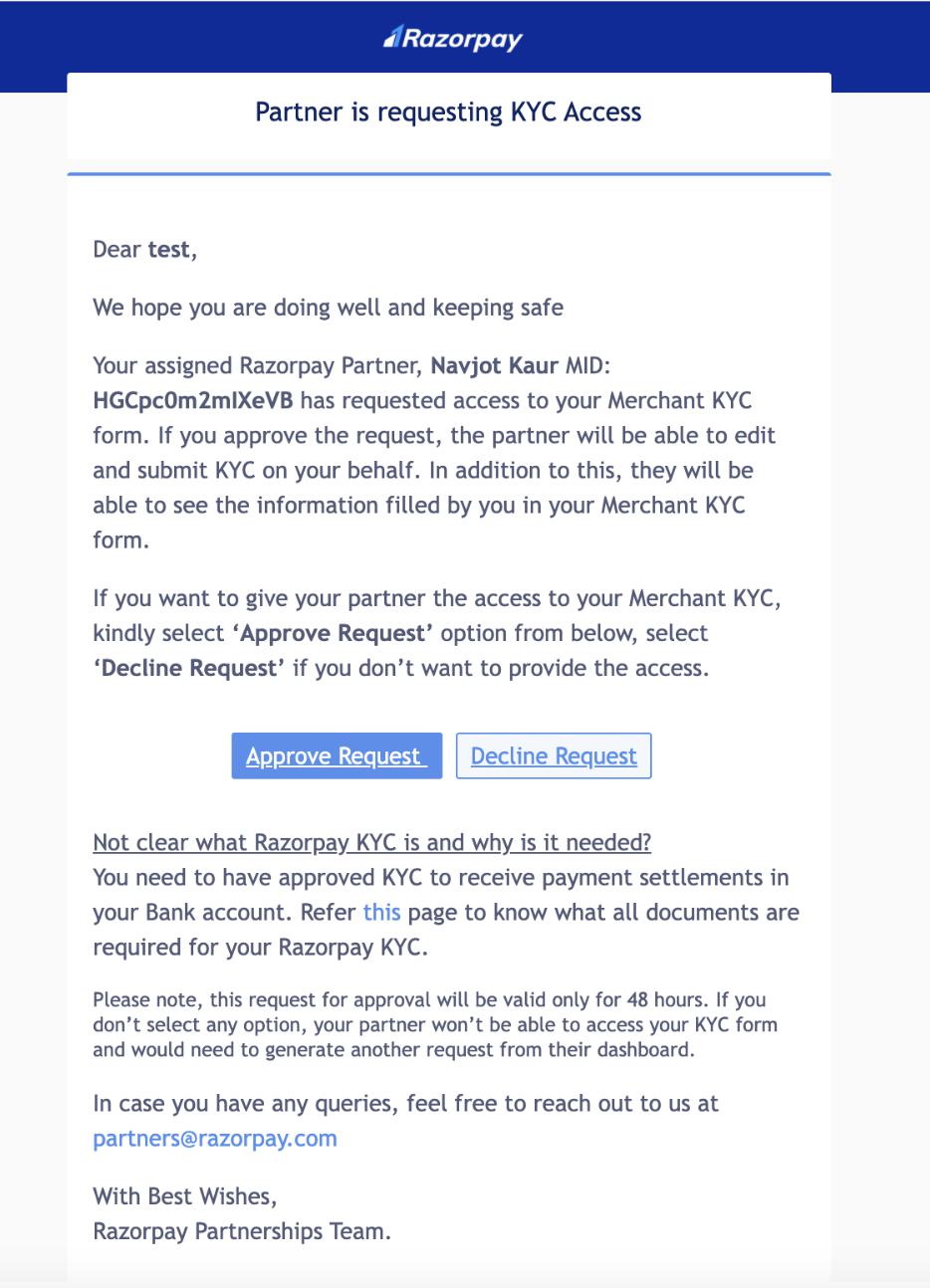
1. The client receives an email to approve or reject the KYC request.
## Perform KYC
After you request for KYC access:
1. The client receives an email to approve or reject the KYC request.
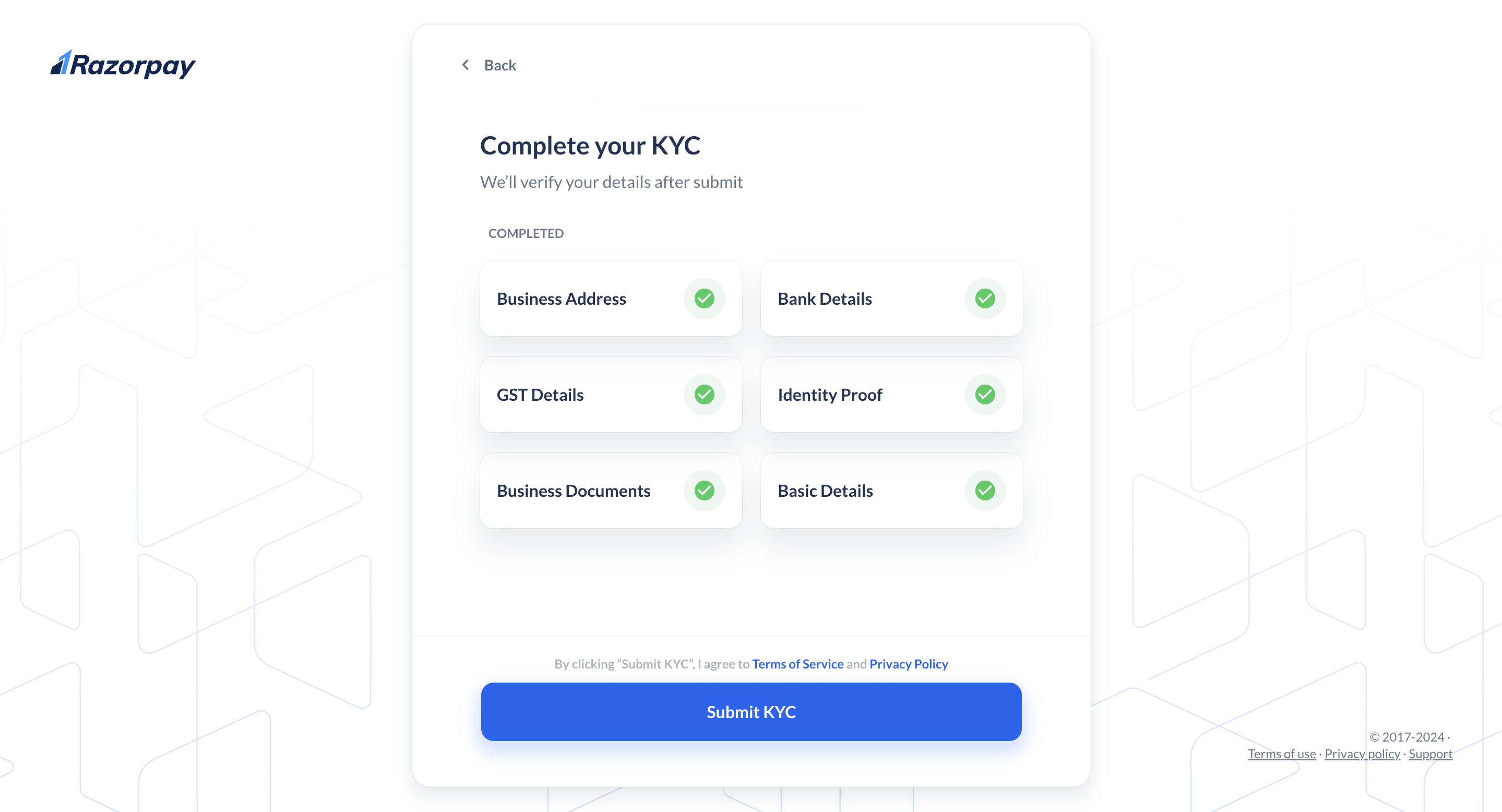
 2. If the client approves the request, you can fill in the KYC details from the Partner Dashboard by clicking on **Perform KYC**. You can check the [KYC access request status](#check-kyc-access-request-status) on the Partner Dashboard.
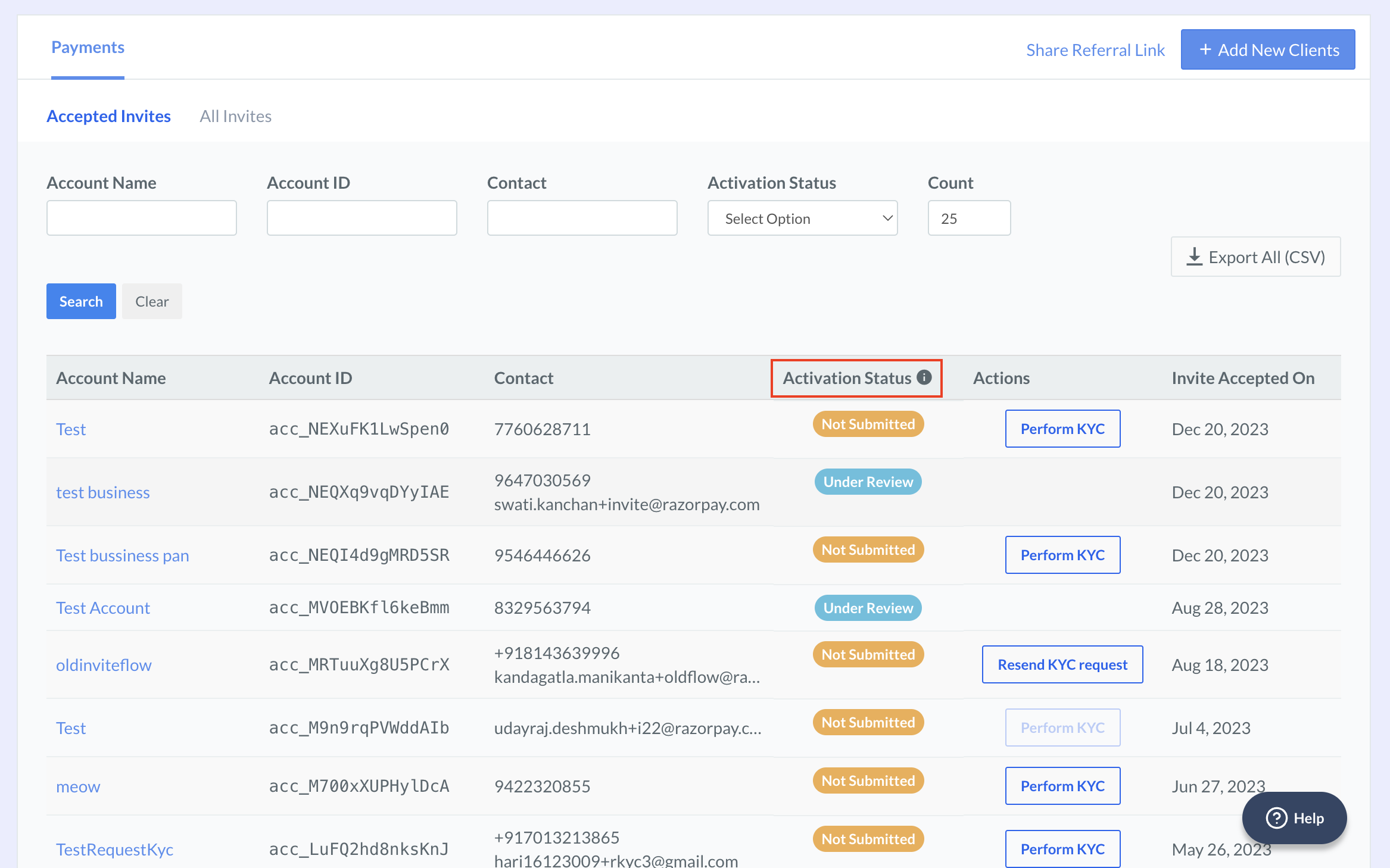
 3. You can view the activation statuses as shown here:
 ## Check KYC Access Request Status
You can view the status of request on the Partner Dashboard under the **Actions** tab. Refer to the table below for all statuses and their description.
| Action | Description |
| ----------------------------------- | ---------------------------------------------------------------------------------------------------------------------------------------------------------------------------------------- |
| Request Merchant for KYC access | Approval required to view Merchant KYC |
| Request approved by Merchant | Merchant has approved the KYC access request |
| Request expired | New KYC access request needs to be initiated by Partner |
| Waiting for Merchant approval | Merchant approval for KYC access is pending |
| Request rejected by Merchant once | Merchant has rejected your KYC access request |
| Request rejected by Merchant twice | Merchant has rejected your KYC access request 2 times. You can request for access only one more time, if the merchant still doesn't approve, you wont be able to send the request again. |
| Request rejected by Merchant thrice | Merchant has rejected your KYC access request multiple times. Now, only the merchant can perform their KYC through their Dashboard. |
### Related Information
* [Add clients](/docs/partners/service-partners/add-submerchants)
* [About Service Partners](/docs/partners/service-partners)
## Check KYC Access Request Status
You can view the status of request on the Partner Dashboard under the **Actions** tab. Refer to the table below for all statuses and their description.
| Action | Description |
| ----------------------------------- | ---------------------------------------------------------------------------------------------------------------------------------------------------------------------------------------- |
| Request Merchant for KYC access | Approval required to view Merchant KYC |
| Request approved by Merchant | Merchant has approved the KYC access request |
| Request expired | New KYC access request needs to be initiated by Partner |
| Waiting for Merchant approval | Merchant approval for KYC access is pending |
| Request rejected by Merchant once | Merchant has rejected your KYC access request |
| Request rejected by Merchant twice | Merchant has rejected your KYC access request 2 times. You can request for access only one more time, if the merchant still doesn't approve, you wont be able to send the request again. |
| Request rejected by Merchant thrice | Merchant has rejected your KYC access request multiple times. Now, only the merchant can perform their KYC through their Dashboard. |
### Related Information
* [Add clients](/docs/partners/service-partners/add-submerchants)
* [About Service Partners](/docs/partners/service-partners)