> ## Documentation Index
> Fetch the complete documentation index at: https://razorpay-881012b3.mintlify.site/llms.txt
> Use this file to discover all available pages before exploring further.

# Submit KYC Details

> Submit KYC details to complete the onboarding process. Check how to provide clarifications and successfully activate your account.

<div style={{display:"flex",flexWrap:"wrap",alignItems:"center",gap:"0.35rem 0.9rem",border:"1px solid rgba(128,128,128,0.28)",borderRadius:"0.5rem",padding:"0.45rem 0.75rem",margin:"0 0 1.25rem",fontSize:"0.875rem"}}>
  <span style={{fontWeight:600}}>Available in</span>
  <span>🇮🇳 India</span>
</div>

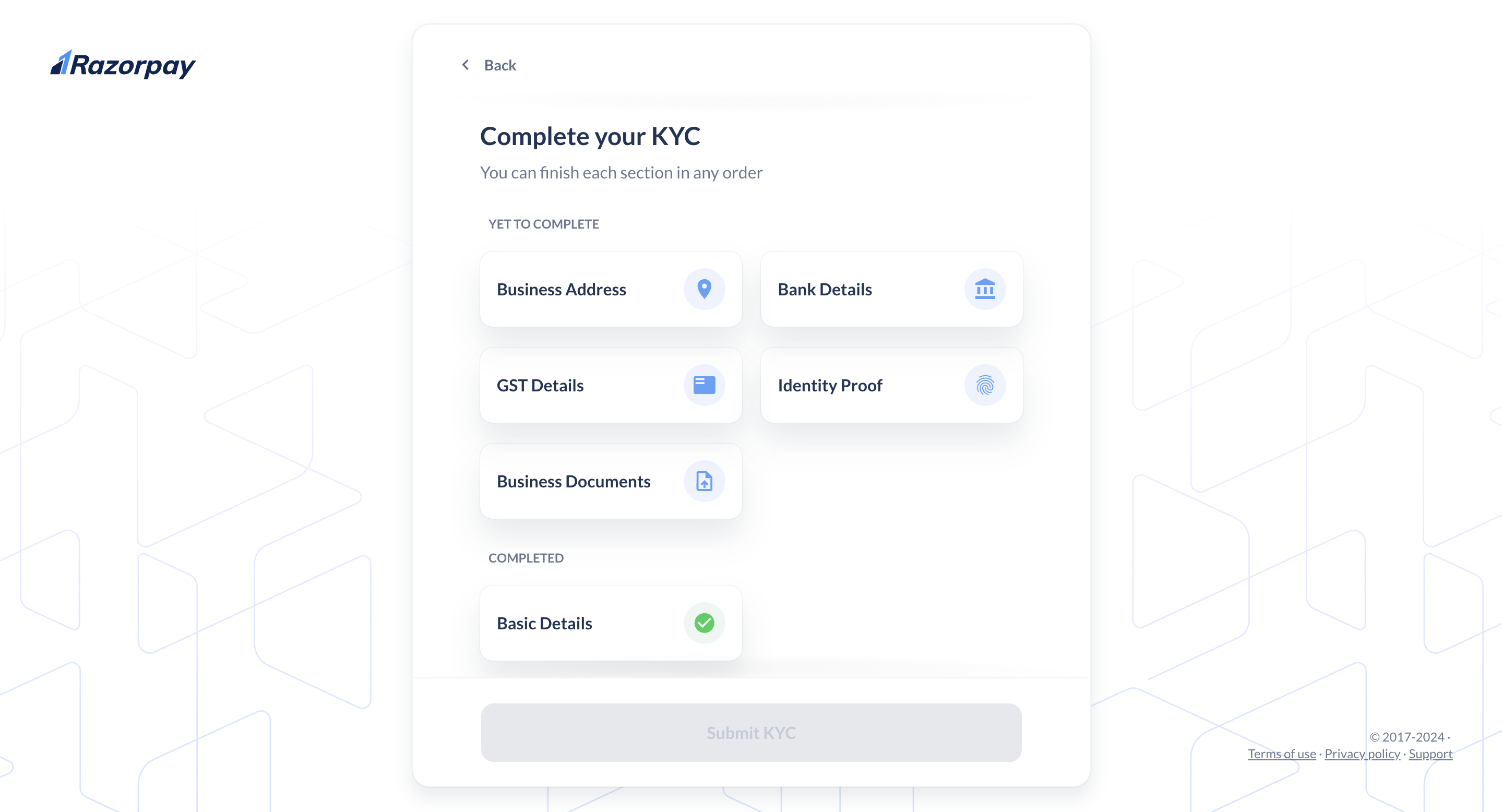
After becoming a Technology Partner, you need to submit KYC details. The commission is settled in your account only after completing the KYC process.

<Info>
  **Handy Tips**

  * In the KYC verification process, you can provide the required information in any order you prefer.
  * You can view the details submitted during account creation and make changes if required.
  * Review the details provided during the sign-up process. You can edit the fields and make necessary changes if required.
</Info>

<img class="click-zoom" src="https://razorpay.com/docs/build/browser/assets/images/easy-kyc.jpg" alt="Complete KYC Verification" width="800" />

## Activate Your Account

Follow the steps given below to activate your account:
<Warning>
  **Watch Out!**

  The fields under Bank Details, GST Details, and Business Documents will differ based on your business type.
</Warning>

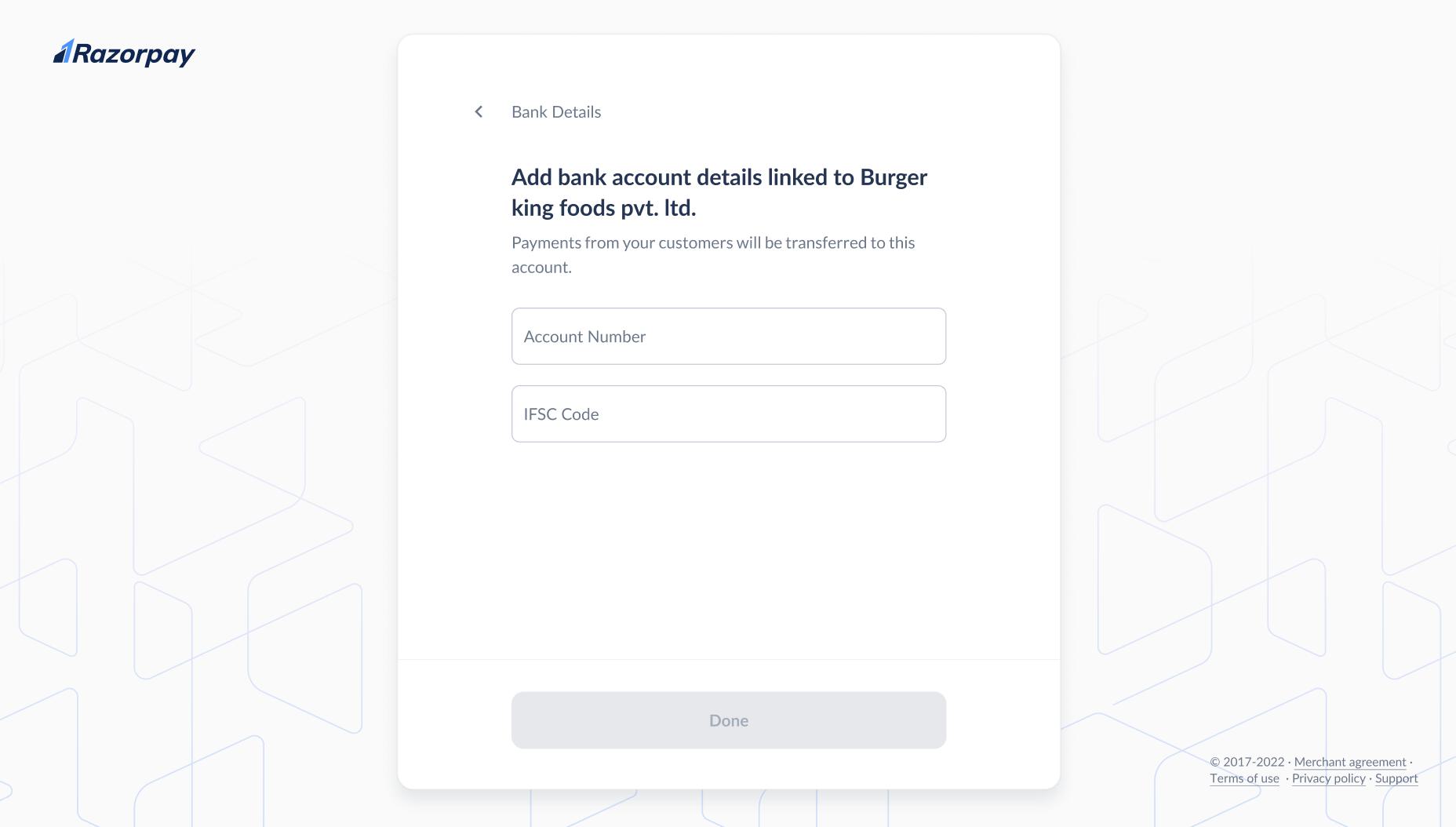
1. **Bank Details**: Fill in your bank account details such as **Account Number** and **IFSC Code**. This is the account to which Razorpay will settle your funds.
   . Click **Done**.

<img class="click-zoom" src="https://razorpay.com/docs/build/browser/assets/images/easy-account.jpg" alt="Business Details - Enter Bank Details" width="800" />

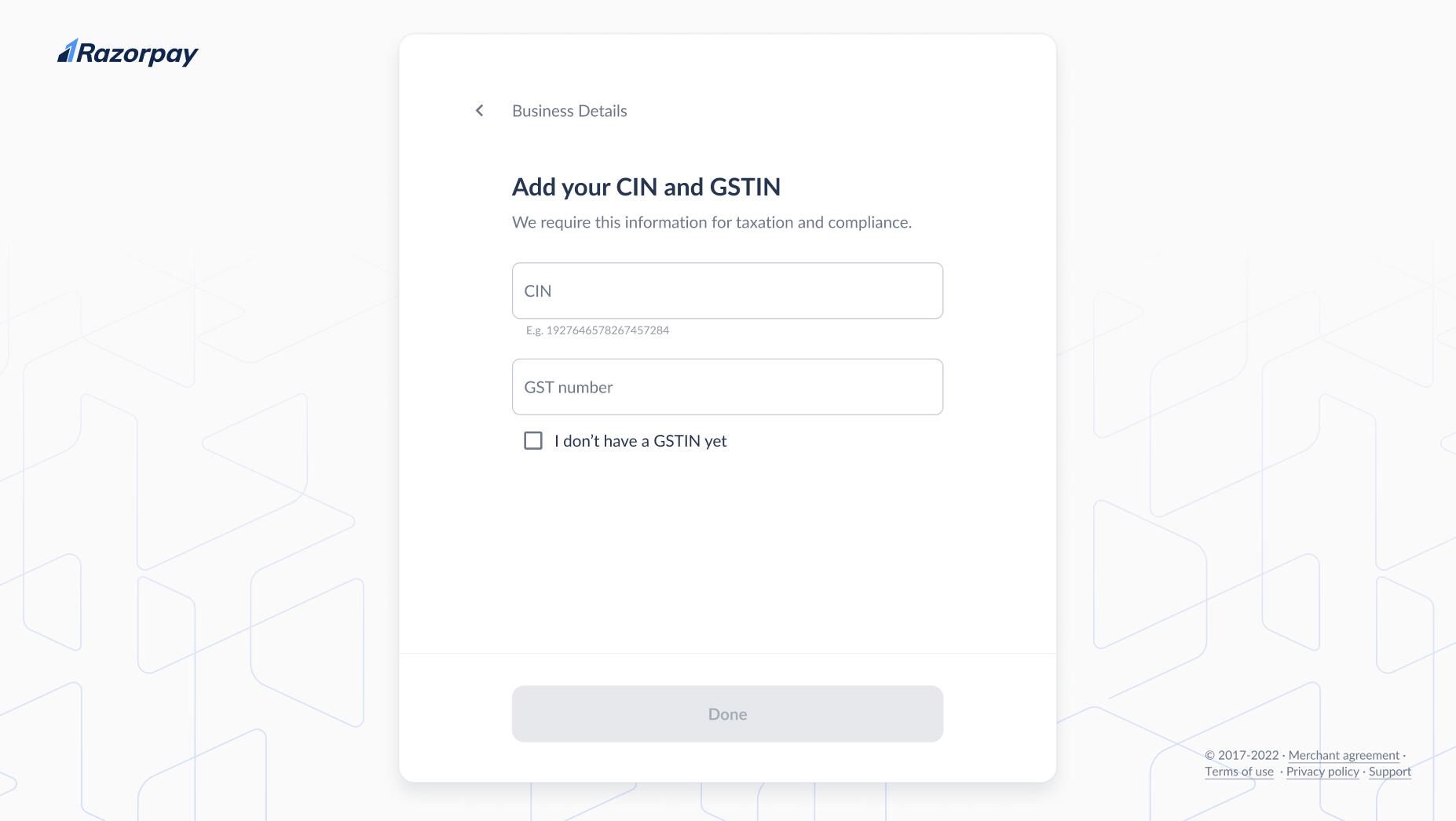
2. **GST Details**: This will be auto-filled if your [PAN verification](/docs/payments/business-types-kyc-documents) is successful. If not, add your GST details for taxation and compliance. Select the check box if you do not have a GSTIN. Click **Done**.
<Warning>
  **Watch Out!**

  You cannot claim GST input credit if GSTIN is not shared.
</Warning>

<br />

<img class="click-zoom" src="https://razorpay.com/docs/build/browser/assets/images/easy-gst.jpg" alt="Business Details - Enter CIN and GSTIN" width="800" />

<br />

<Info>
  **Handy Tips**

  Extra fields may appear based on your business type.

  * For LLP: LLPIN (Limited Liability Partnership Identification Number)
  * For Public and Private Ltd: CIN (Corporate Identification Number)
</Info>

3. **Identity Proof** or **Address Proof**: You can scan and upload your **Aadhaar**, **Passport** or **Voter ID** as proof of identity or address.

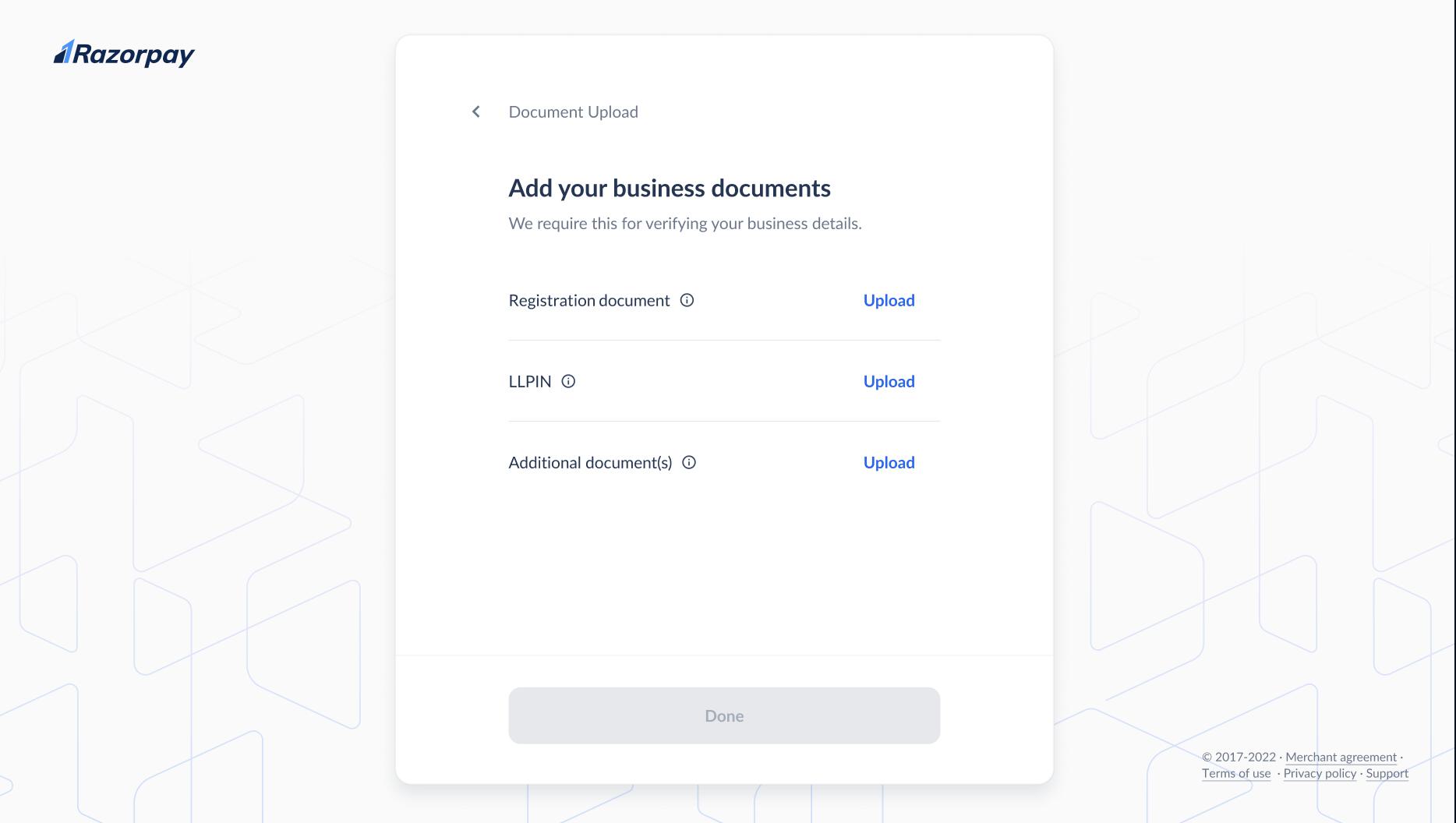
4. **Business Documents**: Upload the relevant [business documents](/docs/payments/business-types-kyc-documents) based on your business type.
   <img class="click-zoom" src="https://razorpay.com/docs/build/browser/assets/images/easy-documents.jpg" alt="Add business documents" width="800" />

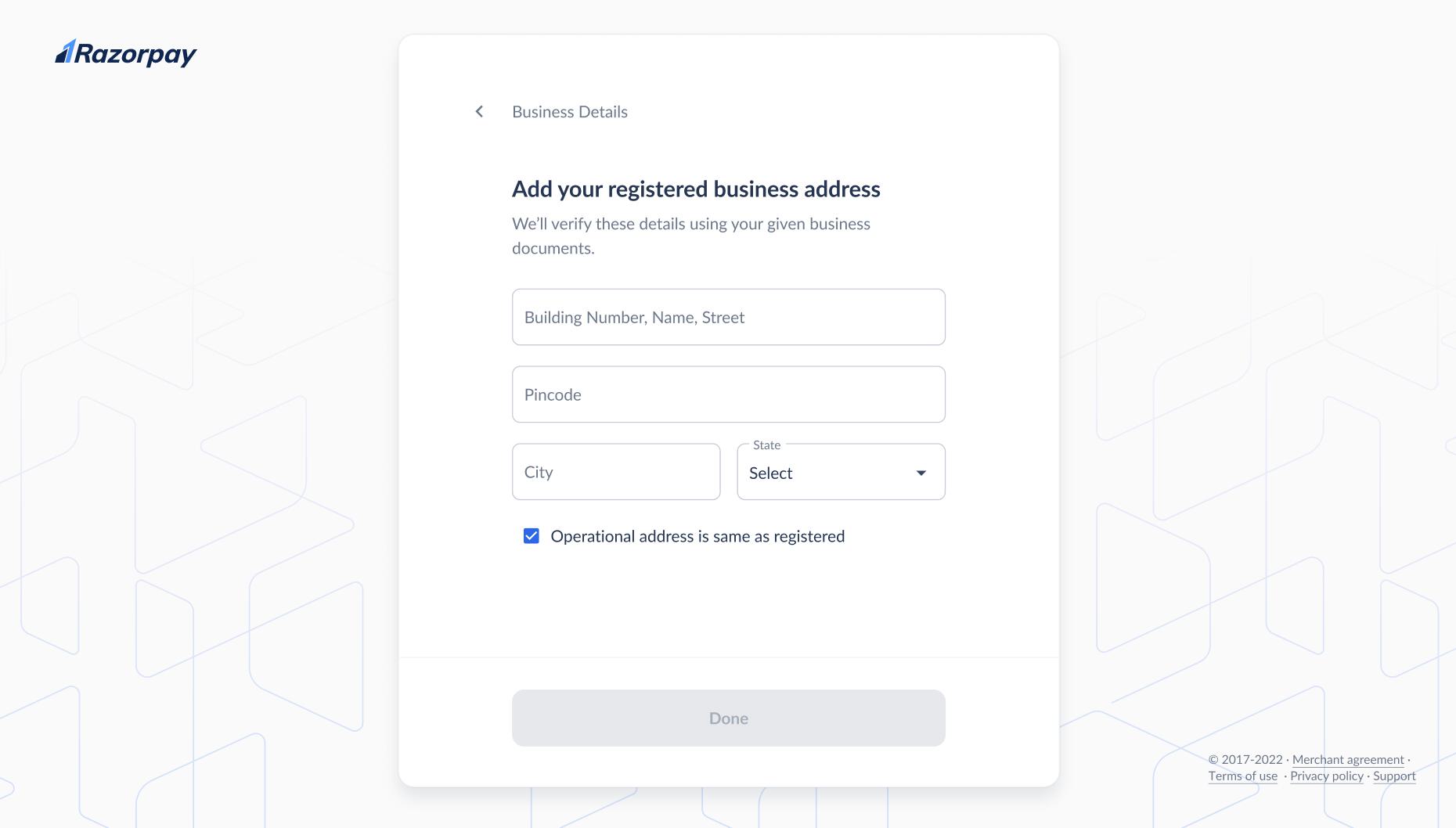
5. **Business Address**: Add your business address. Select the check box if your **Operational address is same as your Business address**. This will be verified against your business documents.
<Info>
  **Handy Tips**

  Operational Address is the current address from where you are operating your business. On the other hand, a Business Address is the address you register while starting your business.
</Info>

<img class="click-zoom" src="https://razorpay.com/docs/build/browser/assets/images/easy-address.jpg" alt="Add your registered business address" width="800" />

6. Click **Done**.
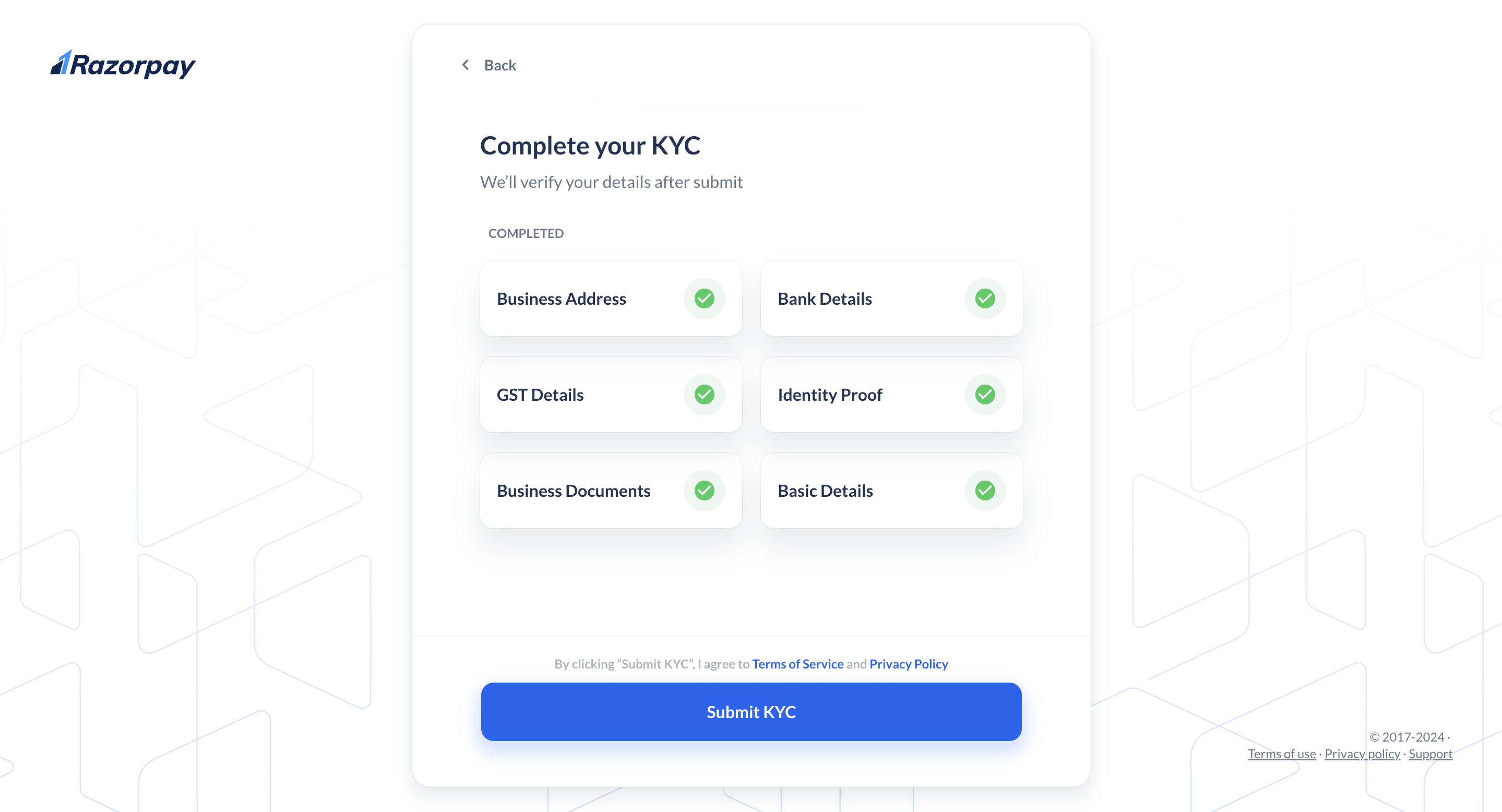
7. Click **Submit KYC** after providing all the required verification details.
   <img class="click-zoom" src="https://razorpay.com/docs/build/browser/assets/images/easy-submit.jpg" alt="Business Details - Submit KYC Details" width="800" />

Our team will review the information submitted by you. It takes approximately 3-4 working days to complete the review process.

## Provide Clarification

During the review process, we may reach out to you for clarifications. You can address these queries on the Dashboard.

### Related Information

* [About Embedded Payments](/docs/partners/technology-partners)
* [KYC Documents](/docs/payments/business-types-kyc-documents)
