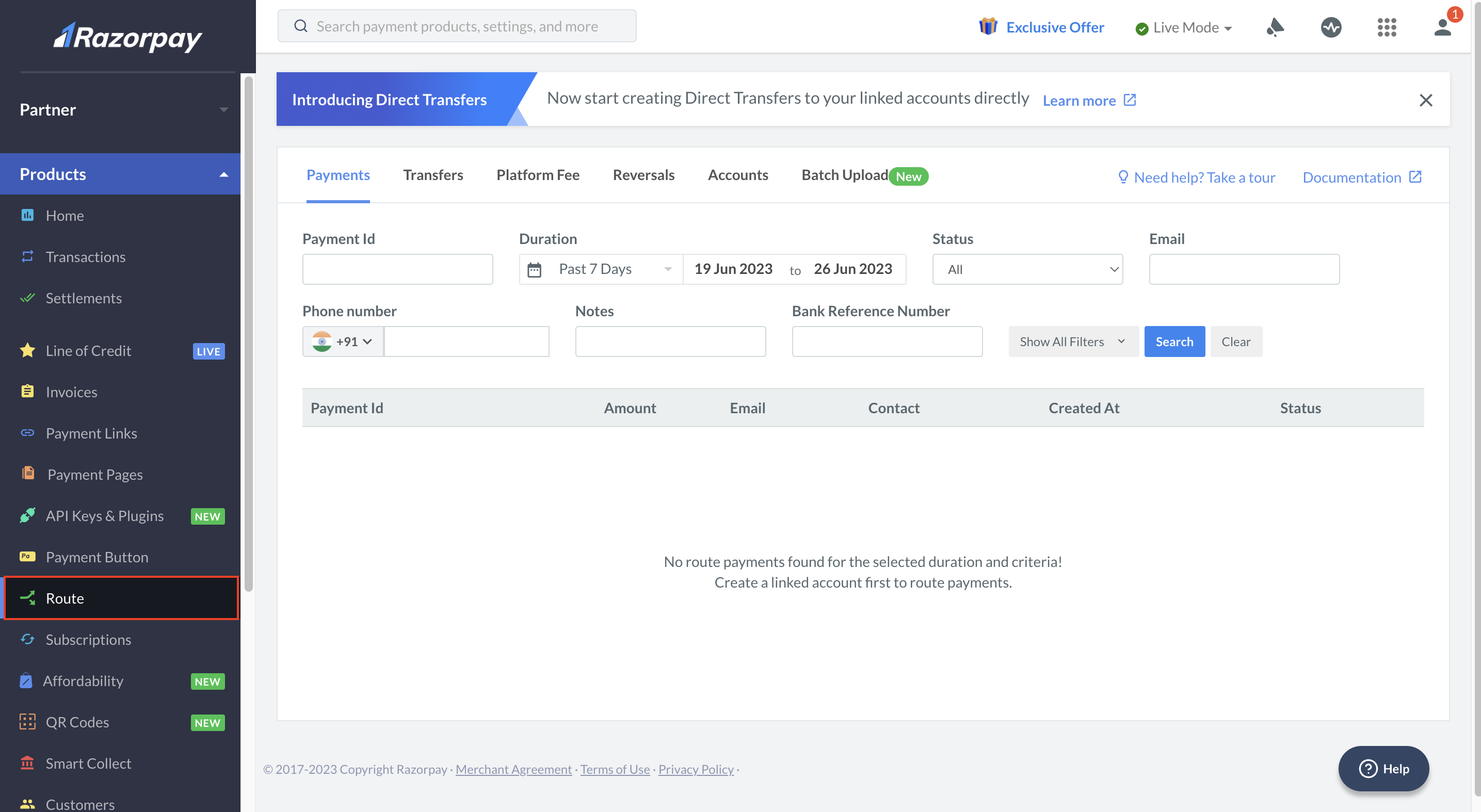
 3. In the **Accounts** tab, enable **Dashboard Access** for the required **Account Id**.
 4. Once the Dashboard access is granted, a password reset link is sent to the Linked Account's registered email id.
5. Reset the password and log in to the Linked Account Dashboard.
### Download Platform Fee Reports
Watch this video to see how to generate the Linked Account Transfers Report.
To download reports:
1. Log in to the Dashboard.
4. Once the Dashboard access is granted, a password reset link is sent to the Linked Account's registered email id.
5. Reset the password and log in to the Linked Account Dashboard.
### Download Platform Fee Reports
Watch this video to see how to generate the Linked Account Transfers Report.
To download reports:
1. Log in to the Dashboard.
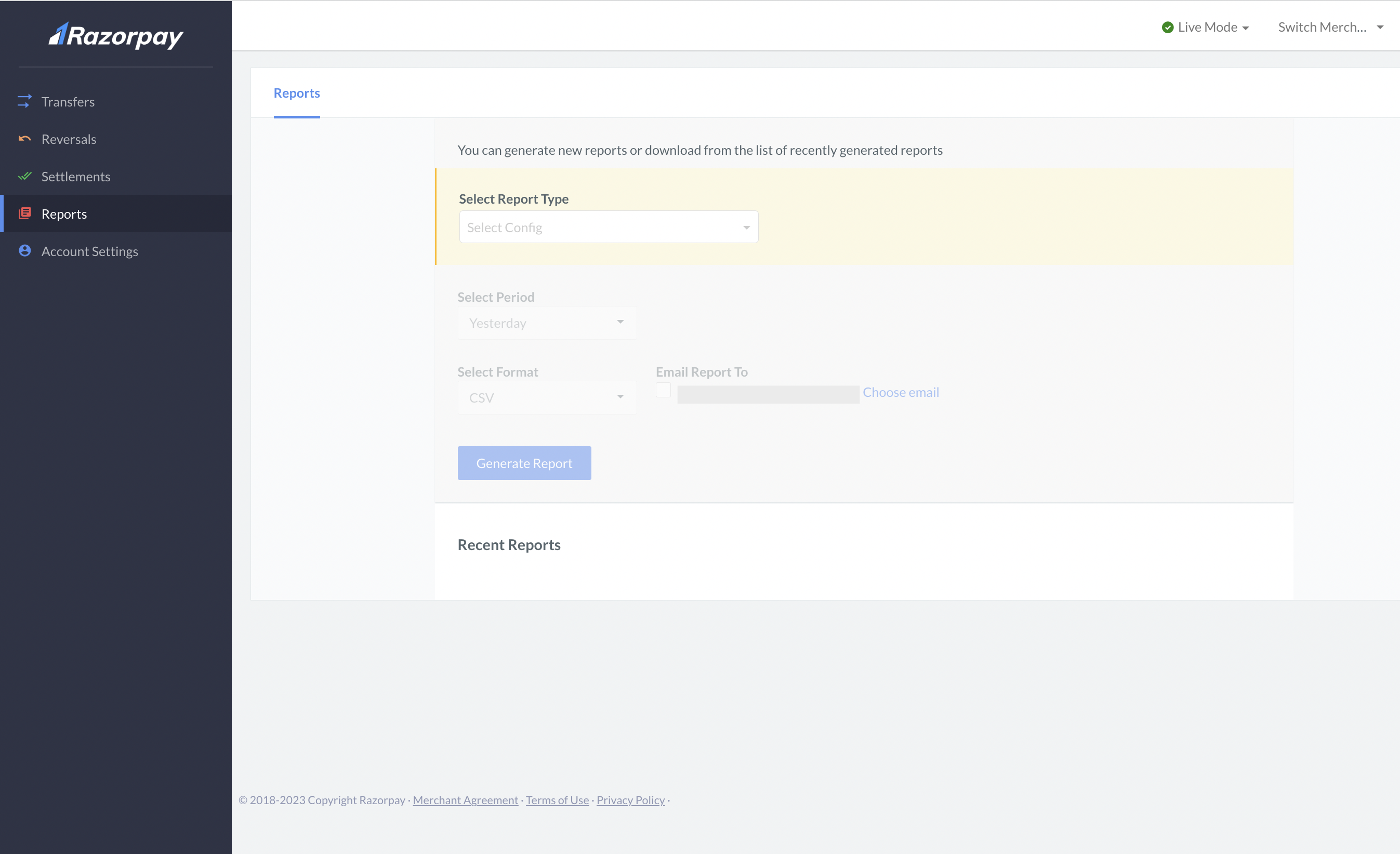 3. Select the report type, period and format.
4. Click **Generate Report**.
5. It can take a few minutes to a couple of hours to generate a report depending on the data size. Once the report is ready, you can download it from the **Recent Reports** tab.
### Available Reports
Below is the list of Linked Account reports available to you.
| Report | Description |
| ------------------------ | --------------------------------------------------------------------------------------------------------------------------------------------------- |
| Transfers Report | List of transactions collecting Platform fees from your clients. |
| Settlements Report | List of all Settlements made to your bank account. Settlement refers to amount credited to your account. |
| Settlements Recon Report | List of Settlements made to your bank account and the associated transfers. You can use this to reconcile your settlements with your platform fees. |
| Combined Report | List of all debits and credits of your account. |
| Reversals Report | List of platform fee reversals made from a Linked Account. |
3. Select the report type, period and format.
4. Click **Generate Report**.
5. It can take a few minutes to a couple of hours to generate a report depending on the data size. Once the report is ready, you can download it from the **Recent Reports** tab.
### Available Reports
Below is the list of Linked Account reports available to you.
| Report | Description |
| ------------------------ | --------------------------------------------------------------------------------------------------------------------------------------------------- |
| Transfers Report | List of transactions collecting Platform fees from your clients. |
| Settlements Report | List of all Settlements made to your bank account. Settlement refers to amount credited to your account. |
| Settlements Recon Report | List of Settlements made to your bank account and the associated transfers. You can use this to reconcile your settlements with your platform fees. |
| Combined Report | List of all debits and credits of your account. |
| Reversals Report | List of platform fee reversals made from a Linked Account. |