> ## Documentation Index
> Fetch the complete documentation index at: https://razorpay-881012b3.mintlify.site/llms.txt
> Use this file to discover all available pages before exploring further.
# Account Activation Details
> Steps to view account activation details on the Razorpay Dashboard.
Available in
🇮🇳 India
🇸🇬 Singapore
Your account moves to **Activated** state upon successful completion of the sign-up and KYC verification process. You can find details regarding the account activation on the Dashboard.
## View Account Activation Details
To view account activation details:
1. Log in to the Dashboard.
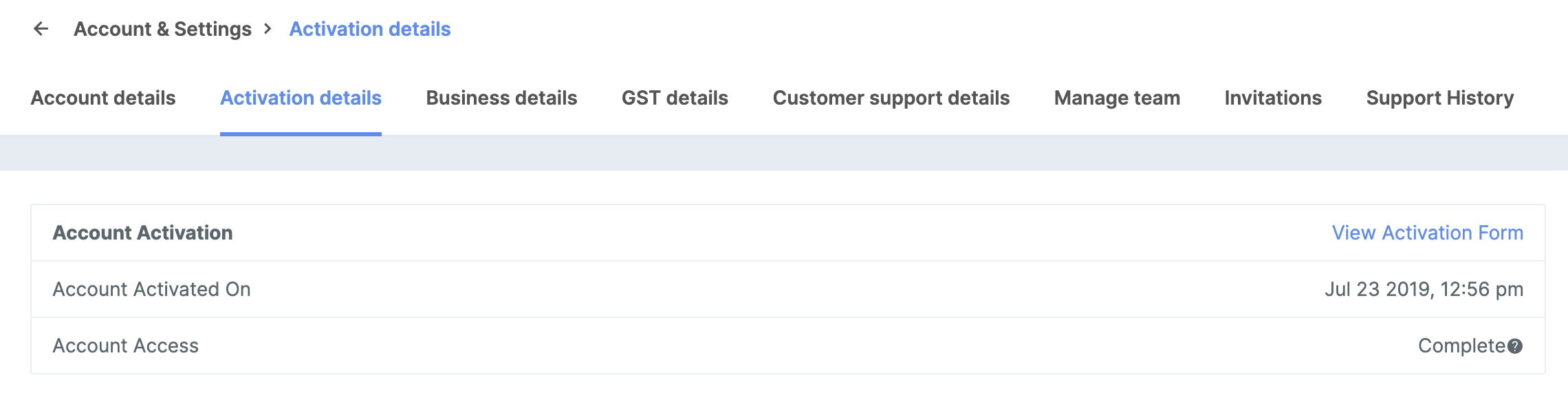
2. Click **Account & Settings** and navigate to **Activation details** under **Business Settings**.
3. Click View Activation Form to view the details you had submitted at the time of KYC verification. In case you want any changes to be made to these details, contact [Razorpay Support](https://razorpay.com/support/).
You can also view details such as account activated on date and account access status on this page.