> ## Documentation Index
> Fetch the complete documentation index at: https://razorpay-881012b3.mintlify.site/llms.txt
> Use this file to discover all available pages before exploring further.
# Business Details
> Steps to view business details on the Razorpay Dashboard.
Available in
🇮🇳 India
🇸🇬 Singapore
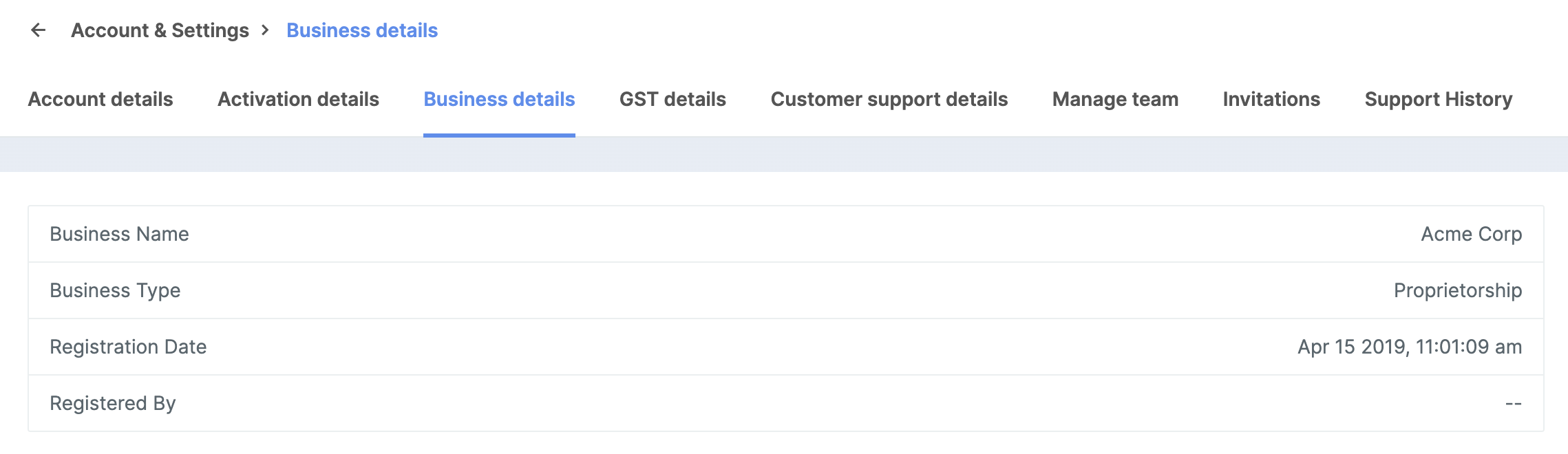
While signing up for an account, you are required to provide information about your business, such as your Business Name and Type. These details are recorded on the Dashboard.
## View Business Details
To view business details:
1. Log in to the Dashboard.
2. Click **Account & Settings** and navigate to **Business details** under **Business Settings**.
3. The following information is listed:
* **Business Name**
* **Business Type**
* **Registration Date**
* **Registered By**