> ## Documentation Index
> Fetch the complete documentation index at: https://razorpay-881012b3.mintlify.site/llms.txt
> Use this file to discover all available pages before exploring further.
# Business Website Details
> Steps to add or update your business website or app details on the Razorpay Dashboard. You can also add or update additional website details.
Available in
🇮🇳 India
🇸🇬 Singapore
🇺🇸 United States
You must provide your live website or mobile app details during account activation.
* Without these details, you will not be able to access live mode API keys and hence **cannot accept payments from your website or app**.
* You can still accept payments from customers using **Invoices** and **Payment Links** generated via the Dashboard.
## Add and Edit Website/App/Additional Websites
To add your website or mobile app details:
1. Log in to the Dashboard.
2. Click **Account & Settings** in the left navigation.
3. Click **Business website detail** under **Website and app settings** section. 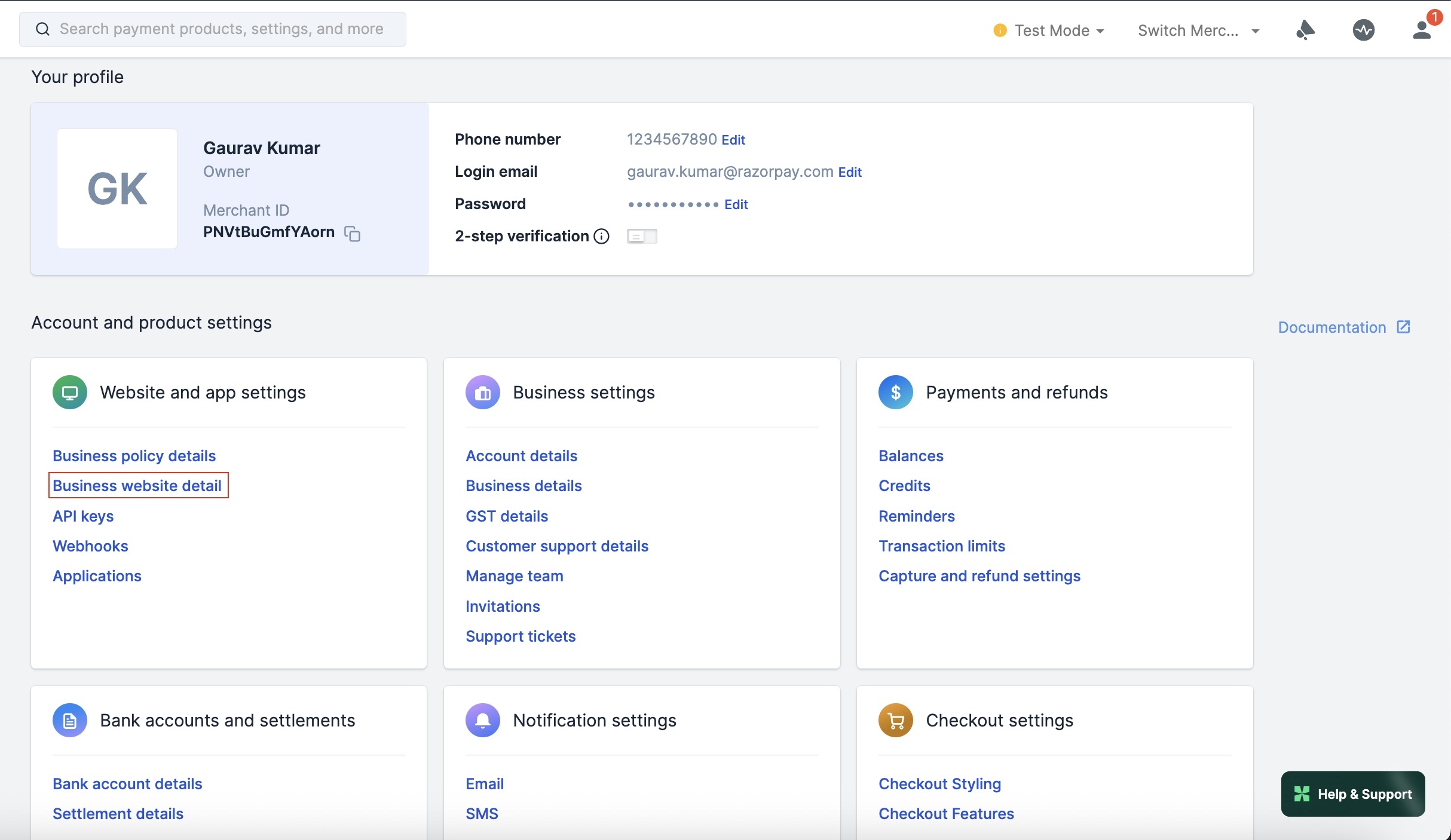 4. Click **Add website/app details**.
 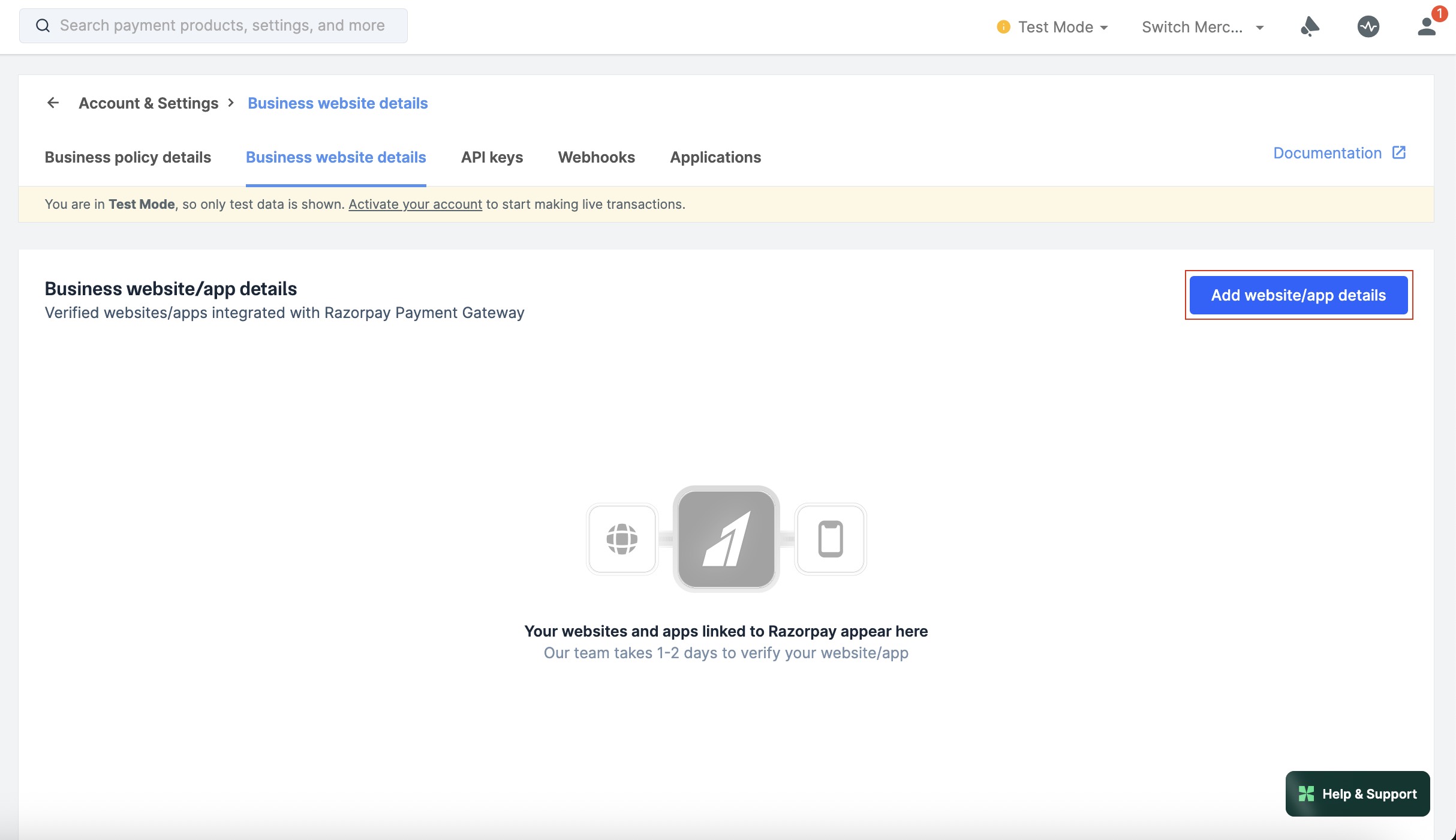 5. Click **Proceed to update website/app**.
 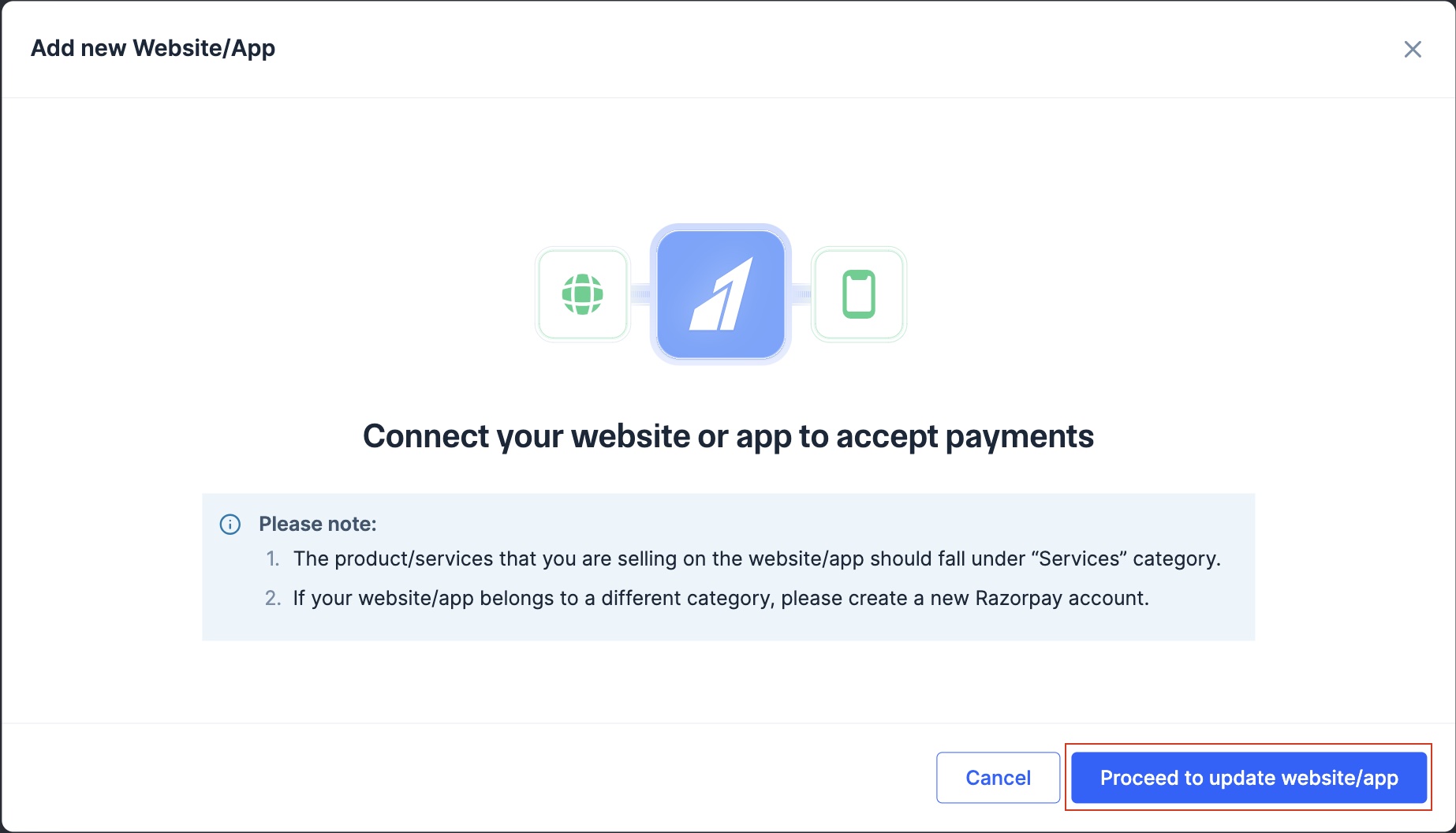 6. Select where you want to collect payments: **Website or App**
 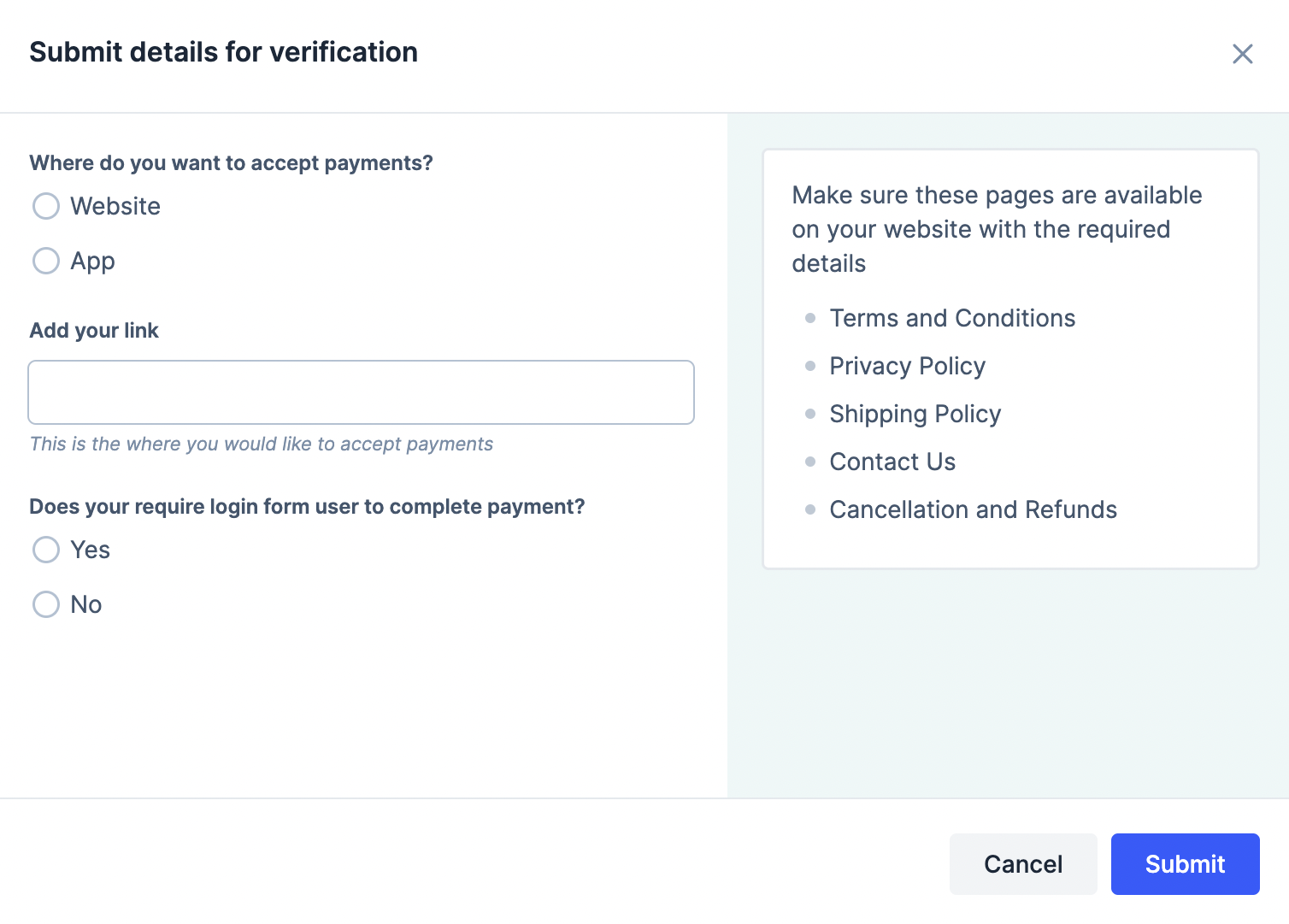 7. Add test account **username and password**.
**Handy Tips**
Ensure you have the necessary pages available on your website or app:
1. Terms and Conditions
2. Privacy Policy
3. Shipping Policy
4. Contact Us
5. Cancellation and Refunds
7. Add test account **username and password**.
**Handy Tips**
Ensure you have the necessary pages available on your website or app:
1. Terms and Conditions
2. Privacy Policy
3. Shipping Policy
4. Contact Us
5. Cancellation and Refunds
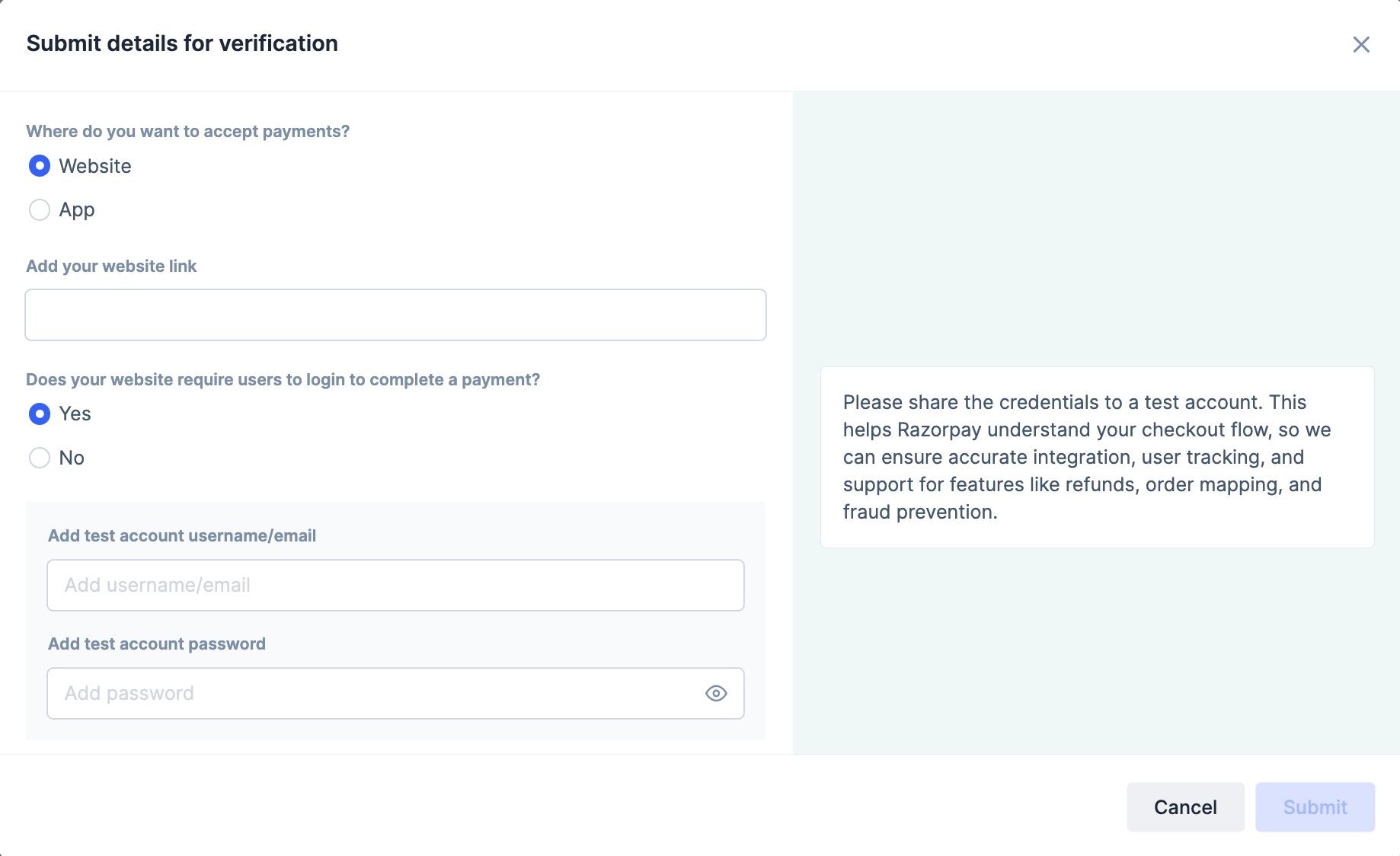 8. Click **Submit** website for review.
To update website or mobile app details:
1. Log in to the Dashboard.
2. Click **Account & Settings** in the left navigation.
3. Click **Business website detail** under **Website and app settings** section.
4. Click **Edit** next to the website/app that you want to edit.
8. Click **Submit** website for review.
To update website or mobile app details:
1. Log in to the Dashboard.
2. Click **Account & Settings** in the left navigation.
3. Click **Business website detail** under **Website and app settings** section.
4. Click **Edit** next to the website/app that you want to edit. 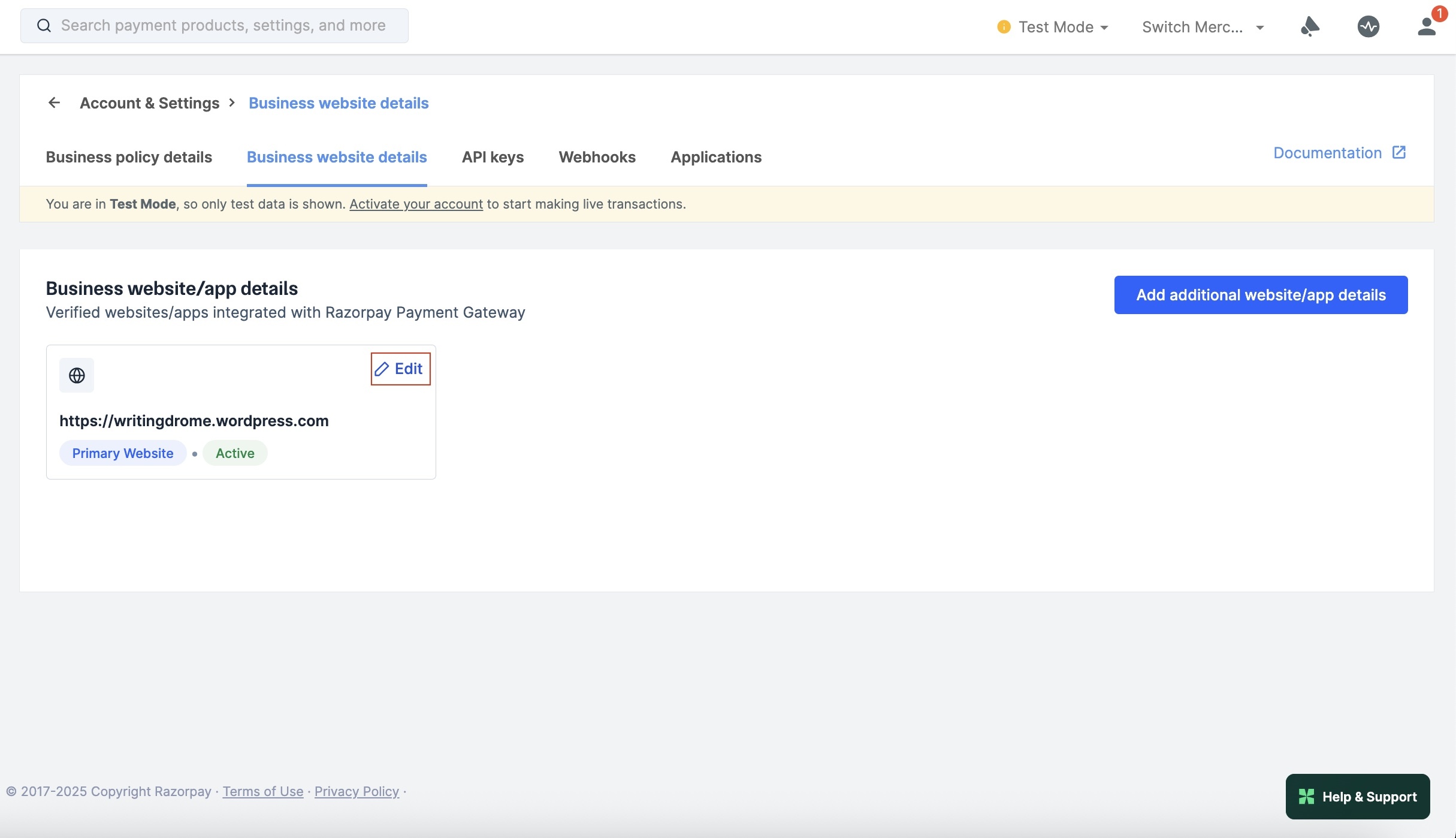 5. Click **Proceed to update website/app**.
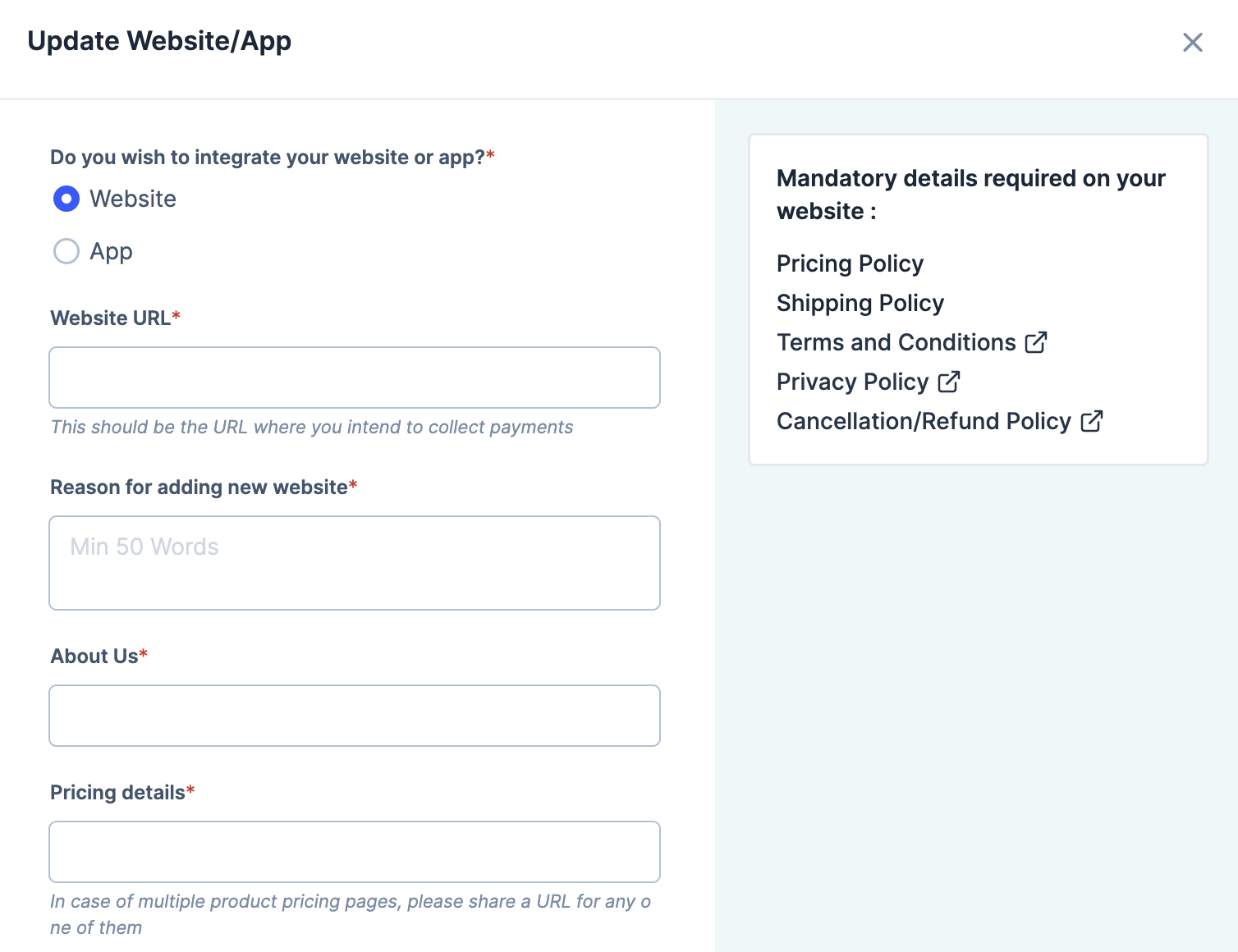
 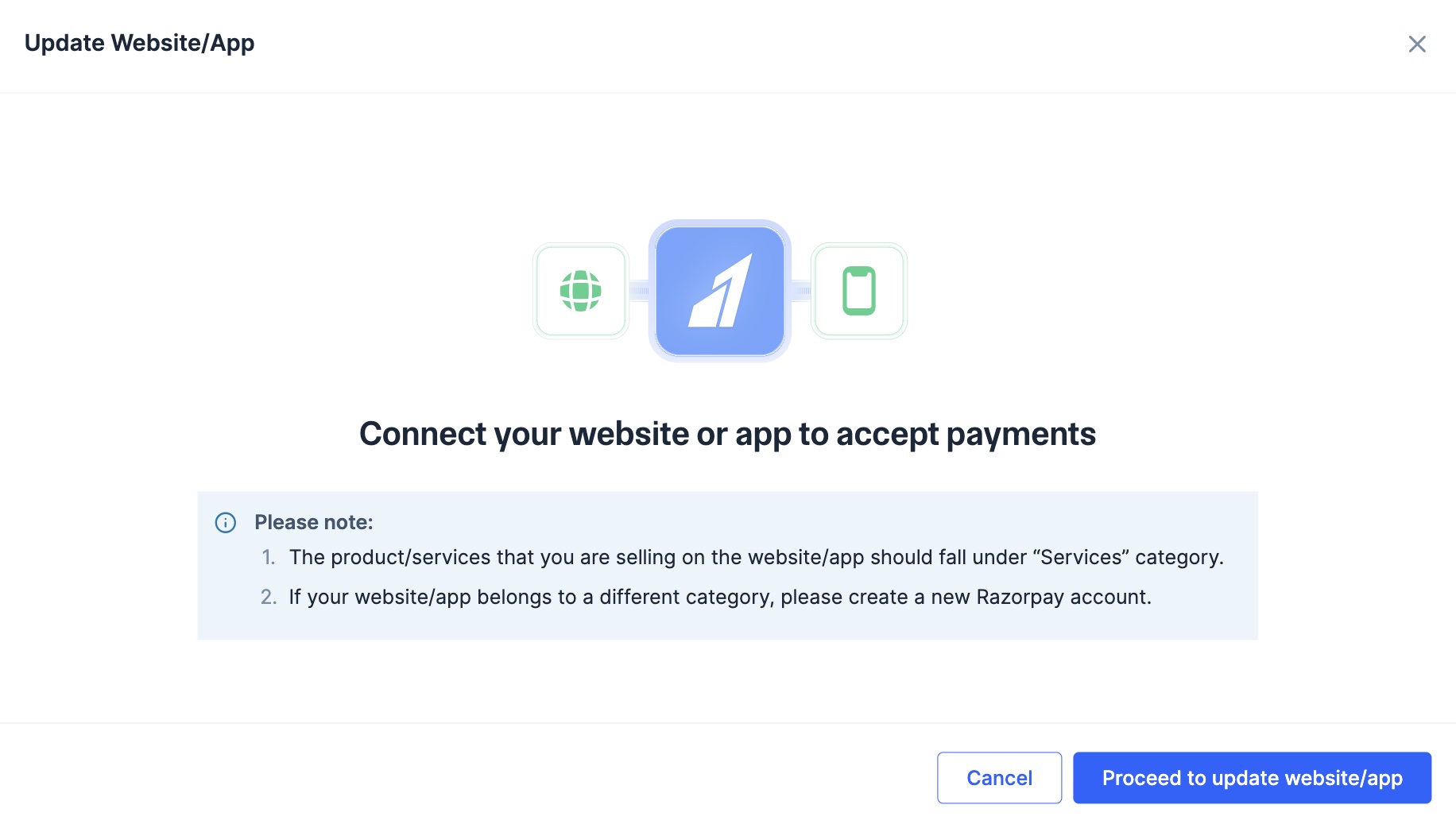 6. Select **Website** or **App**, based on what you want to update.
1) Select **Website**.
2) Enter the **Website URL**.
3) Provide the links for these pages: **About us**, **Contact us**, **Pricing details**, **Terms and conditions**, **Privacy policy** and **Refunds policy**.
4) Upload a sample invoice. The accepted file formats are PNG, JPG and PDF.
5) Provide your website's **Test Account credentials** if required or select **No** for **Does your website require login from user to complete payment?** if logging in is not required.
6) Click **Submit website for review**.
6. Select **Website** or **App**, based on what you want to update.
1) Select **Website**.
2) Enter the **Website URL**.
3) Provide the links for these pages: **About us**, **Contact us**, **Pricing details**, **Terms and conditions**, **Privacy policy** and **Refunds policy**.
4) Upload a sample invoice. The accepted file formats are PNG, JPG and PDF.
5) Provide your website's **Test Account credentials** if required or select **No** for **Does your website require login from user to complete payment?** if logging in is not required.
6) Click **Submit website for review**.
 After the details are provided, our team will review the request. We will update the details on the Dashboard.
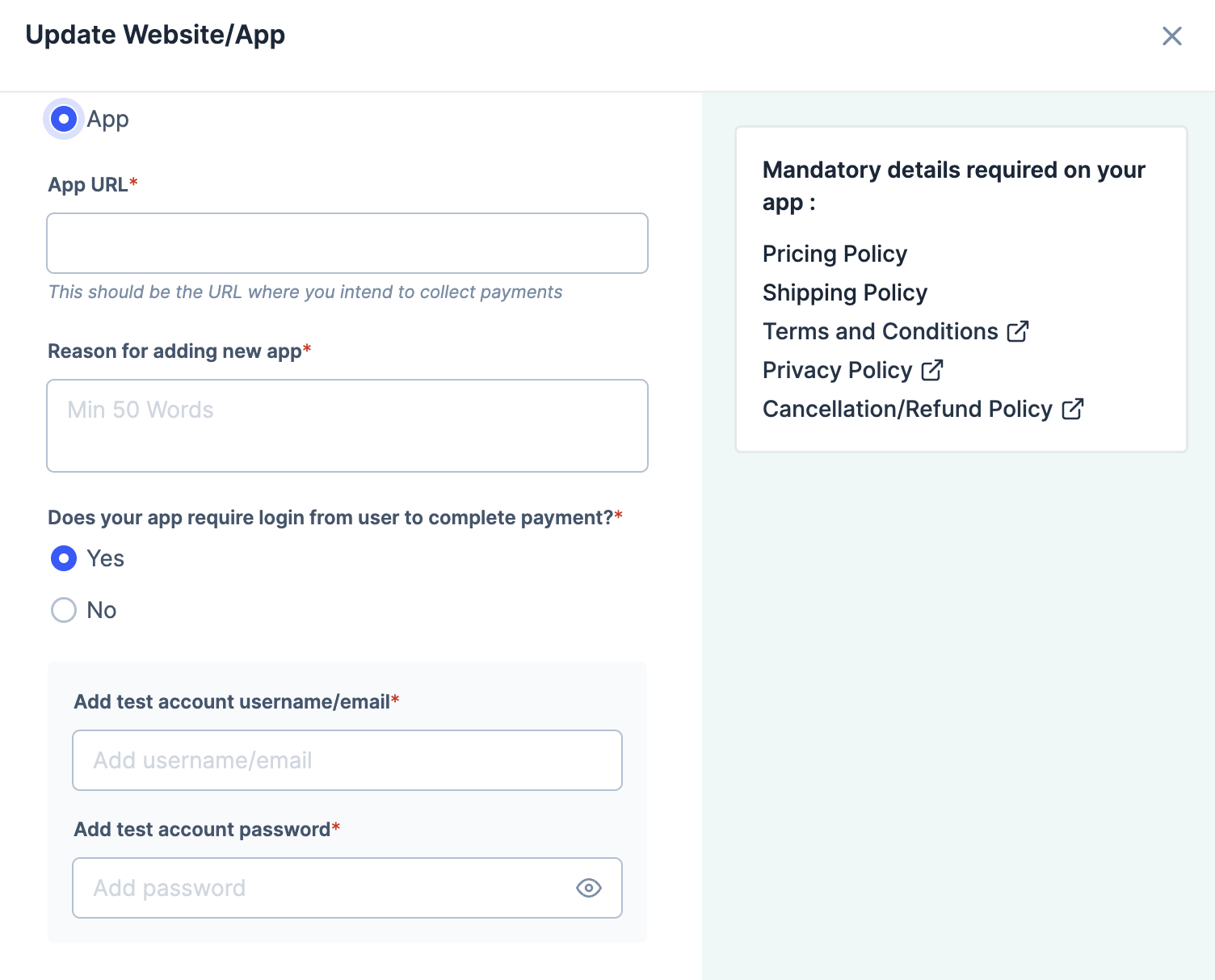
1. Select **App**.
2. Enter the **App URL**.
3. Provide your website's **Test Account credentials** if required or select **No** for **Does your app require login from user to complete payment?** if logging in is not required.
4. Click **Submit app for review**.
After the details are provided, our team will review the request. We will update the details on the Dashboard.
1. Select **App**.
2. Enter the **App URL**.
3. Provide your website's **Test Account credentials** if required or select **No** for **Does your app require login from user to complete payment?** if logging in is not required.
4. Click **Submit app for review**.
 After the details are provided, our team will review the request. We will update the details on the Dashboard.
**Handy Tips**
We may reach out to you for clarifications via email, WhatsApp, SMS and Dashboard during the verification process.
Navigate to **Account & Settings** and submit the necessary information in the appropriate section. Our team will go through the information you provide and help you resolve the issue.
You can accept payments using your account on multiple websites. To do this, you need to share the details of the additional web pages with us. You can add one main website and five additional websites.
**Handy Tips**
This feature is available only if your services/products fall under the e-commerce business category.
To add an additional website:
1. Log in to the Dashboard.
2. Click **Account & Settings** in the left navigation.
3. Click **Business website detail** under **Website and app settings** section.
4. Click **Add additional website/app details**.
5. Click **Proceed to update website/app**.
6. Provide the website or app details:
After the details are provided, our team will review the request. We will update the details on the Dashboard.
**Handy Tips**
We may reach out to you for clarifications via email, WhatsApp, SMS and Dashboard during the verification process.
Navigate to **Account & Settings** and submit the necessary information in the appropriate section. Our team will go through the information you provide and help you resolve the issue.
You can accept payments using your account on multiple websites. To do this, you need to share the details of the additional web pages with us. You can add one main website and five additional websites.
**Handy Tips**
This feature is available only if your services/products fall under the e-commerce business category.
To add an additional website:
1. Log in to the Dashboard.
2. Click **Account & Settings** in the left navigation.
3. Click **Business website detail** under **Website and app settings** section.
4. Click **Add additional website/app details**.
5. Click **Proceed to update website/app**.
6. Provide the website or app details:
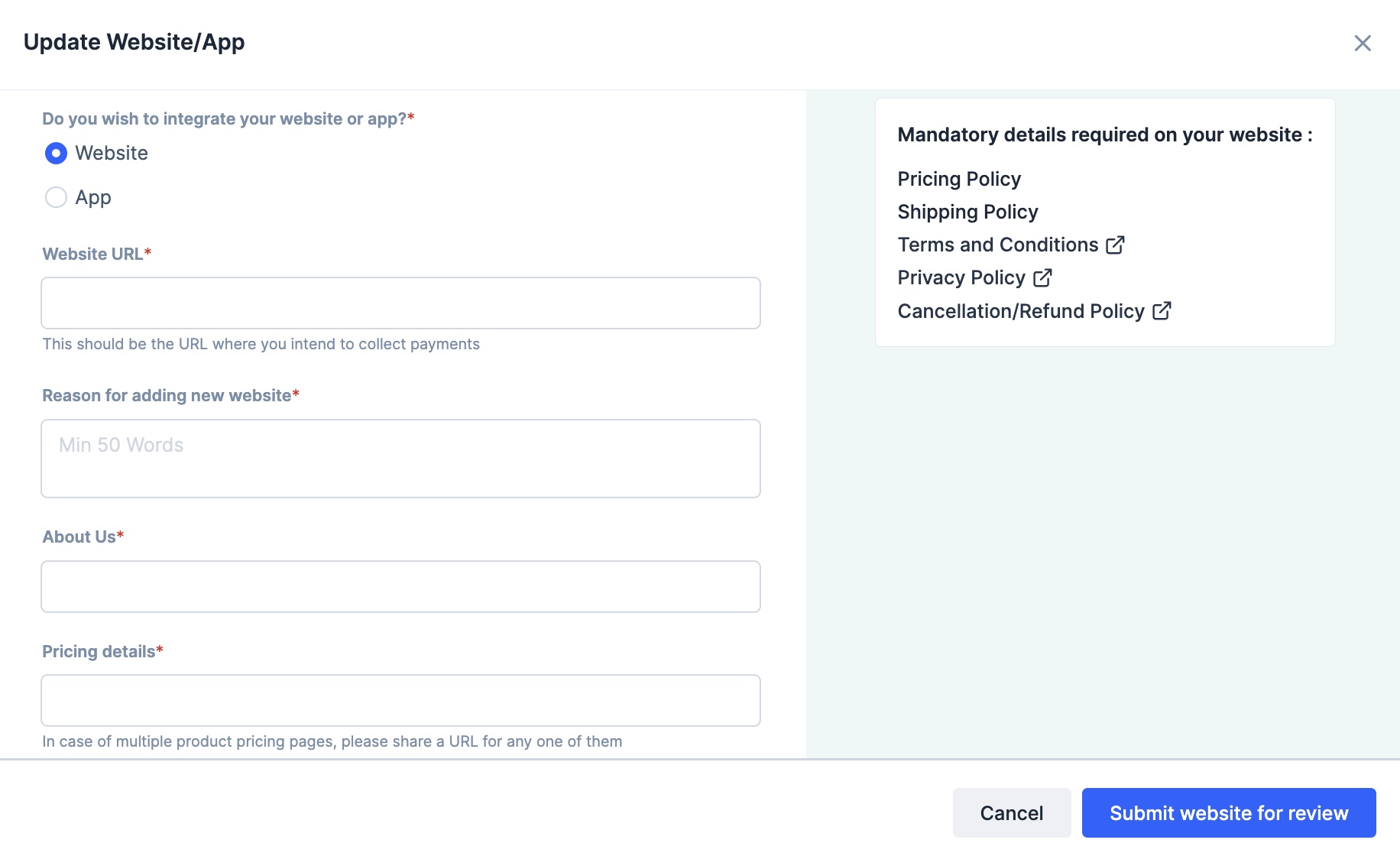
- Select **Website**.
- Enter the **Website URL**.
- Provide the links for these pages: **About us**, **Contact us**, **Pricing details**, **Terms and conditions**, **Privacy policy** and **Cancellation/Refund policy**.
- **Upload invoice**: Upload a sample invoice. The accepted file formats are PNG, JPG and PDF.
- **Reason for adding new website**: Enter the reason for adding a new website. Enter a minimum of 50 words.
- Provide your website's **Test Account credentials** if required or select **No** for **Does your website require login from user to complete payment?** if logging in is not required.
- Click **Submit website for review**.
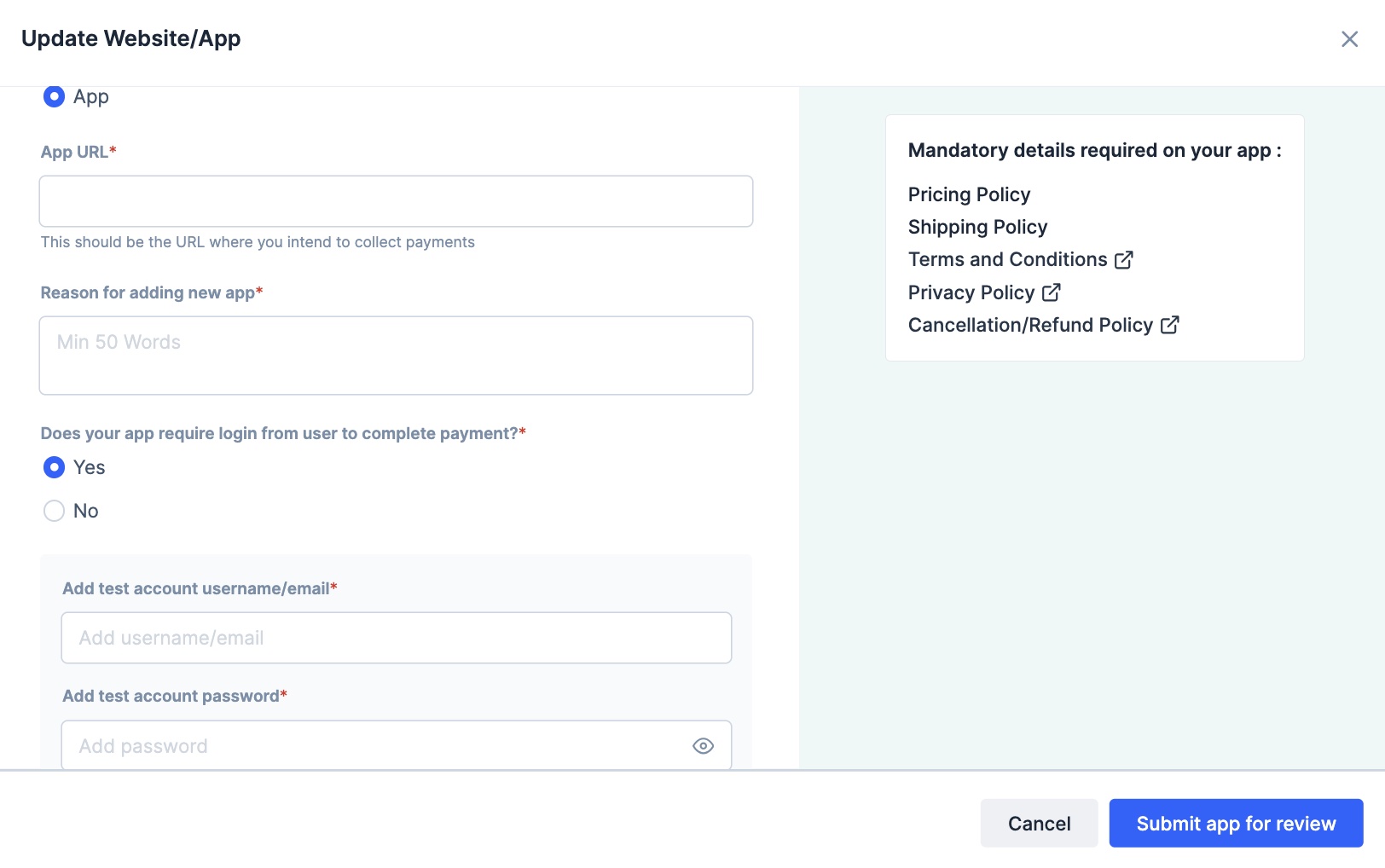
 1. Select **App**.
2. Enter the **App URL**.
3. **Reason for adding new website**: Enter the reason for adding a new website. Enter a minimum of 50 words.
4. Provide your website's **Test Account credentials** if required or select **No** for **Does your app require login from user to complete payment?** if logging in is not required.
5. Click **Submit app for review**.
1. Select **App**.
2. Enter the **App URL**.
3. **Reason for adding new website**: Enter the reason for adding a new website. Enter a minimum of 50 words.
4. Provide your website's **Test Account credentials** if required or select **No** for **Does your app require login from user to complete payment?** if logging in is not required.
5. Click **Submit app for review**.
 After you provide the details, our team will review the request. We will update the details on the Dashboard.
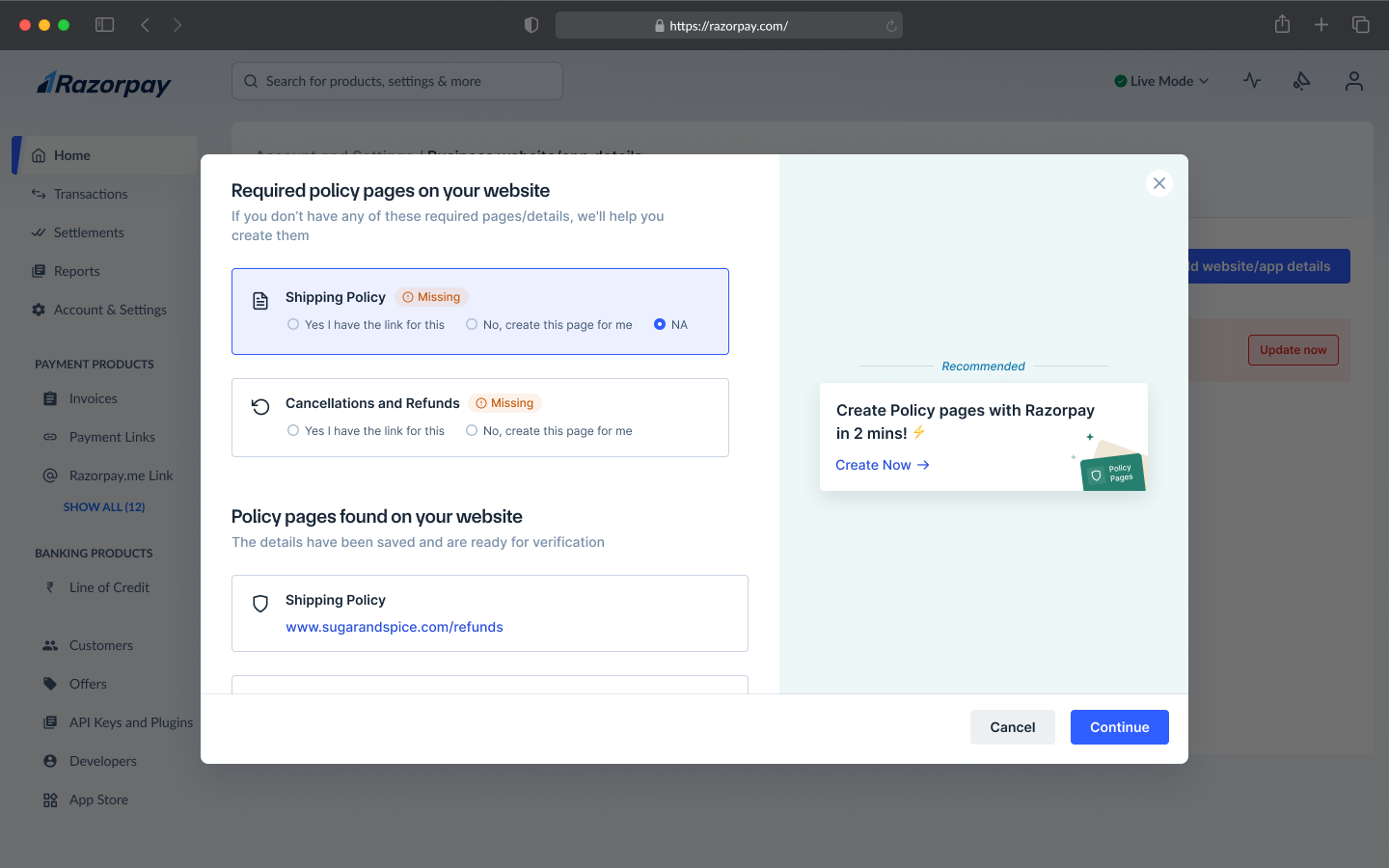
* If you add or update your **primary website**, instant checks are run to validate your website, policy pages and business industry. In case the website requirements are not met, you can re-check and enter the valid URLs as prompted or create policy pages with Razorpay.
After you provide the details, our team will review the request. We will update the details on the Dashboard.
* If you add or update your **primary website**, instant checks are run to validate your website, policy pages and business industry. In case the website requirements are not met, you can re-check and enter the valid URLs as prompted or create policy pages with Razorpay.
 * If you add or update **additional websites**, our team will review manually and notify you.