> ## Documentation Index
> Fetch the complete documentation index at: https://razorpay-881012b3.mintlify.site/llms.txt
> Use this file to discover all available pages before exploring further.
# International Payment Codes
> Steps to configure international payment codes (purpose code, IEC code, HS code) on the Razorpay Dashboard.
Available in🇮🇳 India
Razorpay allows foreign (non-Indian) businesses to accept payments from Indian customers without any additional paperwork or registration.
## Accept Payments From Indian Customers
Follow the steps given below to onboard and accept payments from Indian customers:
1. Log in to the Dashboard.
2. Navigate to **Account & Settings**.
3. You must provide the Purpose Code information when applying for international payments.
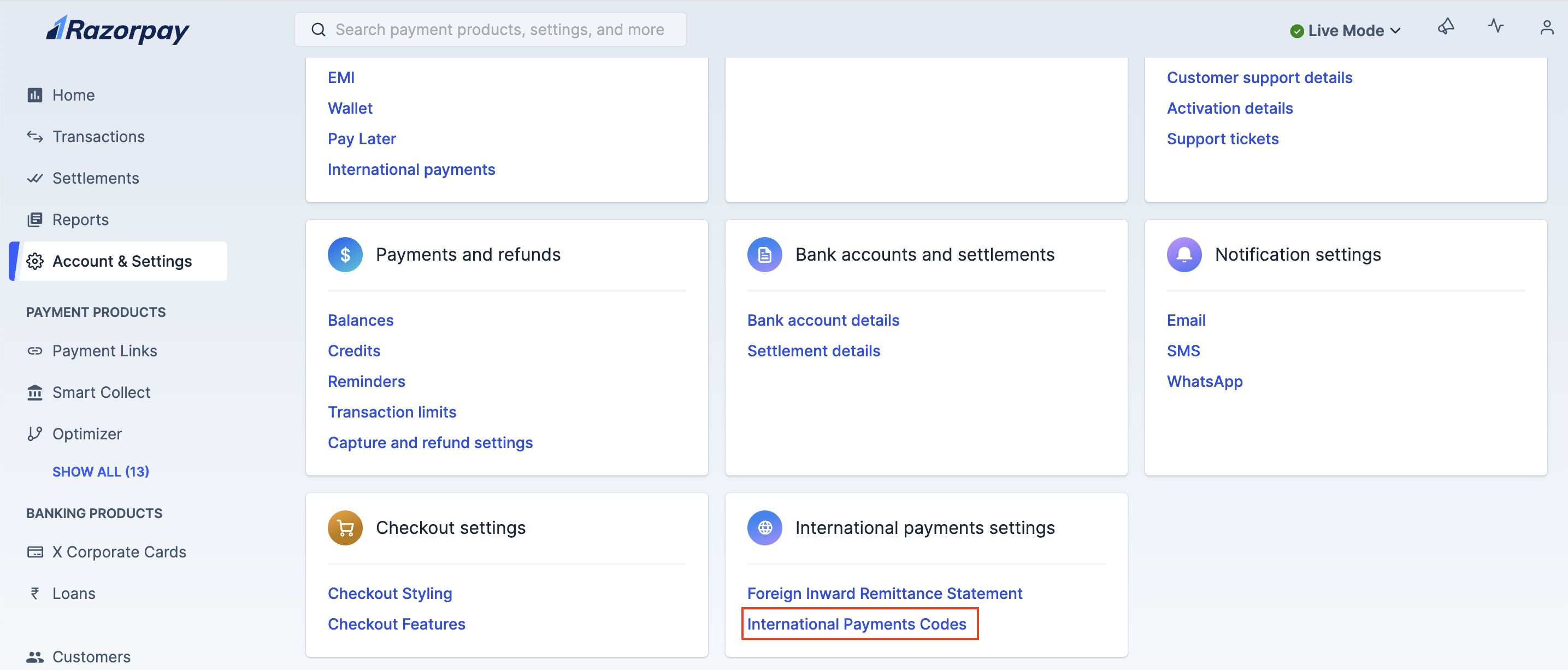
1. Click **International Payment Codes** under **International payment settings**.
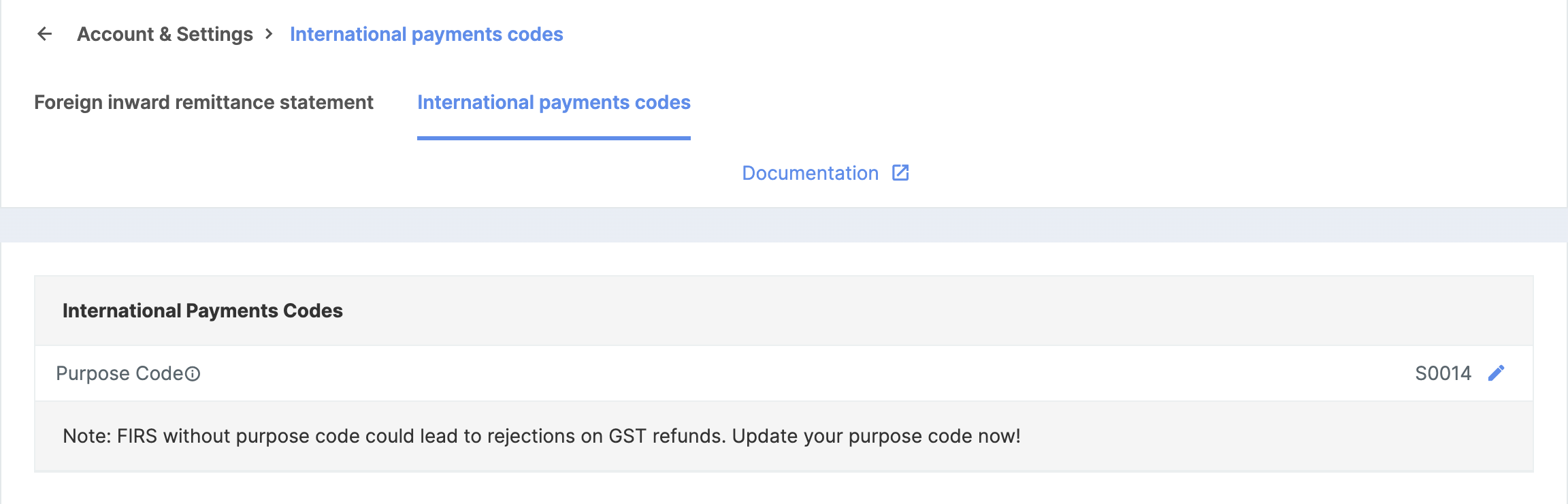
2. Update your purpose code under the **International Payment Codes** section.
3. Select the appropriate **Purpose Code**.
Based on your business requirements, you also need to provide your **HS Code** or **IEC Code**.
1. Click **International Payment Codes** under **International payment settings**.
2. Update your HS Code under the **International Payment Codes** section.
3. Select the appropriate **Harmonised System Code**, also known as HS Code.
**Handy Tips**
* For Software: HSCode is **85238020** and HSDescription is **Other Information technology software**.
* For Goods: Refer to the list from the [DGFT website](https://www.dgft.gov.in/CP/).
1. Click **International Payment Codes** under **International payment settings**.
2. Update your **IEC Code** under the **International Payment Codes** section.
3. Select the appropriate **Purpose Code**.
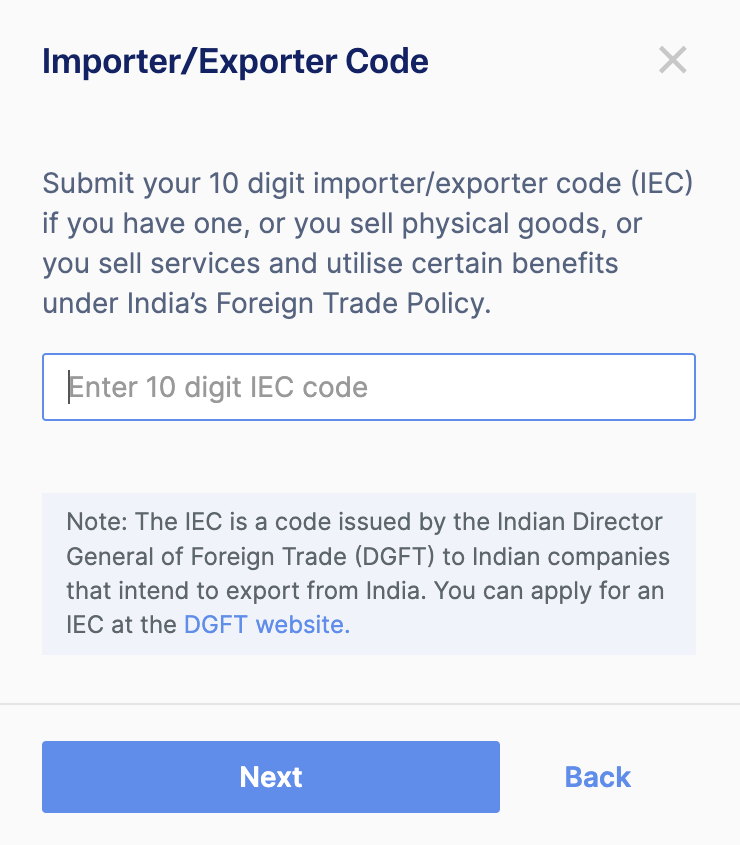
4. Enter the 10-digit Importer/Exporter Code (IEC) and click **Next**.
**Watch Out!**
The IEC is a code issued by the Indian Director General of Foreign Trade (DGFT) to Indian companies that intend to export from India. You can apply for an IEC at the [DGFT website](https://www.dgft.gov.in/CP/).
The IEC code input screen appears for specific purpose codes, (P0103) being one of them.
4. Review and click **Confirm**. The Razorpay Activation/Operations team verifies the selected **Purpose Code**.
As consumers or buyers, you get an option to make payments through the Razorpay Payment Gateway. On selecting Razorpay, various payment methods will be displayed on Razorpay checkout to complete the payment.
 2. Update your purpose code under the **International Payment Codes** section.
 3. Select the appropriate **Purpose Code**.
Based on your business requirements, you also need to provide your **HS Code** or **IEC Code**.
3. Select the appropriate **Purpose Code**.
Based on your business requirements, you also need to provide your **HS Code** or **IEC Code**.