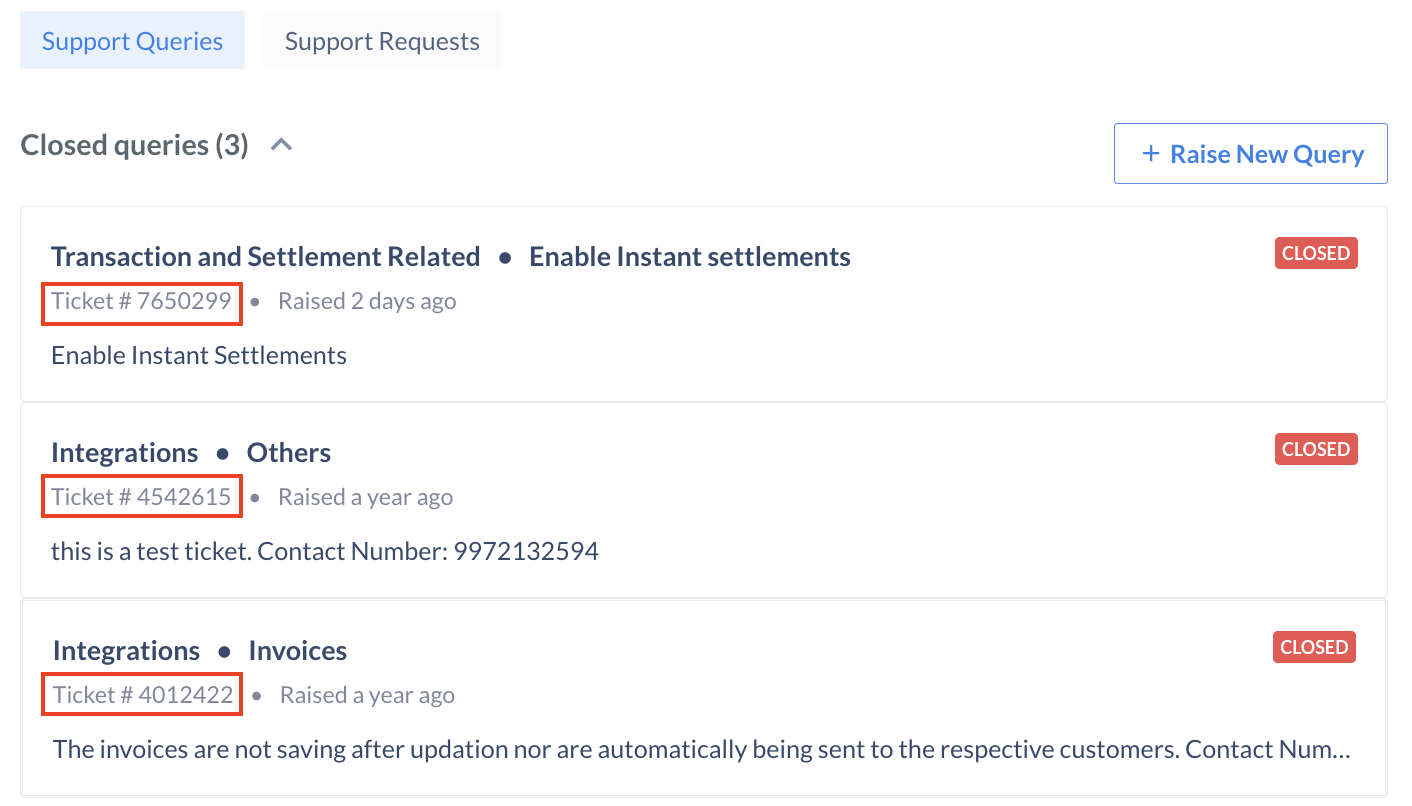
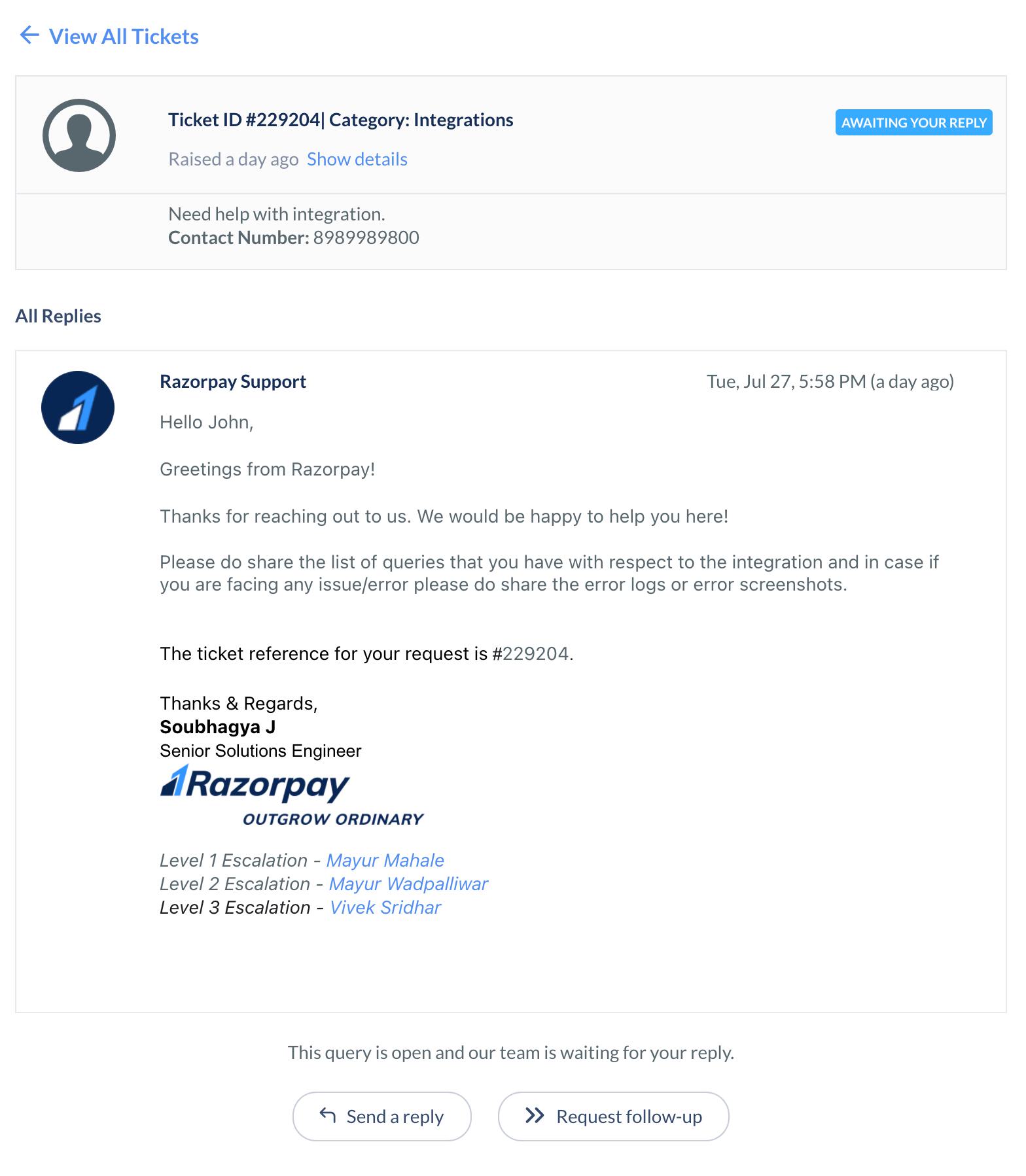
 5. You can request an update, provide information or add attachments such as an error screenshot. Provide the details and click **Send a Reply**.
 ## Raise New Support Tickets
You can create a new support ticket from the Dashboard.
To raise a new ticket:
1. Log in to the Dashboard.
2. Click **Help & Support**.
## Raise New Support Tickets
You can create a new support ticket from the Dashboard.
To raise a new ticket:
1. Log in to the Dashboard.
2. Click **Help & Support**.
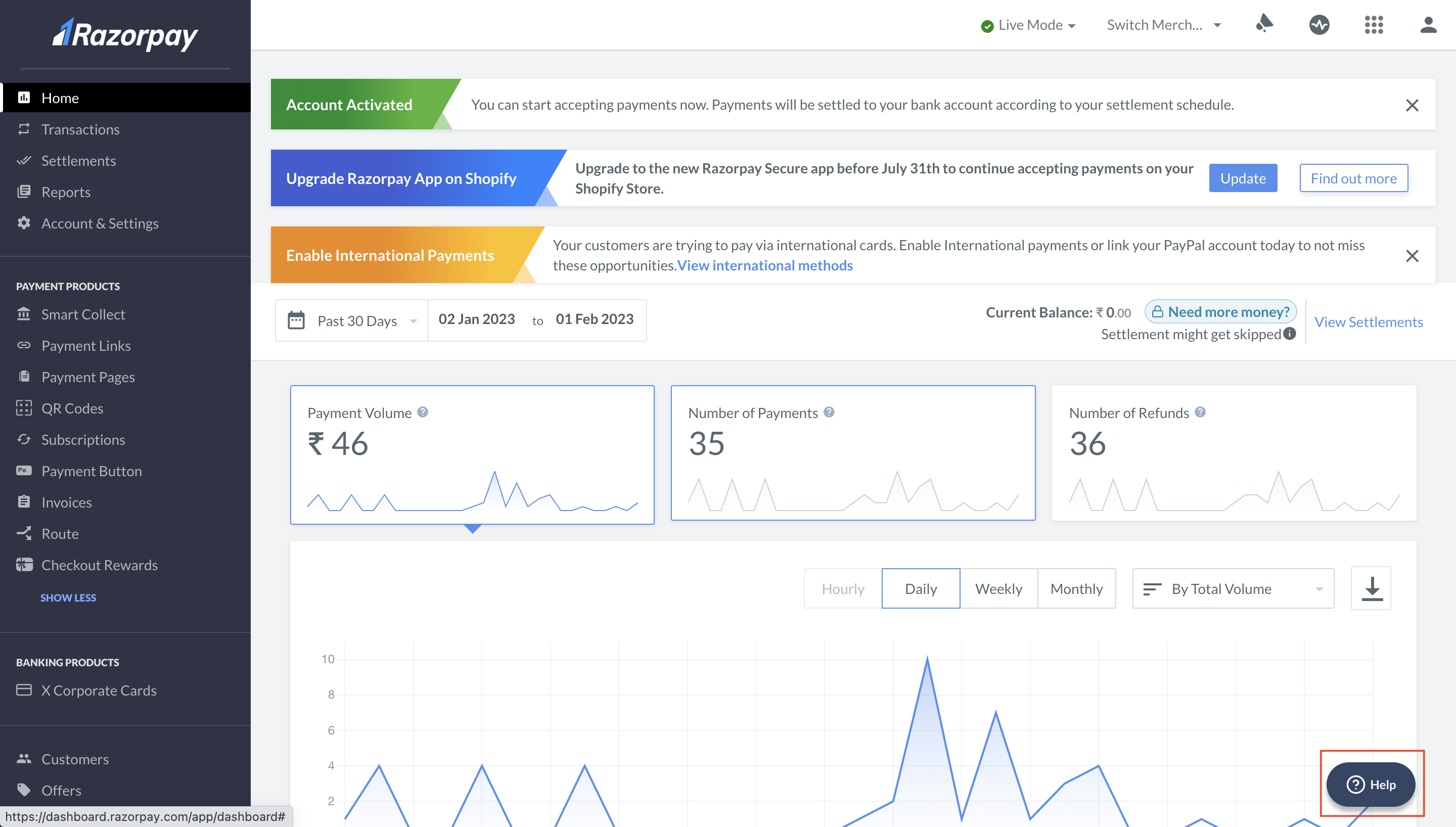 3. Check the FAQs for common concerns. If the FAQs can not resolve your concern, click **Contact Us**.
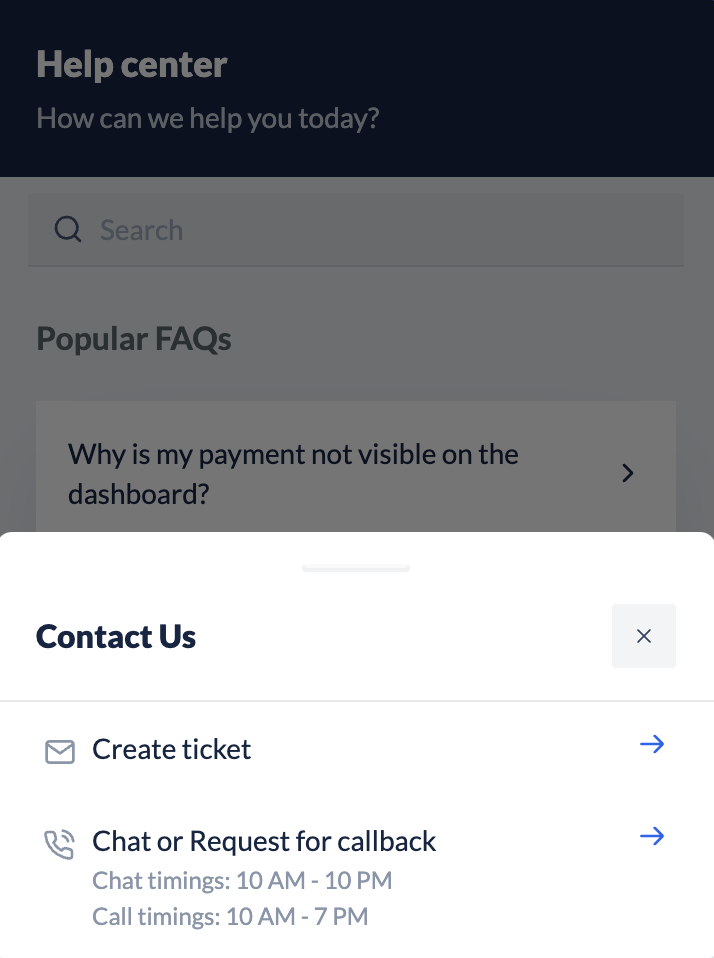
4. You have the following options in the **Contact Us** section:
* Create ticket: Check existing queries or raise a new support ticket.
* Chat or Request for callback: Start a live chat with us or request a callback for quicker resolution (selected users only).
3. Check the FAQs for common concerns. If the FAQs can not resolve your concern, click **Contact Us**.
4. You have the following options in the **Contact Us** section:
* Create ticket: Check existing queries or raise a new support ticket.
* Chat or Request for callback: Start a live chat with us or request a callback for quicker resolution (selected users only).
 5. Select the nature of the request. Check out the existing information before raising the ticket. If you do not find relevant information, please explain your issue, attach relevant documents or screenshots if possible, and click **Create support ticket**.
 Our Support team will get back to you at the earliest. However, reply to the same ticket in case of a follow-up instead of raising a new ticket.