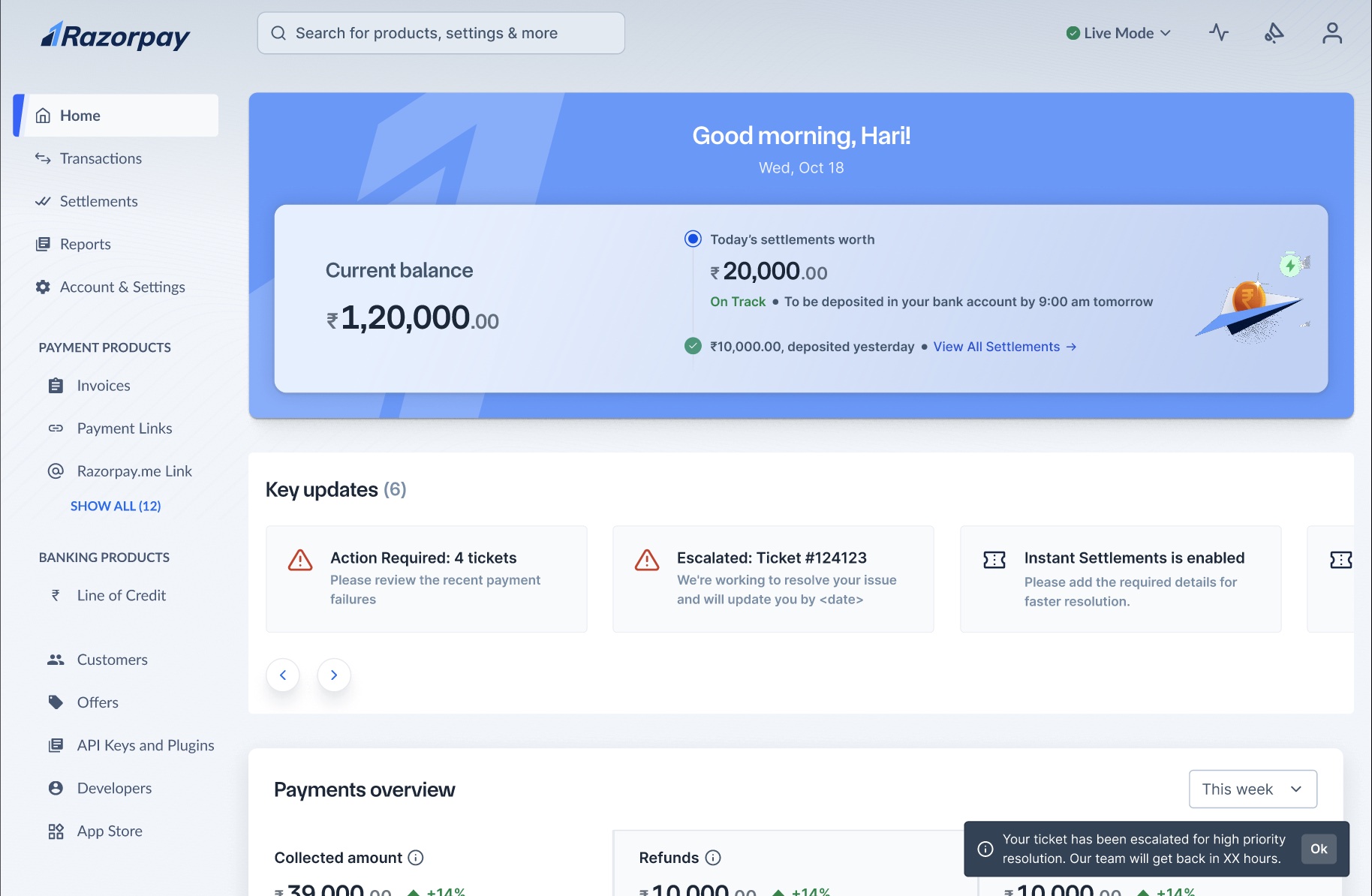
> ## Documentation Index
> Fetch the complete documentation index at: https://razorpay-881012b3.mintlify.site/llms.txt
> Use this file to discover all available pages before exploring further.
# Support
> If you are a business using Razorpay products or exploring Razorpay solutions, contact our Support Team for all your technical and product queries.
Available in🇮🇳 India🇸🇬 Singapore🇺🇸 United States
If you are a registered Razorpay user and need help, connect with [Razorpay Support team](https://razorpay.com/support/). Refer to [Razorpay Docs](https://razorpay.com/docs) for details about each of Razorpay products, integrations, like [Payment Gateway](https://razorpay.com/docs/payments/payment-gateway) and [API Reference Guide](https://razorpay.com/docs/api/).
**You are a registered Razorpay User**
If you have a Razorpay User ID (Merchant ID/MID), and you:
* Run a business or are a freelancer.
* Use Razorpay products to receive payments from your end-users and/or make payouts for business purposes.
Not registered yet? [Sign up with Razorpay](https://easy.razorpay.com/)
## Contact Razorpay Support
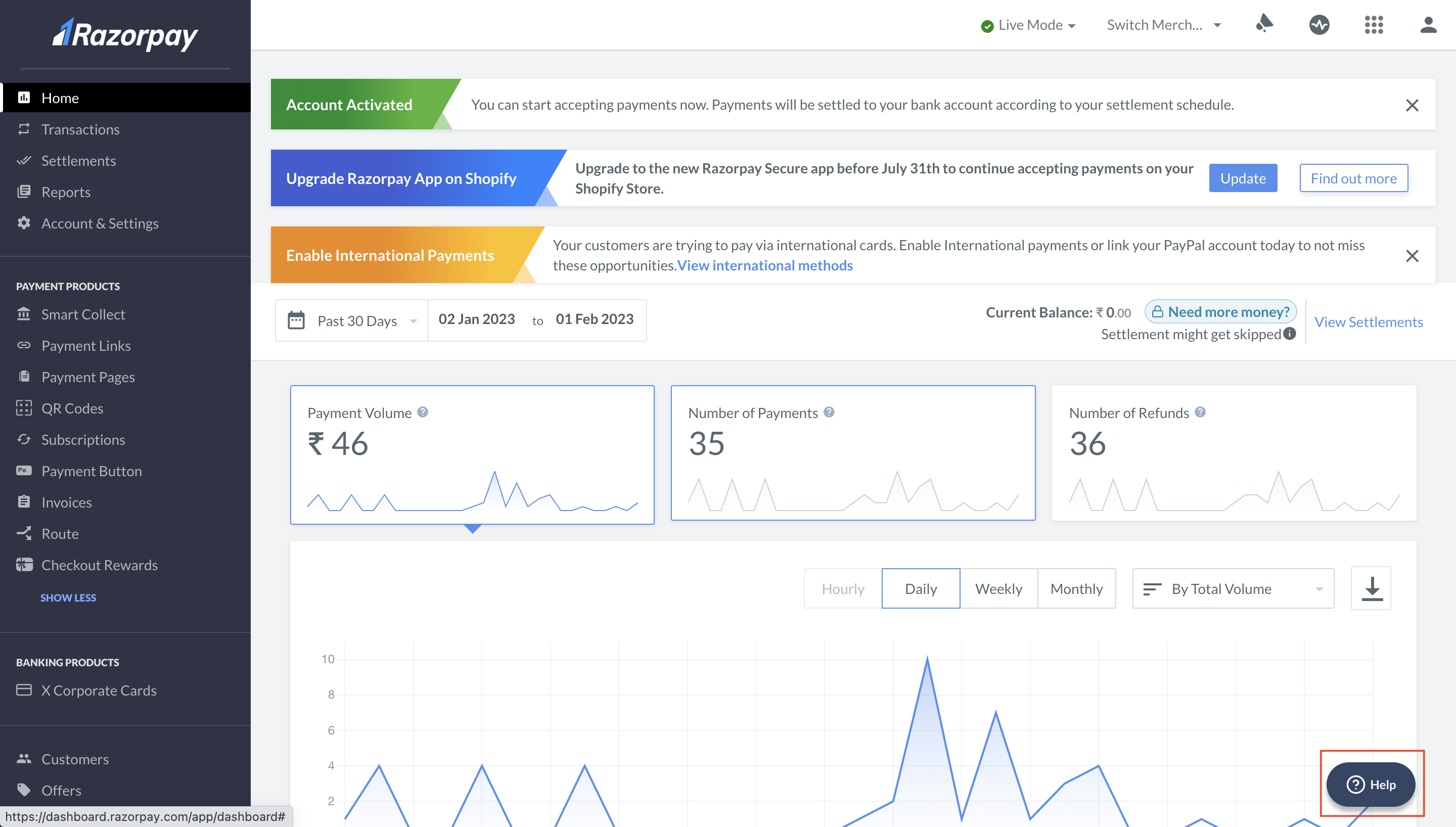
1. Log in to the Dashboard.
2. Click **Help** for **Quick actions** or to **Get in touch**.
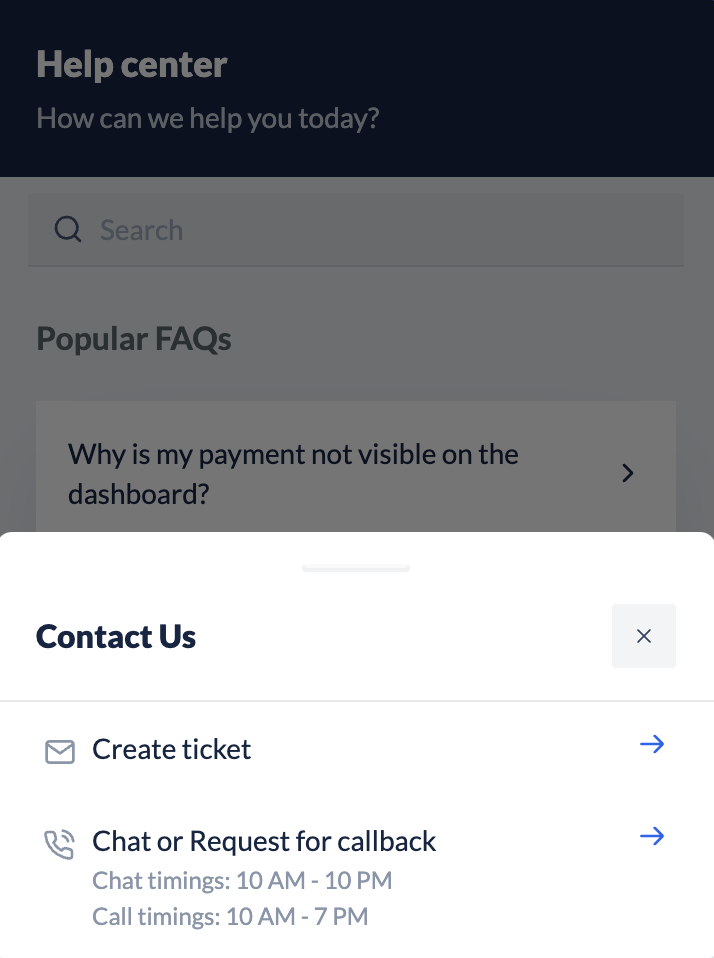
3. You have the following options in the **Get in touch** section:
* [Create support ticket](#create-support-ticket): Check existing queries or raise a new support ticket
* [Contact Us](#contact-us): Start a live chat with us or request a callback for quicker resolution (selected users only)
You can also scroll further down and click **Documentation** to know about the various Razorpay offerings, integrations and APIs.
## Create Support Ticket
You can check existing queries or raise a new support ticket through the Dashboard. Watch this video to know how to raise a ticket.
1. Log in to the Dashboard.
2. Navigate to **Account & Settings** → **Support tickets** (under Business settings).
3. Click **Support tickets**.
4. Click **+ Raise New Query** and select the relevant topic and sub-topic.
5. Enter the details of your query and **Upload file** if necessary. Click **Create support ticket**.
6. **Confirm** your phone number. The support ticket is created and details are sent to your registered email id. Click **Done**.
### Track Status of Existing Tickets
Know how to [track your support tickets](/docs/payments/dashboard/account-settings/support-tickets) on the Dashboard.
**Handy Tips**
For a faster support experience, reply to the relevant existing ticket instead of creating a new ticket.
## Contact Us
This feature is available for selected users only. If it is visible for your account, you can chat with a member of the Support Team between 10 a.m. and 10 p.m. on all working days for instant communication.
1. Log in to the Dashboard.
2. Click **Help**, in the **Get in touch** section, click **Contact Us**.
3. Select the relevant topics and sub-topics.
4. On the pop-up, click **Start Chat** for a live chat or **Request for callback**.
**Customer Looking for Refunds**
If you are a customer who has used one of the Razorpay products to make payments and looking for a refund, read about [Customer Refunds](/docs/payments/customers/customer-refunds).
## Escalate a Support Ticket
Escalating a ticket moves your ticket to a priority resolution queue. A representative will then contact you by phone within the next two hours to address your issue.
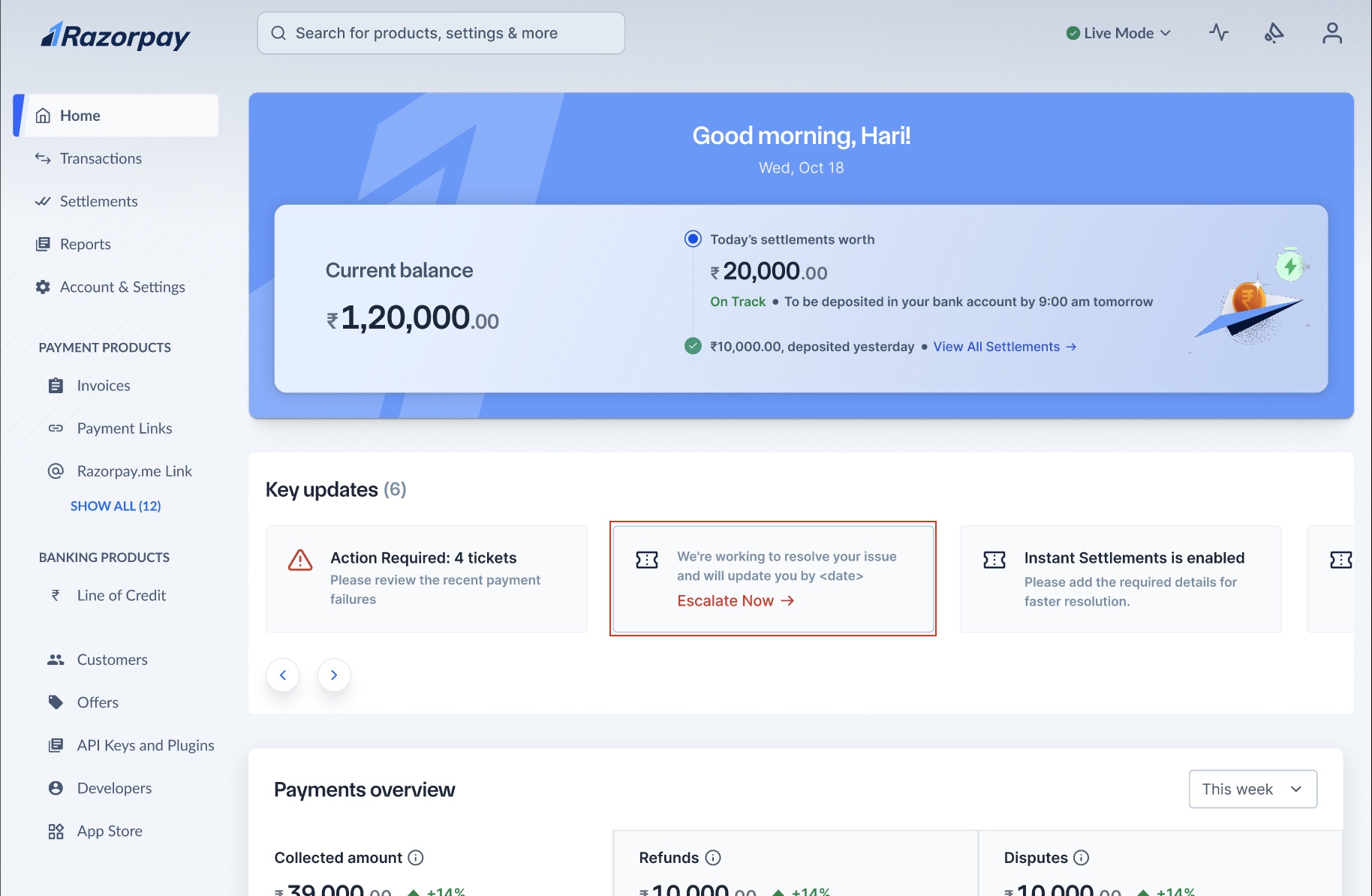
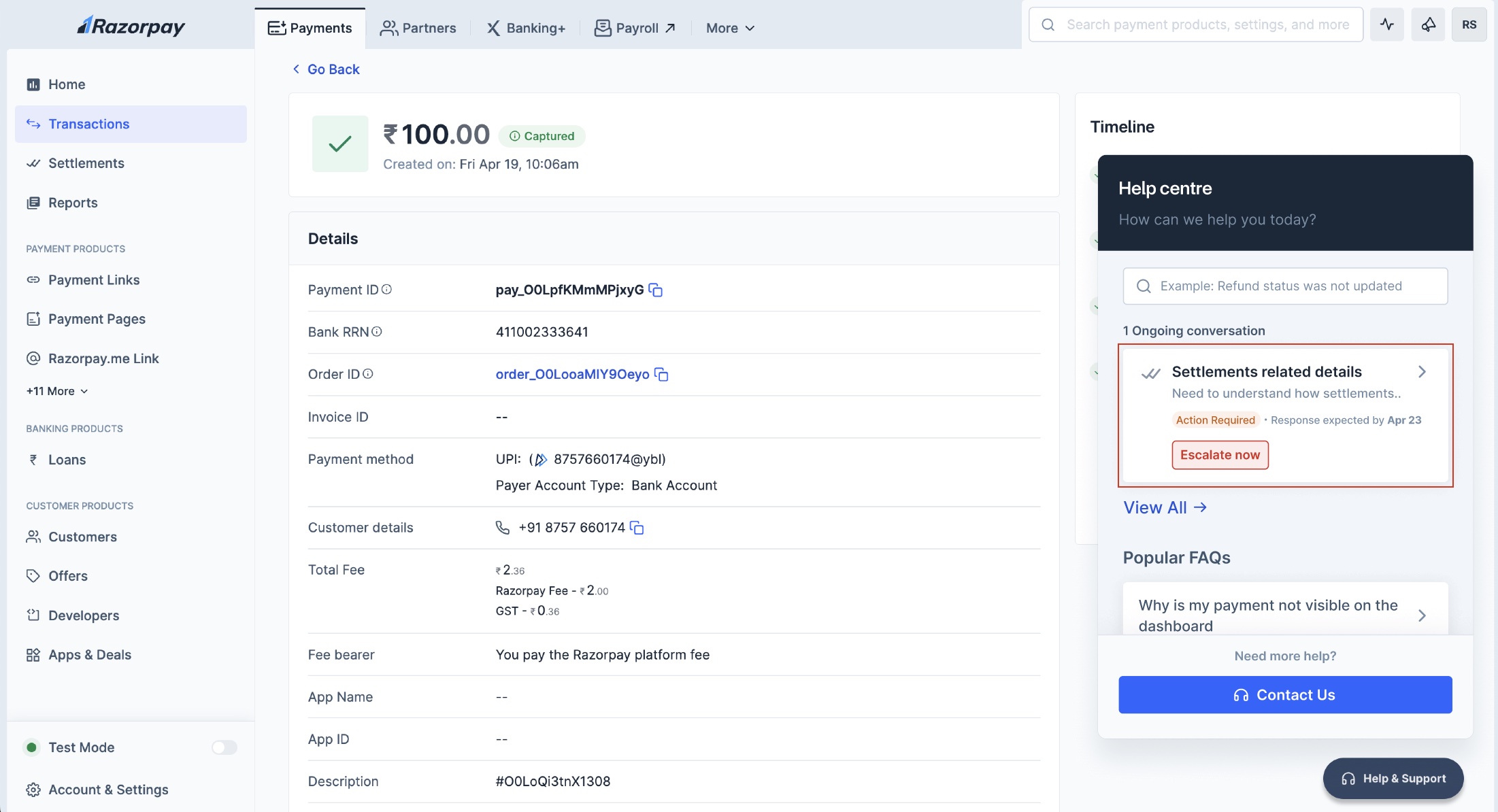
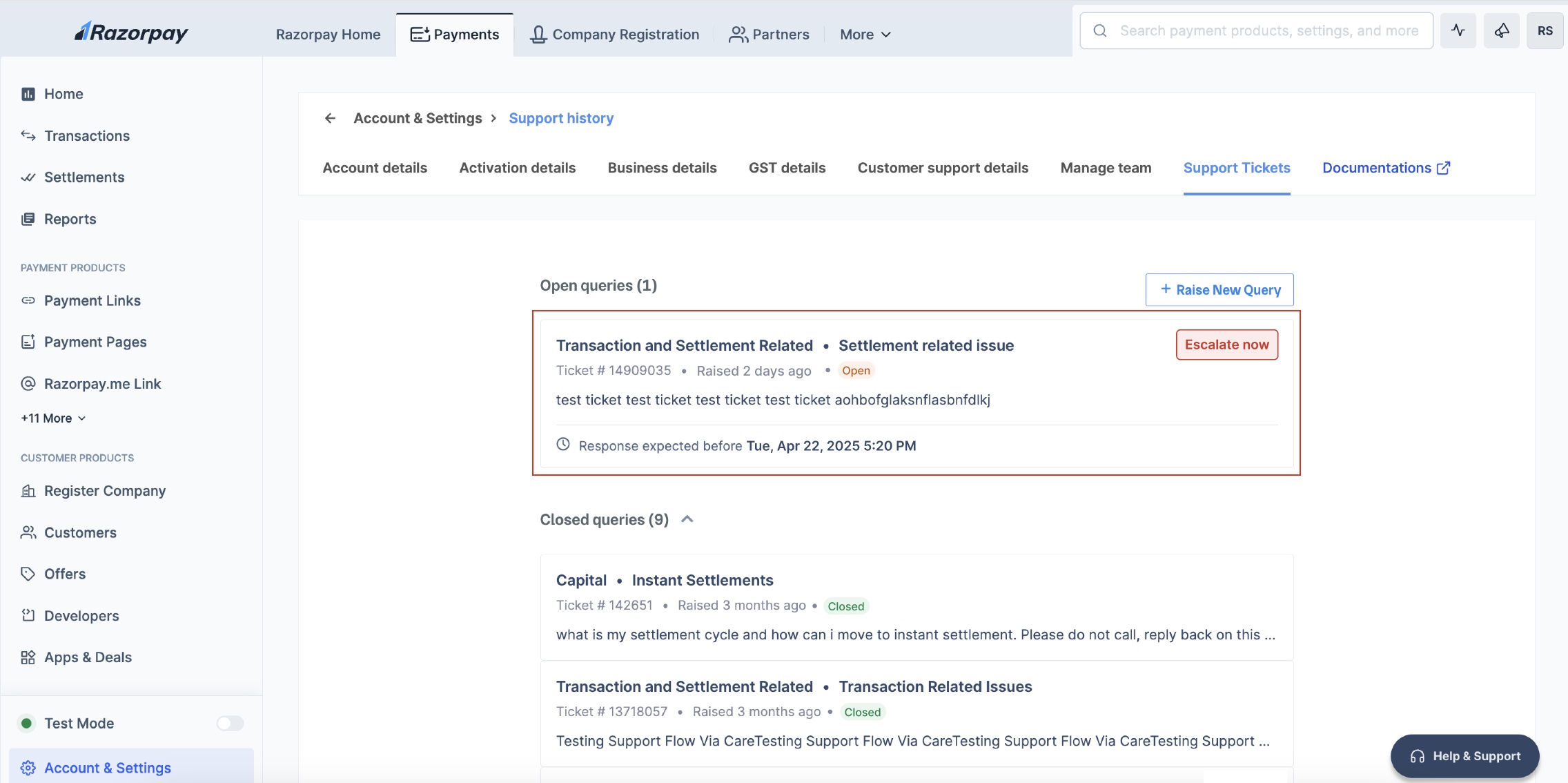
The **Escalate Now** button appears on your support ticket within the Dashboard when we do not meet our committed Turnaround Time (TAT) or Service Level Agreement (SLA) for ticket resolution.
To escalate a support ticket:
1. Locate the **Escalate Now** button on the Dashboard.
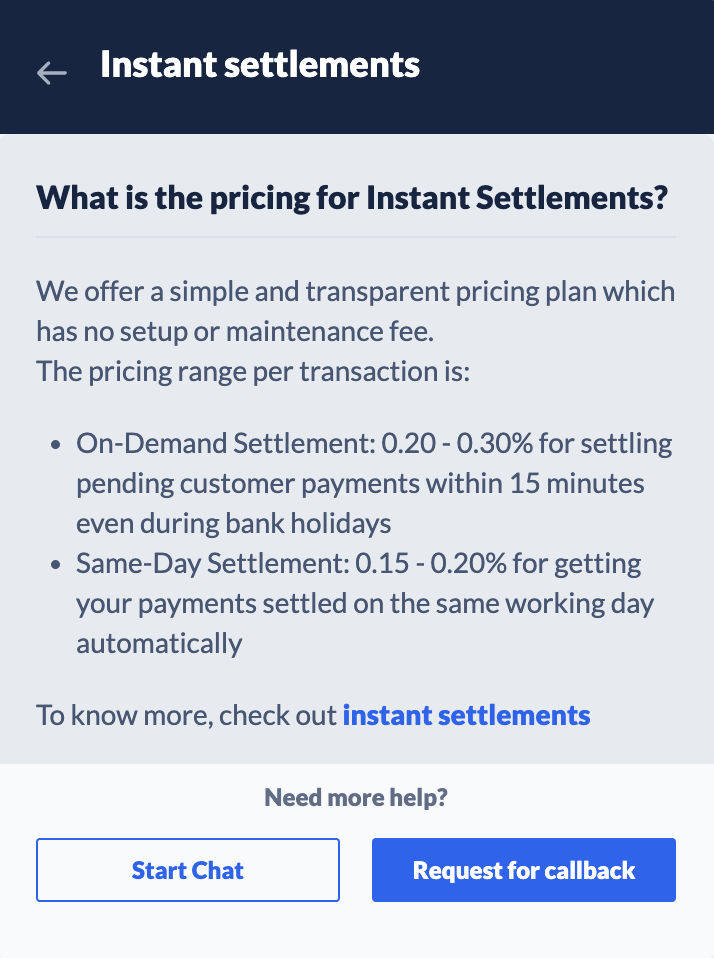
* You can find this button in the help chat as shown below:
* This button will also show up on the **Account & Settings > Support Tickets** page:
2. Click **Escalate Now**. The ticket is now escalated and is moved to a priority resolution queue.
 3. You have the following options in the **Get in touch** section:
* [Create support ticket](#create-support-ticket): Check existing queries or raise a new support ticket
* [Contact Us](#contact-us): Start a live chat with us or request a callback for quicker resolution (selected users only)
3. You have the following options in the **Get in touch** section:
* [Create support ticket](#create-support-ticket): Check existing queries or raise a new support ticket
* [Contact Us](#contact-us): Start a live chat with us or request a callback for quicker resolution (selected users only)
 You can also scroll further down and click **Documentation** to know about the various Razorpay offerings, integrations and APIs.
 * You can find this button in the help chat as shown below:
  * This button will also show up on the **Account & Settings > Support Tickets** page:
  2. Click **Escalate Now**. The ticket is now escalated and is moved to a priority resolution queue.