> ## Documentation Index
> Fetch the complete documentation index at: https://razorpay-881012b3.mintlify.site/llms.txt
> Use this file to discover all available pages before exploring further.
# Local Payment Methods
> Offer local payment methods as a payment method to customers at Razorpay Checkout.
Available in
🇮🇳 India
Razorpay supports the following local payment methods instruments to accept payments across different geographies and varied currencies.
* [Giropay](/docs/payments/payment-methods/giropay) for German customers.
* [Sofort](/docs/payments/payment-methods/sofort) for European customers.
* [Trustly](/docs/payments/payment-methods/trustly) for UK and European customers.
* [POLi](/docs/payments/payment-methods/poli) for Australian customers.
You can accept international payments from customers in the form of online local payment methods using the Razorpay Checkout form.
## Request Local Payment Method
To request Local Payment Method, follow these steps:
1. Log in to the Dashboard.
2. Navigate to **Account & Settings** → **International payments** (under Payment methods).
3. Click **Activate** beside **Local payment methods**.
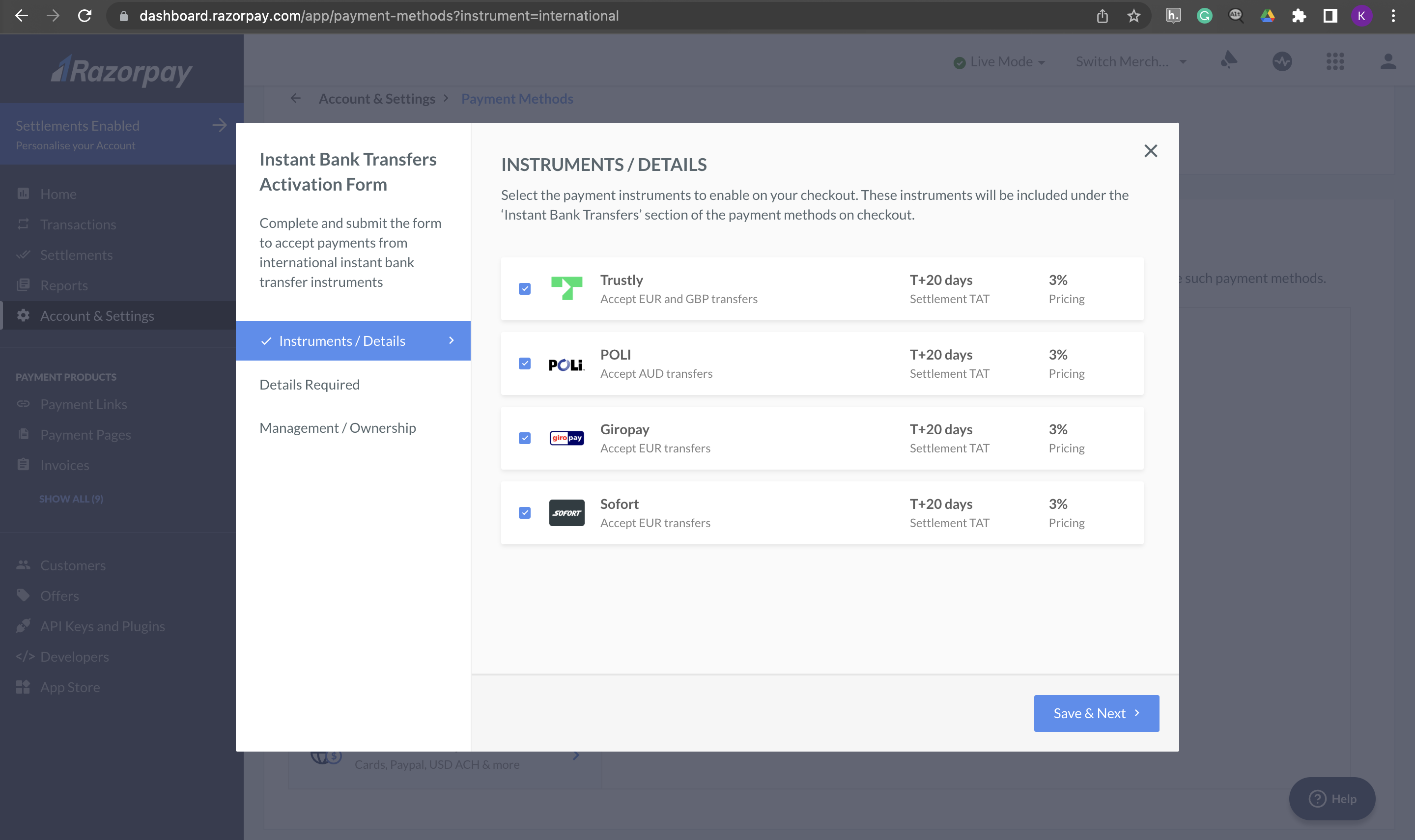
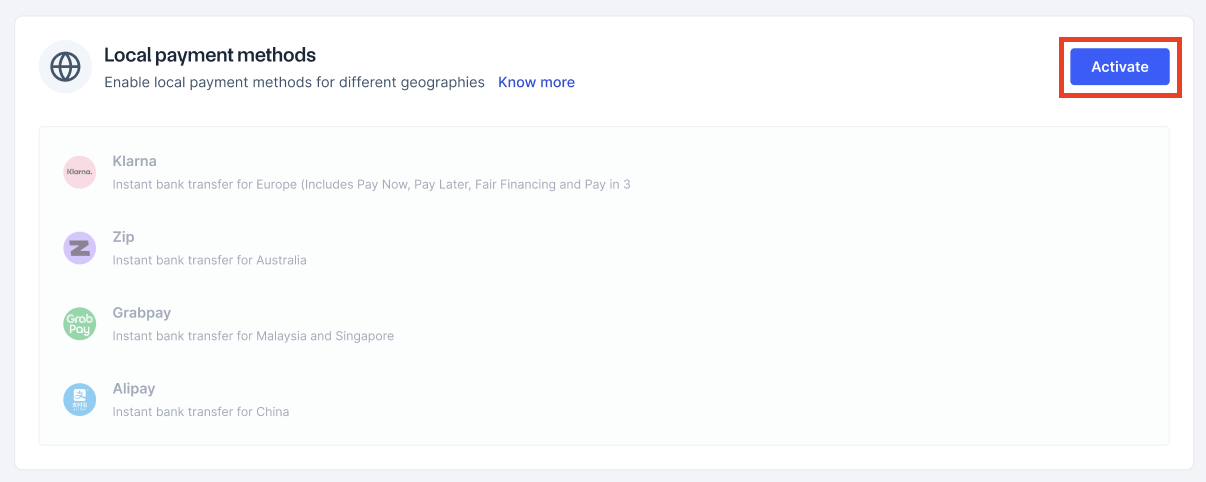 4. An **Instant Bank Transfers Activation** request form appears. Select the payment instrument to be enabled on your Checkout. Click **Save & Next**.
**Handy Tips**
You can use one or multiple payment instruments as per your needs.
4. An **Instant Bank Transfers Activation** request form appears. Select the payment instrument to be enabled on your Checkout. Click **Save & Next**.
**Handy Tips**
You can use one or multiple payment instruments as per your needs.
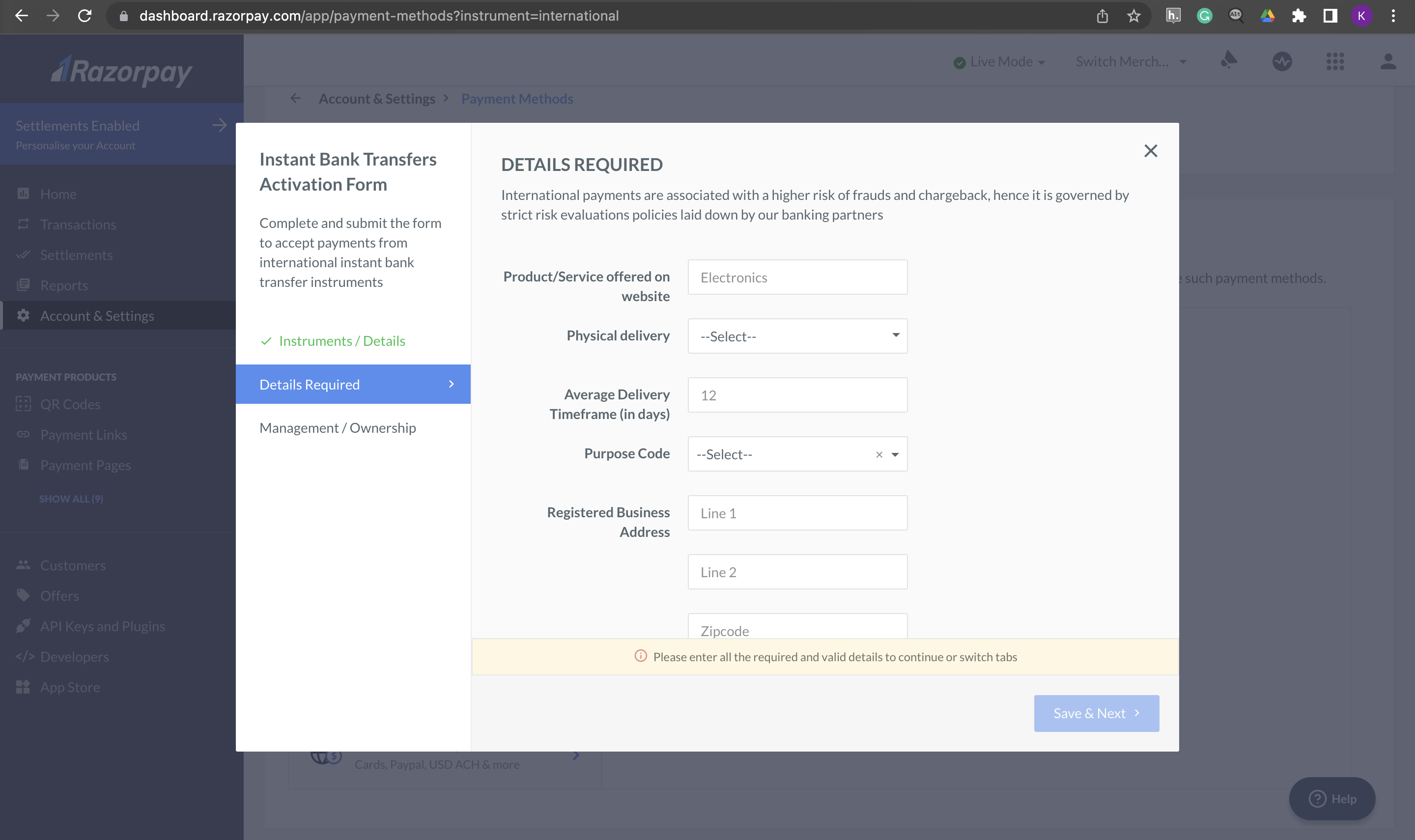
 5. Fill in the required details and click **Save & Next**.
**Handy Tips**
* If you are an existing business, some of the required details will be auto-filled.
* You can click the **Edit** button to fill in the incomplete details before submitting the form.
5. Fill in the required details and click **Save & Next**.
**Handy Tips**
* If you are an existing business, some of the required details will be auto-filled.
* You can click the **Edit** button to fill in the incomplete details before submitting the form.
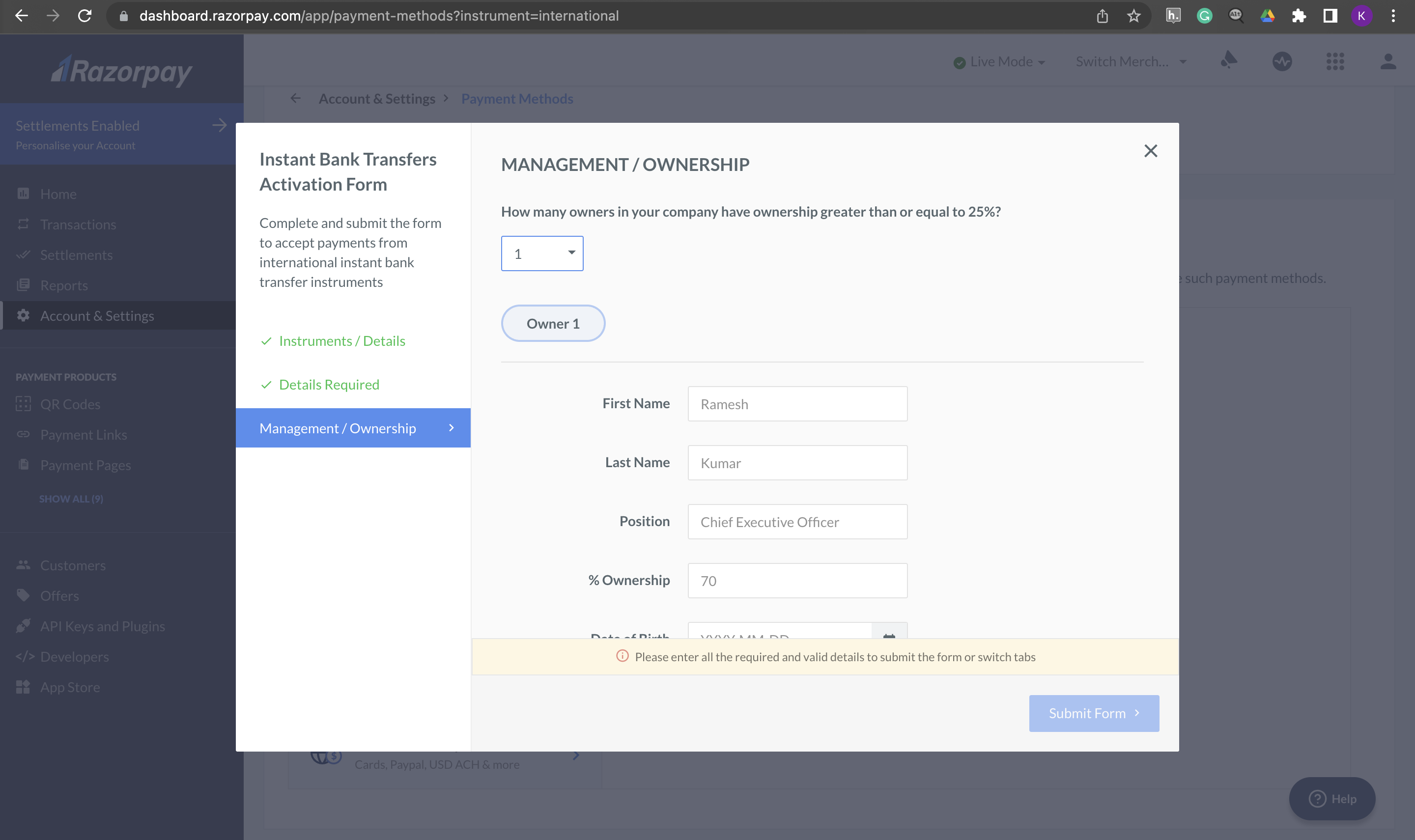
 6. Fill in the **Management/Ownership** details in the form. When complete form details are filled, click **Submit form** button.
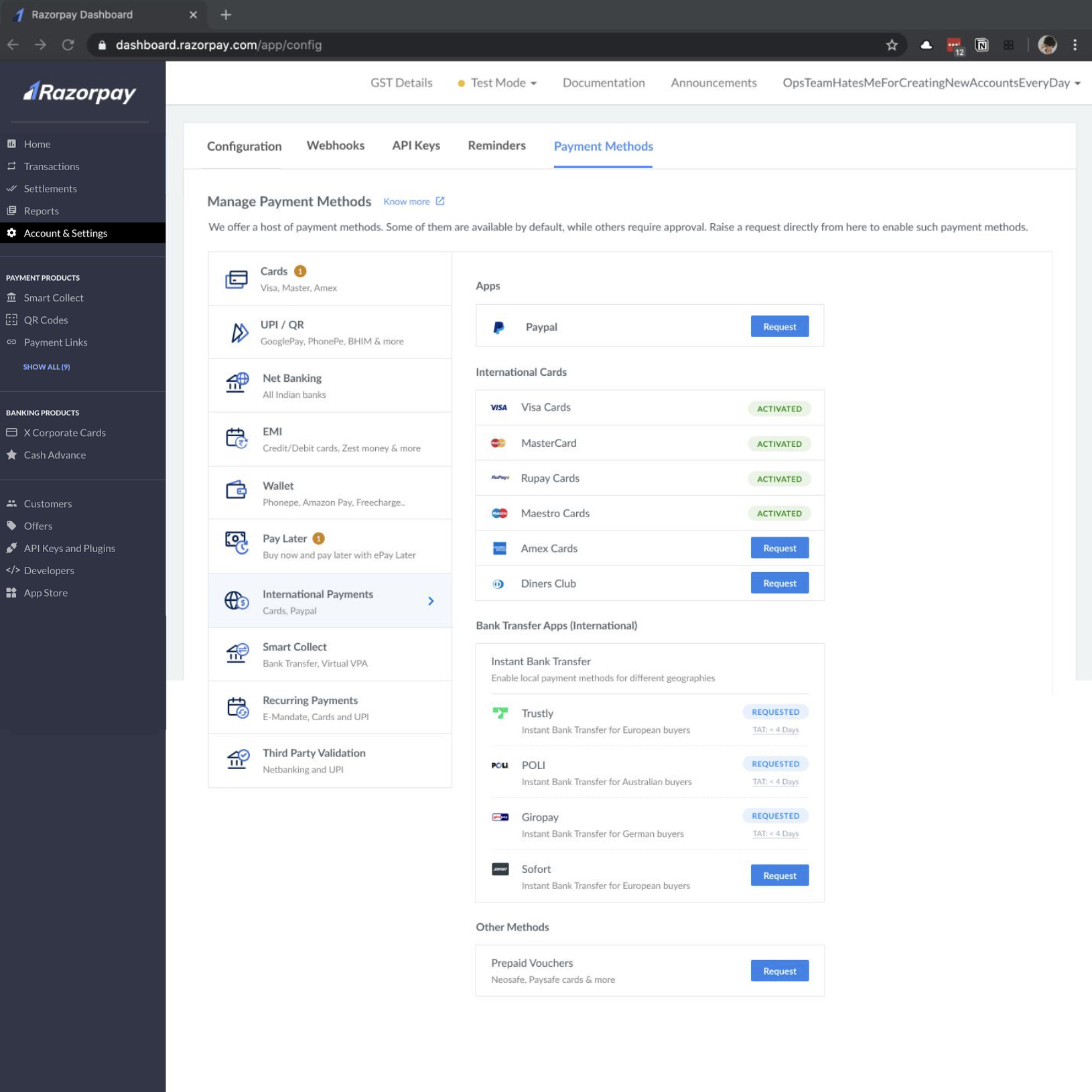
 7. After the form is submitted, the request is sent to activate the selected payment instruments. The feature enablement request goes to our banking partners and will take 15 - 20 business days to be approved.
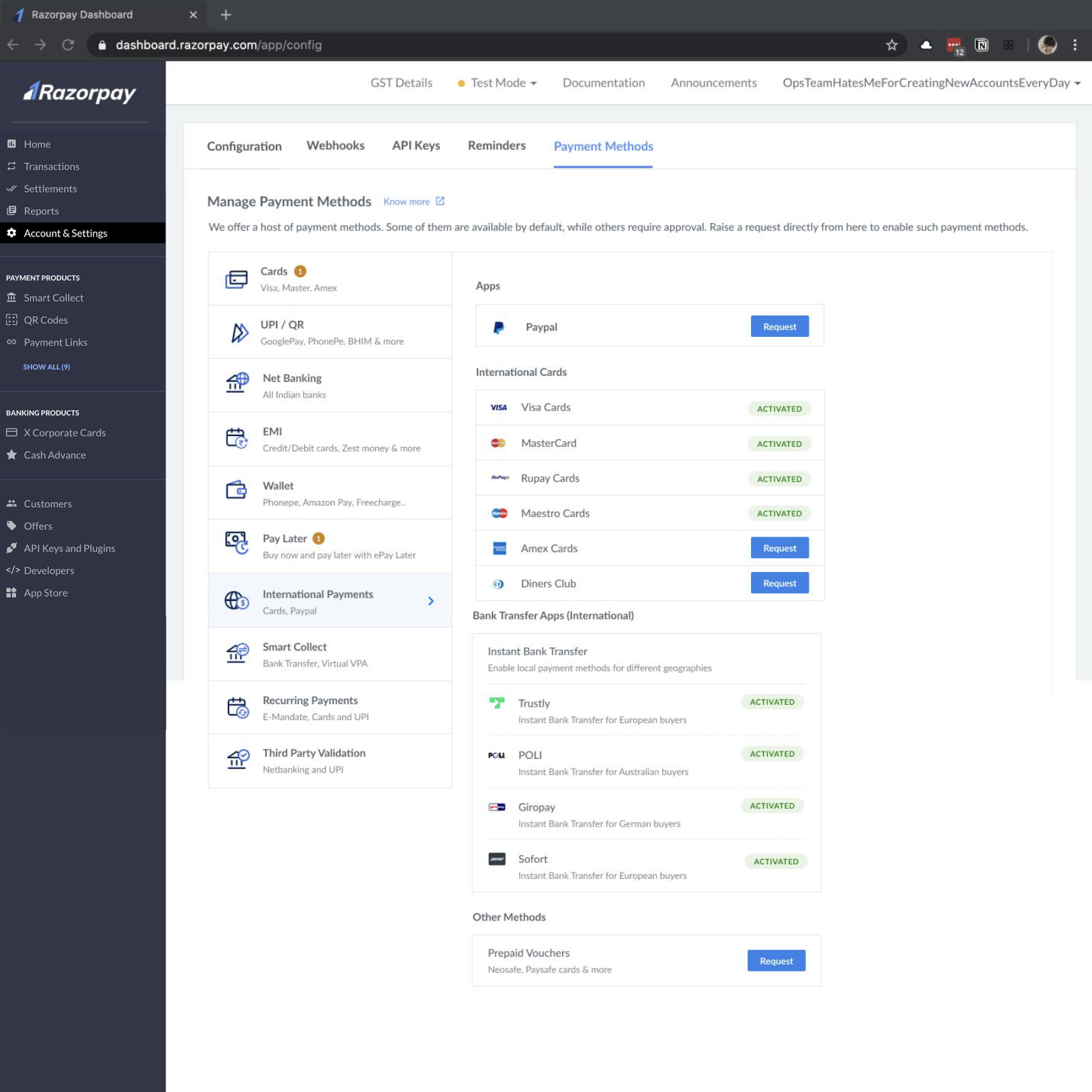
 After the payment instrument is enabled, you will see the **Activated** status beside the selected one.
 ## Frequently Asked Questions (FAQs)
All international-enabled businesses will have this feature on the Dashboard.
Razorpay already supports PayPal, and has now launched POLi for Australians, Trustly for the UK and Europeans, Sofort for Europeans and Giropay for German customers.
You will be charged 3.0% Platform fee for accepting payments via the **Local Payment Methods**.
The request can be rejected due to multiple reasons:
* Risky business category: The respective payment method (lets say, Trustly) is not comfortable with your business model.
* Incorrect account details: The banking partner rejects your request if you have provided any incorrect information at the time of your application.
* Outdated website: The customer-facing website is thoroughly checked by our banking partners. The banking partner can reject your request if the website is not updated or has a limited information, including details such as **Terms & Conditions**, **Delivery timelines**, **Refund & Cancellation** policies and so on.
We will give early access to sellers on Razorpay Standard Checkout. The feature will be rolled out to custom and server-to-server (s2s) integration in the upcoming sprints.
The feature enablement request goes to our banking partners and will take 15 - 20 business days to be approved.
## Frequently Asked Questions (FAQs)
All international-enabled businesses will have this feature on the Dashboard.
Razorpay already supports PayPal, and has now launched POLi for Australians, Trustly for the UK and Europeans, Sofort for Europeans and Giropay for German customers.
You will be charged 3.0% Platform fee for accepting payments via the **Local Payment Methods**.
The request can be rejected due to multiple reasons:
* Risky business category: The respective payment method (lets say, Trustly) is not comfortable with your business model.
* Incorrect account details: The banking partner rejects your request if you have provided any incorrect information at the time of your application.
* Outdated website: The customer-facing website is thoroughly checked by our banking partners. The banking partner can reject your request if the website is not updated or has a limited information, including details such as **Terms & Conditions**, **Delivery timelines**, **Refund & Cancellation** policies and so on.
We will give early access to sellers on Razorpay Standard Checkout. The feature will be rolled out to custom and server-to-server (s2s) integration in the upcoming sprints.
The feature enablement request goes to our banking partners and will take 15 - 20 business days to be approved.