> ## Documentation Index
> Fetch the complete documentation index at: https://razorpay-881012b3.mintlify.site/llms.txt
> Use this file to discover all available pages before exploring further.
# Delete an Invoice
> Delete an Invoice using the Razorpay Dashboard or API.
Available in
🇮🇳 India
You can delete a `draft` invoice only.
## Delete an Invoice From Dashboard
To delete an invoice:
1. Log in to the Dashboard.
2. Click **Invoices**.
3. Search for the invoice that you want to delete using the [search criteria](/docs/payments/invoices/search). You can delete invoices that are in the `draft` state only.
4. Select the **Invoice Id**.
5. On the right-hand side panel, click the **Delete Invoice** button.
6. On the **Delete Invoice?** dialog box, click **Yes, Delete** to confirm deletion.
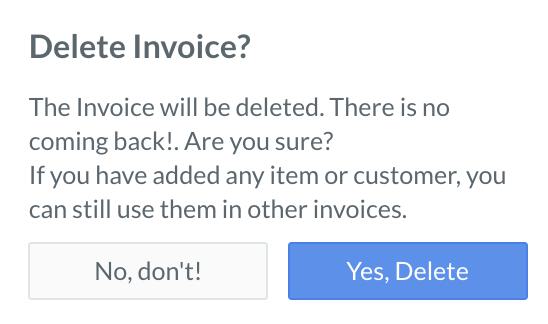 The deleted invoices do not appear in the invoices list under **Invoices**.
## Delete an Invoice Using APIs
You can delete an invoice in `draft` state using [this](/docs/api/payments/invoices#delete-an-invoice/) API.
### Related Information
* [Invoices](/docs/payments/invoices)
* [How Invoices Work](/docs/payments/invoices/how-it-works)
* [Cancel an Invoice](/docs/payments/invoices/cancel)
* [Create an Invoice](/docs/payments/invoices/create)
* [Search an Invoice](/docs/payments/invoices/search)
* [Update an Invoice](/docs/payments/invoices/update)
* [Duplicate an Invoice](/docs/payments/invoices/duplicate)
* [Download and Print an Invoice](/docs/payments/invoices/download-print)
The deleted invoices do not appear in the invoices list under **Invoices**.
## Delete an Invoice Using APIs
You can delete an invoice in `draft` state using [this](/docs/api/payments/invoices#delete-an-invoice/) API.
### Related Information
* [Invoices](/docs/payments/invoices)
* [How Invoices Work](/docs/payments/invoices/how-it-works)
* [Cancel an Invoice](/docs/payments/invoices/cancel)
* [Create an Invoice](/docs/payments/invoices/create)
* [Search an Invoice](/docs/payments/invoices/search)
* [Update an Invoice](/docs/payments/invoices/update)
* [Duplicate an Invoice](/docs/payments/invoices/duplicate)
* [Download and Print an Invoice](/docs/payments/invoices/download-print)