> ## Documentation Index
> Fetch the complete documentation index at: https://razorpay-881012b3.mintlify.site/llms.txt
> Use this file to discover all available pages before exploring further.
# How Invoices Work
> Create Invoices, send them to customers to receive payments and perform other actions.
Available in
🇮🇳 India
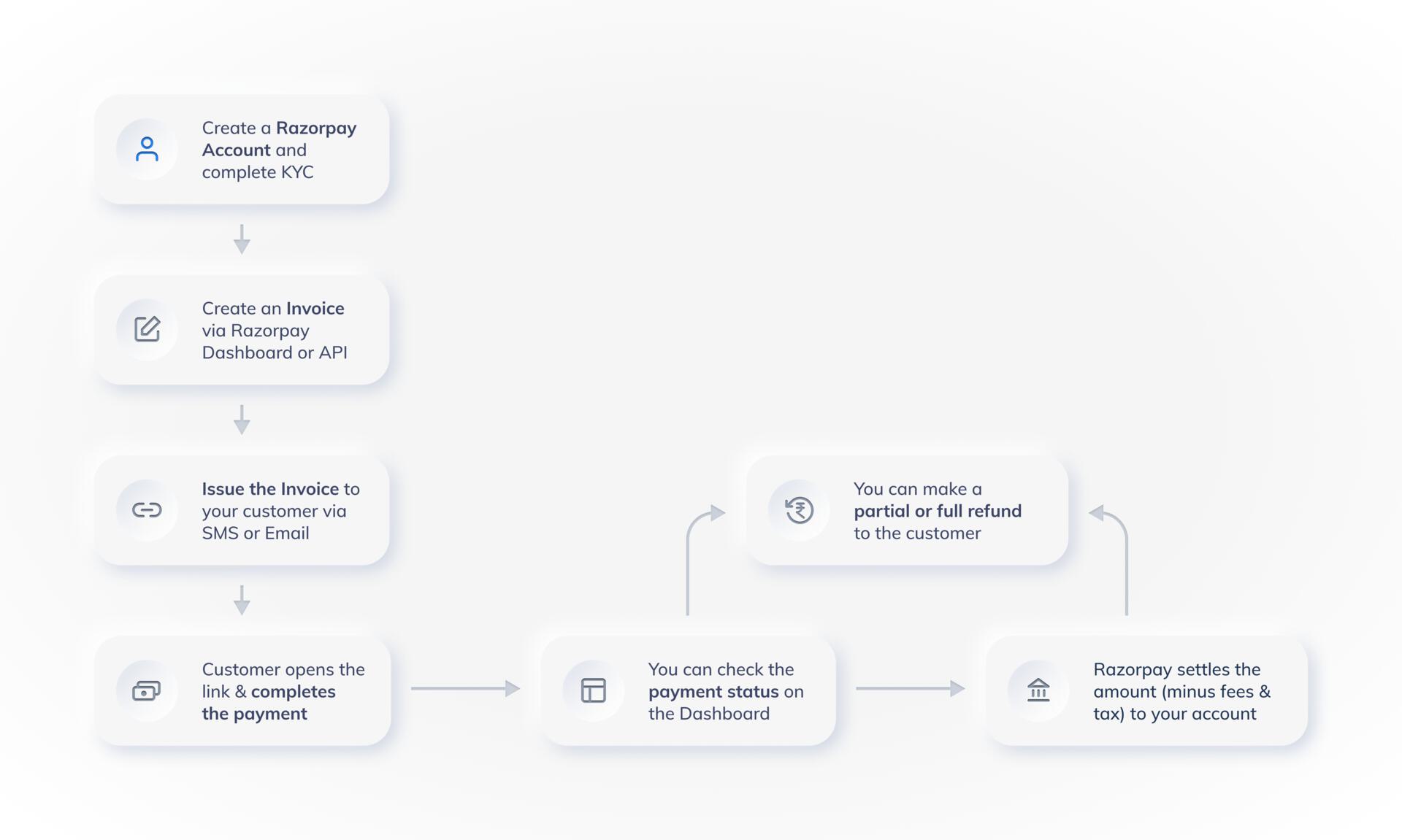
Given below is a complete end-to-end flow about how you can use Razorpay Invoices.
 ### Step 1: Create an Invoice
[Create an invoice](/docs/payments/invoices/create) by providing all the required details. You can set an expiry date and enable partial payments.
Save the invoice. The invoice is in `draft` status. Know more about [invoice states](/docs/payments/invoices/states).
**Handy Tips**
* You can [update](/docs/payments/invoices/update), [delete](/docs/payments/invoices/delete), or [create a duplicate](/docs/payments/invoices/duplicate) of an invoice in `draft` status.
### Step 1: Create an Invoice
[Create an invoice](/docs/payments/invoices/create) by providing all the required details. You can set an expiry date and enable partial payments.
Save the invoice. The invoice is in `draft` status. Know more about [invoice states](/docs/payments/invoices/states).
**Handy Tips**
* You can [update](/docs/payments/invoices/update), [delete](/docs/payments/invoices/delete), or [create a duplicate](/docs/payments/invoices/duplicate) of an invoice in `draft` status.
* **Invoice APIs**:
* [Create an invoice](/docs/api/payments/invoices#create-an-invoice)
* [Update an invoice](/docs/api/payments/invoices/update)
* [Delete an invoice](/docs/api/payments/invoices/delete)
### Step 2: Issue an Invoice
[Issue an invoice](/docs/payments/invoices/issue) to a customer via email and/or sms.
The customer receives a notification by email or sms with a payment link using which the customer can pay using one of the available [payment methods](/docs/payments/invoices#list-of-supported-payment-methods).
**Handy Tips**
Use the [Issue an Invoice API](/docs/api/payments/invoices/issue).
### Step 3: Receive Payments
Customer clicks the payment link and tries to make the payment.
* If [partial payments](/docs/payments/payment-links/partial-payments) payments was enabled, the customer chooses the amount to be paid.
* The customer chooses the mode of payment: Pay Online or Pay via Bank Transfer
Customer makes a successful payment. The invoice is marked as `paid` or `partially paid`. You receive a notification about the payment.
**Handy Tips**
After the payment is captured, the amount is settled to your account as per the settlement schedule. Know more about [payments](/docs/payments/payments), [settlements](/docs/payments/settlements), [refunds](/docs/payments/refunds) and [disputes](/docs/payments/disputes).
### Step 4: Track Invoices and Reports
* Notifications
You receive notifications regarding activity on invoices via SMS, emails and webhook. Know more about [subscribing to Webhooks](/docs/payments/invoices/subscribe-to-webhooks).
* Track Payments
Track payments made against the issued invoices on Dashboard. Click **Invoices** from the left menu. All the invoices are listed with their status under **Invoices**.
* Reports
Detailed insights can be gained using reports and real-time data on the Dashboard. These reports can then be used for accounting and reconciliation purposes. Know more about [reports](/docs/payments/dashboard/reports).
### Related Information
* [Invoices](/docs/payments/invoices)
* [Invoices States](/docs/payments/invoices/states)
* [Create an Invoice](/docs/payments/invoices/create)
* [Issue an Invoice](/docs/payments/invoices/issue)
* [Search an Invoice](/docs/payments/invoices/search)
* [Update an Invoice](/docs/payments/invoices/update)
* [Duplicate an Invoice](/docs/payments/invoices/duplicate)
* [Delete an Invoice](/docs/payments/invoices/delete)
* [Cancel an Invoice](/docs/payments/invoices/cancel)
* [Download and Print an Invoice](/docs/payments/invoices/download-print)
* [Subscribe to Webhooks](/docs/payments/invoices/subscribe-to-webhooks)
* [Invoice APIs](/docs/payments/invoices/apis)