> ## Documentation Index
> Fetch the complete documentation index at: https://razorpay-881012b3.mintlify.site/llms.txt
> Use this file to discover all available pages before exploring further.
# COD Orders Review Workflow
> Configure workflows to automate the actions on the COD orders based on the RTO risk level using Razorpay Magic Checkout.
Available in
🇮🇳 India
Reviewing and acting upon COD orders manually can be time-consuming. With the automation feature, you can configure workflows to approve, hold or cancel COD orders based on the RTO risk levels.
**Watch Out!**
You can access the **COD Orders Review Workflow** feature only if you opt for [manual review of COD orders](/docs/payments/magic-checkout/order-settings/review-cod-orders).
## How it Works
Follow the steps given below to configure the COD review workflow:
1. Log in to the Dashboard.
2. Navigate to **Magic Checkout** → **Orders**.
3. In the **Manual Review of COD Orders** tab, click **Automate now**. This redirects you to the **COD Review Workflow** field in the **Setup & Settings** section.
**Handy Tips**
**COD Review Workflow** section appears only if you opt for the manual review of COD orders.
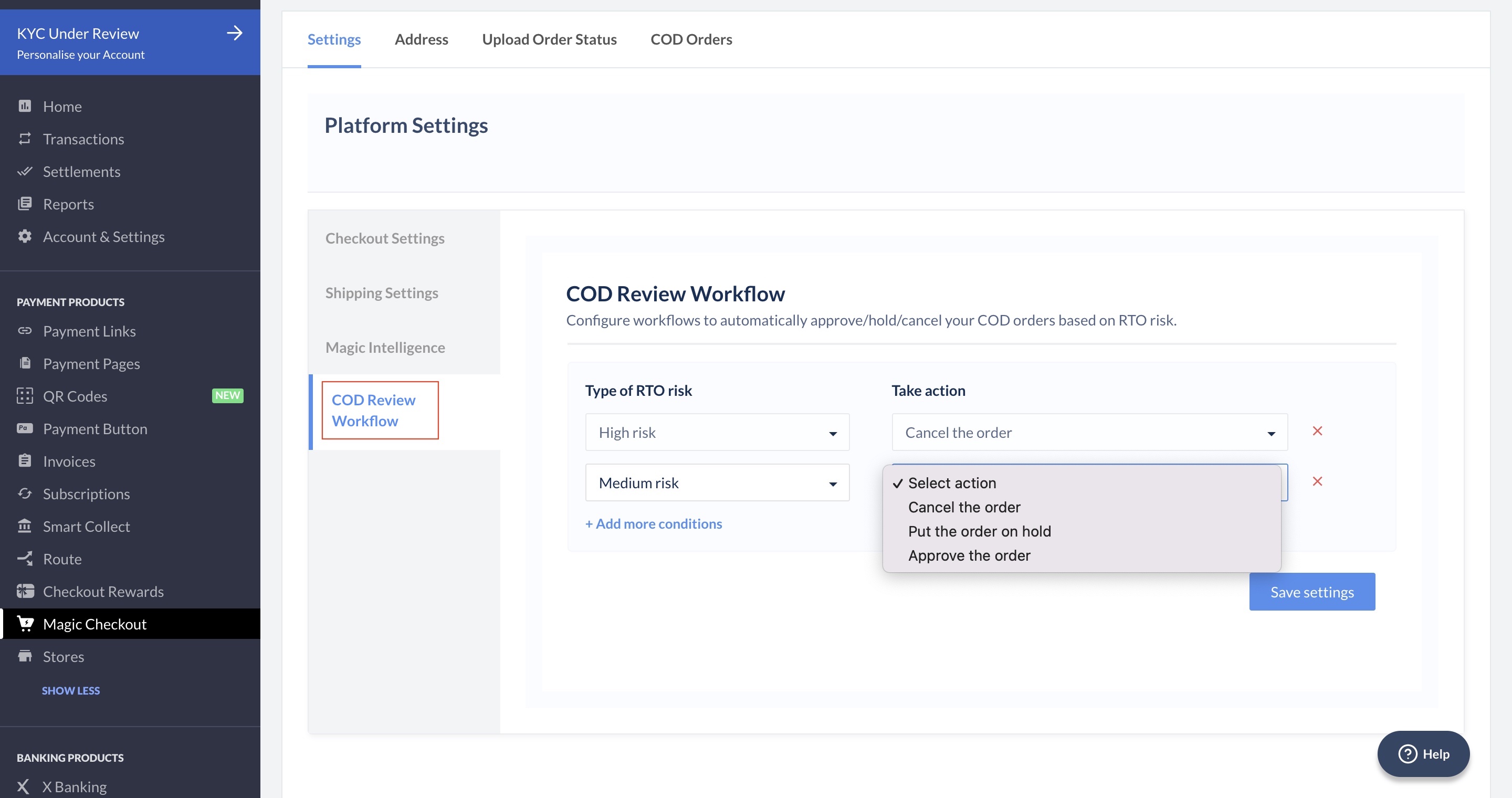
4. Select the **Type of RTO risk** and its corresponding action from the drop-down list.
 **Watch Out!**
* You can only assign one action to each specific **Type of RTO risk**. For example, if you identify a risk as **High** and choose the action to **Cancel the order** to handle that risk, you cannot add any additional actions for that specific type of risk.
* However, you can use the same action, such as **Cancel the order** for multiple types of RTO risks, such as **Medium risk**.
5. Click **+ Add more conditions** to add more types of RTO risk and its corresponding action if required.
6. Click **Save settings**.
Follow the steps given below to edit the conditions:
1. Log in to the Dashboard.
2. Navigate to **Magic Checkout**.
3. Select the platform of your ecommerce website from the drop-down list and click **Next**.
**Handy Tips**
This feature is available for your Custom ecommerce platform, [WooCommerce website](/docs/payments/payment-pages) and [Shopify store](/docs/payments/payment-pages).
3. Click **COD Review Workflow**.
4. Click **Edit** to modify the conditions based on your requirement.
**Watch Out!**
* You can only assign one action to each specific **Type of RTO risk**. For example, if you identify a risk as **High** and choose the action to **Cancel the order** to handle that risk, you cannot add any additional actions for that specific type of risk.
* However, you can use the same action, such as **Cancel the order** for multiple types of RTO risks, such as **Medium risk**.
5. Click **+ Add more conditions** to add more types of RTO risk and its corresponding action if required.
6. Click **Save settings**.
Follow the steps given below to edit the conditions:
1. Log in to the Dashboard.
2. Navigate to **Magic Checkout**.
3. Select the platform of your ecommerce website from the drop-down list and click **Next**.
**Handy Tips**
This feature is available for your Custom ecommerce platform, [WooCommerce website](/docs/payments/payment-pages) and [Shopify store](/docs/payments/payment-pages).
3. Click **COD Review Workflow**.
4. Click **Edit** to modify the conditions based on your requirement.
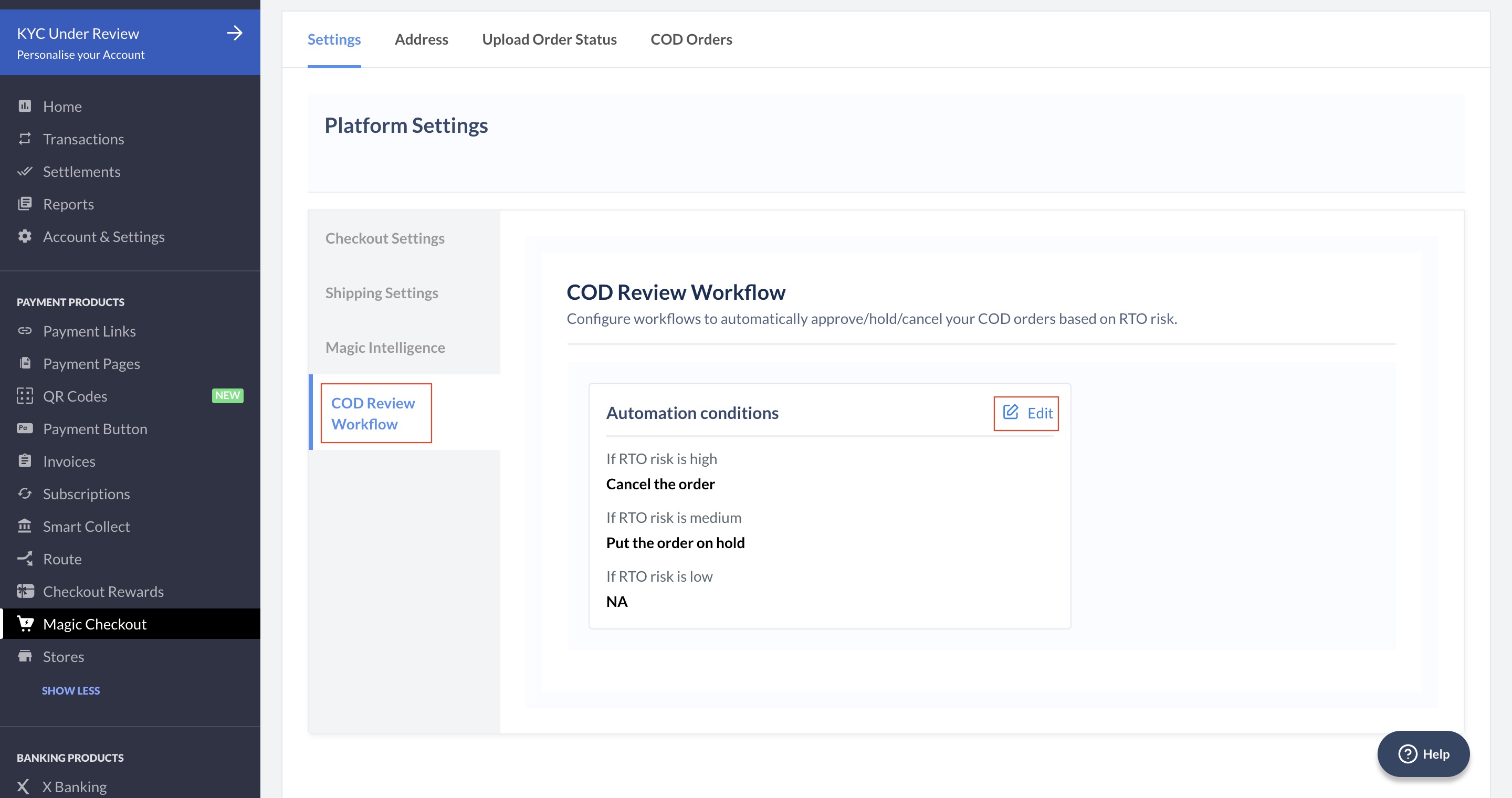 5. Click **Save settings**.
Follow the steps given below to remove the review workflow conditions:
1. In the **COD Review Workflow** section, click the cancel icon.
5. Click **Save settings**.
Follow the steps given below to remove the review workflow conditions:
1. In the **COD Review Workflow** section, click the cancel icon.
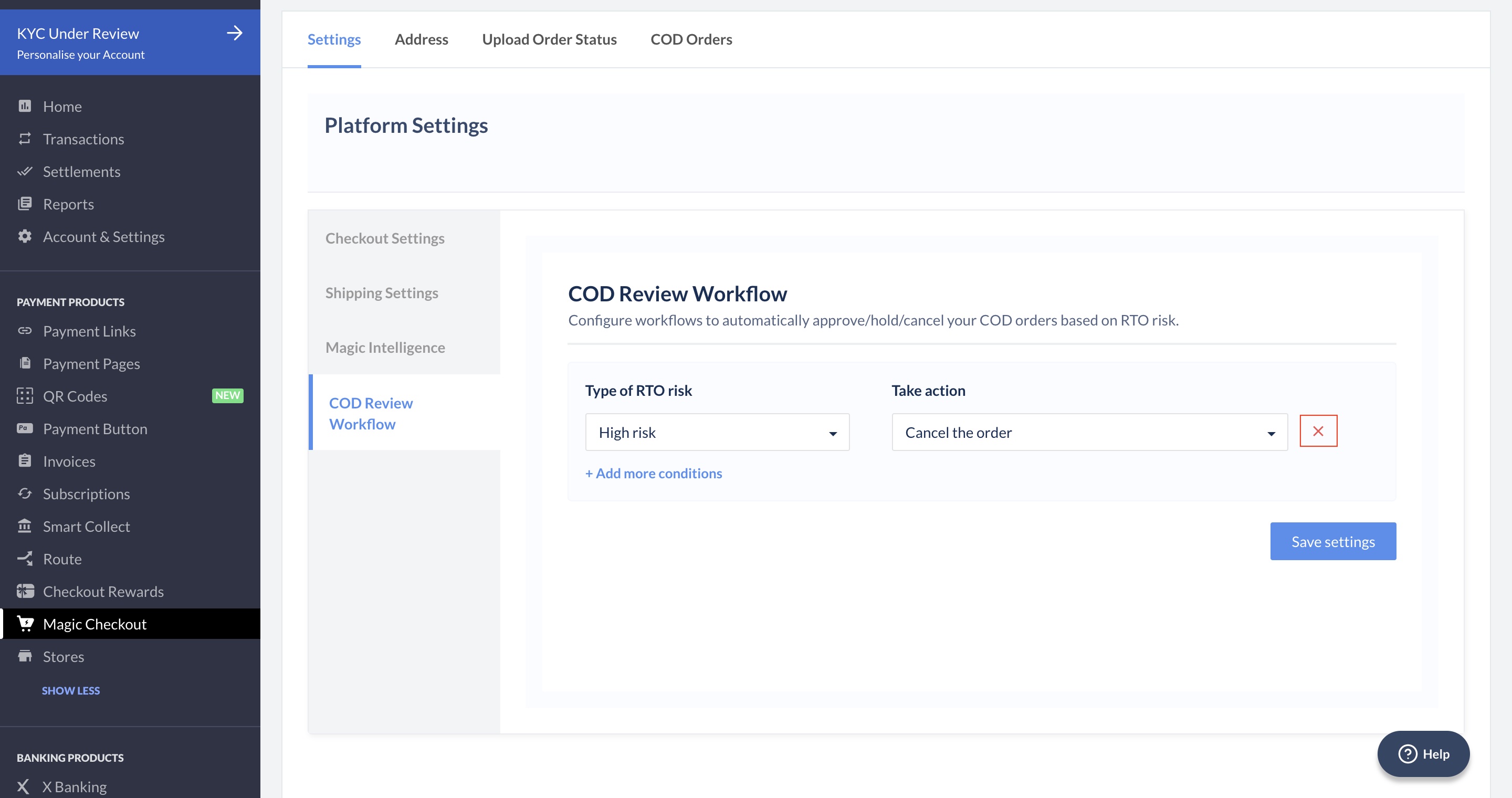 2. Click **Yes, Remove** to remove all the the COD review workflow conditions.