> ## Documentation Index
> Fetch the complete documentation index at: https://razorpay-881012b3.mintlify.site/llms.txt
> Use this file to discover all available pages before exploring further.
# Integrate Magic Checkout with Delhivery
> Integrate Delhivery with Razorpay Magic Checkout to easily fetch delivery status details.
Available in
🇮🇳 India
Delhivery is an Indian supply chain and logistics company aiming to build an operating system for commerce.
## Integration Steps
Follow these steps on the Razorpay Dashboard:
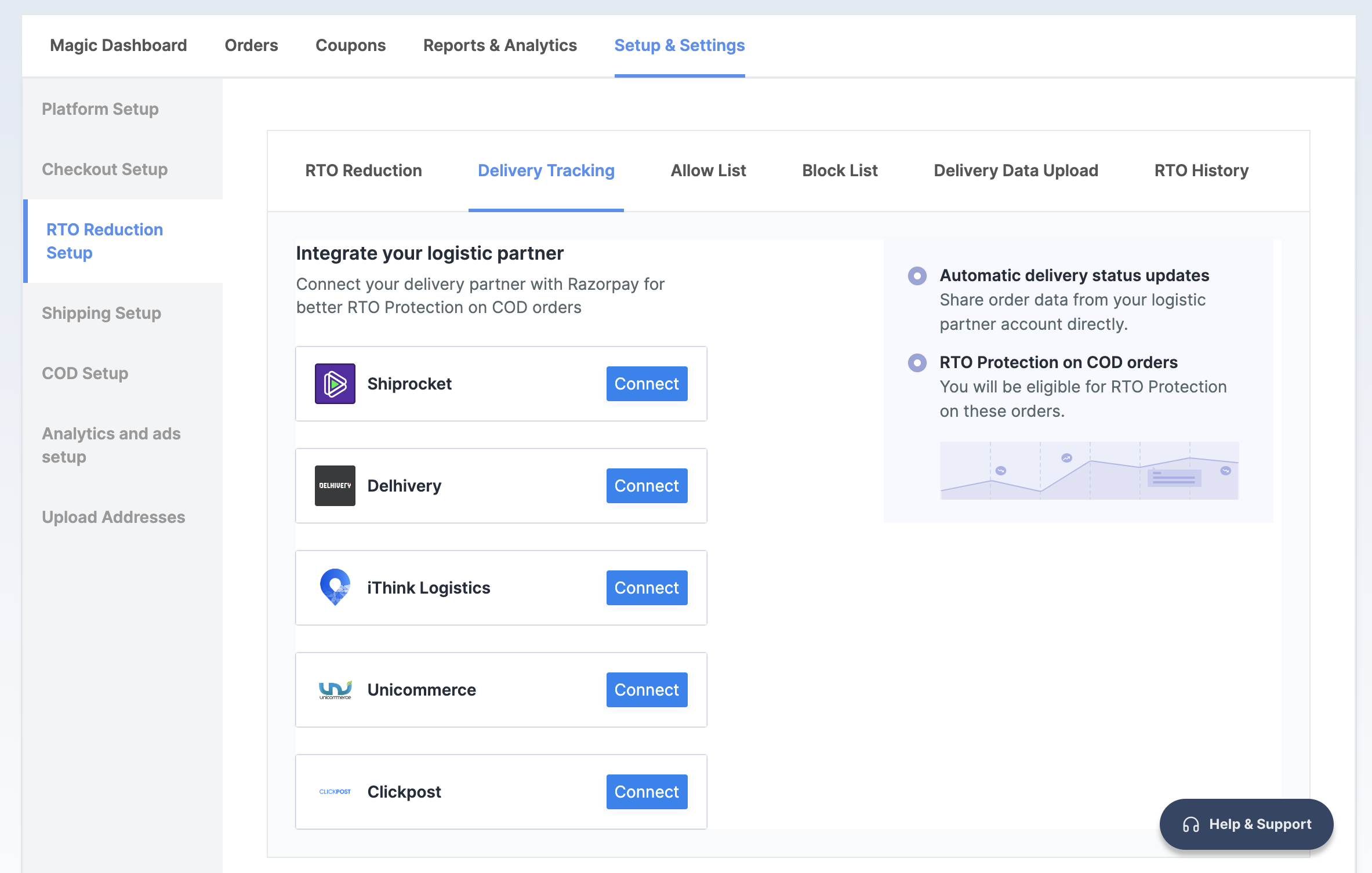
1. Log in to the Dashboard and navigate to **Magic Checkout**.
2. Select the platform of your e-commerce website, enter the relevant details and click **Next**.
3. In the **RTO Reduction Setup** section, navigate to the → **Delivery Tracking** tab.
4. Click **Connect** next to **Delhivery**.
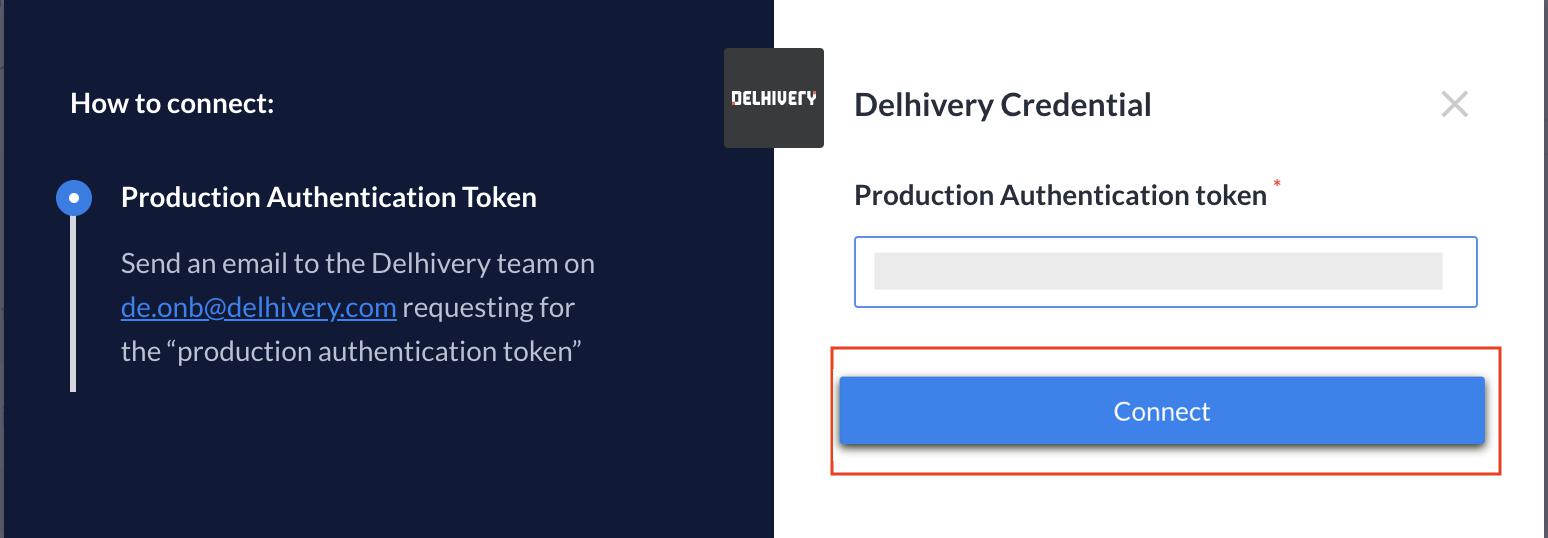
 5. Send an email to the **Delhivery team** on `de.onb@delhivery.com` requesting for the **Production Authentication Token**.
6. Enter the token once you receive it and click **Connect**.
5. Send an email to the **Delhivery team** on `de.onb@delhivery.com` requesting for the **Production Authentication Token**.
6. Enter the token once you receive it and click **Connect**.
 You have successfully integrated Magic Checkout with Delhivery. In case you want to disconnect Delhivery, click **Disconnect**.