> ## Documentation Index
> Fetch the complete documentation index at: https://razorpay-881012b3.mintlify.site/llms.txt
> Use this file to discover all available pages before exploring further.

# Integrate Magic Checkout with iThink Logistics

> Integrate iThink Logistics with Razorpay Magic Checkout to easily fetch delivery status details.

<div style={{display:"flex",flexWrap:"wrap",alignItems:"center",gap:"0.35rem 0.9rem",border:"1px solid rgba(128,128,128,0.28)",borderRadius:"0.5rem",padding:"0.45rem 0.75rem",margin:"0 0 1.25rem",fontSize:"0.875rem"}}>
  <span style={{fontWeight:600}}>Available in</span>
  <span>🇮🇳 India</span>
</div>

iThink logistics is a third-party logistics service provider that makes your ecommerce shipping process easier.

## Integration Steps

<AccordionGroup>
  <Accordion title="Copy the API Keys">
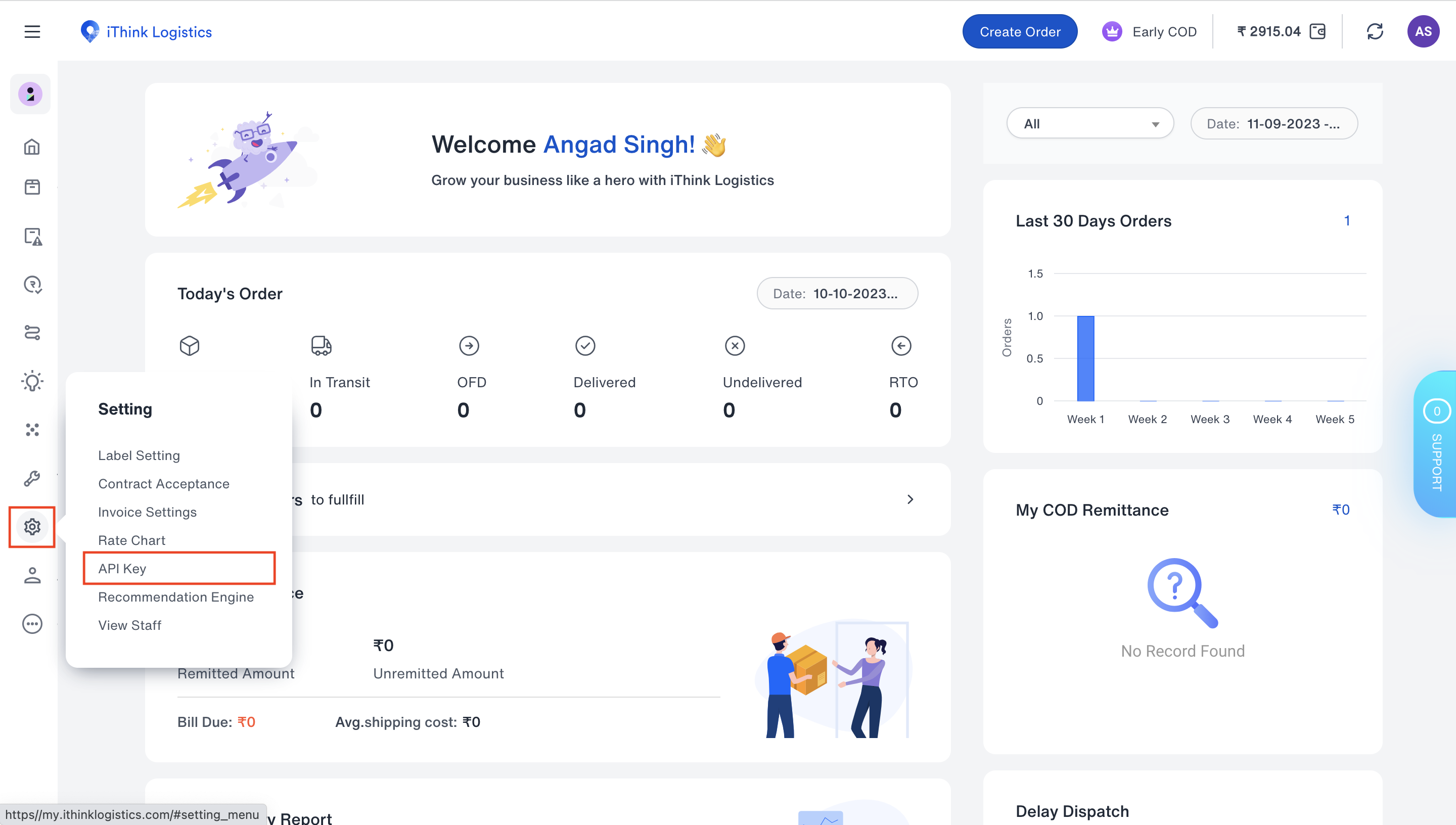
    1. Log in to the [iThink Logistics Dashboard](https://my.ithinklogistics.com/login) and hover over the settings icon on the bottom left.
    2. Click **API Key**.
           <img src="https://razorpay.com/docs/build/browser/assets/images/magic-logistics-ithink.jpg" alt="Navigate to API keys section on the iThink logistics Dashboard" width="800" />
    3. Copy the **API Key** and **Secret Key**.
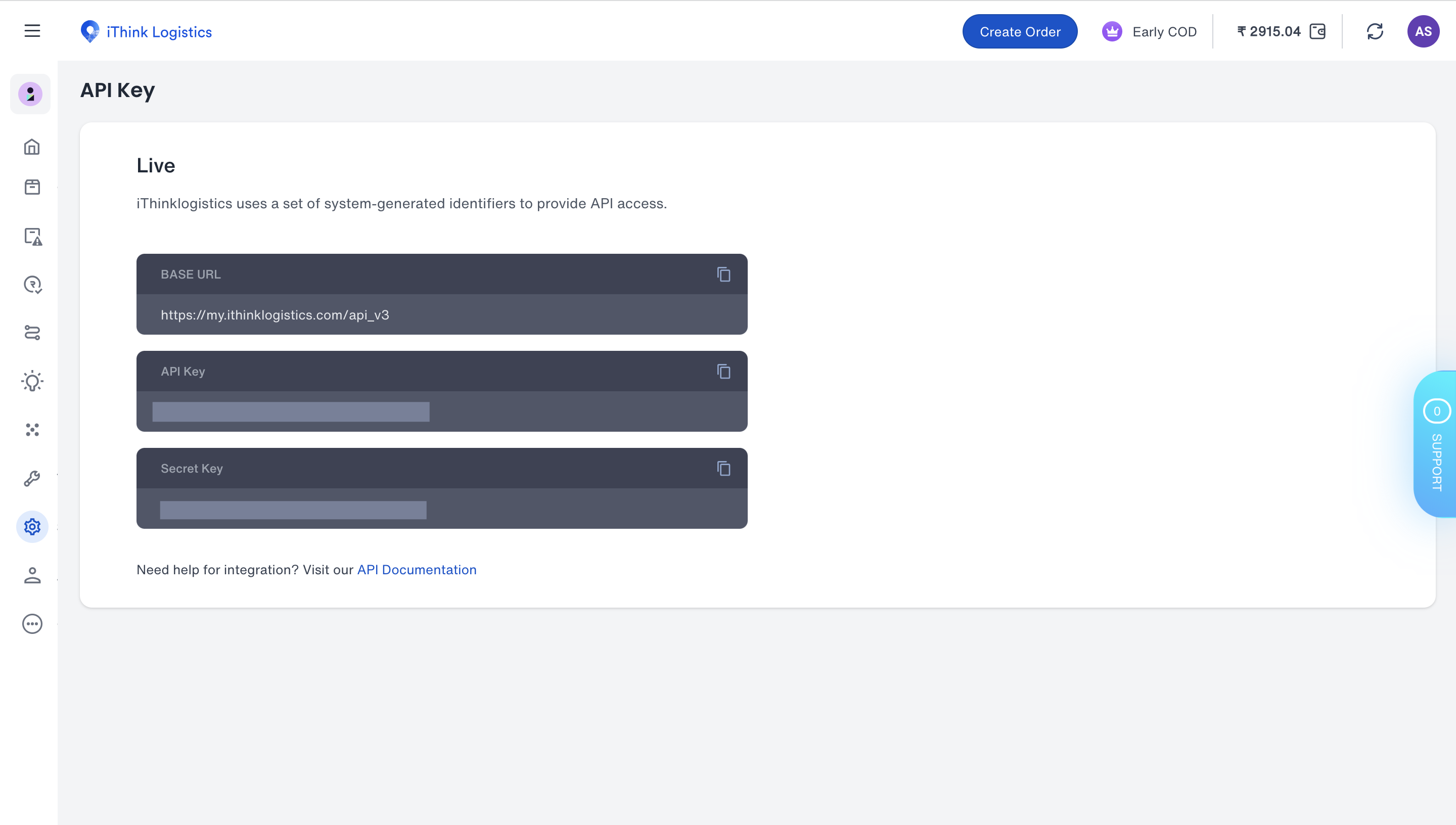
           <img src="https://razorpay.com/docs/build/browser/assets/images/magic-logistics-ithink-keys.jpg" alt="Copy the API Keys" width="800" />
  </Accordion>

  <Accordion title="Enable iThink Logistics on Razorpay Dashboard">
    1. Log in to the Dashboard and navigate to **Magic Checkout**.
    2. Select the platform of your e-commerce website, enter the relevant details and click **Next**.
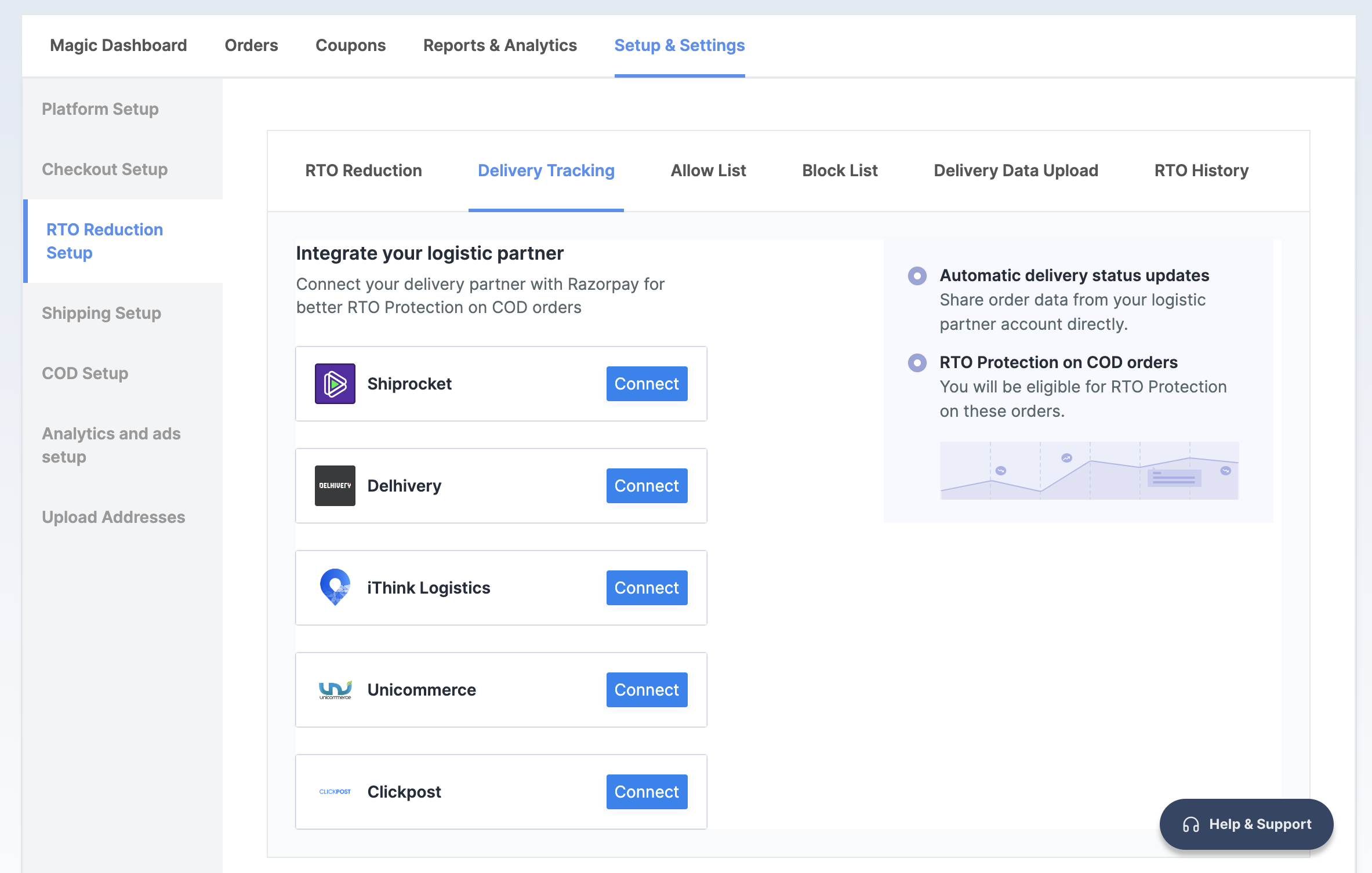
    3. In the **RTO Reduction Setup** section, navigate to the → **Delivery Tracking** tab.
    4. Click **Connect** next to **iThink Logistics**.
           <img src="https://razorpay.com/docs/build/browser/assets/images/magic-logistics-connect.jpg" alt="Connect Magic Checkout with iThink Logistics" width="800" />
    5. Paste the **API Key** and **Secret Key** copied from the iThink Logistics Dashboard.
    6. Click **Connect to iThink Logistics**.
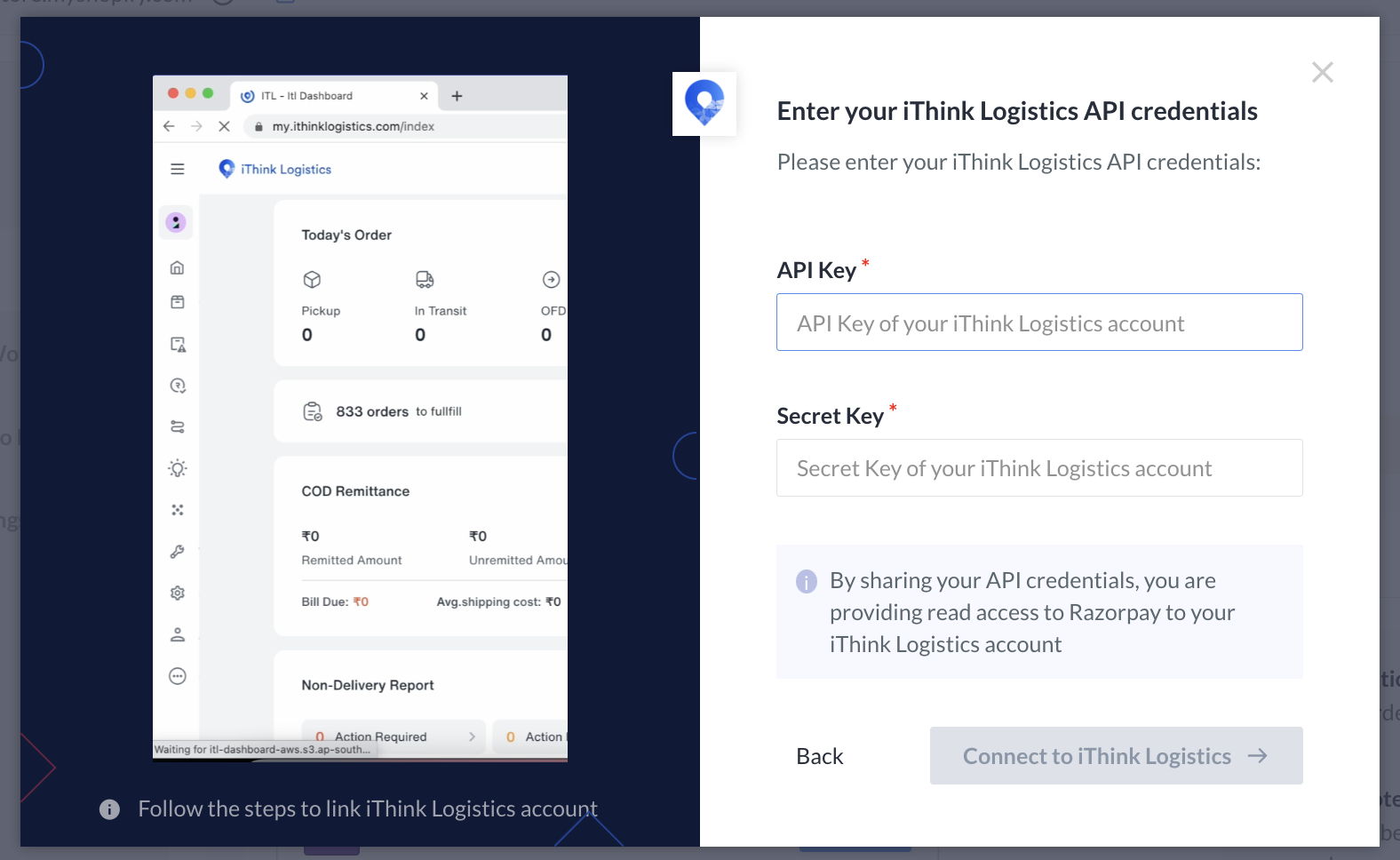
           <img src="https://razorpay.com/docs/build/browser/assets/images/magic-logistics-ithink-creds.jpg" alt="Paste the API Keys on the Razorpay Dashboard and connect" width="800" />

    You have successfully integrated Magic Checkout with iThink Logistics. In case you want to disconnect iThink Logistics, click **Disconnect**.
  </Accordion>
</AccordionGroup>