> ## Documentation Index
> Fetch the complete documentation index at: https://razorpay-881012b3.mintlify.site/llms.txt
> Use this file to discover all available pages before exploring further.
# Troubleshooting & FAQs
> Troubleshoot common errors and find answers to frequently asked questions about Razorpay Magic Checkout.
Available in
🇮🇳 India
## Common
The benefits of Magic Checkout are:
* Seamless prepaid and COD options
* Faster checkout experience
* Higher conversions
* Saved customer details
* Reduced RTOs (Return To Origin)
* Efficient promotions
Magic Checkout boosts conversions with a streamlined UI, auto-prefilled addresses and saved payments, visible coupons, personalised payment options, trust badges and COD Intelligence to block risky orders; delivering a faster, more seamless checkout experience.
Add items to your cart and click the Checkout button. If Magic Checkout is enabled, the Magic Checkout pop-up will appear instead of your regular checkout page. If this flow does not appear, raise a ticket with our [Support team](https://dashboard.razorpay.com/app/business-settings/ticket-support/tickets/merchant).
First, check if your website's theme was recently changed. If the theme is unchanged, raise a ticket with our [Support team](https://dashboard.razorpay.com/app/business-settings/ticket-support/tickets/merchant) for assistance.
Raise a request with our [Support team](https://dashboard.razorpay.com/app/business-settings/ticket-support/tickets/merchant) to get this issue resolved.
Magic Checkout's COD Intelligence uses risk analysis to block high-risk COD orders, helping reduce fake orders and RTOs.
To enable COD Intelligence on your [Dashboard](https://dashboard.razorpay.com/app/magic/settings/rto-reduction-setup/rto-reduction), navigate to **Magic Checkout** → **RTO Reduction Setup**. In the **RTO Reduction** tab, toggle on **COD Intelligence** and click **Enable COD Intelligence** in the confirmation pop-up modal.
Yes, international payments is supported on Magic Checkout.
On the [Razorpay Dashboard](https://dashboard.razorpay.com/app/magic/settings/cod-settings/settings), go to **Magic Checkout** → **COD Settings** → **COD Setup** and enable **COD as a payment option**.
**Watch Out!**
This setting is not applicable for custom websites. If you are using a custom website, you can control COD directly through APIs. If you are still unable to view the COD option, contact our [Support team](https://dashboard.razorpay.com/app/business-settings/ticket-support/tickets/merchant).
At present, Magic Checkout is available only on [WooCommerce](/docs/payments/magic-checkout/woocommerce), [Shopify](/docs/payments/magic-checkout/shopify) and Magento.
If Magic Checkout is causing conflicts with other plugins, disable any plugins that are not required. If the integration issue persists, contact our [Support team](https://dashboard.razorpay.com/app/business-settings/ticket-support/tickets/merchant) for assistance.
No, we currently do not support restricting a coupon discount to first-time users.
Yes. [Abandoned checkouts](https://dashboard.razorpay.com/app/magic/settings/checkout-setup) are automatically recorded in your Shopify/WooCommerce dashboards and can be leveraged by your retargeting tools. You can also use the abandoned cart webhook to track dropped customers and retarget them using their contact details to recover lost sales.
You can customise the look and feel of your checkout and rearrange payment methods or instruments to suit your requirements. Refer to the [checkout settings](/docs/payments/dashboard/account-settings/checkout-styling).
You can view Magic Checkout analytics and performance in the [Order Analytics](https://dashboard.razorpay.com/app/magic/reports-analytics/order-analytics) tab on your Razorpay Dashboard.
## Web
No, we do not support using live and test keys simultaneously in a staging environment. The URL configured in live mode is used for testing. If you need a specific merchant ID (MID) hardcoded for testing, please reach out to your Razorpay SPOC for assistance.
Follow these [integration steps](/docs/payments/magic-checkout/web#integration-steps) to set up Magic Checkout on your custom website.
**Handy Tips**
This is an on-demand feature. Contact your Razorpay SPOC or our [Support team](https://dashboard.razorpay.com/app/business-settings/ticket-support/tickets/merchant) to request activation on your account.
No, SSO is not supported. You will need to log in explicitly on the Razorpay Dashboard using your credentials.
The calls are failing due to timeouts. If the response time exceeds 10 seconds, the request is terminated, resulting in errors.
Yes, you can provide different types of payment offers to customers on checkout. Know more about how to [create offers](/docs/payments/offers).
You can retrieve the GSTIN and order notes provided by a customer by querying the corresponding Razorpay order\_id. These details are available in the order notes under the keys `gstin` and `order_instruction` respectively.
You can retrieve customer details by querying the Razorpay order associated with the customer.
Yes, you can customise Razorpay Checkout to reflect your brand colors and logos. Know more about how to [update brand name, theme color and company logo](/docs/payments/dashboard/account-settings/checkout-styling) on checkout.
This is an on-demand feature. Please raise a request with our [Support team](https://razorpay.com/support/#request) to configure the email and phone number collection on checkout.
If your domain’s firewall or cloud configuration is blocking requests to api.razorpay.com, you need to whitelist our public IPs. Know more about how to [whitelist IPs](/docs/security/whitelists#api-ips).
You can initiate refunds using our [Refunds APIs](/docs/api/refunds).
## WooCommerce
Follow the steps given below if you are integrating with our plugin for the first time:
1. [Create a Razorpay account](https://dashboard.razorpay.com/).
2. [Generate the API Keys](/docs/api/authentication#generate-api-keys) from the Dashboard. Navigate to **Account & Settings** → **API Keys** (under **Website and app settings**).
3. [Enable features on Razorpay Dashboard](/docs/payments/magic-checkout/woocommerce#step-1-enable-features-on-razorpay-dashboard).
4. Install Razorpay Plugin: With the release of version 4.1.0, you can install the plugin directly from the [WordPress Plugin Directory](https://wordpress.org/plugins/woo-razorpay/).
**Handy Tips**
Ensure you have the PHP-curl extension installed to make network requests.
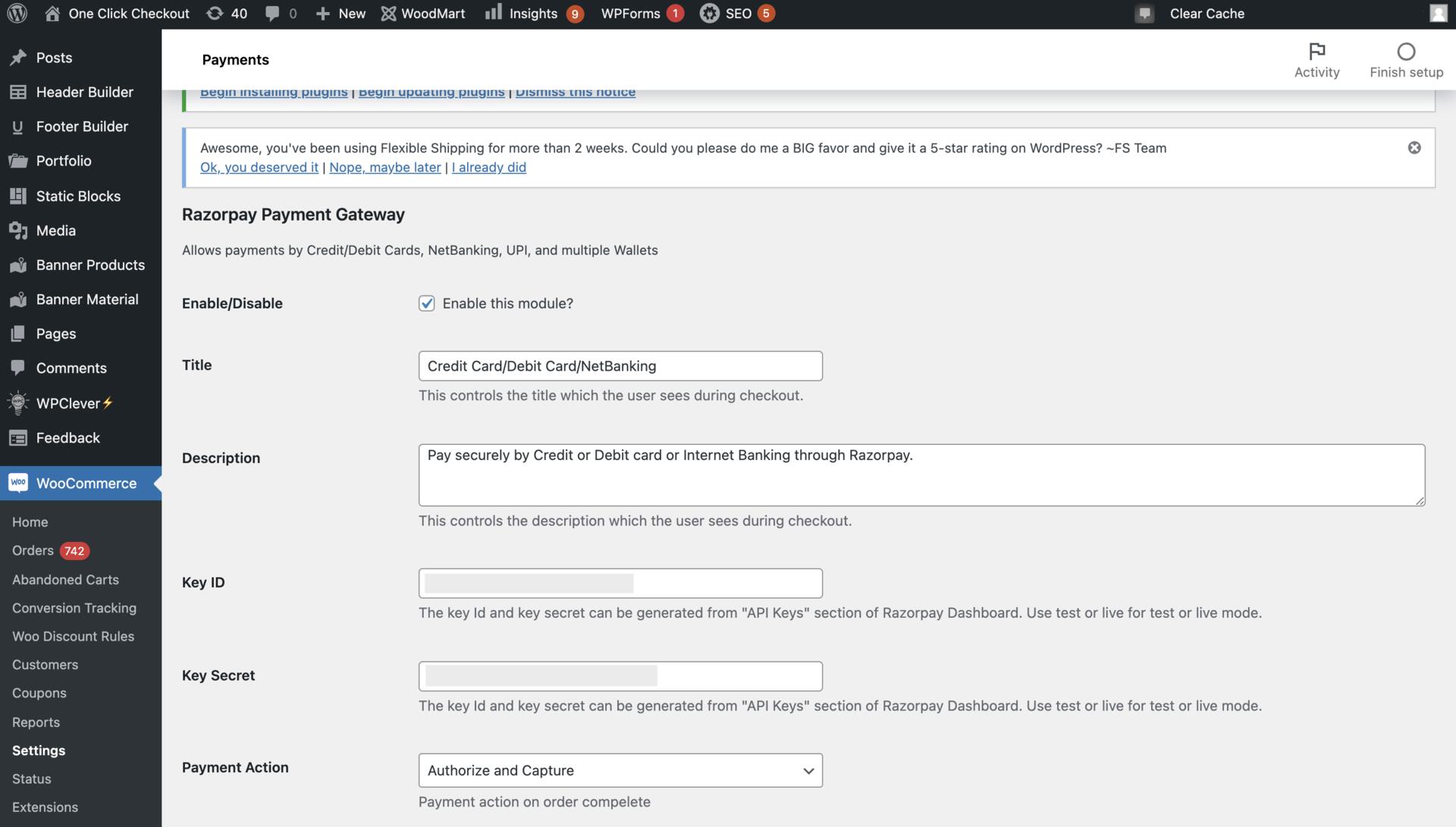
5. [Enable features on WordPress Dashboard](/docs/payments/magic-checkout/woocommerce#step-2-enable-features-on-wordpress-dashboard). In addition to the other steps, scroll down to **Razorpay** under the **Payments** tab and click **Manage** to edit the settings.
* Enable the **Payment Method**, name it Credit Card/Debit Card/Internet Banking (Displayed to your customer on the payment page).
* Add in your `[KEY_ID]` and `[KEY_SECRET]` generated from the [Razorpay Dashboard](/docs/api/authentication#generate-api-keys).
* Set **Payment Action** to **Authorize and Capture** to auto-capture payments. If you want to capture payments manually from the Dashboard after manual verification then set the Payment Action to **Authorize**.
 6. Accept Live Payments.
* Generate the `[KEY_ID]` and `[KEY_SECRET]` in the Live mode on your Razorpay Dashboard.
* Enter the Live mode `[KEY_ID]` and `[KEY_SECRET]` in your WooCommerce store.
**Handy Tips**
[Disable the Test mode](/docs/payments/magic-checkout/woocommerce#step-3-accept-live-payments:~:text=use%20Native%20Checkout.-,Activate%20Test%20Mode,-%3A%20Enable%20Test%20mode) to accept live payments.
Follow these [integration steps](/docs/payments/magic-checkout/woocommerce#integration-steps) to set up Magic Checkout on your WooCommerce website. If you are integrating with our plugin for the first time, refer to these [integration steps](/docs/payments/payment-gateway/emi²/widget/faqs#1-i-am-integrating-with-razorpay-plugin-for).
**Handy Tips**
This is an on-demand feature. Raise a request with our [Support team](https://dashboard.razorpay.com/app/business-settings/ticket-support/tickets/merchant) to get this enabled on your account.
To exclude draft orders:
a. Click **Analytics settings** in the WooCommerce Dashboard.
b. Navigate to the **Excluded statuses** section and select the check box for **draft orders** under the **Unregistered statuses** section.
* Auto-webhook support is available from Razorpay Woocommerce Plugin v2.7.2 onwards.
* You can configure only these events: `payment.authorized`, `refund.created` and `virtual_account.credited`.
**Handy Tips**
If you have enabled the COD option for your customers, you should manually subscribe to the `payment.pending` event.
* Once you configure auto-webhook on WooCommerce, you do not have to configure it on the Razorpay Dashboard.
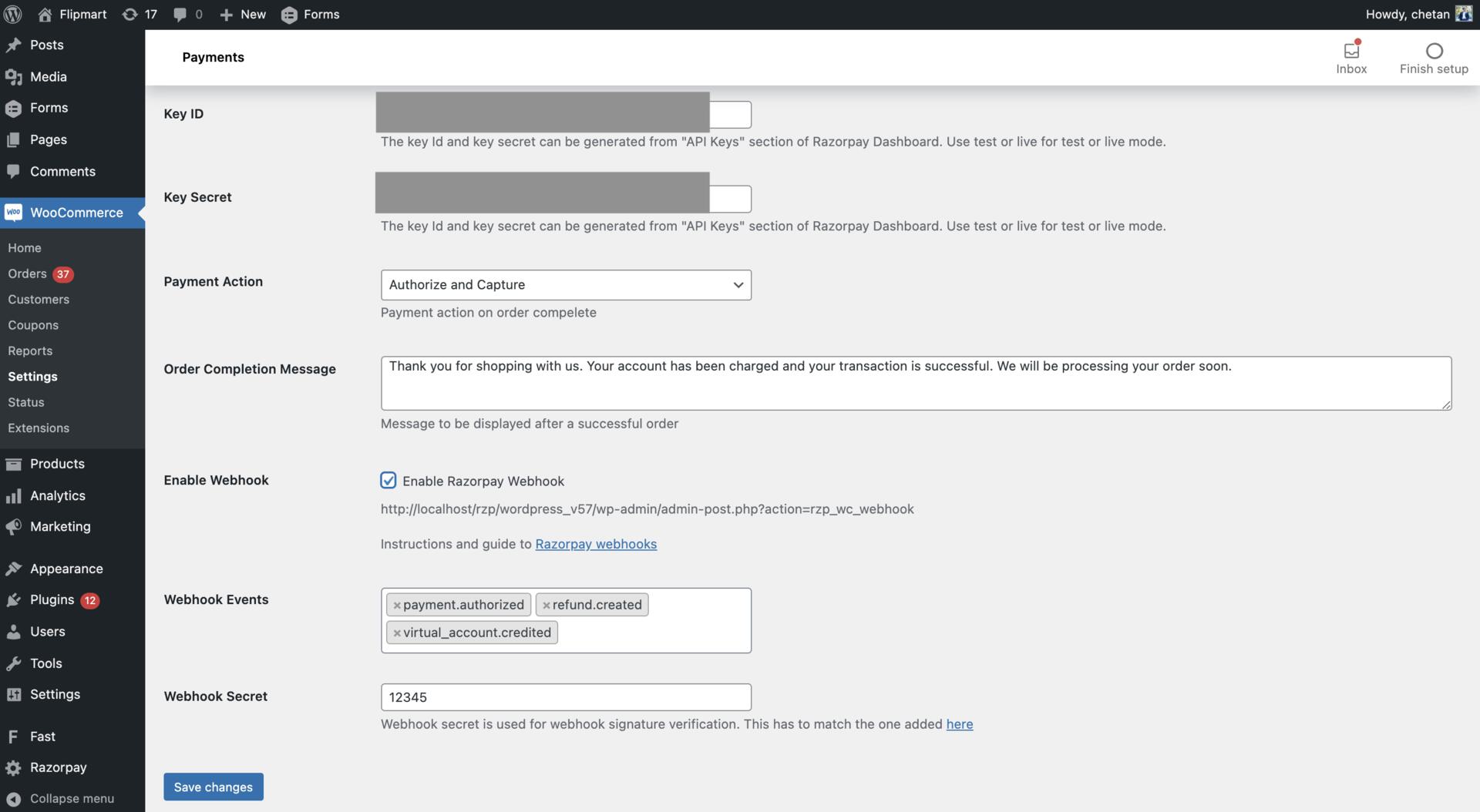
To set up auto-webhooks:
1. In the WordPress Dashboard, click **WooCommerce** and go to **Settings**.
2. In the **Payments** tab, complete the following steps:
* Select **Enable Razorpay Webhook**.
* **Webhook Events**: From the list, select the events for which you want to receive notifications.
* **Webhook Secret**: Enter the secret. This is a mandatory field as the secret is required for webhook signature verification.
3. Click **Save Changes**.
6. Accept Live Payments.
* Generate the `[KEY_ID]` and `[KEY_SECRET]` in the Live mode on your Razorpay Dashboard.
* Enter the Live mode `[KEY_ID]` and `[KEY_SECRET]` in your WooCommerce store.
**Handy Tips**
[Disable the Test mode](/docs/payments/magic-checkout/woocommerce#step-3-accept-live-payments:~:text=use%20Native%20Checkout.-,Activate%20Test%20Mode,-%3A%20Enable%20Test%20mode) to accept live payments.
Follow these [integration steps](/docs/payments/magic-checkout/woocommerce#integration-steps) to set up Magic Checkout on your WooCommerce website. If you are integrating with our plugin for the first time, refer to these [integration steps](/docs/payments/payment-gateway/emi²/widget/faqs#1-i-am-integrating-with-razorpay-plugin-for).
**Handy Tips**
This is an on-demand feature. Raise a request with our [Support team](https://dashboard.razorpay.com/app/business-settings/ticket-support/tickets/merchant) to get this enabled on your account.
To exclude draft orders:
a. Click **Analytics settings** in the WooCommerce Dashboard.
b. Navigate to the **Excluded statuses** section and select the check box for **draft orders** under the **Unregistered statuses** section.
* Auto-webhook support is available from Razorpay Woocommerce Plugin v2.7.2 onwards.
* You can configure only these events: `payment.authorized`, `refund.created` and `virtual_account.credited`.
**Handy Tips**
If you have enabled the COD option for your customers, you should manually subscribe to the `payment.pending` event.
* Once you configure auto-webhook on WooCommerce, you do not have to configure it on the Razorpay Dashboard.
To set up auto-webhooks:
1. In the WordPress Dashboard, click **WooCommerce** and go to **Settings**.
2. In the **Payments** tab, complete the following steps:
* Select **Enable Razorpay Webhook**.
* **Webhook Events**: From the list, select the events for which you want to receive notifications.
* **Webhook Secret**: Enter the secret. This is a mandatory field as the secret is required for webhook signature verification.
3. Click **Save Changes**.
 To verify if webhooks are enabled:
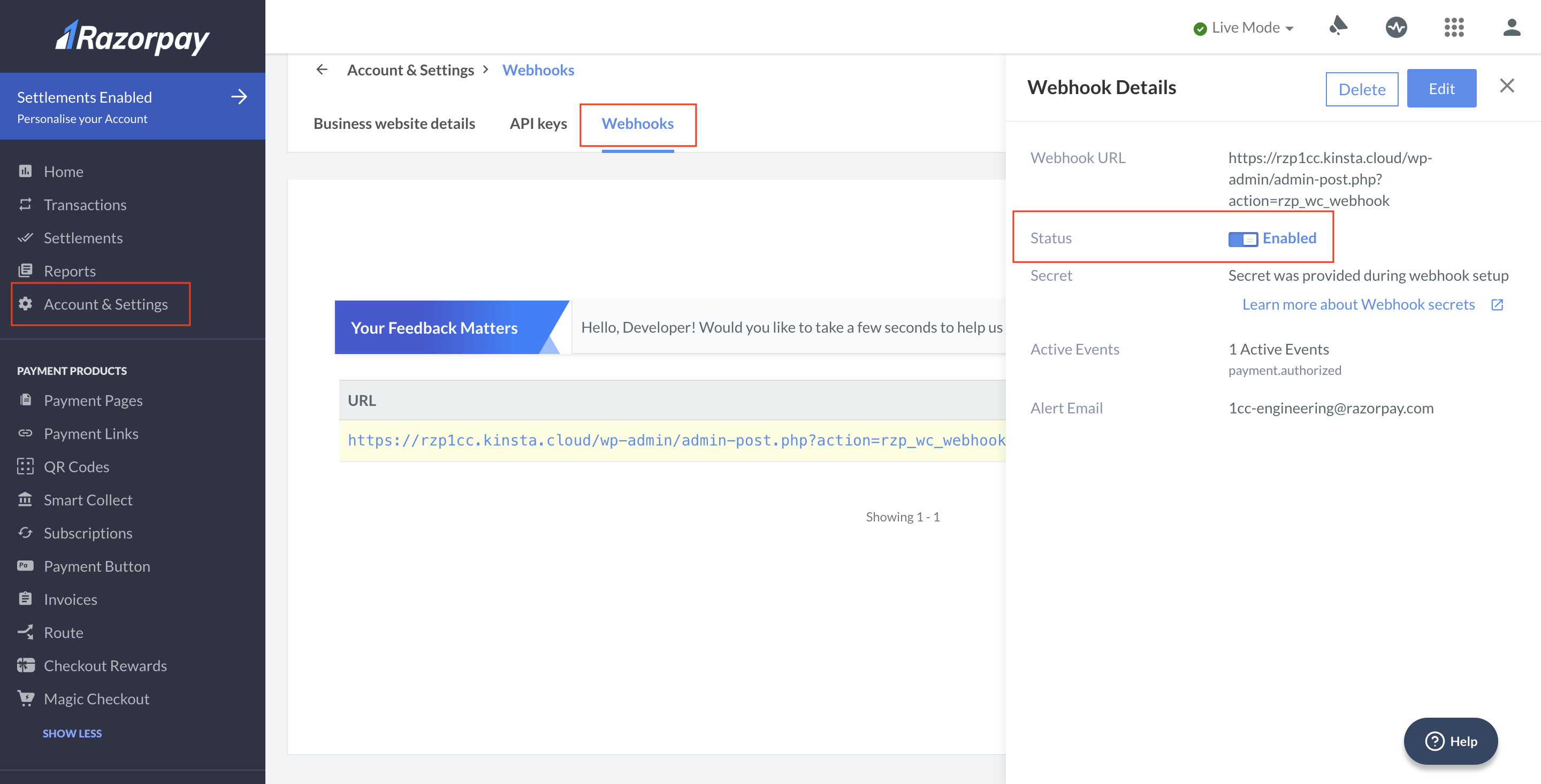
1. Log in to the Razorpay Dashboard and navigate to **Account & Settings** → **Webhooks** (under **Website and app settings**).
2. Select the relevant webhook **URL**.
3. On the right panel, check if the status for `payment.authorized`, `refund.created` and `virtual_account.credited` is enabled.
**Handy Tips**
If you have enabled the COD option for your customers, you should [manually subscribe](/docs/payments/magic-checkout/troubleshooting-faqs#3-my-webhooks-are-not-auto-configured-since-i) to the `payment.pending` event.
To verify if webhooks are enabled:
1. Log in to the Razorpay Dashboard and navigate to **Account & Settings** → **Webhooks** (under **Website and app settings**).
2. Select the relevant webhook **URL**.
3. On the right panel, check if the status for `payment.authorized`, `refund.created` and `virtual_account.credited` is enabled.
**Handy Tips**
If you have enabled the COD option for your customers, you should [manually subscribe](/docs/payments/magic-checkout/troubleshooting-faqs#3-my-webhooks-are-not-auto-configured-since-i) to the `payment.pending` event.
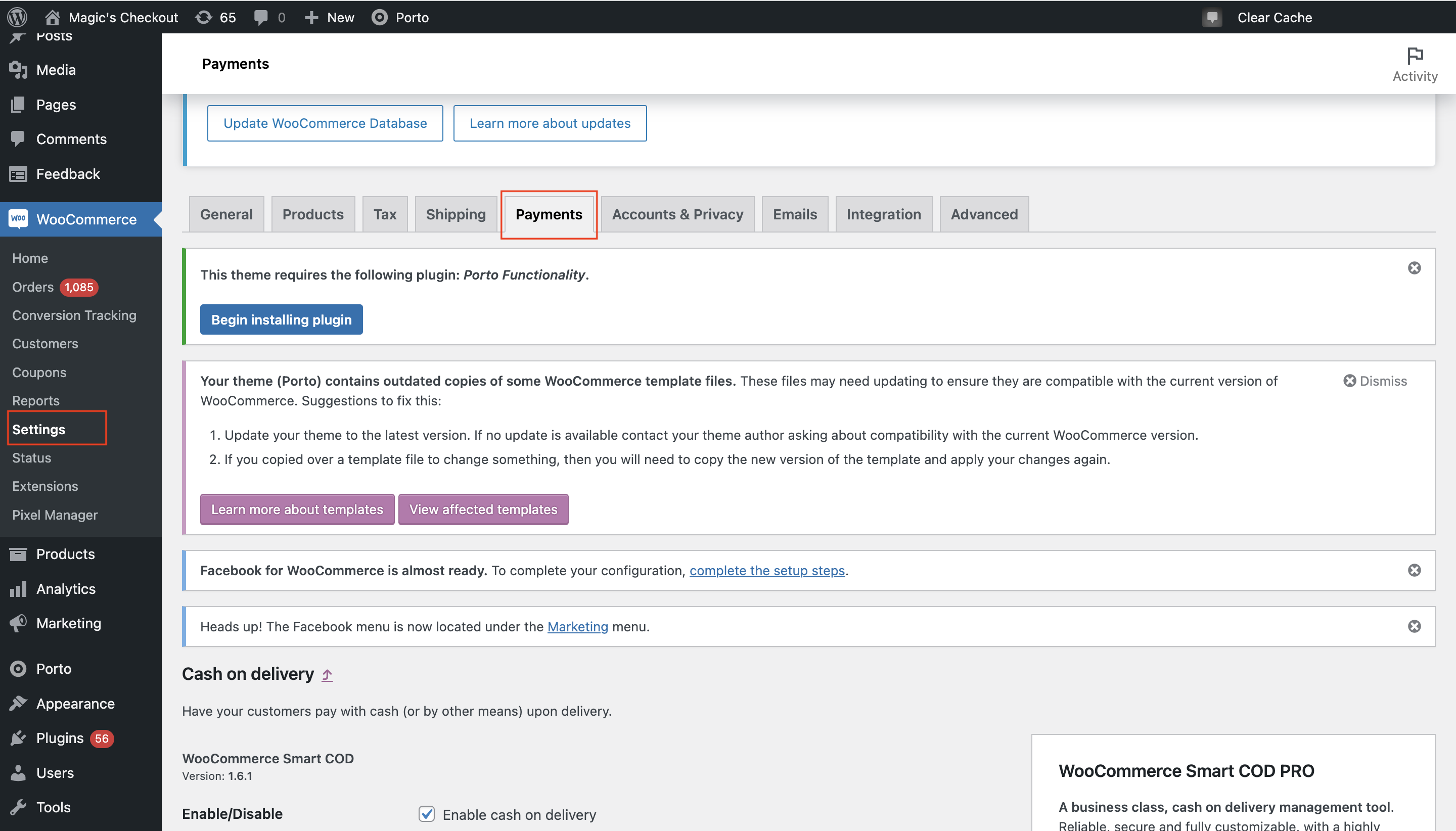
 Yes, you can disable Magic Checkout. Once you disable Magic Checkout, your website/app will automatically fall back to your default Woocommerce Checkout experience. Follow the steps given below to disable Magic Checkout:
1. Log in to the [WordPress account](https://wordpress.com/log-in) and navigate to **Woocommerce** → **Settings**.
2. Click **Payments**.
Yes, you can disable Magic Checkout. Once you disable Magic Checkout, your website/app will automatically fall back to your default Woocommerce Checkout experience. Follow the steps given below to disable Magic Checkout:
1. Log in to the [WordPress account](https://wordpress.com/log-in) and navigate to **Woocommerce** → **Settings**.
2. Click **Payments**.
 3. In the Payments tab, scroll down to **Razorpay** and click **Manage** to edit the settings.
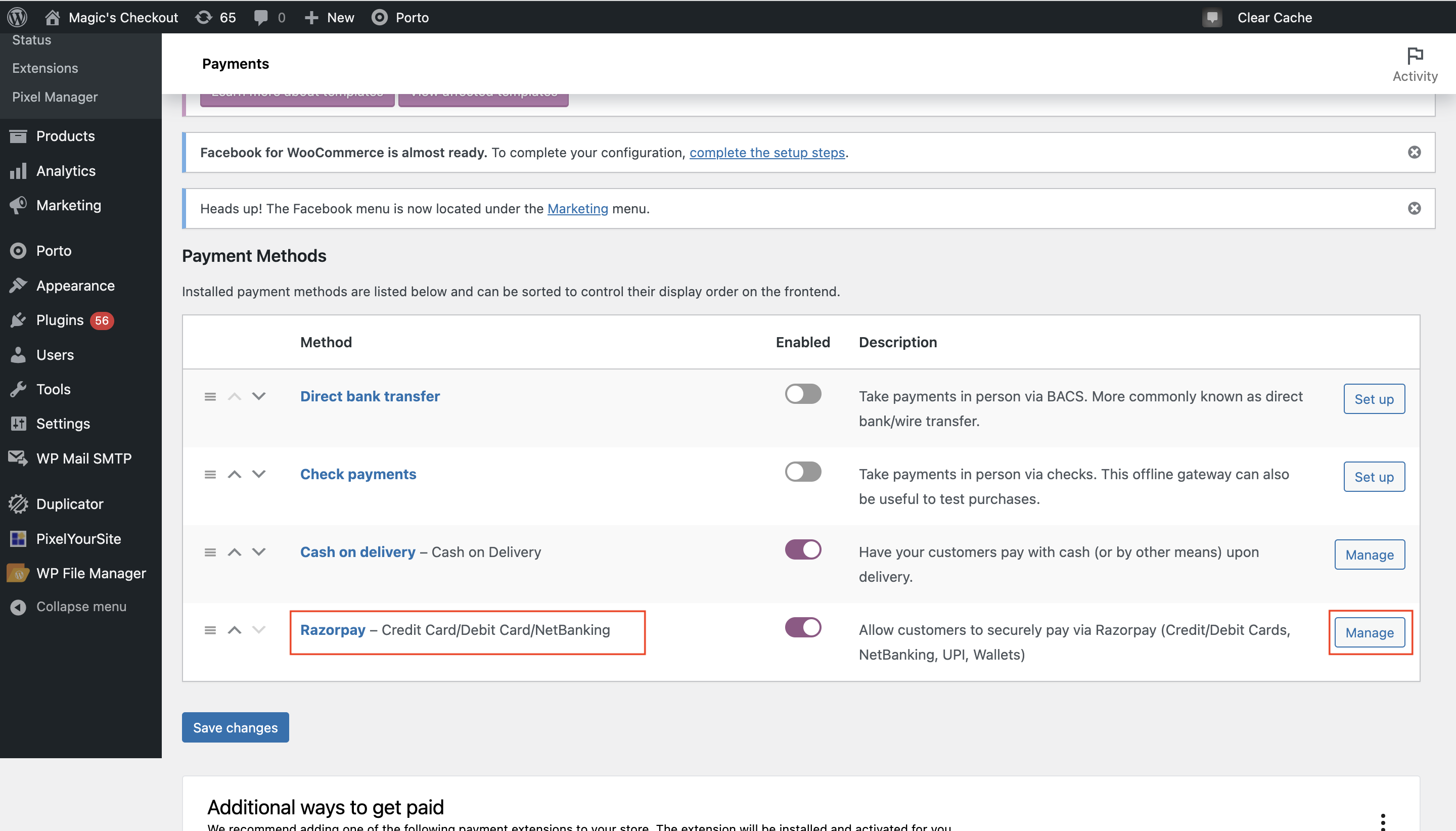 4. Scroll down to the **Activate Magic Checkout** field and unselect the check box to deactivate it.
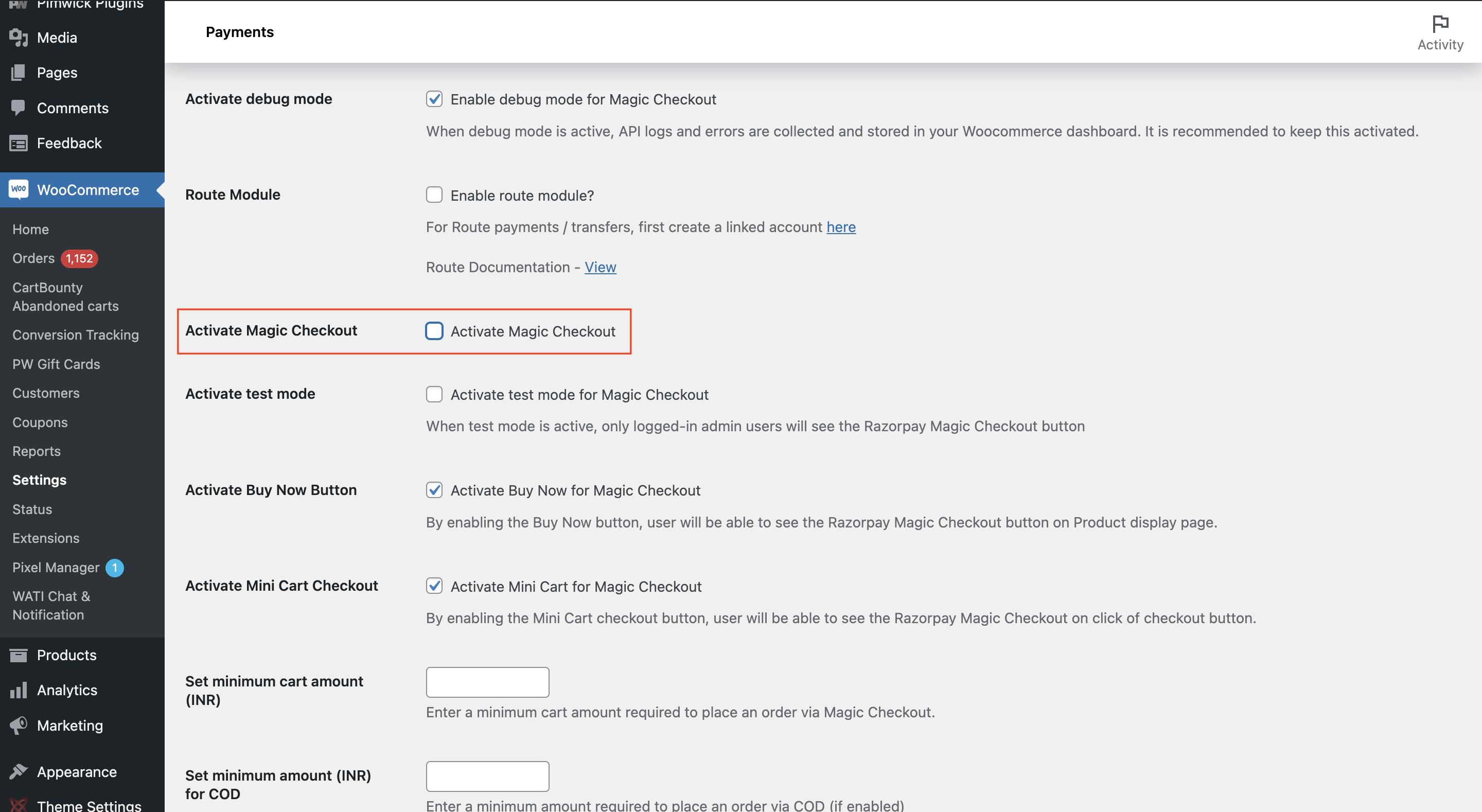 5. Click **Save Changes**.
## Shopify
To enable Magic Checkout on your Shopify store, fill in the [form](https://razorpay.typeform.com/to/peQh9Pwx#name=xxxxx) and share the required details. Once you share the details, the feature will be enabled on your account within 48 working hours. After activation, follow these [integration steps](/docs/payments/magic-checkout/shopify#integration-steps) to integrate Magic Checkout on your Shopify store.
Reach out to our support team at [magic-checkout-support@razorpay.com](mailto:magic-checkout-support@razorpay.com) for re-enablement of Magic Checkout on a different theme.
Coupons is an on-demand feature. Fill in the [feature request form](https://form.typeform.com/to/aancN9td) to get this feature enabled on your account.
No, currently, we support coupons created in INR only.
Follow these [steps](/docs/payments/magic-checkout/shopify/features#coupons) to configure coupon codes on your [Razorpay Dashboard](https://dashboard.razorpay.com/app/magic/coupons) for your Shopify store.
Coupons created on Shopify will not apply unless they are synced. To sync all coupons across different categories on Shopify:
1. On the [Razorpay Dashboard](https://dashboard.razorpay.com/app/magic/coupons), navigate to **Coupons** → **Setup** section.
2. Click **Sync now** next to the **Coupons from Shopify** section.
3. Enter the **Start date** and **End date** to set the sync duration for the coupon.
4. Click **Start Sync**.
**Watch Out!**
Only the following coupons will be synced from Shopify: (currently, multiple collections are not synced)
* Amount discounted on orders
* Amount discounted on products
* Buy X Get Y (if minimum quantity configured)
No, coupons created on the Razorpay Dashboard cannot be synced back to Shopify. They only work within the Magic Checkout system.
By default, all the coupons synced from Shopify are in the `created` state. You must manually configure and publish the coupons. To publish a coupon, identify the coupon created on Shopify, click the options icon and click **View and Edit** *(if required)* or click **Publish**.
Yes, you can enable the **Enable this coupon code only for Prepaid Payment methods** option on the dashboard to disable COD payment for specific coupons, encouraging customers to use prepaid payment methods instead.
In the Buy X Get Y scenario, you must convey to your customers that to use this coupon, both the X and Y products should be present in their cart. For example, if the coupon offers a discount on a cap or provides it for free only when you buy a t-shirt, both items must be in your cart for the discount to apply.
After you publish a coupon, navigate to **Coupons** → **Setup** on the [dashboard](https://dashboard.razorpay.com/app/magic/coupons) and toggle on **Enable Coupons** option to make the coupons accessible on checkout for your customers. Click **Save settings** after which all the coupons created on Shopify will stop working immediately.
Yes, you can edit the coupon. Navigate to **Coupons** → **All Coupons**, identify the coupon you want to edit, navigate to the options icon and click **View and Edit**.
**Watch Out!**
Once the coupon is created, you cannot edit the following:
* Coupon Code
* Coupon eligibility file you upload
* Display this coupon at checkout option
* Coupon start date
* Total Maximum budget
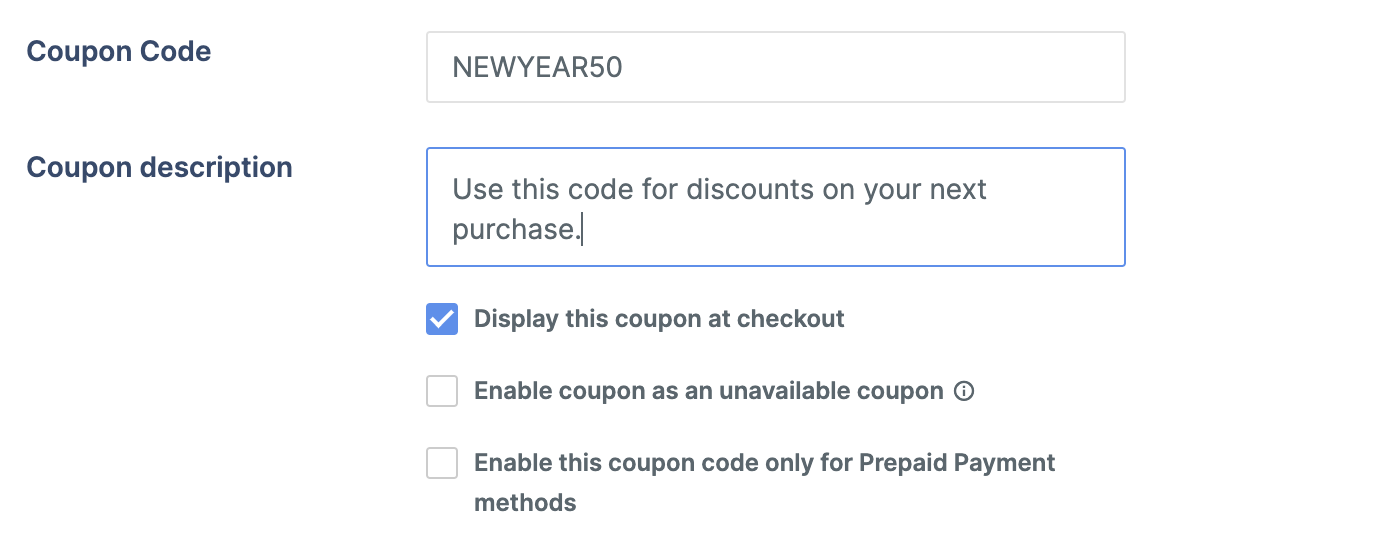
The coupon will appear in a disabled state when users do not meet the cart or eligibility conditions When you enable **Display this coupon at checkout** option and then select **Enable coupon as an unavailable coupon**. Once conditions are met, the coupon automatically becomes available for use.
5. Click **Save Changes**.
## Shopify
To enable Magic Checkout on your Shopify store, fill in the [form](https://razorpay.typeform.com/to/peQh9Pwx#name=xxxxx) and share the required details. Once you share the details, the feature will be enabled on your account within 48 working hours. After activation, follow these [integration steps](/docs/payments/magic-checkout/shopify#integration-steps) to integrate Magic Checkout on your Shopify store.
Reach out to our support team at [magic-checkout-support@razorpay.com](mailto:magic-checkout-support@razorpay.com) for re-enablement of Magic Checkout on a different theme.
Coupons is an on-demand feature. Fill in the [feature request form](https://form.typeform.com/to/aancN9td) to get this feature enabled on your account.
No, currently, we support coupons created in INR only.
Follow these [steps](/docs/payments/magic-checkout/shopify/features#coupons) to configure coupon codes on your [Razorpay Dashboard](https://dashboard.razorpay.com/app/magic/coupons) for your Shopify store.
Coupons created on Shopify will not apply unless they are synced. To sync all coupons across different categories on Shopify:
1. On the [Razorpay Dashboard](https://dashboard.razorpay.com/app/magic/coupons), navigate to **Coupons** → **Setup** section.
2. Click **Sync now** next to the **Coupons from Shopify** section.
3. Enter the **Start date** and **End date** to set the sync duration for the coupon.
4. Click **Start Sync**.
**Watch Out!**
Only the following coupons will be synced from Shopify: (currently, multiple collections are not synced)
* Amount discounted on orders
* Amount discounted on products
* Buy X Get Y (if minimum quantity configured)
No, coupons created on the Razorpay Dashboard cannot be synced back to Shopify. They only work within the Magic Checkout system.
By default, all the coupons synced from Shopify are in the `created` state. You must manually configure and publish the coupons. To publish a coupon, identify the coupon created on Shopify, click the options icon and click **View and Edit** *(if required)* or click **Publish**.
Yes, you can enable the **Enable this coupon code only for Prepaid Payment methods** option on the dashboard to disable COD payment for specific coupons, encouraging customers to use prepaid payment methods instead.
In the Buy X Get Y scenario, you must convey to your customers that to use this coupon, both the X and Y products should be present in their cart. For example, if the coupon offers a discount on a cap or provides it for free only when you buy a t-shirt, both items must be in your cart for the discount to apply.
After you publish a coupon, navigate to **Coupons** → **Setup** on the [dashboard](https://dashboard.razorpay.com/app/magic/coupons) and toggle on **Enable Coupons** option to make the coupons accessible on checkout for your customers. Click **Save settings** after which all the coupons created on Shopify will stop working immediately.
Yes, you can edit the coupon. Navigate to **Coupons** → **All Coupons**, identify the coupon you want to edit, navigate to the options icon and click **View and Edit**.
**Watch Out!**
Once the coupon is created, you cannot edit the following:
* Coupon Code
* Coupon eligibility file you upload
* Display this coupon at checkout option
* Coupon start date
* Total Maximum budget
The coupon will appear in a disabled state when users do not meet the cart or eligibility conditions When you enable **Display this coupon at checkout** option and then select **Enable coupon as an unavailable coupon**. Once conditions are met, the coupon automatically becomes available for use.
 You can only deactivate a coupon and not delete it. Identify the coupon you want to deactivate, navigate to the options icon and click **Deactivate**.
Format:
* Mobile number: +919000090000
* Email id: [gauravkumar@example.com](mailto:gauravkumar@example.com)
This happens because offers/coupons created through the Razorpay Dashboard create a display mismatch between platforms:
* Shopify shows the full order amount as captured.
* Razorpay only captures the discounted amount (what the customer actually paid).
* You can only refund the amount that was actually captured.
We recommend processing refunds through the Razorpay Dashboard for accurate amounts. If you need to use Shopify, check the captured amount in your Razorpay Dashboard first, then refund only that amount in Shopify. For example, a ₹100 order with a ₹10 Razorpay offer means only ₹90 was actually captured, so you can only refund ₹90.
The refund process depends on the your refund policy. If approved, the refund will be processed as a standard refund, similar to the existing refund options that Razorpay offers. Know more about [refunds](/docs/payments/refunds).
You can configure shipping rates at product, zone and method levels for your customers. Follow these [steps](/docs/payments/magic-checkout/shopify/features#method-1-razorpay-dashboard-1) to set up shipping profiles on the [Razorpay Dashboard](https://dashboard.razorpay.com/app/magic/settings/shipping-setup).
When you configure shipping settings on the Razorpay Dashboard, these settings override any shipping configurations set up on your plugins or ecommerce platform. The dashboard settings take precedence over all other configurations.
No, each product can only belong to one shipping category. Once you add a product to a category, you cannot add it to another category within your shipping profiles.
Yes, you can enable COD availability at the shipping method level. This allows you to selectively offer cash on delivery as a payment option for specific shipping methods while excluding it from others.
### Login With Razorpay (SSO)
Login with Razorpay, powered by Magic SSO, is a single sign-on system that allows customers to log in seamlessly across the Razorpay network using OTP-based authentication. It helps merchants collect valuable user data, personalise the shopping experience and improve conversions.
No, currently this feature is only available for Shopify users.
Yes, you can configure the login prompt to appear:
* On the first page a customer visits.
* After a customer adds their first item to the cart.
* During checkout (with the option to make login mandatory).
Know more about [where you can display the login screen](/docs/payments/magic-checkout/login-with-razorpay#where-should-we-display-login-screen).
Yes, you can customise how consent is collected from users. Know more about various options [to seek consent from your customers](/docs/payments/magic-checkout/login-with-razorpay#ask-consent-from-customer-for-marketing-communication).
Yes, you can customise the heading, emojis, background and button colours and fonts to match your brand. Know more about [customisation](/docs/payments/magic-checkout/login-with-razorpay#customise)
Login rewards are incentives such as coupons offered to users who log in via the widget. You must create the coupon using [Razorpay Coupon Engine](/docs/payments/magic-checkout/shopify/features#coupons) and raise a request with our [support team](https://razorpay.com/support/#request) to get the feature enabled.
Automatic customer tagging refers to the process where **Login with Razorpay** (SSO) feature assigns specific tags to customer profiles in your Shopify store when they log in. These tags help identify returning users, track login methods and automate retargeting campaigns.
Tags are applied in real-time as soon as the customer logs in through Magic SSO.
Yes, when existing customers log in through Razorpay SSO, the system automatically applies the relevant tags.
Yes, you can edit or remove these tags like any other customer tag in Shopify. However, we recommend retaining them to ensure accurate automation and segmentation.
No, customer tags do not count towards any Shopify plan limits.
Yes, you can create and apply additional custom tags to enhance customer segmentation.
You can only deactivate a coupon and not delete it. Identify the coupon you want to deactivate, navigate to the options icon and click **Deactivate**.
Format:
* Mobile number: +919000090000
* Email id: [gauravkumar@example.com](mailto:gauravkumar@example.com)
This happens because offers/coupons created through the Razorpay Dashboard create a display mismatch between platforms:
* Shopify shows the full order amount as captured.
* Razorpay only captures the discounted amount (what the customer actually paid).
* You can only refund the amount that was actually captured.
We recommend processing refunds through the Razorpay Dashboard for accurate amounts. If you need to use Shopify, check the captured amount in your Razorpay Dashboard first, then refund only that amount in Shopify. For example, a ₹100 order with a ₹10 Razorpay offer means only ₹90 was actually captured, so you can only refund ₹90.
The refund process depends on the your refund policy. If approved, the refund will be processed as a standard refund, similar to the existing refund options that Razorpay offers. Know more about [refunds](/docs/payments/refunds).
You can configure shipping rates at product, zone and method levels for your customers. Follow these [steps](/docs/payments/magic-checkout/shopify/features#method-1-razorpay-dashboard-1) to set up shipping profiles on the [Razorpay Dashboard](https://dashboard.razorpay.com/app/magic/settings/shipping-setup).
When you configure shipping settings on the Razorpay Dashboard, these settings override any shipping configurations set up on your plugins or ecommerce platform. The dashboard settings take precedence over all other configurations.
No, each product can only belong to one shipping category. Once you add a product to a category, you cannot add it to another category within your shipping profiles.
Yes, you can enable COD availability at the shipping method level. This allows you to selectively offer cash on delivery as a payment option for specific shipping methods while excluding it from others.
### Login With Razorpay (SSO)
Login with Razorpay, powered by Magic SSO, is a single sign-on system that allows customers to log in seamlessly across the Razorpay network using OTP-based authentication. It helps merchants collect valuable user data, personalise the shopping experience and improve conversions.
No, currently this feature is only available for Shopify users.
Yes, you can configure the login prompt to appear:
* On the first page a customer visits.
* After a customer adds their first item to the cart.
* During checkout (with the option to make login mandatory).
Know more about [where you can display the login screen](/docs/payments/magic-checkout/login-with-razorpay#where-should-we-display-login-screen).
Yes, you can customise how consent is collected from users. Know more about various options [to seek consent from your customers](/docs/payments/magic-checkout/login-with-razorpay#ask-consent-from-customer-for-marketing-communication).
Yes, you can customise the heading, emojis, background and button colours and fonts to match your brand. Know more about [customisation](/docs/payments/magic-checkout/login-with-razorpay#customise)
Login rewards are incentives such as coupons offered to users who log in via the widget. You must create the coupon using [Razorpay Coupon Engine](/docs/payments/magic-checkout/shopify/features#coupons) and raise a request with our [support team](https://razorpay.com/support/#request) to get the feature enabled.
Automatic customer tagging refers to the process where **Login with Razorpay** (SSO) feature assigns specific tags to customer profiles in your Shopify store when they log in. These tags help identify returning users, track login methods and automate retargeting campaigns.
Tags are applied in real-time as soon as the customer logs in through Magic SSO.
Yes, when existing customers log in through Razorpay SSO, the system automatically applies the relevant tags.
Yes, you can edit or remove these tags like any other customer tag in Shopify. However, we recommend retaining them to ensure accurate automation and segmentation.
No, customer tags do not count towards any Shopify plan limits.
Yes, you can create and apply additional custom tags to enhance customer segmentation.