> ## Documentation Index
> Fetch the complete documentation index at: https://razorpay-881012b3.mintlify.site/llms.txt
> Use this file to discover all available pages before exploring further.
# Payment Gateway
> Accept payments on the Razorpay Payments Mobile App using Payment Gateway and generate API keys.
Available in
🇮🇳 India
A payment gateway creates a secure pathway between a customer and the business to facilitate payments securely. It involves the authentication of both parties from the banks involved.
## When to Use a Payment Gateway
You should consider integrating with a payment gateway if:
* You have a website
* You have a mobile app
**Handy Tips**
Do not have a website or mobile app? You can still accept payments by using other Razorpay products such as [Payment Links](/docs/payments/payment-links) and [Razorpay.me URL](/docs/payments/mobile-app/accept-payments/razorpay-me).
## Steps to Generate API Keys
Follow these steps to generate API keys after creating an account.
1. Log in with your Dashboard credentials.
2. Under the **Accept Payments** section, tap **Payment Gateway**.
3. Tap **Generate API Key**.
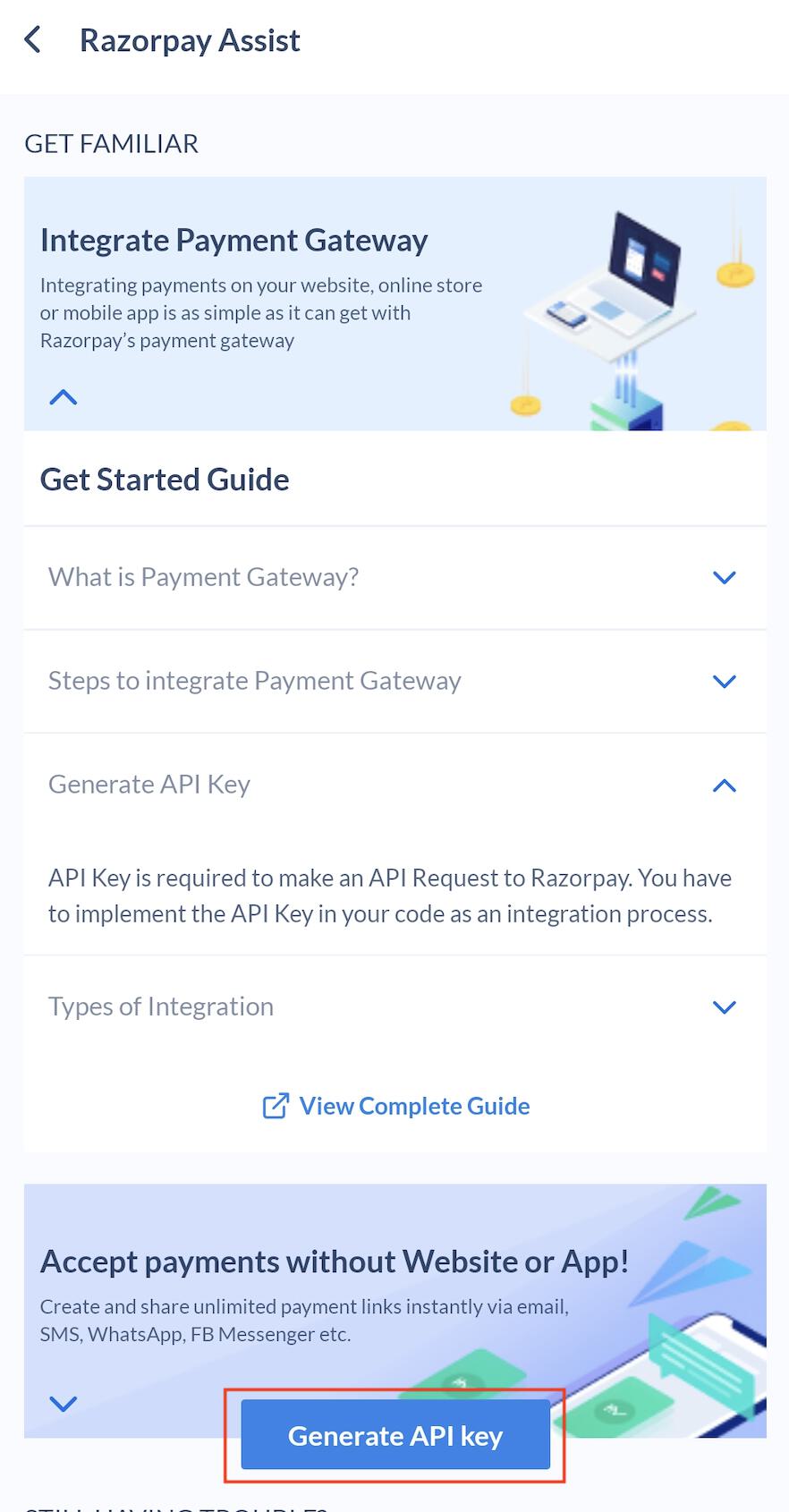 4. The Website/App URL submitted during onboarding appears. Review the URL and tap **Generate API Key**.
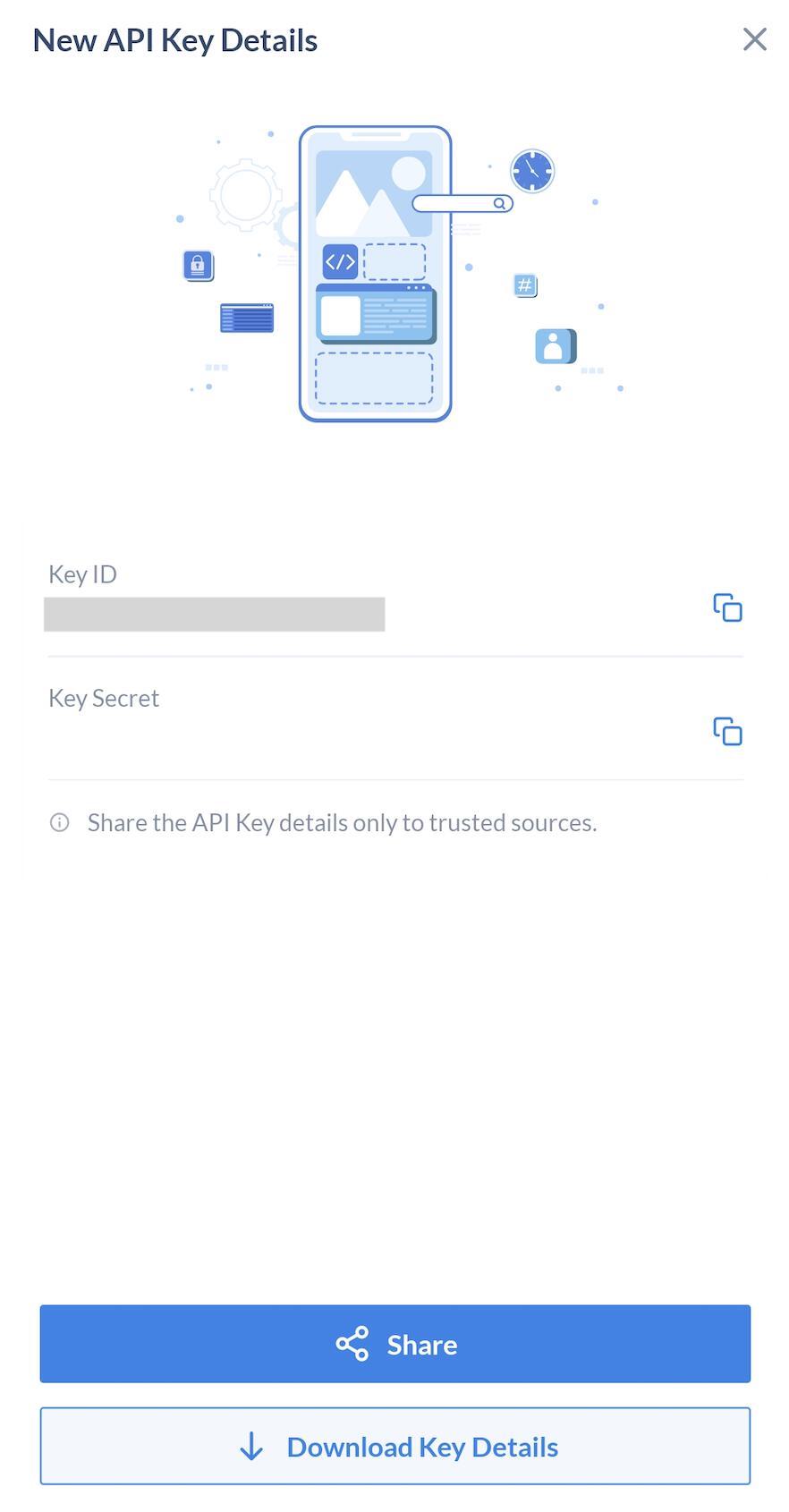
5. **Key ID** and **Key Secret** appear on the screen. Tap **Download Key Details** to save the ID and Secret on your device. Tap **Share** to send API Key details only to trusted sources.
4. The Website/App URL submitted during onboarding appears. Review the URL and tap **Generate API Key**.
5. **Key ID** and **Key Secret** appear on the screen. Tap **Download Key Details** to save the ID and Secret on your device. Tap **Share** to send API Key details only to trusted sources.