> ## Documentation Index
> Fetch the complete documentation index at: https://razorpay-881012b3.mintlify.site/llms.txt
> Use this file to discover all available pages before exploring further.
# Create and Send Payment Links
> Use the Razorpay Payments Mobile App to create and share Payment Links to accept payments.
Available in🇮🇳 India
You can use the Razorpay Payments Mobile app to quickly create and share Payment Links with your customers. The customers can open the Payment Links to make payments using any of the payment methods, such as, UPI, Debit/Credit Card, Netbanking or Wallets.
## Create Payment Links
Watch this video to see how to create a Payment Link.
Follow these steps to create a Payment Link:
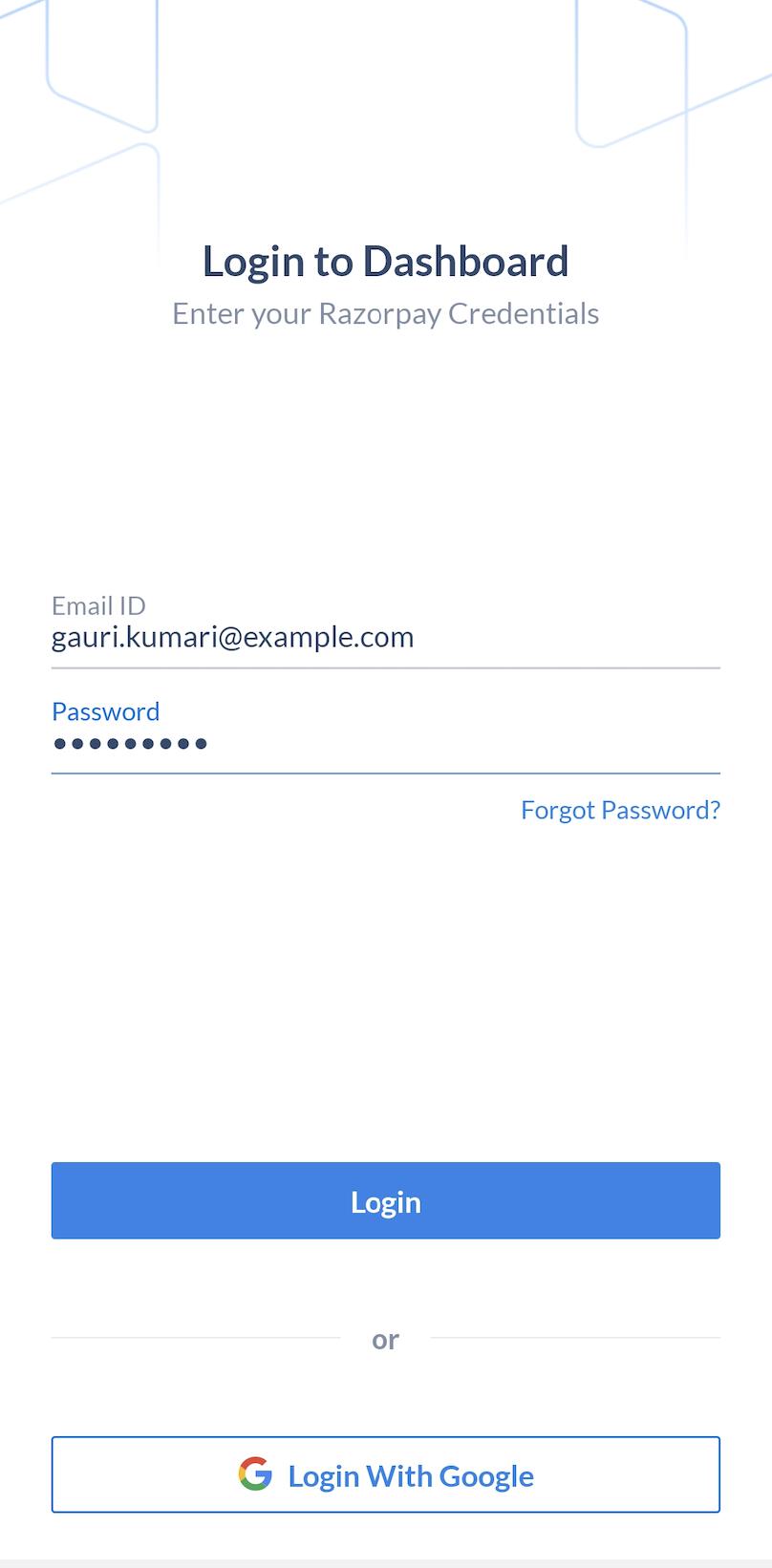
1. Log in with your Dashboard credentials.
2. Navigate to **Products** → **Payment Link** or tap **Payment Link** under **Accept Payments** section.
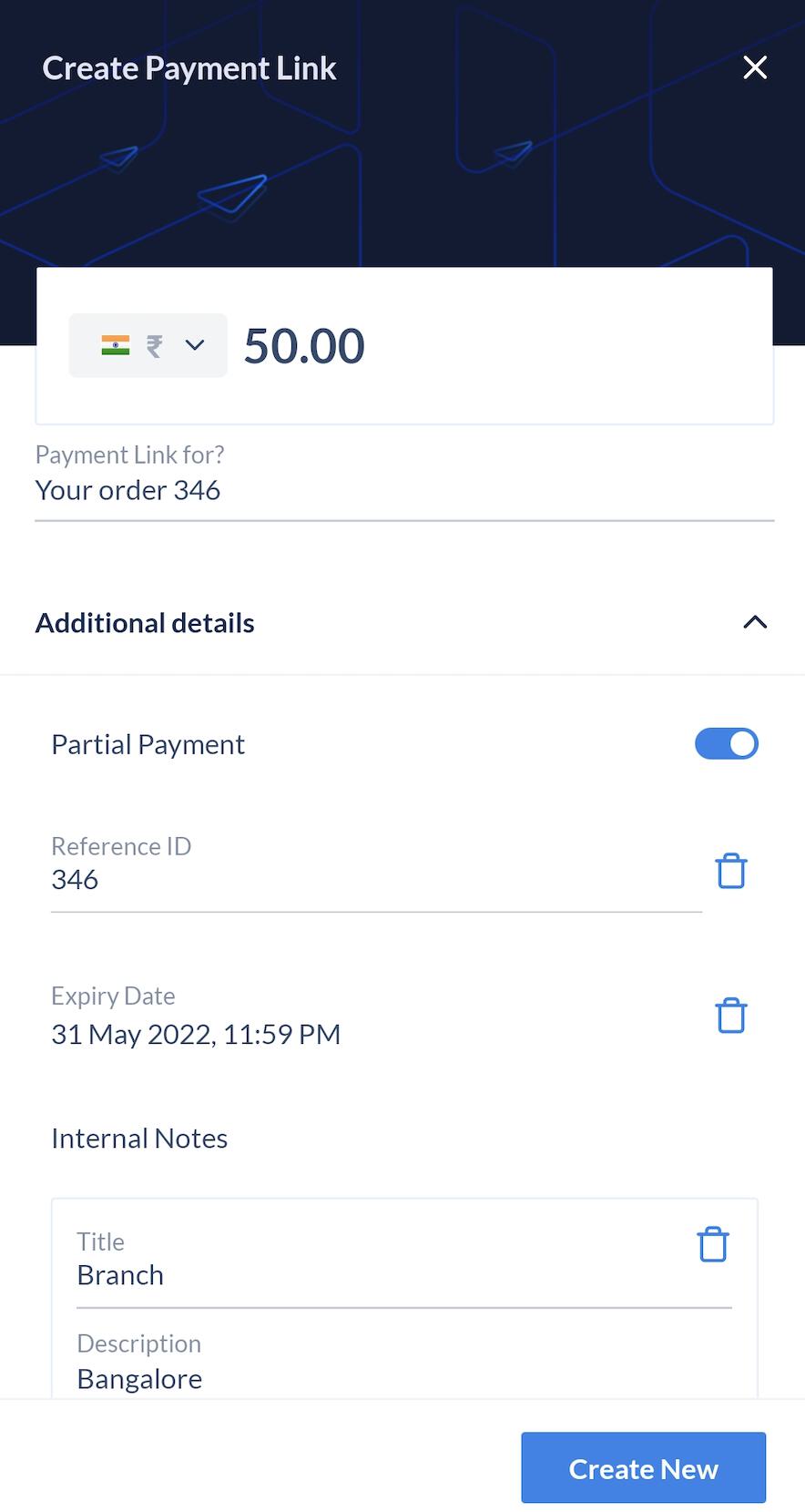
3. Provide the following details:
* Select a currency.
* Enter the amount to be received from the customer.
* Add a description in the **Payment Description** field.
* Configure the following optional fields as per your requirements:
* Enable the **Partial Payment** feature.
* Add a **Reference ID** for internal reference.
* Enter **Expiry Date** and **Time**.
* Provide additional details using **Internal Notes**. For example, Branch: Bangalore.
4. Tap **Create**.
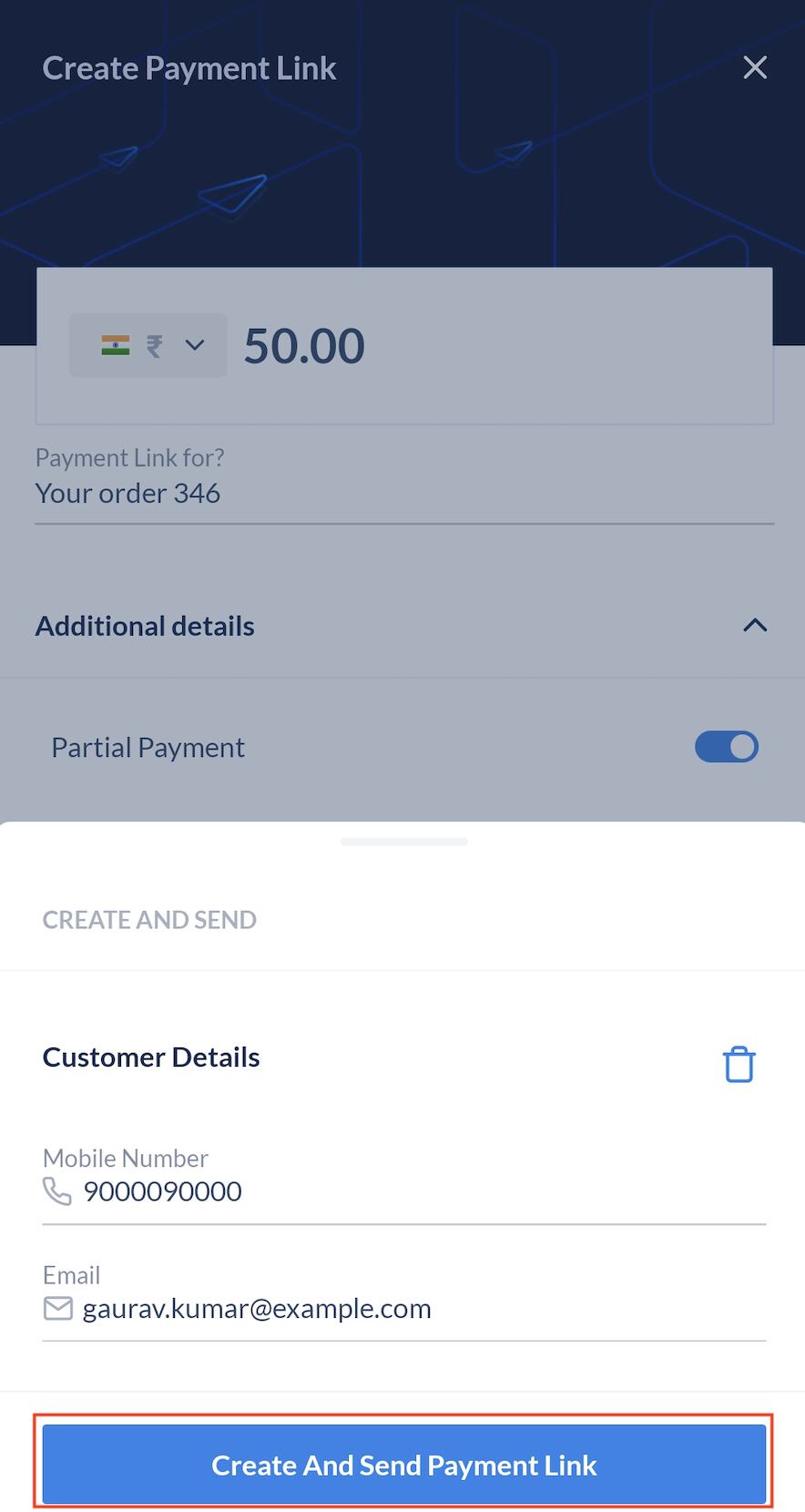
5. Enter the customer's phone and email address to immediately send the Payment Link.
Alternatively, you can create the link without providing these details and share later.
6. Tap **Create And Send Payment Link**.
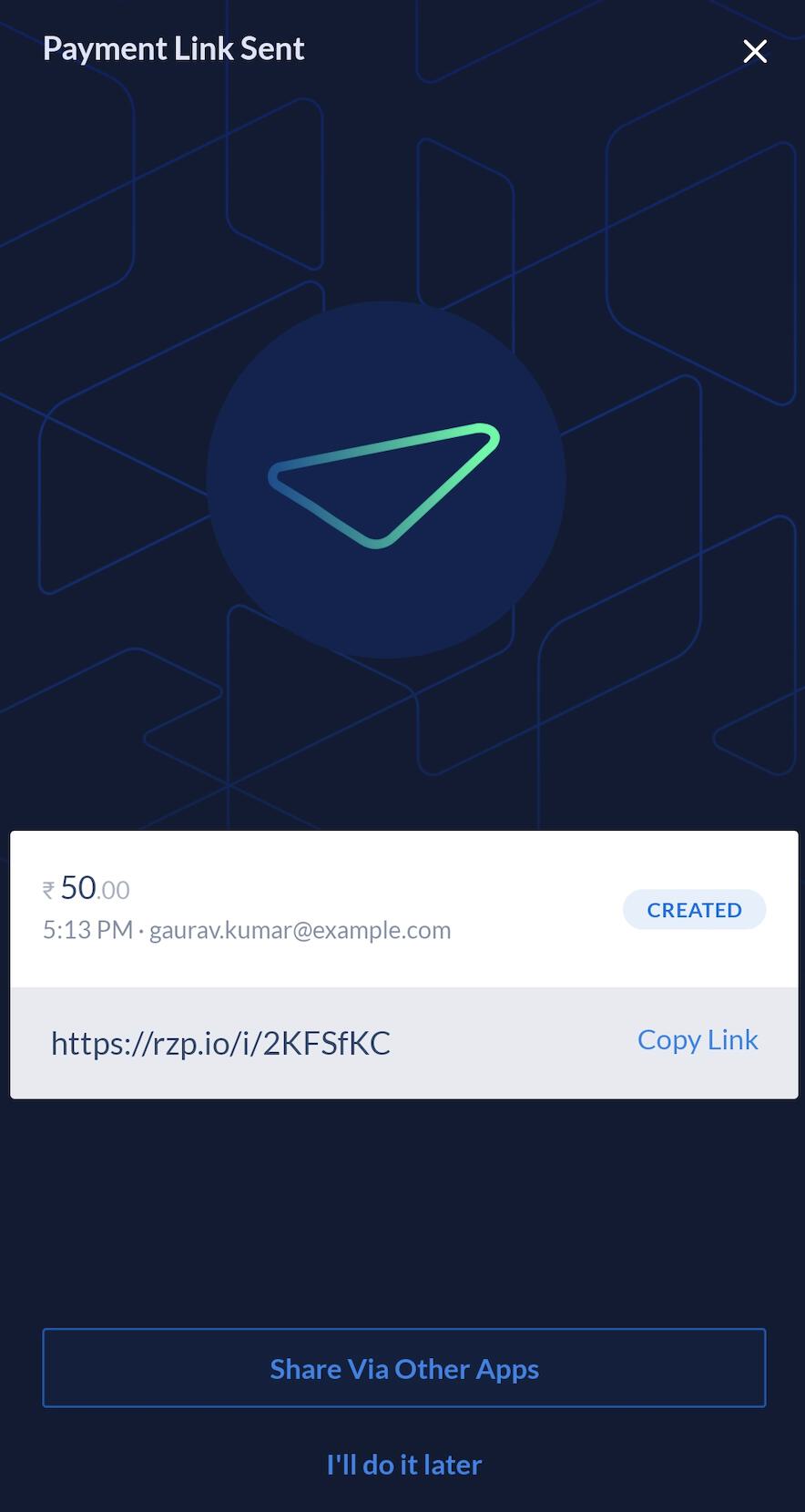
7. You can either share the link with your customer immediately via Facebook, Instagram, WhatsApp and more, or share it later.
8. Under the **Accept Payments** section, tap **Payment Link** and scroll down to the **Recent Payment Links** section. The link appears on the list. Tap on the link to view more details. You can also choose to [share the link](#share-payment-links) or [duplicate](#duplicate-payment-links) it.
## Share Payment Links
You can share the Payment Links using:
* SMS and Email
* Facebook, Instagram, WhatsApp and more.
## Cancel Payment Links
Watch this video to see how to cancel payment links.
Follow these steps to cancel the Payment Link:
1. Under the **Accept Payments** section, tap **Payment Link** and scroll down to the **Recent Payment Links** section.
2. Tap on the link you want to cancel.
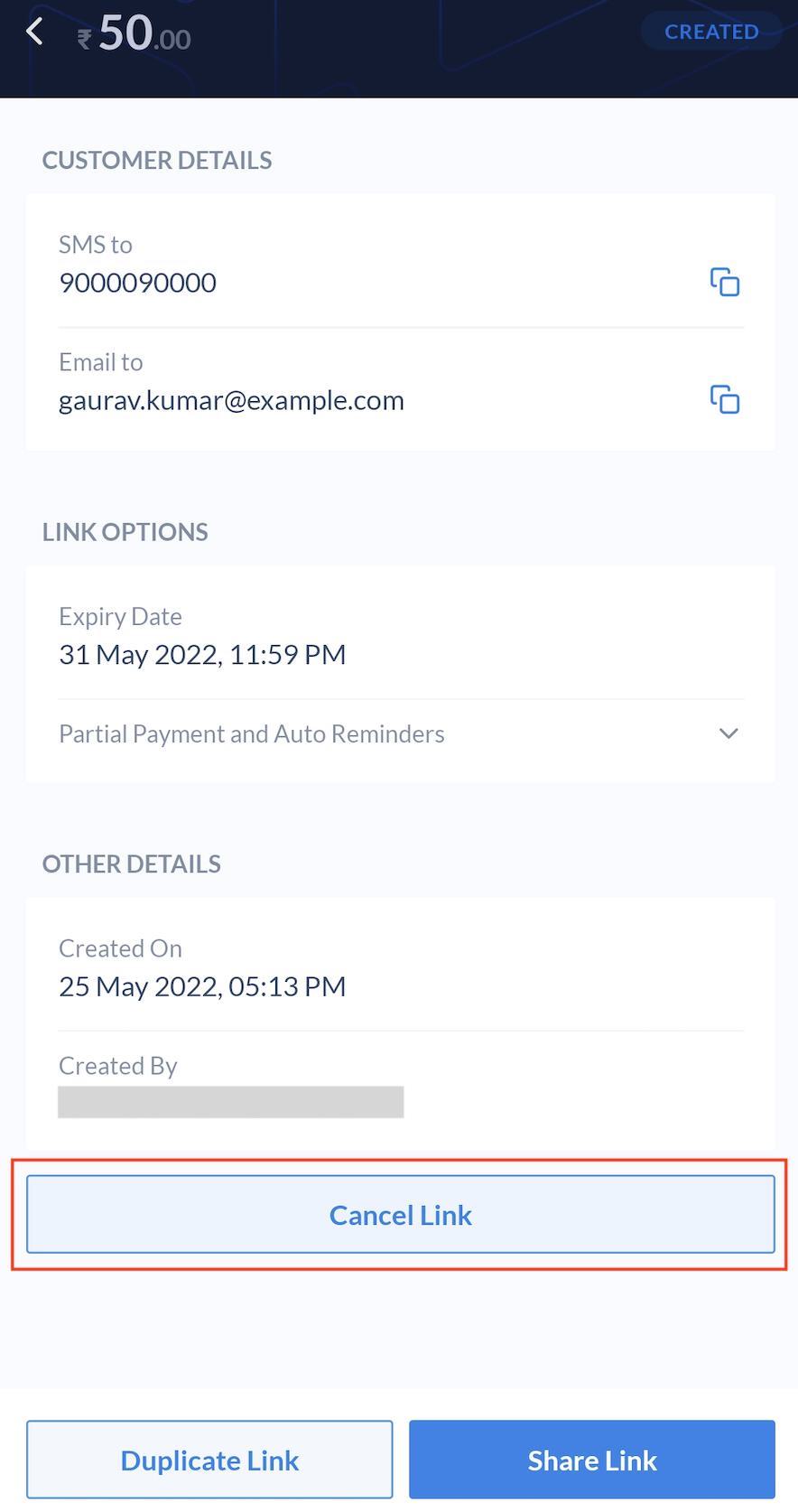
3. Scroll to the end of the page and tap **Cancel Link**.
4. Tap **Yes, Cancel** to confirm.
## Duplicate Payment Links
Watch this video to see how to duplicate payment links.
Follow these steps to duplicate the Payment Link:
1. Under the **Accept Payments** section, tap **Payment Link** and scroll down to the **Recent Payment Links** section. The link appears on the list.
2. Tap on the link you want to duplicate.
3. Scroll to the end of the page and tap **Duplicate Link**.
A duplicate Payment Link is created. You can choose to modify the details and complete the link creation process.
## Payment Link States
The table below lists the various states in the Payment Link life cycle and provides a brief description about each.
| Status | Description |
| -------------- | ---------------------------------------------------------------------------------------------- |
| Issued | The Payment Link has been created. |
| Partially Paid | Customer has paid a partial amount. |
| Paid | Customer has paid the full amount. |
| Cancelled | The Payment Link has been cancelled by you. |
| Expired | The Payment Link has expired. The expiry date and time is set while creating the Payment Link. |
### Related Information
* [Payments Mobile App](/docs/payments/mobile-app)
* [Payment Pages Mobile App](/docs/payments/mobile-app/accept-payments/payment-pages)
 2. Navigate to **Products** → **Payment Link** or tap **Payment Link** under **Accept Payments** section.
3. Provide the following details:
* Select a currency.
* Enter the amount to be received from the customer.
* Add a description in the **Payment Description** field.
* Configure the following optional fields as per your requirements:
* Enable the **Partial Payment** feature.
* Add a **Reference ID** for internal reference.
* Enter **Expiry Date** and **Time**.
* Provide additional details using **Internal Notes**. For example, Branch: Bangalore.
2. Navigate to **Products** → **Payment Link** or tap **Payment Link** under **Accept Payments** section.
3. Provide the following details:
* Select a currency.
* Enter the amount to be received from the customer.
* Add a description in the **Payment Description** field.
* Configure the following optional fields as per your requirements:
* Enable the **Partial Payment** feature.
* Add a **Reference ID** for internal reference.
* Enter **Expiry Date** and **Time**.
* Provide additional details using **Internal Notes**. For example, Branch: Bangalore.
 4. Tap **Create**.
5. Enter the customer's phone and email address to immediately send the Payment Link.
Alternatively, you can create the link without providing these details and share later.
6. Tap **Create And Send Payment Link**.
4. Tap **Create**.
5. Enter the customer's phone and email address to immediately send the Payment Link.
Alternatively, you can create the link without providing these details and share later.
6. Tap **Create And Send Payment Link**.
 7. You can either share the link with your customer immediately via Facebook, Instagram, WhatsApp and more, or share it later.
 8. Under the **Accept Payments** section, tap **Payment Link** and scroll down to the **Recent Payment Links** section. The link appears on the list. Tap on the link to view more details. You can also choose to [share the link](#share-payment-links) or [duplicate](#duplicate-payment-links) it.
## Share Payment Links
You can share the Payment Links using:
* SMS and Email
* Facebook, Instagram, WhatsApp and more.
## Cancel Payment Links
Watch this video to see how to cancel payment links.
8. Under the **Accept Payments** section, tap **Payment Link** and scroll down to the **Recent Payment Links** section. The link appears on the list. Tap on the link to view more details. You can also choose to [share the link](#share-payment-links) or [duplicate](#duplicate-payment-links) it.
## Share Payment Links
You can share the Payment Links using:
* SMS and Email
* Facebook, Instagram, WhatsApp and more.
## Cancel Payment Links
Watch this video to see how to cancel payment links.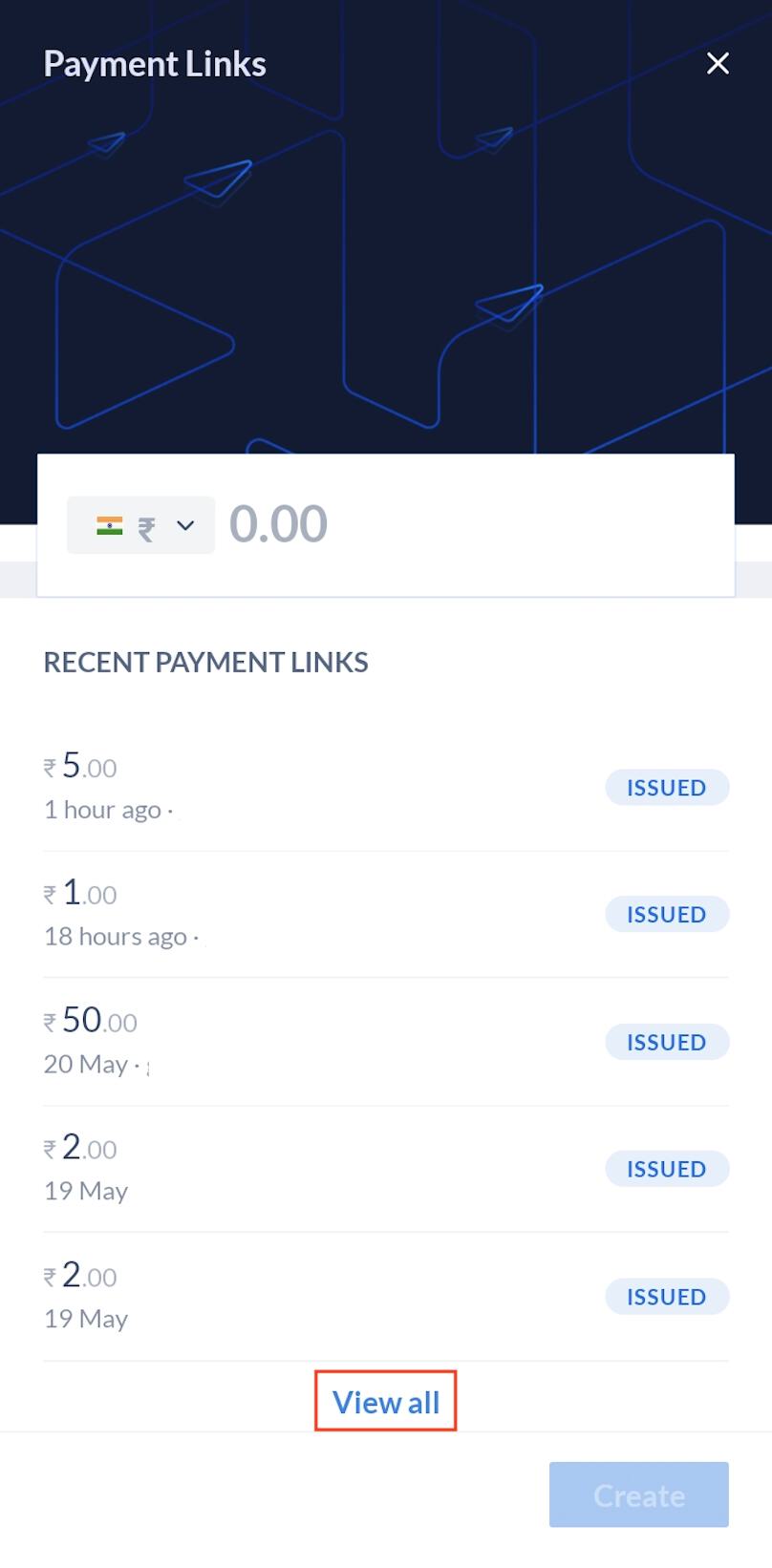 2. Tap on the link you want to cancel.
3. Scroll to the end of the page and tap **Cancel Link**.
2. Tap on the link you want to cancel.
3. Scroll to the end of the page and tap **Cancel Link**.
 4. Tap **Yes, Cancel** to confirm.
## Duplicate Payment Links
Watch this video to see how to duplicate payment links.
4. Tap **Yes, Cancel** to confirm.
## Duplicate Payment Links
Watch this video to see how to duplicate payment links.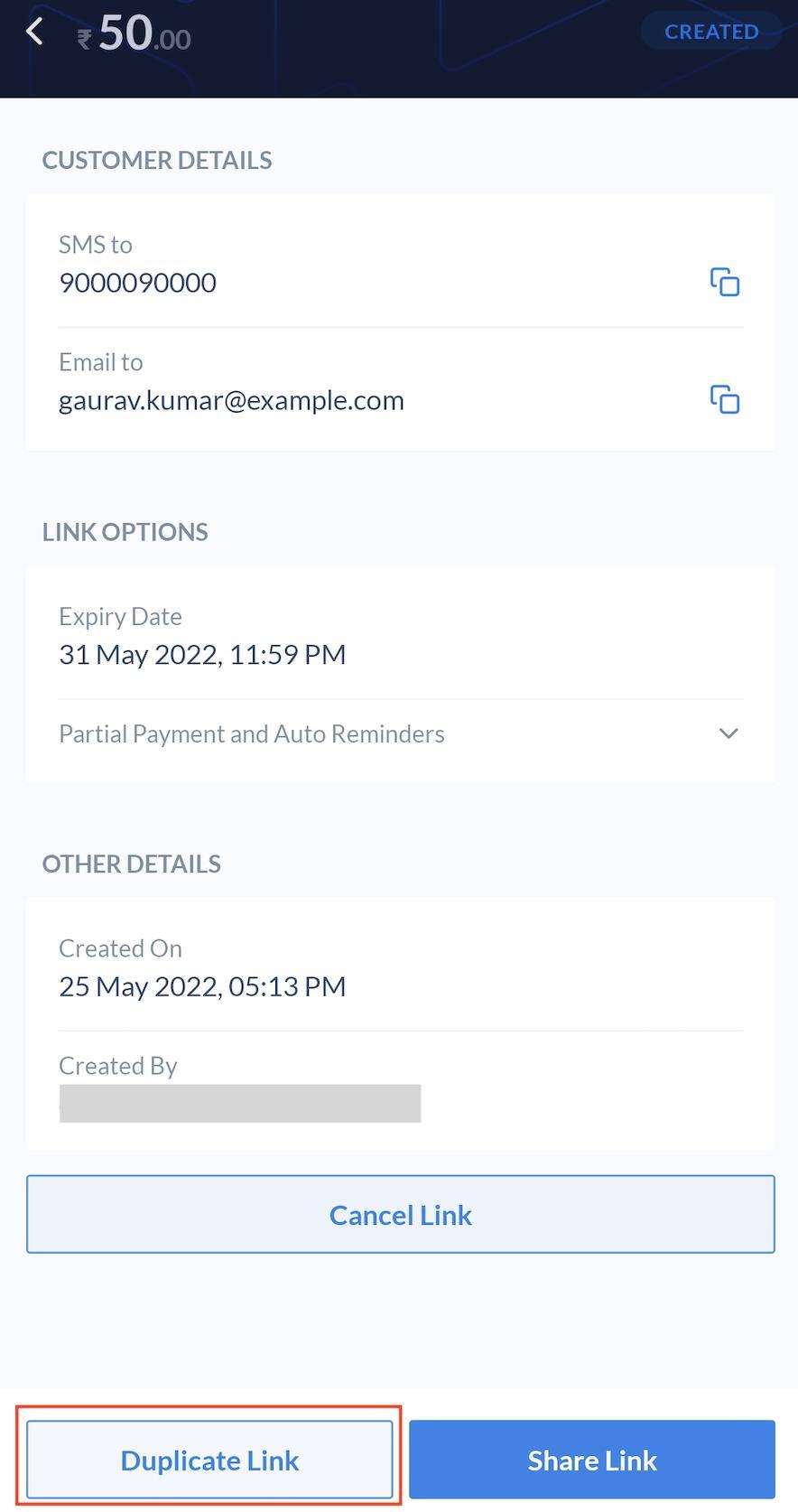 A duplicate Payment Link is created. You can choose to modify the details and complete the link creation process.
## Payment Link States
The table below lists the various states in the Payment Link life cycle and provides a brief description about each.
| Status | Description |
| -------------- | ---------------------------------------------------------------------------------------------- |
| Issued | The Payment Link has been created. |
| Partially Paid | Customer has paid a partial amount. |
| Paid | Customer has paid the full amount. |
| Cancelled | The Payment Link has been cancelled by you. |
| Expired | The Payment Link has expired. The expiry date and time is set while creating the Payment Link. |
### Related Information
* [Payments Mobile App](/docs/payments/mobile-app)
* [Payment Pages Mobile App](/docs/payments/mobile-app/accept-payments/payment-pages)
A duplicate Payment Link is created. You can choose to modify the details and complete the link creation process.
## Payment Link States
The table below lists the various states in the Payment Link life cycle and provides a brief description about each.
| Status | Description |
| -------------- | ---------------------------------------------------------------------------------------------- |
| Issued | The Payment Link has been created. |
| Partially Paid | Customer has paid a partial amount. |
| Paid | Customer has paid the full amount. |
| Cancelled | The Payment Link has been cancelled by you. |
| Expired | The Payment Link has expired. The expiry date and time is set while creating the Payment Link. |
### Related Information
* [Payments Mobile App](/docs/payments/mobile-app)
* [Payment Pages Mobile App](/docs/payments/mobile-app/accept-payments/payment-pages)