> ## Documentation Index
> Fetch the complete documentation index at: https://razorpay-881012b3.mintlify.site/llms.txt
> Use this file to discover all available pages before exploring further.
# Manage Razorpay.me
> Know how to edit the Razorpay.me URL using the Razorpay Payments Mobile App.
Available in
🇮🇳 India
You can edit the Razorpay.me URL immediately after account activation only. We recommend that you use the business/brand name that your customers identify with you.
## How to Edit Razorpay.me URL
To edit the URL:
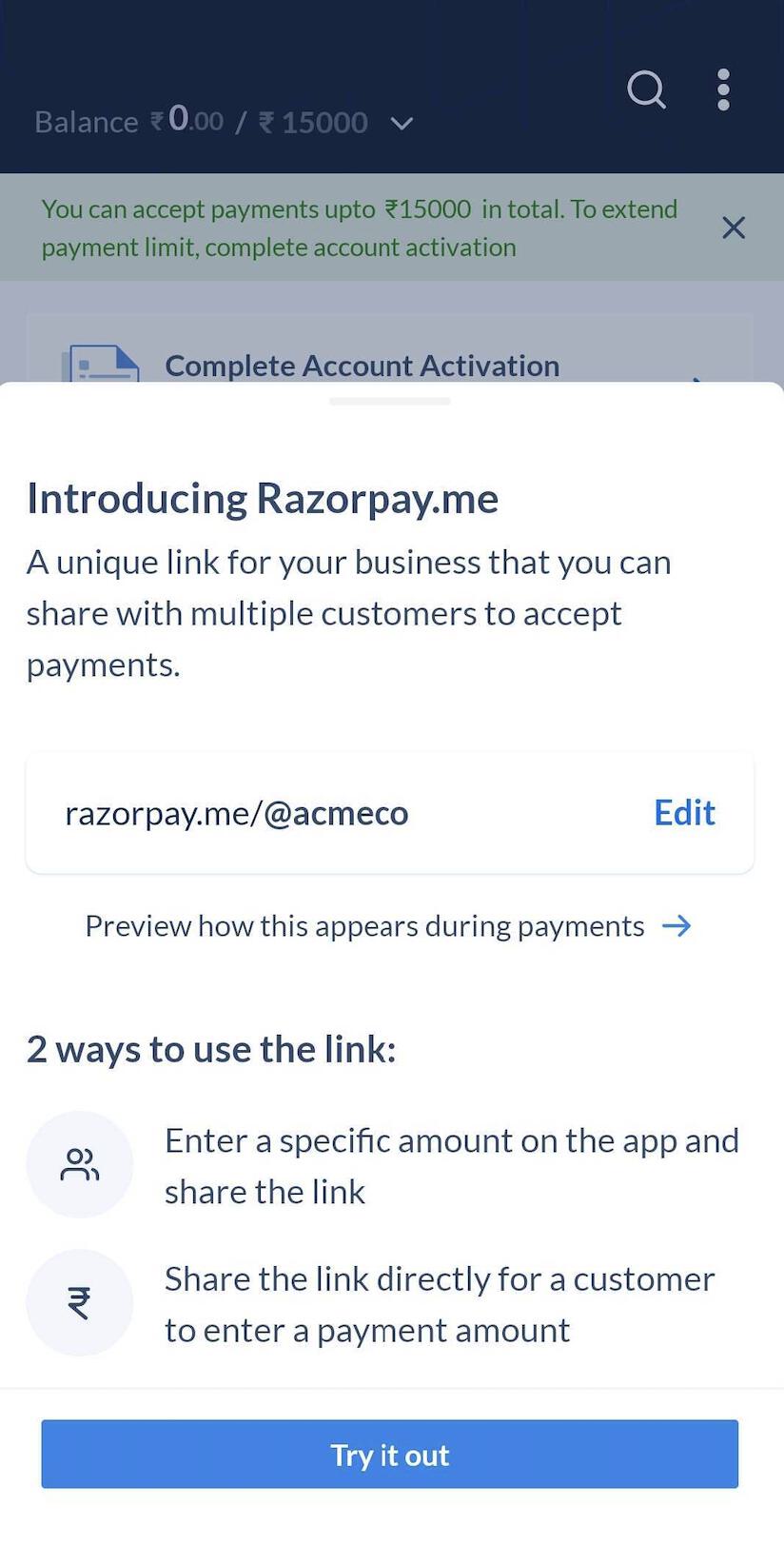
1. Tap **Edit** on the Razorpay.me URL creation screen.
 2. Modify the URL. You may:
* Select one from the list of recommended suffixes, or
* Enter a custom suffix. Ensure the suffix is similar to your business or brand name.
**Handy Tips**
* Characters supported are `a-z` and `0-9`.
* The business/brand name cannot exceed 15 characters.
2. Modify the URL. You may:
* Select one from the list of recommended suffixes, or
* Enter a custom suffix. Ensure the suffix is similar to your business or brand name.
**Handy Tips**
* Characters supported are `a-z` and `0-9`.
* The business/brand name cannot exceed 15 characters.
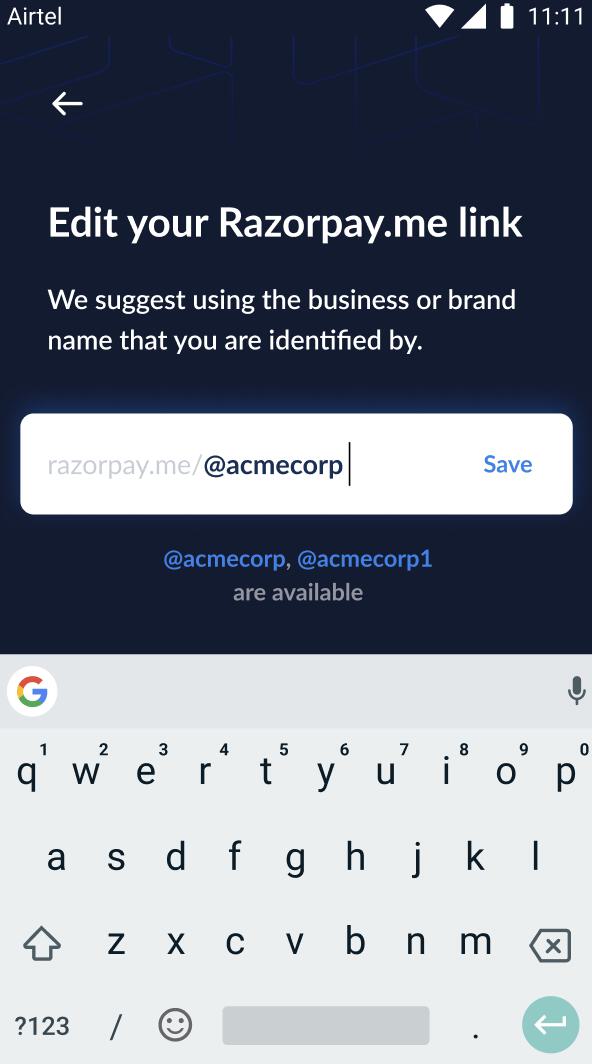 3. Tap **Save**.
The Razorpay.me URL has been successfully modified.
3. Tap **Save**.
The Razorpay.me URL has been successfully modified.