> ## Documentation Index
> Fetch the complete documentation index at: https://razorpay-881012b3.mintlify.site/llms.txt
> Use this file to discover all available pages before exploring further.
# Track Payments
> Track payments made by customers using the Razorpay Payments Mobile App. Analyse payment trends on the Razorpay Dashboard and check the payment states.
Available in🇮🇳 India
You can use the Razorpay Payments Mobile app to track payments made by your customers and analyse payment trends over different time periods.
## How to View and Track Payments
Watch this video to know how to track and view payment details using Razorpay Payments Mobile app.
Follow these steps to track payments:
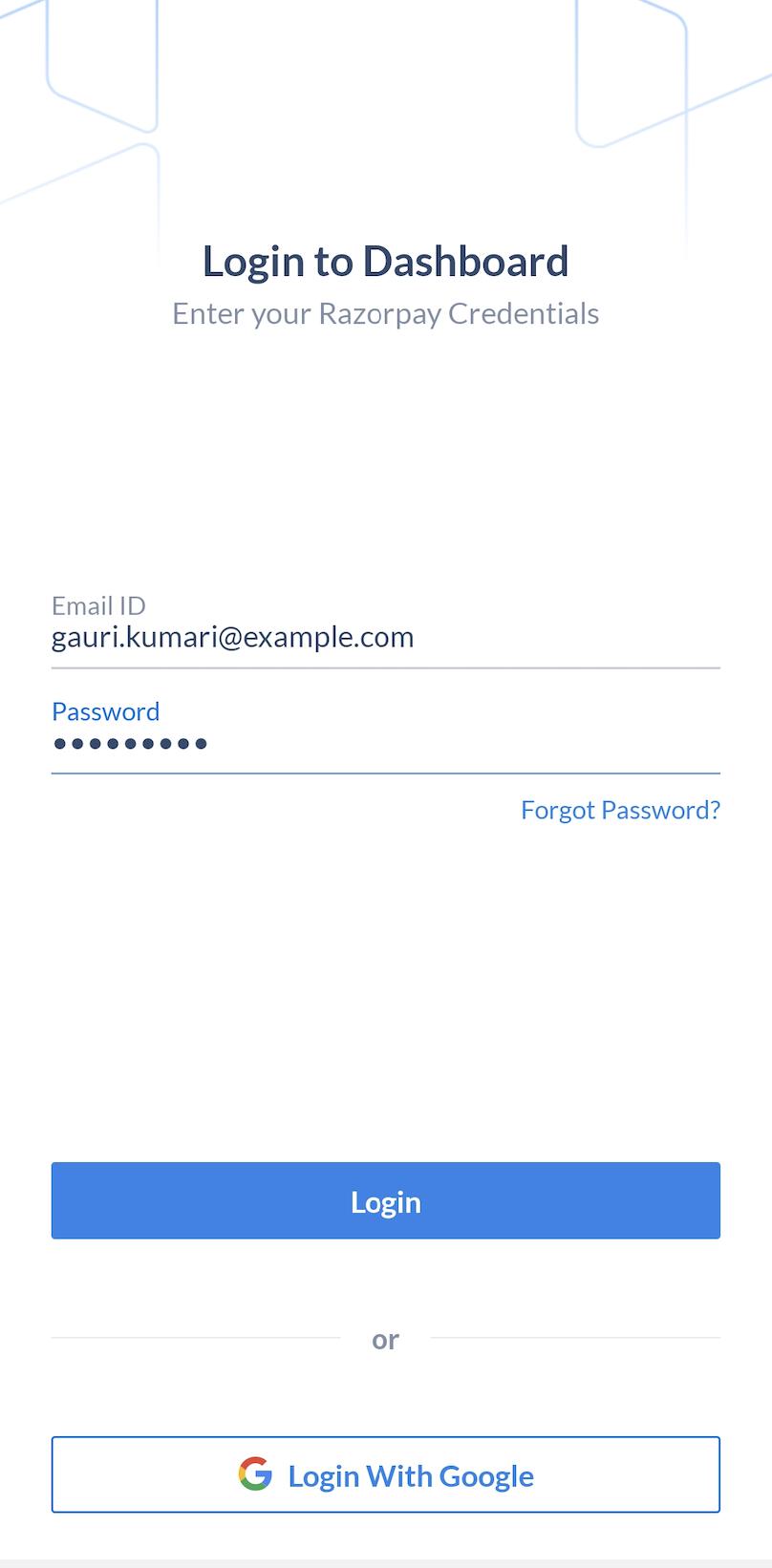
1. Log in with your Dashboard credentials.
2. Navigate to **Transactions** → **Payments**.
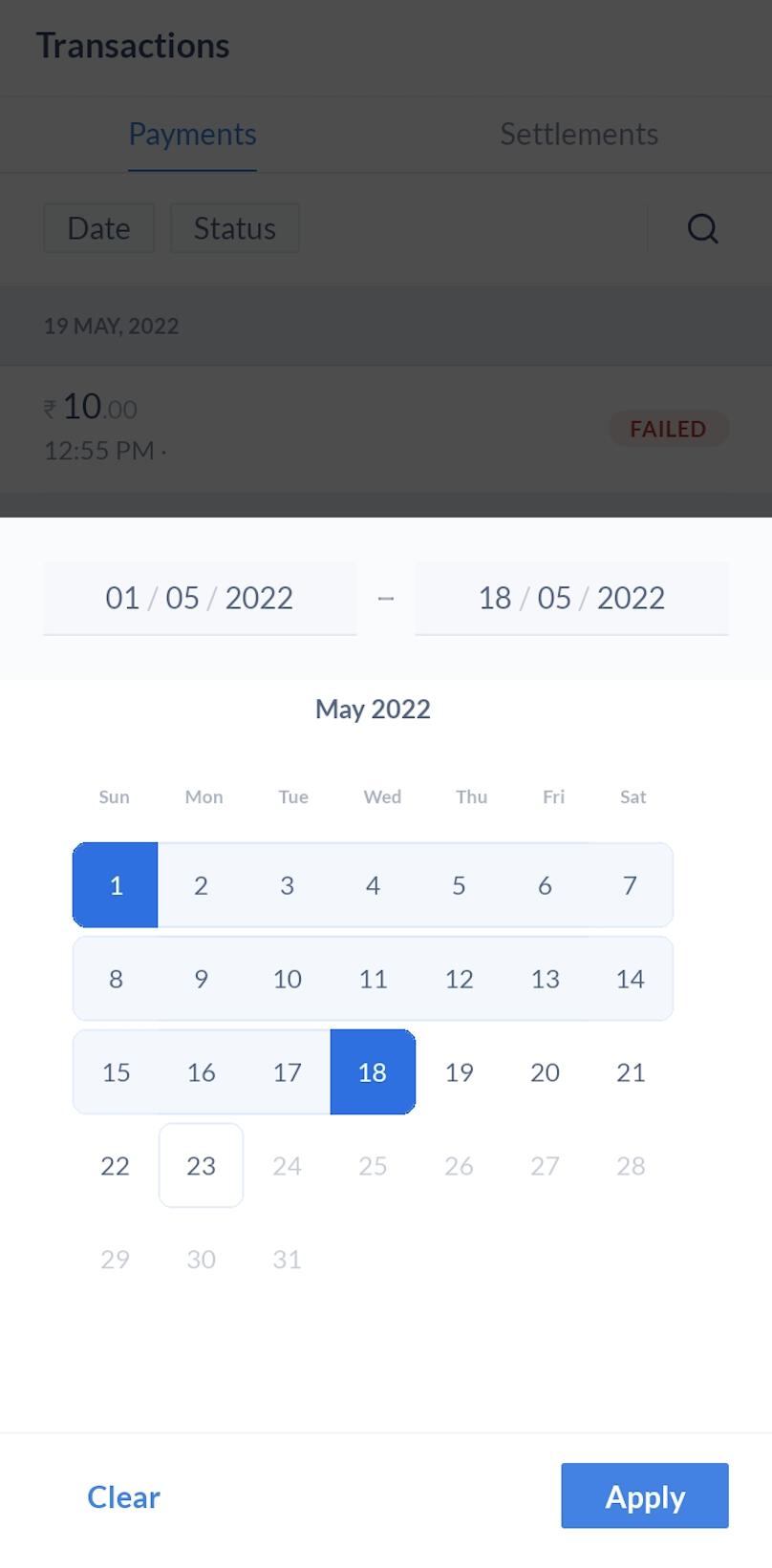
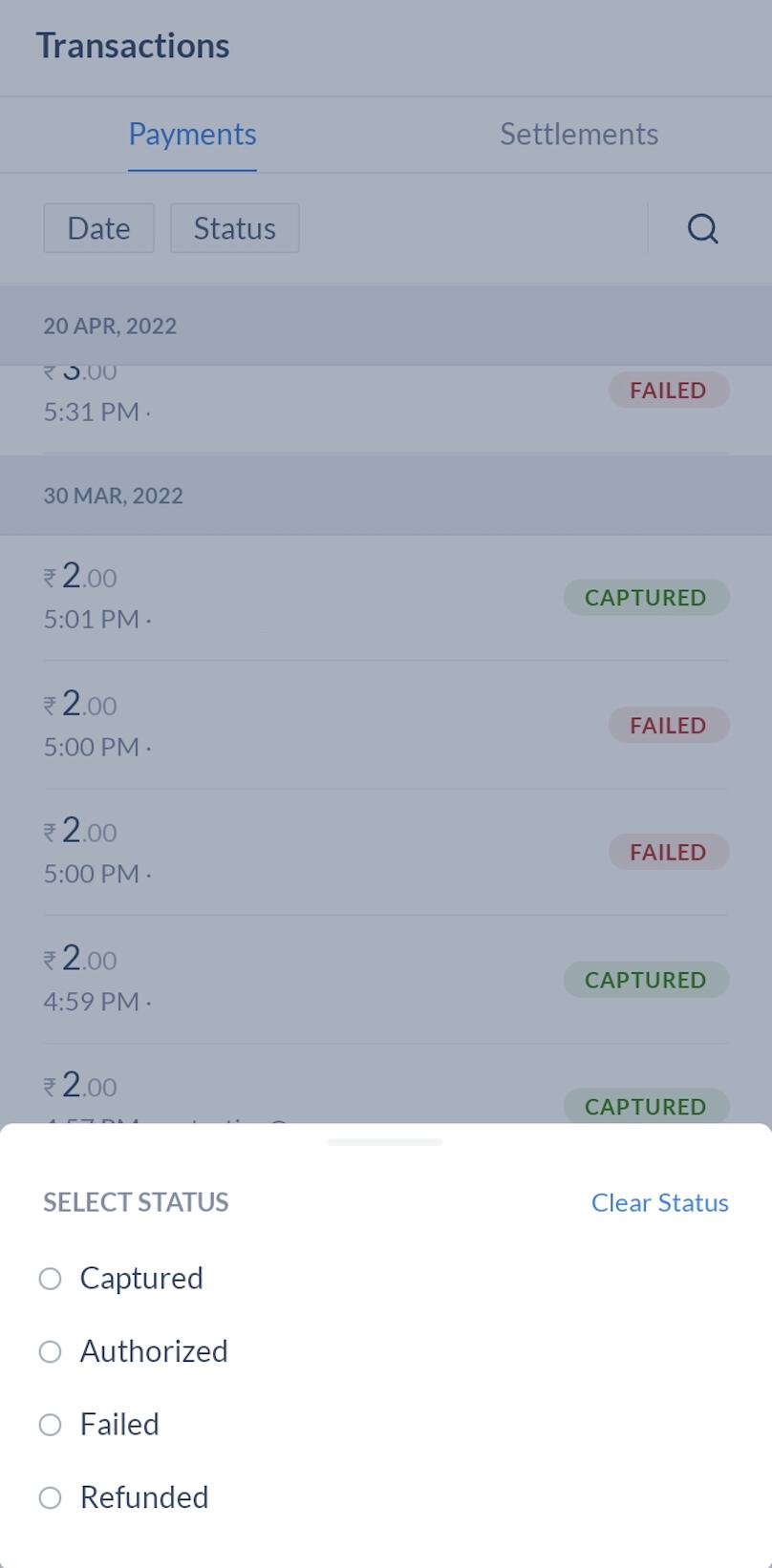
3. A list of payments appears. You can also filter the payments by:
* Date
* Status
4. Tap on a payment to view details such as:
* Payment state, ID, creation date, payment method, notes and fees breakup.
* Refund initiated for a specific payment, if any.
5. You can also choose to initiate refunds from this screen.
## Analyse Payment Trends
Follow these steps to analyse payment trends:
1. Log in with your Dashboard credentials.
2. On the graph, tap the zoom arrow icon to open the **Payment Insights** screen.
3. You can choose to view payments for a specific month, week or a preferred time period.
4. Tap on the graph to view a list of payments for the specified time period.
Tap the collapse icon to return to the home screen.
## Payment States
The table below lists the various payment states and provides a brief description about each.
| Status | Description |
| ---------- | -------------------------------------------------------------------------------------------------------------------------------------------------------------------------------------------------------------------------------------------------------------------------------------------------------------------------------------------------------------------------------------------------------------------------------------------------------------------------------------------------------------------------------------------------------------------------------------------------------------------------------------------------------------------------- |
| Created | A payment is created when the customer submits payment details to Razorpay. The payment has not been processed at this stage. |
| Authorized |
When the customer's payment details are successfully authenticated by the bank, the Payment state changes to Authorized.
The amount deducted from the customer’s account by Razorpay is not settled to your account until the payment is captured, either manually or automatically.
There can be scenarios where payment is interrupted due to external factors, such as network issues or technical errors at the customer's or bank's end. In this case, the amount may get debited from the customer's bank account but the payment status is not received by Razorpay from the bank. This is termed as **Late Authorization**.
|
| Captured |
The payment status changes to captured when the authorised payment is verified to be complete by Razorpay.
The amount is settled to your account as per the settlement schedule of the bank.
The captured amount must be the same as the authorised amount.
Any authorisation not followed by a capture within 5 days is automatically voided and the amount is refunded to the customer.
|
| Refunded | The amount is refunded to the customer's account. |
| Failed | Any unsuccessful transaction is marked as failed. The customer will have to retry the payment. |
### Related Information
* [Razorpay Mobile App](/docs/payments/mobile-app)
* [Payment Links](/docs/payments/payment-links)
 2. Navigate to **Transactions** → **Payments**.
3. A list of payments appears. You can also filter the payments by:
* Date
2. Navigate to **Transactions** → **Payments**.
3. A list of payments appears. You can also filter the payments by:
* Date
 * Status
 4. Tap on a payment to view details such as:
* Payment state, ID, creation date, payment method, notes and fees breakup.
* Refund initiated for a specific payment, if any.
5. You can also choose to initiate refunds from this screen.
## Analyse Payment Trends
Follow these steps to analyse payment trends:
1. Log in with your Dashboard credentials.
2. On the graph, tap the zoom arrow icon to open the **Payment Insights** screen.
4. Tap on a payment to view details such as:
* Payment state, ID, creation date, payment method, notes and fees breakup.
* Refund initiated for a specific payment, if any.
5. You can also choose to initiate refunds from this screen.
## Analyse Payment Trends
Follow these steps to analyse payment trends:
1. Log in with your Dashboard credentials.
2. On the graph, tap the zoom arrow icon to open the **Payment Insights** screen.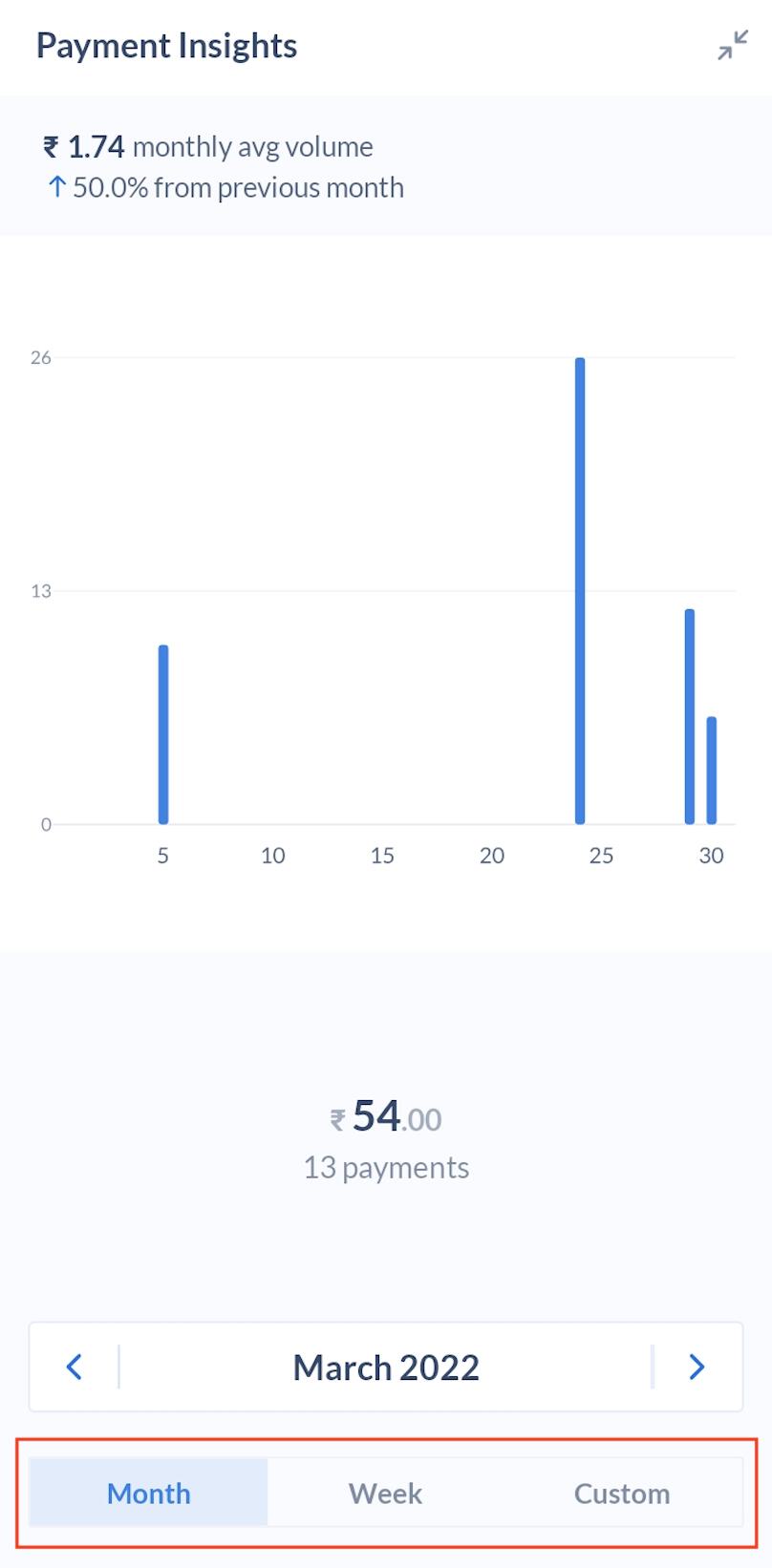 4. Tap on the graph to view a list of payments for the specified time period.
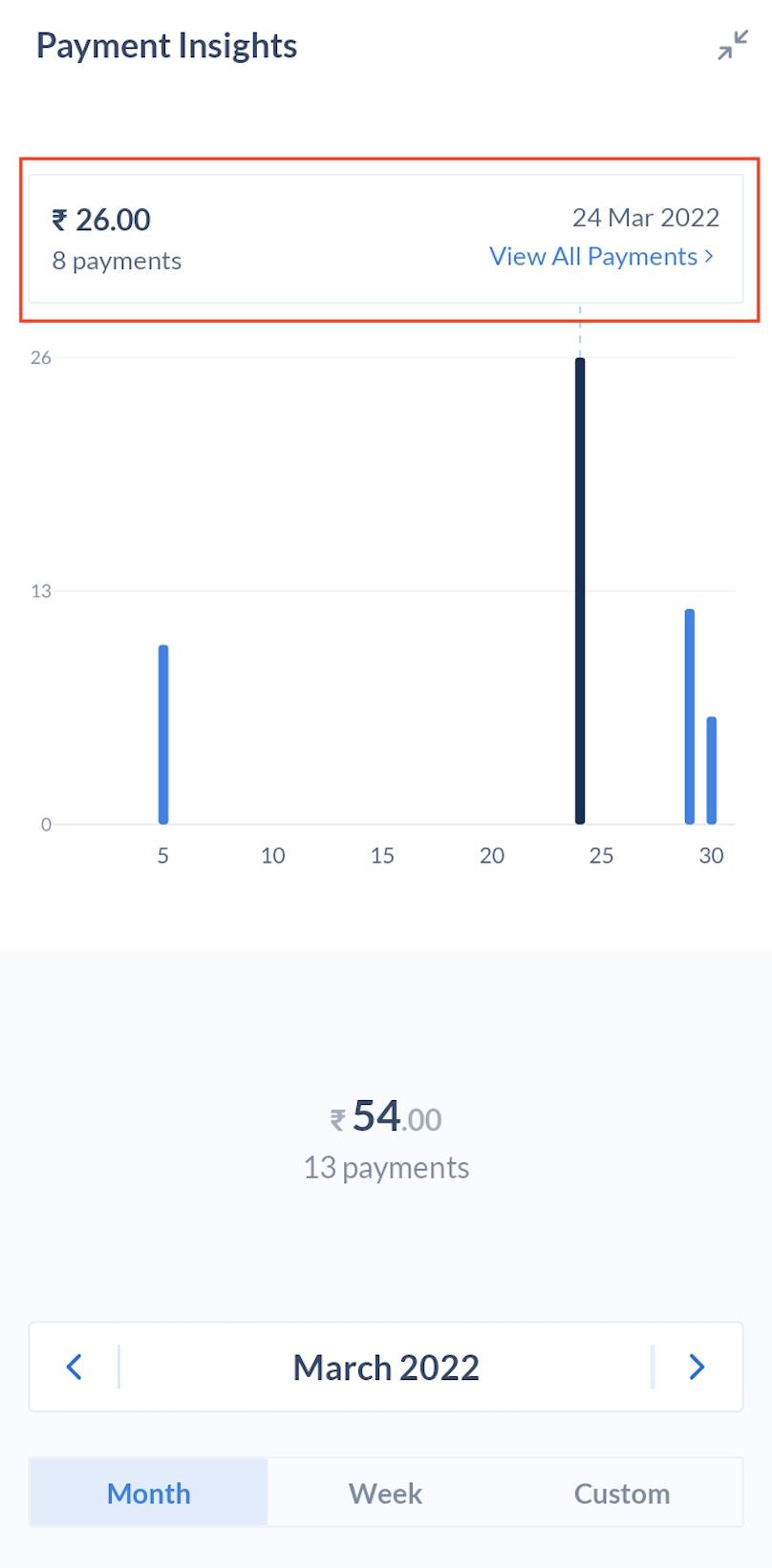 Tap the collapse icon to return to the home screen.
## Payment States
The table below lists the various payment states and provides a brief description about each.
| Status | Description |
| ---------- | -------------------------------------------------------------------------------------------------------------------------------------------------------------------------------------------------------------------------------------------------------------------------------------------------------------------------------------------------------------------------------------------------------------------------------------------------------------------------------------------------------------------------------------------------------------------------------------------------------------------------------------------------------------------------- |
| Created | A payment is created when the customer submits payment details to Razorpay. The payment has not been processed at this stage. |
| Authorized |
Tap the collapse icon to return to the home screen.
## Payment States
The table below lists the various payment states and provides a brief description about each.
| Status | Description |
| ---------- | -------------------------------------------------------------------------------------------------------------------------------------------------------------------------------------------------------------------------------------------------------------------------------------------------------------------------------------------------------------------------------------------------------------------------------------------------------------------------------------------------------------------------------------------------------------------------------------------------------------------------------------------------------------------------- |
| Created | A payment is created when the customer submits payment details to Razorpay. The payment has not been processed at this stage. |
| Authorized |