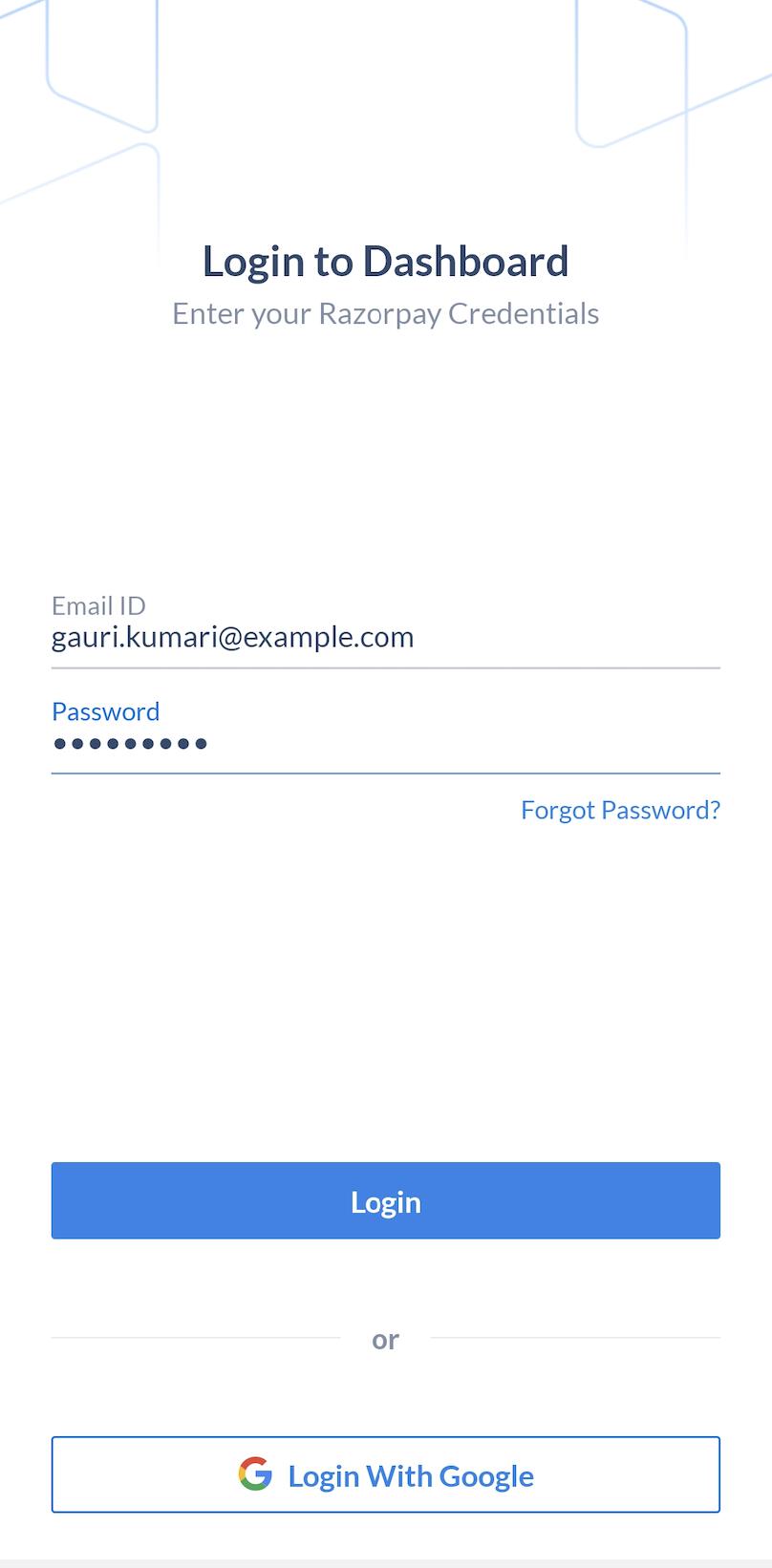
 2. Navigate to **Transactions** → **Payments**. Tap on the payment for which you have to issue a refund.
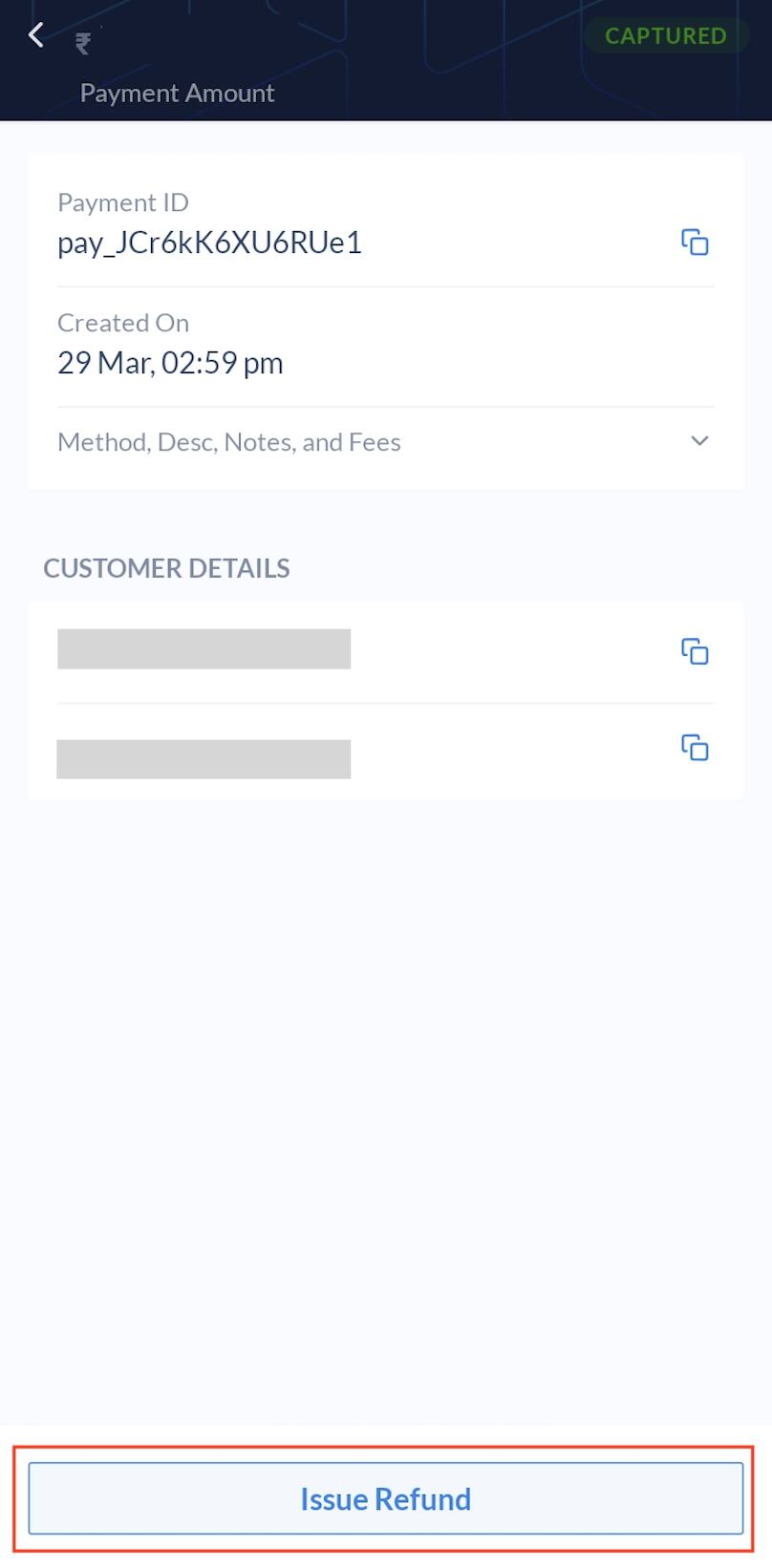 4. Provide the following details:
* Enter the refund amount. You can choose to make a full or partial refund.
* Select **Refund Instantly** if you want the refund to reach the customer within a day's time.
4. Provide the following details:
* Enter the refund amount. You can choose to make a full or partial refund.
* Select **Refund Instantly** if you want the refund to reach the customer within a day's time.
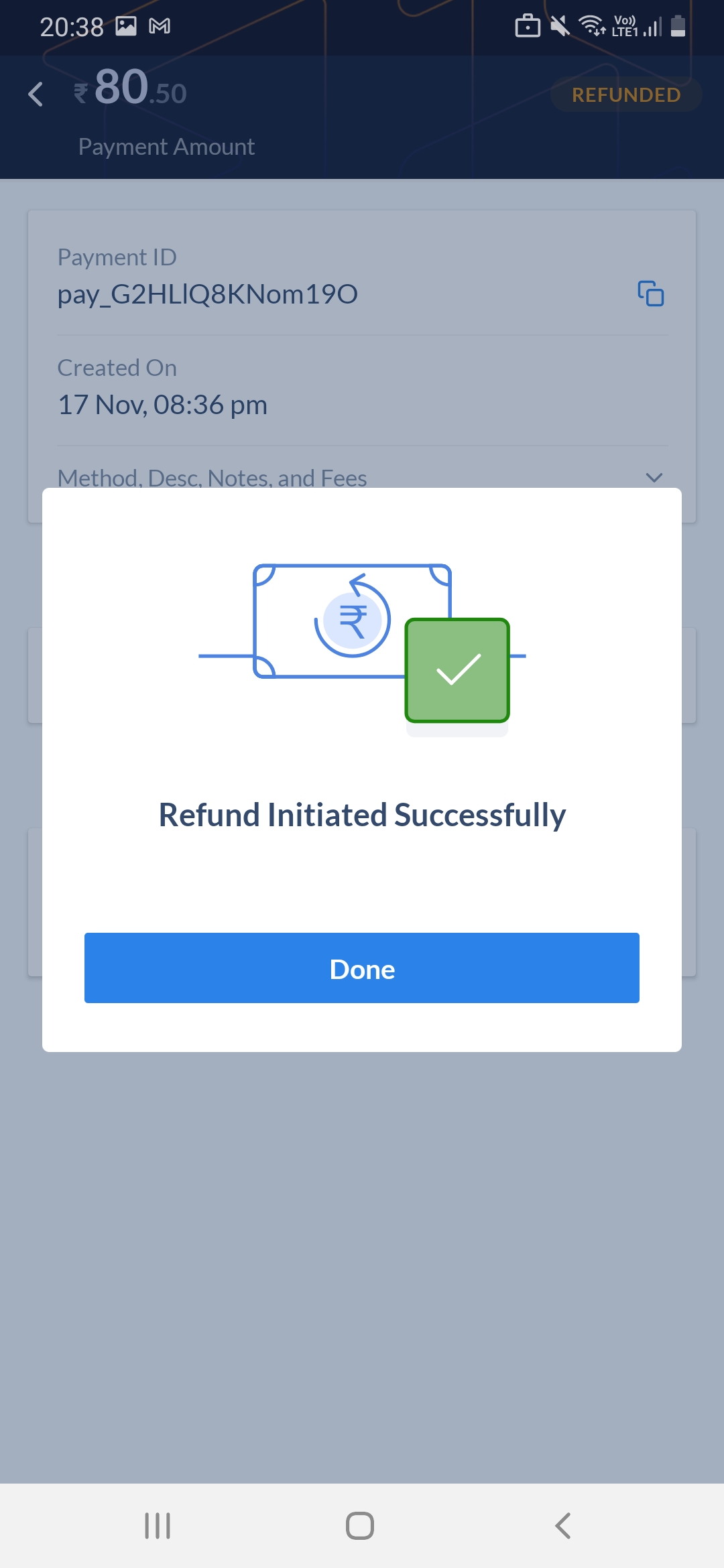 7. To view the details, tap on the payment for which you initiated a refund.
## Refund States
The table below lists the various states in the refund life cycle and provides a brief description about each.
| Status | Description |
| --------- | --------------------------------------------------------------------- |
| Pending | Razorpay is attempting to process the refund. |
| Processed | Once the refund has been processed, it goes to the `processed` state. |
### Related Information
* [Razorpay Mobile App](/docs/payments/mobile-app)
* [Refunds](/docs/payments/refunds)
7. To view the details, tap on the payment for which you initiated a refund.
## Refund States
The table below lists the various states in the refund life cycle and provides a brief description about each.
| Status | Description |
| --------- | --------------------------------------------------------------------- |
| Pending | Razorpay is attempting to process the refund. |
| Processed | Once the refund has been processed, it goes to the `processed` state. |
### Related Information
* [Razorpay Mobile App](/docs/payments/mobile-app)
* [Refunds](/docs/payments/refunds)