> ## Documentation Index
> Fetch the complete documentation index at: https://razorpay-881012b3.mintlify.site/llms.txt
> Use this file to discover all available pages before exploring further.
# Airpay
> Add Airpay as a payment provider on Optimizer.
Available in
🇮🇳 India
Airpay is an integrated omnichannel payment processing platform designed for businesses in India, offering solutions for mobile, online and offline transactions. It acts as a payment aggregator, enabling businesses to accept various instruments like cards, UPI and wallets across multiple sales channels.
Follow the steps below to onboard Airpay as a payment provider.
* Ensure you have Optimizer enabled for your Razorpay account. This payment provider is available only with Optimizer.
* To ensure a successful integration, you must complete the following items prior to configuration:
* **Procure Credentials:** Ensure you have an **active account with Airpay** and possess the necessary **API credentials** (for example, Merchant ID, Secret Key, Username and Password).
* **Whitelisting:** Ensure you have whitelisted the necessary URLs/IP addresses to allow traffic from the Optimizer platform. Please contact Airpay for this.
* **UPI Collect is not supported** by this integration. You must use an alternative provider to accept these payments (Razorpay is available for Optimizer users). [Handle UPI Collect transactions](#1-handling-upi-collect-transactions).
**Handy Tips**
No additional configuration is required on your end for Airpay integration.
## Add Airpay as Payment Provider
1. Log in to your Dashboard and select **Optimizer**.
2. Click **Payment Provider** → **Add Provider**.
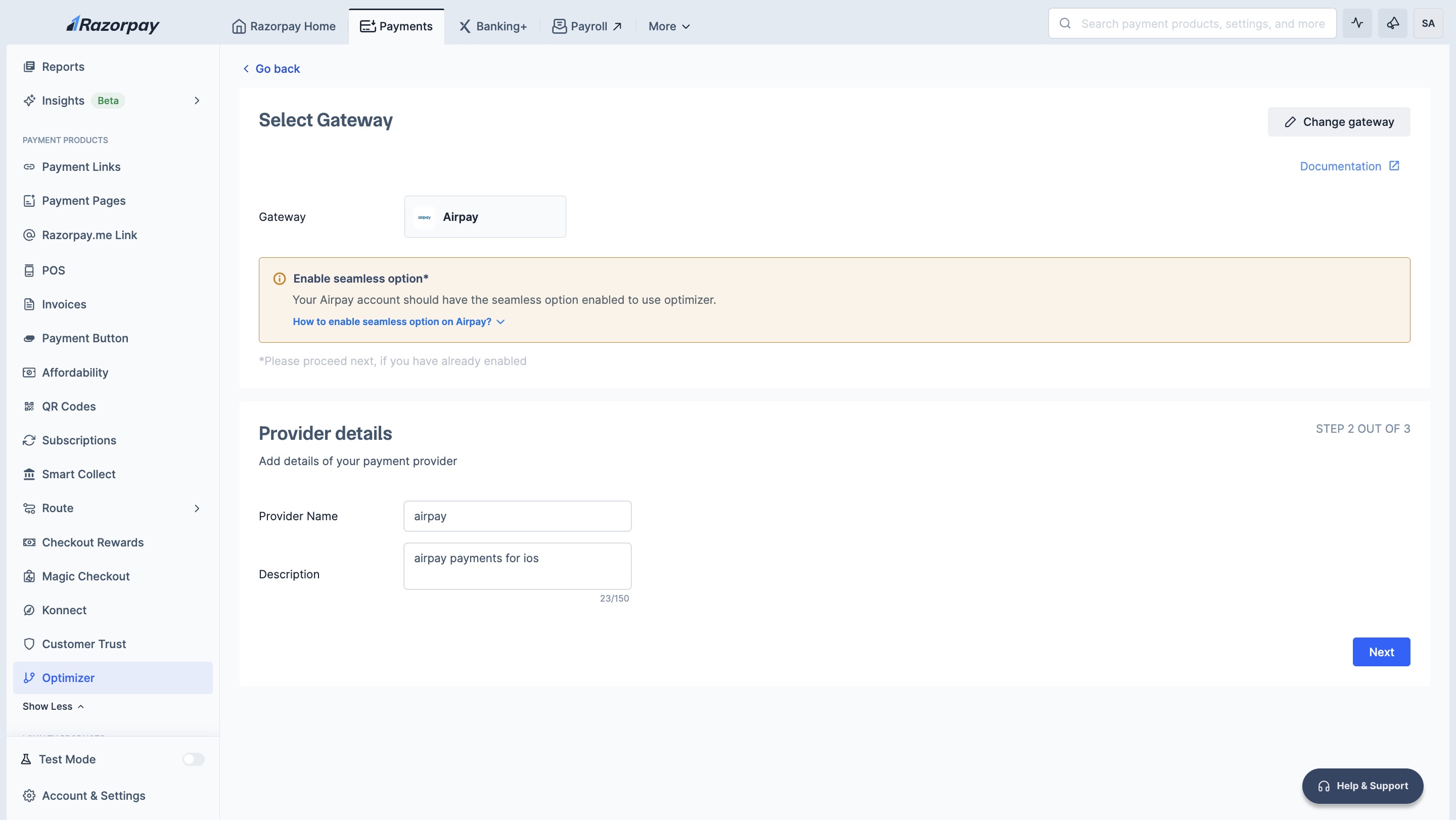
3. Navigate to **Card, Netbanking, and UPI** → **Airpay**. 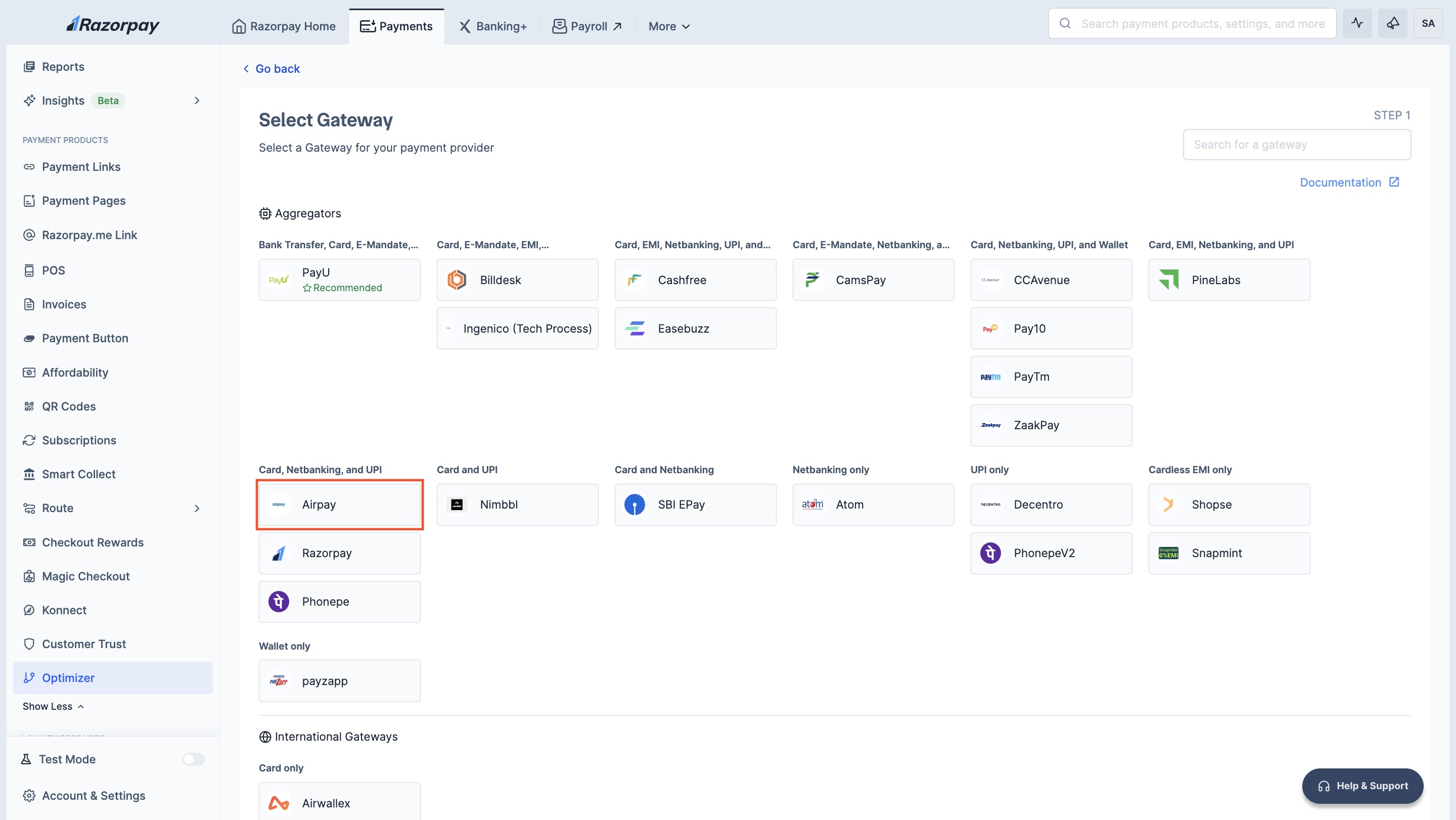 4. Enter your **Provider Details**.
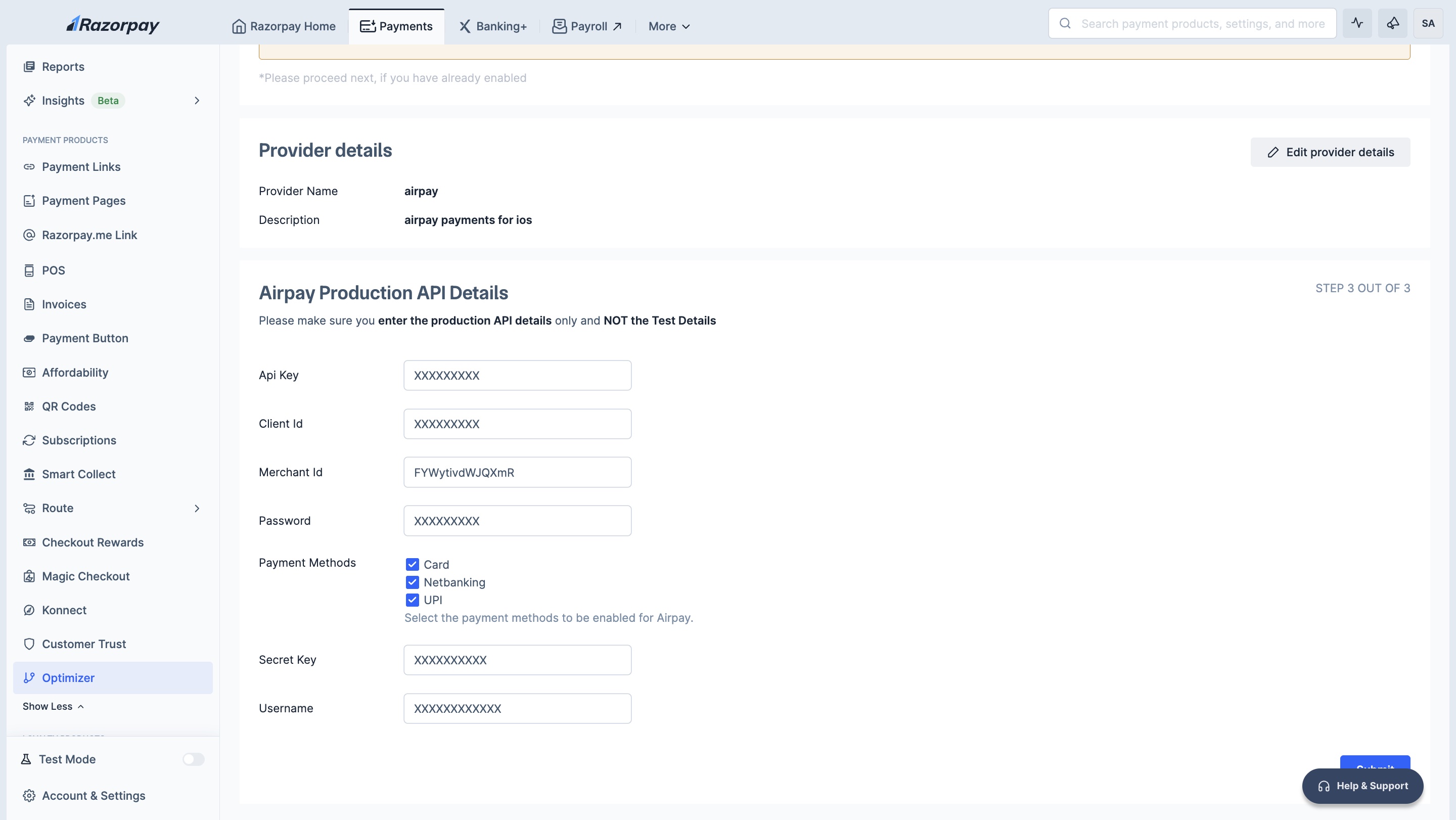
  5. Add your **Airpay Production API Details** and click **Submit**.
  **Watch Out!**
**UPI Collect is not supported** by this integration. You must use an alternative provider to accept these payments (Razorpay is available for Optimizer users). [Handle UPI Collect transactions](#1-handling-upi-collect-transactions).
You have successfully added Airpay as a payment provider to Optimizer.
## Configure Custom Rule
1. Log in to your Dashboard and click **Optimizer**.
2. Click **+ Add New Rule**.
**Watch Out!**
**UPI Collect is not supported** by this integration. You must use an alternative provider to accept these payments (Razorpay is available for Optimizer users). [Handle UPI Collect transactions](#1-handling-upi-collect-transactions).
You have successfully added Airpay as a payment provider to Optimizer.
## Configure Custom Rule
1. Log in to your Dashboard and click **Optimizer**.
2. Click **+ Add New Rule**.
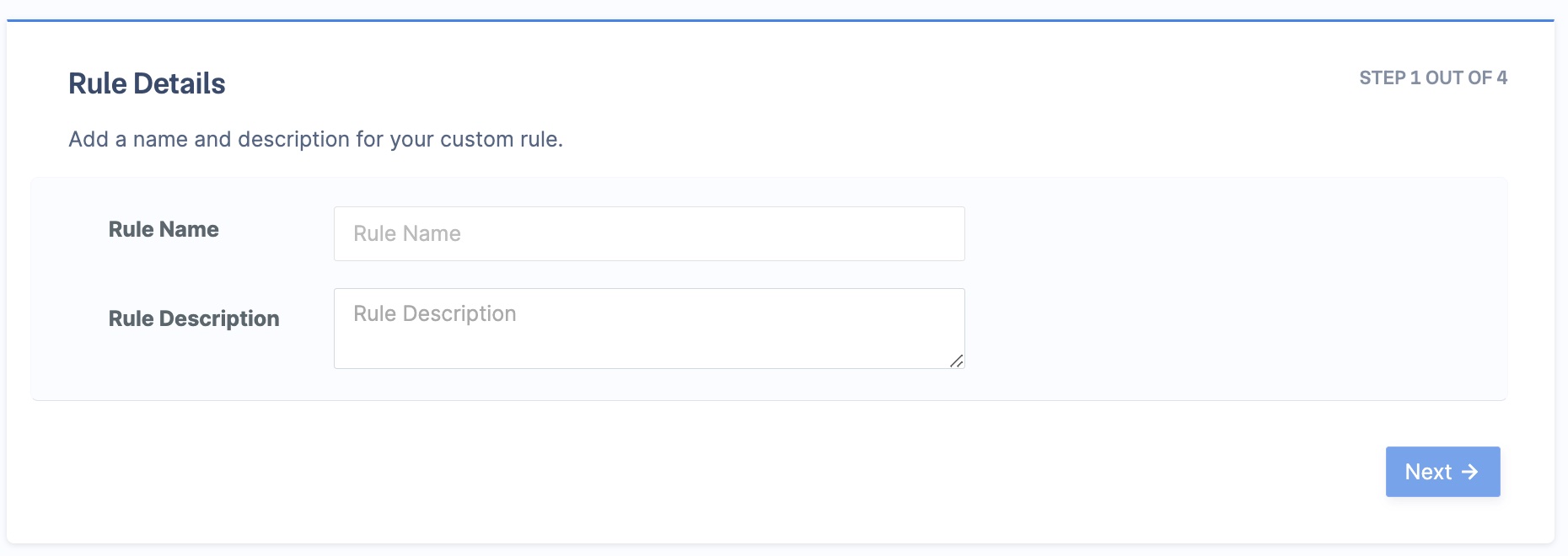
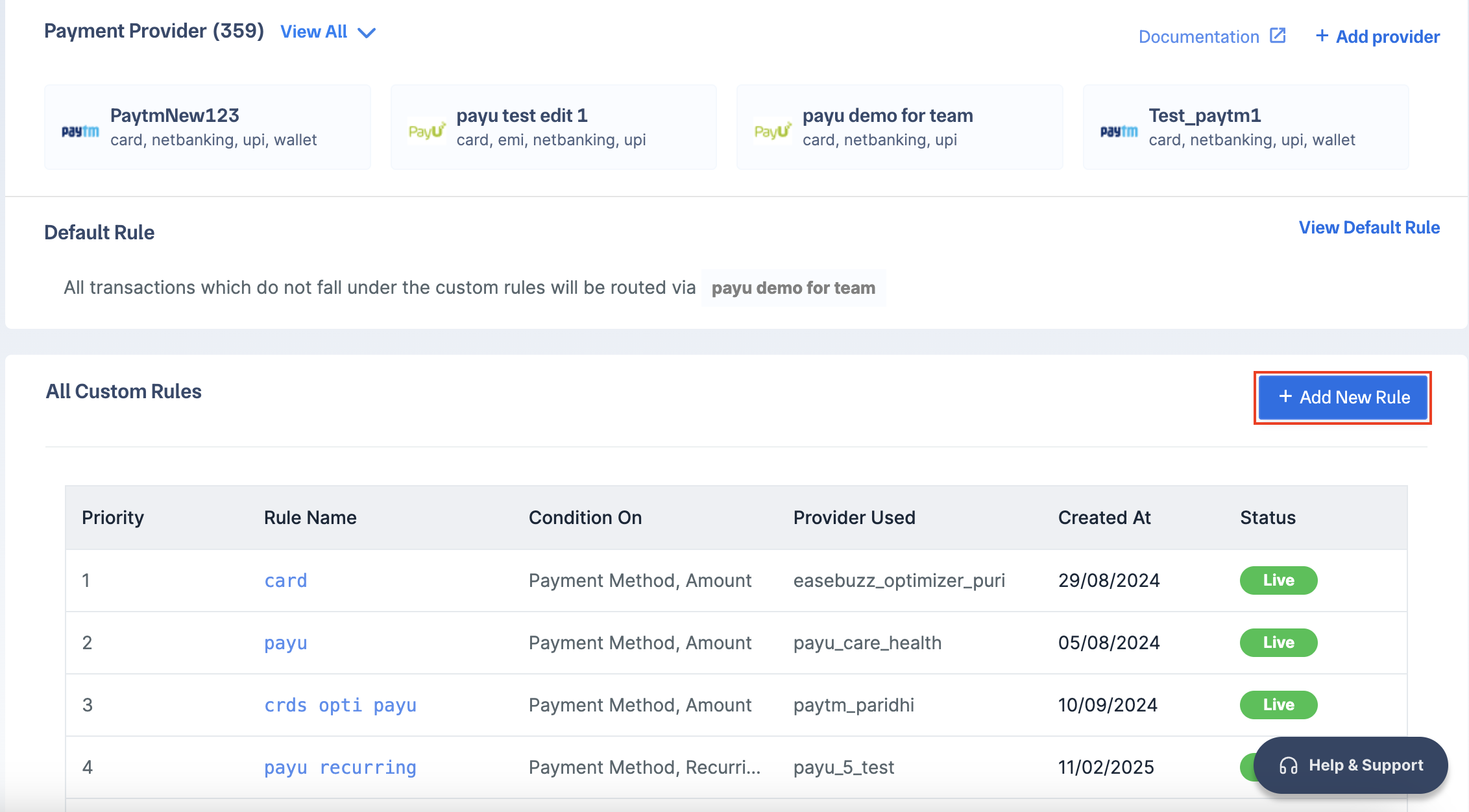 3. Enter the **Rule Name** and **Rule Description**. Click **Next**.
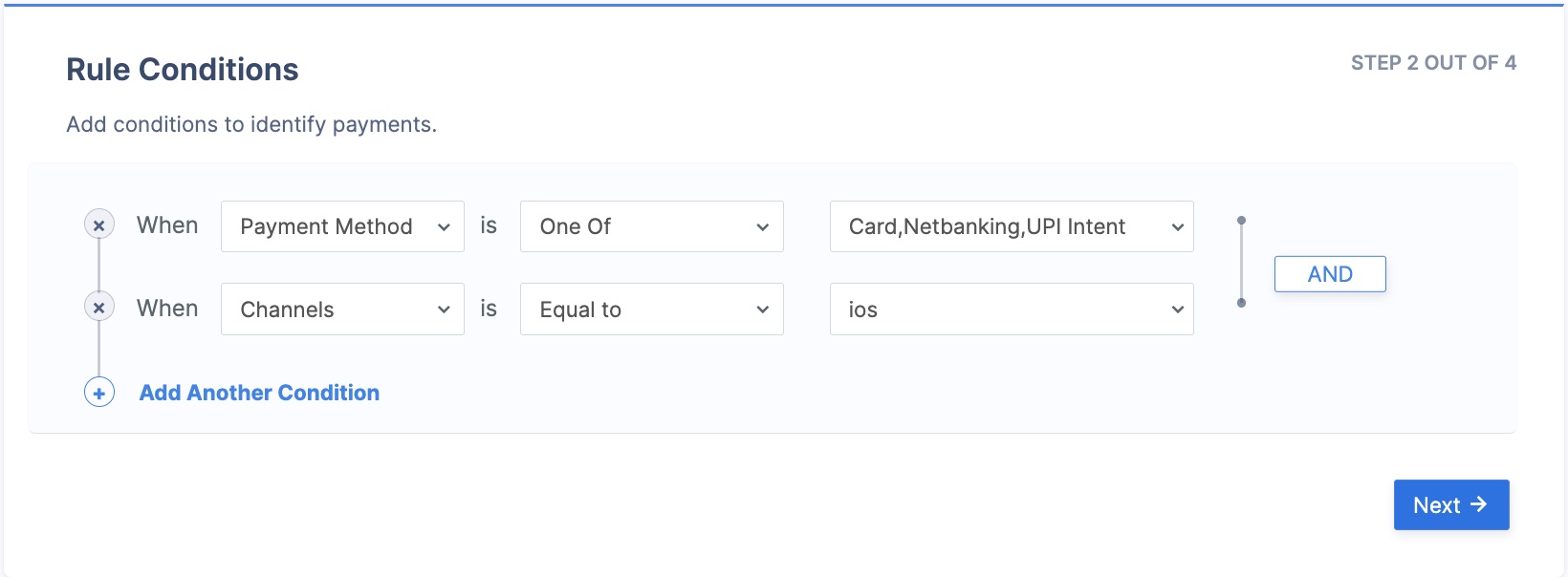
 4. Select the rule conditions and click **Next**, for example:
* **When** - `Payment Method`.
* **is** - `One Of`.
* `Netbanking, Card, UPI Intent`.
4. Select the rule conditions and click **Next**, for example:
* **When** - `Payment Method`.
* **is** - `One Of`.
* `Netbanking, Card, UPI Intent`.
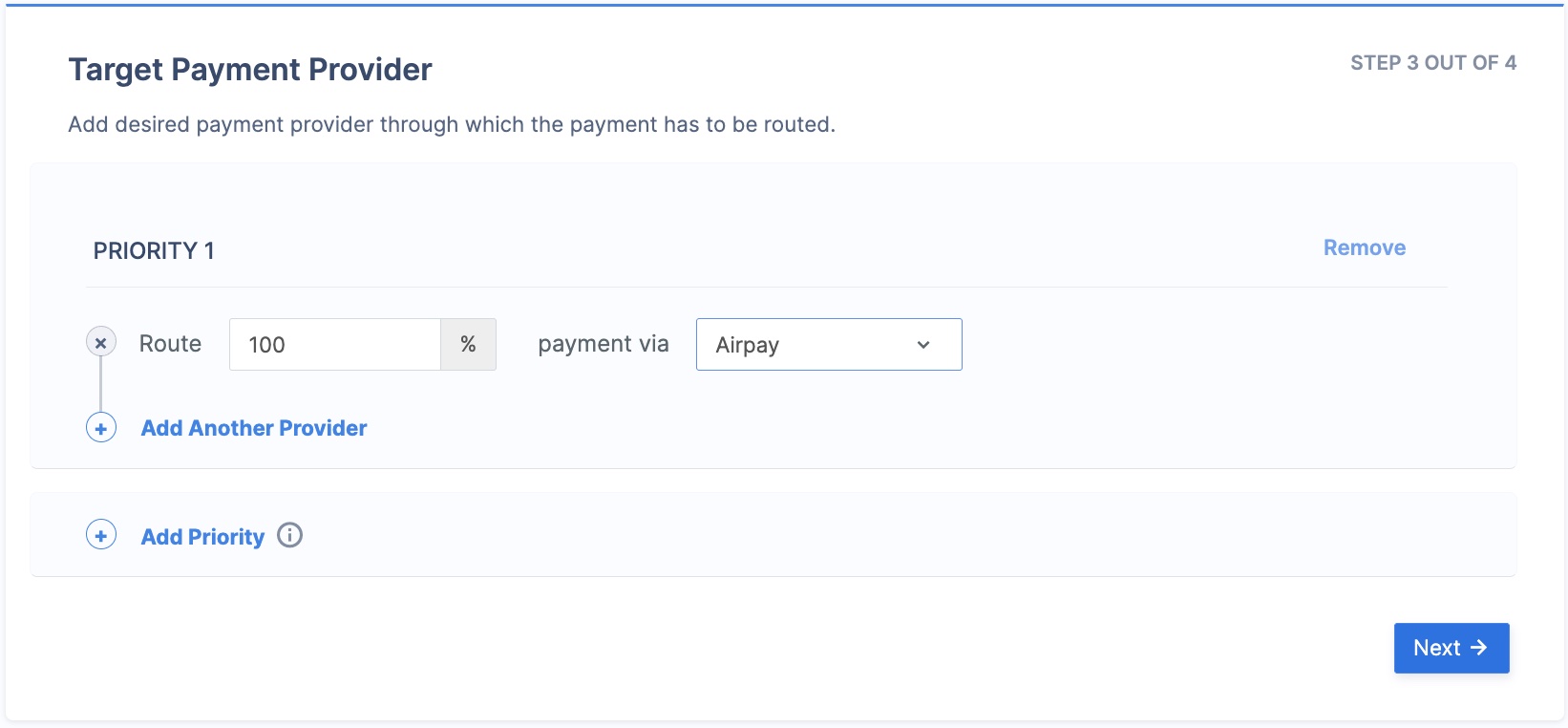
 5. In the **Route** field, enter **100**, and select **Airpay** in the **payment via** field. Click **Next**.
  6. Click **Publish Rule**.
Following this example rule, transactions originating from **iOS devices** and using **Card, Netbanking or UPI payment methods** will be routed through **Airpay**.
## Configure Custom Rules for Limitations
You must create routing rules to manage the known limitations of the Airpay integration, routing specific transaction types to an alternative provider.
### 1. Handling UPI Collect Transactions
Airpay integration currently **does not support "UPI Collect"** requests.
**Handy Tips**
Create a separate rule for UPI Intent transactions to ensure they are routed to Airpay.
1. Log in to your Dashboard and click **Optimizer**.
2. Click **+ Add New Rule**.
3. Enter the **Rule Name** (for example, `Exclude Airpay for UPI Collect`) and **Rule Description**. Click **Next**.
4. Select the rule conditions as follows and click **Next**:
* **When** - `Payment Method`
* **is** - `Equal to`
* `UPI Collect`
5. In the **Route** field, enter **100** and select your **\[Alternative Gateway Provider]** in the **payment via** field. Click **Next**.
6. Click **Publish Rule**.
6. Click **Publish Rule**.
Following this example rule, transactions originating from **iOS devices** and using **Card, Netbanking or UPI payment methods** will be routed through **Airpay**.
## Configure Custom Rules for Limitations
You must create routing rules to manage the known limitations of the Airpay integration, routing specific transaction types to an alternative provider.
### 1. Handling UPI Collect Transactions
Airpay integration currently **does not support "UPI Collect"** requests.
**Handy Tips**
Create a separate rule for UPI Intent transactions to ensure they are routed to Airpay.
1. Log in to your Dashboard and click **Optimizer**.
2. Click **+ Add New Rule**.
3. Enter the **Rule Name** (for example, `Exclude Airpay for UPI Collect`) and **Rule Description**. Click **Next**.
4. Select the rule conditions as follows and click **Next**:
* **When** - `Payment Method`
* **is** - `Equal to`
* `UPI Collect`
5. In the **Route** field, enter **100** and select your **\[Alternative Gateway Provider]** in the **payment via** field. Click **Next**.
6. Click **Publish Rule**. 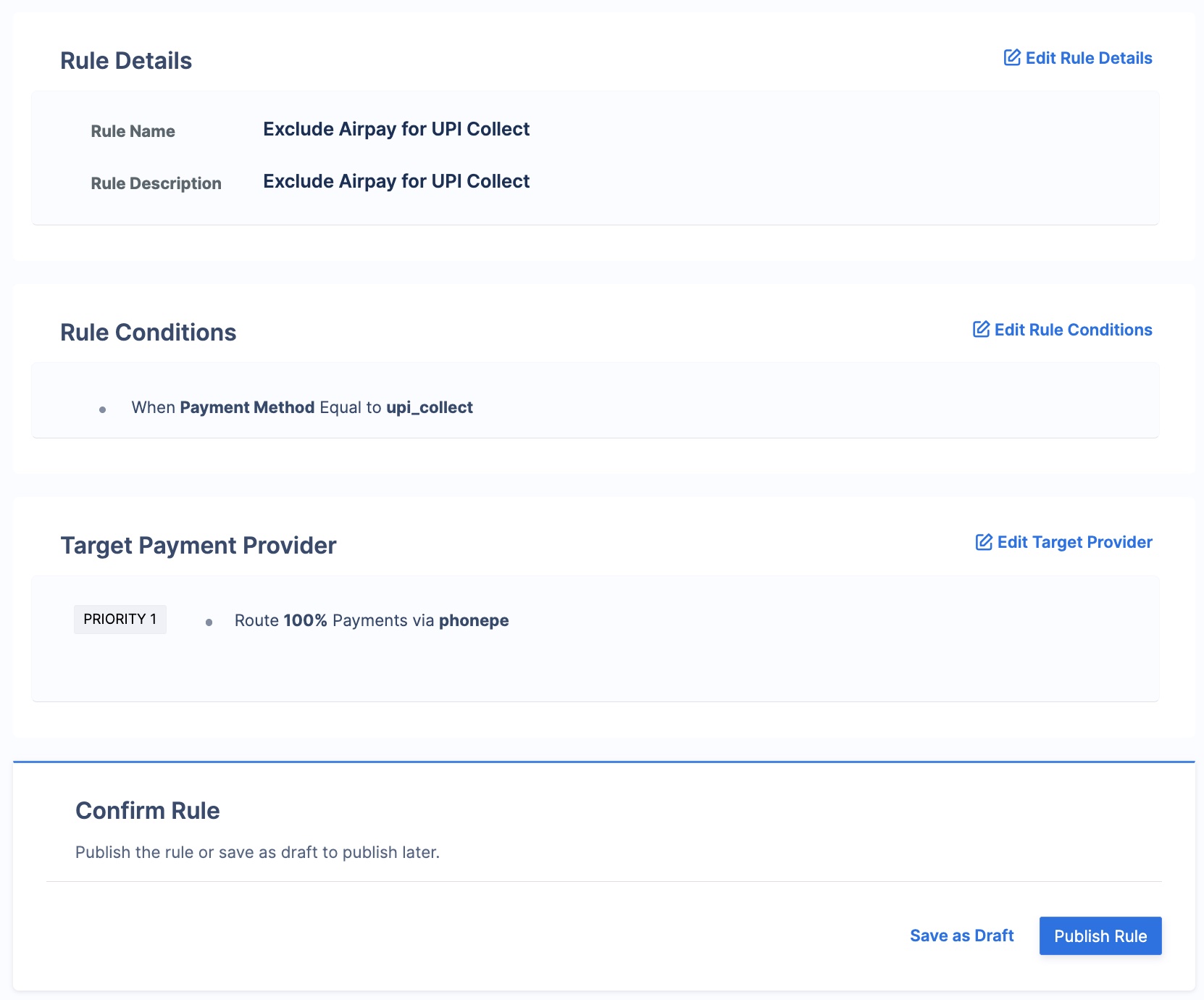 ### 2. Handling Card Transactions
Airpay integration **does not support Tokenised Card** payments.
1. Log in to your Dashboard and click **Optimizer**.
2. Click **+ Add New Rule**.
3. Enter the **Rule Name** (for example, `Exclude Airpay for Tokenised Cards`) and **Rule Description**. Click **Next**.
4. Select the rule conditions as follows:
* **Condition 1:**
* **When** - `Payment Method`
* **is** - `Equal to`
* `Card`
* **AND** (Add another condition)
* **Condition 2:**
* **When** - `Card Tokenised`
* **is** - `Equal to`
* `True`
5. Click **Next**.
6. In the **Route** field, enter **100** and select your **\[Alternative Gateway Provider]** in the **payment via** field. Click **Next**.
7. Click **Publish Rule**.
### 2. Handling Card Transactions
Airpay integration **does not support Tokenised Card** payments.
1. Log in to your Dashboard and click **Optimizer**.
2. Click **+ Add New Rule**.
3. Enter the **Rule Name** (for example, `Exclude Airpay for Tokenised Cards`) and **Rule Description**. Click **Next**.
4. Select the rule conditions as follows:
* **Condition 1:**
* **When** - `Payment Method`
* **is** - `Equal to`
* `Card`
* **AND** (Add another condition)
* **Condition 2:**
* **When** - `Card Tokenised`
* **is** - `Equal to`
* `True`
5. Click **Next**.
6. In the **Route** field, enter **100** and select your **\[Alternative Gateway Provider]** in the **payment via** field. Click **Next**.
7. Click **Publish Rule**. 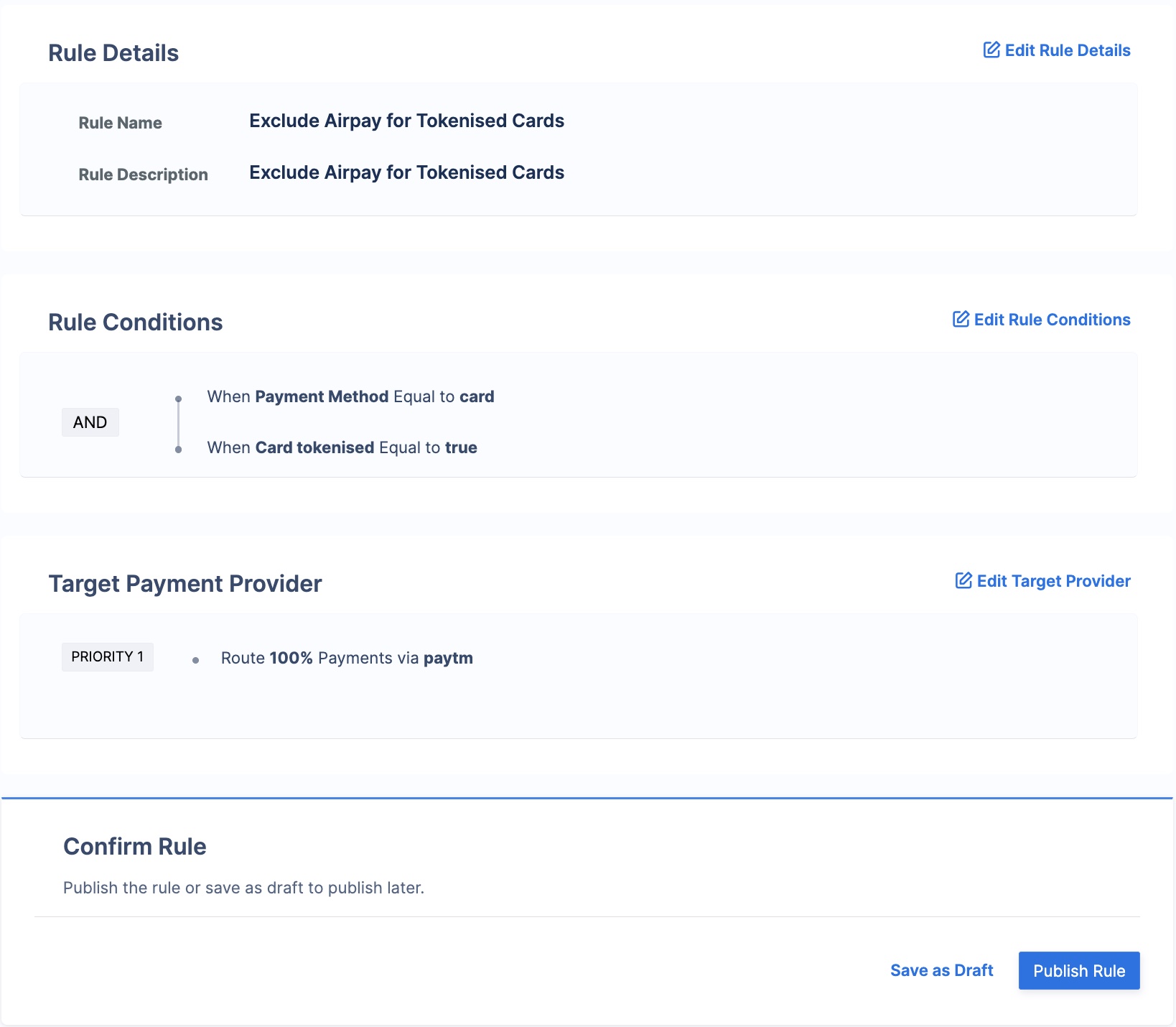 ## Best Practices
Please note these best practices before routing all or some of your traffic to a new gateway via Optimizer:
Rules set up in the Razorpay Dashboard apply to live mode. However, you must manually configure live mode credentials; test mode credentials will not copy over.
For basic integration testing, contact [Razorpay Support](https://razorpay.com/support/). We will attempt a small test payment to confirm your credentials.
## Go Live
After the integration is tested and successful, you can go live with Airpay on Razorpay Optimizer.
## Best Practices
Please note these best practices before routing all or some of your traffic to a new gateway via Optimizer:
Rules set up in the Razorpay Dashboard apply to live mode. However, you must manually configure live mode credentials; test mode credentials will not copy over.
For basic integration testing, contact [Razorpay Support](https://razorpay.com/support/). We will attempt a small test payment to confirm your credentials.
## Go Live
After the integration is tested and successful, you can go live with Airpay on Razorpay Optimizer.