> ## Documentation Index
> Fetch the complete documentation index at: https://razorpay-881012b3.mintlify.site/llms.txt
> Use this file to discover all available pages before exploring further.
# Cashfree Instant (beta)
> Add Cashfree Instant (beta) as a payment provider on Optimizer.
Available in
🇮🇳 India
Follow the steps below to onboard Cashfree as a payment provider.
**Watch Out!**
While Optimizer can route payments based on your business logic, the method enablement of each gateway needs to be handled between you and the gateway, or it may lead to failed payments.
## Prerequisites
You need to have an active Cashfree account with the necessary payment methods activated.
## Add Cashfree as a Payment Provider
1. Log in to your Dashboard.
2. Go to the **PAYMENT PRODUCTS** section and click **Optimizer**.
3. In the top-right section, click **Add Provider**.
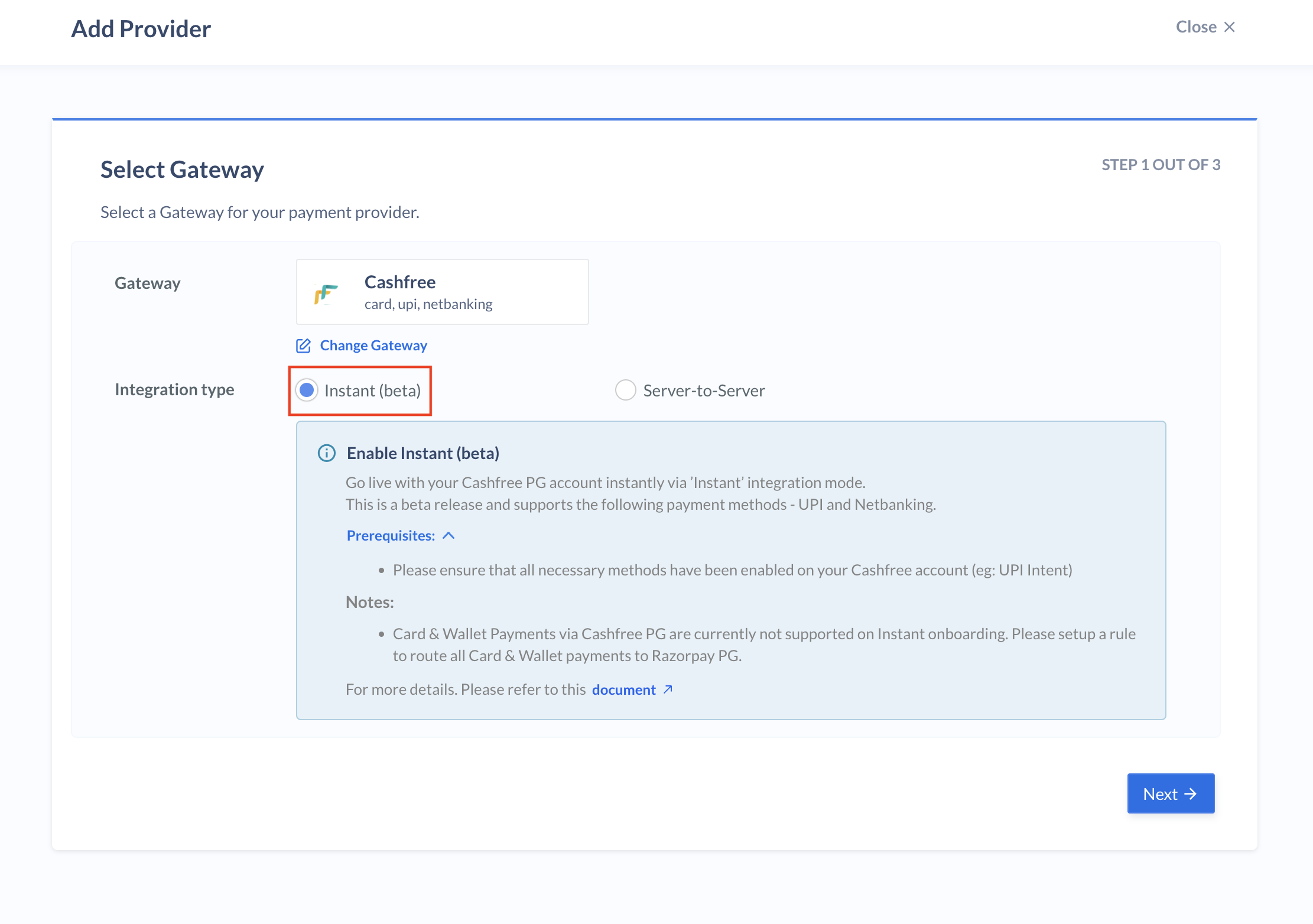
4. Select **Cashfree** and **Instant (beta)** in the list of gateways available and click **Next**.
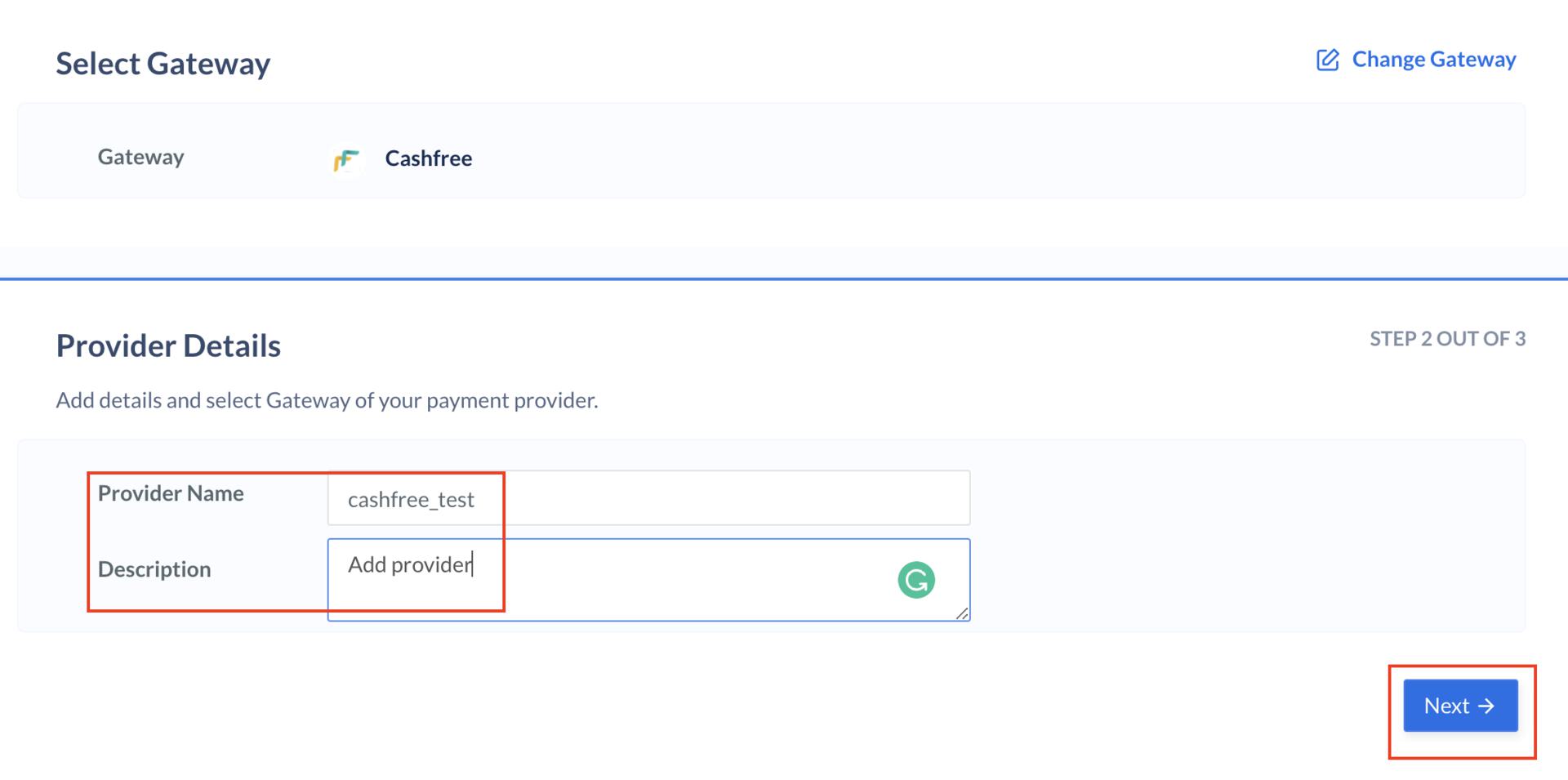
 5. Enter the provider name and description and click **Next**.
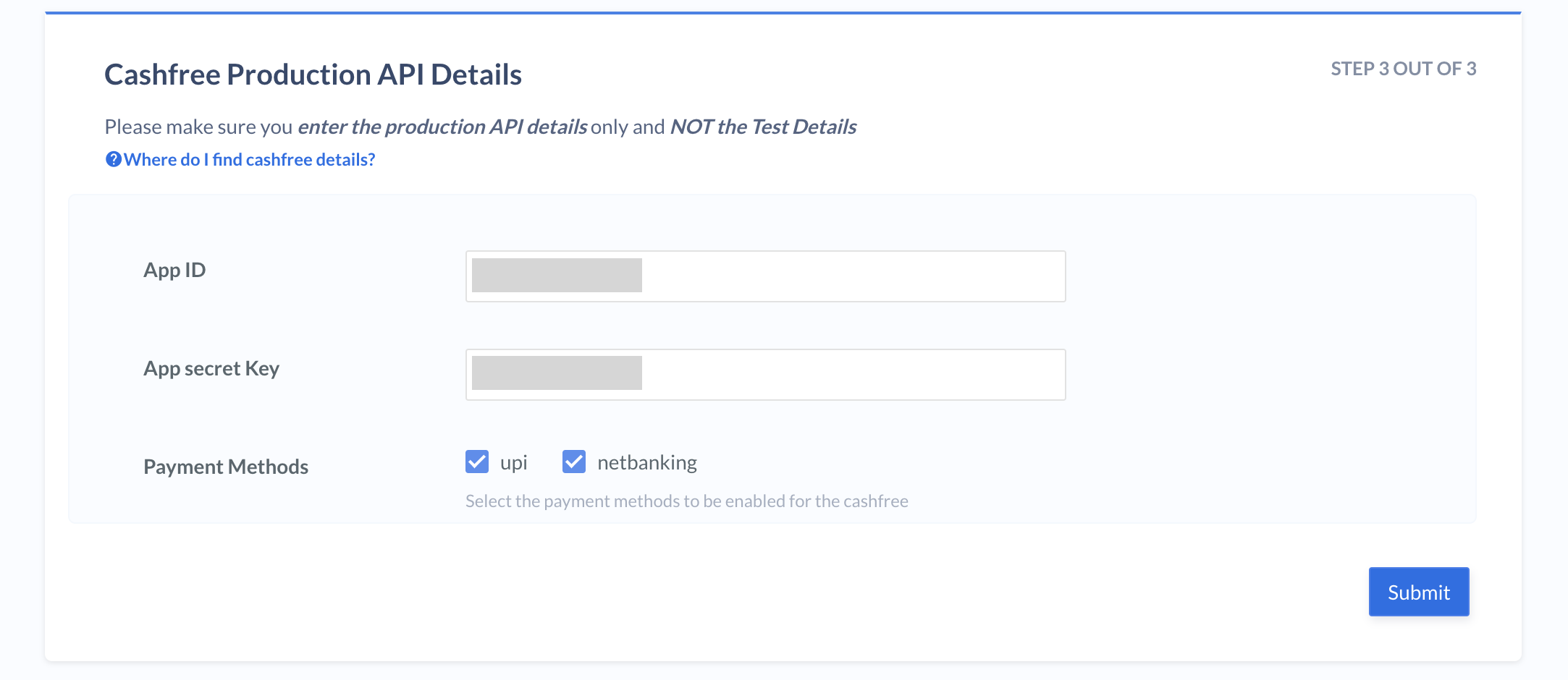
 6. Enter your App ID and App secret Key.
7. Select the payment methods you want to enable for Cashfree and click **Submit**.
6. Enter your App ID and App secret Key.
7. Select the payment methods you want to enable for Cashfree and click **Submit**.
 You have successfully added **Cashfree** as a payment provider on Optimizer.
## Supported Payment Methods
| Payment Methods | Availability |
| --------------- | ------------ |
| Netbanking | Live |
| Cards | Coming Soon |
| UPI | Live |
| Wallet | Coming Soon |
| EMI | Coming Soon |
| Settlements | Live |
| Refunds | Live |
## Send Receipt/Order ID to External Gateway
You might be generating a unique Order ID or Receipt for every order which can be passed to Cashfree via [Orders API](/docs/api/orders#orders-api).
To make your order id visible on the Cashfree Dashboard:
1. In Razorpay's Orders API, use the `receipt` parameter to send your unique Order ID or Receipt.
2. Razorpay passes this value to Cashfree in `orderNote` parameter.
3. Write to your Cashfree Relationship Manager to show the parameter `orderNote` in the Dashboard and reports as per your use case.
## Best Practices
Before routing all traffic or some traffic to a new gateway via Optimizer, the following best practices are recommended:
All rules configured on live or test mode on the Razorpay Dashboard will reflect on live mode. However, credentials added on test mode will not be automatically replicated in live mode.
You can reach out to Razorpay for basic sanity testing of the integration. Razorpay will try a test payment of small value and ensure that the credentials are correct.
We recommend configuring a rule on live mode to route payments lesser than a set value (for example, ₹2) to the Cashfree gateway. This helps to test on production whether small value payments are being routed to Cashfree and working successfully, thus avoiding any direct impact on production traffic.
To configure a rule in live mode:
1. Log in to your Dashboard.
2. In the left navigation, click **Optimizer**.
3. Click **+Add Rule** and enter the **Rule name** and **Description**.
4. Click **Next** and enter the following rule:
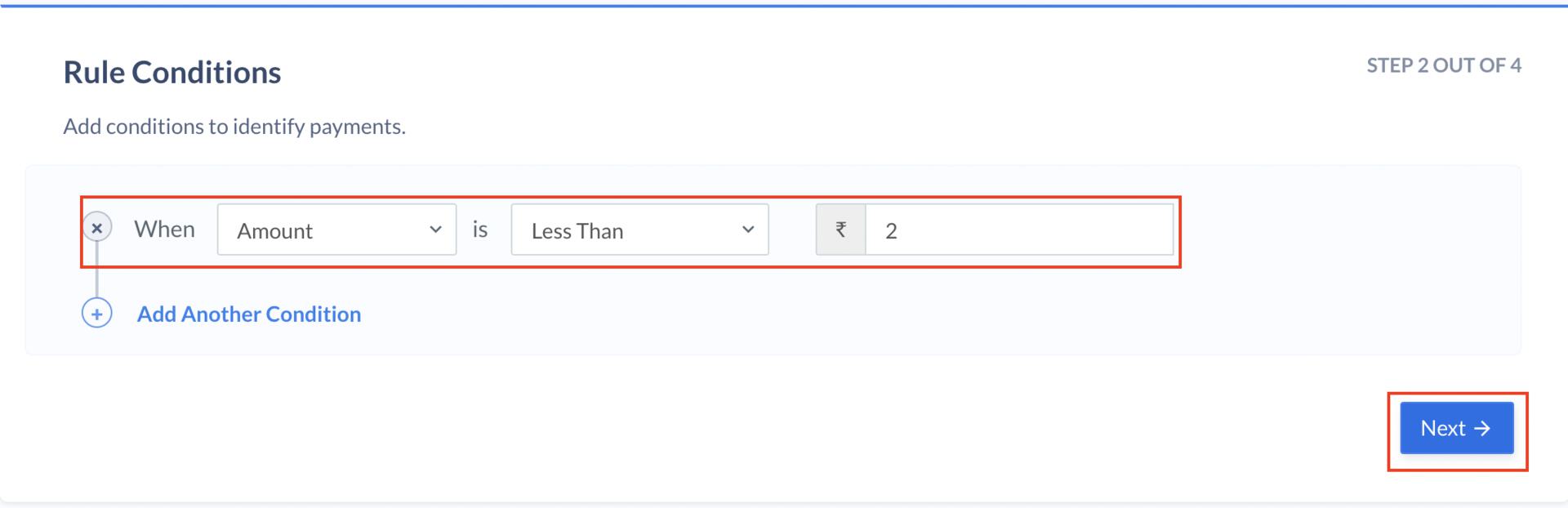
* In **Parameter** field, select **Amount (In Rupees)**
* In **Select Connection** field, select **Less Than**
* In **Enter Amount** field, enter the value 2 and click **Next**.
You have successfully added **Cashfree** as a payment provider on Optimizer.
## Supported Payment Methods
| Payment Methods | Availability |
| --------------- | ------------ |
| Netbanking | Live |
| Cards | Coming Soon |
| UPI | Live |
| Wallet | Coming Soon |
| EMI | Coming Soon |
| Settlements | Live |
| Refunds | Live |
## Send Receipt/Order ID to External Gateway
You might be generating a unique Order ID or Receipt for every order which can be passed to Cashfree via [Orders API](/docs/api/orders#orders-api).
To make your order id visible on the Cashfree Dashboard:
1. In Razorpay's Orders API, use the `receipt` parameter to send your unique Order ID or Receipt.
2. Razorpay passes this value to Cashfree in `orderNote` parameter.
3. Write to your Cashfree Relationship Manager to show the parameter `orderNote` in the Dashboard and reports as per your use case.
## Best Practices
Before routing all traffic or some traffic to a new gateway via Optimizer, the following best practices are recommended:
All rules configured on live or test mode on the Razorpay Dashboard will reflect on live mode. However, credentials added on test mode will not be automatically replicated in live mode.
You can reach out to Razorpay for basic sanity testing of the integration. Razorpay will try a test payment of small value and ensure that the credentials are correct.
We recommend configuring a rule on live mode to route payments lesser than a set value (for example, ₹2) to the Cashfree gateway. This helps to test on production whether small value payments are being routed to Cashfree and working successfully, thus avoiding any direct impact on production traffic.
To configure a rule in live mode:
1. Log in to your Dashboard.
2. In the left navigation, click **Optimizer**.
3. Click **+Add Rule** and enter the **Rule name** and **Description**.
4. Click **Next** and enter the following rule:
* In **Parameter** field, select **Amount (In Rupees)**
* In **Select Connection** field, select **Less Than**
* In **Enter Amount** field, enter the value 2 and click **Next**.
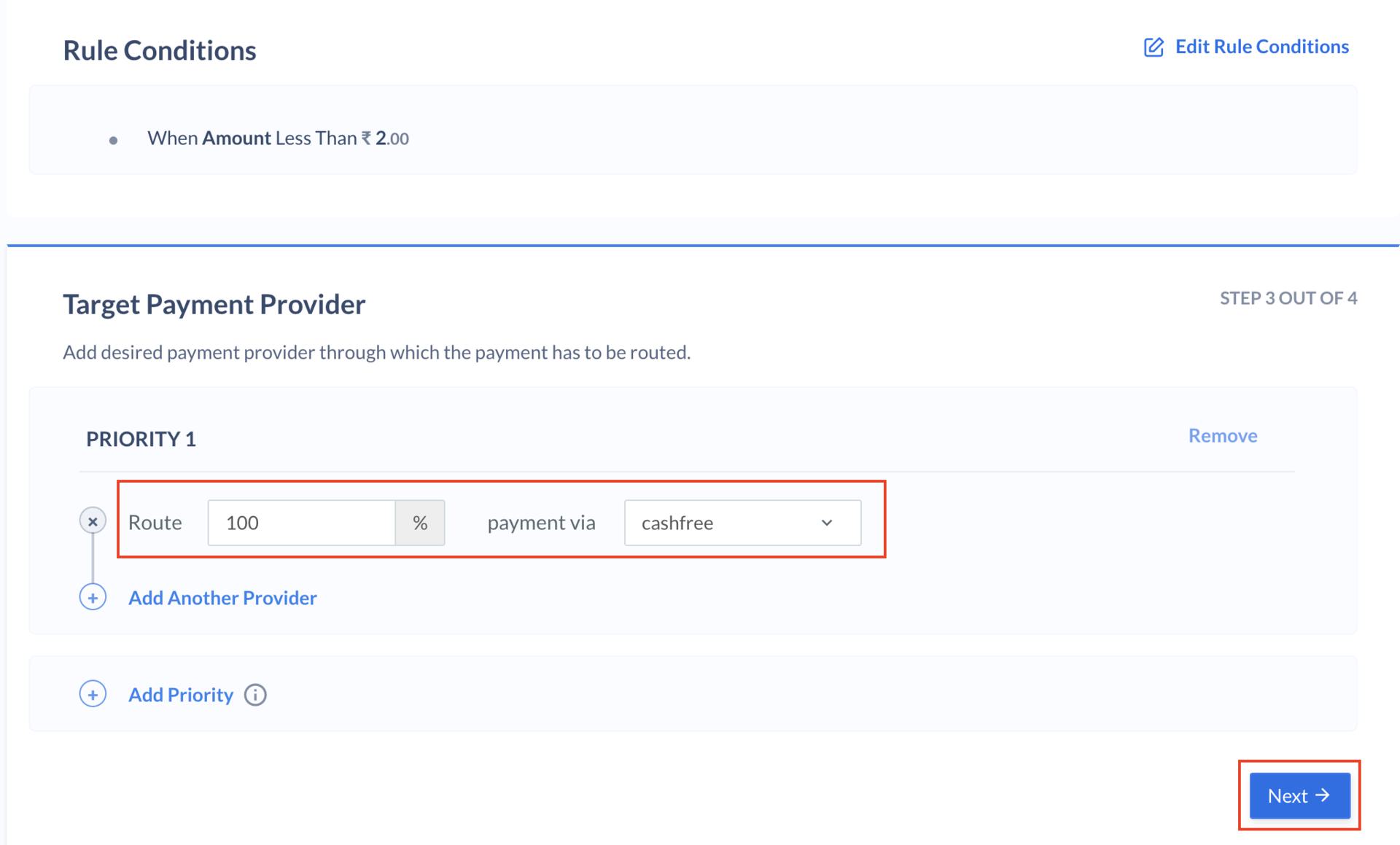
 5. Enter the value 100 in the **Route field**, select **Cashfree** in the **Payment Via** field, and click **Next**.
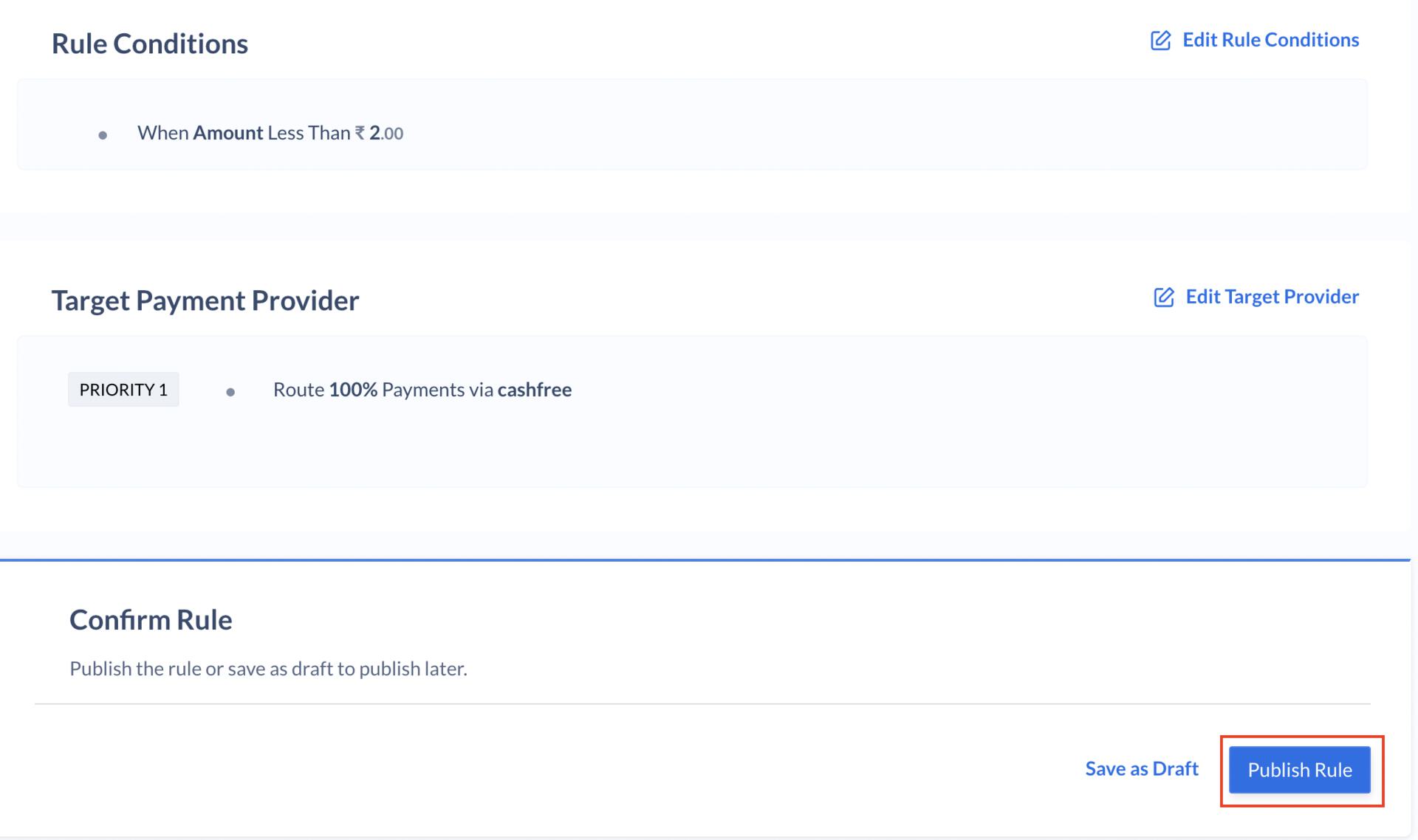
 6. Click **Publish Rule**.
 ## Go Live
After the integration is tested and successful, you can go live on Cashfree.
## Go Live
After the integration is tested and successful, you can go live on Cashfree.