> ## Documentation Index
> Fetch the complete documentation index at: https://razorpay-881012b3.mintlify.site/llms.txt
> Use this file to discover all available pages before exploring further.
# Easebuzz
> Add Easebuzz as a payment provider on Optimizer.
Available in
🇮🇳 India
Follow the steps below to onboard Easebuzz as a payment provider.
**Watch Out!**
While Optimizer can route payments based on your business logic, the method enablement of each gateway needs to be handled between you and the gateway, or it may lead to failed payments.
1. [Write to the Easebuzz Support Team](#email-format-for-easebuzz) with the following requests:
* Enable seamless mode for your account. Mention that you are using a technology company to handle sensitive card data.
* Configure the below webhook url for receiving payment status:
* `https://api.razorpay.com/v1/callback/easebuzz_optimizer`
* Configure the following if you intend to use UPI.
* Enable the method `card` with tokenization.
* Enable **Refund Processing** to process partial and full refunds for your merchant ID.
## Add Easebuzz as a Payment Provider
1. Log in to your Dashboard.
2. Go to the **PAYMENT PRODUCTS** section and click **Optimizer**.
3. In the top-right section, click **Add Provider**.
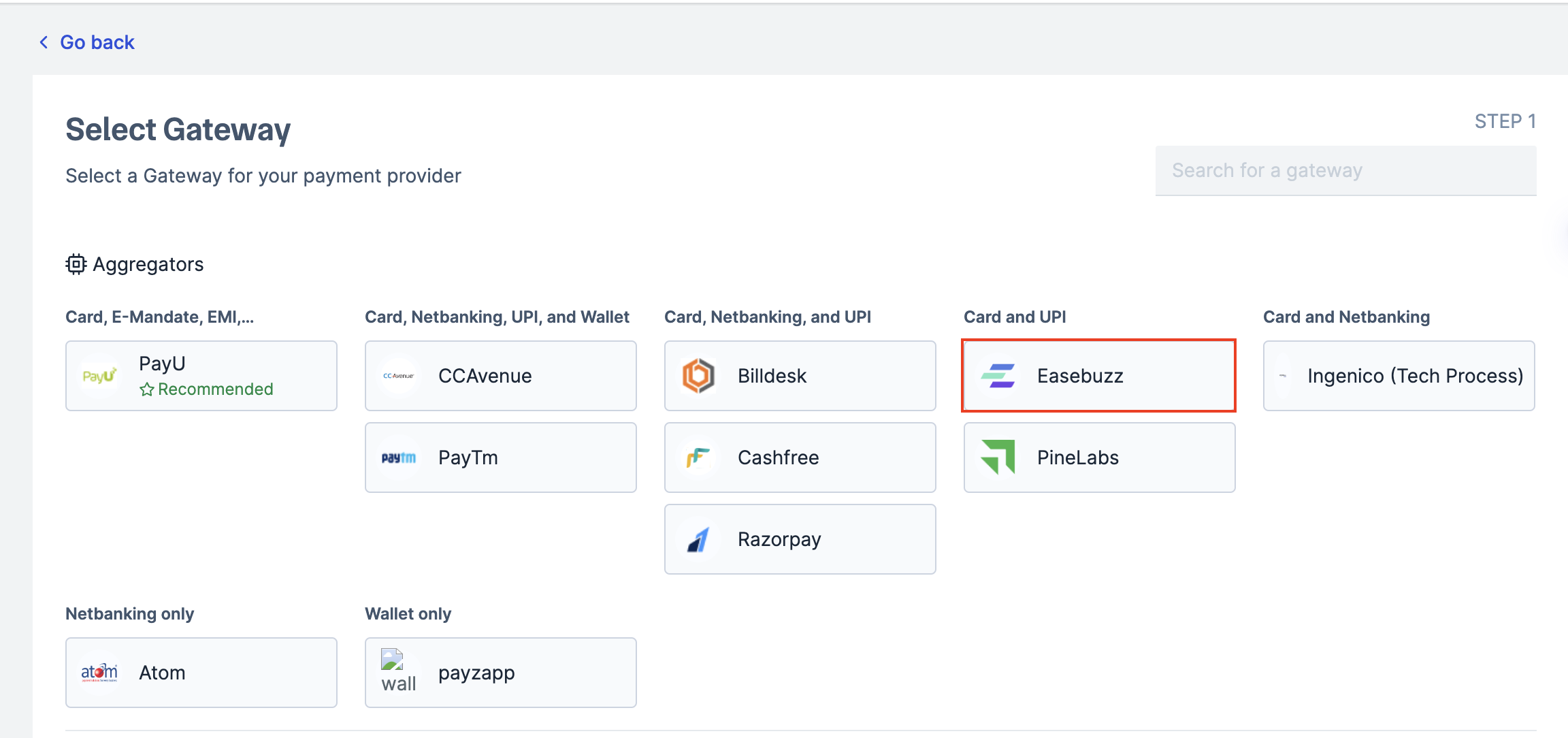
4. Select **Easebuzz** in the list of gateways available and click **Next**.
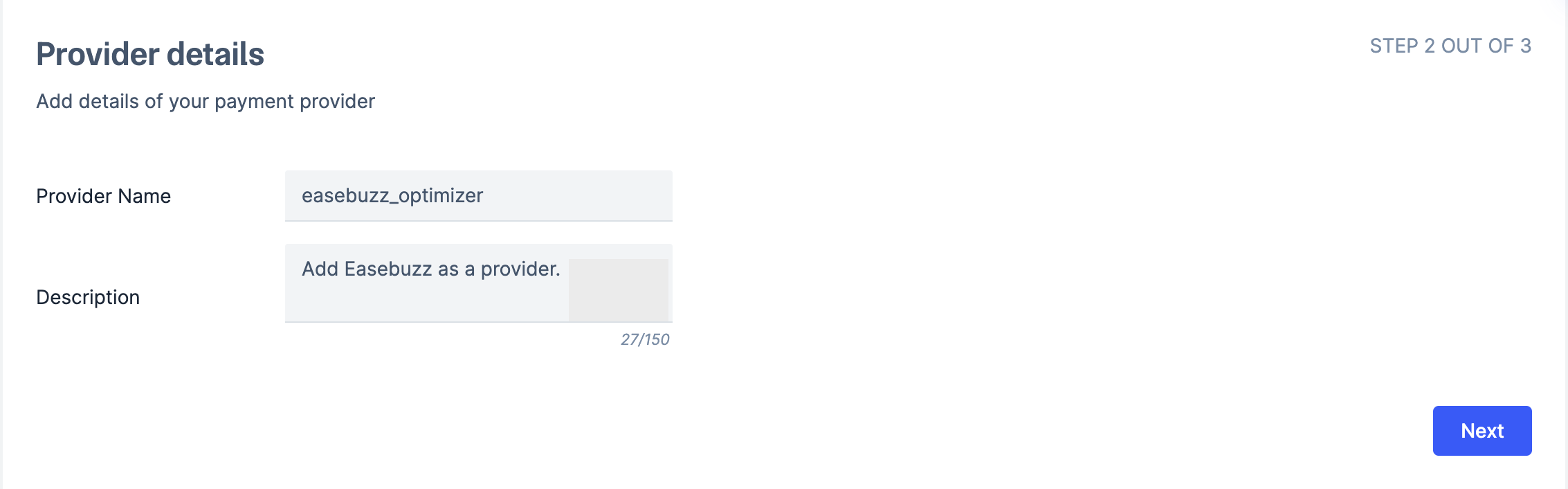
 5. Enter the provider name and description and click **Next**.
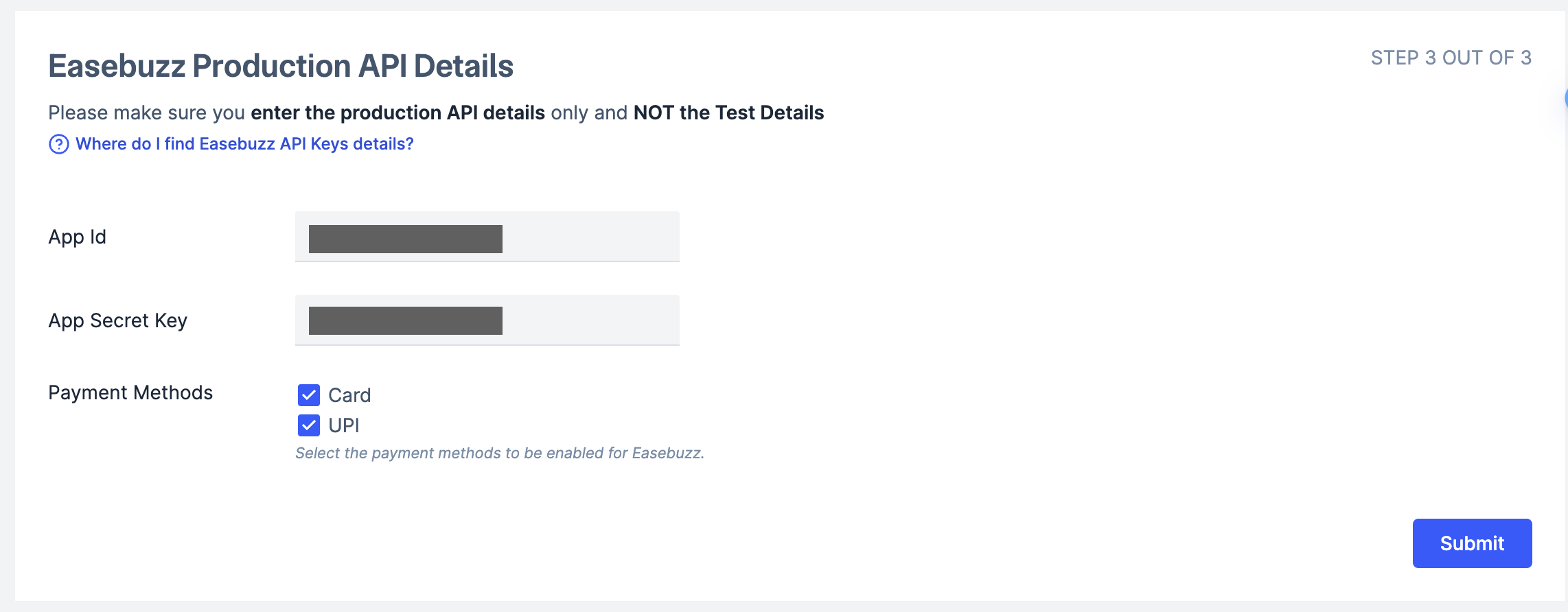
 6. Enter your **App ID** and **App Secret Key** details.
7. Select the **Payment Methods** you want to enable for Easebuzz and click **Submit**.
6. Enter your **App ID** and **App Secret Key** details.
7. Select the **Payment Methods** you want to enable for Easebuzz and click **Submit**.
 You have successfully added **Easebuzz** as a payment provider on Optimizer.
## Supported Payment Methods
**Handy Tips**
* Easebuzz supports tokenisation for card payments.
* Easebuzz supports [Third-Party Validation (TPV)](/docs/payments/optimizer/third-party-validation#supported-bank-gateways-payment-gateways-and-payment-methods).
| Payment Methods | Availability |
| --------------- | ------------ |
| Netbanking | Live |
| Cards | Live |
| UPI (Intent) | Live |
| UPI (Collect) | Live |
| Wallet | Live |
## Email Format for Easebuzz
Dear Team,
We are using a technology service provider to manage our integration with Easebuzz for account ``.
You have successfully added **Easebuzz** as a payment provider on Optimizer.
## Supported Payment Methods
**Handy Tips**
* Easebuzz supports tokenisation for card payments.
* Easebuzz supports [Third-Party Validation (TPV)](/docs/payments/optimizer/third-party-validation#supported-bank-gateways-payment-gateways-and-payment-methods).
| Payment Methods | Availability |
| --------------- | ------------ |
| Netbanking | Live |
| Cards | Live |
| UPI (Intent) | Live |
| UPI (Collect) | Live |
| Wallet | Live |
## Email Format for Easebuzz
Dear Team,
We are using a technology service provider to manage our integration with Easebuzz for account ``.
To use this TSP, we require the following configuration changes:
1. Enable seamless mode for our account.
2. Enable the method `card` with tokenization.
3. Configure the below webhook URL for receiving payment status:
* `https://api.razorpay.com/v1/callback/easebuzz_optimizer`
4. Enable both partial and full refund processing.
5. Enable UPI for this account.
Regards,
## Best Practices
Before routing any traffic to a new gateway via Optimizer, the following best practices are recommended:
All rules configured on live or test mode on the Razorpay Dashboard will reflect on live mode. However, credentials added on test mode will not be automatically replicated in live mode.
You can reach out to Razorpay for basic sanity testing of the integration. Razorpay will try a test payment of small value and ensure that the credentials are correct.
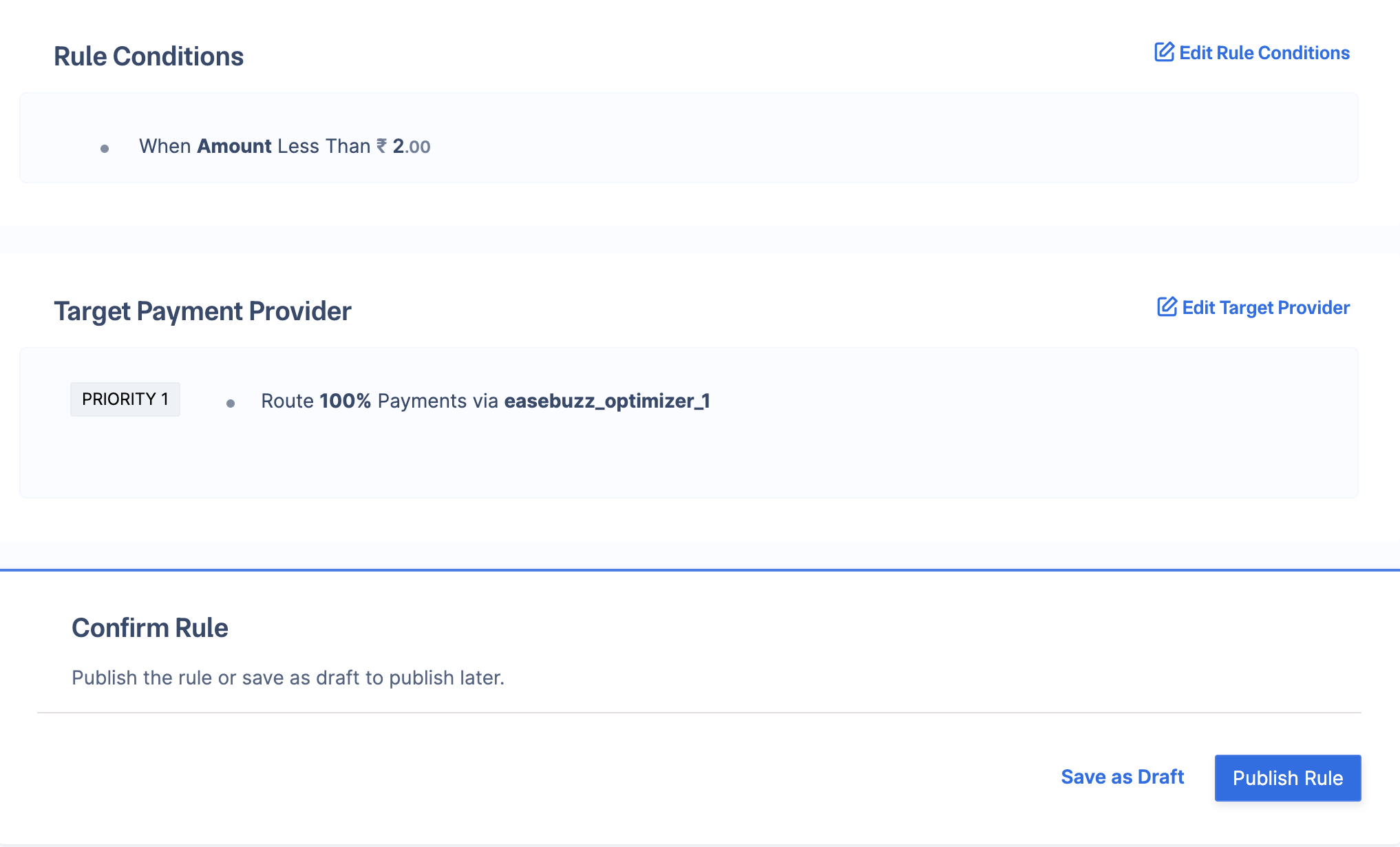
We recommend configuring a rule on live mode to route payments lesser than a set value (for example, ₹2) to the Easebuzz gateway. This helps to test on production whether small value payments are being routed to Easebuzz and working successfully, thus avoiding any direct impact on production traffic.
To configure a rule in live mode:
1. Log in to your Dashboard.
2. In the left navigation, click **Optimizer**.
3. Click **+Add Rule** and enter the **Rule name** and **Description**.
4. Click **Next** and enter the following rule:
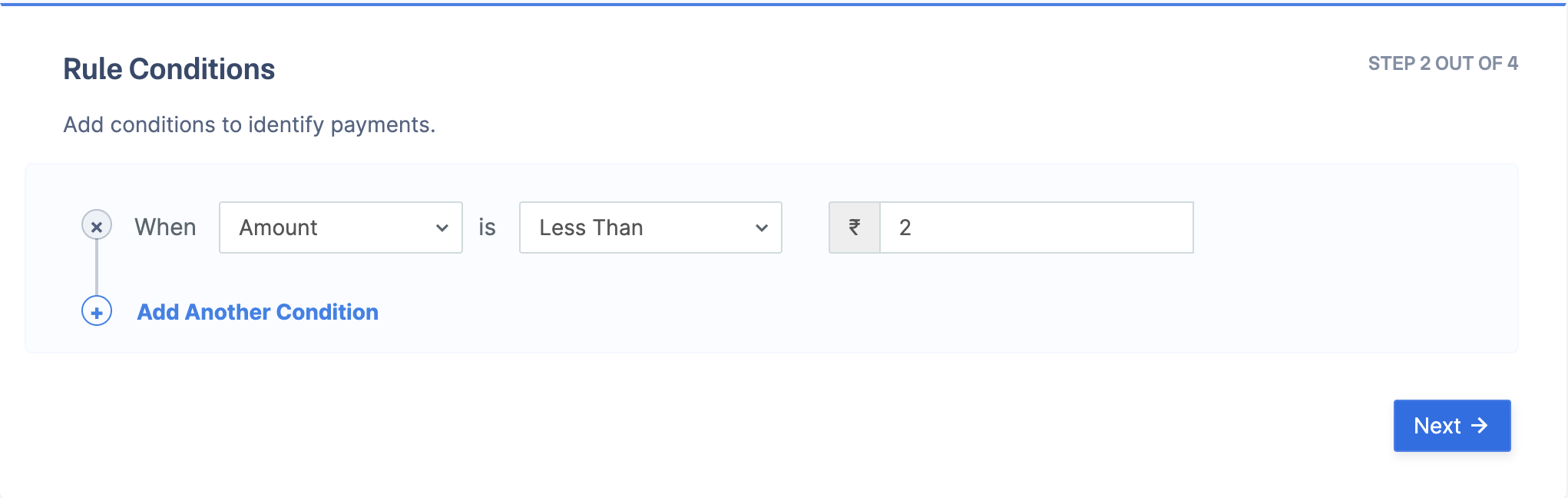
* In **Parameter** field, select **Amount (In Rupees)**.
* In **Select Connection** field, select **Less Than**.
* In **Enter Amount** field, enter the value 2 and click **Next**.
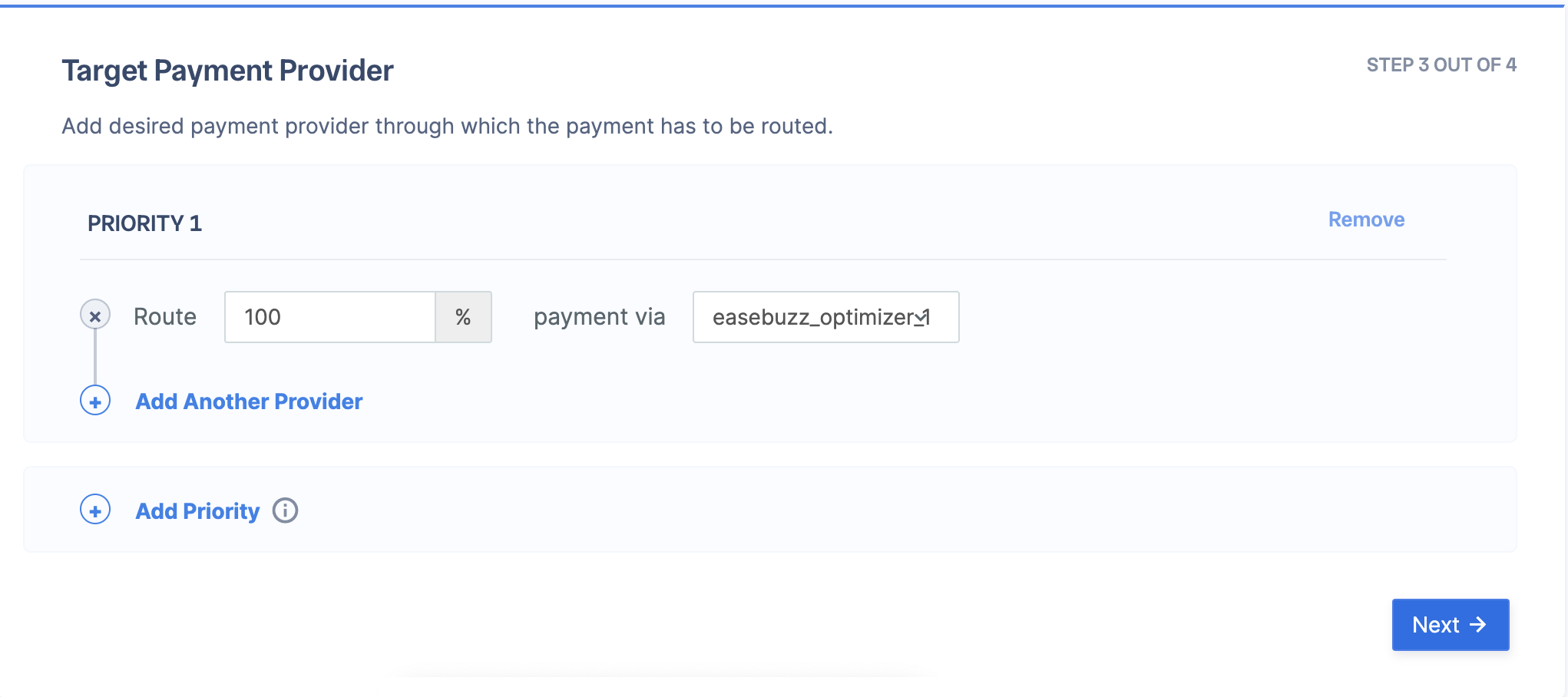
 5. Enter the value 100 in the **Route field**, select **Easebuzz** in the **Payment Via** field, and click **Next**.
 6. Click **Publish Rule**.
 ## Go Live
After the integration is tested and successful, you can go live on Easebuzz.
## Go Live
After the integration is tested and successful, you can go live on Easebuzz.