> ## Documentation Index
> Fetch the complete documentation index at: https://razorpay-881012b3.mintlify.site/llms.txt
> Use this file to discover all available pages before exploring further.
# Ingenico
> Add Ingenico as a payment provider on Optimizer.
Available in
🇮🇳 India
Follow the steps below to onboard Ingenico as a payment provider.
**Watch Out!**
* While Optimizer can route payments based on your business logic, the method enablement of each gateway must be handled between you and the gateway, or it may lead to failed payments.
* Ingenico does not support **tokenisation**.
1. Write to your TPSL Account Manager with the following requests:
* Create a new MID for your account and get the seamless option enabled for your Merchant ID.
* Configure the below webhook url to receive payment status:
* `https://api.razorpay.com/v1/callback/ingenico`
* Share the **Encryption Keys** with **Merchant Code**, **Scheme Code** and **Encryption IV** via email.
* Share any bank codes sent by the TPSL team.
* Enable the following features for your Ingenico merchant id (MID):
* Feature to receive **Bank Reference ID** in Enquiry API.
* Feature to receive **other\_details** in Enquiry API. This contains transaction metadata, including Auth Code.
* Feature to initiate refund request.
* Feature to receive **client\_ref\_id** in Refund Enquiry API. This allows Razorpay to send its own internal ID in Refund API and receive the same in Refund Enquiry API.
* Feature to receive refund ARN in Refund Enquiry API.
2. If UAT is needed, ensure that the following bank/network codes are configured for your Ingenico test account:
* For debit card : 1280
* For credit card : 1270
* For Netbanking:
* HDFC : 410
* ICICI : 10
* SBI : 530
* Any other bank/Test Bank : 470
3. Copy Razorpay in the email and we will provide the supporting document from our end.
## Integration Requirements
Before you go live with Ingenico on Optimizer, make sure you configure the **scheme code** as per your requirement.
Ingenico has a scheme code field that is an arrangement between you and Ingenico. By default, this is “FIRST”, but it can be modified by changes in the notes field used in checkout:
```json Sample Payload theme={null}
var options = { "key": "", "amount": 100, "notes": { "scheme_code": "custom_scheme_code" } }
```
## Add Ingenico as a Payment Provider
1. Log in to your Dashboard.
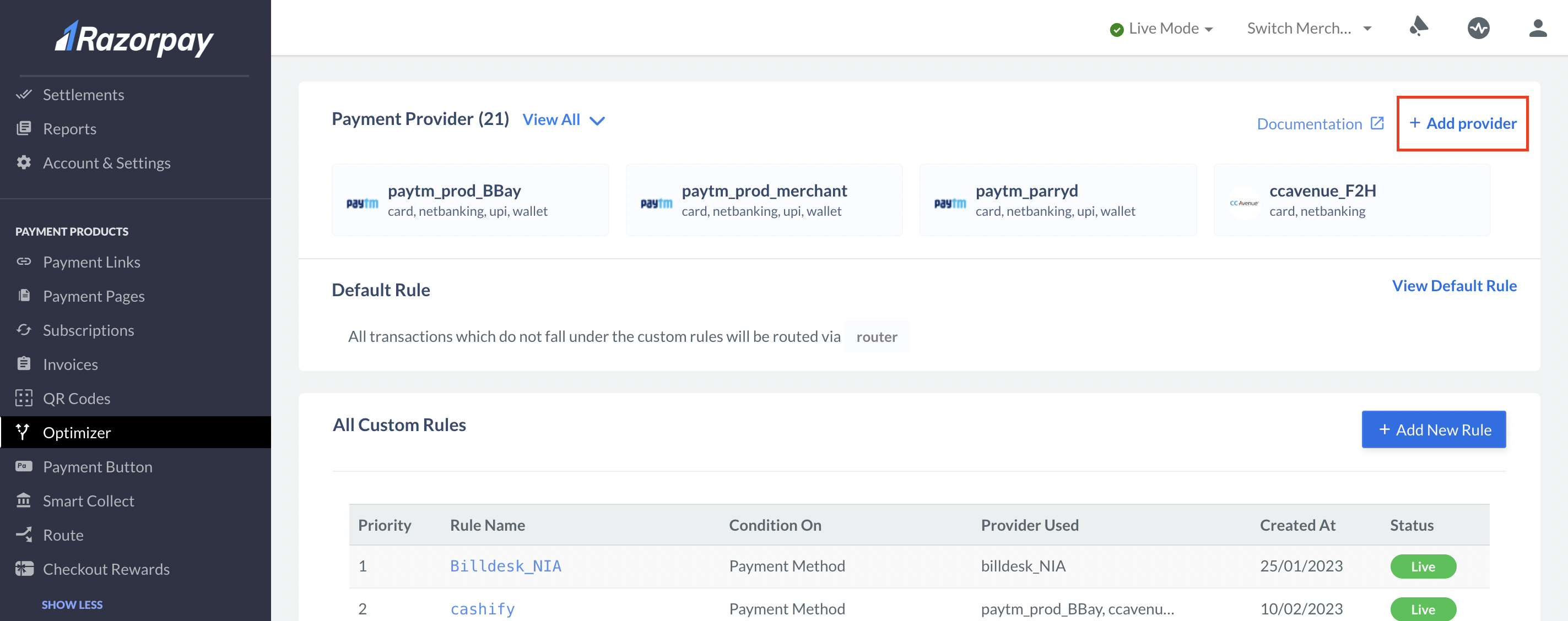
2. Go to the **PAYMENT PRODUCTS** section and click **Optimizer**.
3. In the top-right section, click **Add Provider**.
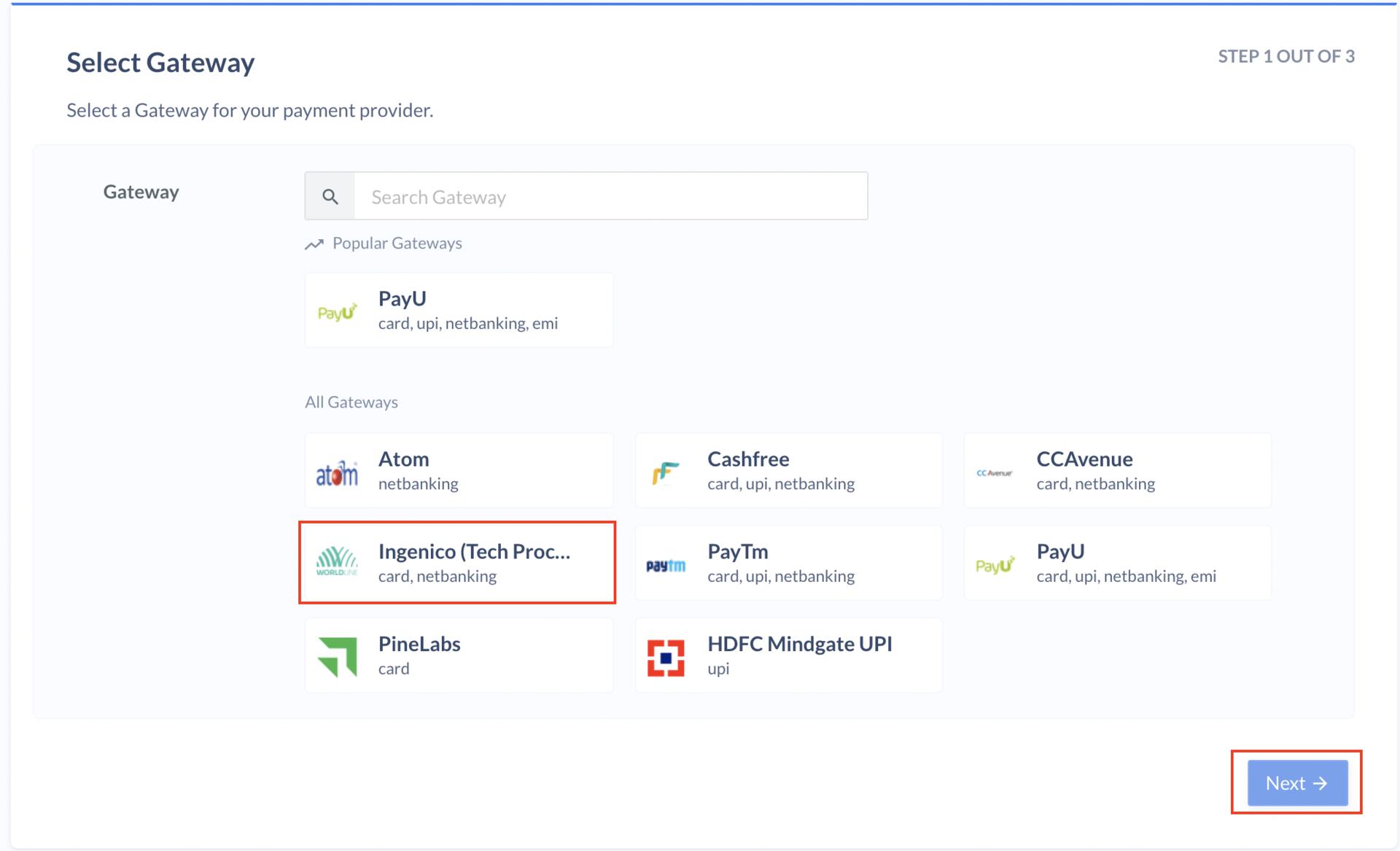
 4. Select **Ingenico (Tech Process)** in the list of gateways available and click **Next**.
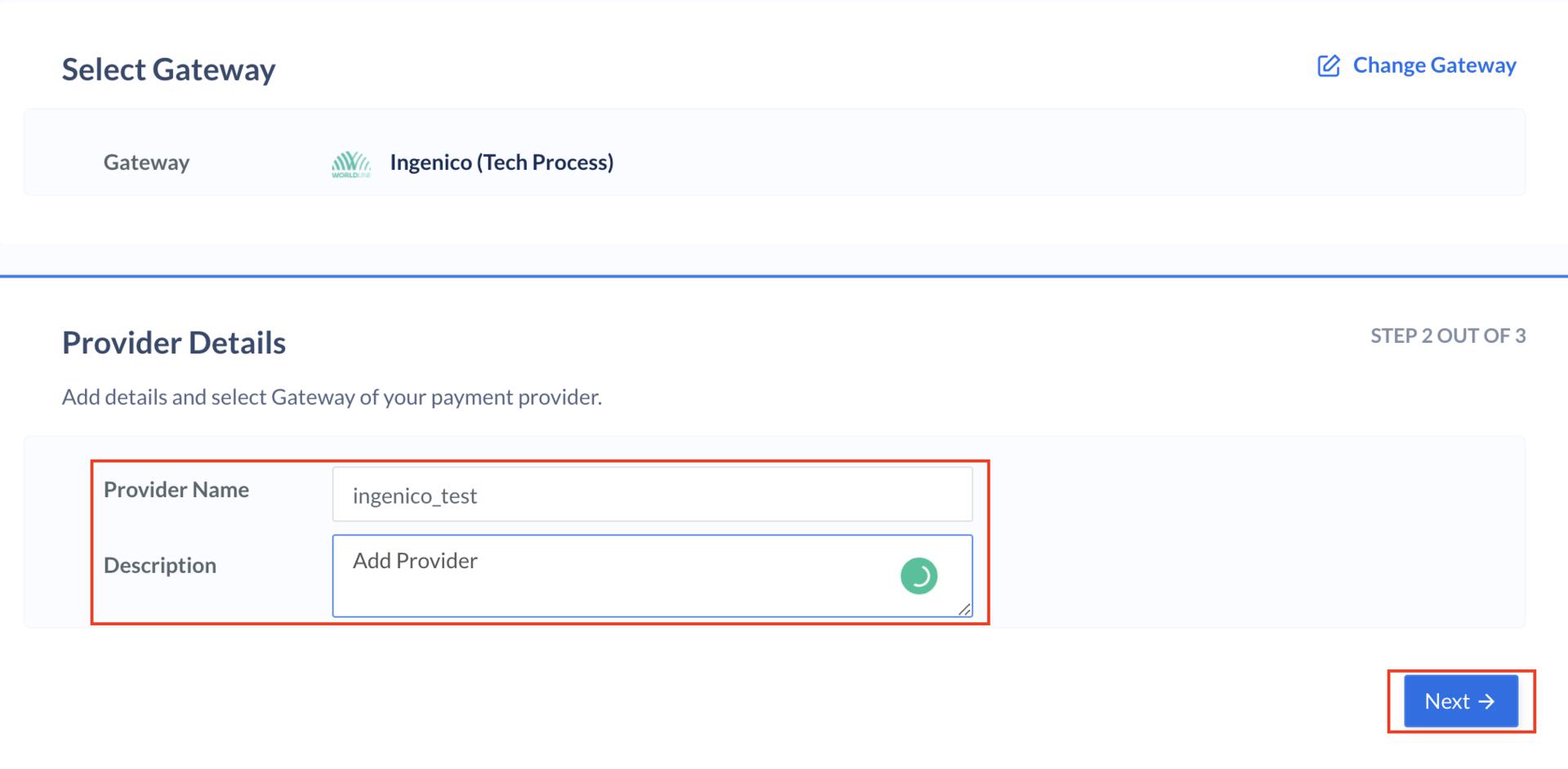
 5. Enter the provider name and description and click **Next**.
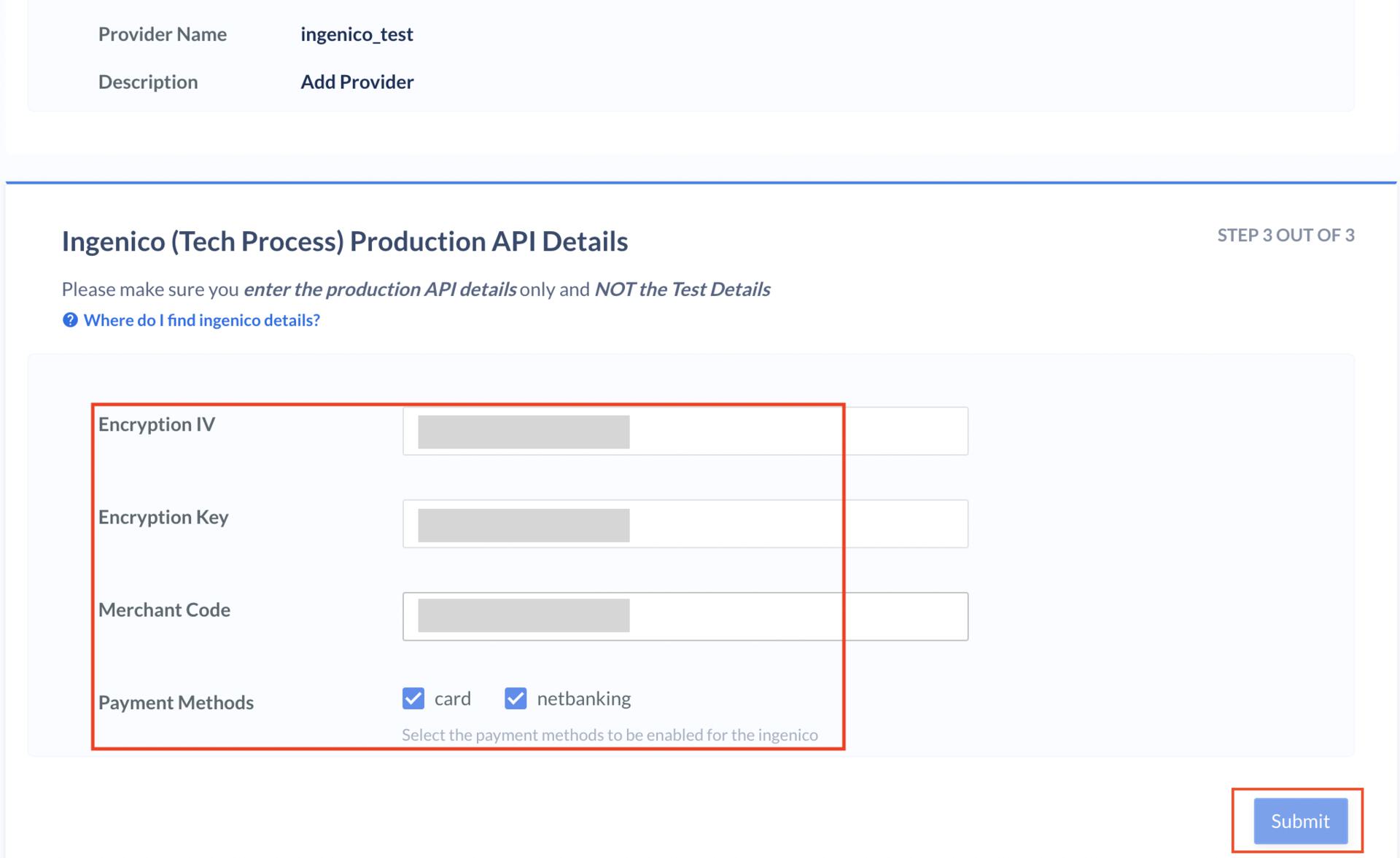
 6. Enter your **Encryption IV**, **Encryption Key** and **Merchant Code**.
7. Select the payment methods you want to enable for Ingenico and click **Submit**.
6. Enter your **Encryption IV**, **Encryption Key** and **Merchant Code**.
7. Select the payment methods you want to enable for Ingenico and click **Submit**.
 You have successfully added **Ingenico** as a payment provider on Optimizer.
## Supported Payment Methods
| Payment Methods | Availability |
| ----------------------------------------- | ------------ |
| [Netbanking](#supported-netbanking-banks) | Live |
| Cards | Live |
| UPI | Live |
| Wallet | Live |
**Handy Tips**
Ingenico supports [Third-Party Validation (TPV)](/docs/payments/optimizer/third-party-validation#supported-bank-gateways-payment-gateways-and-payment-methods).
### Supported Netbanking Banks
There are few banks for which netbanking is enabled by default for Ingenico. Given below is the list of banks along with its Ingenico bank codes:
**Watch Out!**
Any supported network or bank should be checked with Ingenico, or it may lead to payment failure.
#### List of Netbanking Banks Enabled by Default
| Bank Name | Ingenico Bank Code |
| ----------------------------------------- | ------------------ |
| Axis Bank Retail | 50 |
| Bank of Baroda Retail | 310 |
| Bank of India | 240 |
| Bank of Maharashtra | 750 |
| Canara Bank | 930 |
| Central Bank of India | 740 |
| City Union Bank | 440 |
| Catholic Syrian Bank Ltd | 1130 |
| DCB BANK Personal | 540 |
| Deutsche Bank | 330 |
| Dhanlaxmi Bank | 370 |
| Federal Bank | 270 |
| HDFC Bank Retail | 300 |
| ICICI Bank | 10 |
| IDFC First Bank | 2180 |
| Indian Bank | 490 |
| Indian Overseas NetBanking | 420 |
| Indusind Bank | 860 |
| Jammu and Kashmir Bank | 350 |
| Karnataka Bank | 140 |
| Karur Vysya Bank | 760 |
| Kotak Mahindra Bank | 910 |
| Lakshmi Vilas | 2370 |
| PNB (Erstwhile Oriental Bank Of Commerce) | 1220 |
| PNB (Erstwhile United Bank Of India) | 1220 |
| Punjab and Sind Bank | 2390 |
| Punjab National Bank | 1220 |
| RBL Bank Limited | 1500 |
| South Indian Bank | 180 |
| Standard Chartered Bank | 450 |
| State Bank of India | 530 |
| SVC Cooperative Bank Ltd | 1700 |
| Syndicate Bank | 930 |
| Tamilnad Mercantile Bank | 620 |
| UCO Bank | 2030 |
| Union Bank of India | 190 |
| Union Bank of India(Erst. Andhra Bank) | 190 |
| Vijaya Bank | 310 |
| Yes Bank | 130 |
## Best Practices
Before routing all traffic or some traffic to a new gateway via Optimizer, the following best practices are recommended:
All rules configured on live or test mode on the Razorpay Dashboard will reflect on live mode. However, credentials added on test mode will not be automatically replicated in live mode.
You can reach out to Razorpay for basic sanity testing of the integration. Razorpay will try a test payment of small value and ensure that the credentials are correct.
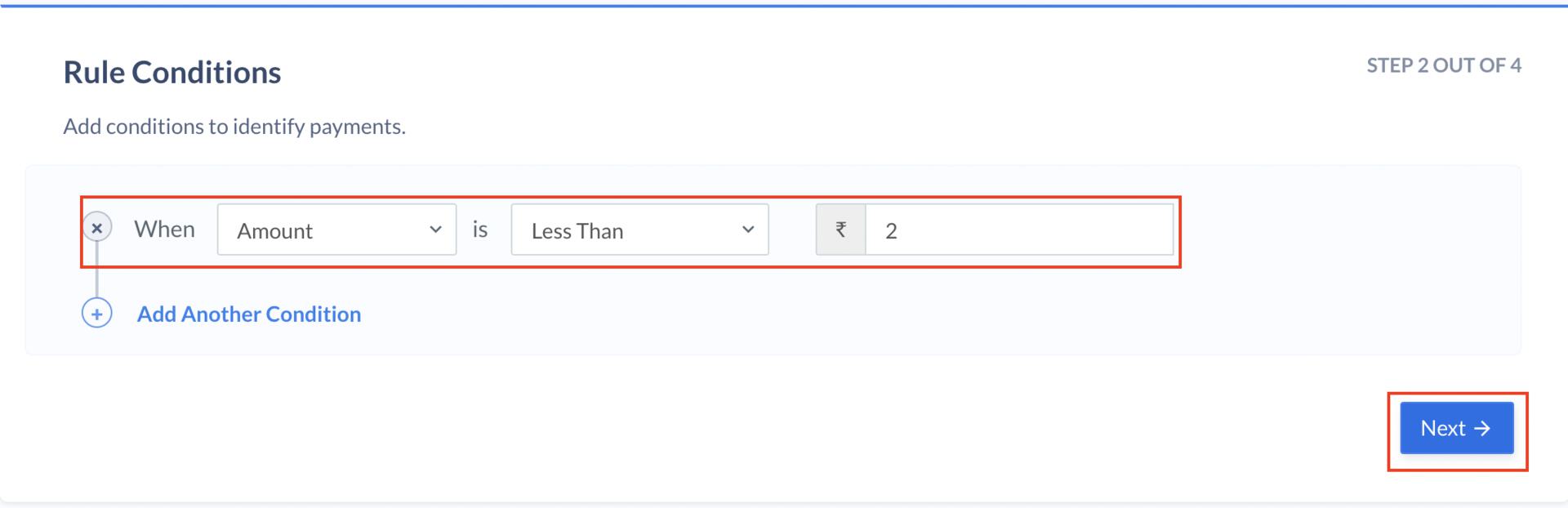
We recommend configuring a rule on live mode to route payments lesser than a set value (for example, ₹2) to the Ingenico gateway. This helps to test on production whether small value payments are being routed to Ingenico and working successfully, thus avoiding any direct impact on production traffic.
To configure a rule in live mode:
1. Log in to your Dashboard.
2. In the left navigation, click **Optimizer**.
3. Click **+Add Rule** and enter the **Rule name** and **Description**.
4. Click **Next** and enter the following rule:
* In **Parameter** field, select **Amount (In Rupees)**.
* In **Select Connection** field, select **Less Than**.
* In **Enter Amount** field, enter the value 2 and click **Next**.
You have successfully added **Ingenico** as a payment provider on Optimizer.
## Supported Payment Methods
| Payment Methods | Availability |
| ----------------------------------------- | ------------ |
| [Netbanking](#supported-netbanking-banks) | Live |
| Cards | Live |
| UPI | Live |
| Wallet | Live |
**Handy Tips**
Ingenico supports [Third-Party Validation (TPV)](/docs/payments/optimizer/third-party-validation#supported-bank-gateways-payment-gateways-and-payment-methods).
### Supported Netbanking Banks
There are few banks for which netbanking is enabled by default for Ingenico. Given below is the list of banks along with its Ingenico bank codes:
**Watch Out!**
Any supported network or bank should be checked with Ingenico, or it may lead to payment failure.
#### List of Netbanking Banks Enabled by Default
| Bank Name | Ingenico Bank Code |
| ----------------------------------------- | ------------------ |
| Axis Bank Retail | 50 |
| Bank of Baroda Retail | 310 |
| Bank of India | 240 |
| Bank of Maharashtra | 750 |
| Canara Bank | 930 |
| Central Bank of India | 740 |
| City Union Bank | 440 |
| Catholic Syrian Bank Ltd | 1130 |
| DCB BANK Personal | 540 |
| Deutsche Bank | 330 |
| Dhanlaxmi Bank | 370 |
| Federal Bank | 270 |
| HDFC Bank Retail | 300 |
| ICICI Bank | 10 |
| IDFC First Bank | 2180 |
| Indian Bank | 490 |
| Indian Overseas NetBanking | 420 |
| Indusind Bank | 860 |
| Jammu and Kashmir Bank | 350 |
| Karnataka Bank | 140 |
| Karur Vysya Bank | 760 |
| Kotak Mahindra Bank | 910 |
| Lakshmi Vilas | 2370 |
| PNB (Erstwhile Oriental Bank Of Commerce) | 1220 |
| PNB (Erstwhile United Bank Of India) | 1220 |
| Punjab and Sind Bank | 2390 |
| Punjab National Bank | 1220 |
| RBL Bank Limited | 1500 |
| South Indian Bank | 180 |
| Standard Chartered Bank | 450 |
| State Bank of India | 530 |
| SVC Cooperative Bank Ltd | 1700 |
| Syndicate Bank | 930 |
| Tamilnad Mercantile Bank | 620 |
| UCO Bank | 2030 |
| Union Bank of India | 190 |
| Union Bank of India(Erst. Andhra Bank) | 190 |
| Vijaya Bank | 310 |
| Yes Bank | 130 |
## Best Practices
Before routing all traffic or some traffic to a new gateway via Optimizer, the following best practices are recommended:
All rules configured on live or test mode on the Razorpay Dashboard will reflect on live mode. However, credentials added on test mode will not be automatically replicated in live mode.
You can reach out to Razorpay for basic sanity testing of the integration. Razorpay will try a test payment of small value and ensure that the credentials are correct.
We recommend configuring a rule on live mode to route payments lesser than a set value (for example, ₹2) to the Ingenico gateway. This helps to test on production whether small value payments are being routed to Ingenico and working successfully, thus avoiding any direct impact on production traffic.
To configure a rule in live mode:
1. Log in to your Dashboard.
2. In the left navigation, click **Optimizer**.
3. Click **+Add Rule** and enter the **Rule name** and **Description**.
4. Click **Next** and enter the following rule:
* In **Parameter** field, select **Amount (In Rupees)**.
* In **Select Connection** field, select **Less Than**.
* In **Enter Amount** field, enter the value 2 and click **Next**.
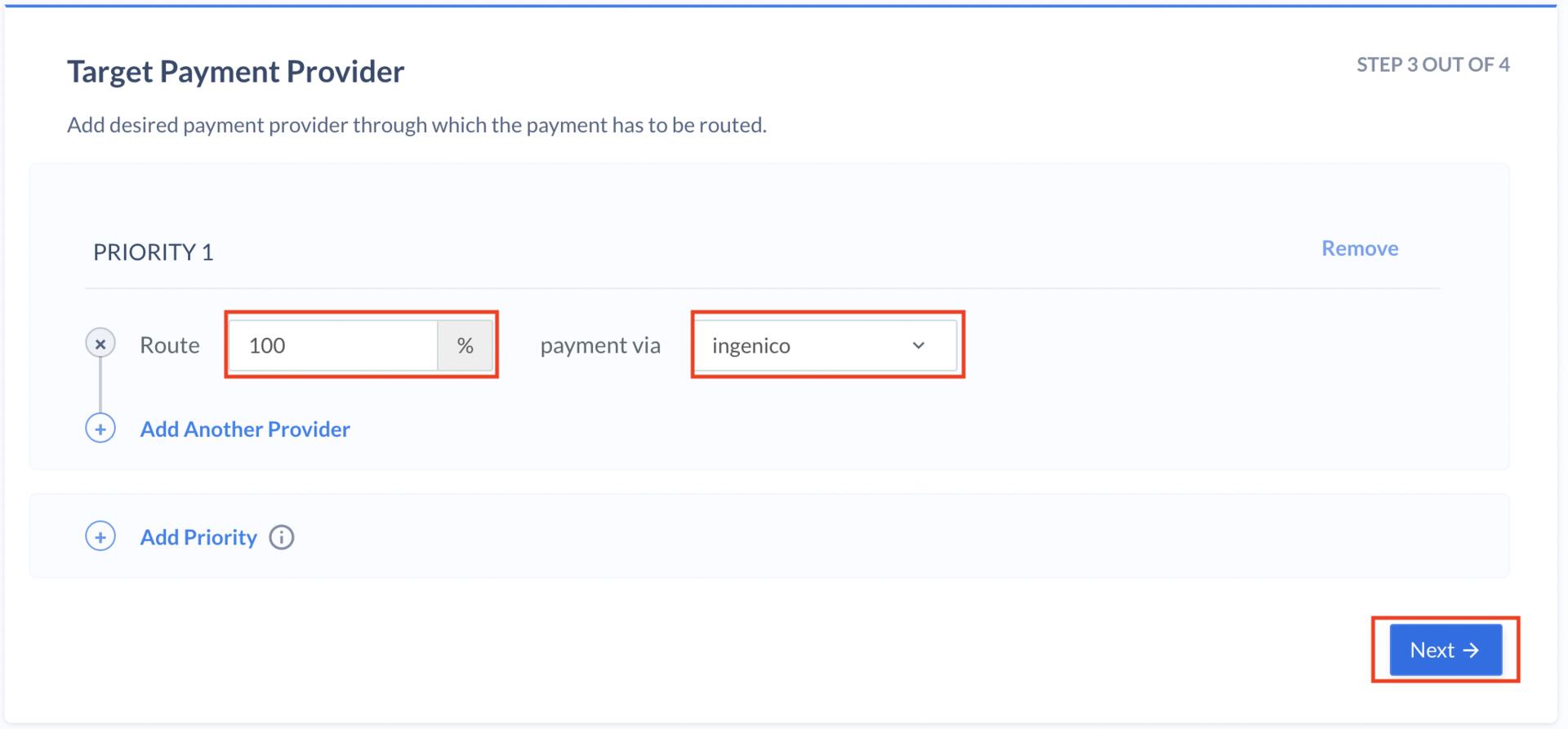
 5. Enter the value 100 in the **Route field**, select **Ingenico (Tech Process)** in the **Payment Via** field, and click **Next**.
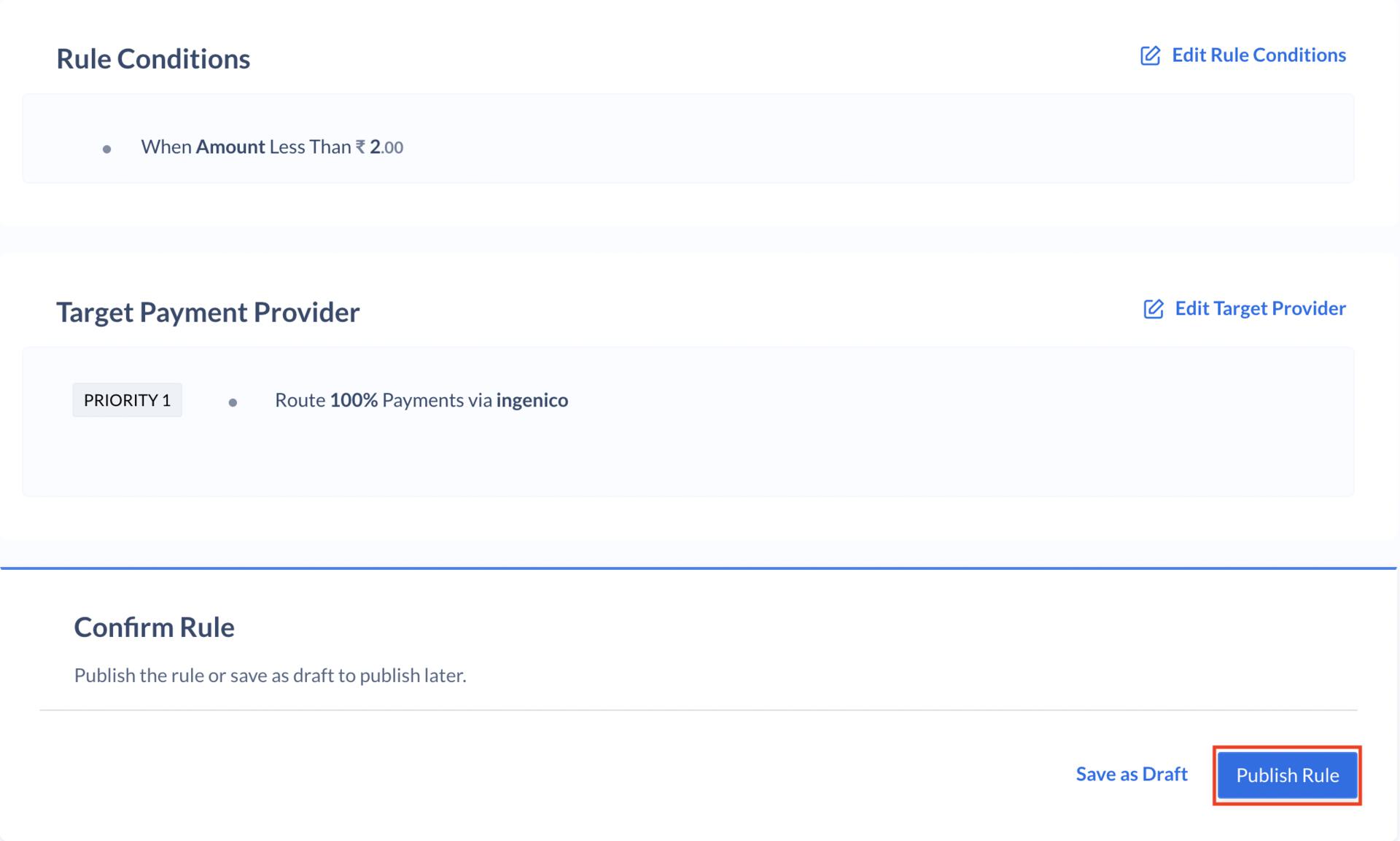
 6. Click **Publish Rule**.
 ## Go Live
After the integration is tested and successful, you can go live on Ingenico (Tech Process).
## Go Live
After the integration is tested and successful, you can go live on Ingenico (Tech Process).