> ## Documentation Index
> Fetch the complete documentation index at: https://razorpay-881012b3.mintlify.site/llms.txt
> Use this file to discover all available pages before exploring further.
# Manage Rules on Optimizer
> Know how to edit and manage custom rules on Optimizer.
Available in
🇮🇳 India
You can edit a custom rule and change:
* [Rule details, conditions and target payment provider](#edit-rule-details-conditions-and-target-payment-provider).
* [Rule priority](#edit-rule-priority).
* [Rule status](#edit-rule-status).
## Edit Rule Details, Conditions and Target Payment Provider
To modify the rule details, conditions and target payment providers:
1. In the list of Custom Rules, click on the required rule name.
2. In the side panel, click **Edit Rule**.
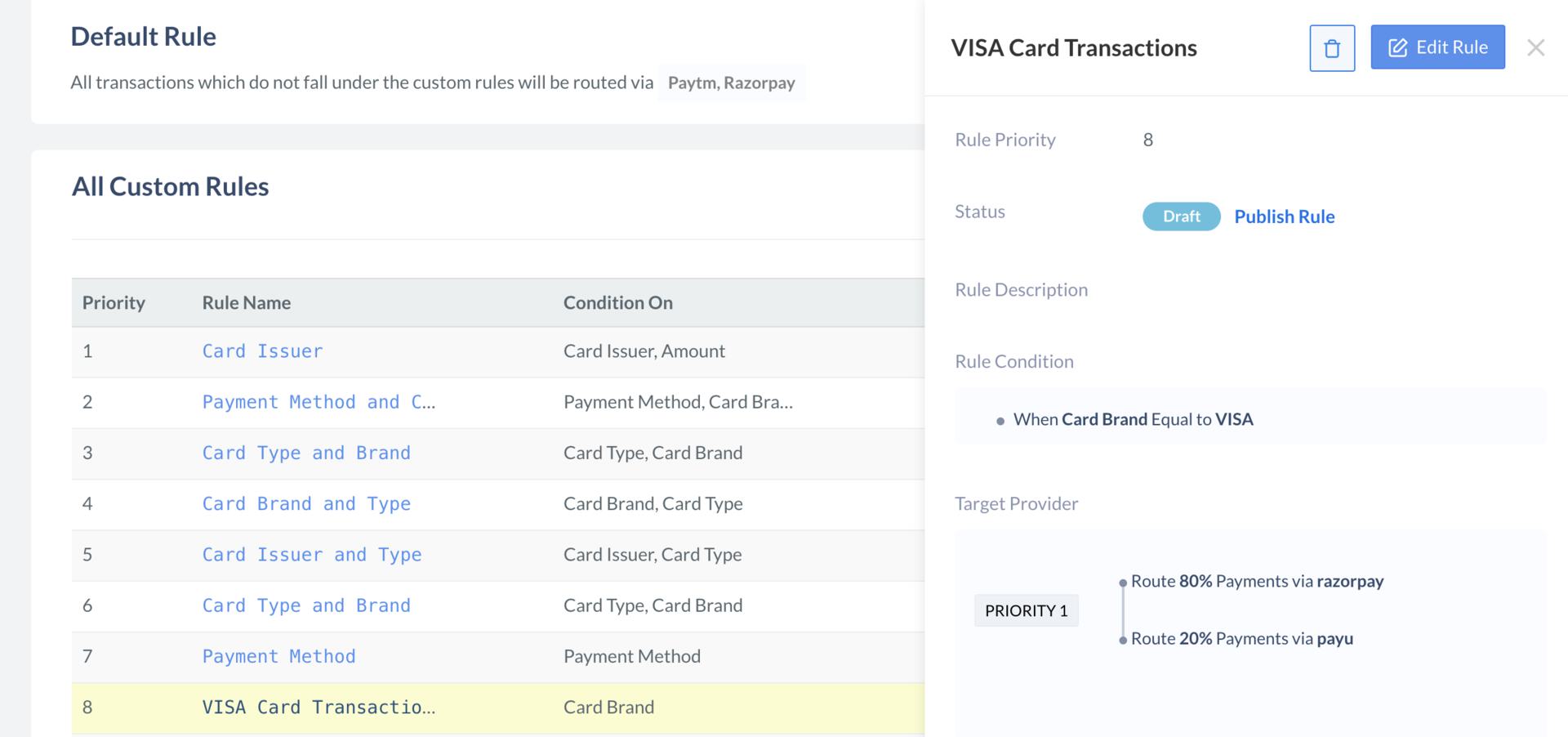 3. The Edit Rule screen is displayed. You can edit the rule details, conditions and target payment providers.
4. Click **Publish Edits** to update the rule.
## Edit Rule Priority
To modify the rule priority order using the drag-and-drop:
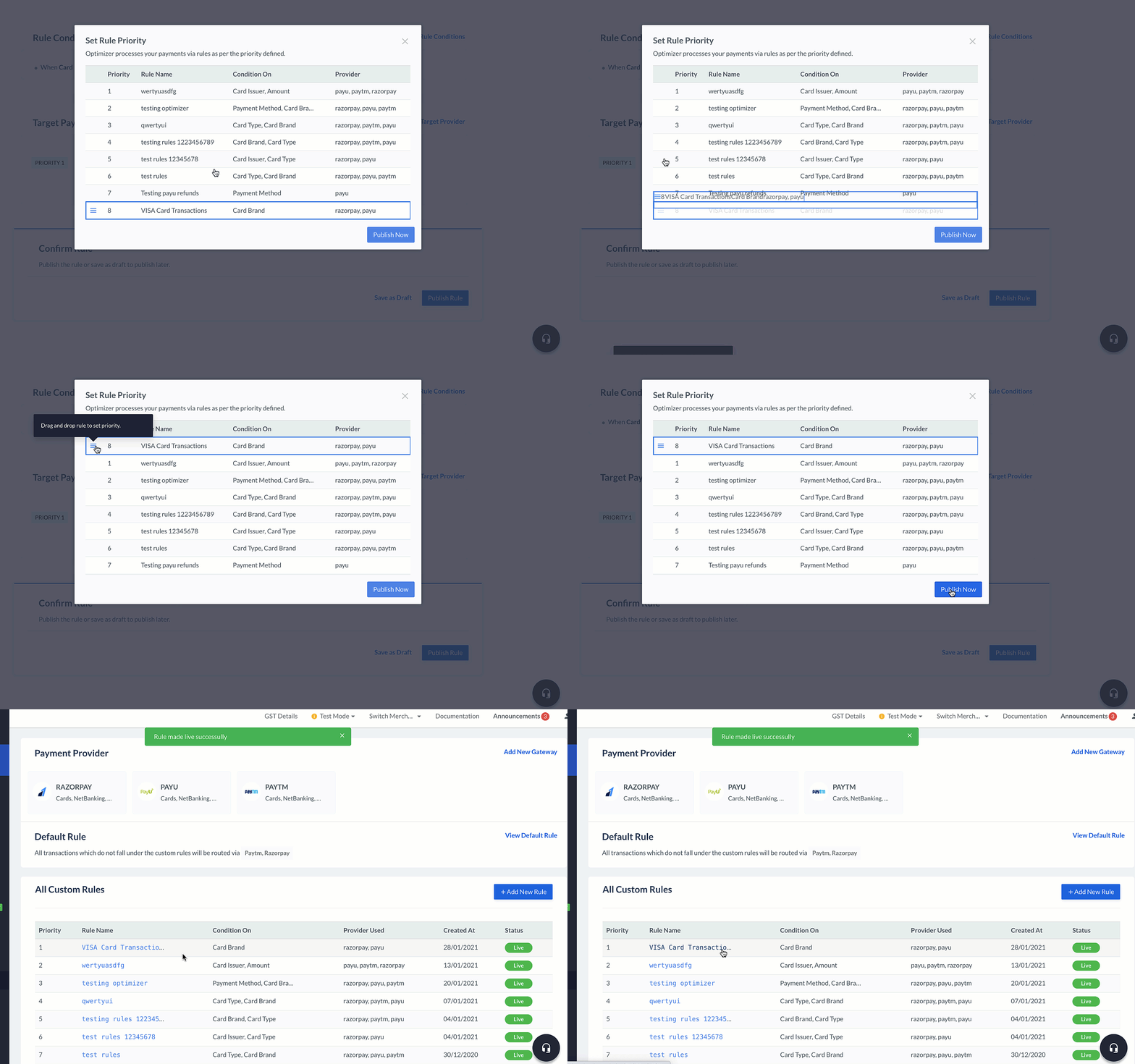
1. In the list of Custom Rules, click on the required rule name.
2. In the side panel, click **Change Priority**.
3. Drag and drop the custom rule as per your business need.
3. The Edit Rule screen is displayed. You can edit the rule details, conditions and target payment providers.
4. Click **Publish Edits** to update the rule.
## Edit Rule Priority
To modify the rule priority order using the drag-and-drop:
1. In the list of Custom Rules, click on the required rule name.
2. In the side panel, click **Change Priority**.
3. Drag and drop the custom rule as per your business need.
 ## Edit Rule Status
You can deactivate or publish a rule.
### Deactivate Rule
To deactivate a rule:
1. In the list of Custom Rules, click on the required rule name.
2. In the side panel, click **Deactivate Rule**.
3. Confirm the change by clicking **Yes, Deactivate**.
4. Once the rule is deactivated, its status changes to `Draft`.
## Edit Rule Status
You can deactivate or publish a rule.
### Deactivate Rule
To deactivate a rule:
1. In the list of Custom Rules, click on the required rule name.
2. In the side panel, click **Deactivate Rule**.
3. Confirm the change by clicking **Yes, Deactivate**.
4. Once the rule is deactivated, its status changes to `Draft`.
 ### Publish Rule
To publish a rule:
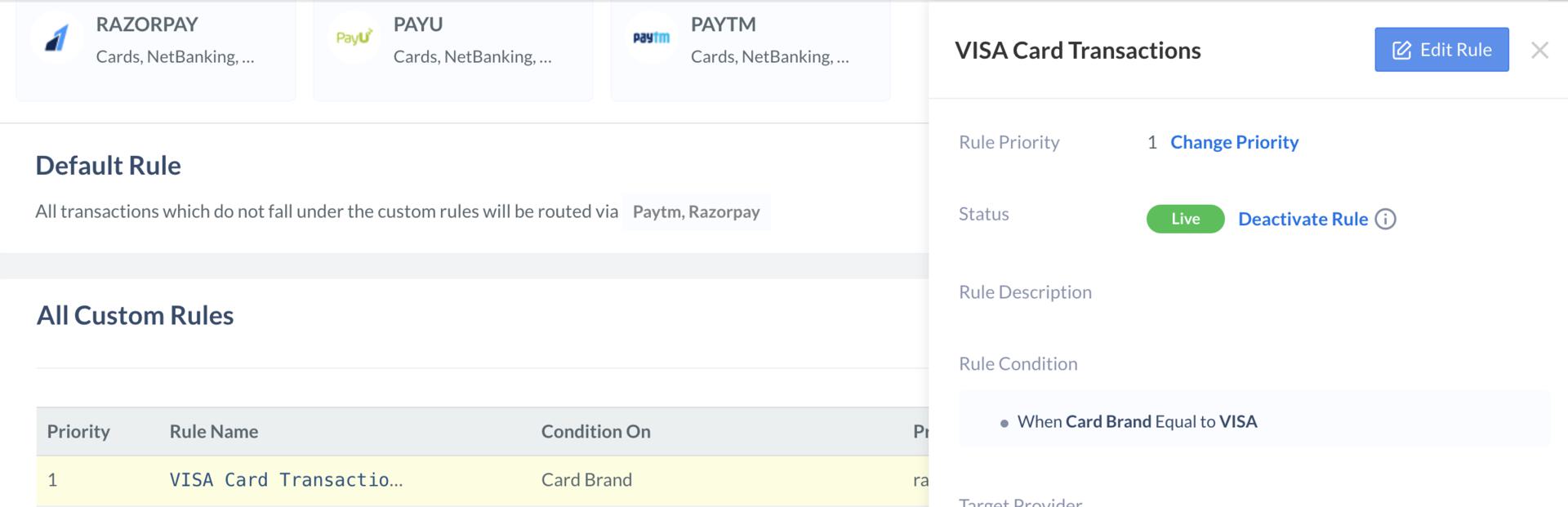
1. In the list of Custom Rules, click on the required rule name.
2. In the side panel, click **Publish Rule**.
3. Confirm the change by clicking **Yes, Publish**.
4. Once the rule is published, its status changes to `Live`. You can then drag-and-drop the rule to change its priority level as needed.
### Related Information
* [Add Payment Providers](/docs/payments/optimizer/add-payment-providers)
* [Create Custom Rule](/docs/payments/optimizer/create-custom-rule)
* [Set Rule Priority](/docs/payments/optimizer/set-rule-priority)
* [Update Default Rule](/docs/payments/optimizer/update-default-rule)
* [SR Analytics Dashboard](/docs/payments/optimizer/success-rate)
* [Single Reconciliation View](/docs/payments/optimizer/reconciliation)
* [Roles and Permissions](/docs/payments/optimizer/roles-and-permissions)
* [Tokenisation for Optimizer](/docs/payments/optimizer/tokenisation)
### Publish Rule
To publish a rule:
1. In the list of Custom Rules, click on the required rule name.
2. In the side panel, click **Publish Rule**.
3. Confirm the change by clicking **Yes, Publish**.
4. Once the rule is published, its status changes to `Live`. You can then drag-and-drop the rule to change its priority level as needed.
### Related Information
* [Add Payment Providers](/docs/payments/optimizer/add-payment-providers)
* [Create Custom Rule](/docs/payments/optimizer/create-custom-rule)
* [Set Rule Priority](/docs/payments/optimizer/set-rule-priority)
* [Update Default Rule](/docs/payments/optimizer/update-default-rule)
* [SR Analytics Dashboard](/docs/payments/optimizer/success-rate)
* [Single Reconciliation View](/docs/payments/optimizer/reconciliation)
* [Roles and Permissions](/docs/payments/optimizer/roles-and-permissions)
* [Tokenisation for Optimizer](/docs/payments/optimizer/tokenisation)