> ## Documentation Index
> Fetch the complete documentation index at: https://razorpay-881012b3.mintlify.site/llms.txt
> Use this file to discover all available pages before exploring further.

# ShopSe

> Add ShopSe as a payment provider on Optimizer.

<div style={{display:"flex",flexWrap:"wrap",alignItems:"center",gap:"0.35rem 0.9rem",border:"1px solid rgba(128,128,128,0.28)",borderRadius:"0.5rem",padding:"0.45rem 0.75rem",margin:"0 0 1.25rem",fontSize:"0.875rem"}}>
  <span style={{fontWeight:600}}>Available in</span>
  <span>🇮🇳 India</span>
</div>

ShopSe's Cardless EMI is a popular **Buy Now Pay Later (BNPL)** service. It lets customers manage monthly instalments for purchases without needing a credit card and sometimes not even a debit card. This digital finance option makes more expensive items affordable and accessible.

Follow the steps below to onboard ShopSe as a payment provider.

<AccordionGroup>
  <Accordion title="Prerequisites">
    This payment provider is available only with Optimizer. Ensure you have Optimizer enabled for your Razorpay account.

    <Info>
      **Handy Tips**

      No additional configuration is required on your businesses end for ShopSe integration.
    </Info>
  </Accordion>
</AccordionGroup>

## Add ShopSe as Payment Provider

<AccordionGroup>
  <Accordion title="To add ShopSe as a payment provider:">
    1. Log in to your Dashboard and click **Optimizer**.
    2. In the **Payment Provider** section, click **Add Provider**.
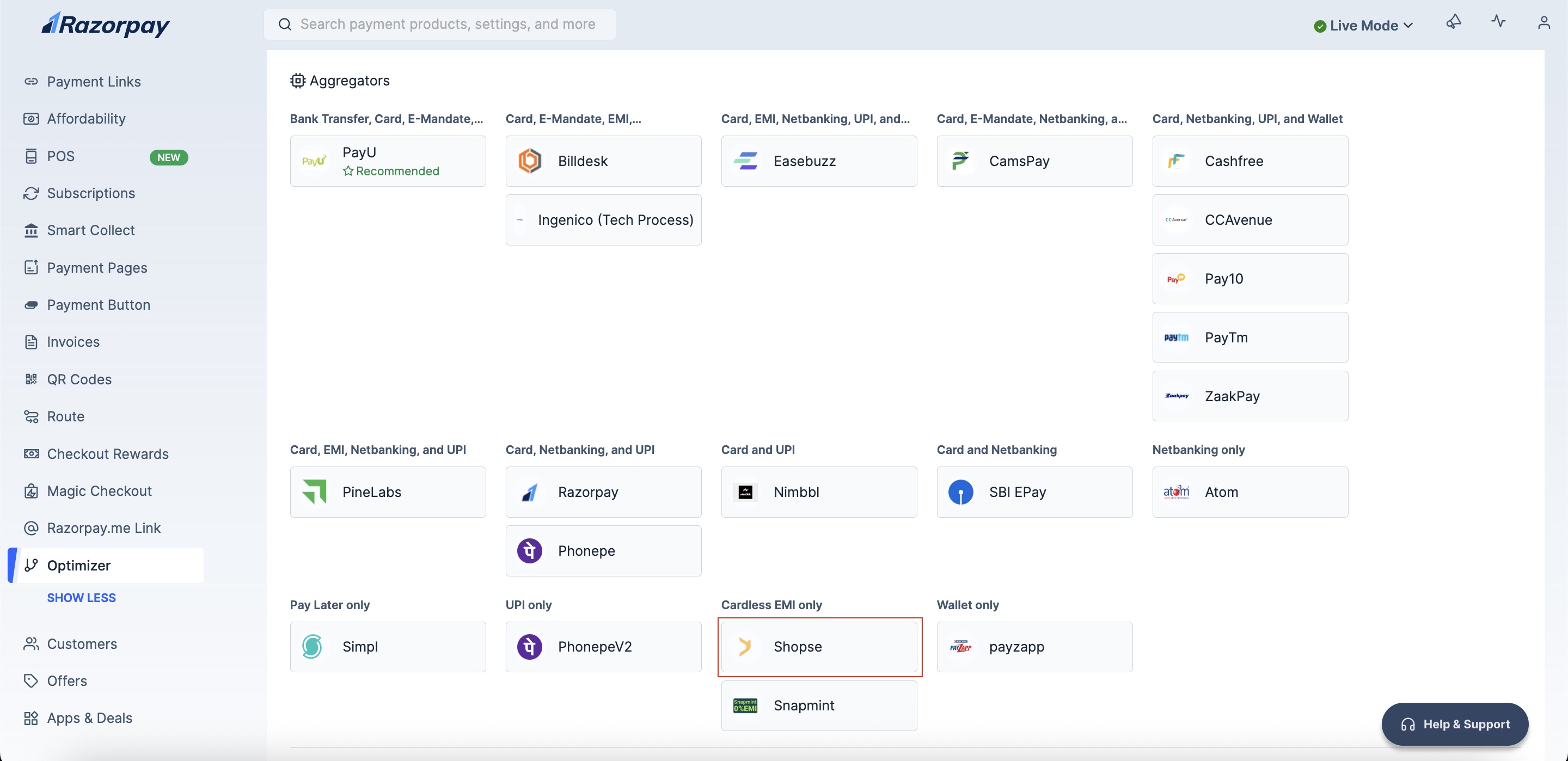
    3. Navigate to the **Cardless EMI only** section and click **ShopSe**. <img src="https://razorpay.com/docs/build/browser/assets/images/optimizer-shopse-provider.jpg" class="click-zoom" alt="Add ShopSe payment provider in Razorpay" width="700" />
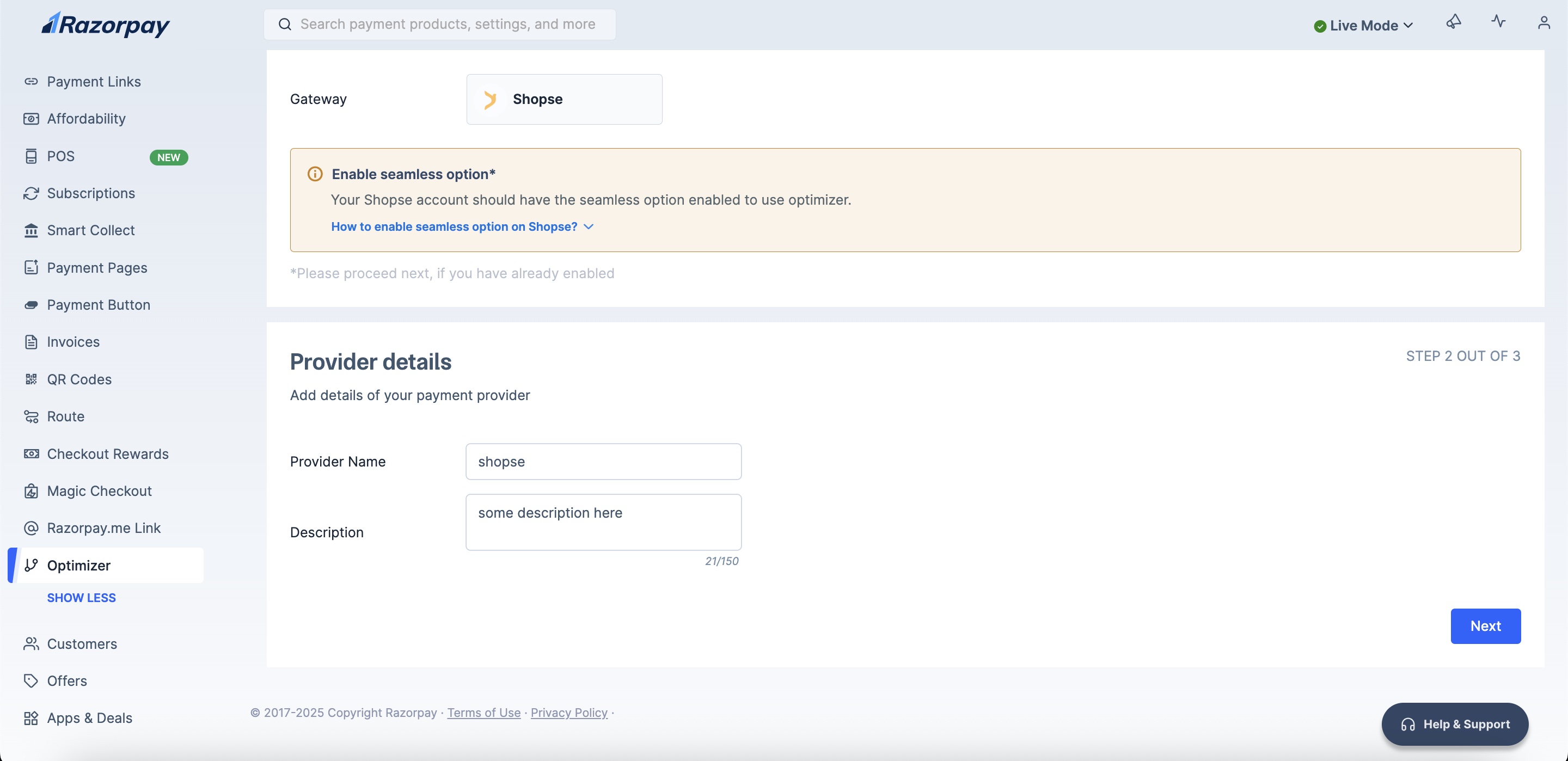
    4. Enter your **Provider Details**. <img src="https://razorpay.com/docs/build/browser/assets/images/optimizer-shopse-provider-details.jpg" class="click-zoom" alt="Add ShopSe payment provider in Razorpay" width="700" />
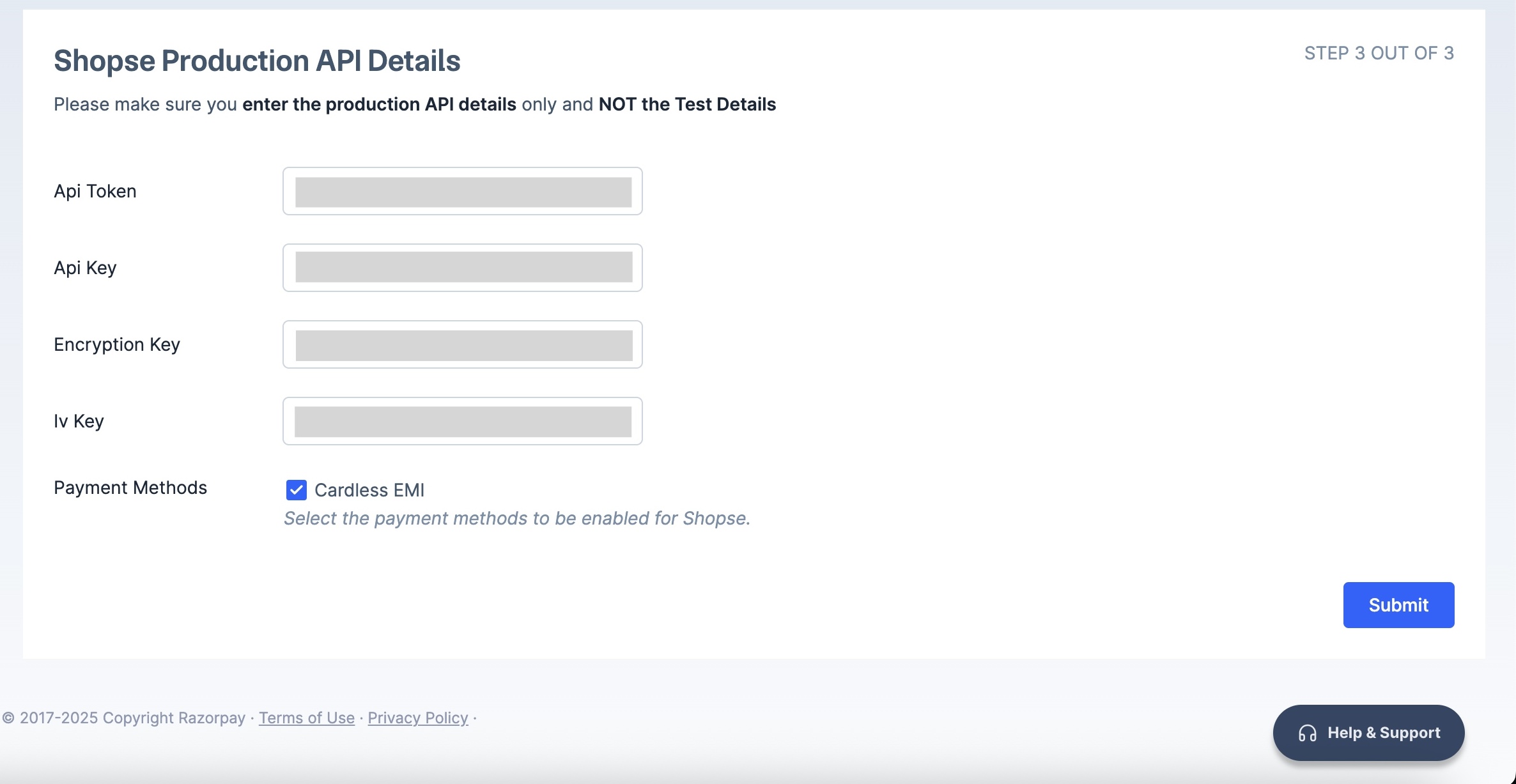
    5. Enter your **ShopSe Production API Details** and click **Submit**. <img src="https://razorpay.com/docs/build/browser/assets/images/optimizer-shopse-prod-api.jpg" alt="Add ShopSe production API details in Razorpay" width="700" />
    You have successfully added ShopSe as a payment provider on Optimizer.
  </Accordion>
</AccordionGroup>

## Configure Custom Rule

<AccordionGroup>
  <Accordion title="Add custom rule to route your transactions via ShopSe:">
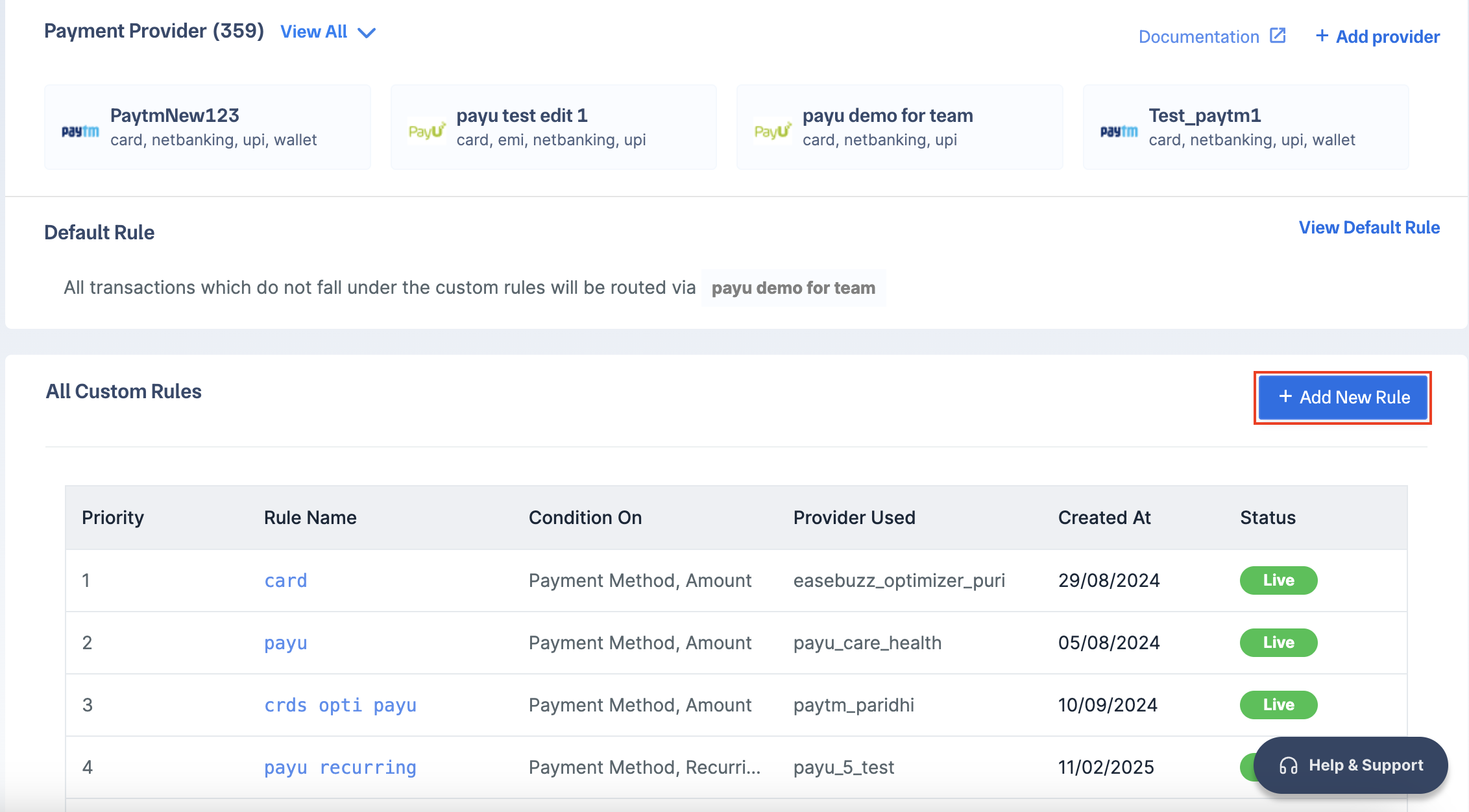
    1. Log in to your Dashboard and click **Optimizer**.
    2. Click **+ Add New Rule**.
           <img src="https://razorpay.com/docs/build/browser/assets/images/add-simpl-rule.jpg" class="click-zoom" alt="Add shopse rule" width="700" />
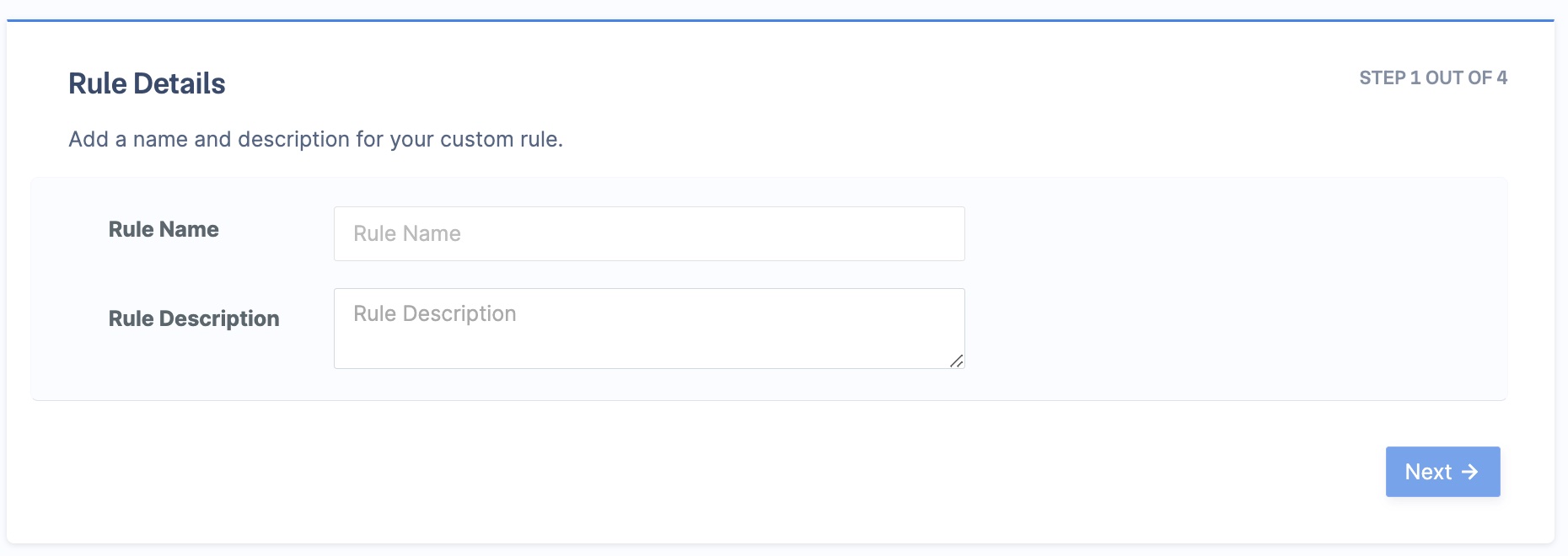
    3. Enter the **Rule Name** and **Rule Description**. Click **Next**.
           <img src="https://razorpay.com/docs/build/browser/assets/images/optimizer-add-rule-name-desc.jpg" class="click-zoom" alt="Add shopse" width="700" />
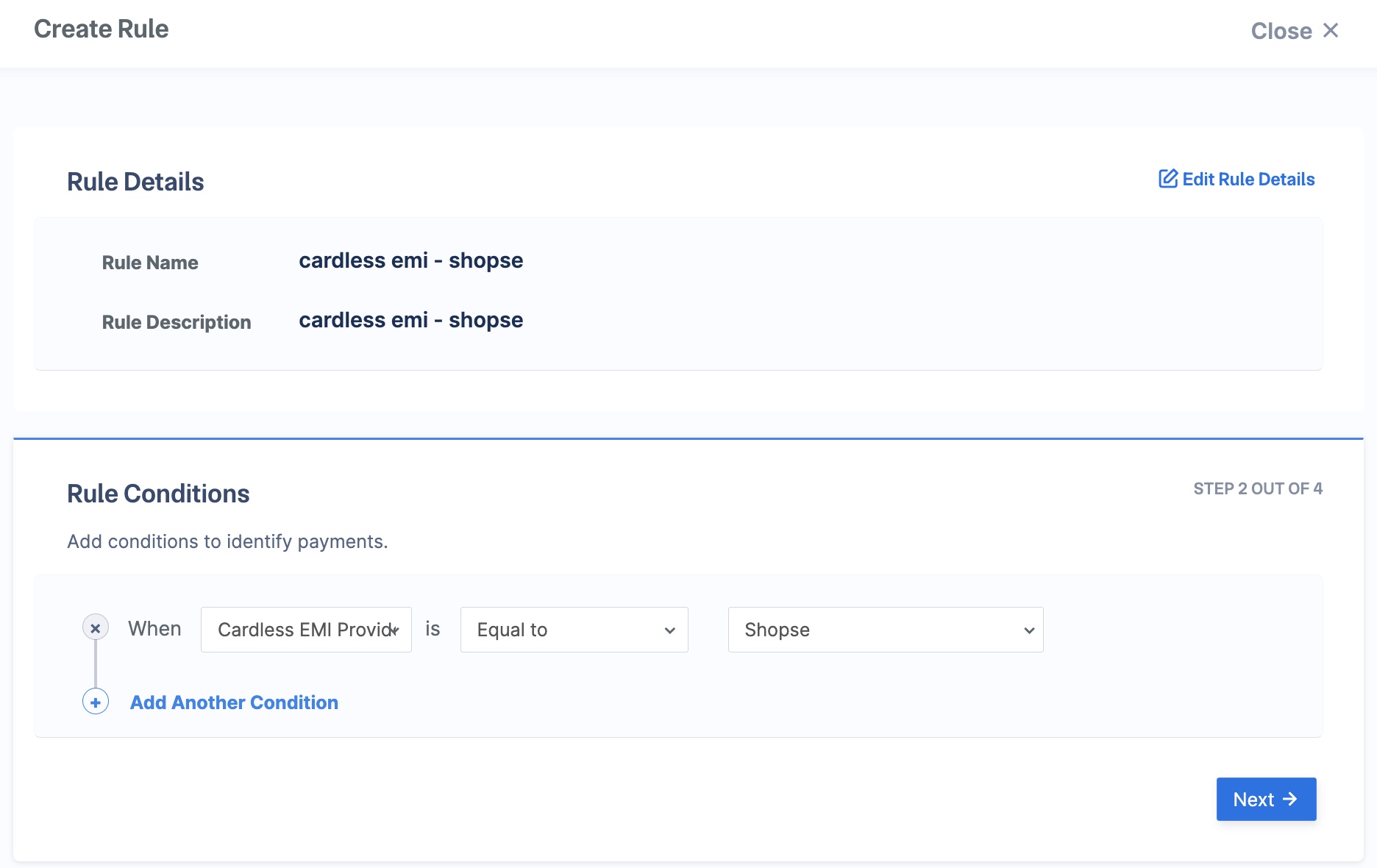
    4. Select the rule conditions as follows and click **Next**:
       * **When** - `Cardless EMI Provider`.
       * **is** - `Equal to`.
       * `ShopSe`.
    <img src="https://razorpay.com/docs/build/browser/assets/images/optimizer-shopse-rule-conditions.jpg" class="click-zoom" alt="Add shopse" width="700" />

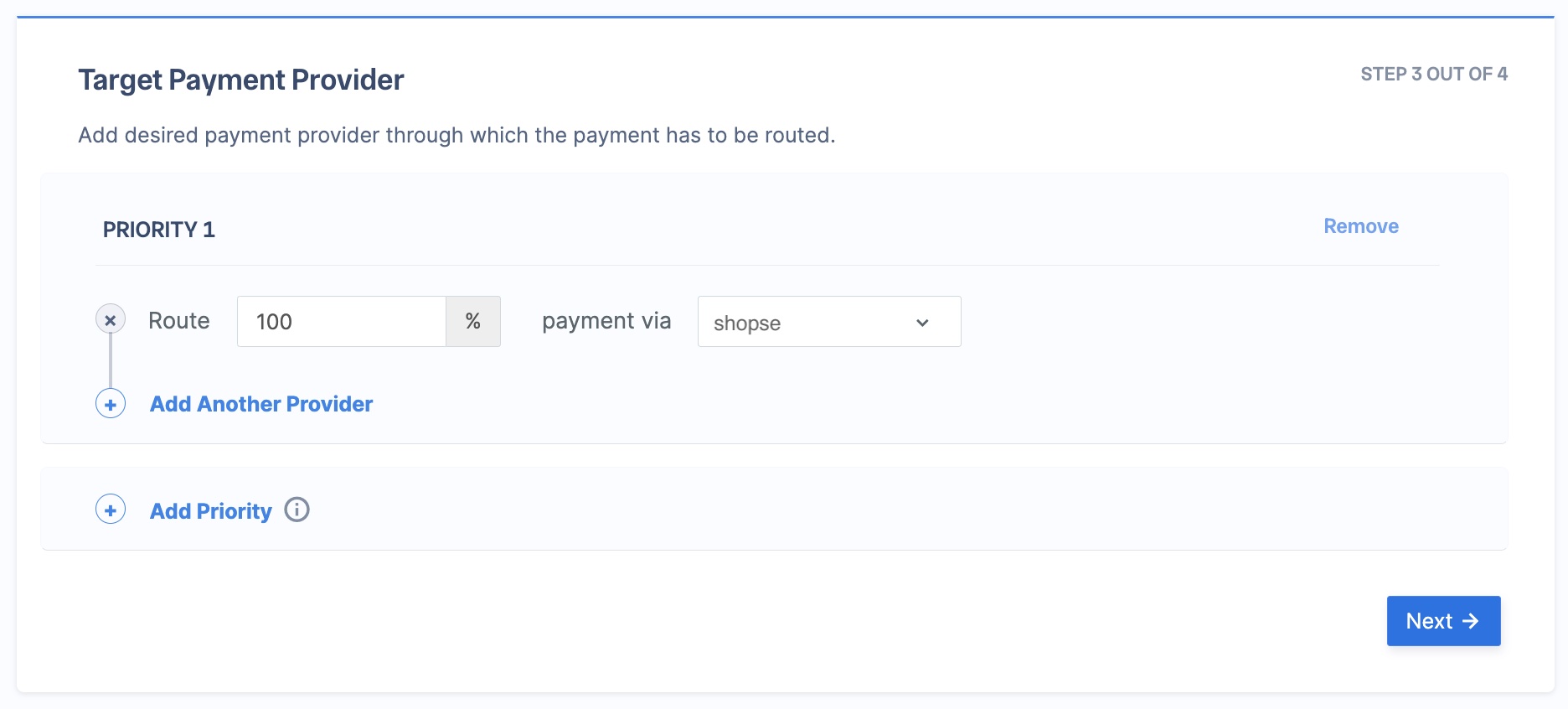
    5. In the **Route** field, enter **100**, and select **shopse** in the **payment via** field. Click **Next**. <img src="https://razorpay.com/docs/build/browser/assets/images/optimizer-shopse-priority-route.jpg" class="click-zoom" alt="Add shopse" width="700" />
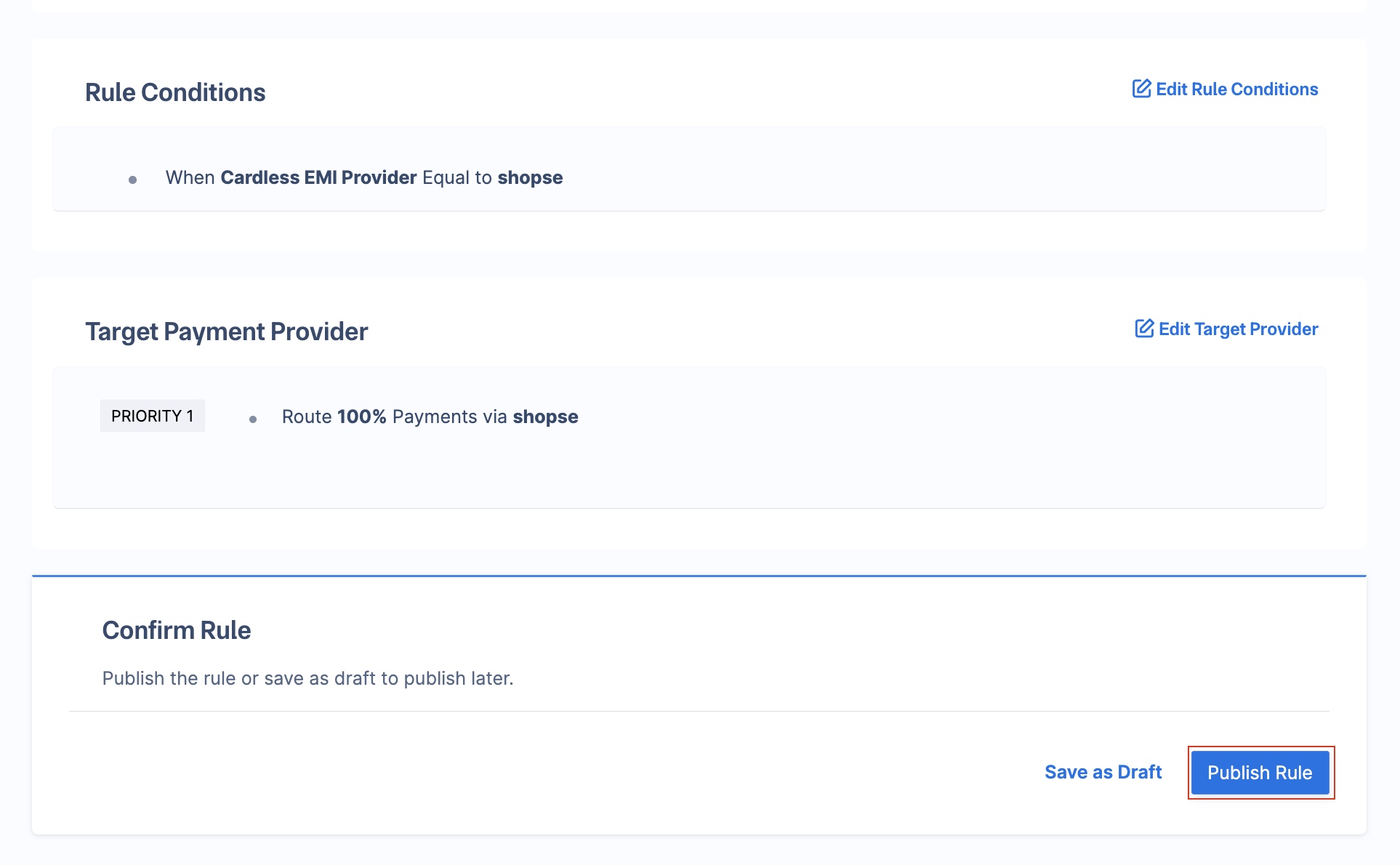
    6. Click **Publish Rule**. <img src="https://razorpay.com/docs/build/browser/assets/images/optimizer-shopse-publish-rule.jpg" class="click-zoom" alt="Add shopse" width="700" />

    All transactions will now be routed via ShopSe.
  </Accordion>
</AccordionGroup>

## Best Practices

Before routing all traffic or some traffic to a new gateway via Optimizer, the following best practices are recommended:

<AccordionGroup>
  <Accordion title="Live and Test Mode Rules">
    All rules configured in live or test mode on the Razorpay Dashboard will reflect in live mode. However, credentials added in test mode will not be automatically replicated in live mode.
  </Accordion>

  <Accordion title="Sanity Test at Razorpay">
    You can reach out to Razorpay for basic sanity testing of the integration. Razorpay will try a test payment of a small value and ensure that the credentials are correct.
  </Accordion>
</AccordionGroup>

## Go Live

After the integration is tested and successful, you can go live with ShopSe on Razorpay Optimizer.