> ## Documentation Index
> Fetch the complete documentation index at: https://razorpay-881012b3.mintlify.site/llms.txt
> Use this file to discover all available pages before exploring further.

# Snapmint

> Add Snapmint as a payment provider on Optimizer.

<div style={{display:"flex",flexWrap:"wrap",alignItems:"center",gap:"0.35rem 0.9rem",border:"1px solid rgba(128,128,128,0.28)",borderRadius:"0.5rem",padding:"0.45rem 0.75rem",margin:"0 0 1.25rem",fontSize:"0.875rem"}}>
  <span style={{fontWeight:600}}>Available in</span>
  <span>🇮🇳 India</span>
</div>

Snapmint's Cardless EMI is a **Buy Now Pay Later (BNPL)** service that lets customers buy products on easy monthly instalments without a credit card. It offers a credit line, often linked to your customers' debit card or UPI, making purchases more accessible.

Follow the steps below to onboard Snapmint as a payment provider.

<AccordionGroup>
  <Accordion title="Prerequisites">
    This payment provider is available only with Optimizer. Ensure you have Optimizer enabled for your Razorpay account.

    <Info>
      **Handy Tips**

      No additional configuration is required on your businesses end for Snapmint integration.
    </Info>
  </Accordion>
</AccordionGroup>

## Add Snapmint as Payment Provider

<AccordionGroup>
  <Accordion title="To add Snapmint as a payment provider:">
    1. Log in to your Dashboard and select **Optimizer**.
    2. In the **Payment Provider** section, click **Add Provider**.
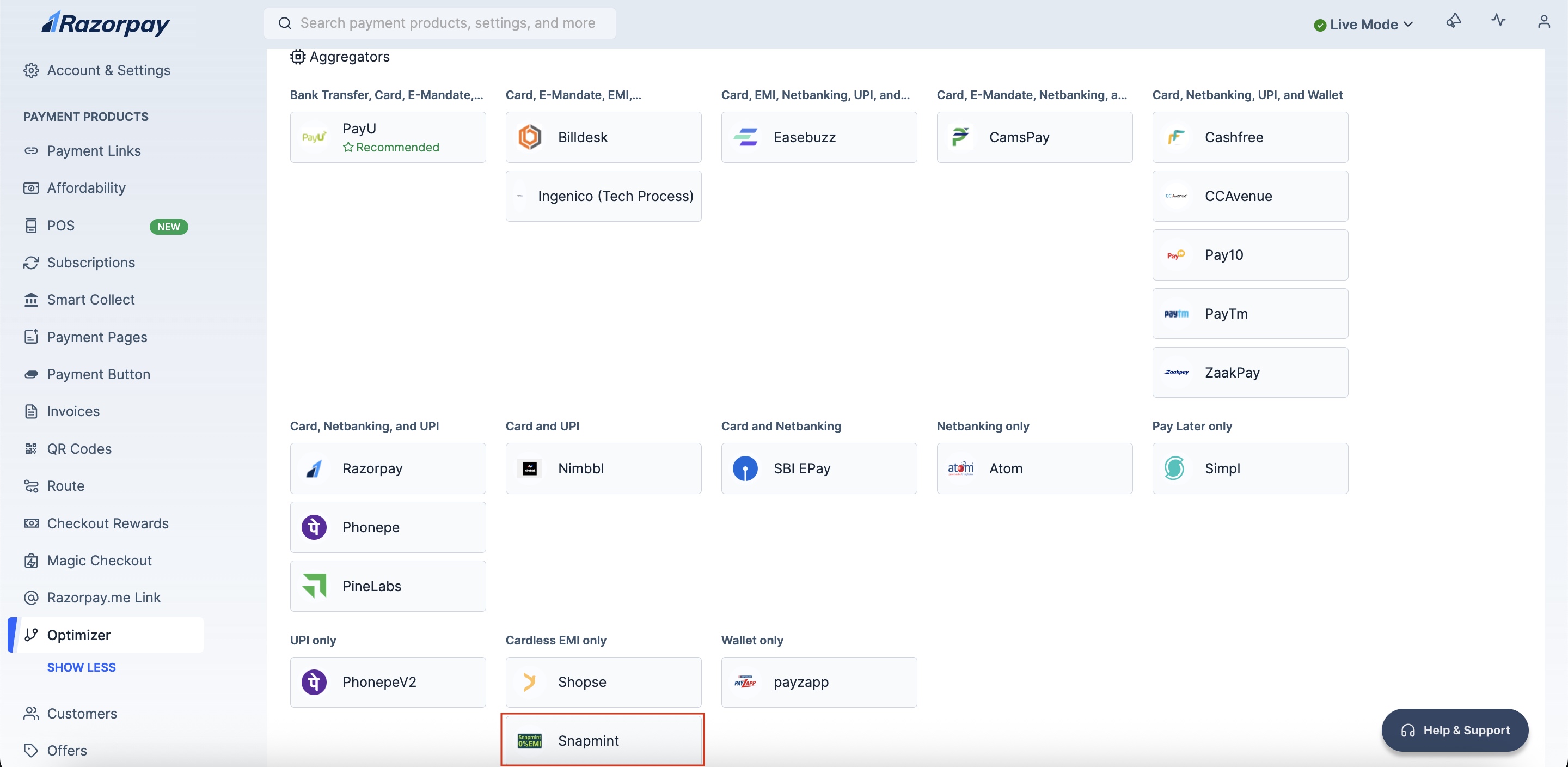
    3. Navigate to the **Cardless EMI only** section and click **Snapmint**. <img src="https://razorpay.com/docs/build/browser/assets/images/optimizer-snapmint-add-provider.jpg" class="click-zoom" alt="Add Snapmint payment provider in Razorpay" width="700" />
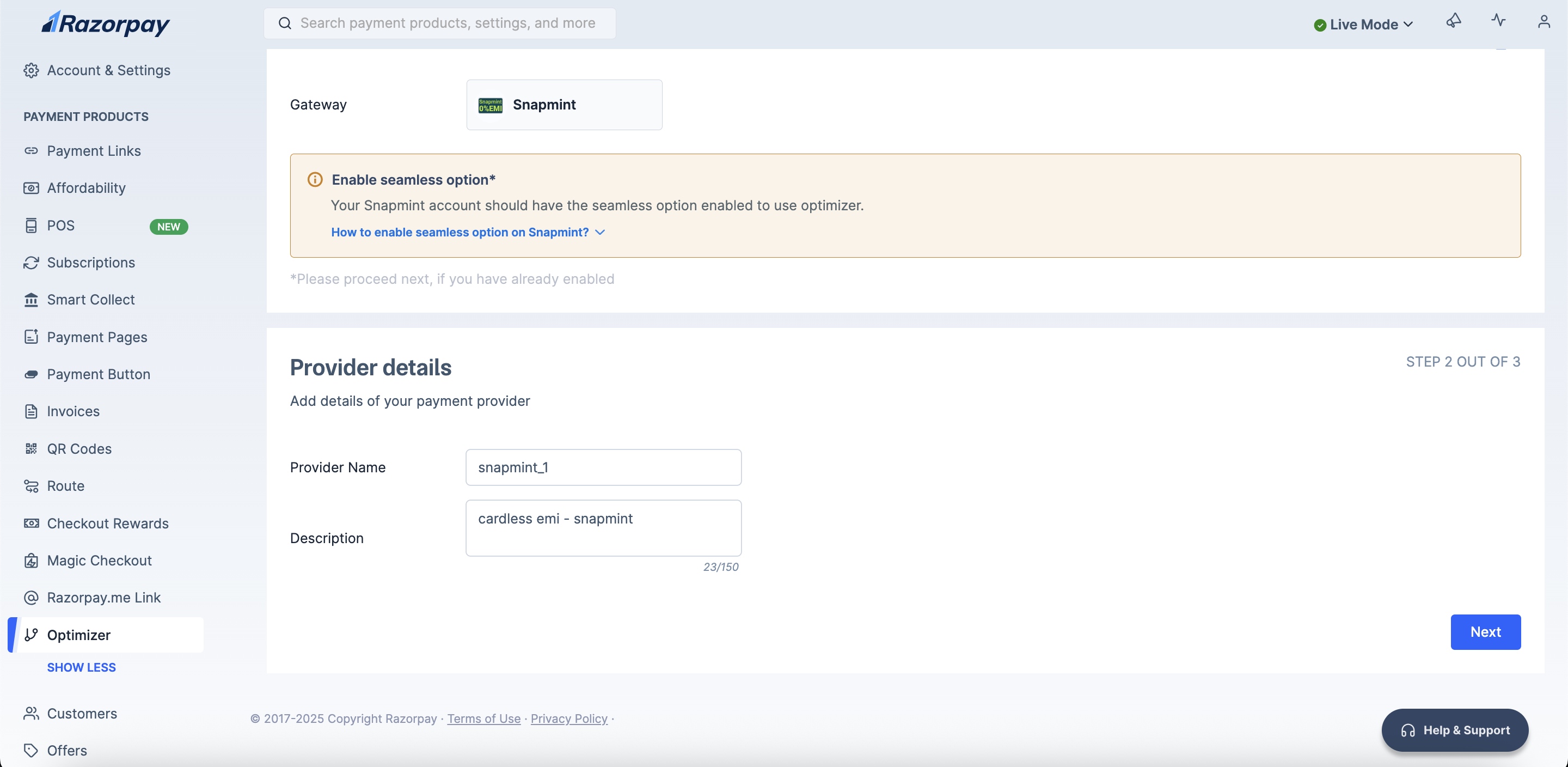
    4. Enter your **Provider Details**. <img src="https://razorpay.com/docs/build/browser/assets/images/optimizer-snapmint-add-provider-details.jpg" class="click-zoom" alt="Add Snapmint payment provider in Razorpay" width="700" />
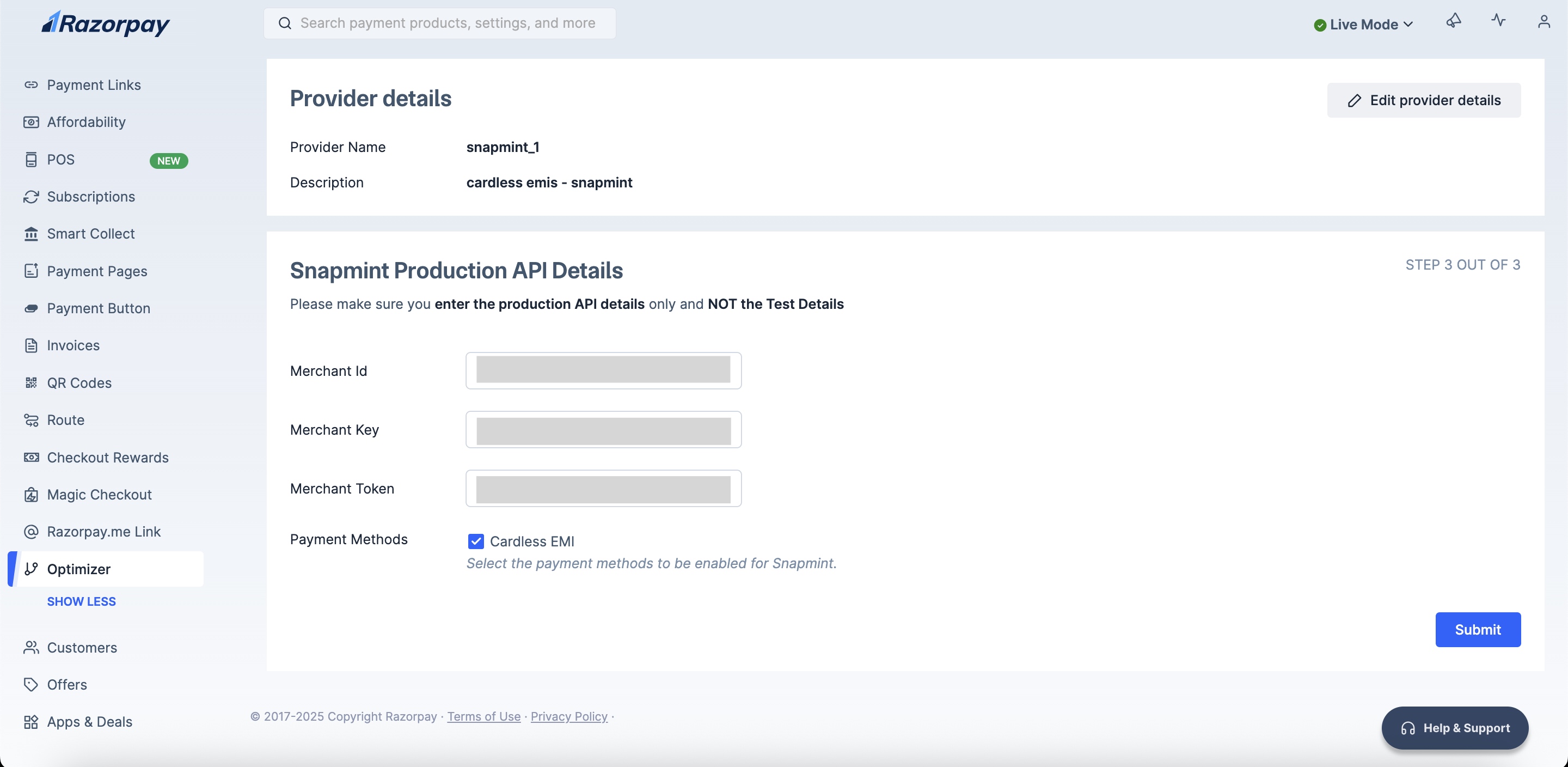
    5. Add your **Snapmint Production API Details** and click **Submit**. <img src="https://razorpay.com/docs/build/browser/assets/images/optimizer-snapmint-provider-api-prod-details.jpg" class="click-zoom" alt="Add snapmint" width="700" />
    You have successfully added Snapmint as a payment provider to Optimizer.
  </Accordion>
</AccordionGroup>

## Configure Custom Rule

<AccordionGroup>
  <Accordion title="Add custom rule to route your transactions via Snapmint:">
    1. Log in to your Dashboard and click **Optimizer**.
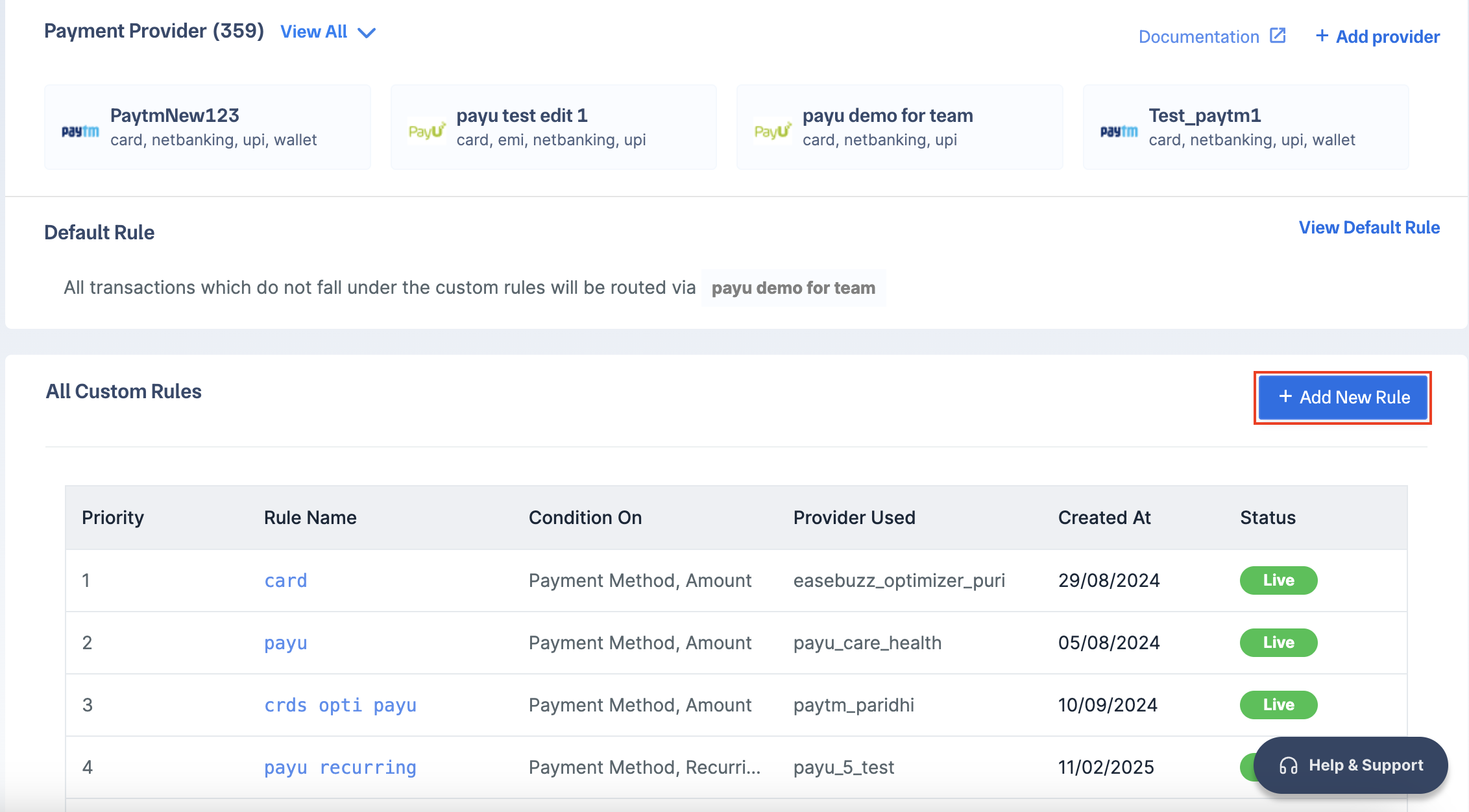
    2. Click **+ Add New Rule**.
           <img src="https://razorpay.com/docs/build/browser/assets/images/add-simpl-rule.jpg" class="click-zoom" alt="Add snapmint rule" width="700" />
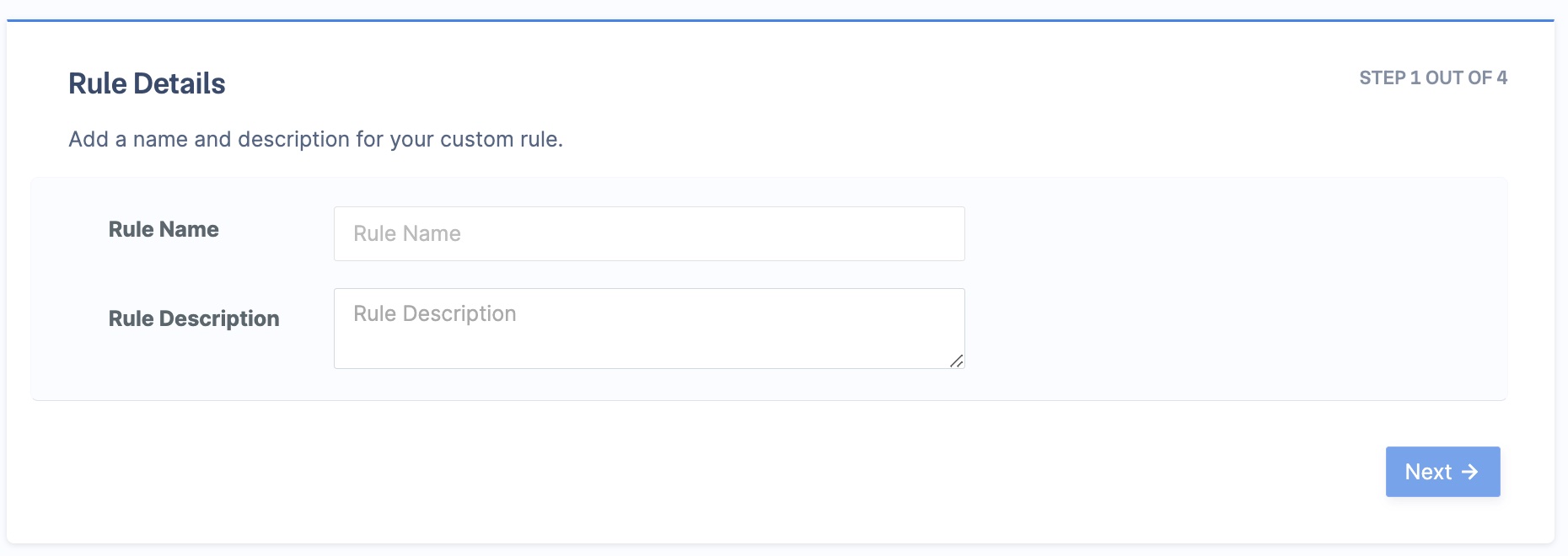
    3. Enter the **Rule Name** and **Rule Description**. Click **Next**.
           <img src="https://razorpay.com/docs/build/browser/assets/images/optimizer-add-rule-name-desc.jpg" class="click-zoom" alt="Add snapmint" width="700" />
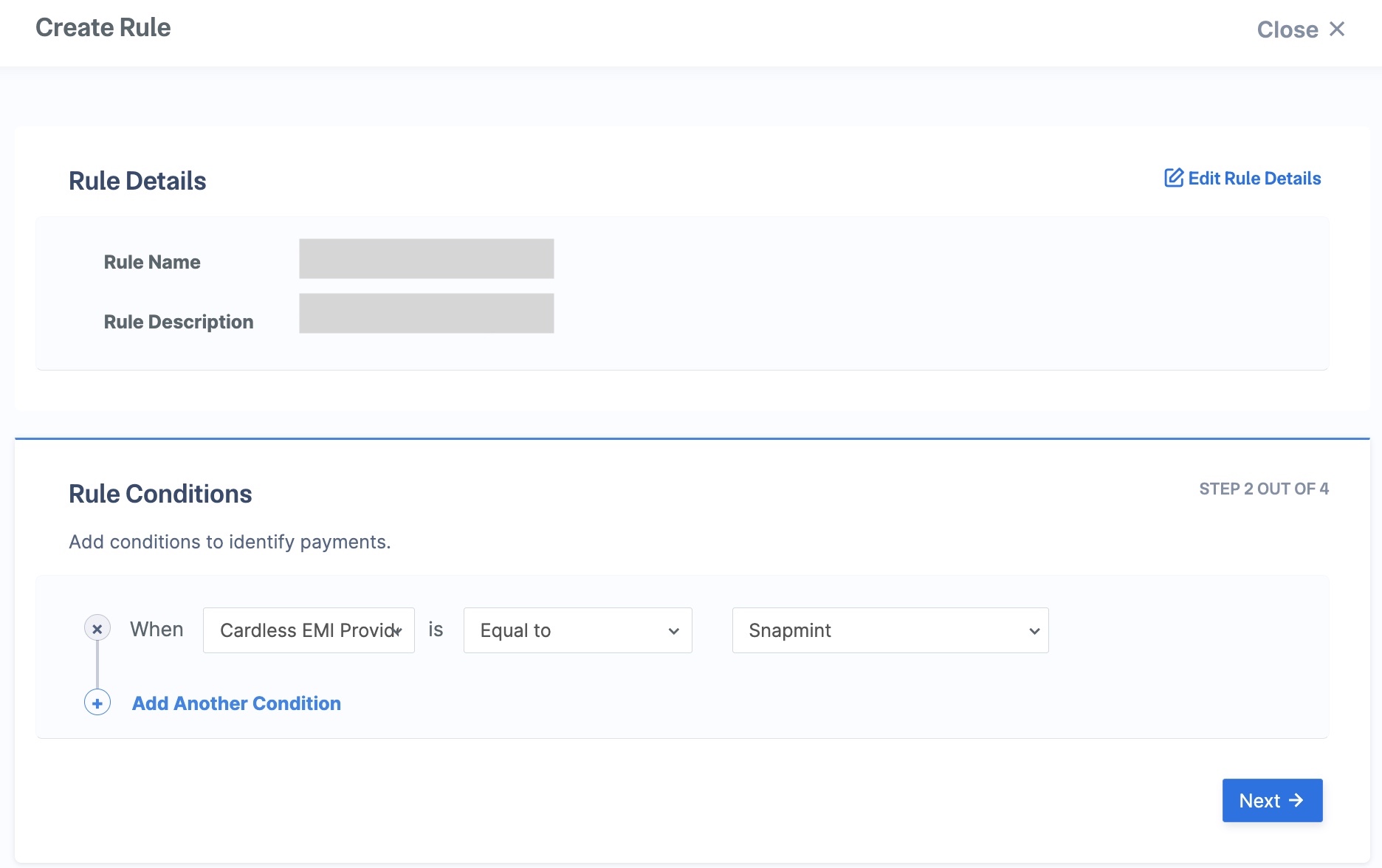
    4. Select the rule conditions as follows and click **Next**:
       * **When** - `Cardless EMI Provider`.
       * **is** - `Equal to`.
       * `Snapmint`.
    <img src="https://razorpay.com/docs/build/browser/assets/images/optimizer-snapmint-rule-conditions.jpg" class="click-zoom" alt="Add snapmint" width="700" />

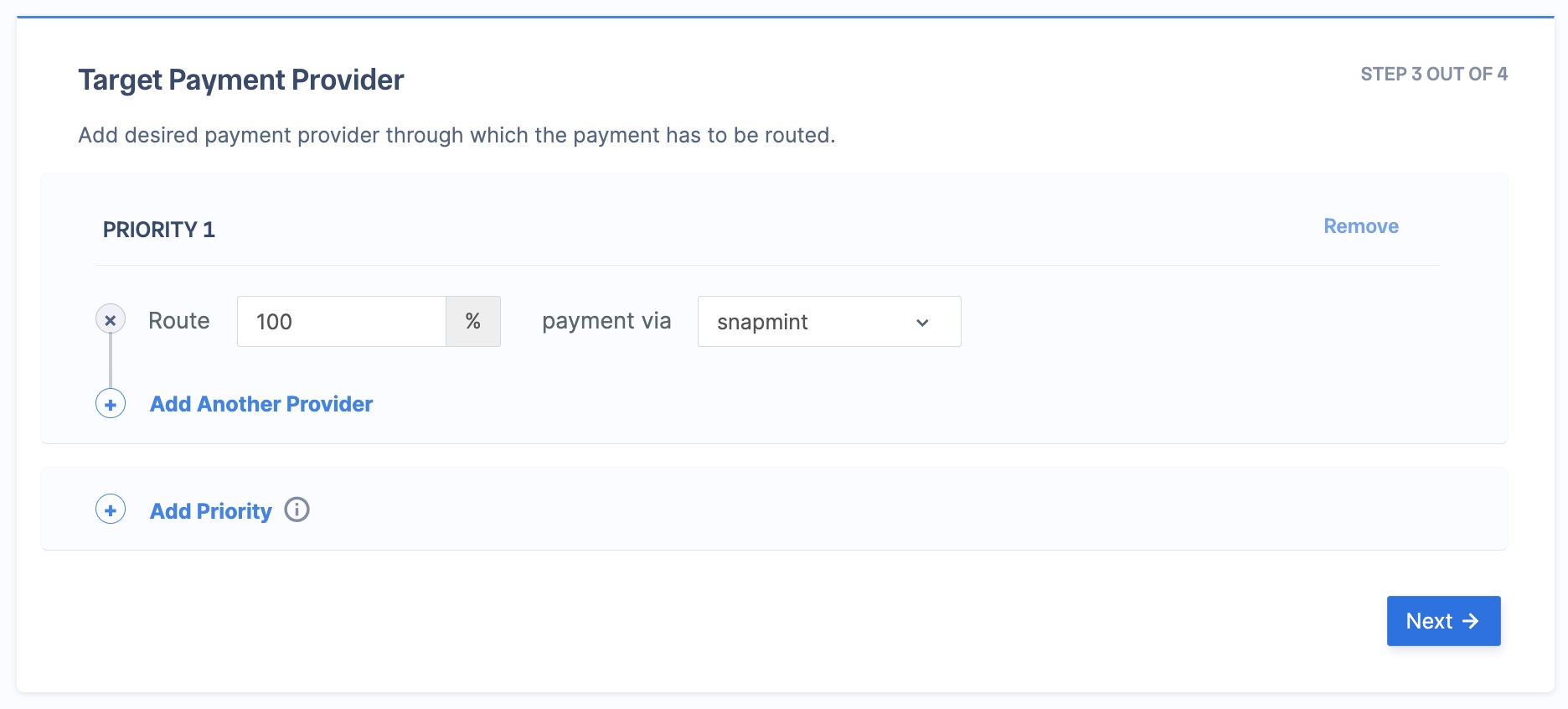
    5. In the **Route** section, enter **100**, and select **snapmint** in the **payment via** section. Click **Next**. <img src="https://razorpay.com/docs/build/browser/assets/images/optimizer-snapmint-priority-route.jpg" class="click-zoom" alt="Add snapmint" width="700" />
    6. Click **Publish Rule**.

    All transactions will now be routed via Snapmint.
  </Accordion>
</AccordionGroup>

## Best Practices

Please note these best practices before routing all or some of your traffic to a new gateway via Optimizer:

<AccordionGroup>
  <Accordion title="Live and Test Mode Rules">
    Rules you set up in test or live mode on your Razorpay Dashboard apply in live mode. However, test mode credentials will not automatically copy to live mode.
  </Accordion>

  <Accordion title="Sanity Test at Razorpay">
    For basic integration testing, contact Razorpay. We will attempt a small test payment to confirm your credentials are correct.
  </Accordion>
</AccordionGroup>

## Go Live

After the integration is tested and successful, you can go live with Snapmint on Razorpay Optimizer.