> ## Documentation Index
> Fetch the complete documentation index at: https://razorpay-881012b3.mintlify.site/llms.txt
> Use this file to discover all available pages before exploring further.
# SR Analytics Dashboard
> Know how to view the transaction success rate on the Optimizer Analytics Dashboard.
Available in
🇮🇳 India
**Success Rate** is the ratio of successful transactions to the total number of transactions. It is calculated by dividing the total number of successful (authorised) transactions by the total number of attempted transactions over a given period of time.
**Example**
If you had 100 transactions in a week and 93 were successful, your success rate would be 93% for that week. You can view the success rate of all the transactions on the Razorpay Dashboard.
## Actions on SR Analytics Dashboard
You can use the SR Analytics Dashboard to:
* Perform a detailed analysis of your recent transactions.
* View the details of each payment method by clicking on the respective method options such as Cards, UPI and Netbanking.
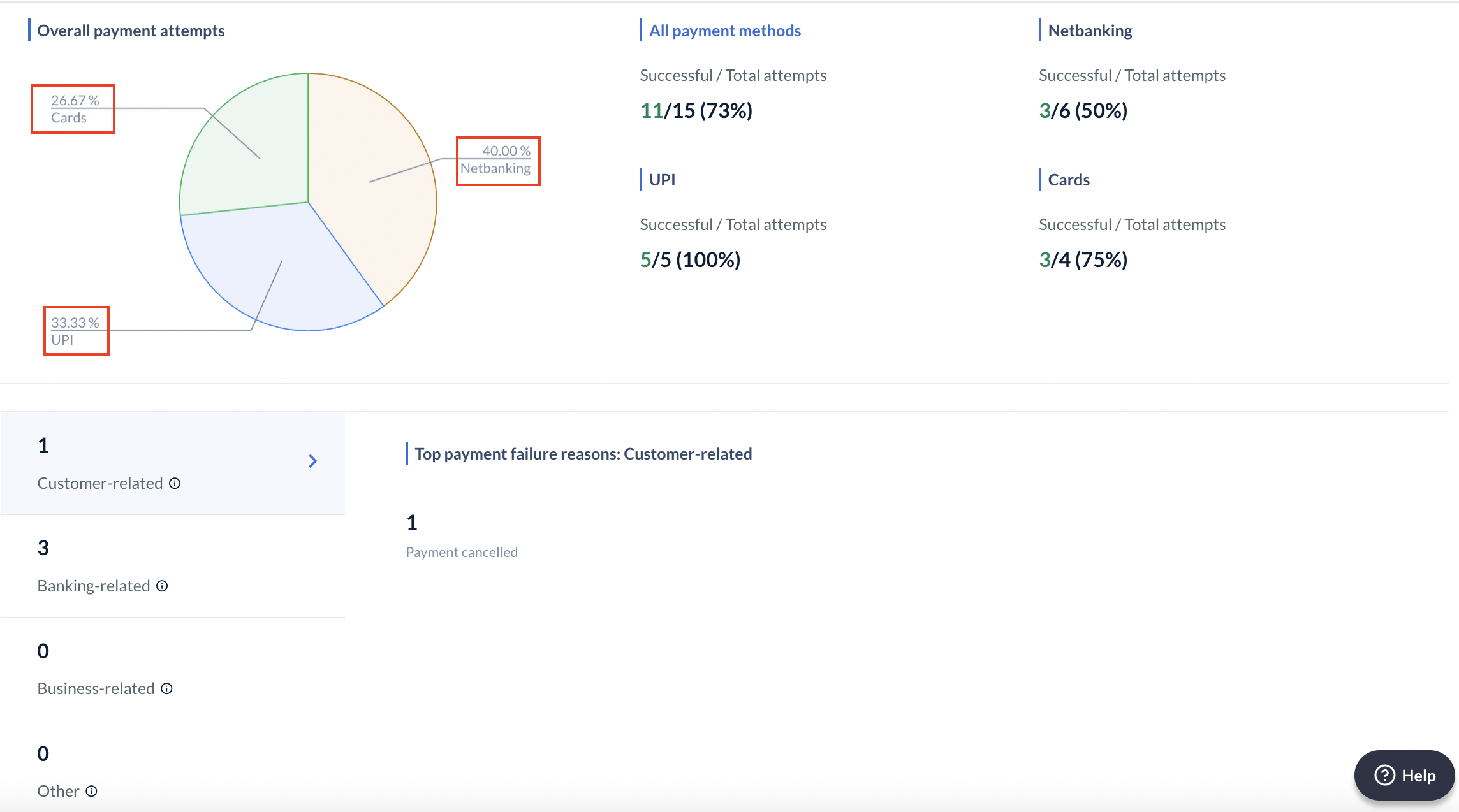
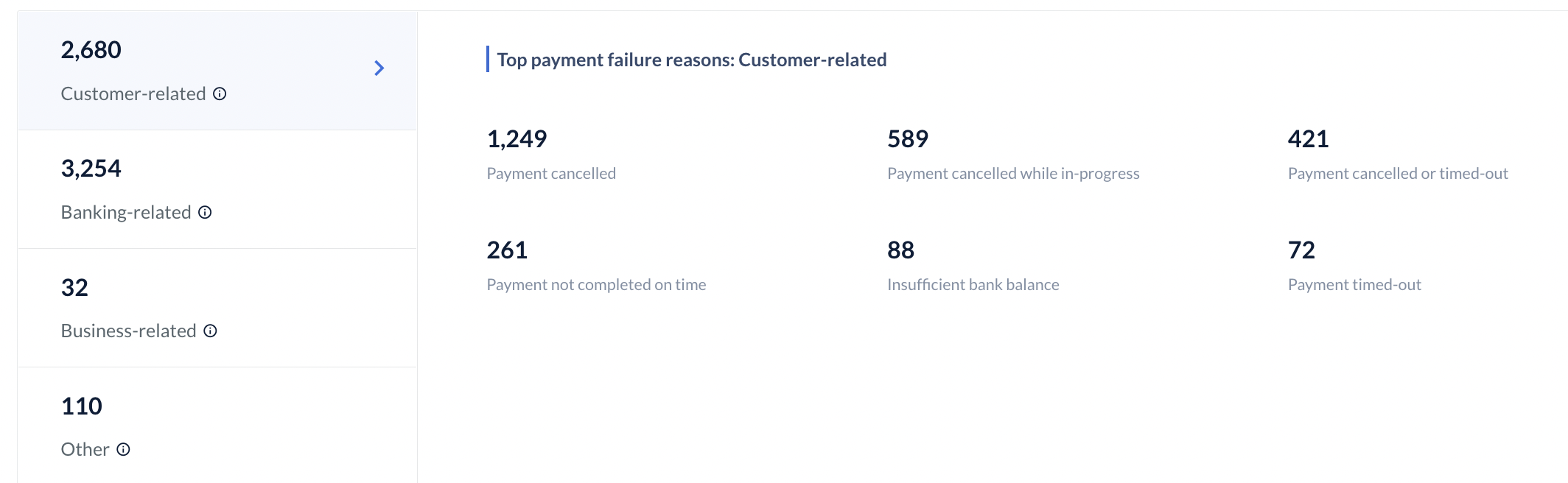
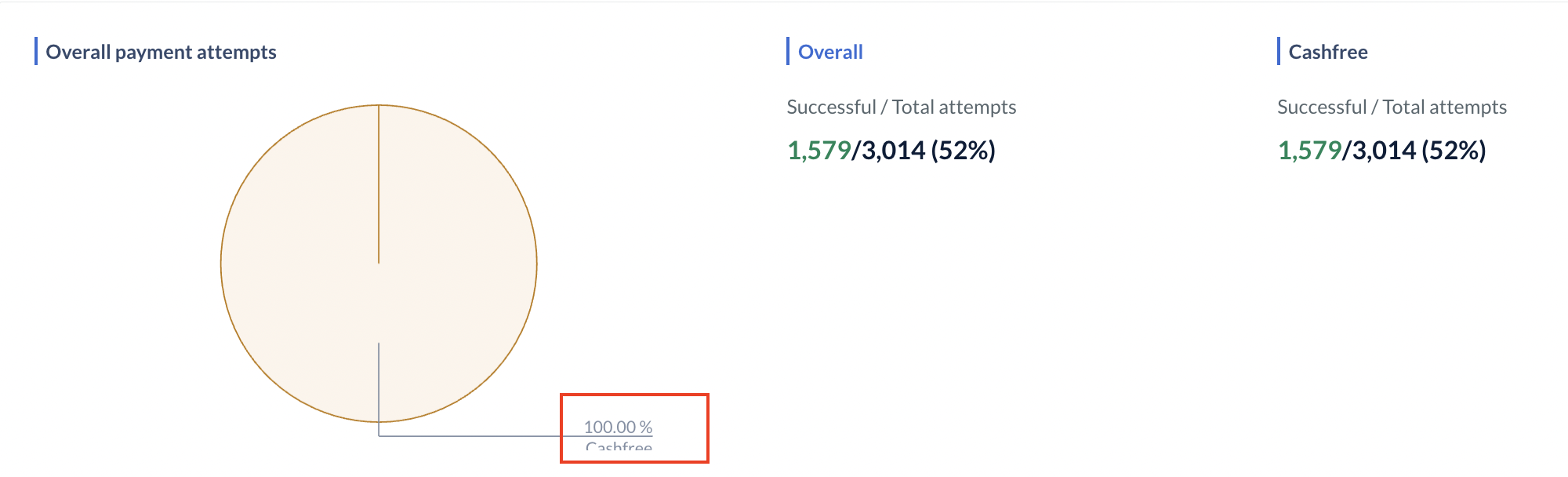
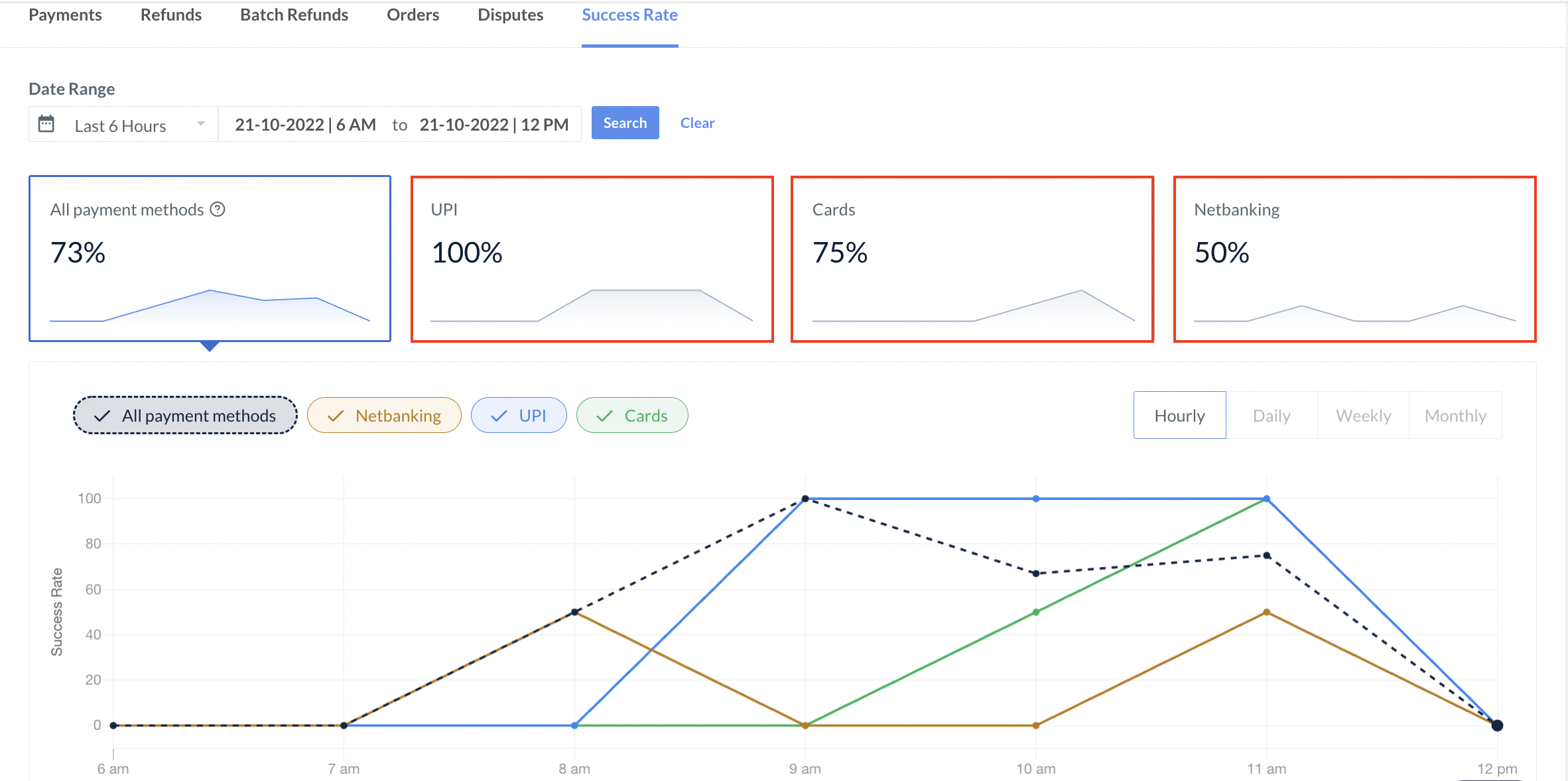 * View the payment volume distribution with the help of a pie diagram and understand the top reasons behind the payment failures. Know more about [failure reasons](#payment-failure-reasons).
 ## View Analytics Dashboard
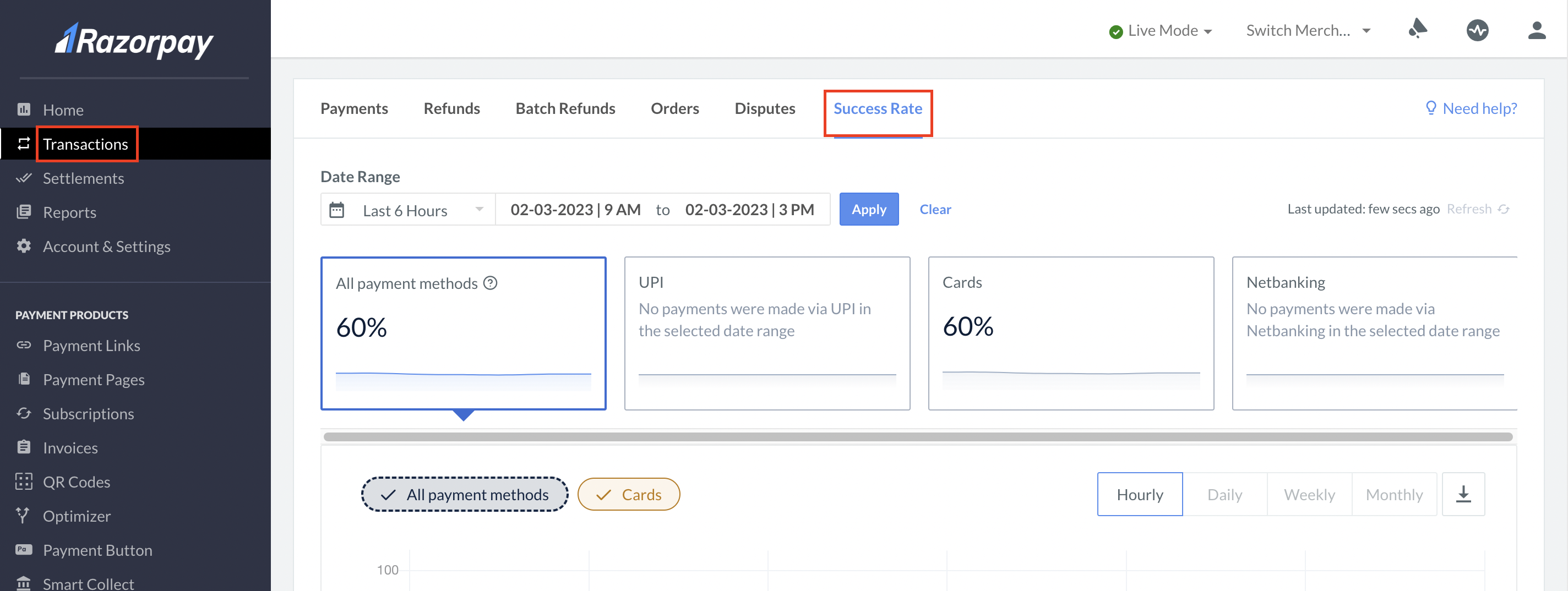
To view the Analytics Dashboard:
1. Log in to your Dashboard.
2. Click **Transactions** → **Success Rate**.
## View Analytics Dashboard
To view the Analytics Dashboard:
1. Log in to your Dashboard.
2. Click **Transactions** → **Success Rate**.
 ## Filter Options for Success Rates (SR)
You can use the following filtering options to view success rates for transactions:
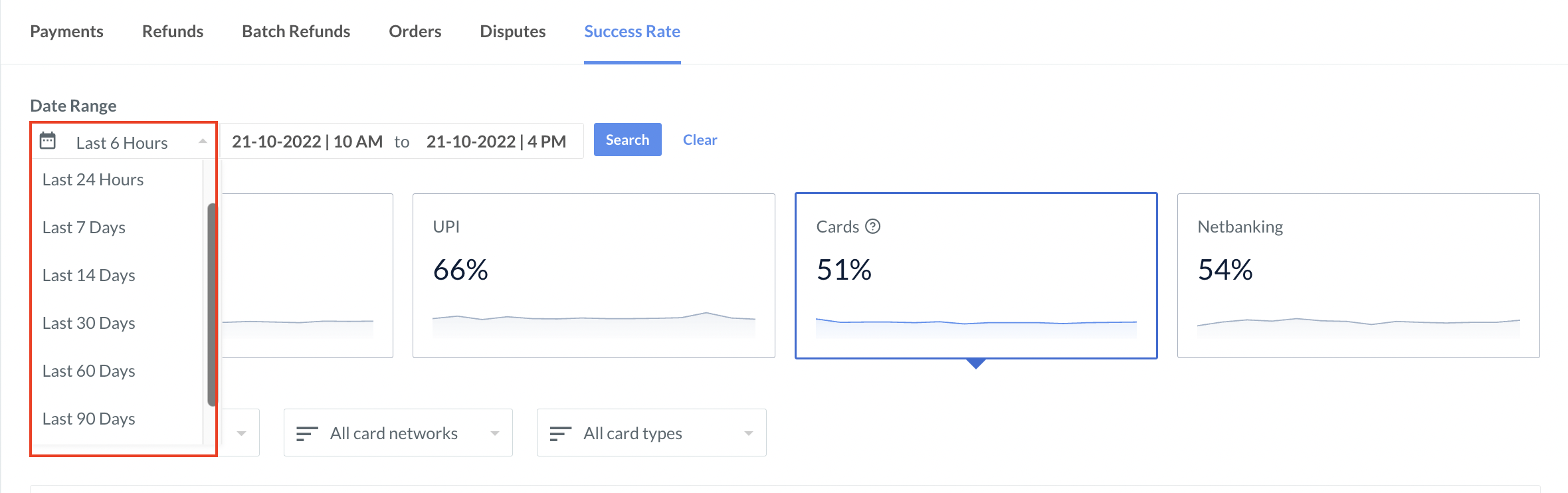
Select the date and time for which you want to perform a success rate analysis. You can use a predefined range or go for a custom range.
## Filter Options for Success Rates (SR)
You can use the following filtering options to view success rates for transactions:
Select the date and time for which you want to perform a success rate analysis. You can use a predefined range or go for a custom range.
 **Handy Tips**
* The default date range is 6 hours.
* You can select the date range upto the last 90 days.
* You can also select a specific time range as per your requirement.
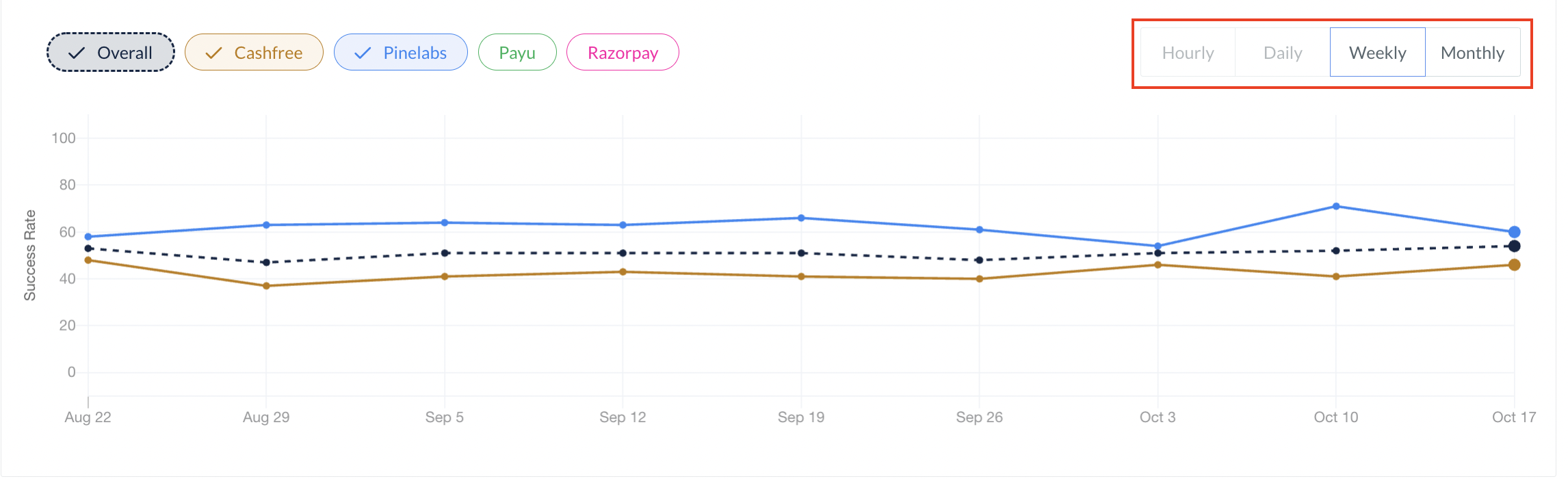
In the Success Rate Line Graph, you can also select the time frame on an hourly, daily, weekly, and monthly basis. The table below explains the availability of each time frame:
| Time Frame | Explanation |
| ---------- | ---------------------------------------------------------------------------------------------------------------- |
| Hourly | Hourly data for graphical representation is available only if the selected date range is less than 1 day. |
| Daily | Daily data for graphical representation is available only if the selected date range is between 2 and 14 days. |
| Weekly | Weekly data for graphical representation is available only if the selected date range is between 14 and 90 days. |
| Monthly | Monthly data for graphical representation is available only if the selected date range is more than 2 months. |
**Handy Tips**
* The default date range is 6 hours.
* You can select the date range upto the last 90 days.
* You can also select a specific time range as per your requirement.
In the Success Rate Line Graph, you can also select the time frame on an hourly, daily, weekly, and monthly basis. The table below explains the availability of each time frame:
| Time Frame | Explanation |
| ---------- | ---------------------------------------------------------------------------------------------------------------- |
| Hourly | Hourly data for graphical representation is available only if the selected date range is less than 1 day. |
| Daily | Daily data for graphical representation is available only if the selected date range is between 2 and 14 days. |
| Weekly | Weekly data for graphical representation is available only if the selected date range is between 14 and 90 days. |
| Monthly | Monthly data for graphical representation is available only if the selected date range is more than 2 months. |
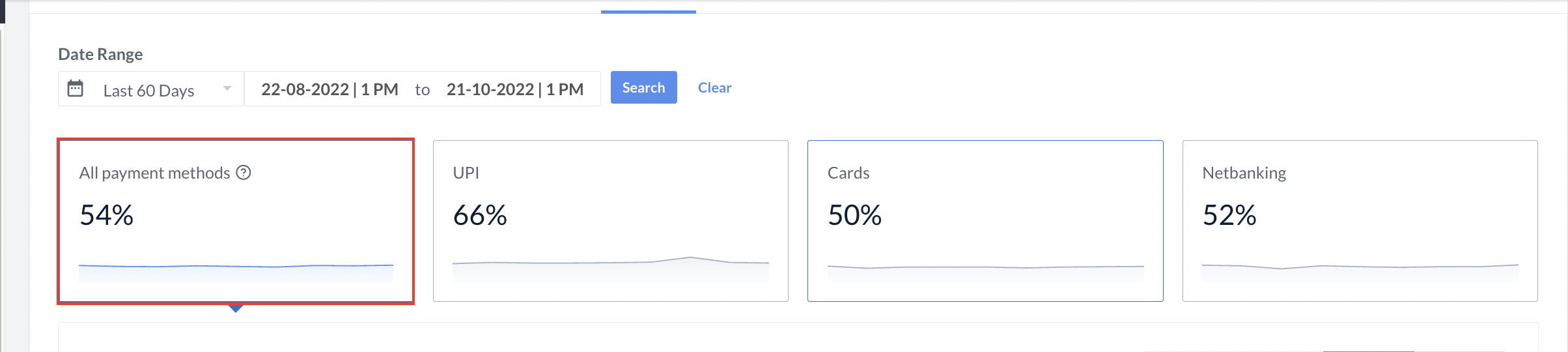
 **All Payment Methods** provide a high-level view of your transactions and recent performance at the payment method level (Cards, UPI and Netbanking).
**Usage**
* View the success rate at the **payment method** level (UPI, Cards and Netbanking).
**All Payment Methods** provide a high-level view of your transactions and recent performance at the payment method level (Cards, UPI and Netbanking).
**Usage**
* View the success rate at the **payment method** level (UPI, Cards and Netbanking).
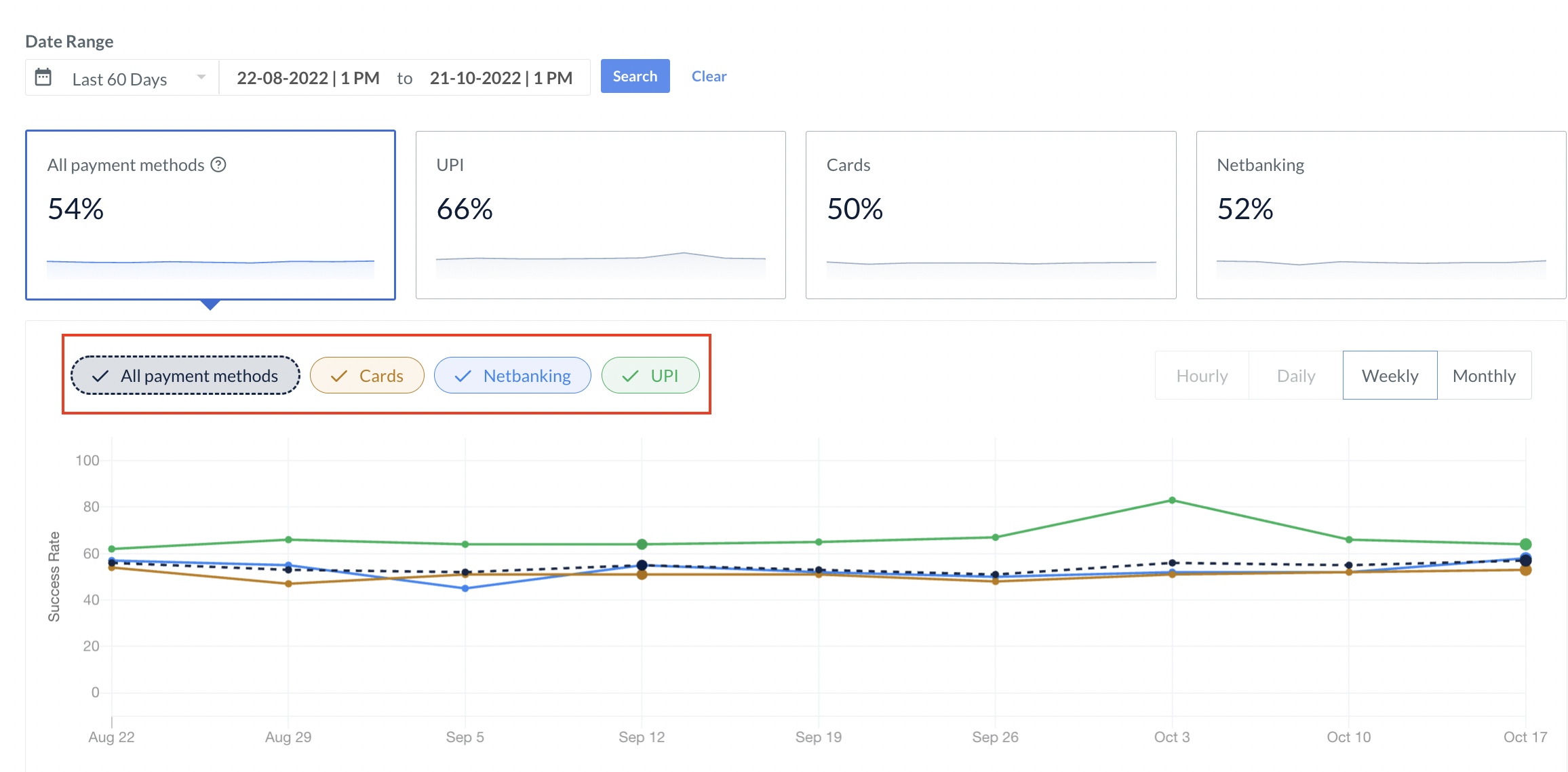
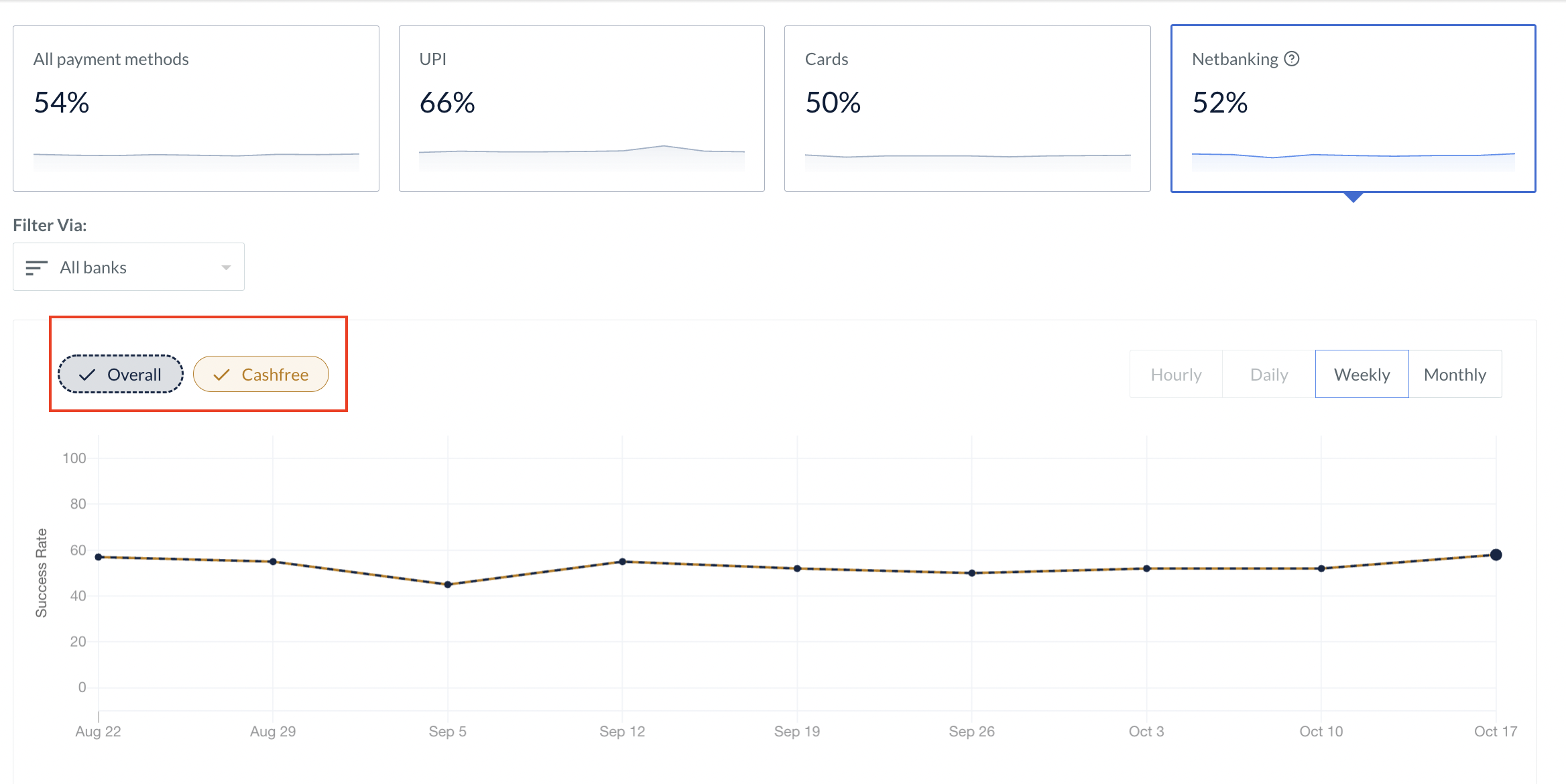
 * The line graph shows the success rate distribution on an hourly, daily, weekly and monthly basis as per your date range selection.
 **Watch Out!**
The various labels available apply only to the graphical representation.
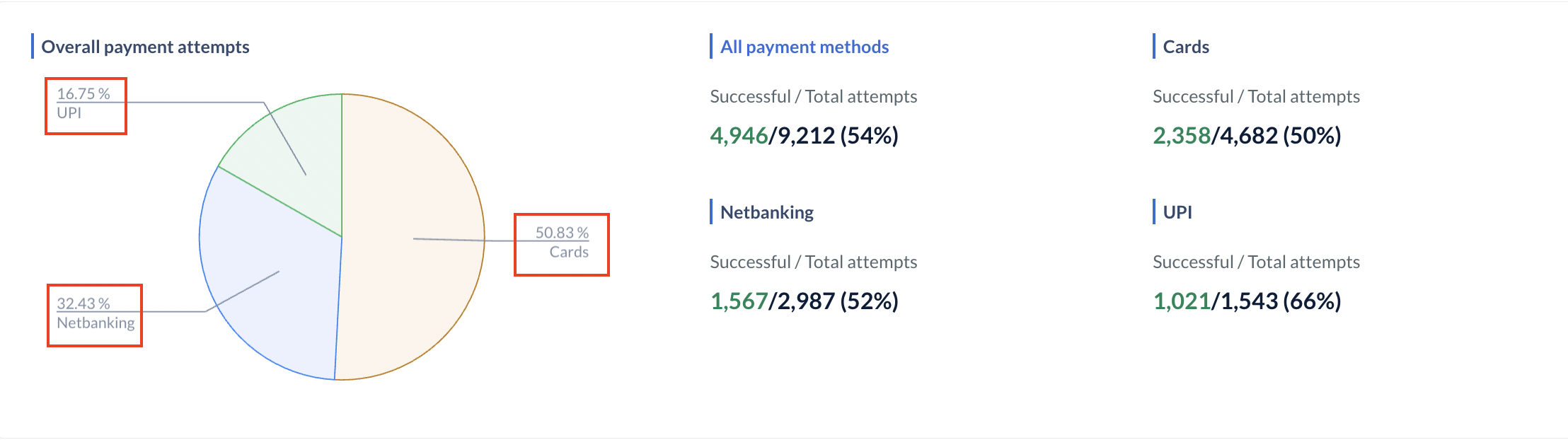
* View the payment volume distribution at the method level with the pie chart.
**Watch Out!**
The various labels available apply only to the graphical representation.
* View the payment volume distribution at the method level with the pie chart.
 * View the top failure reasons along with the breakdown. Know more about [failure reasons](#payment-failure-reasons).
 The **UPI** option provides a high-level view of all UPI transactions and recent performance for the selected date range along with the payment providers details.
**Usage**
* View the success rate of all the payment providers for UPI transactions.
The **UPI** option provides a high-level view of all UPI transactions and recent performance for the selected date range along with the payment providers details.
**Usage**
* View the success rate of all the payment providers for UPI transactions.
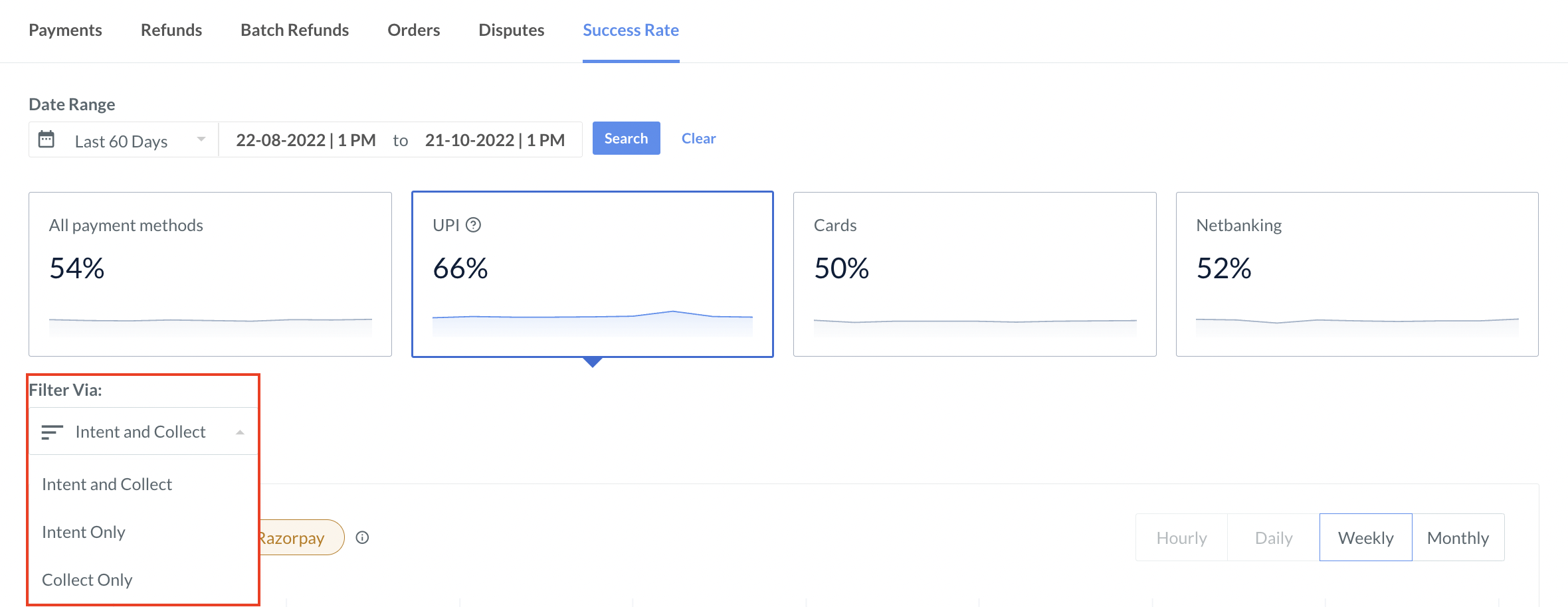
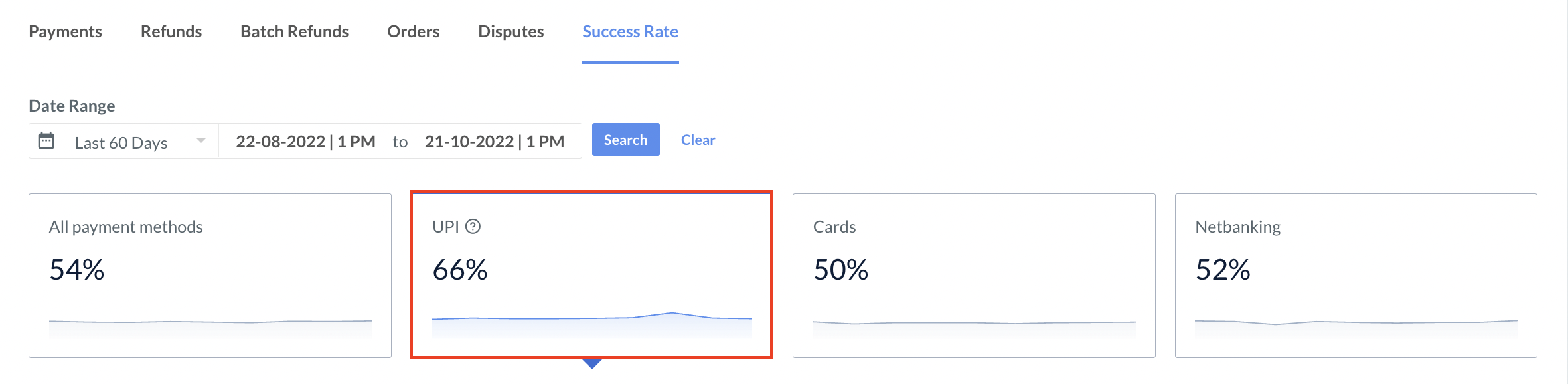 * Filter the transactions to view UPI payments received via **Intent and Collect**, **Intent Only** or **Collect Only** as per your requirement.
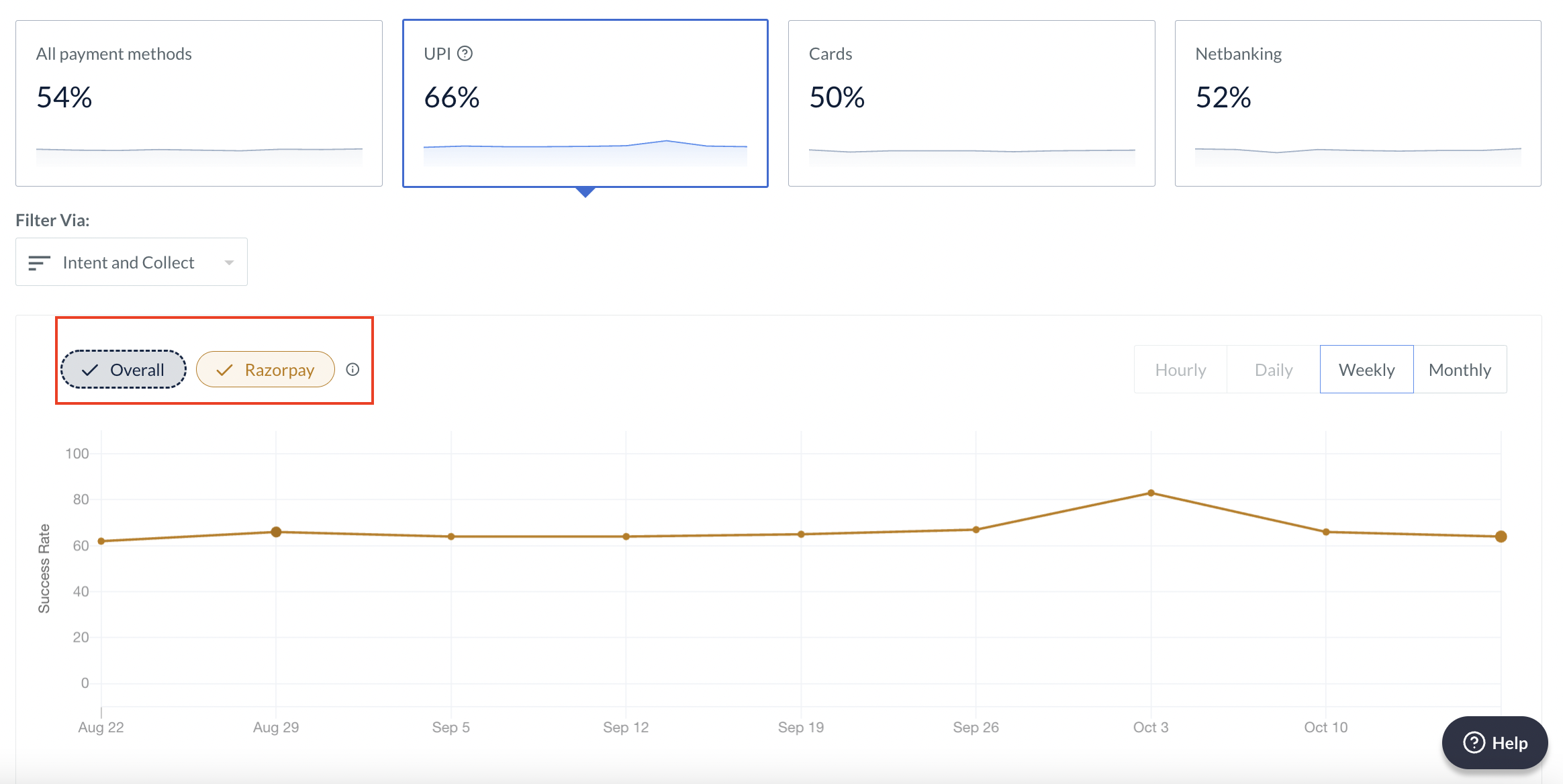
 * In the Success Rate Line Chart, select different payment providers to compare the rate at the provider level.
 **Watch Out!**
The various labels available apply only to the graphical representation.
* View the payment volume distribution of all payment providers with the pie chart.
**Watch Out!**
The various labels available apply only to the graphical representation.
* View the payment volume distribution of all payment providers with the pie chart.
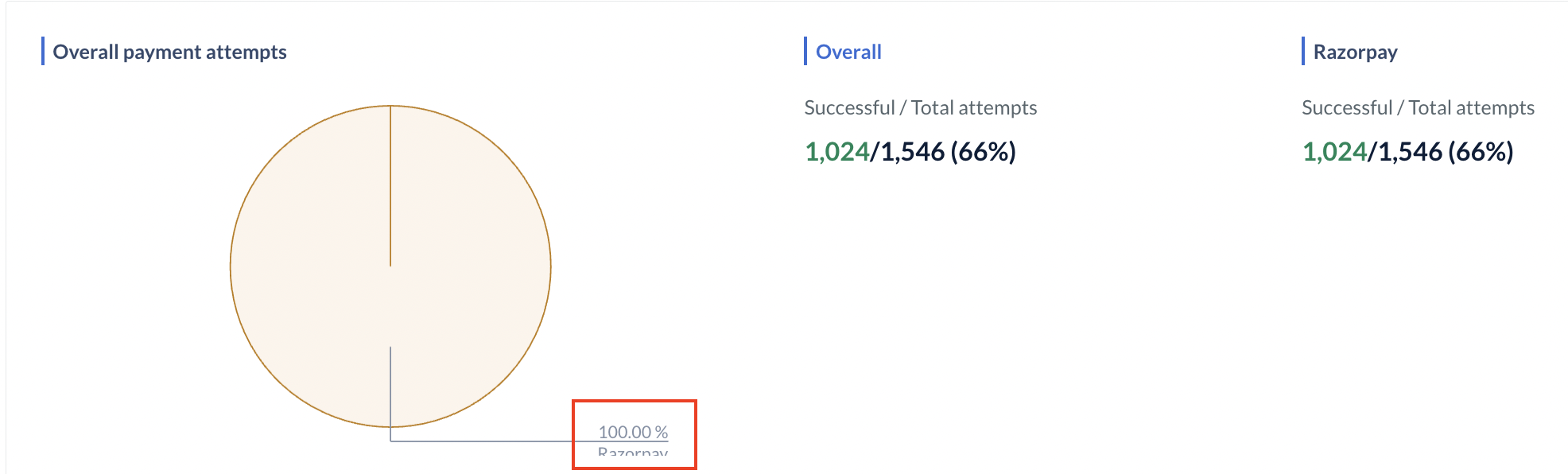 * View the top failure reasons along with the breakdown. Know more about [failure reasons](#payment-failure-reasons).
The **Cards** option provides a high-level view of all Cards transactions and recent performance along with the payment providers details for the selected date range.
**Usage**
* View the success rate of all the payment providers for Card transactions.
* View the top failure reasons along with the breakdown. Know more about [failure reasons](#payment-failure-reasons).
The **Cards** option provides a high-level view of all Cards transactions and recent performance along with the payment providers details for the selected date range.
**Usage**
* View the success rate of all the payment providers for Card transactions.
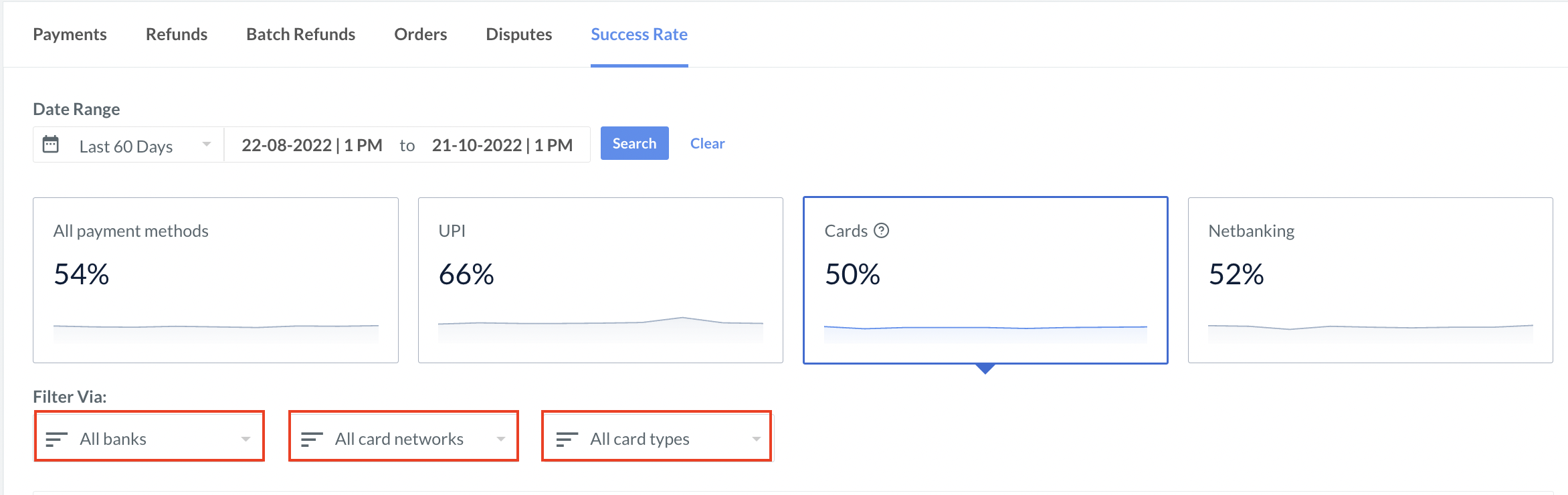
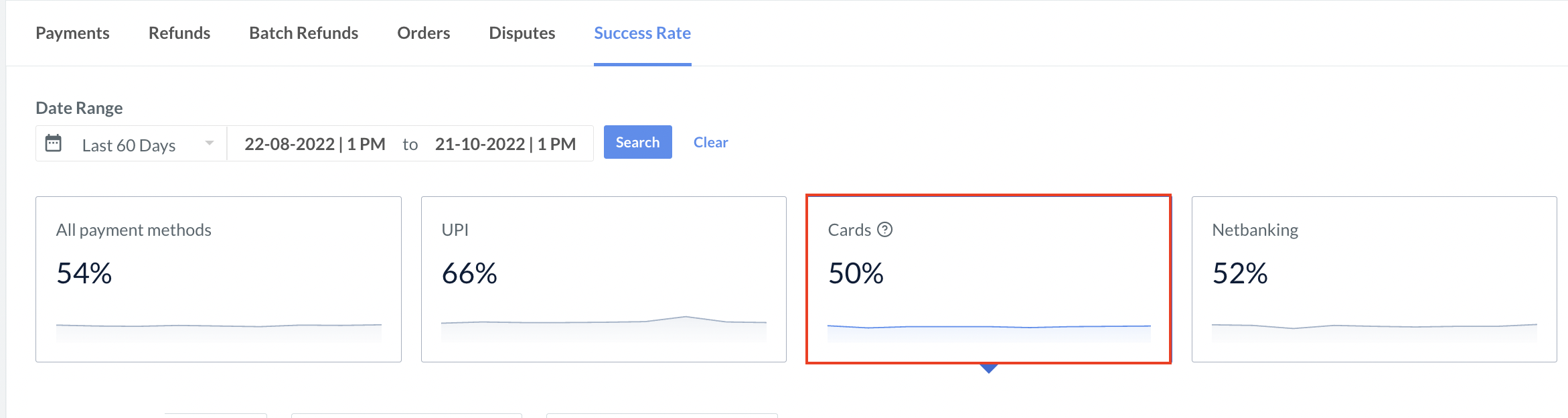 * Filter the transactions to view Cards payments received via **Card Type**, **Card Networks**, or **Banks** as per your requirement.
 * In the Success Rate Line Chart, select different payment providers to compare rate at the provider level.
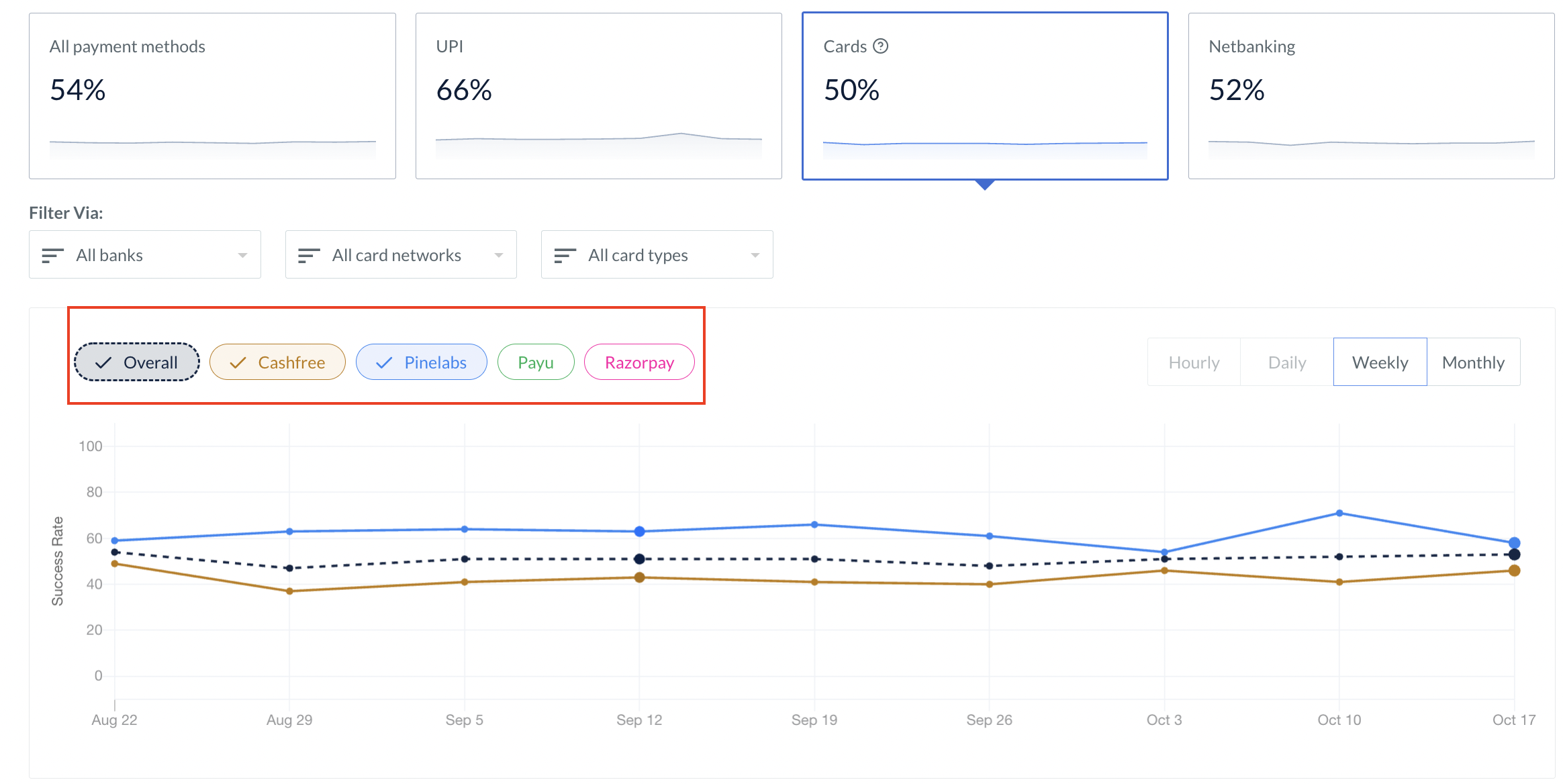 **Watch Out!**
The various labels available apply only to the graphical representation.
* View the payment volume distribution of all payment providers with the pie chart.
**Watch Out!**
The various labels available apply only to the graphical representation.
* View the payment volume distribution of all payment providers with the pie chart.
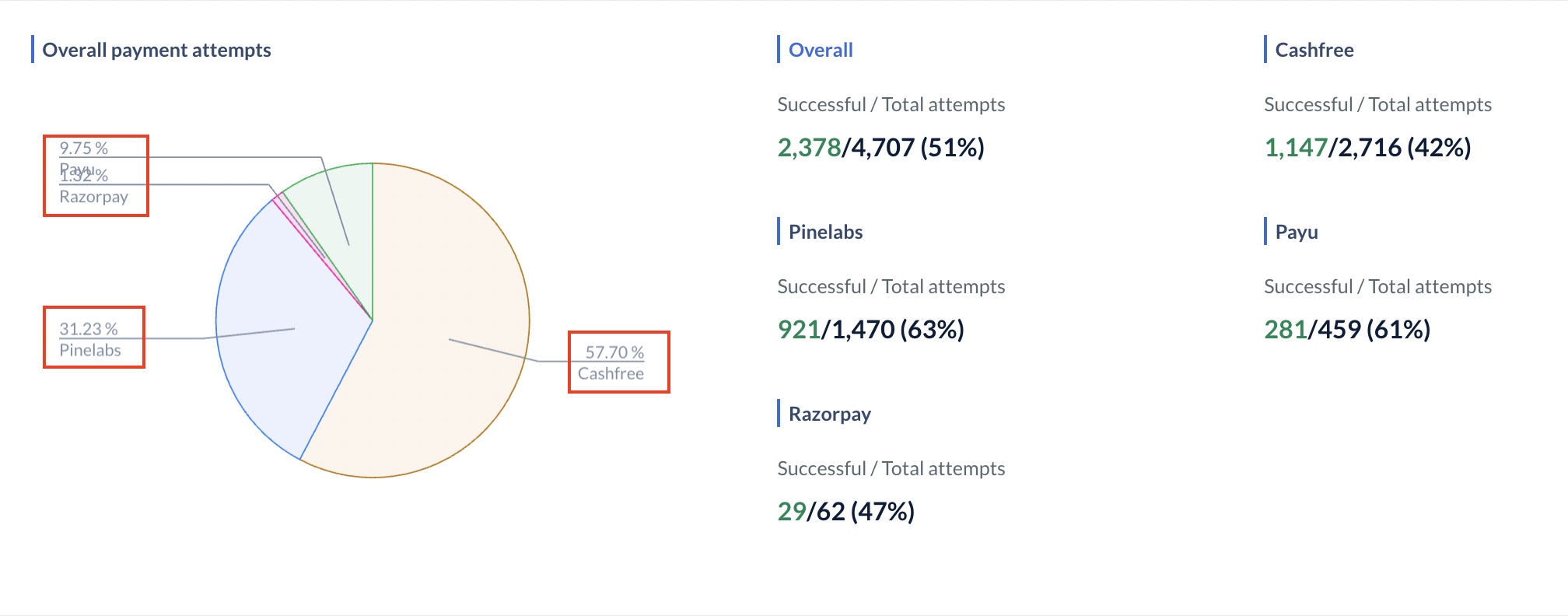 * View the top failure reasons along with the breakdown. Know more about [failure reasons](#payment-failure-reasons).
**Filters**
**Watch Out!**
The sub-filters vary based on the top transacting **card type**, **card networks** and **banks** for the selected date range.
| Filters | Sub- Filters |
| ----------------- | --------------------------------------------- |
| All Card Type | Examples: Credit, Debit, Prepaid and Others. |
| All Card Networks | Examples: Visa, Mastercard, RuPay and Others. |
| All Banks | Examples: HDFC, ICICI, Axis and Others. |
The **Netbanking** option provides a high-level view of all Netbanking transactions and recent performance along with the payment providers details.
**Usage**
* View the success rate of all the payment providers for Netbanking transactions.
* View the top failure reasons along with the breakdown. Know more about [failure reasons](#payment-failure-reasons).
**Filters**
**Watch Out!**
The sub-filters vary based on the top transacting **card type**, **card networks** and **banks** for the selected date range.
| Filters | Sub- Filters |
| ----------------- | --------------------------------------------- |
| All Card Type | Examples: Credit, Debit, Prepaid and Others. |
| All Card Networks | Examples: Visa, Mastercard, RuPay and Others. |
| All Banks | Examples: HDFC, ICICI, Axis and Others. |
The **Netbanking** option provides a high-level view of all Netbanking transactions and recent performance along with the payment providers details.
**Usage**
* View the success rate of all the payment providers for Netbanking transactions.
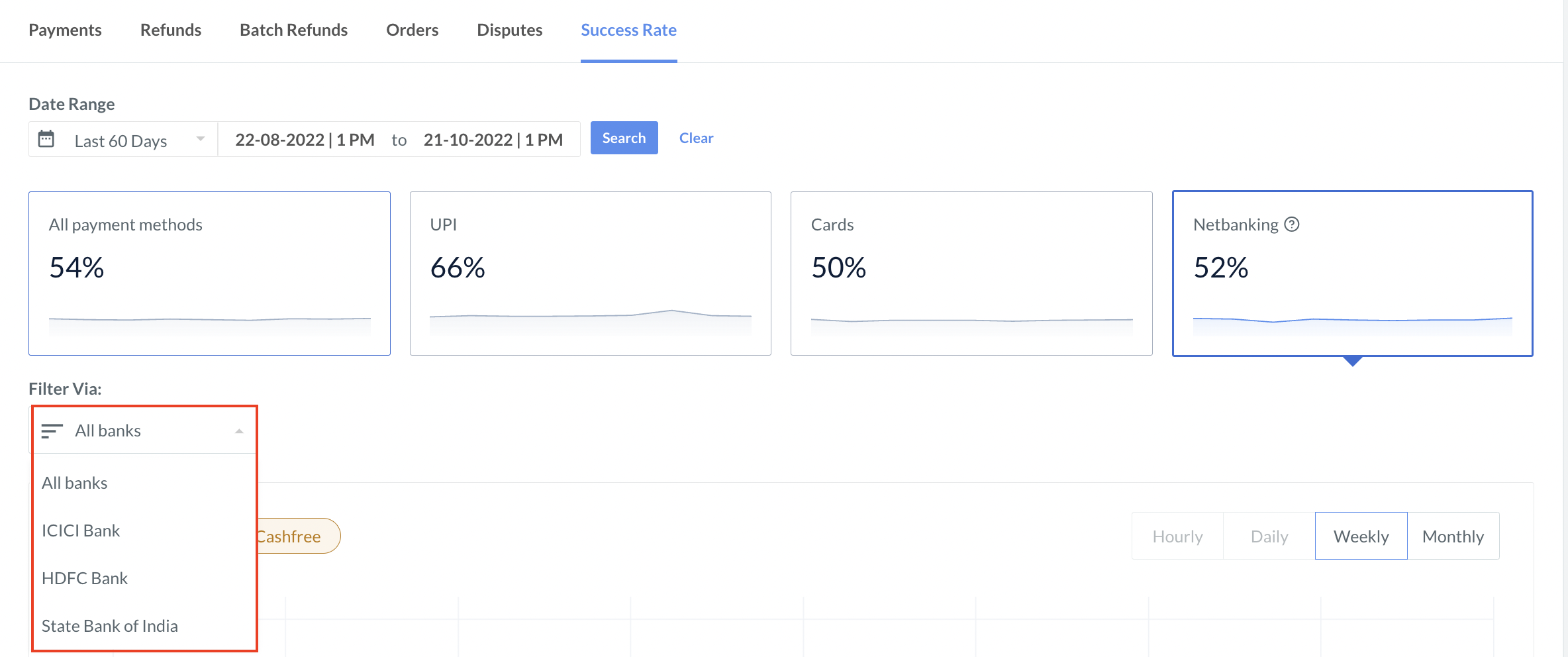
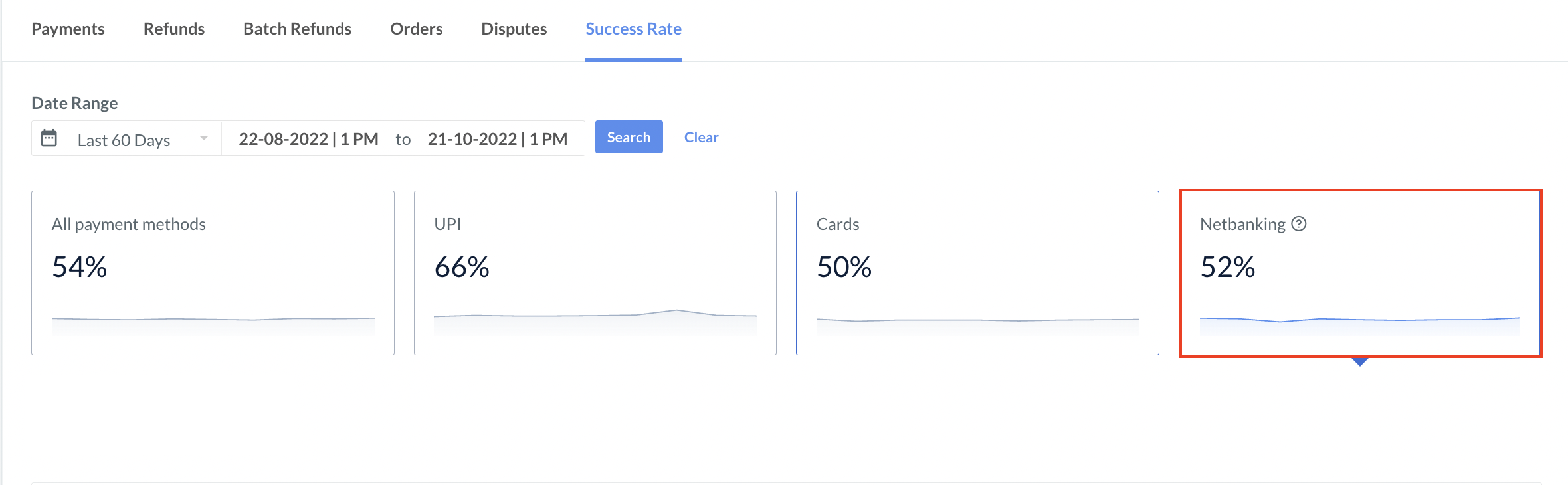 * Filter the transactions to view Netbanking payments received via **All Banks**, or any of the top transacting banks available as per your requirement.
 * In the Success Rate Line Chart, select different payment providers to compare rate at the provider level.
 **Watch Out!**
The various labels available apply only to the graphical representation.
* View the payment volume distribution of all payment providers with the pie chart.
**Watch Out!**
The various labels available apply only to the graphical representation.
* View the payment volume distribution of all payment providers with the pie chart.
 * View the top failure reasons along with the breakdown. Know more about [failure reasons](#payment-failure-reasons).
## Payment Failure Reasons
| Failure Reason | Explanation |
| ---------------- | -------------------------------------------------------------------------------------------------------------------------------- |
| Customer Related | Customer related failures occur from the customers side. For example: customer cancellations, incorrect CVV, insufficient funds. |
| Banking Related | Banking related failures occur due to issues at at customer's bank, UPI Apps, external gateways. |
| Business Related | Business related failures occur due to issues at business side like non-activation of payment methods, international payments. |
| Others | Other failures include errors due to fraud detection or internal provider issues. |
### Related Information
* [Add Payment Providers](/docs/payments/optimizer/add-payment-providers)
* [Single Reconciliation View](/docs/payments/optimizer/reconciliation)
* [Roles and Permissions](/docs/payments/optimizer/roles-and-permissions)
* [Tokenisation for Optimizer](/docs/payments/optimizer/tokenisation)
* [Supported Gateways and Aggregators](/docs/payments/optimizer/supported-gateways-aggregators)
* View the top failure reasons along with the breakdown. Know more about [failure reasons](#payment-failure-reasons).
## Payment Failure Reasons
| Failure Reason | Explanation |
| ---------------- | -------------------------------------------------------------------------------------------------------------------------------- |
| Customer Related | Customer related failures occur from the customers side. For example: customer cancellations, incorrect CVV, insufficient funds. |
| Banking Related | Banking related failures occur due to issues at at customer's bank, UPI Apps, external gateways. |
| Business Related | Business related failures occur due to issues at business side like non-activation of payment methods, international payments. |
| Others | Other failures include errors due to fraud detection or internal provider issues. |
### Related Information
* [Add Payment Providers](/docs/payments/optimizer/add-payment-providers)
* [Single Reconciliation View](/docs/payments/optimizer/reconciliation)
* [Roles and Permissions](/docs/payments/optimizer/roles-and-permissions)
* [Tokenisation for Optimizer](/docs/payments/optimizer/tokenisation)
* [Supported Gateways and Aggregators](/docs/payments/optimizer/supported-gateways-aggregators)