 ## Edit Default Rule
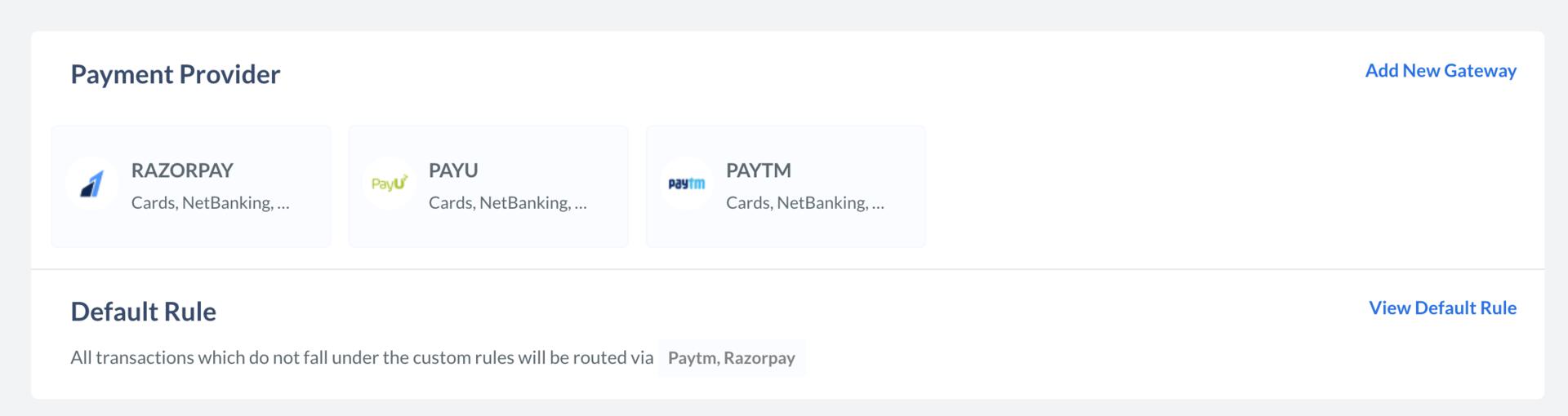
To edit the default rule:
1. Click **View Default Rule**.
2. In the side pane, click **Edit Rule**.
## Edit Default Rule
To edit the default rule:
1. Click **View Default Rule**.
2. In the side pane, click **Edit Rule**.
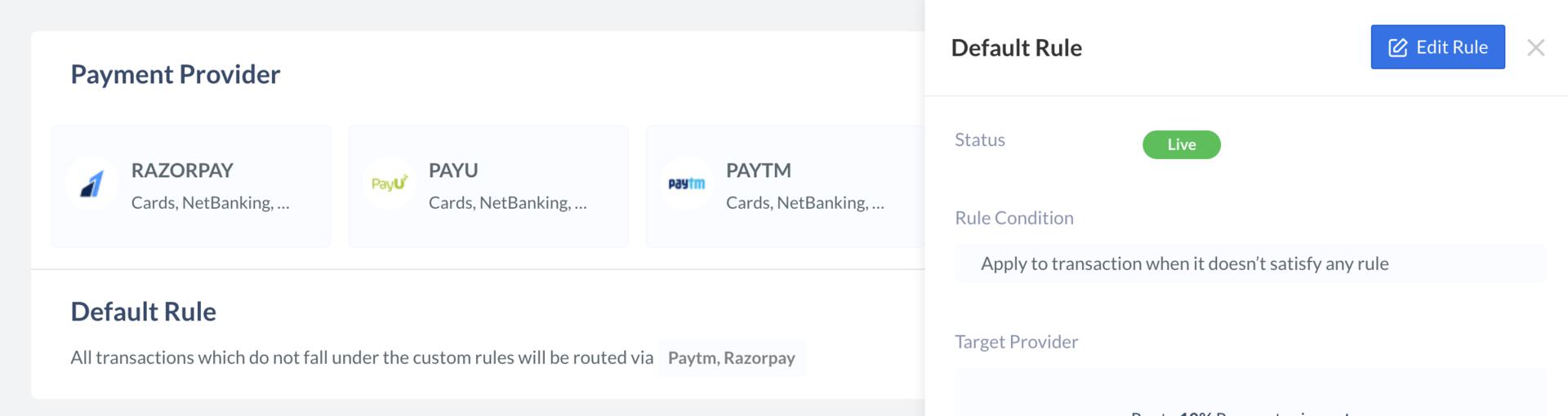 3. The rule details appear. Click **Edit Target Provider**.
4. Update the priority. Let us assume you want to ensure that 80% of transactions are routed through Razorpay and 20% through payment gateway ABC. To do this:
1. Enter `80` in the **Route** field and select `Razorpay` against the **payment via** field.
2. Click **Add Another Provider**.
3. In the new row, enter `20` in the **Route** field and select `ABC` against the **payment via** field.
3. The rule details appear. Click **Edit Target Provider**.
4. Update the priority. Let us assume you want to ensure that 80% of transactions are routed through Razorpay and 20% through payment gateway ABC. To do this:
1. Enter `80` in the **Route** field and select `Razorpay` against the **payment via** field.
2. Click **Add Another Provider**.
3. In the new row, enter `20` in the **Route** field and select `ABC` against the **payment via** field.
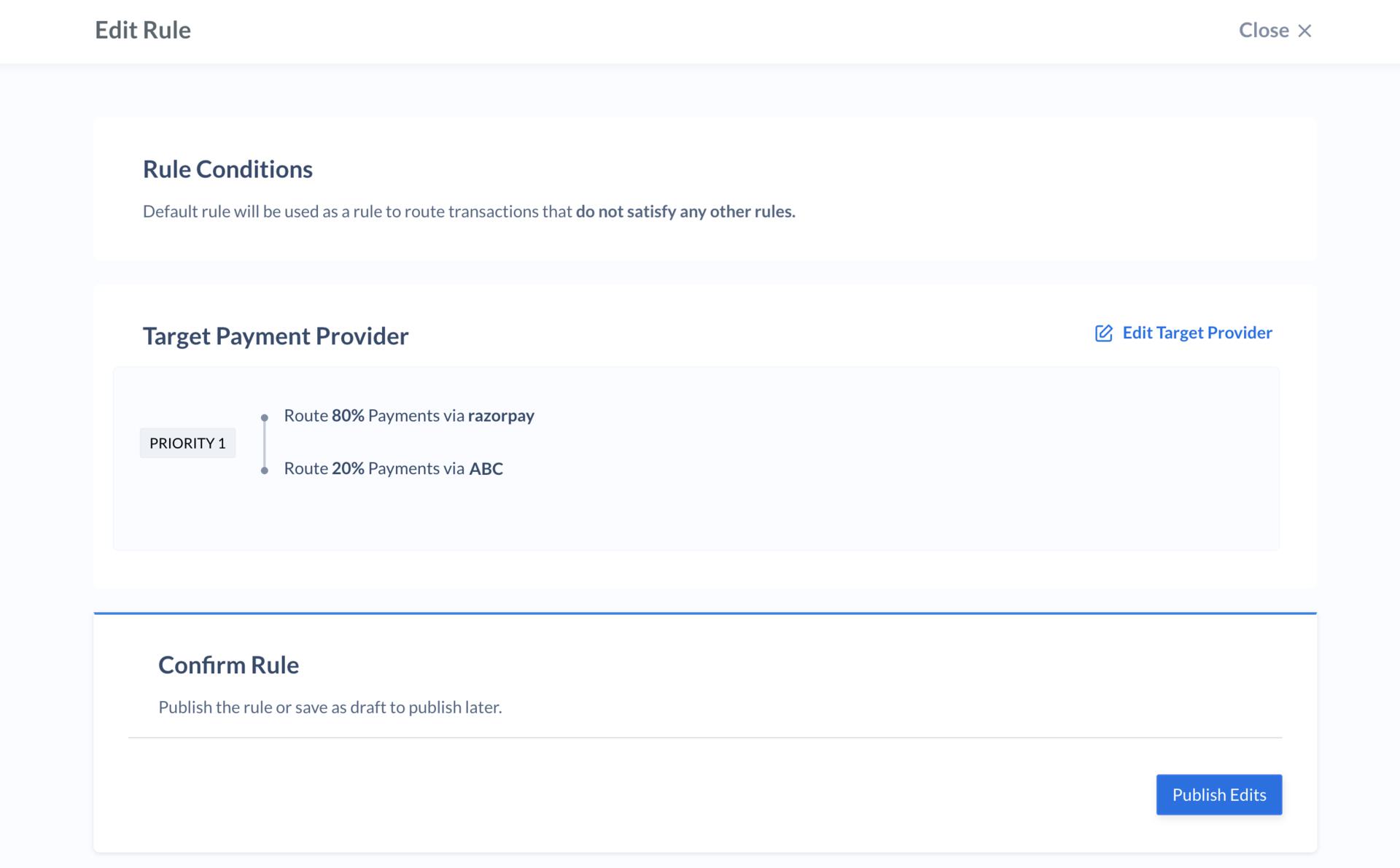 4. Click **Next**.
5. Click **Publish Edits**.
6. Click **Yes, Publish** to confirm the change.
### Related Information
* [Add Payment Providers](/docs/payments/optimizer/add-payment-providers)
* [Manage Rules](/docs/payments/optimizer/manage-rules)
4. Click **Next**.
5. Click **Publish Edits**.
6. Click **Yes, Publish** to confirm the change.
### Related Information
* [Add Payment Providers](/docs/payments/optimizer/add-payment-providers)
* [Manage Rules](/docs/payments/optimizer/manage-rules)