> ## Documentation Index
> Fetch the complete documentation index at: https://razorpay-881012b3.mintlify.site/llms.txt
> Use this file to discover all available pages before exploring further.

# Wallet Auto-Debit

> Pay instantly using wallet auto-debit with a single click.

<div style={{display:"flex",flexWrap:"wrap",alignItems:"center",gap:"0.35rem 0.9rem",border:"1px solid rgba(128,128,128,0.28)",borderRadius:"0.5rem",padding:"0.45rem 0.75rem",margin:"0 0 1.25rem",fontSize:"0.875rem"}}>
  <span style={{fontWeight:600}}>Available in</span>
  <span>🇮🇳 India</span>
</div>

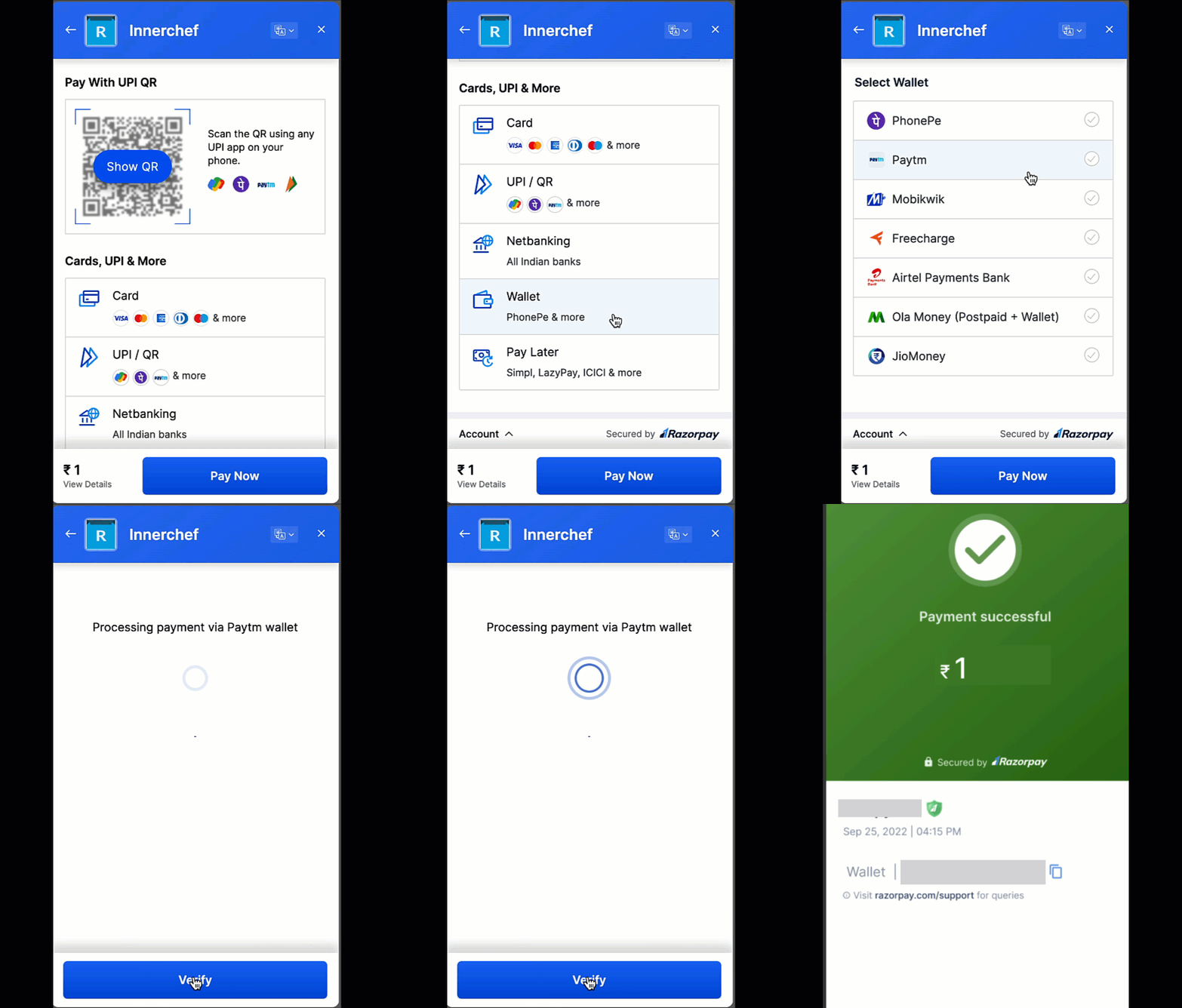
Wallet Auto-Debit streamlines the payment process and significantly boosts success rates, delivering an exceptional payment experience to your customers. The customers can complete wallet transactions with unparalleled speed and simplicity.

<img src="https://razorpay.com/docs/build/browser/assets/images/optimizer-one-click-sufficient-balance.jpg" class="click-zoom" alt="select Paytm one click pay final" width="350" />

<Warning>
  **Watch Out!**

  Razorpay supports wallet auto-debit only for **Paytm**.
</Warning>

## Prerequisites

1. You need to have an active Razorpay account with Optimizer enabled.
2. You need to have an active Paytm PG account.
3. Write to your Razorpay Relationship Manager to enable Wallet Auto-Debit feature on your Optimizer account.
4. Write to your Paytm Relationship Manager to enable the Paytm wallet auto debit feature and provide the client key and secret.

<Info>
  **Handy Tips**

  The Paytm auto-debit feature is supported on Razorpay Standard Checkout.
</Info>

## Add Paytm as a Payment Provider

1. Log in to your Dashboard.
2. Go to the **PAYMENT PRODUCTS** section and click **Optimizer**.
3. In the top-right section, click **Add Provider**.
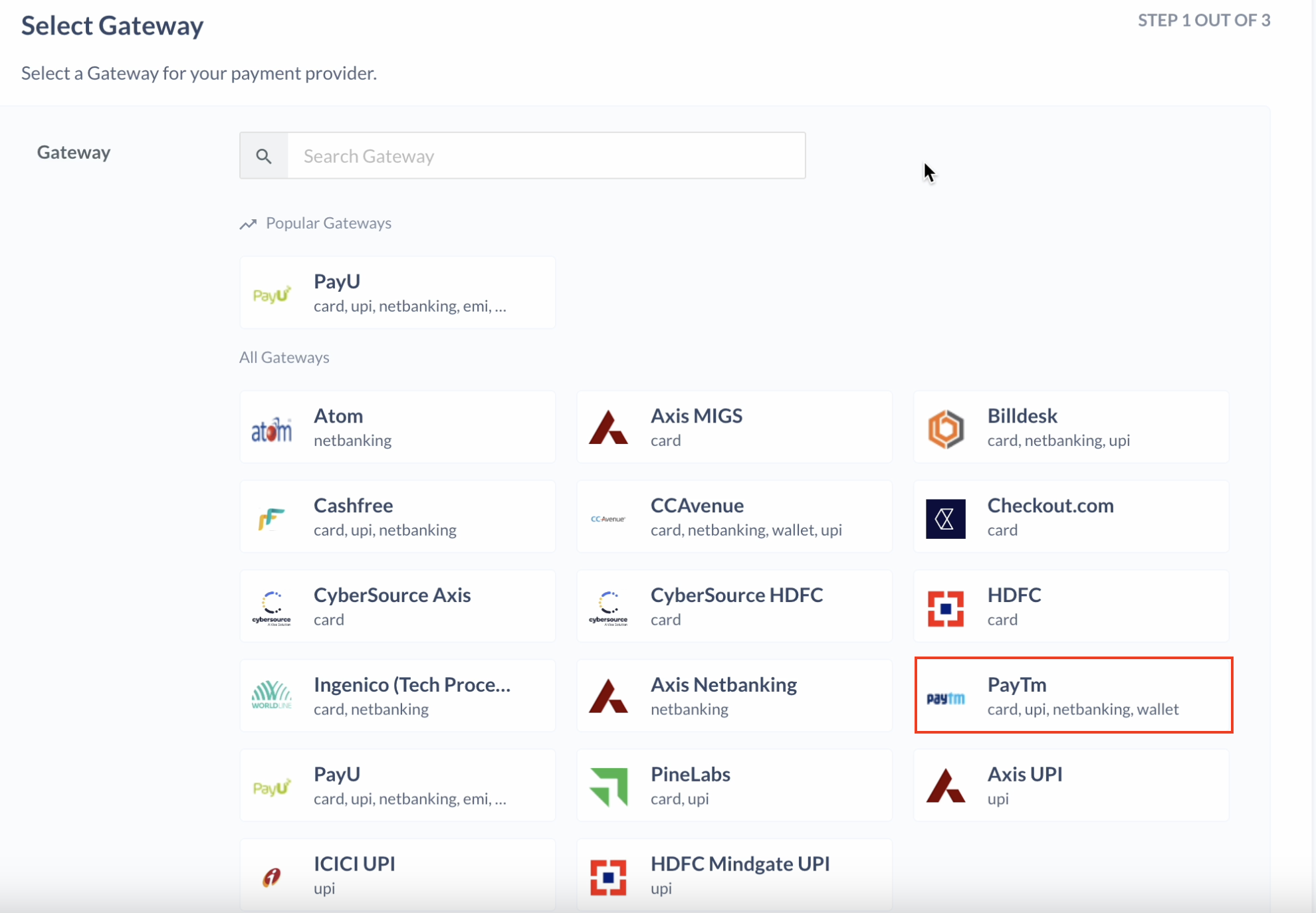
4. Select **PayTm** in the list of gateways available and click **Next**.
   <img src="https://razorpay.com/docs/build/browser/assets/images/optimizer-one-click-paytm-add.jpg" class="click-zoom" alt="Add Paytm one click pay" width="700" />
5. Select **Server-to-Server** and click **Next**.
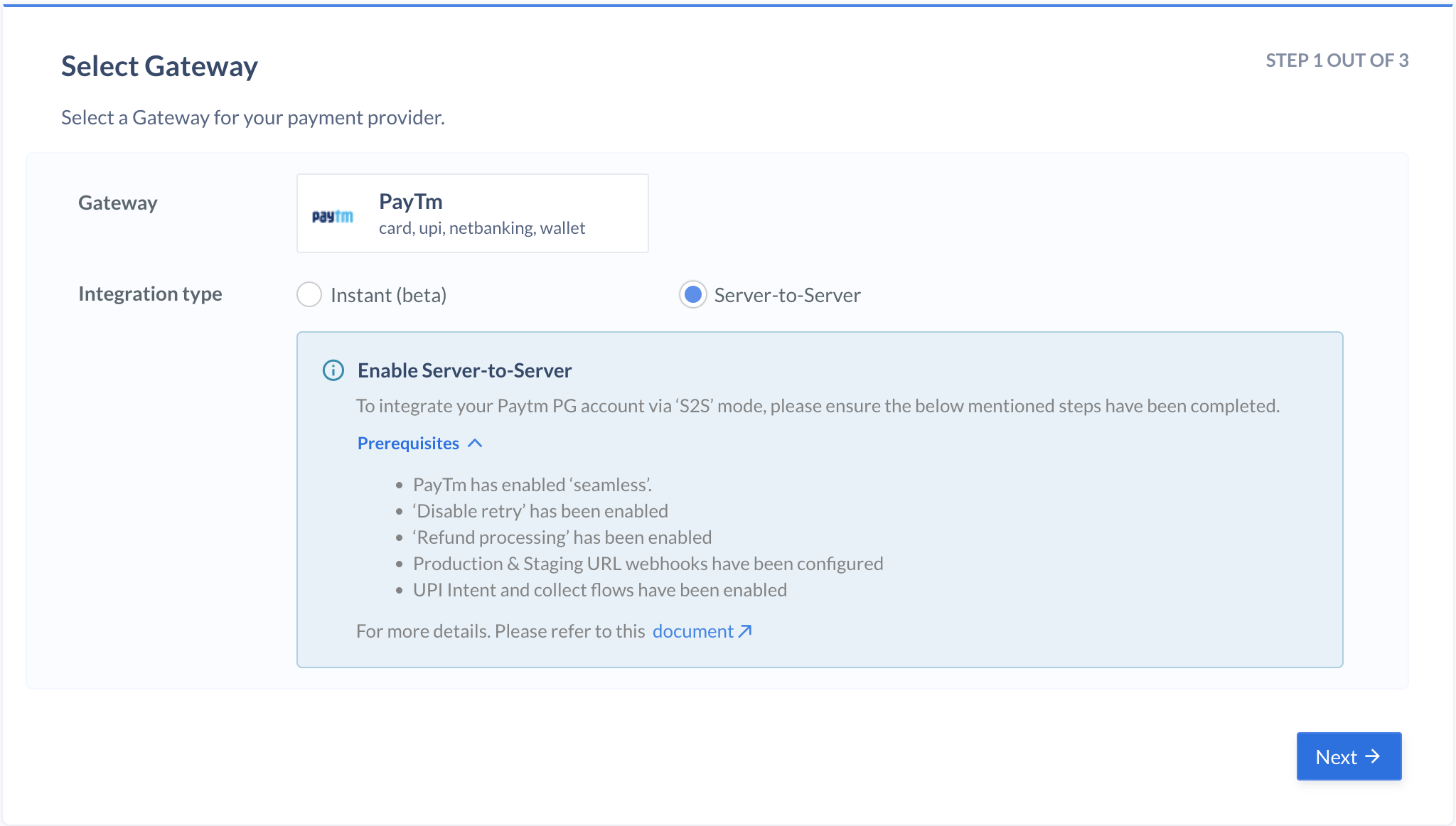
   <img src="https://razorpay.com/docs/build/browser/assets/images/optimizer-paytm-select-s2s.jpg" alt="Select Paytm server-to-server" width="800" />
6. Enter the provider name and description and click **Next**.
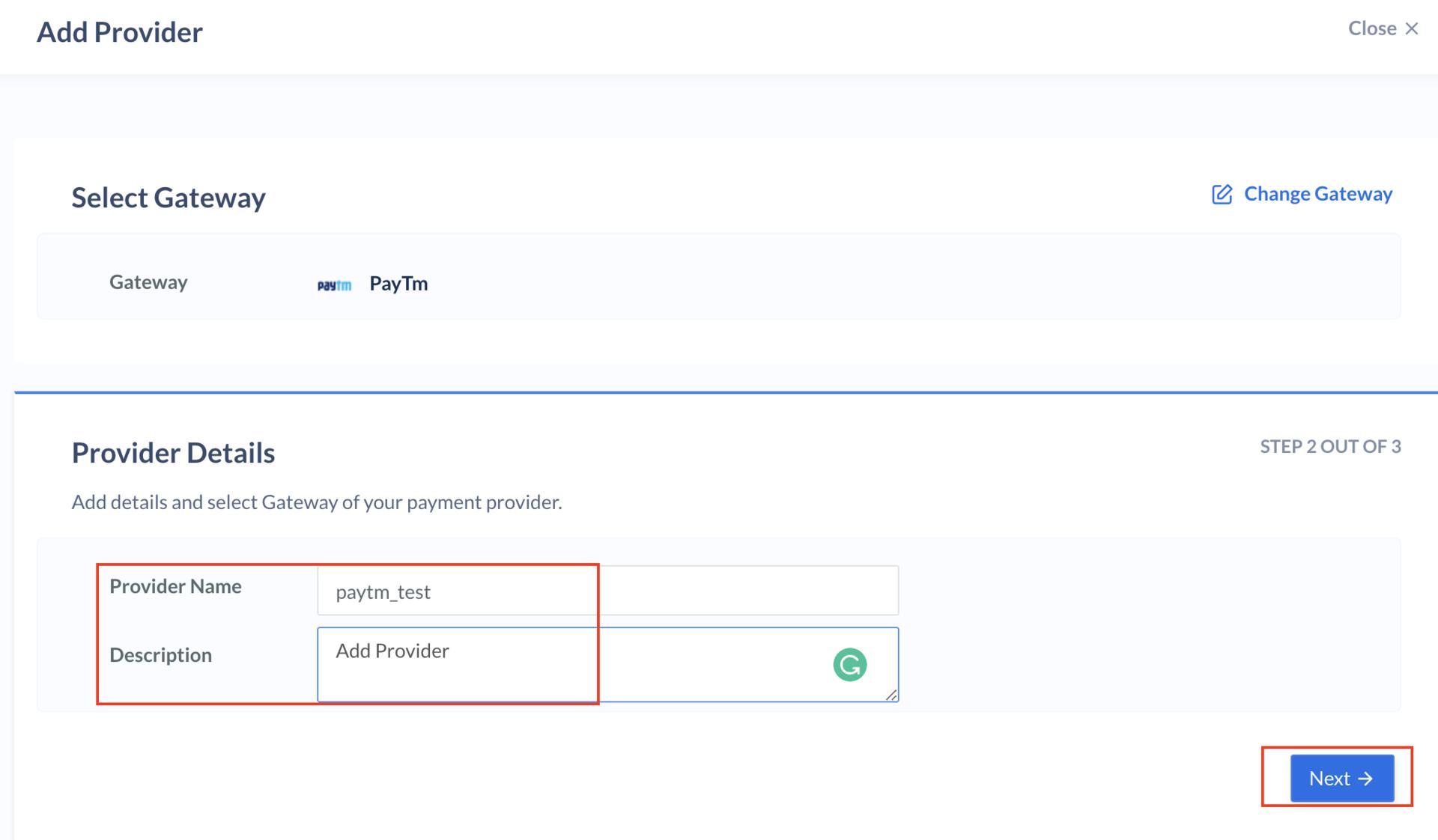
   <img src="https://razorpay.com/docs/build/browser/assets/images/optimizer-paytm-add-provider.jpg" class="click-zoom" alt="Add Paytm provider details" width="700" />
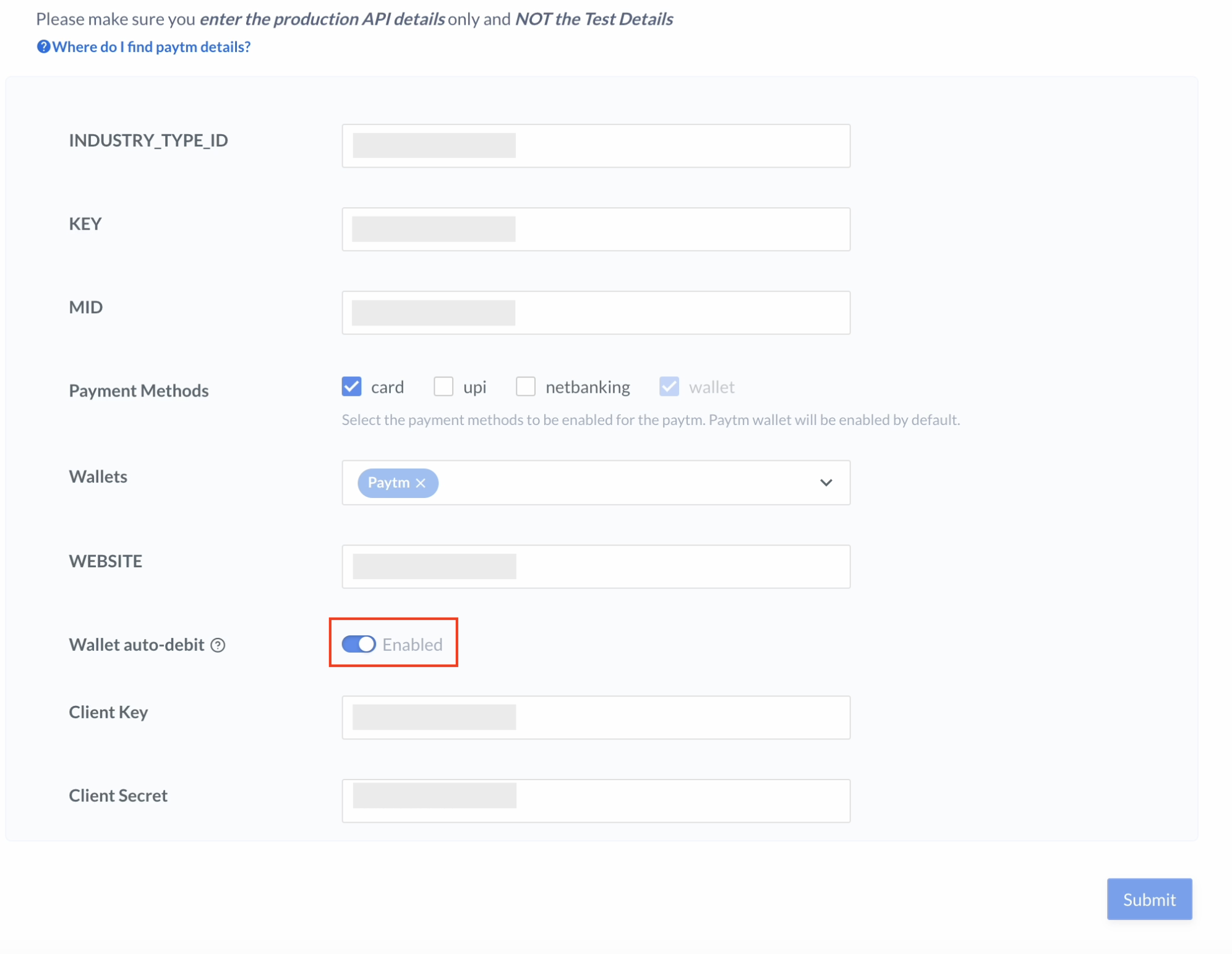
7. Enter your **INDUSTRY\_TYPE\_ID**, **KEY**, **MID** (merchant ID) and **WEBSITE** details.
8. Enable the **Wallet auto-debit** button, enter your **Client Key and Secret** and click **Submit**.
   <img src="https://razorpay.com/docs/build/browser/assets/images/optimizer-one-click-paytm-add-final.jpg" class="click-zoom" alt="Add Paytm one click pay final" width="700" />

## Razorpay Wallet Auto-Debit (Customer Flow)

Below is a complete end-to-end flow about how Razorpay Wallet Auto-Debit works:

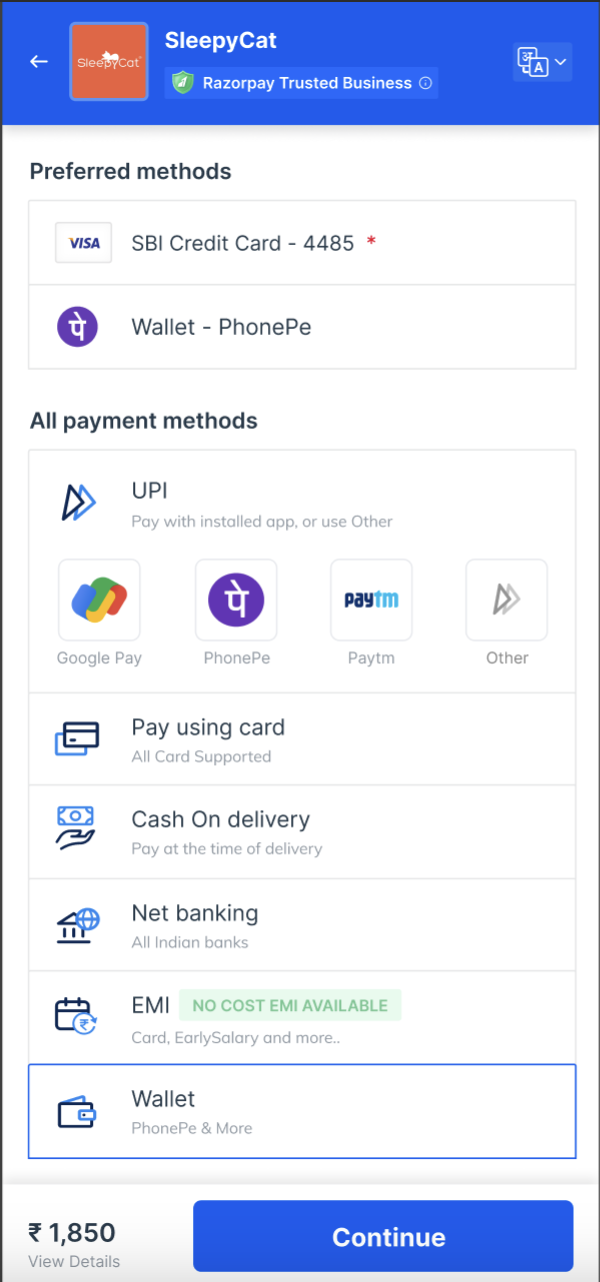
1. The customer clicks Pay Now on your website and is redirected to the Razorpay Standard Checkout.
   <img src="https://razorpay.com/docs/build/browser/assets/images/optimizer-one-click-paytm-pay-now.jpg" class="click-zoom" alt="pay now standard checkout screen" width="350" />

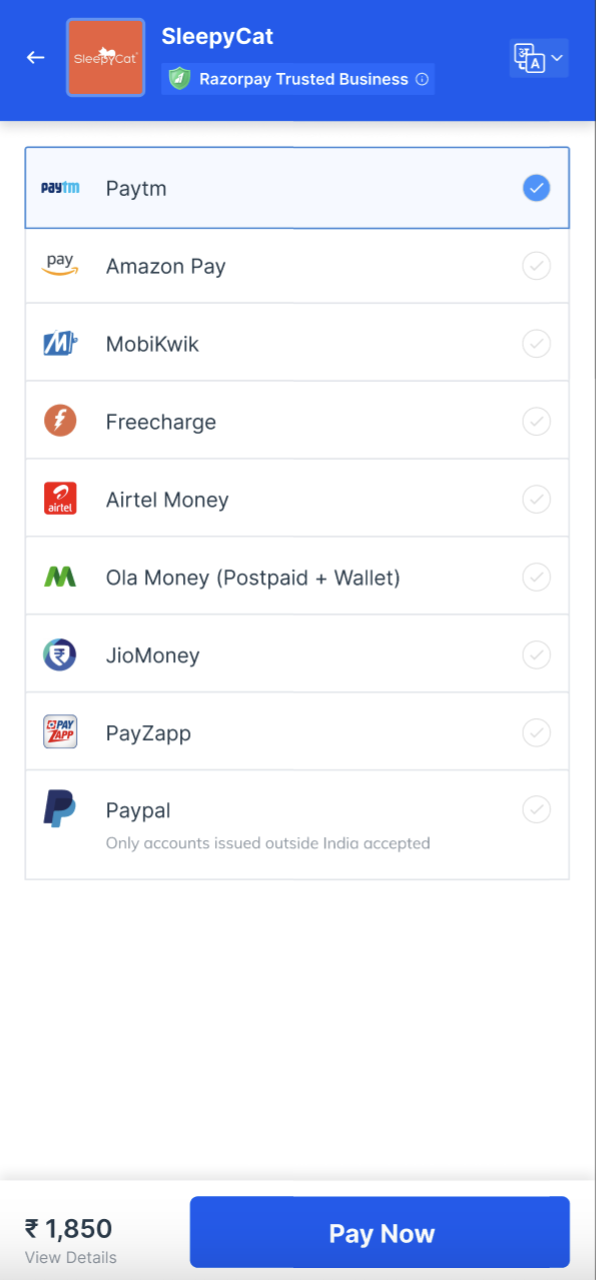
2. The customer selects **Wallet** and **Paytm**.
   <img src="https://razorpay.com/docs/build/browser/assets/images/optimizer-one-click-paytm-wallet.jpg" class="click-zoom" alt="select Paytm one click pay final" width="350" />

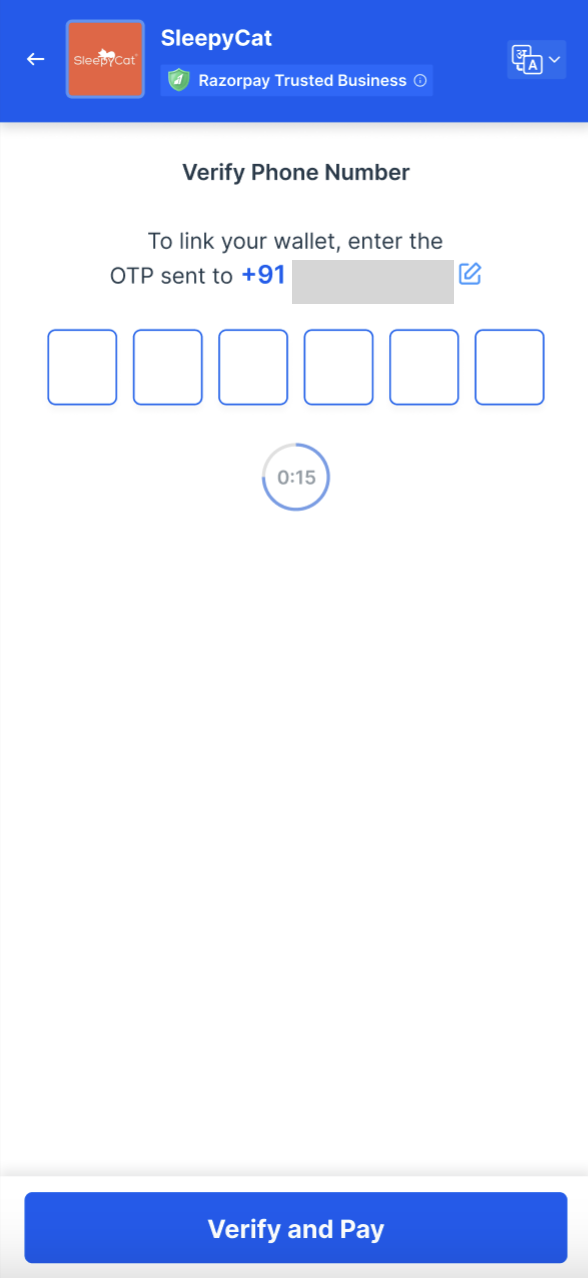
   * If the customer is a first-time user, they will be asked to enter the mobile number and the OTP to link their wallet and complete the payment.
     <img src="https://razorpay.com/docs/build/browser/assets/images/optimizer-one-click-first-user.jpg" class="click-zoom" alt="select Paytm one click pay final" width="350" />
   * If the customer has sufficient balance in their wallet, they can pay directly with a single click.
     <img src="https://razorpay.com/docs/build/browser/assets/images/optimizer-one-click-sufficient-balance.jpg" class="click-zoom" alt="select Paytm one click pay final" width="350" />
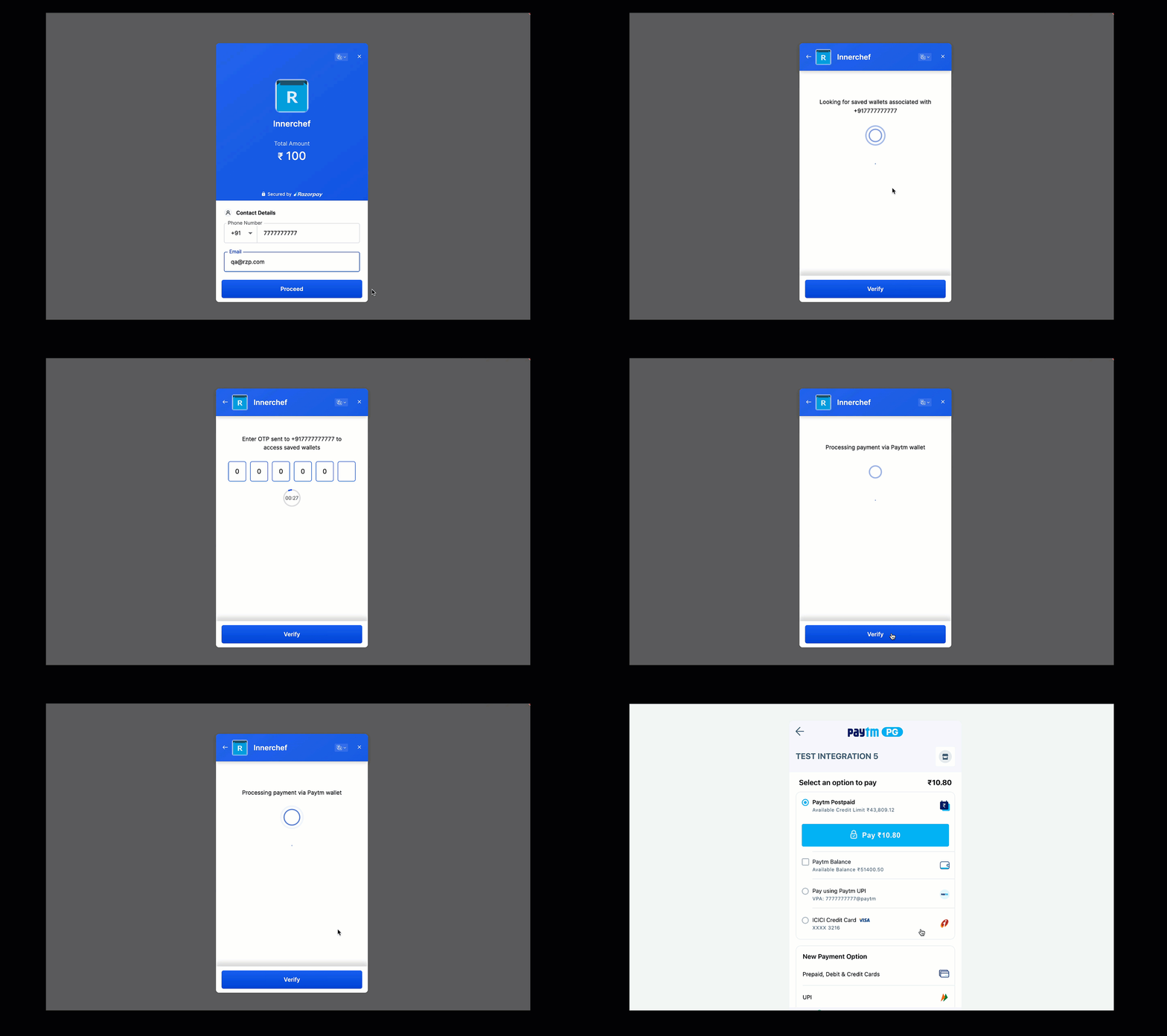
   * If the customer does not have sufficient balance in their wallet, they will be redirected to a Paytm page where they can add money to their balance and complete the payment.
     <img src="https://razorpay.com/docs/build/browser/assets/images/optimizer-one-click-insufficient-balance.gif" class="click-zoom" alt="select Paytm one click pay final" width="700" />
