> ## Documentation Index
> Fetch the complete documentation index at: https://razorpay-881012b3.mintlify.site/llms.txt
> Use this file to discover all available pages before exploring further.

# View Details and Download Report

> View details and download the report of payments received for a specific Subscriptions Button.

<div style={{display:"flex",flexWrap:"wrap",alignItems:"center",gap:"0.35rem 0.9rem",border:"1px solid rgba(128,128,128,0.28)",borderRadius:"0.5rem",padding:"0.45rem 0.75rem",margin:"0 0 1.25rem",fontSize:"0.875rem"}}>
  <span style={{fontWeight:600}}>Available in</span>
  <span>🇮🇳 India</span>
</div>

After an active Subscription button accepts payments, view its subscriptions and one-time payment details on the Dashboard → **Payment Button** → **Subscription Buttons** tab.

## View Subscription Button Details

You can view Subscription button details in three ways:

<Tabs>
  <Tab title="Hover over the Link">
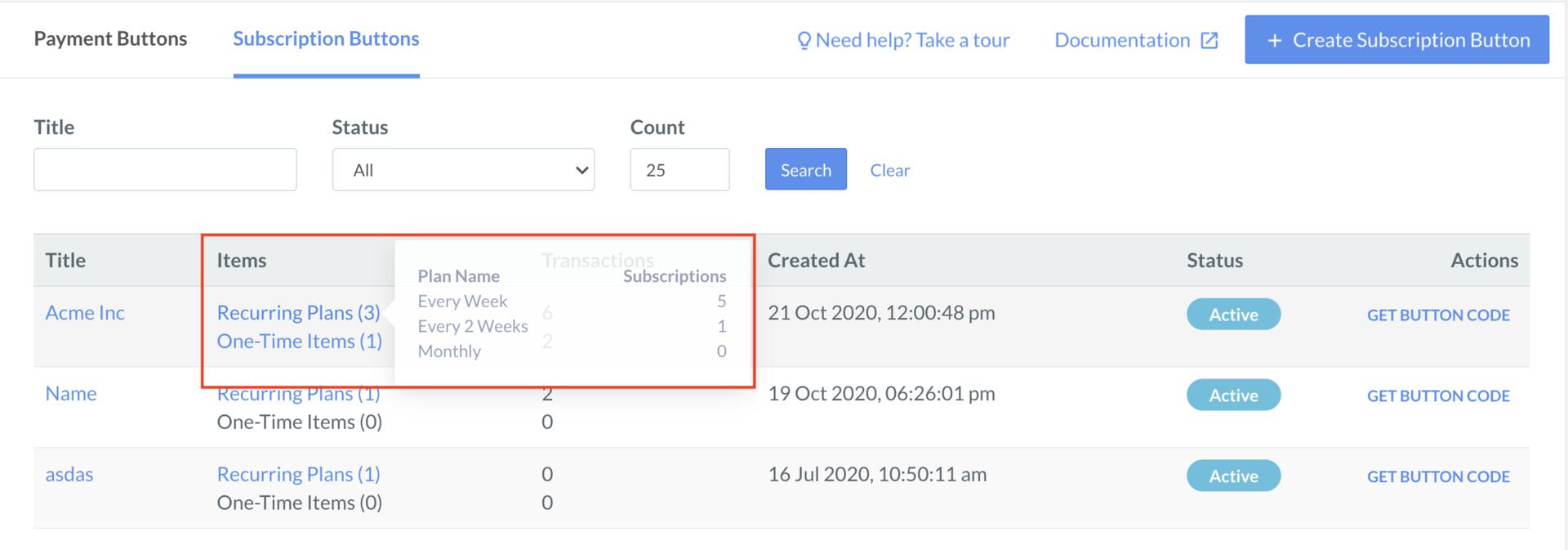
    Under the **Subscription Buttons** tab, view the overall details related to Recurring Plans and One-Time Items.

    * **Recurring Plans:** Hover the mouse pointer on **Recurring-Plans** and find the **Plan Name** and Number of **Subscriptions** against each plan.
    * **One-Time Items:** Hover the mouse pointer on the **One-Time Items** and find the **Item Name** and **Units Sold**.

    <img src="https://razorpay.com/docs/build/browser/assets/images/payment-button-subscription-button-rp-no.jpg" width="700" click="zoom" />
  </Tab>

  <Tab title="Click on the Button">
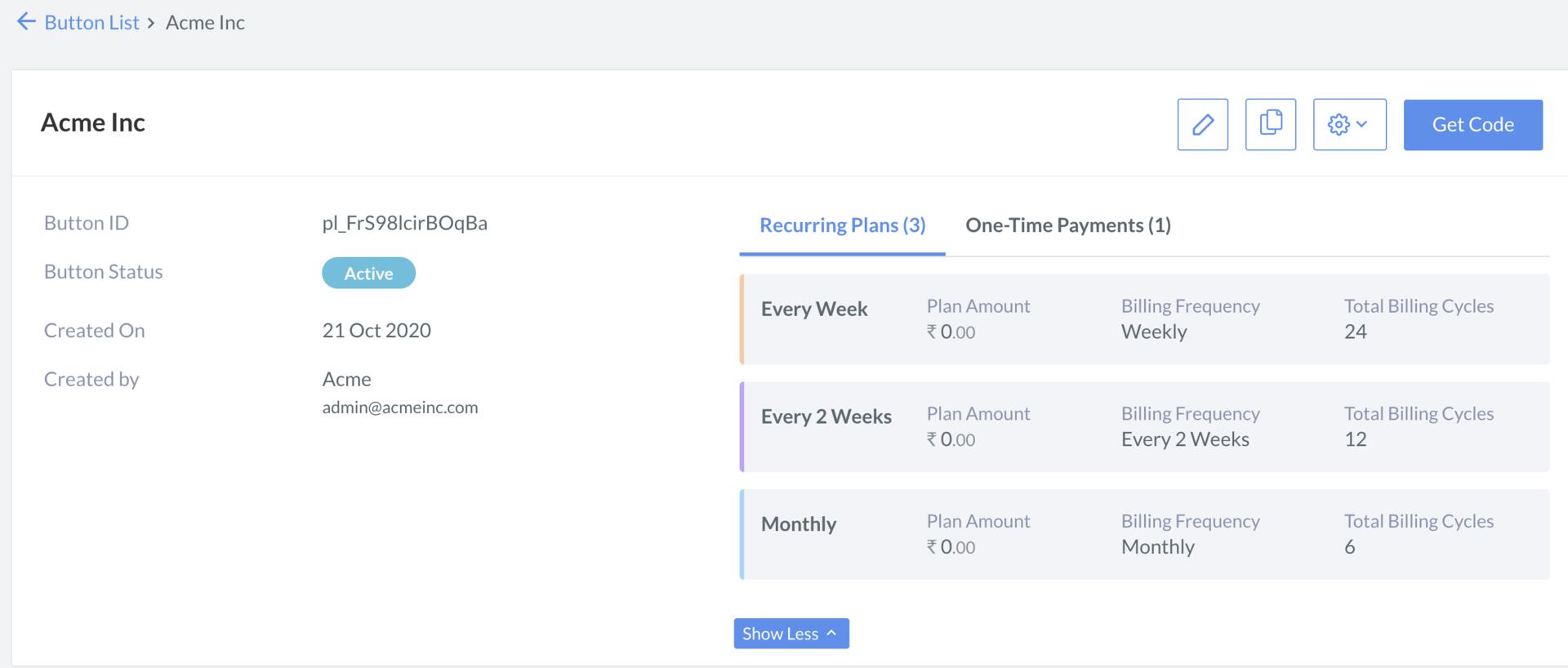
    Under the **Subscription Buttons** tab, click on the subscription button under the **Title** column. The button details screen appears.

    * Click **Subscription Plans** to view plan details.
          <img src="https://razorpay.com/docs/build/browser/assets/images/payment-button-subscription-button-view-rp.jpg" width="700" />
    * Click **One-Time Payments** to view one-time payments.
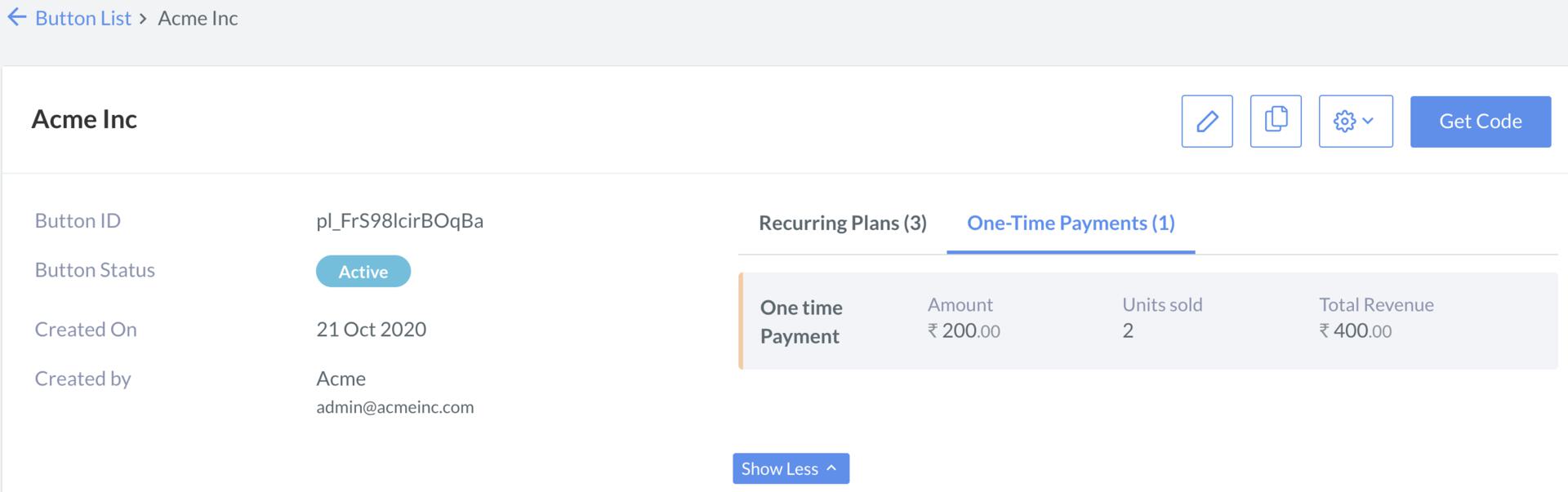
          <img src="https://razorpay.com/docs/build/browser/assets/images/payment-button-subscription-button-view-otp.jpg" width="700" />
  </Tab>

  <Tab title="Click on the Tabs">
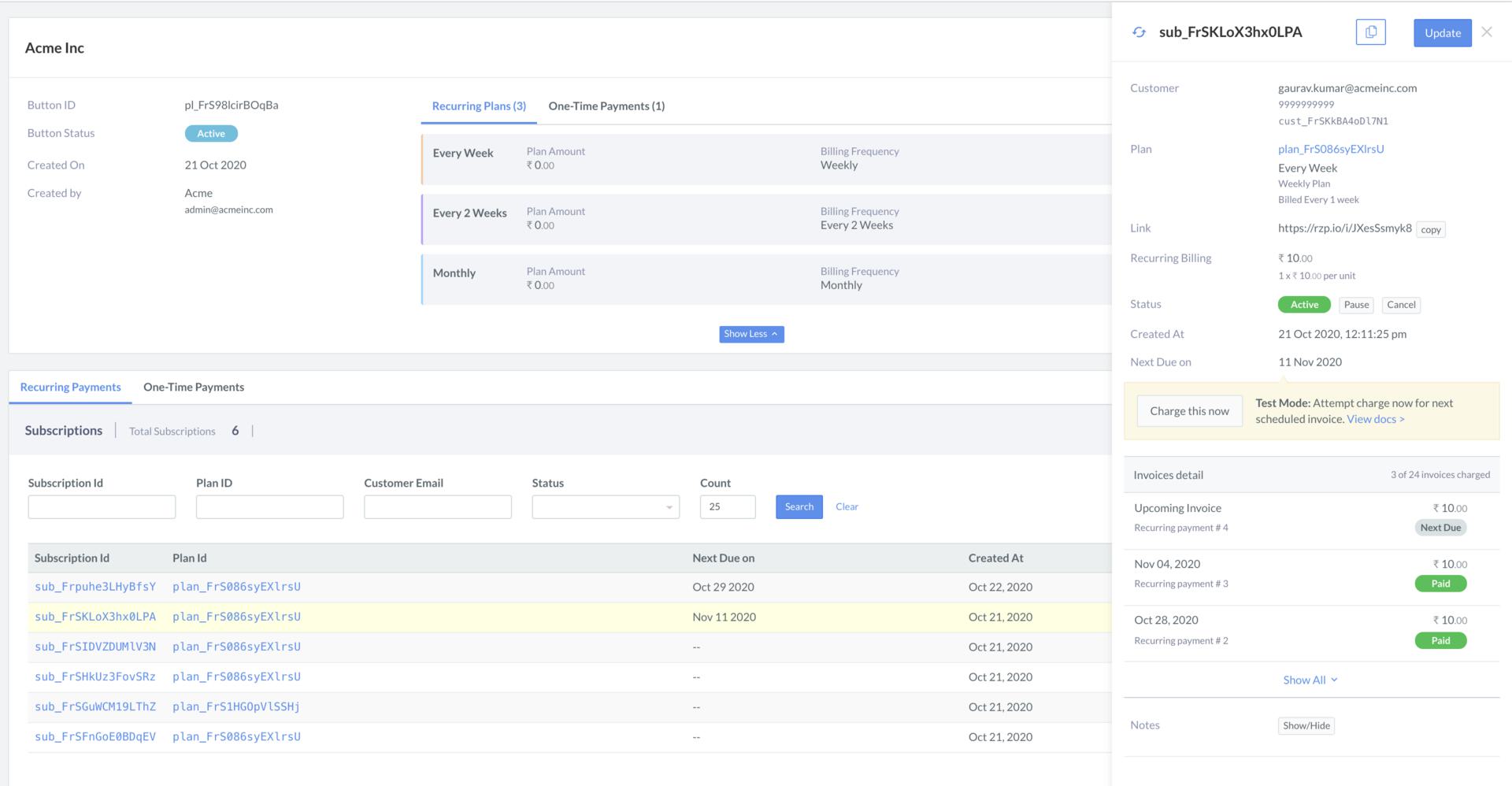
    You can view the complete details of a subscription payment or one-time payment made for a subscription. Scroll to the payments overview tabs.

    * View Subscription Payments: To view a Subscription, under the **Subscription Payments** tab, click Subscription Id.
          <img src="https://razorpay.com/docs/build/browser/assets/images/payment-button-subscription-button-sub-id.jpg" width="700" />
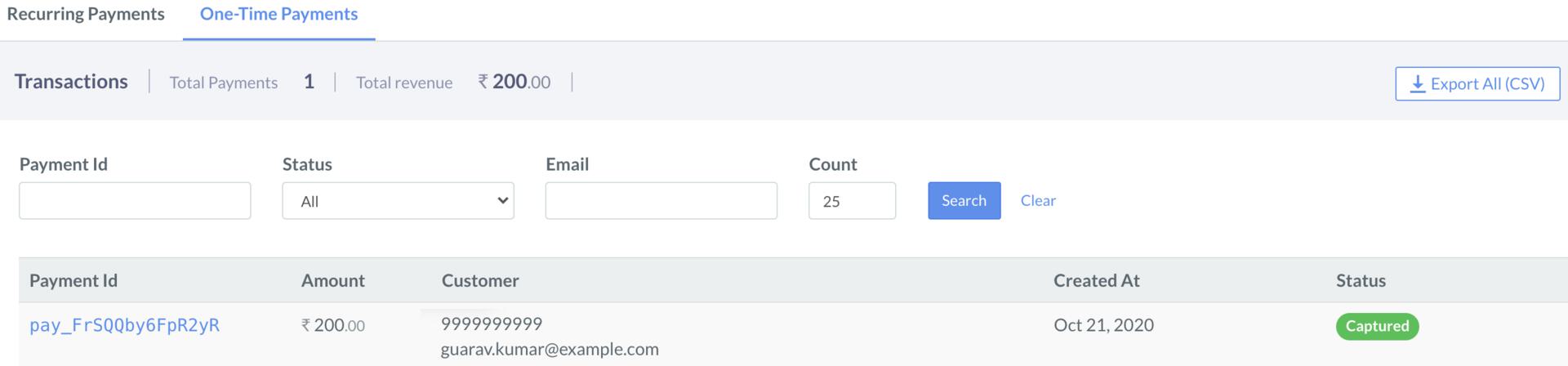
    * View One-time Payments: To view One-Time Payments, click **One-Time Payments** tab, and then click Payment Id.
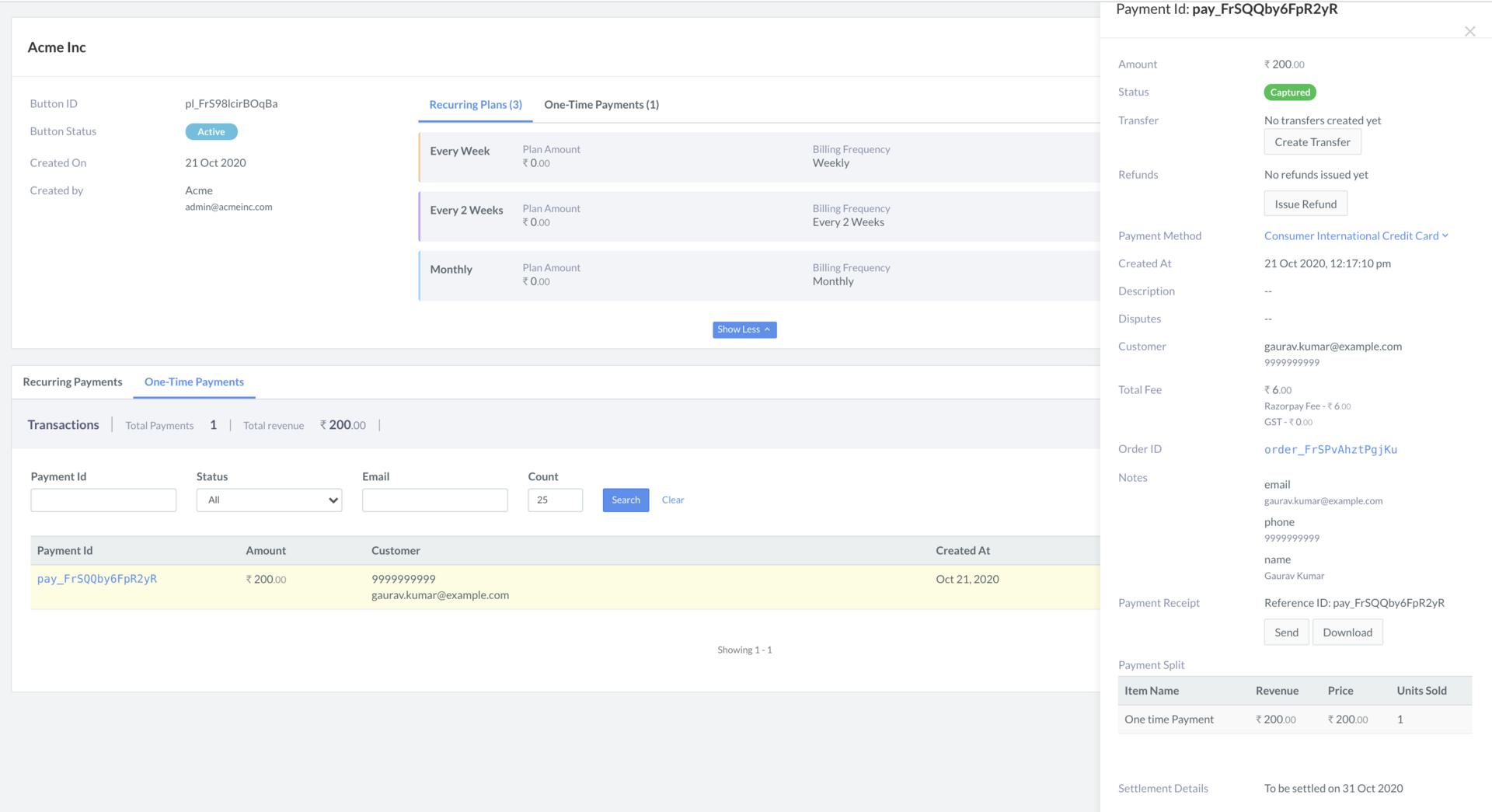
          <img src="https://razorpay.com/docs/build/browser/assets/images/payment-button-subscription-button-one-time-id.jpg" width="700" />
  </Tab>
</Tabs>

## Download Report

To download One-Time Payments as a `CSV`, `XLSX` or an `XLS` file:

1. Log in to the Dashboard and navigate to **Payment Button**.
2. Click the **Subscription Buttons** tab, and then click the specific button. The button details view appears.
3. Scroll down and click **One-Time Payments** tab.
4. Click **Download Report**.
   <img src="https://razorpay.com/docs/build/browser/assets/images/payment-button-subscription-button-export-all.jpg" width="700" />

The downloaded report has the following columns:

* Payment Button ID
* Payment Button Title
* Payment Date
* Order ID
* Item Name
* Item Amount
* Item Quantity
* Item Payment Amount
* Total Payment Amount
* Currency
* Payment Status
* Payment Id
* Email
* Phone
* Name

### Related Information

* [Payment Button](/docs/payments/payment-button)
* [Subscription Button](/docs/payments/payment-button/subscription-buttons)