> ## Documentation Index
> Fetch the complete documentation index at: https://razorpay-881012b3.mintlify.site/llms.txt
> Use this file to discover all available pages before exploring further.
# Manage Subscription Buttons
> Check the actions you can perform on a Subscription Button.
Available in
🇮🇳 India
You can perform multiple actions on the Subscription Buttons. You need to first view the Subscription Button to make changes.
## View a Subscription Button
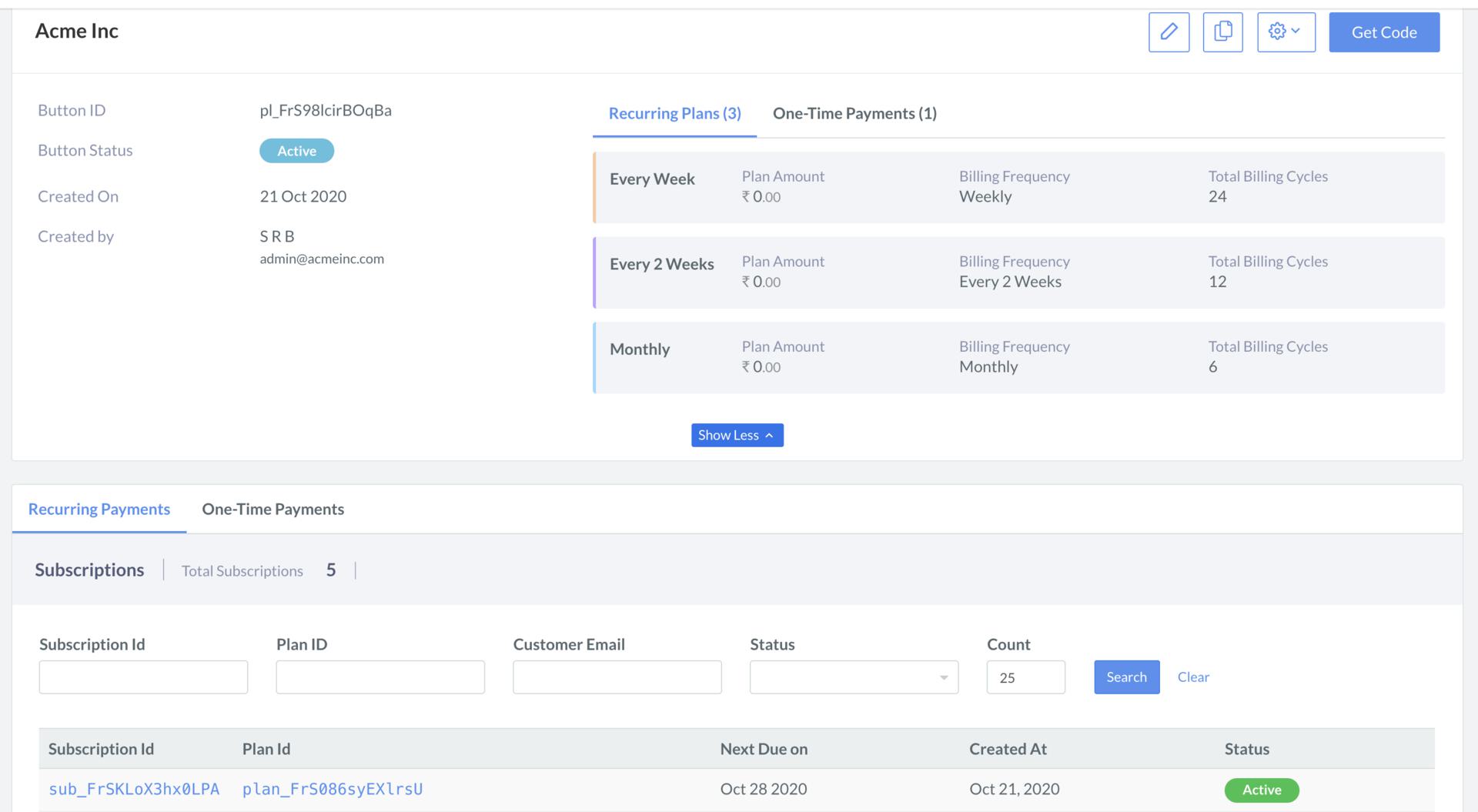
To view a Subscription Button:
1. Navigate to **Payment Button** on the Dashboard.
2. Click the **Subscription Buttons** tab, and then click on the link of the button that you want to modify.
3. The button details appears as shown.
 ## Edit Button Content
To modify the content of the button:
1. In the top right corner of the page, click **Edit Icon**.
2. The button appears in edit mode. You can edit any of the fields to update the details.
## Edit Button Content
To modify the content of the button:
1. In the top right corner of the page, click **Edit Icon**.
2. The button appears in edit mode. You can edit any of the fields to update the details.

## Duplicate Button
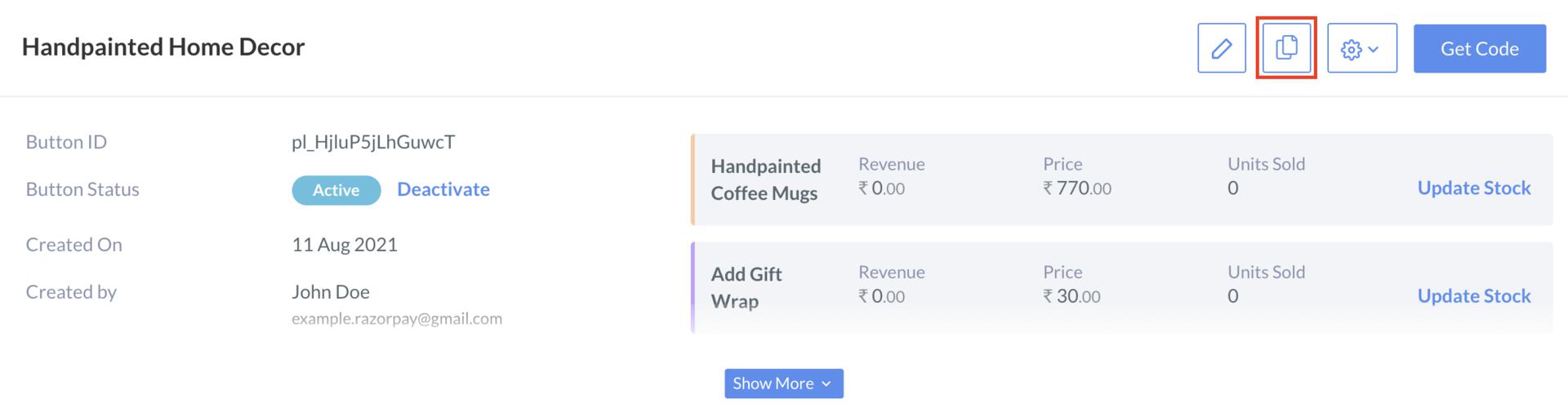
You can create a duplicate of the Subscription Button and modify it as per requirements. This saves you the time of creating a similar button from scratch.
To duplicate the button:
1. In the top-right corner of the page, click **Duplicate Icon**.
2. The button appears in edit mode. You can edit the fields to create a new button.
## Add Post Payment Message
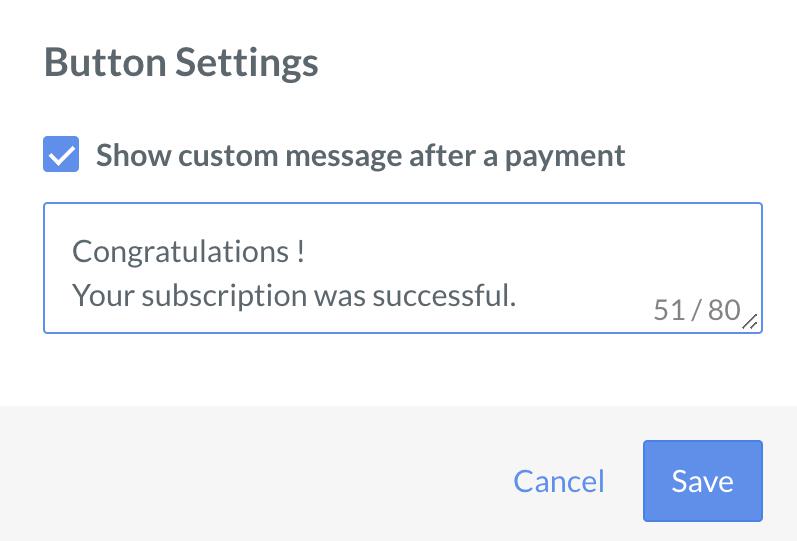
You can display a customized payment message on Checkout upon payment completion.
To add a payment message:
1. In the top right corner of the page, click **Settings Icon**, and then click **Post Payment Message**.

2. In the **Button Settings** pop-up, select **Show custom message after a payment** checkbox.
3. Add the custom message in the text box.
4. Click **Save**.
## Search
You can search Subscription Buttons, Recurring Payments and One-Time Payments.
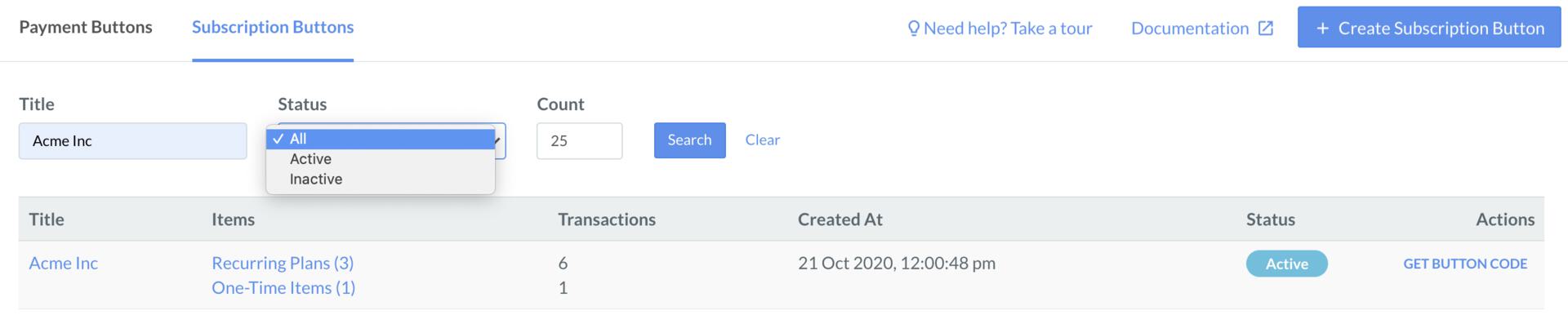
To search Subscription Buttons:
1. Navigate to **Payment Button** on the Dashboard, and then click the **Subscription Buttons** tab.
2. Enter the title of the button in **Title** text box.
3. Select the **Status** from the list.
4. Click **Search**.
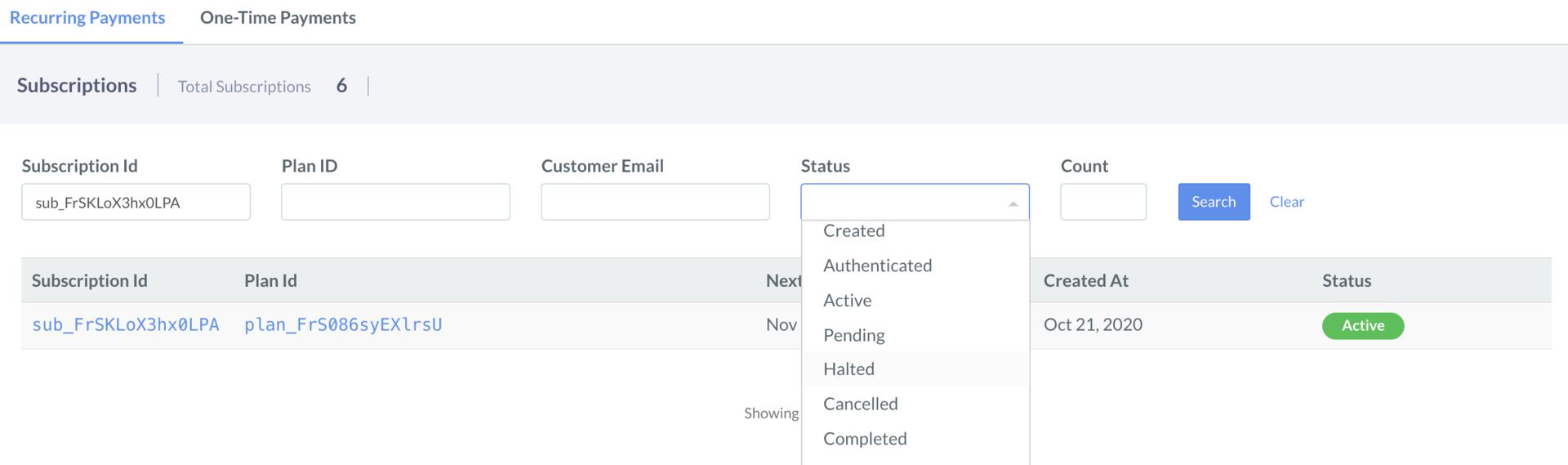
 To search Recurring Payments:
1. Navigate to **Payment Button** on the Dashboard, and then click the **Subscription Buttons** tab.
2. Click the link of the button that you want to view.
3. Enter the subscription id in the **Subscription Id** text box.
4. Enter the other values as appropriate.
5. Click **Search**.
To search Recurring Payments:
1. Navigate to **Payment Button** on the Dashboard, and then click the **Subscription Buttons** tab.
2. Click the link of the button that you want to view.
3. Enter the subscription id in the **Subscription Id** text box.
4. Enter the other values as appropriate.
5. Click **Search**.
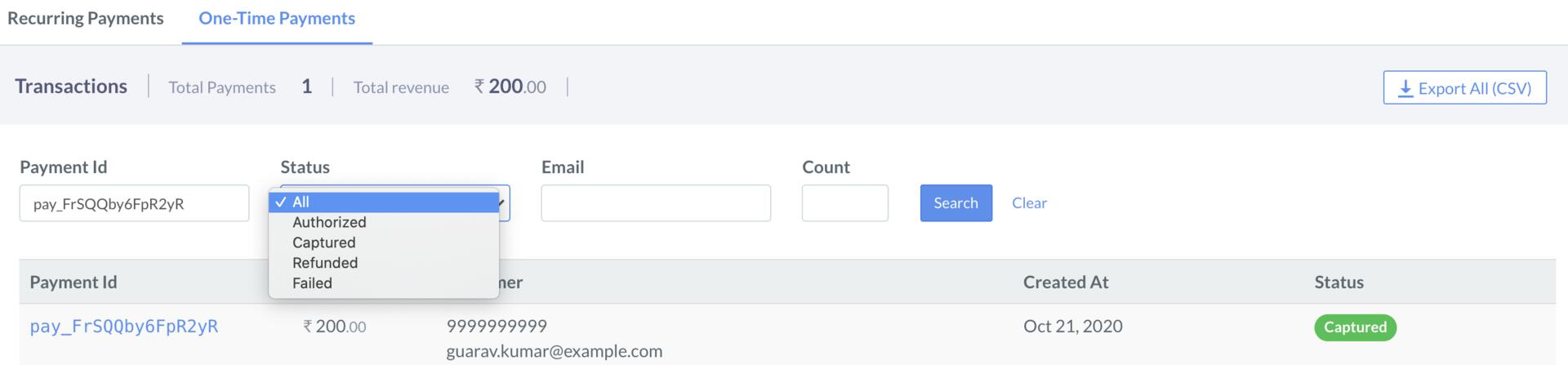
 To search One-Time Payments:
1. Navigate to **Payment Button** on the Dashboard, and then click the **Subscription Buttons** tab.
2. Click the link of the button that you want to view.
3. Enter the payment id in the **Payment Id** text box.
4. Enter the other values as appropriate.
5. Click **Search**.
To search One-Time Payments:
1. Navigate to **Payment Button** on the Dashboard, and then click the **Subscription Buttons** tab.
2. Click the link of the button that you want to view.
3. Enter the payment id in the **Payment Id** text box.
4. Enter the other values as appropriate.
5. Click **Search**.
 ## Statuses
You can view the statuses of Subscription Button, Recurring Payments and One-Time Payments.
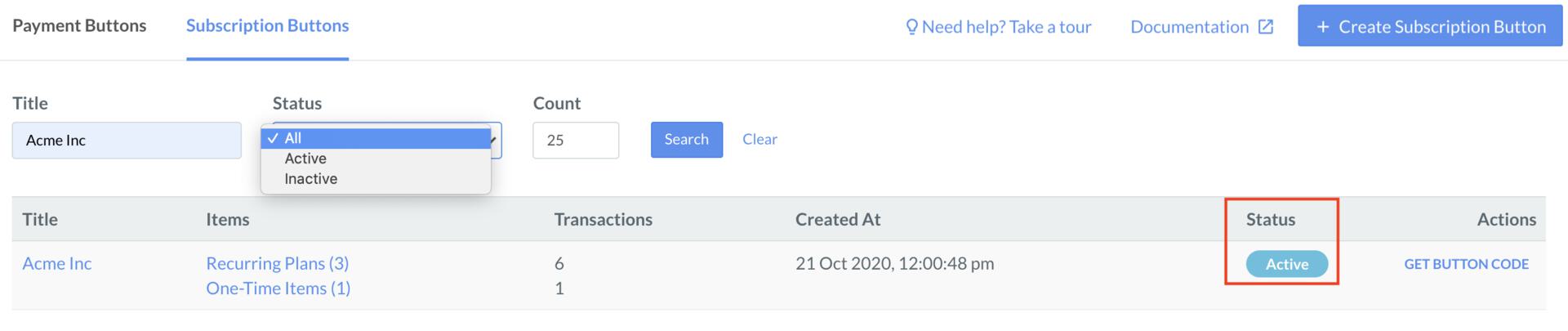
Following are the different statuses of the Subscription Buttons: **Active** and **Inactive**.
To view the status of a Subscription Button:
1. Navigate to **Payment Button** on the Dashboard, and then click the **Subscription Buttons** tab.
2. View the status of a button against each Subscription Button under the **Status** column.
## Statuses
You can view the statuses of Subscription Button, Recurring Payments and One-Time Payments.
Following are the different statuses of the Subscription Buttons: **Active** and **Inactive**.
To view the status of a Subscription Button:
1. Navigate to **Payment Button** on the Dashboard, and then click the **Subscription Buttons** tab.
2. View the status of a button against each Subscription Button under the **Status** column.
 3. Click the Subscription Button to view Recurring Payments and One-Time Payments Statuses.
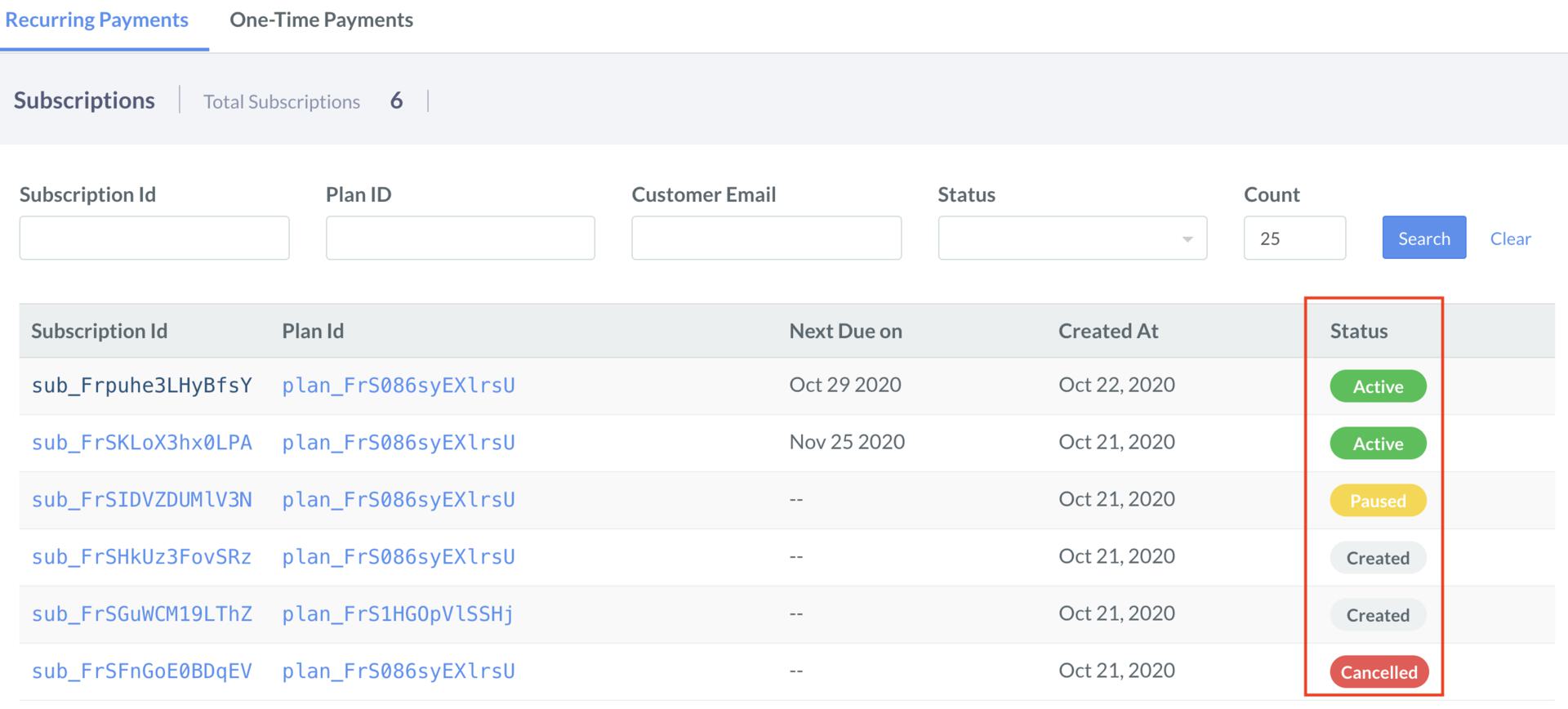
Following are the different statuses of Recurring Payments Subscriptions:
* Created
* Authenticated
* Active
* Pending
* Halted
* Cancelled
* Completed
* Expired
* Paused
Scroll down, and then check the Status against each Subscription Id.
3. Click the Subscription Button to view Recurring Payments and One-Time Payments Statuses.
Following are the different statuses of Recurring Payments Subscriptions:
* Created
* Authenticated
* Active
* Pending
* Halted
* Cancelled
* Completed
* Expired
* Paused
Scroll down, and then check the Status against each Subscription Id.
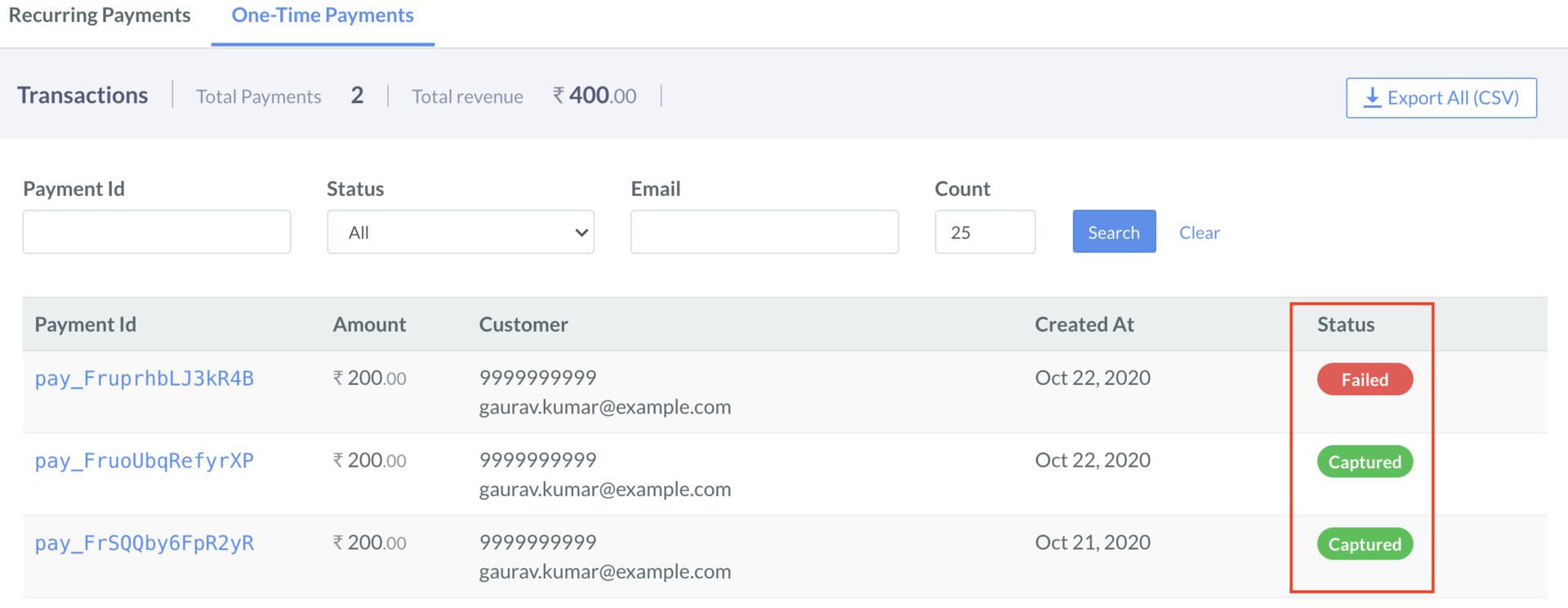
 Following are the different statuses of One-Time Payments:
* Authorized
* Captured
* Refunded
* Failed
1. Scroll down, and then click **One-Time Payments** tab.
2. Check the status against each Payment Id.
Following are the different statuses of One-Time Payments:
* Authorized
* Captured
* Refunded
* Failed
1. Scroll down, and then click **One-Time Payments** tab.
2. Check the status against each Payment Id.
 ## Modify Recurring Payments
To view Recurring Payments Subscription:
1. Navigate to **Payment Button** on the Dashboard, and then click the **Subscription Buttons** tab.
2. Click the link of the button that you want to view.
3. Scroll down, and then click the Subscription Id which you want to modify.
You can perform following functions on the Recurring Payments:
* [Change Status of a Subscription](#change-status-of-a-subscription)
* [Duplicate a Subscription](#duplicate-a-subscription)
* [Update an Active Subscription](#update-an-active-subscription)
### Change Status of a Subscription
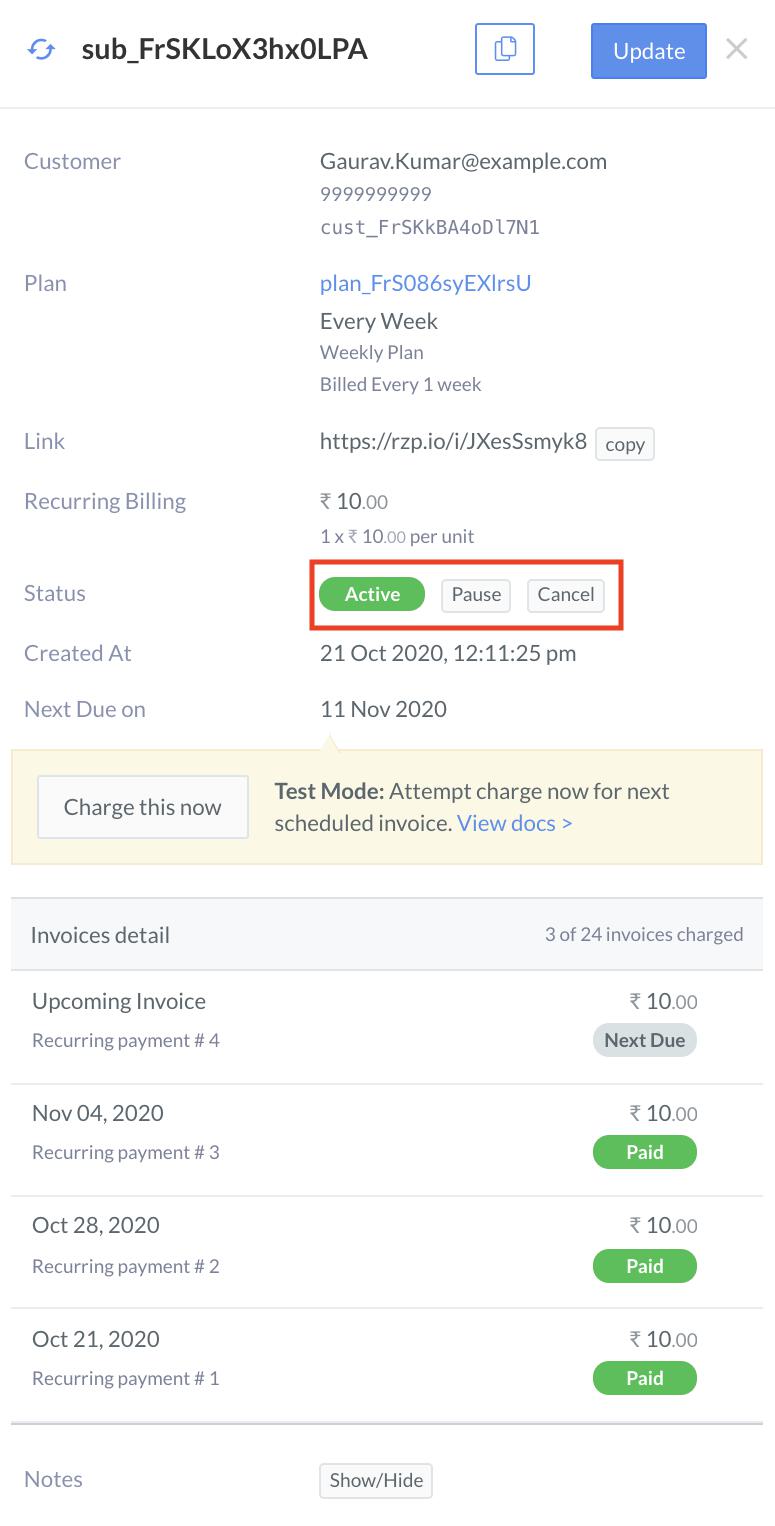
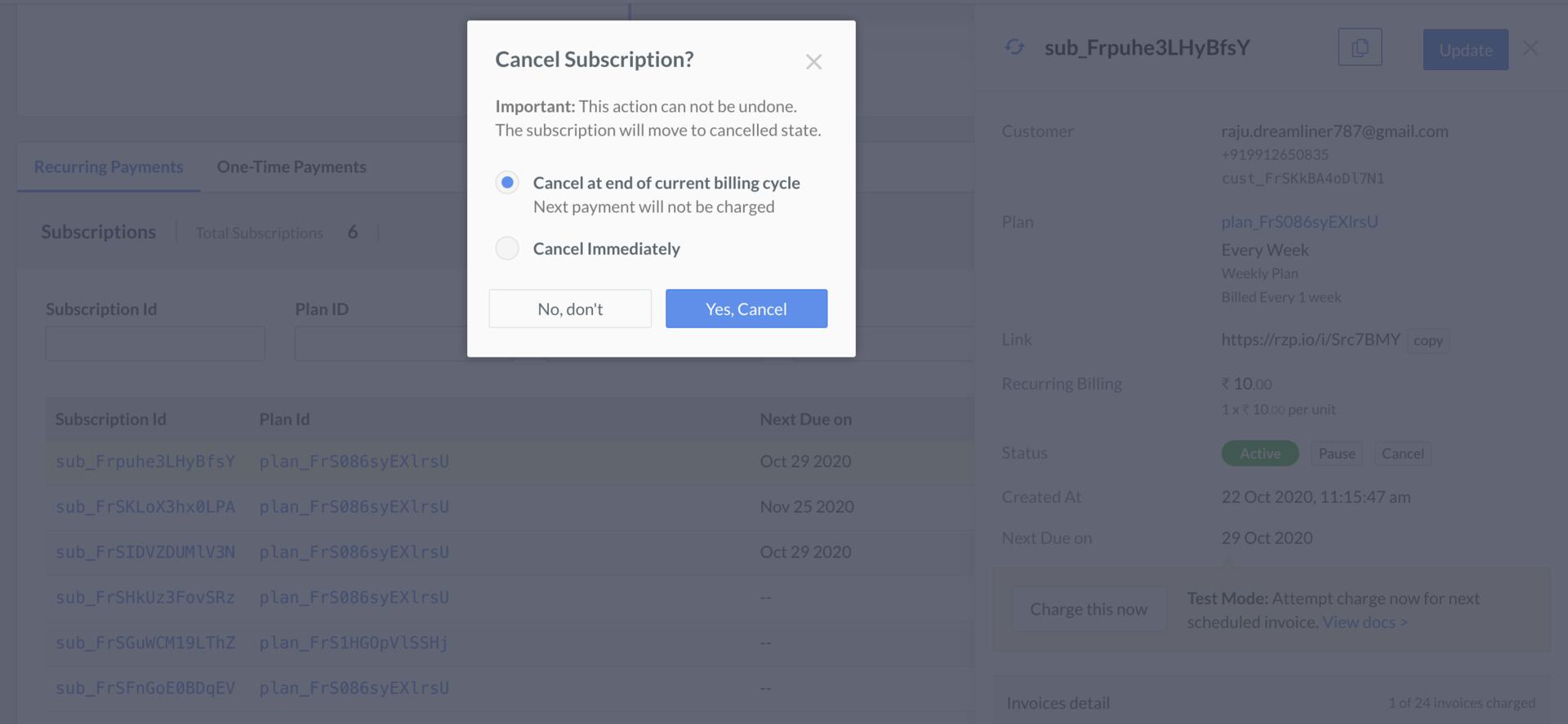
You can pause, resume or cancel a subscription as follows:
* You can pause or cancel a subscription when it is in **Active** status.
* You can resume or cancel a subscription when it is in **Paused** status.
* You can cancel a subscription at the end of current billing cycle or immediately.
## Modify Recurring Payments
To view Recurring Payments Subscription:
1. Navigate to **Payment Button** on the Dashboard, and then click the **Subscription Buttons** tab.
2. Click the link of the button that you want to view.
3. Scroll down, and then click the Subscription Id which you want to modify.
You can perform following functions on the Recurring Payments:
* [Change Status of a Subscription](#change-status-of-a-subscription)
* [Duplicate a Subscription](#duplicate-a-subscription)
* [Update an Active Subscription](#update-an-active-subscription)
### Change Status of a Subscription
You can pause, resume or cancel a subscription as follows:
* You can pause or cancel a subscription when it is in **Active** status.
* You can resume or cancel a subscription when it is in **Paused** status.
* You can cancel a subscription at the end of current billing cycle or immediately.
 ### Duplicate a Subscription
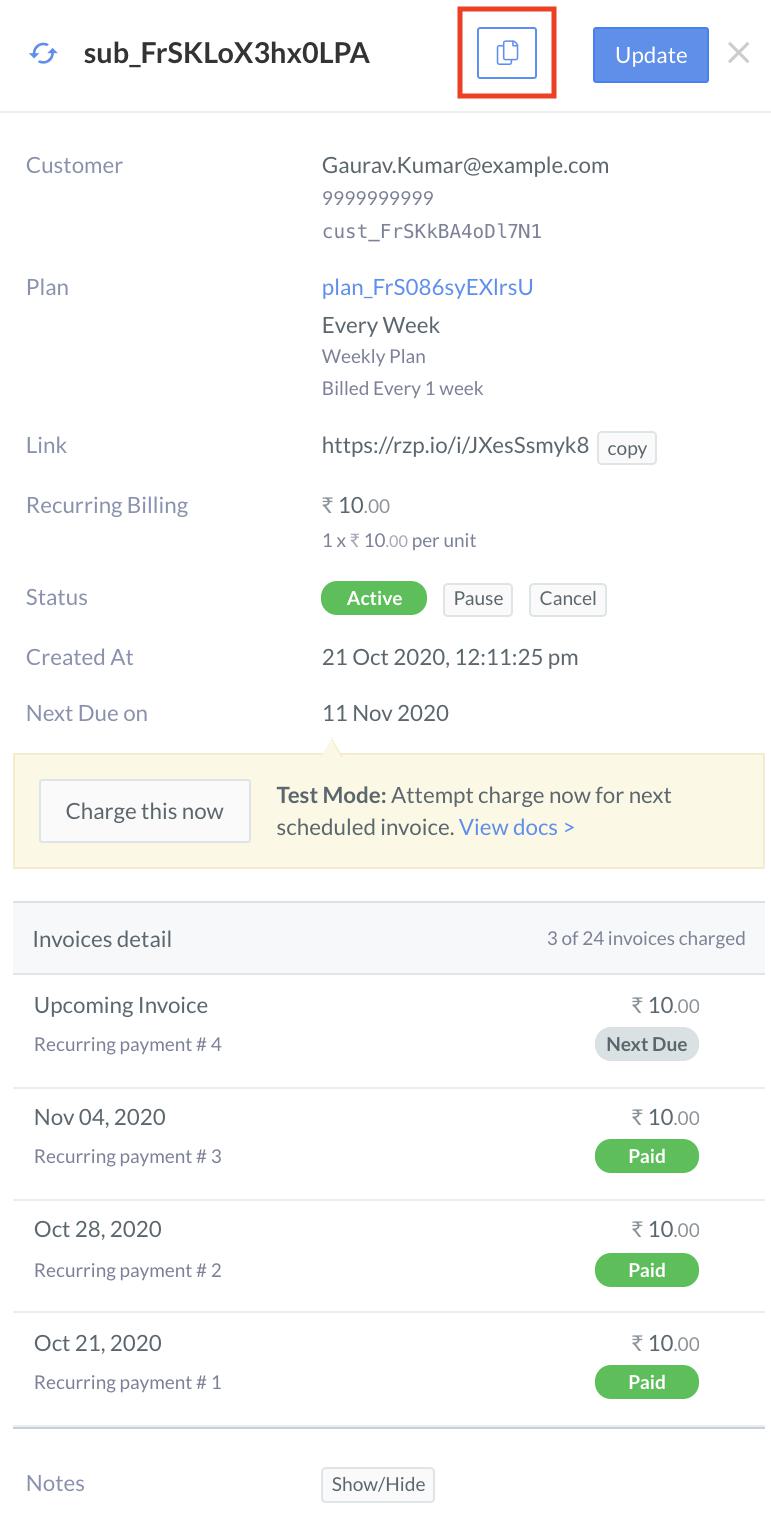
Click the **Duplicate icon** and update as appropriate.
### Duplicate a Subscription
Click the **Duplicate icon** and update as appropriate.
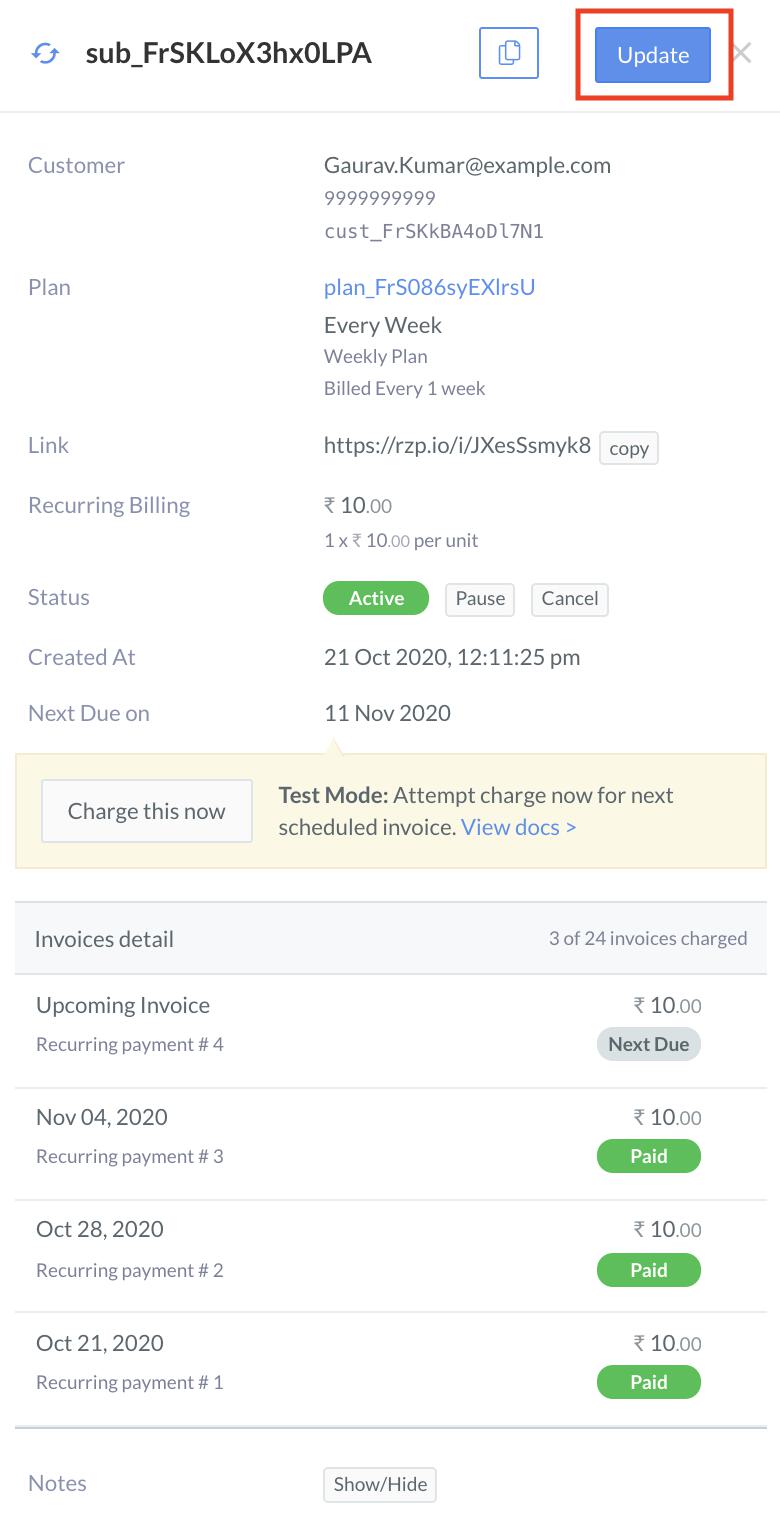
 ### Update an Active Subscription
You can update an Active Subscription as follows:
1. Click **Update** button.
### Update an Active Subscription
You can update an Active Subscription as follows:
1. Click **Update** button.
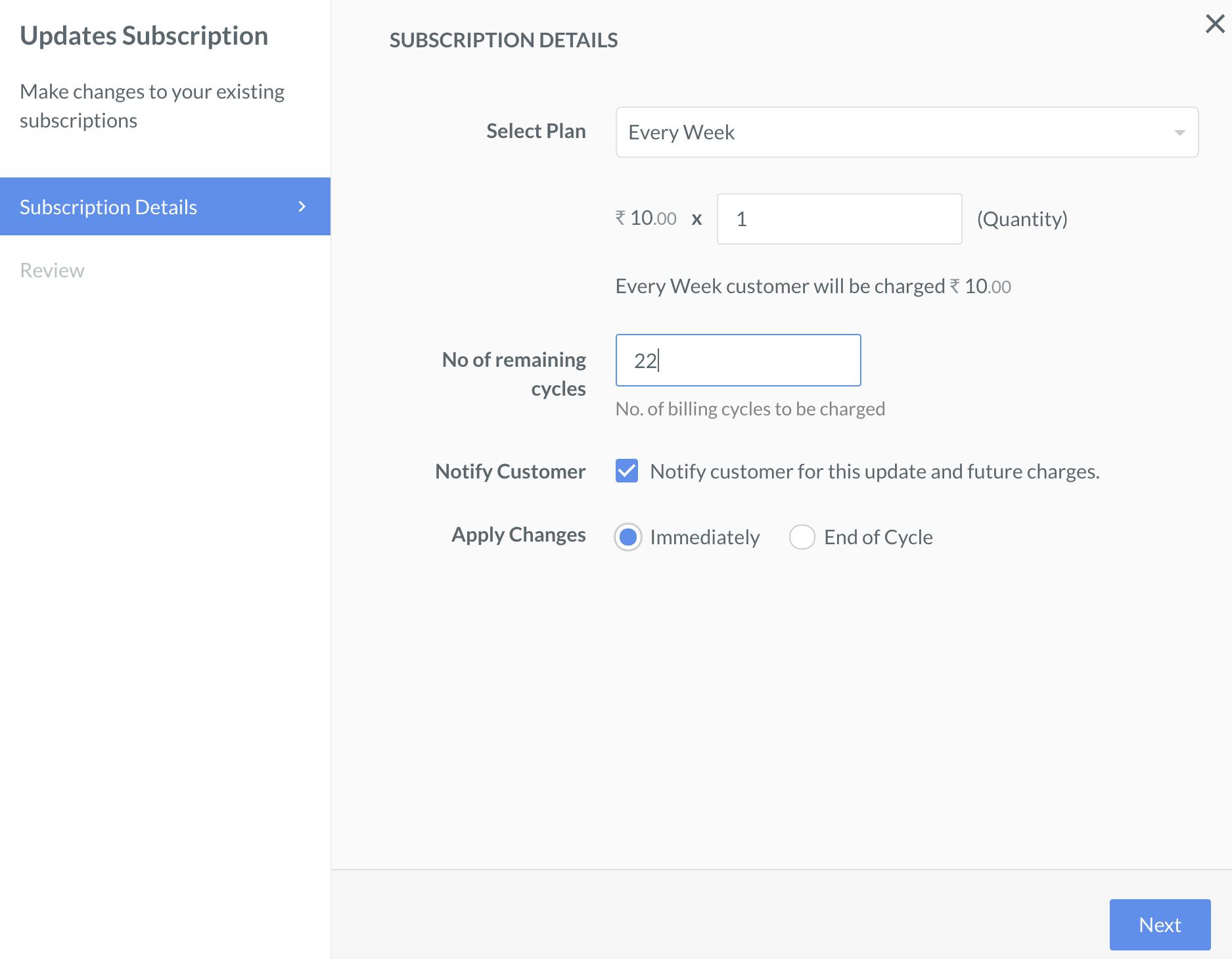
 2. Modify the subscription details as you want.
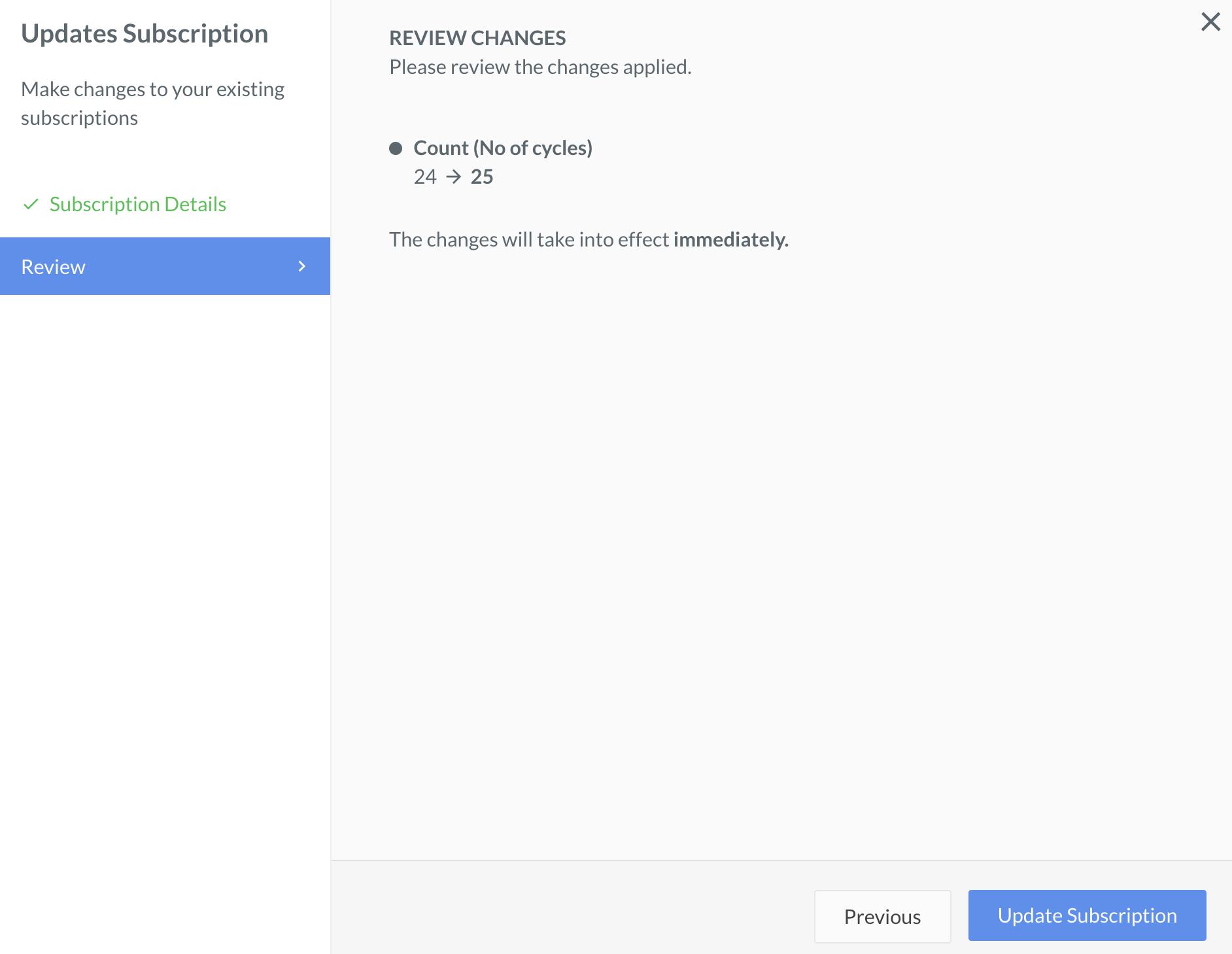
 3. Review the changes, and then click **Update Subscription**.
 ### Related Information
[Subscription Button FAQs](/docs/payments/payment-button/subscription-buttons/faqs)
### Related Information
[Subscription Button FAQs](/docs/payments/payment-button/subscription-buttons/faqs)