 ## Prerequisites
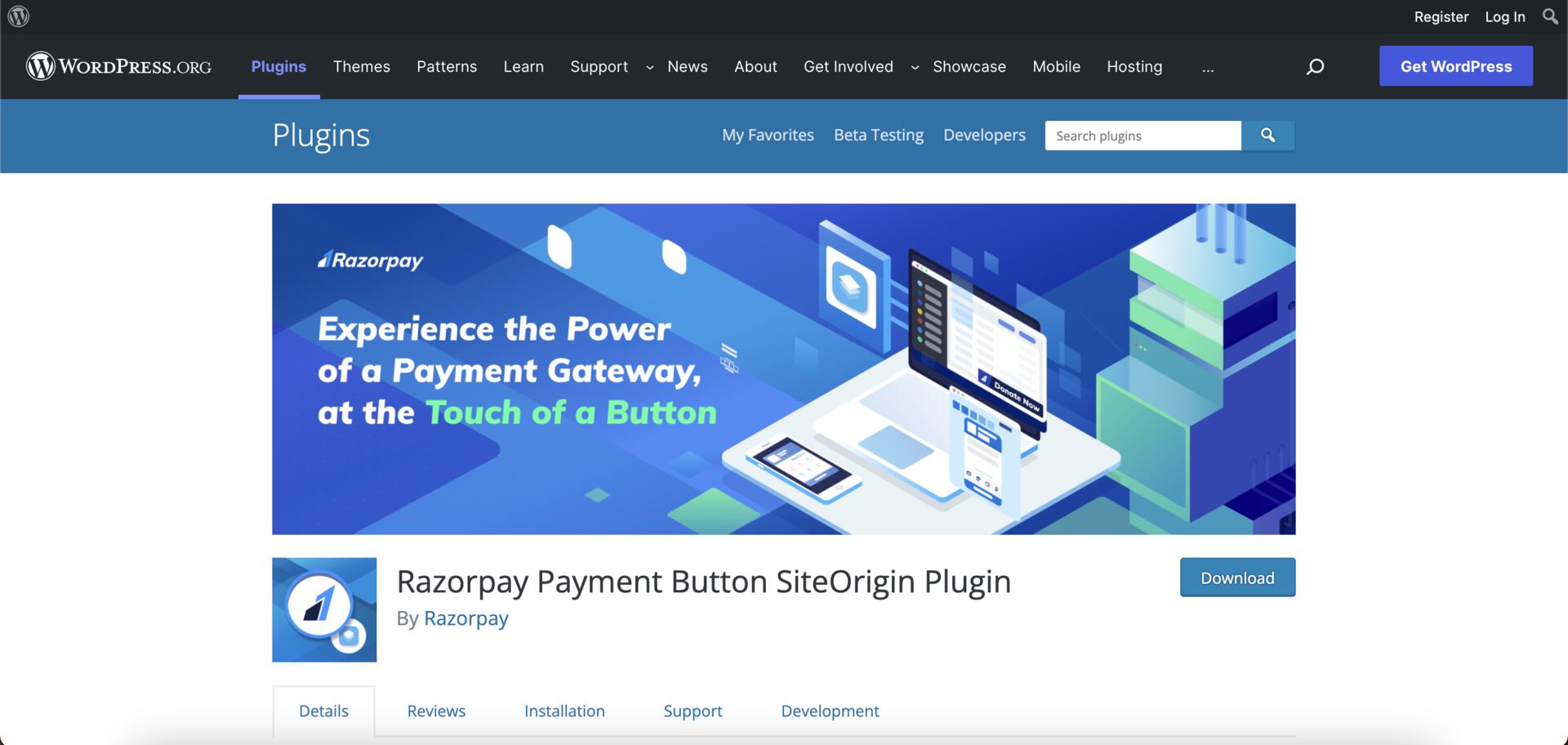
1. Install the [Page Builder by SiteOrigin plugin](https://wordpress.org/plugins/siteorigin-panels) on your WordPress site.
2. [Create a Razorpay account](https://dashboard.razorpay.com/signup).
3. Navigate to **Account & Settings** → **API Keys** and generate the API keys in the test mode.
## Prerequisites
1. Install the [Page Builder by SiteOrigin plugin](https://wordpress.org/plugins/siteorigin-panels) on your WordPress site.
2. [Create a Razorpay account](https://dashboard.razorpay.com/signup).
3. Navigate to **Account & Settings** → **API Keys** and generate the API keys in the test mode.
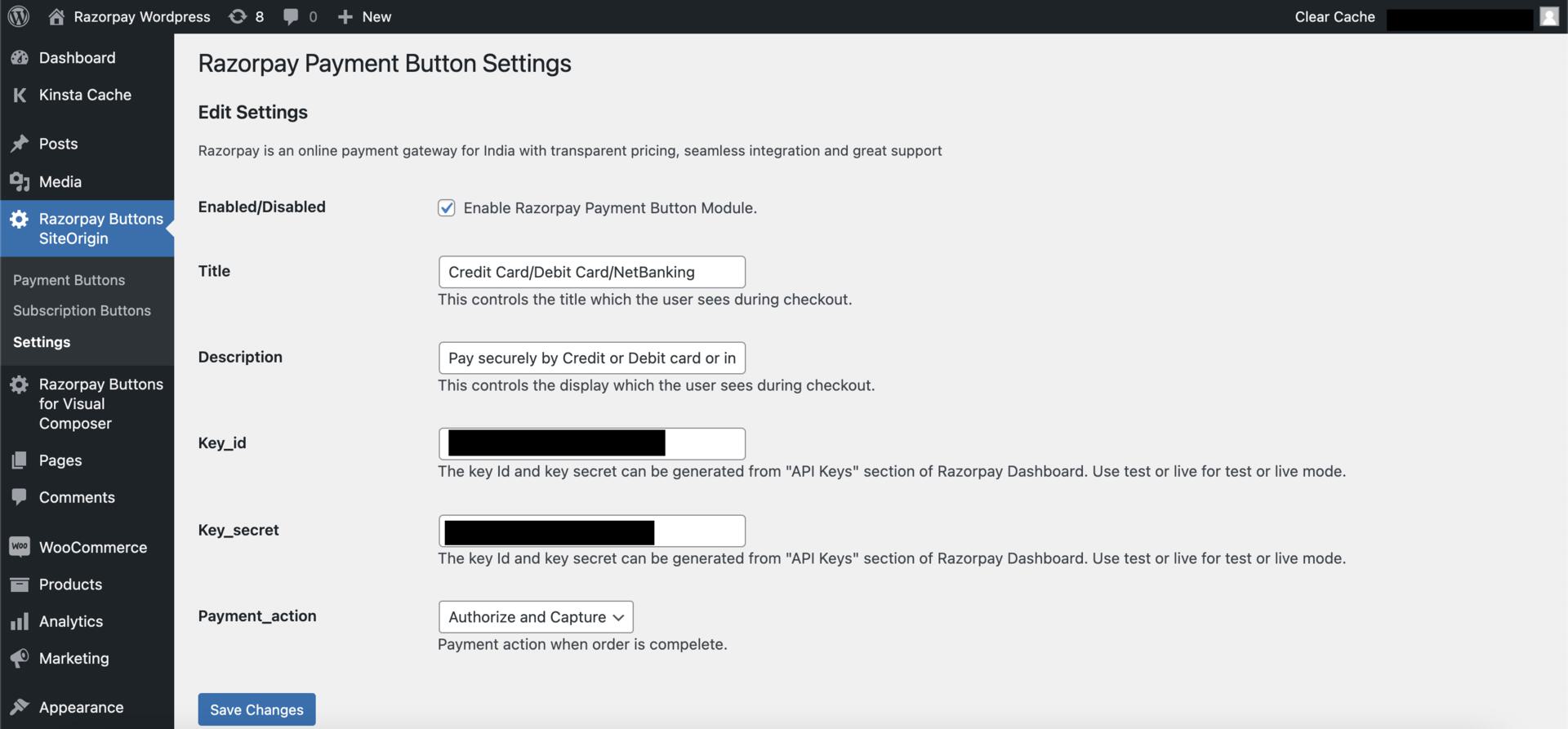
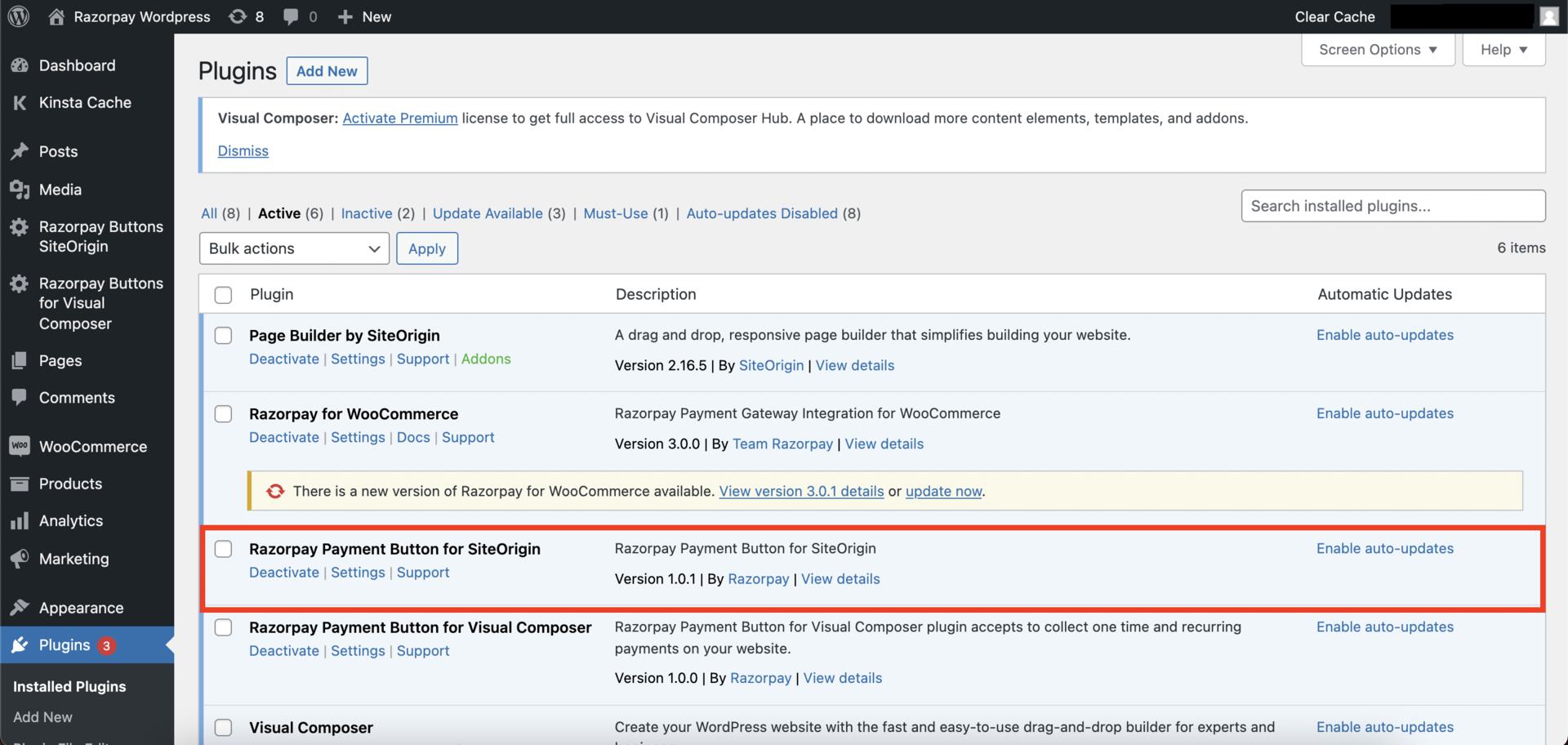 2.3 Navigate to **Razorpay Buttons SiteOrigin** → **Settings** to add your API key details and connect your account to the plugin.
 ### 3. Embed the Payment Button on WordPress Site
To add Payment Button on WordPress site:
3.1 Click **Pages** and navigate to the page where you want to embed the Payment button.
### 3. Embed the Payment Button on WordPress Site
To add Payment Button on WordPress site:
3.1 Click **Pages** and navigate to the page where you want to embed the Payment button.
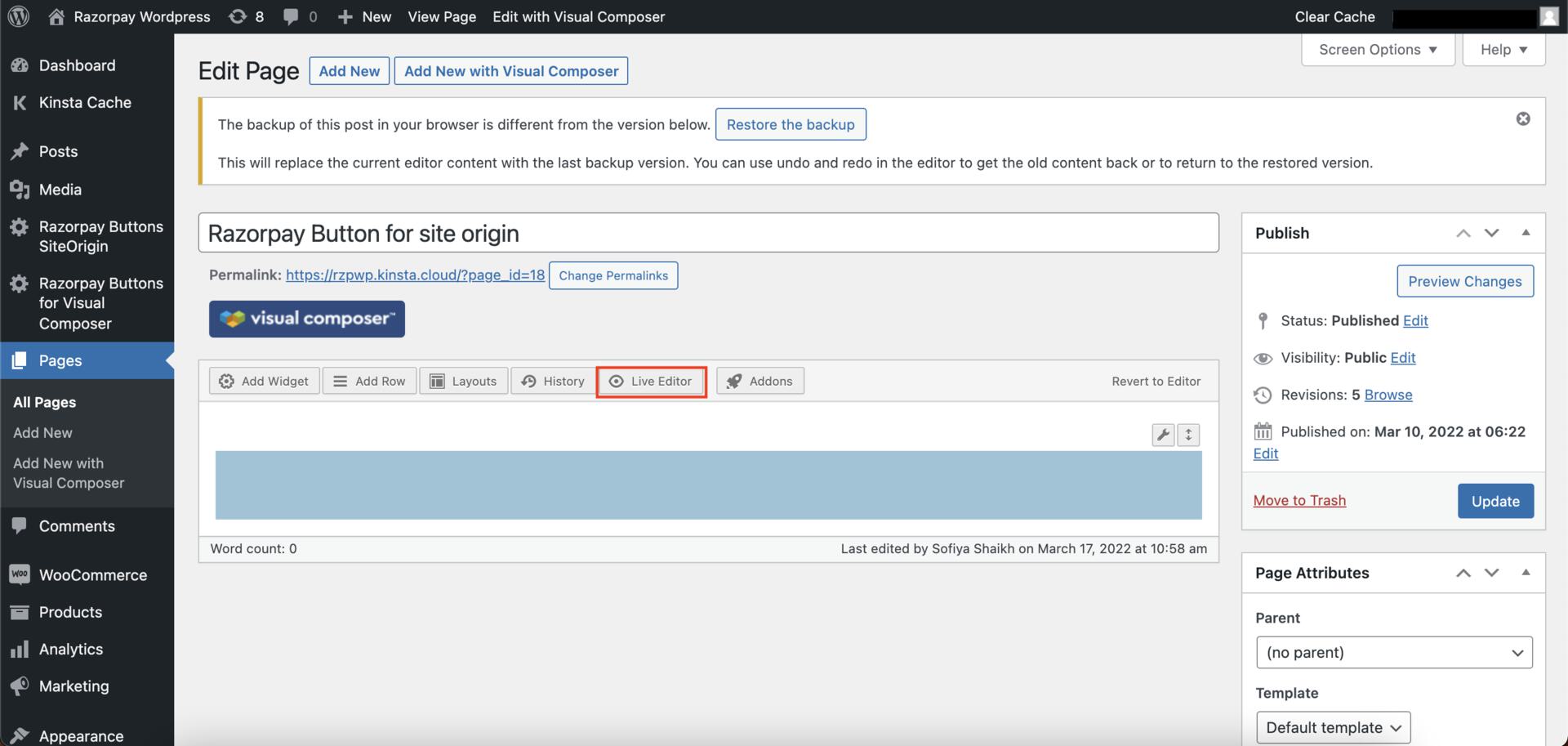 3.2 Click **Live Editor** to open the SiteOrigin website builder mode.
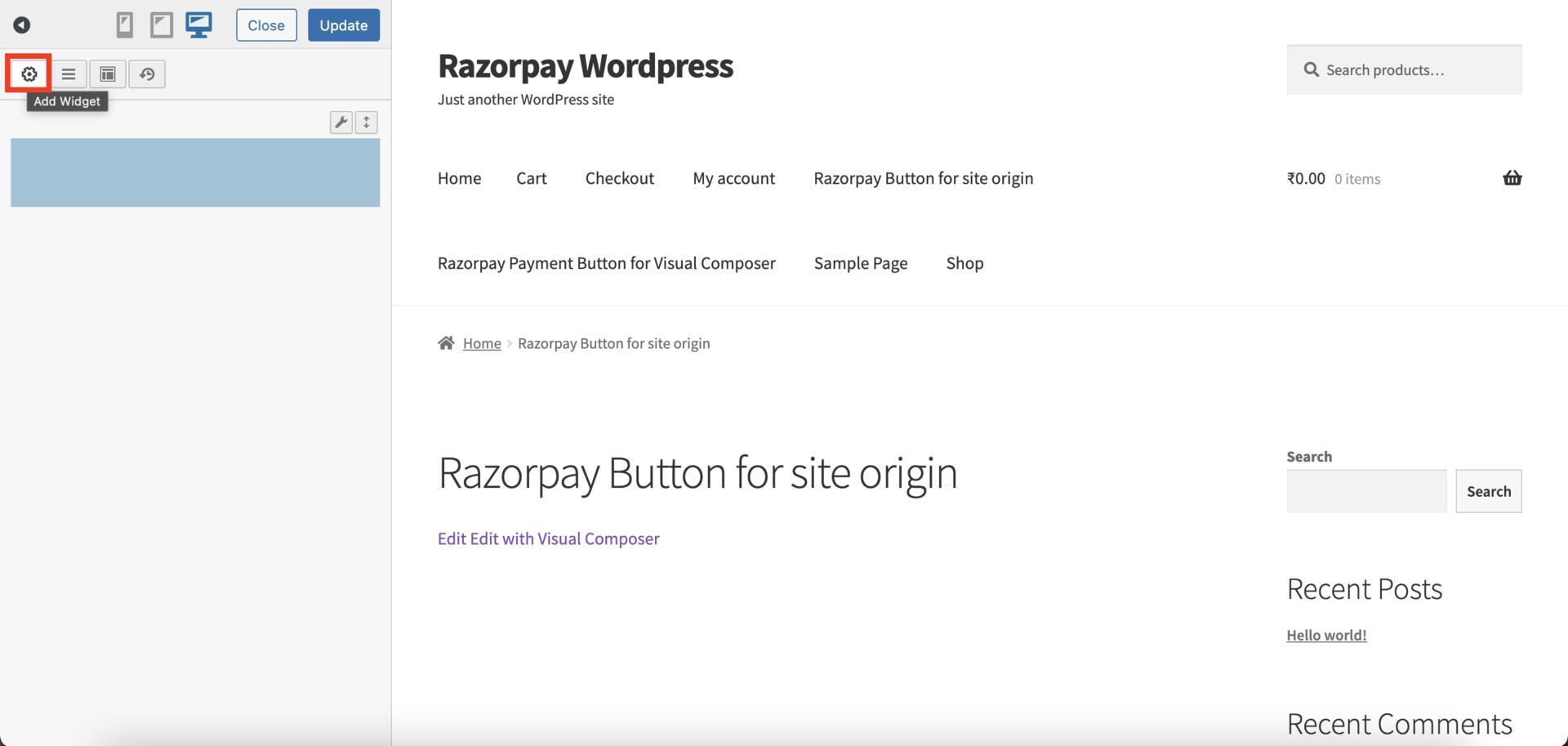
3.3 Navigate to **Add Widget** → **Razorpay Widgets** and select **Payment Button** or **Subscription Button** as per your preference.
3.2 Click **Live Editor** to open the SiteOrigin website builder mode.
3.3 Navigate to **Add Widget** → **Razorpay Widgets** and select **Payment Button** or **Subscription Button** as per your preference.
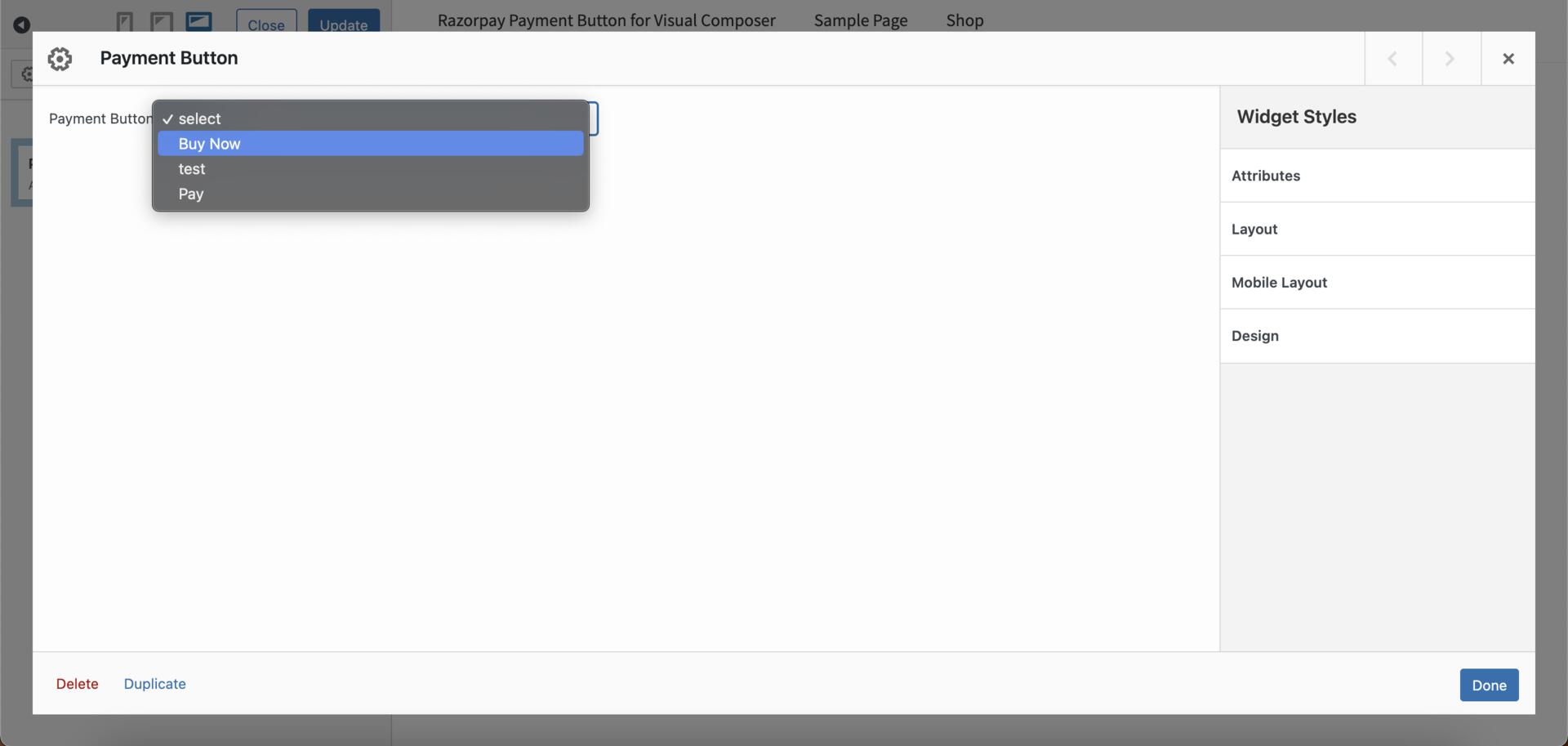
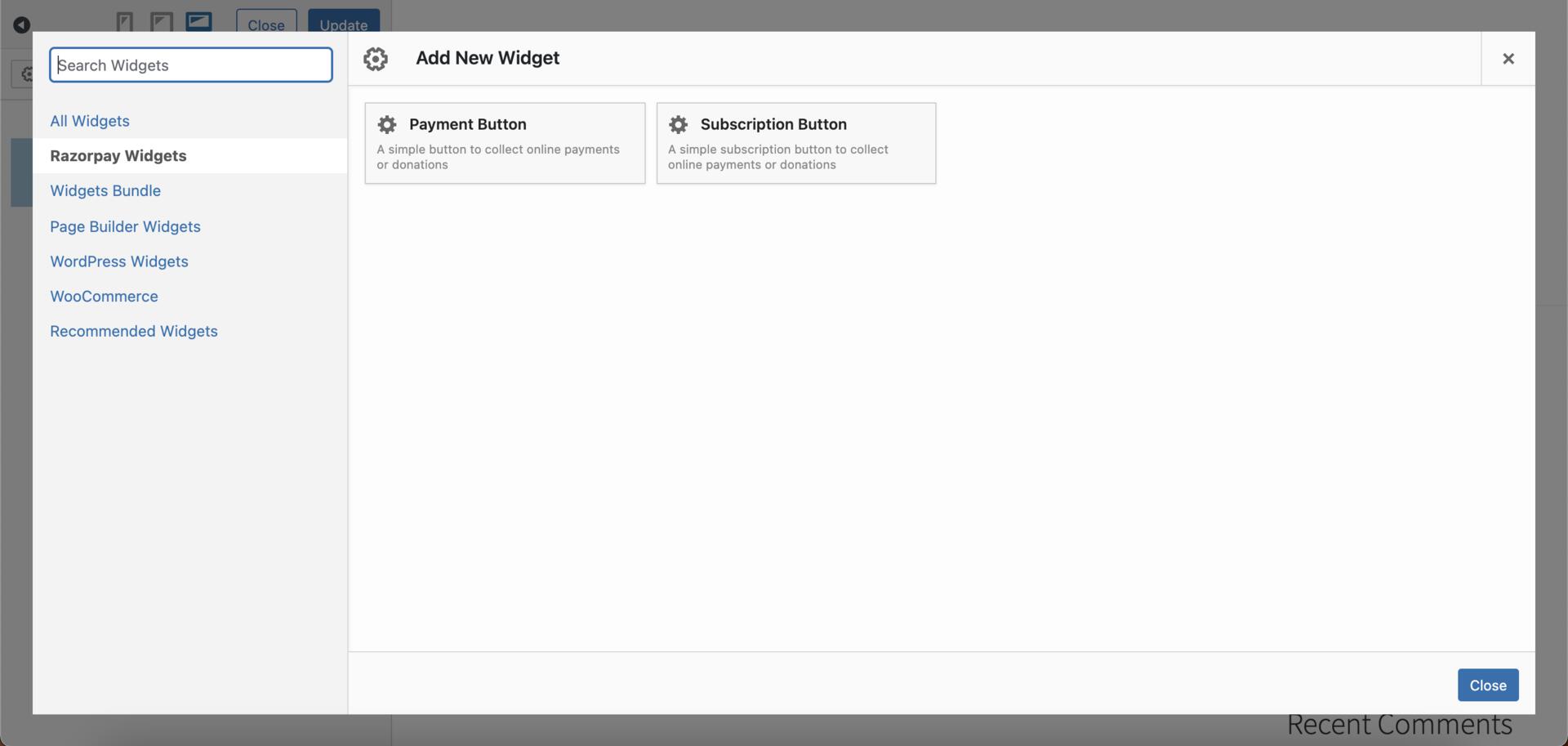 3.4 From the list, select the Payment Button that should be displayed on the page and click **Done**.
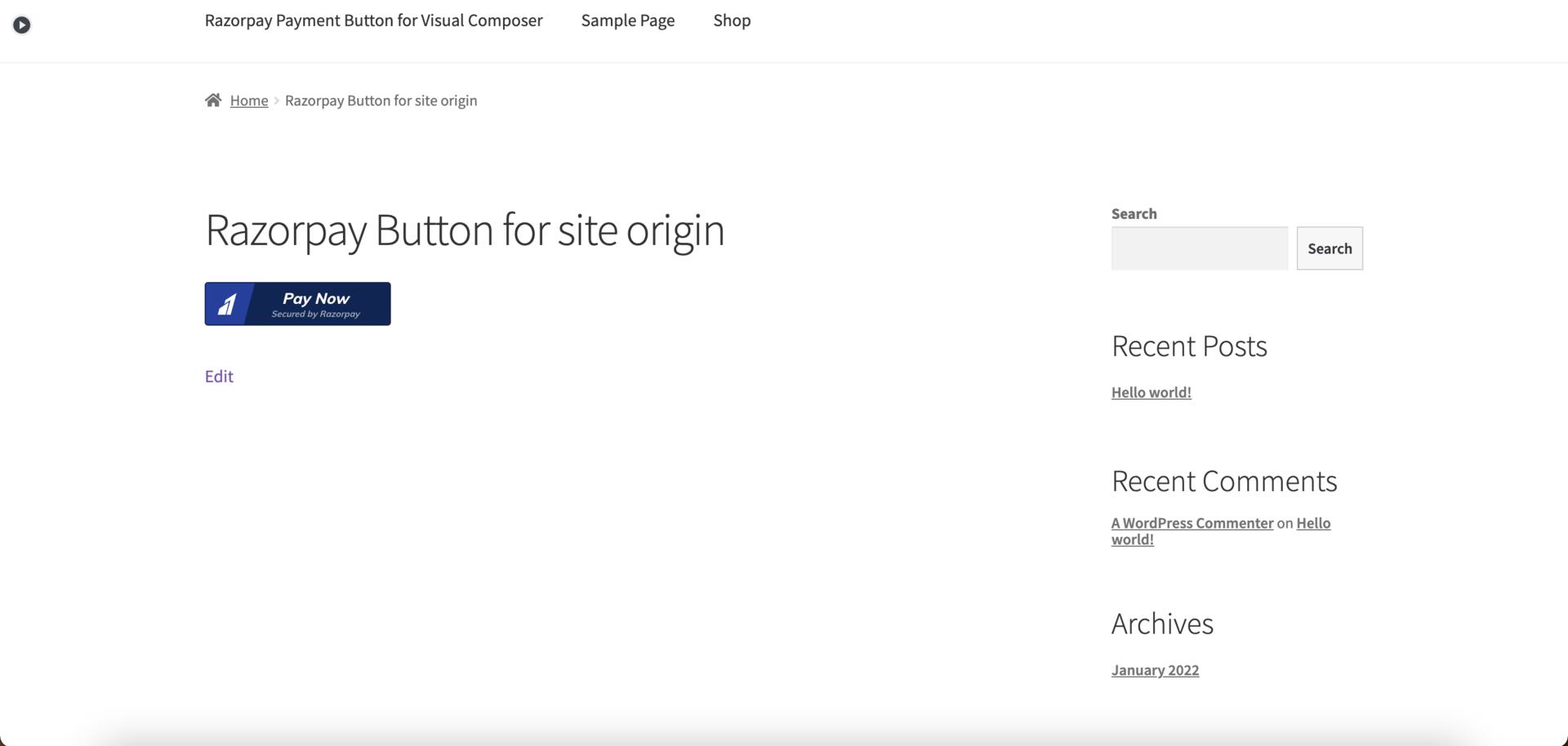
 3.5 Save the changes and preview the page. The Payment Button appears on the page.
 You can now start accepting payments on your WordPress website using the Payment Button.
## Step 4: View Details on Dashboard
To view the payments on the WordPress Dashboard:
4.1 Click **Razorpay Buttons SiteOrigin** to view the list of Payment Buttons.
You can now start accepting payments on your WordPress website using the Payment Button.
## Step 4: View Details on Dashboard
To view the payments on the WordPress Dashboard:
4.1 Click **Razorpay Buttons SiteOrigin** to view the list of Payment Buttons.
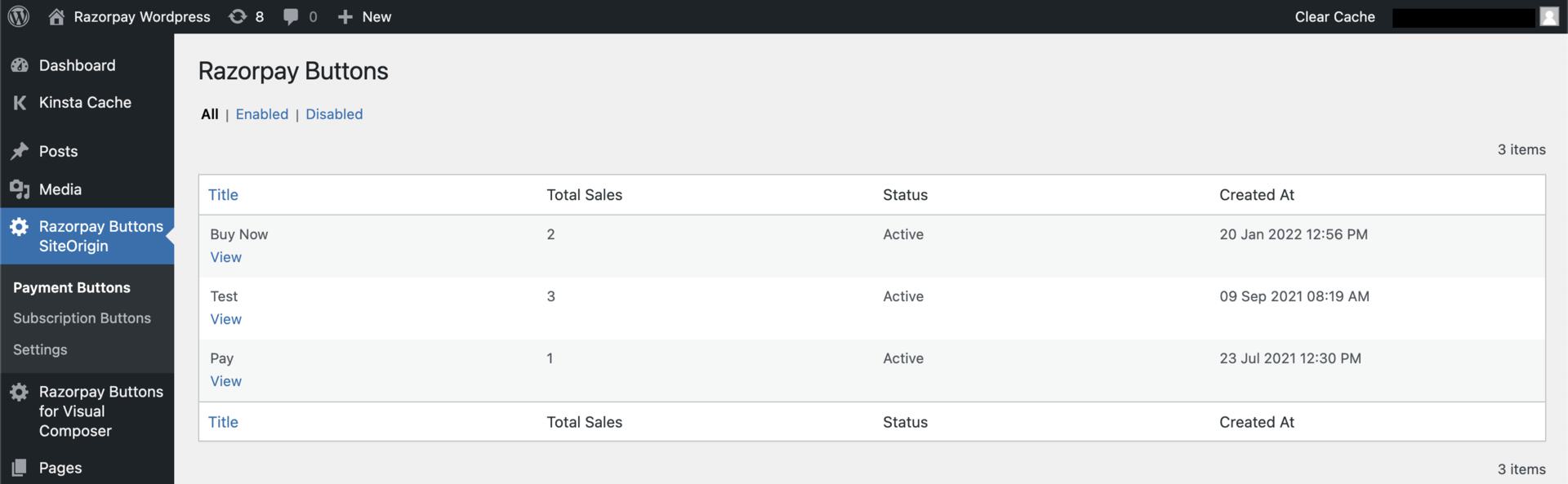 4.2 Click **View** to open the button details.
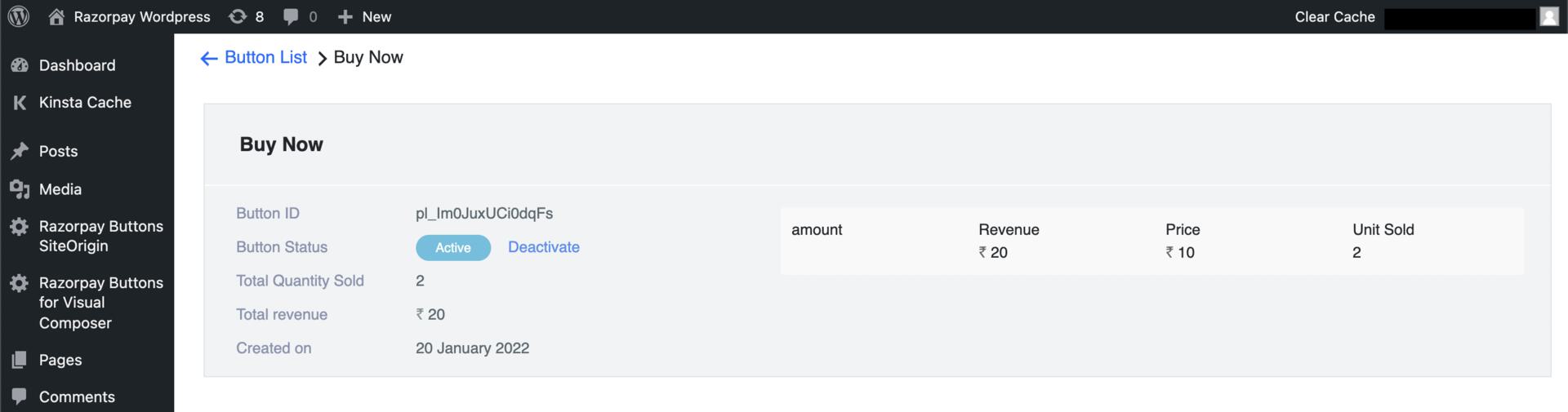 The following information regarding the payment button is displayed:
* Button ID
* Button Status
* Total Quantity Sold
* Total Revenue
* Created On
### Related Information
* [Payment Button](/docs/payments/payment-button)
* [Create a WordPress Website](/docs/payments/payment-button/supported-platforms/wordpress/create-website)
* [Embed Payment Button on WordPress Website](/docs/payments/payment-button/supported-platforms/wordpress)
* [Payment Button Elementor Plugin for WordPress](/docs/payments/payment-button/supported-platforms/wordpress/elementor)
* [Payment Button Visual Composer Plugin for WordPress](/docs/payments/payment-button/supported-platforms/wordpress/visual-composer)
The following information regarding the payment button is displayed:
* Button ID
* Button Status
* Total Quantity Sold
* Total Revenue
* Created On
### Related Information
* [Payment Button](/docs/payments/payment-button)
* [Create a WordPress Website](/docs/payments/payment-button/supported-platforms/wordpress/create-website)
* [Embed Payment Button on WordPress Website](/docs/payments/payment-button/supported-platforms/wordpress)
* [Payment Button Elementor Plugin for WordPress](/docs/payments/payment-button/supported-platforms/wordpress/elementor)
* [Payment Button Visual Composer Plugin for WordPress](/docs/payments/payment-button/supported-platforms/wordpress/visual-composer)