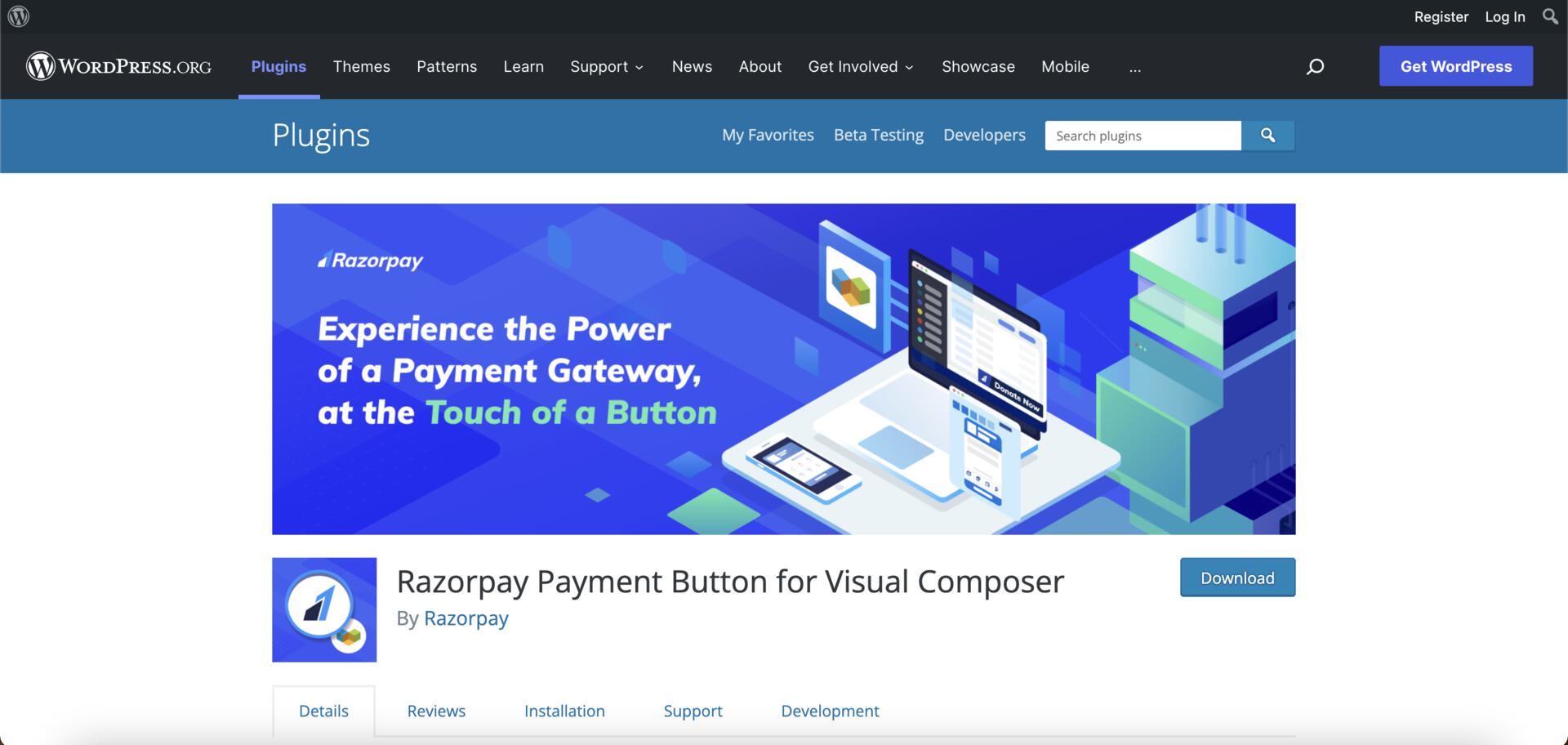
 ## Prerequisites
1. Install the [Visual Composer plugin](https://wordpress.org/plugins/visualcomposer) on your WordPress site.
2. [Create a Razorpay account](https://dashboard.razorpay.com/signup).
3. Navigate to **Account & Settings** → **API Keys** and generate the API keys in the test mode.
## Prerequisites
1. Install the [Visual Composer plugin](https://wordpress.org/plugins/visualcomposer) on your WordPress site.
2. [Create a Razorpay account](https://dashboard.razorpay.com/signup).
3. Navigate to **Account & Settings** → **API Keys** and generate the API keys in the test mode.
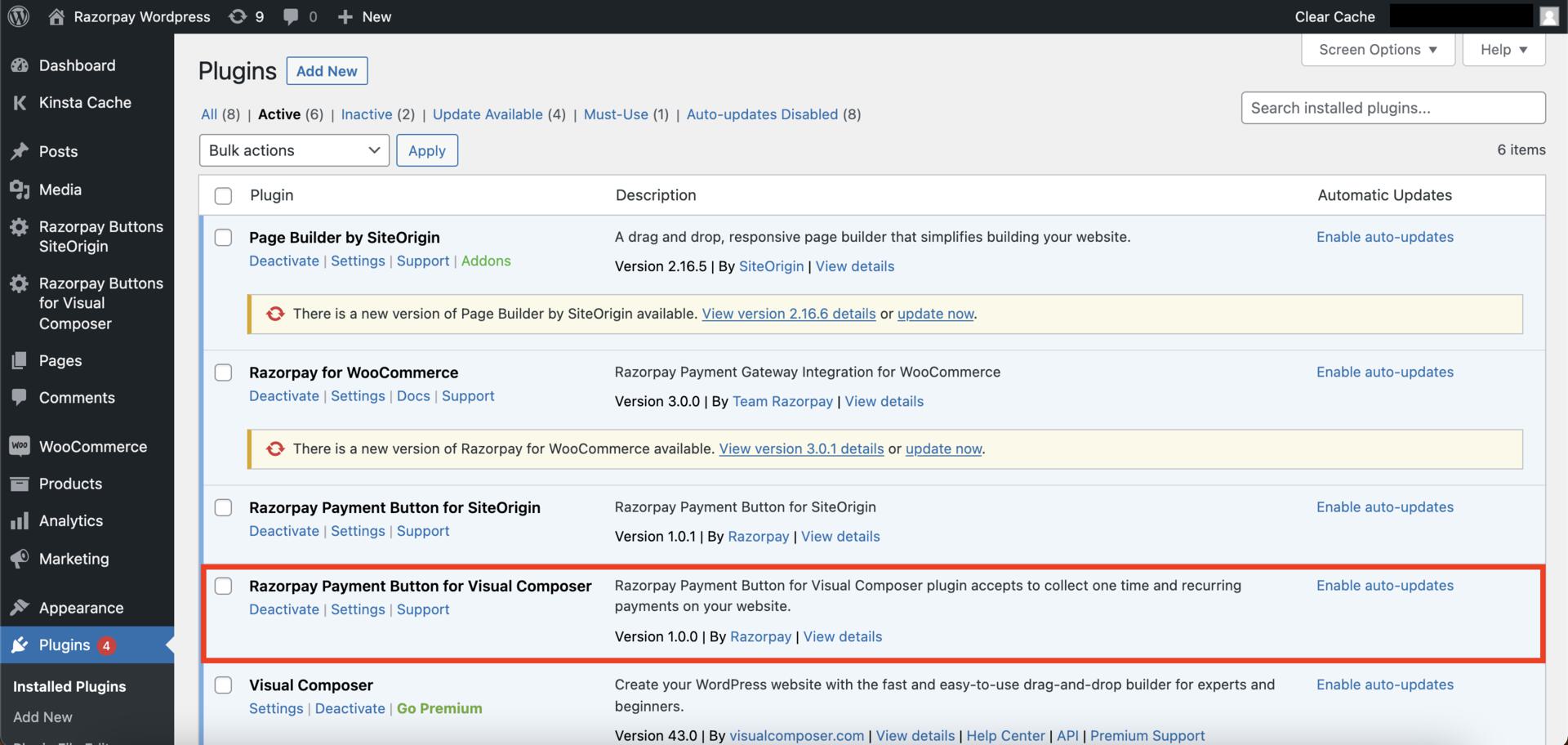 2.3 Navigate to **Razorpay Buttons for Visual Composer** → **Settings** to add your API key details and connect your Razorpay account to the plugin.
 ### 3. Embed the Payment Button on WordPress Site
To add Payment Button on WordPress site:
3.1 Click **Pages** and navigate to the page where you want to embed the Payment button.
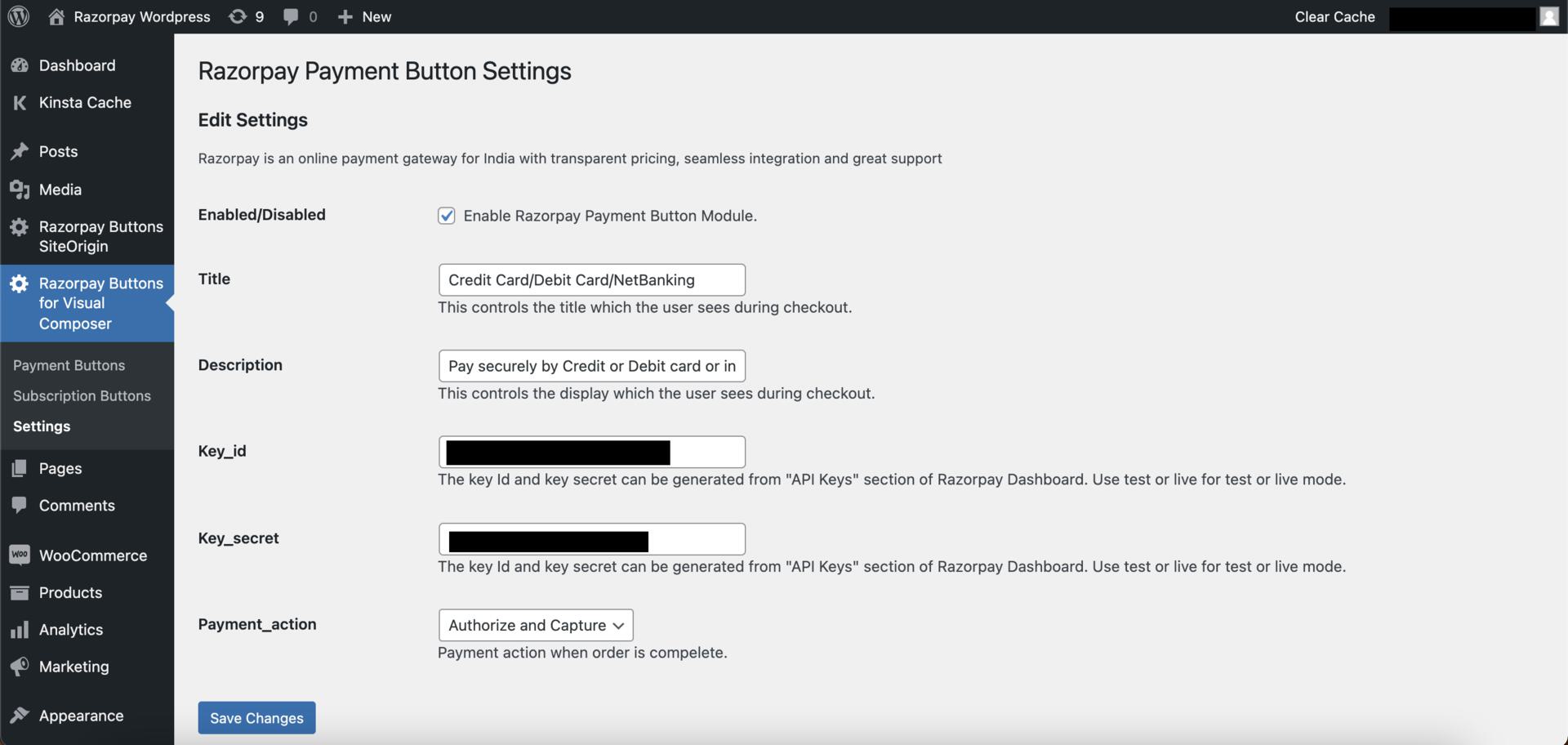
3.2 Click **Edit with Visual Composer** to open the Visual Composer website builder mode.
### 3. Embed the Payment Button on WordPress Site
To add Payment Button on WordPress site:
3.1 Click **Pages** and navigate to the page where you want to embed the Payment button.
3.2 Click **Edit with Visual Composer** to open the Visual Composer website builder mode.
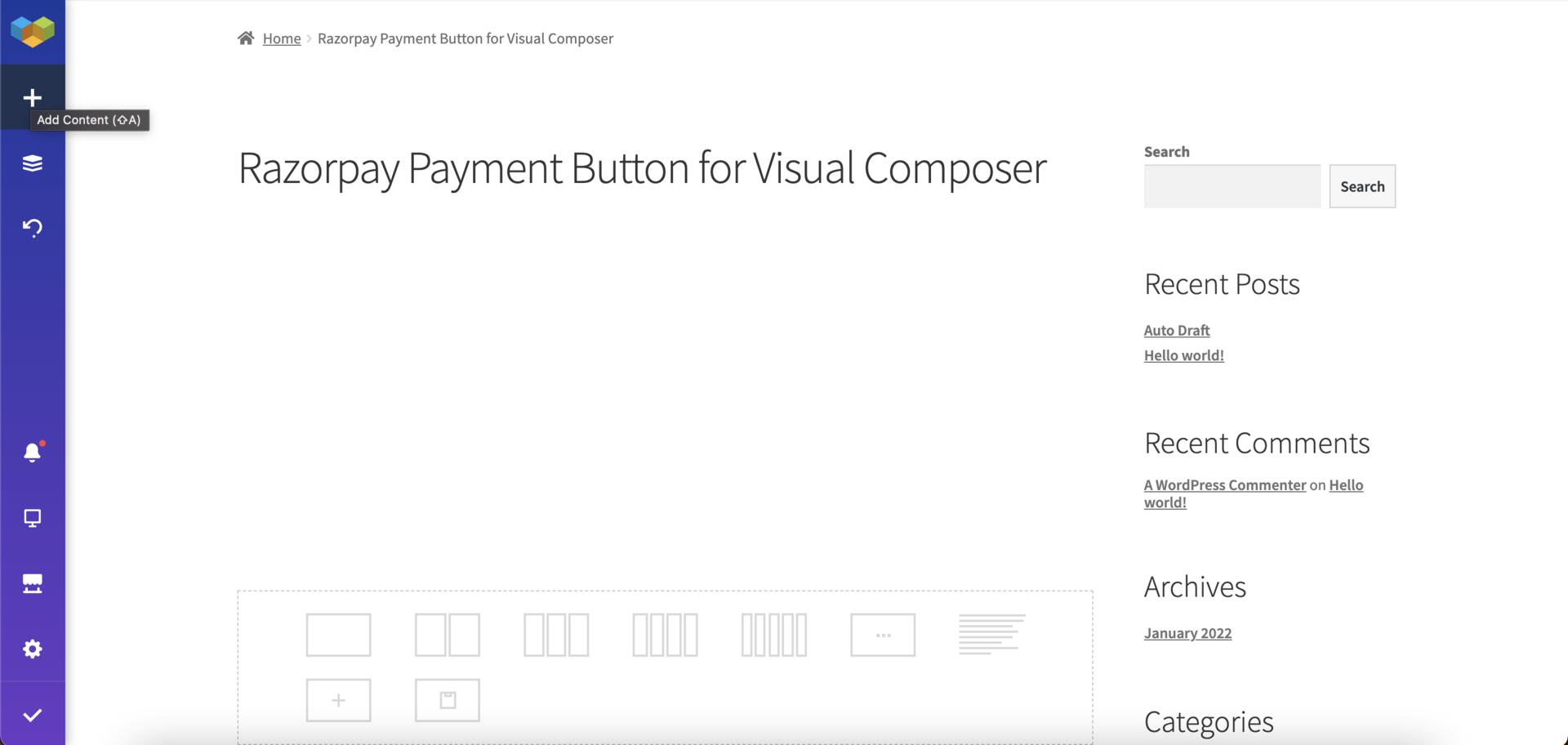
 3.3 Click **Add Content** and search for Razorpay **Payment Button** or **Subscription Button** as per your preference.
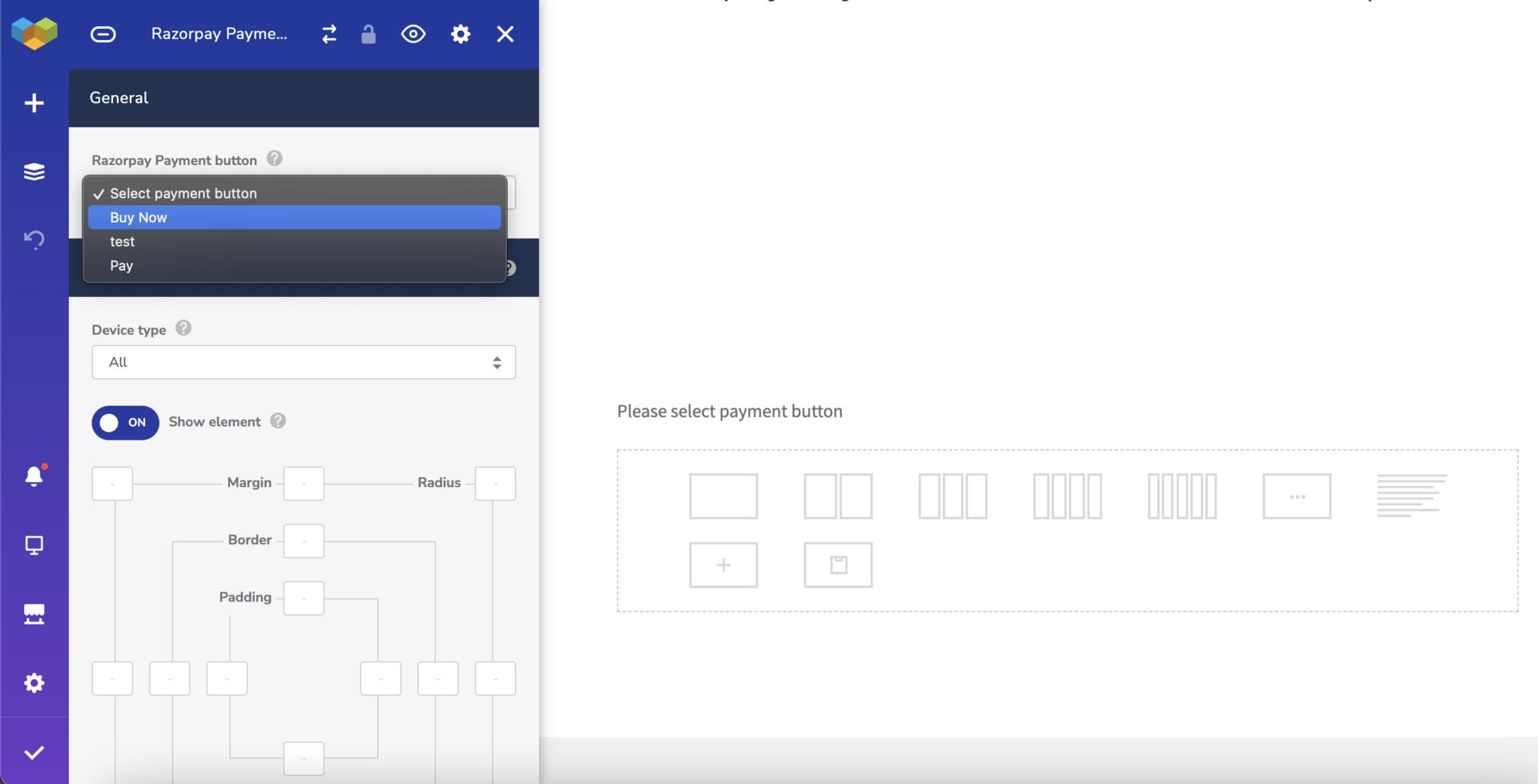
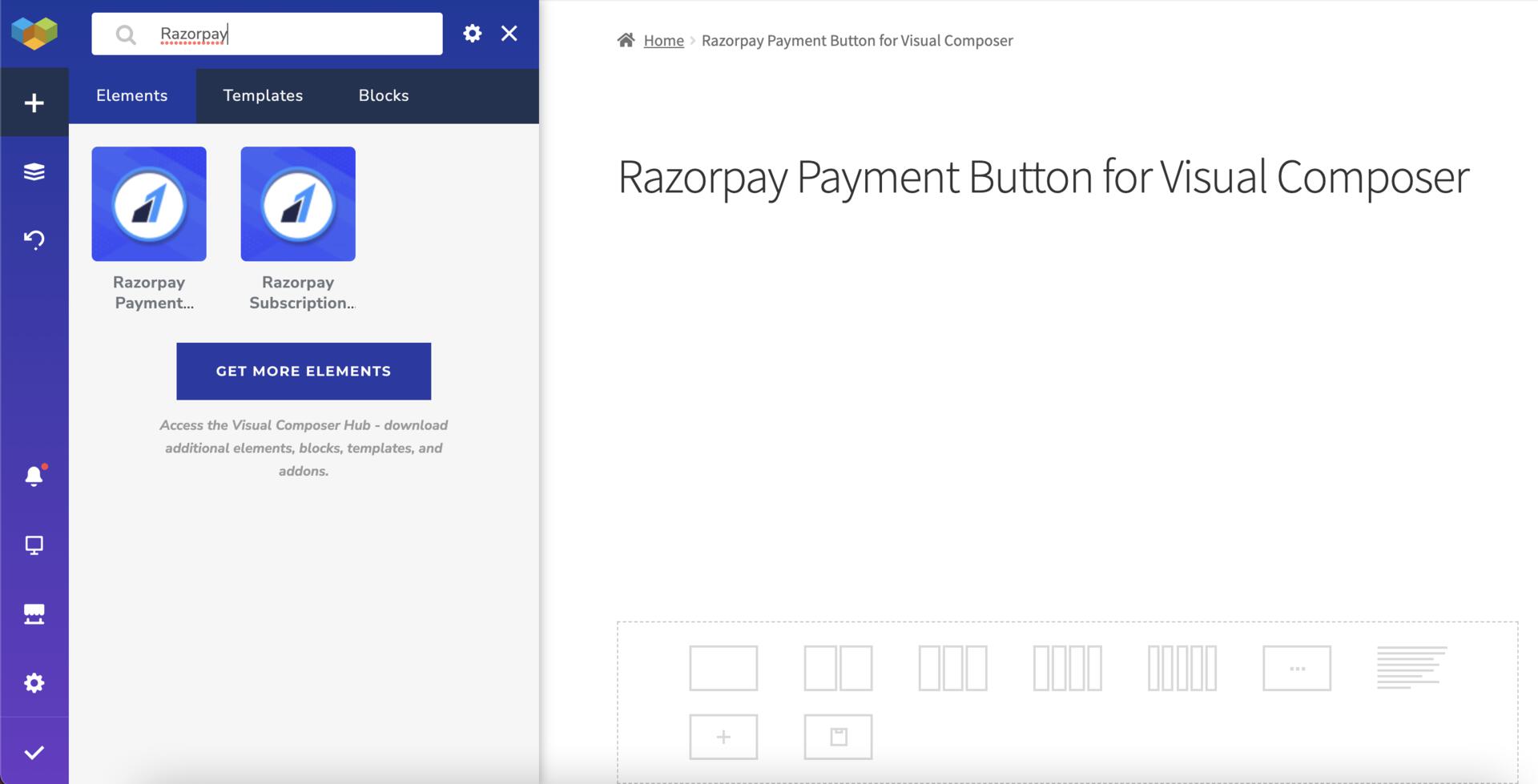 3.4 From the list, select the Payment Button that should be displayed on the page.
 3.5 Save the changes and preview the page. The Payment Button appears on the page.
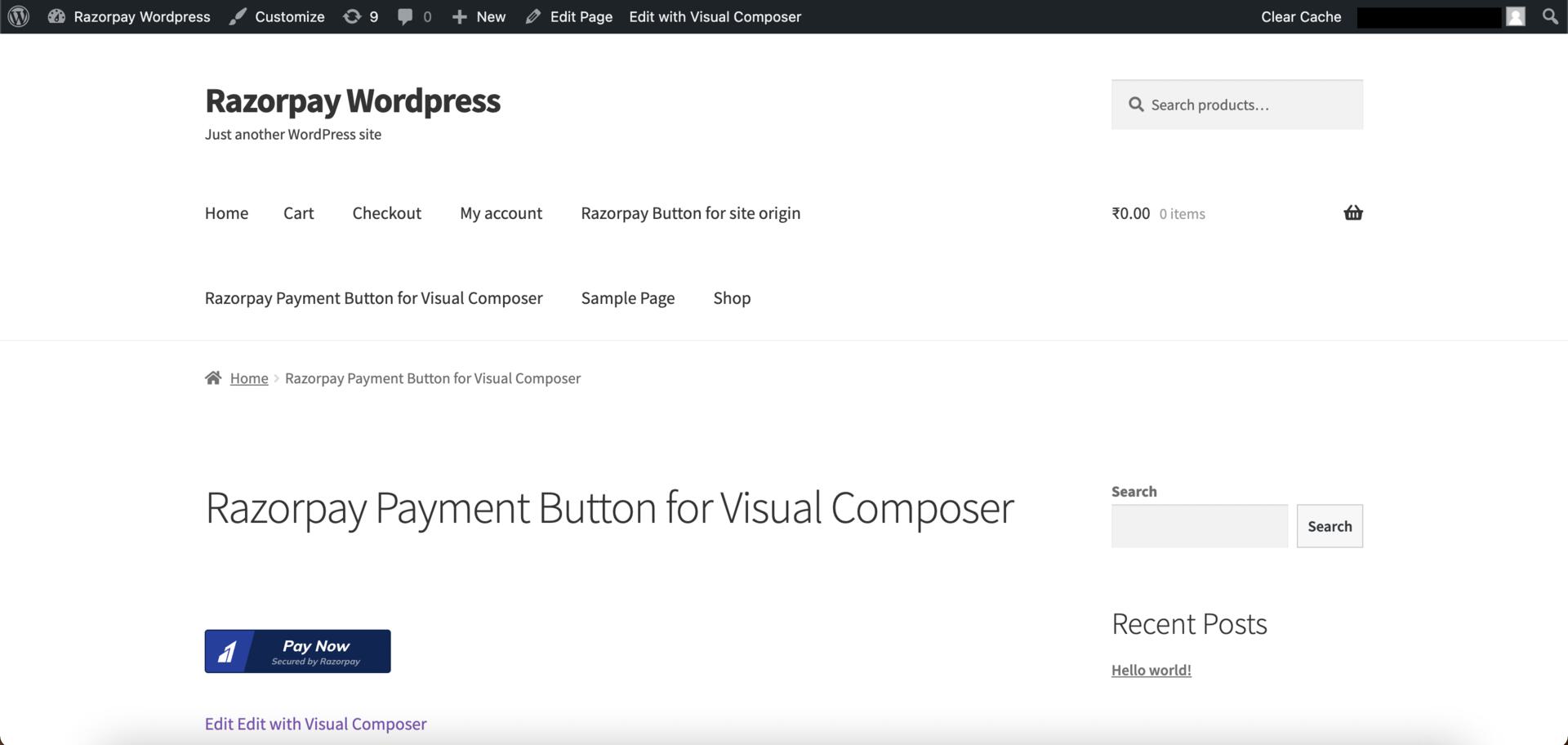 You can now start accepting payments on your WordPress website using the Payment Button.
### 4. View Details on Dashboard
To view the payments on the WordPress Dashboard:
4.1 Click **Razorpay Buttons for Visual Composer** to view the list of Payment Buttons.
You can now start accepting payments on your WordPress website using the Payment Button.
### 4. View Details on Dashboard
To view the payments on the WordPress Dashboard:
4.1 Click **Razorpay Buttons for Visual Composer** to view the list of Payment Buttons.
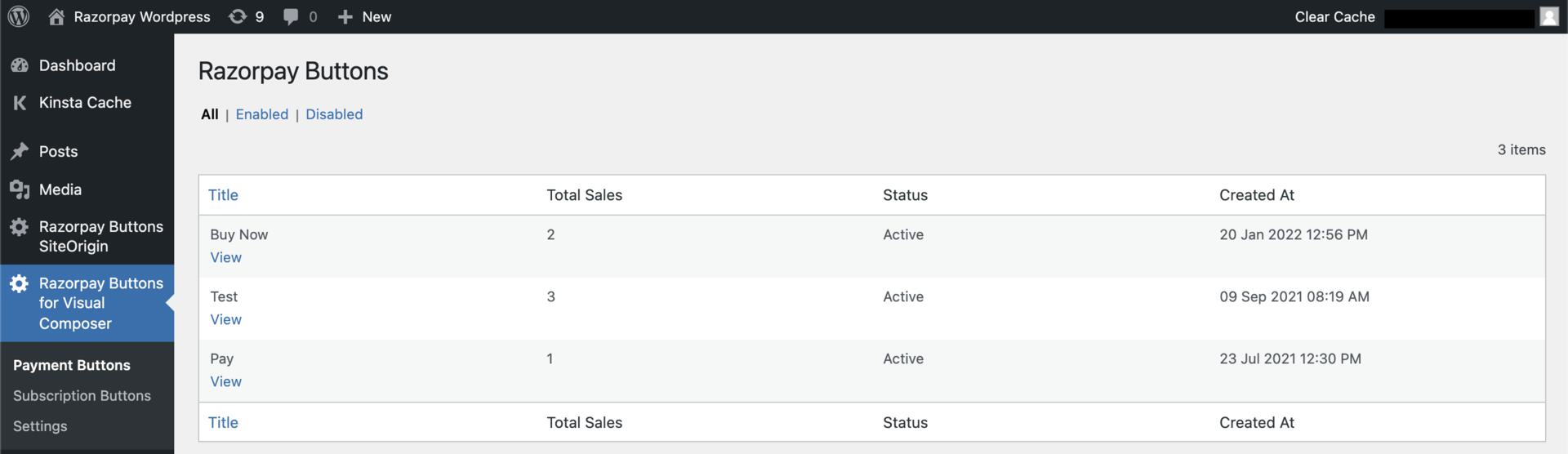 4.2 Click **View** to open the button details.
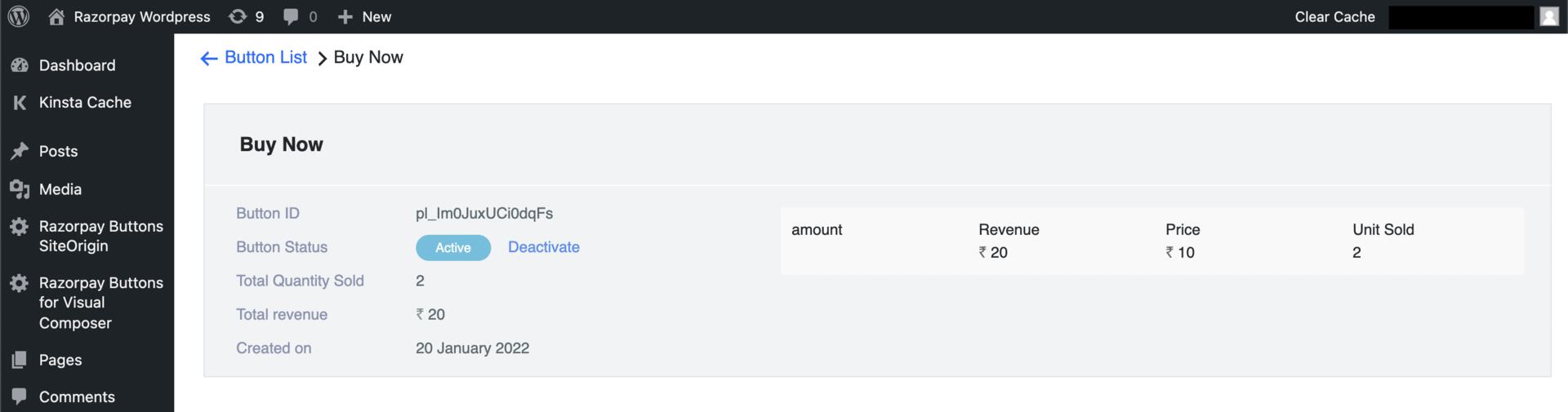 The following information regarding the payment button is displayed:
* Button ID
* Button Status
* Total Quantity Sold
* Total Revenue
* Created On
### Related Information
* [Payment Button](/docs/payments/payment-button)
* [Create a WordPress Website](/docs/payments/payment-button/supported-platforms/wordpress/create-website)
* [Embed Payment Button on WordPress Website](/docs/payments/payment-button/supported-platforms/wordpress)
* [Payment Button Elementor Plugin for WordPress](/docs/payments/payment-button/supported-platforms/wordpress/elementor)
* [Payment Button SiteOrigin Plugin for WordPress](/docs/payments/payment-button/supported-platforms/wordpress/site-origin)
The following information regarding the payment button is displayed:
* Button ID
* Button Status
* Total Quantity Sold
* Total Revenue
* Created On
### Related Information
* [Payment Button](/docs/payments/payment-button)
* [Create a WordPress Website](/docs/payments/payment-button/supported-platforms/wordpress/create-website)
* [Embed Payment Button on WordPress Website](/docs/payments/payment-button/supported-platforms/wordpress)
* [Payment Button Elementor Plugin for WordPress](/docs/payments/payment-button/supported-platforms/wordpress/elementor)
* [Payment Button SiteOrigin Plugin for WordPress](/docs/payments/payment-button/supported-platforms/wordpress/site-origin)