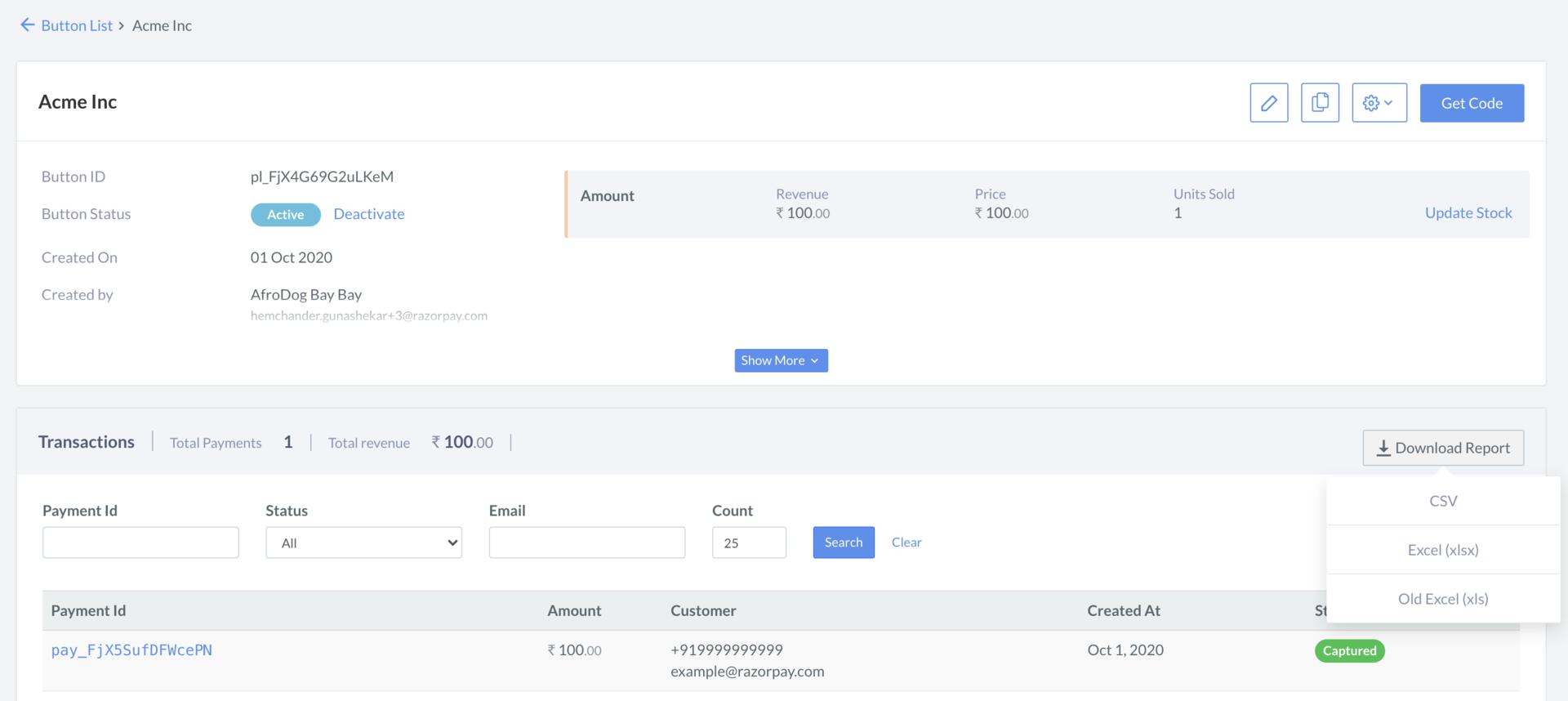
 3. Scroll down to the transaction details section. Here the list of all payments made using the button is displayed.
4. Click a Payment Id to view details of the payment.
3. Scroll down to the transaction details section. Here the list of all payments made using the button is displayed.
4. Click a Payment Id to view details of the payment.
 ### Download Report
You can download the report related to a Payment Button in the following formats:**CSV (csv)**, **Excel (xlsx)** and **Old Excel (xls)**.
To download a report:
1. Navigate to **Payment Button** on the Dashboard.
2. Click the required button. The button details view appears.
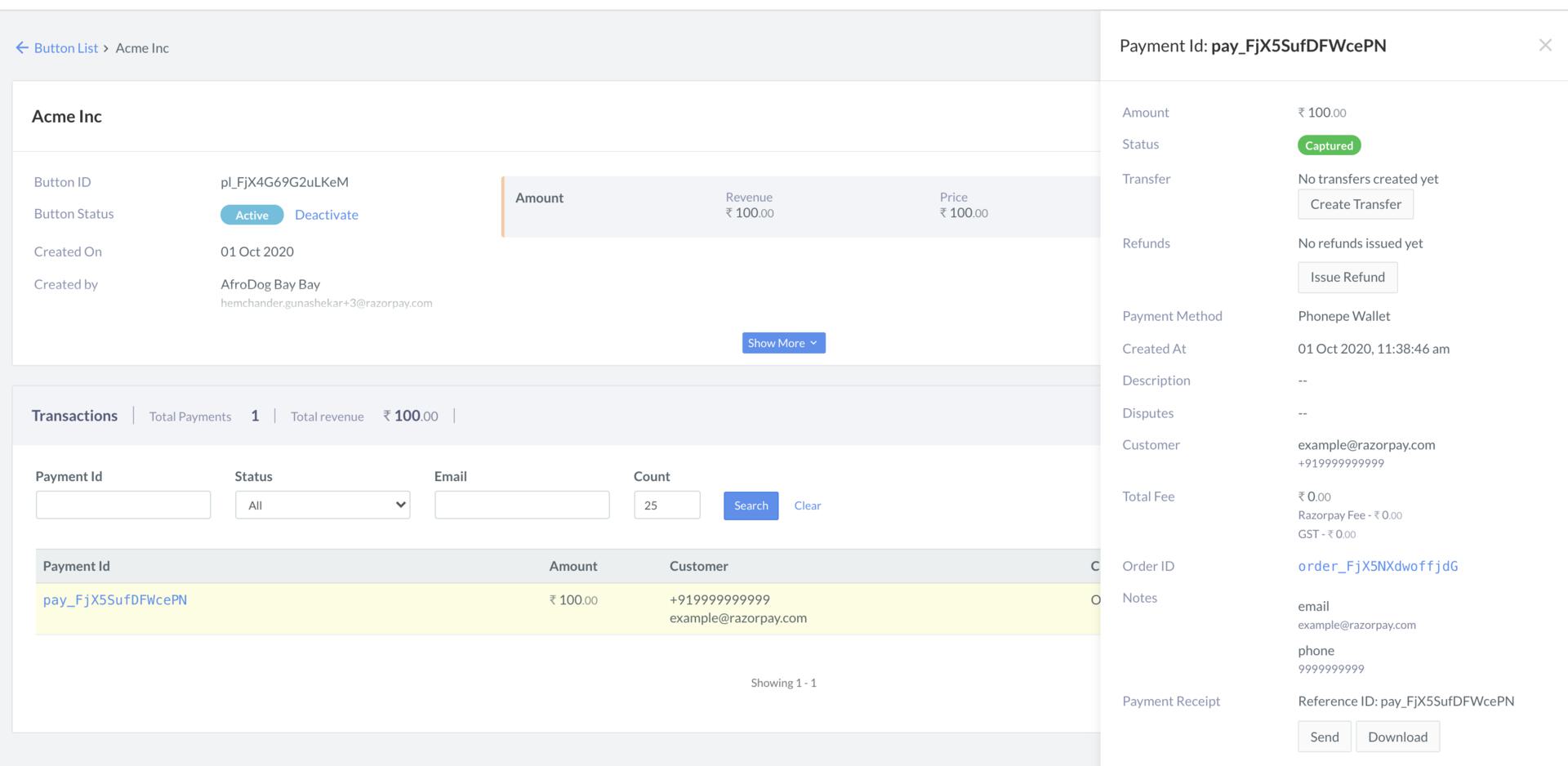
3. Scroll down to the transaction details section. Here the list of all payments made using the button is displayed.
4. Hover the mouse pointer on **Download Report**, and choose a format.
### Download Report
You can download the report related to a Payment Button in the following formats:**CSV (csv)**, **Excel (xlsx)** and **Old Excel (xls)**.
To download a report:
1. Navigate to **Payment Button** on the Dashboard.
2. Click the required button. The button details view appears.
3. Scroll down to the transaction details section. Here the list of all payments made using the button is displayed.
4. Hover the mouse pointer on **Download Report**, and choose a format.