> ## Documentation Index
> Fetch the complete documentation index at: https://razorpay-881012b3.mintlify.site/llms.txt
> Use this file to discover all available pages before exploring further.
# Troubleshooting & FAQs
> Troubleshoot common errors and find answers to frequently asked questions about Shopify.
Available in
🇮🇳 India
## Integration & Setup
The Razorpay Shopify plugin has been renamed from **1 Razorpay** to **All-in-one Razorpay Payment Gateway**. If you are unable to find the plugin, search for **All-in-one Razorpay Payment Gateway** on the Shopify App Store or use the [direct link](https://accounts.shopify.com/store-login?redirect=settings%2Fpayments%2Falternative-providers%2F1058839) to access the app on your Shopify store.
Follow the [build integration](/docs/payments/payment-gateway/ecommerce-plugins/shopify/integration-steps#1-build-integration) steps to integrate All-in-one Razorpay Payment Gateway with your Shopify store.
No, API keys are not required to integrate a payment app with Shopify. OAuth is used to handle the authentication process.
Follow the steps given below to connect All-in-one Razorpay Payment Gateway with your Razorpay account:
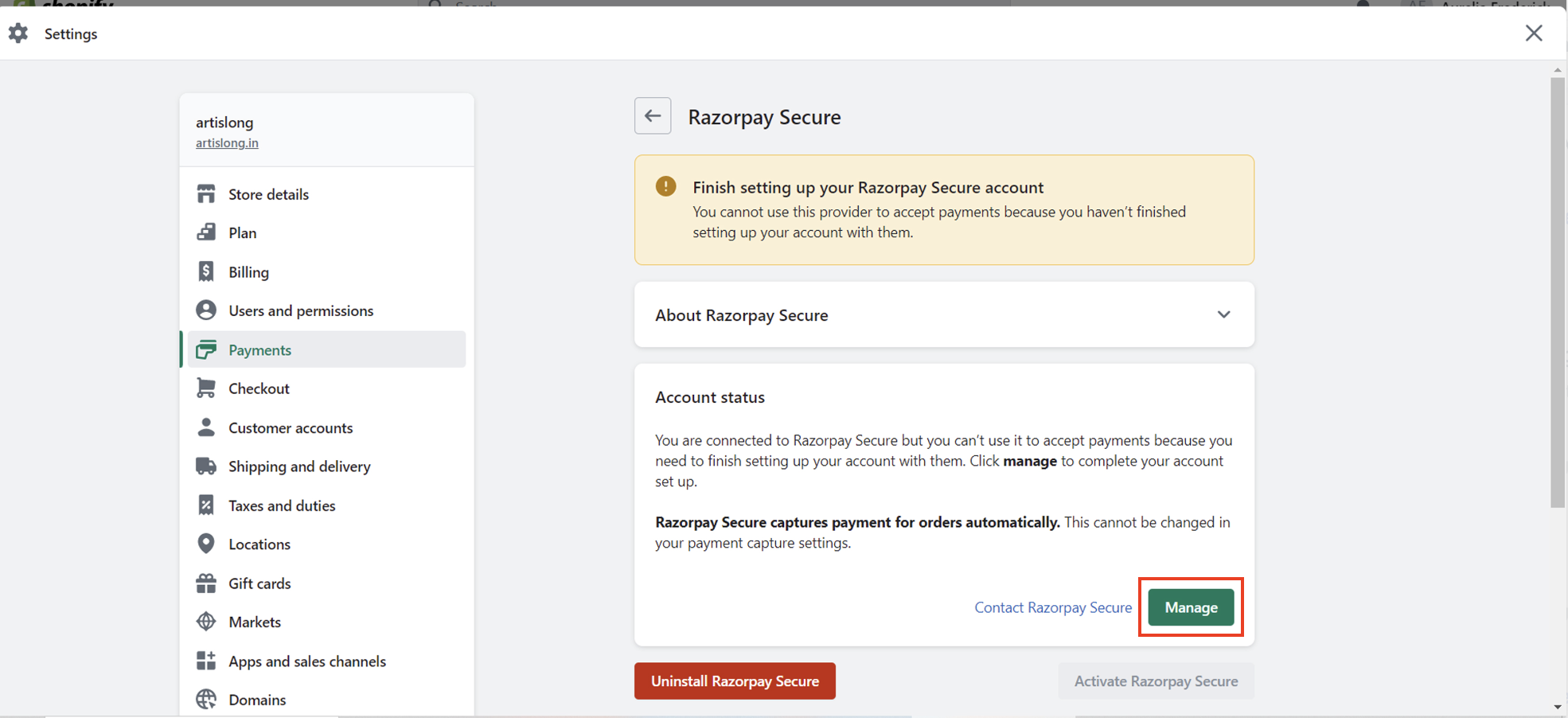
1. When you try to reconnect, you will get the following screen. Click **Manage**.
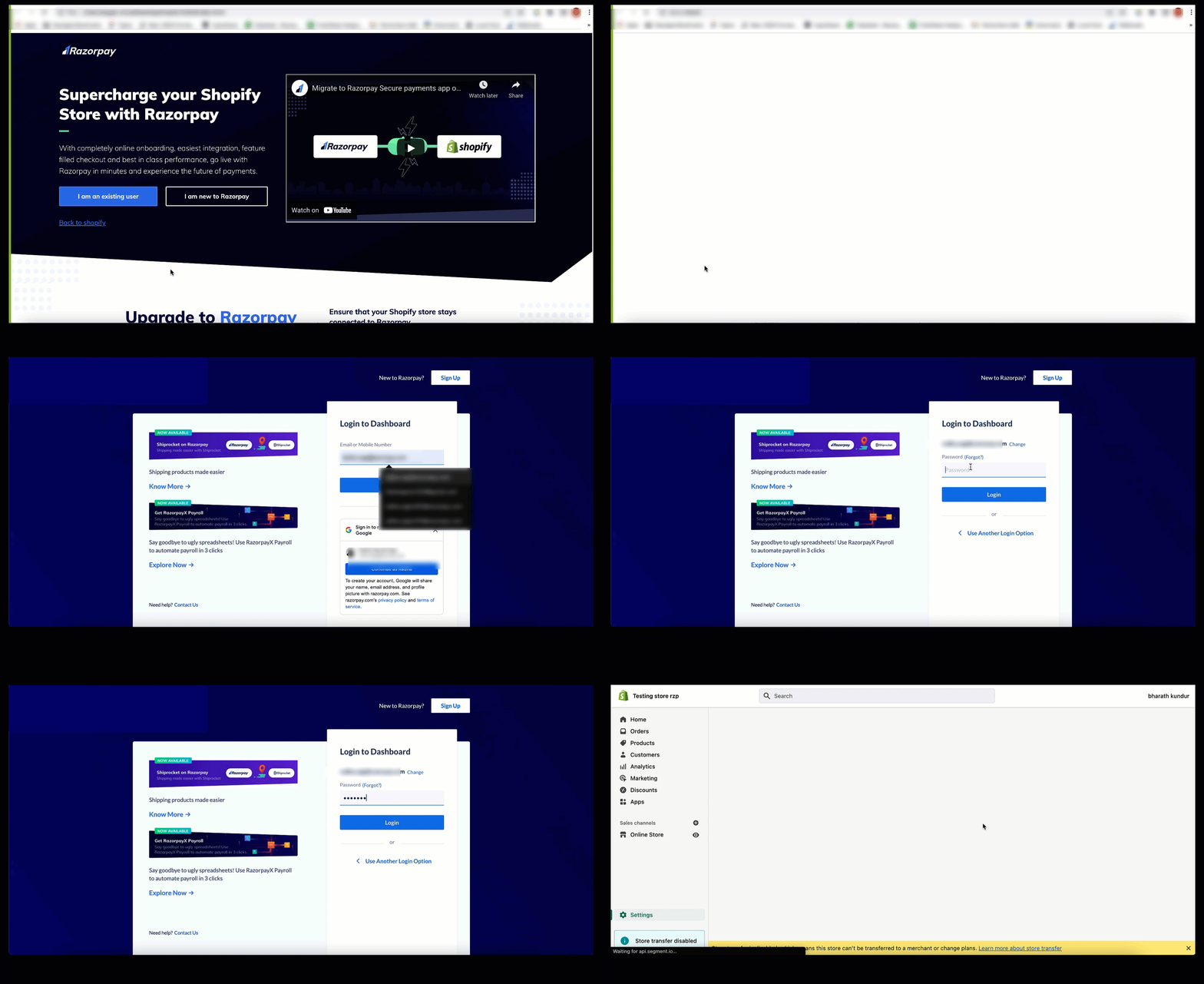
 2. You will be redirected to a landing page. Click **I am an existing user**.
 3. Scroll down and click **Login**.
**Handy Tips**
Make sure you log in with **owner** credentials to connect Razorpay with Shopify successfully.
3. Scroll down and click **Login**.
**Handy Tips**
Make sure you log in with **owner** credentials to connect Razorpay with Shopify successfully.
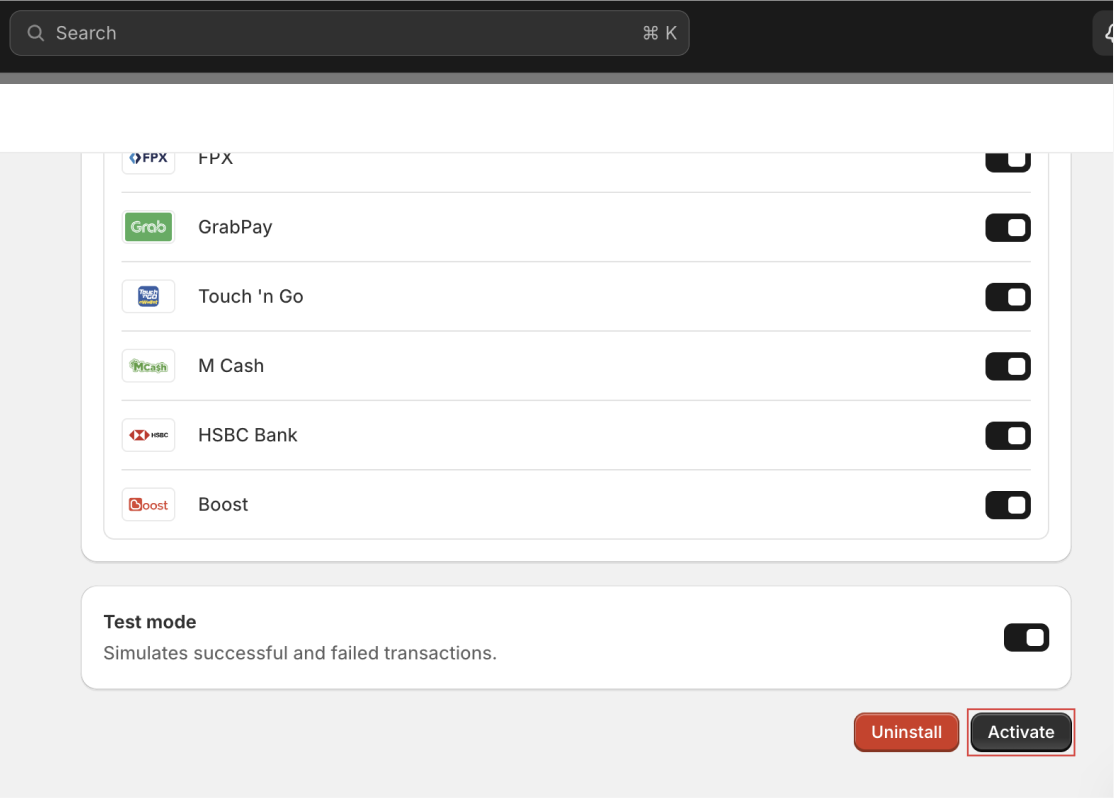
 4. Click **Activate** on the activation screen on your Shopify Dashboard.
 All-in-one Razorpay Payment Gateway now appears as a Payment Gateway on your Shopify Store checkout.
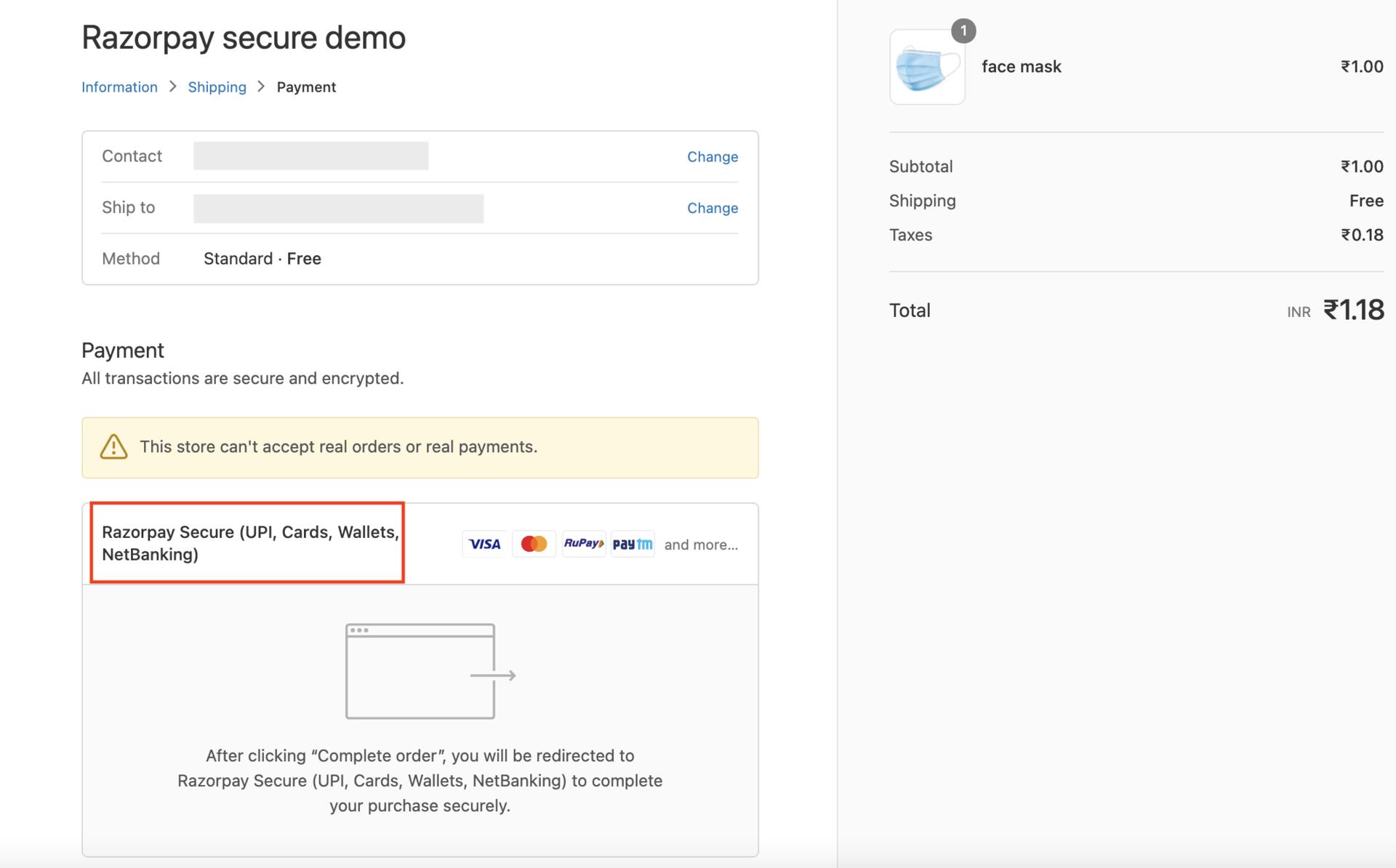 This completes your integration.
The Activate button may be disabled due to the plugin being integrated into another account or keyless authentication not being enabled. To enable the Activate button:
This completes your integration.
The Activate button may be disabled due to the plugin being integrated into another account or keyless authentication not being enabled. To enable the Activate button:
* **Check for Integration with Another Account:** Verify if you have integrated your Shopify Store with a different Razorpay MID. If yes, revoke access under applications and retry the All-in-one Razorpay Payment Gateway [integration steps](/docs/payments/payment-gateway/ecommerce-plugins/shopify/integration-steps#1-build-integration).
* **Enable Keyless Authentication:** Ensure keyless authentication is enabled from Razorpay's end. To enable keyless authentication contact our [Support team](https://razorpay.com/support/).
This error occurs when there is a discrepancy between the email IDs used in Shopify and Razorpay.
You can [update the email ID](/docs/payments/dashboard/account-settings/account-details#update-login-email) on Razorpay to match the one used in Shopify. Verify that the email ID associated with owner access on Razorpay matches the one used in Shopify.
A blank screen appears when the email id used to log in to Razorpay doesn't match the email ID registered with owner access on Razorpay. Make sure that you log in using the correct email ID.
To uninstall any Razorpay payment app from your Shopify store, follow these steps:
1. Log in to your Shopify admin panel and navigate to **Settings**→**Payments**.
2. Click **Add payment methods**.
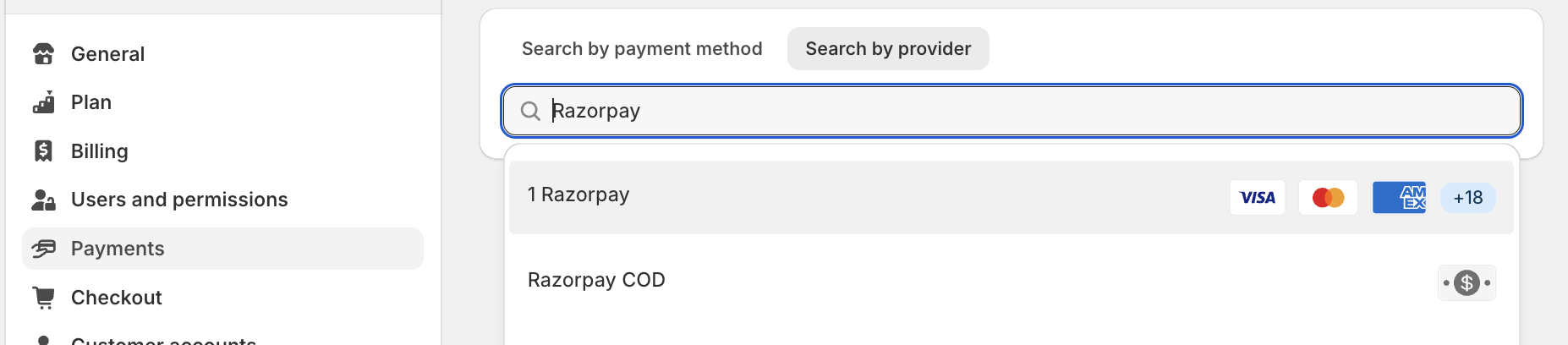
3. Click Search by provider and type **Razorpay**. This will show all the Razorpay payment apps installed on your Shopify store. Click the Razorpay app that you wish to uninstall.
 4. Scroll down to the bottom and click the **Uninstall** button to remove the app from your Shopify store.
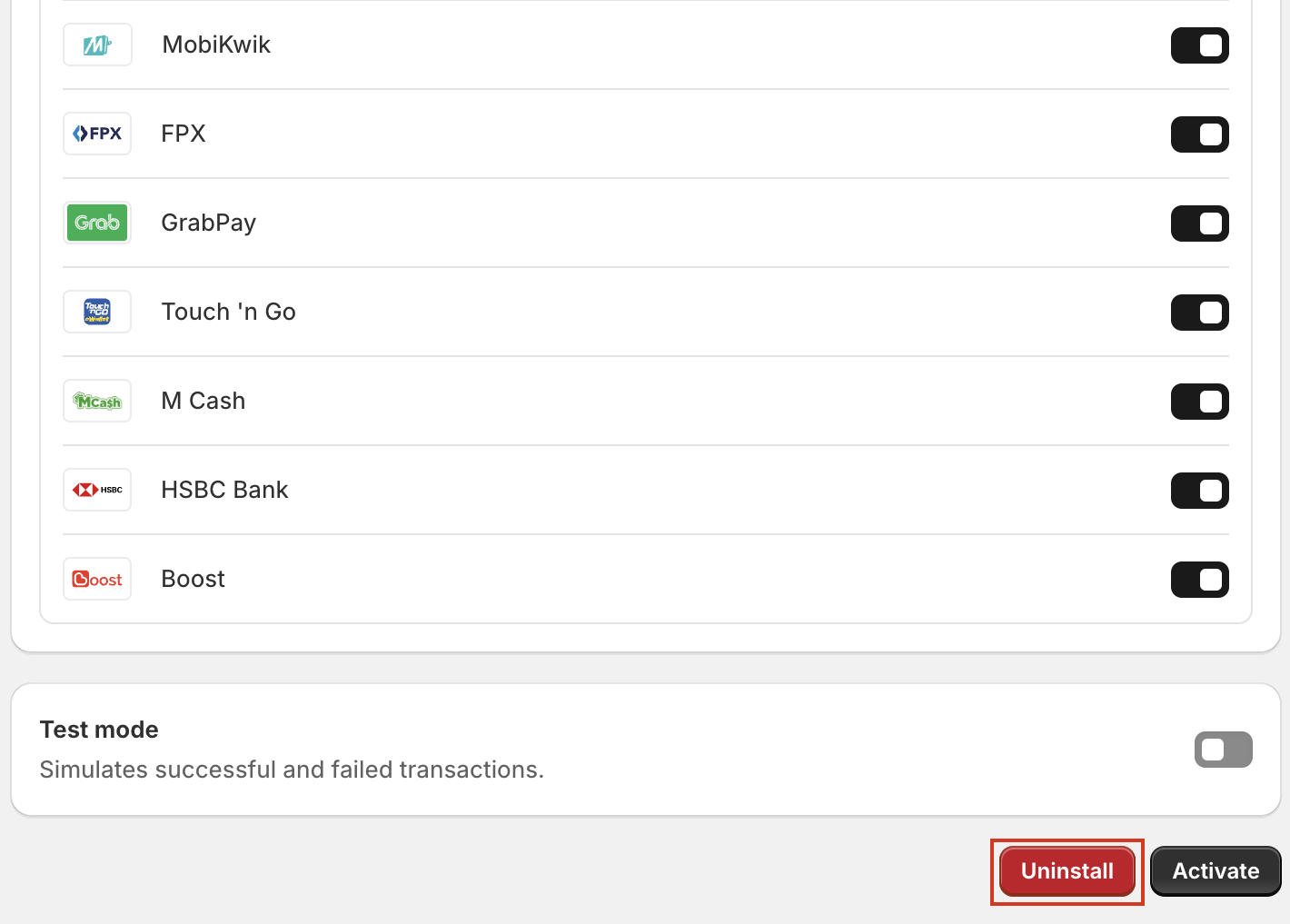 This will successfully uninstall the selected Razorpay payment app from your Shopify store.
To avoid confusion, uninstall the legacy version of the plugin and [re-install](/docs/payments/payment-gateway/ecommerce-plugins/shopify/integration-steps#1-build-integration) the current plugin version (All-in-one Razorpay Payment Gateway).
After migrating your website to Shopify, you need to integrate with the official Shopify All-in-one Razorpay Payment Gateway plugin, as your previous Payment Gateway integration from the old platform will not be carried over. Follow the [integration steps](/docs/payments/payment-gateway/ecommerce-plugins/shopify/integration-steps) and once activated, your payment gateway will be displayed at checkout, allowing you to accept payments.
## Migration to All-in-one Razorpay Payment Gateway
Shopify has launched a new payment platform, which requires existing and new payment apps to meet a new set of secure guidelines. Razorpay has built a new app, All-in-one Razorpay Payment Gateway, that complies with these new rules.
**Watch Out!**
Your customers' payments will fail if you do not upgrade to the All-in-one Razorpay Payment Gateway app at the earliest. So, you must upgrade to All-in-one Razorpay Payment Gateway to provide an uninterrupted payment experience to your customers.
You can upgrade to All-in-one Razorpay Payment Gateway by following a simple migration process. Know more about [how to migrate to All-in-one Razorpay Payment Gateway](/docs/payments/payment-gateway/ecommerce-plugins/shopify/migration-steps).
All Shopify and Shopify Plus merchants must migrate to the All-in-one Razorpay Payment Gateway payments app to continue accepting payments without service disruptions.
Only a Shopify Store Owner or Administrator can complete the migration for a Shopify account. They will need Razorpay account credentials to connect the two applications.
Nothing will change for you or your customers if you upgrade to the All-in-one Razorpay Payment Gateway app. If you do not migrate, Razorpay will not appear as a payment option for your customers once the old Razorpay app is deprecated.
If you do not deactivate the older Razorpay plugin, two Razorpay payment gateways will be visible to your customers on your store checkout, which may lead to confusion.
## Checkout and Payment Issues
Your customers may get the following error when making payments.
This will successfully uninstall the selected Razorpay payment app from your Shopify store.
To avoid confusion, uninstall the legacy version of the plugin and [re-install](/docs/payments/payment-gateway/ecommerce-plugins/shopify/integration-steps#1-build-integration) the current plugin version (All-in-one Razorpay Payment Gateway).
After migrating your website to Shopify, you need to integrate with the official Shopify All-in-one Razorpay Payment Gateway plugin, as your previous Payment Gateway integration from the old platform will not be carried over. Follow the [integration steps](/docs/payments/payment-gateway/ecommerce-plugins/shopify/integration-steps) and once activated, your payment gateway will be displayed at checkout, allowing you to accept payments.
## Migration to All-in-one Razorpay Payment Gateway
Shopify has launched a new payment platform, which requires existing and new payment apps to meet a new set of secure guidelines. Razorpay has built a new app, All-in-one Razorpay Payment Gateway, that complies with these new rules.
**Watch Out!**
Your customers' payments will fail if you do not upgrade to the All-in-one Razorpay Payment Gateway app at the earliest. So, you must upgrade to All-in-one Razorpay Payment Gateway to provide an uninterrupted payment experience to your customers.
You can upgrade to All-in-one Razorpay Payment Gateway by following a simple migration process. Know more about [how to migrate to All-in-one Razorpay Payment Gateway](/docs/payments/payment-gateway/ecommerce-plugins/shopify/migration-steps).
All Shopify and Shopify Plus merchants must migrate to the All-in-one Razorpay Payment Gateway payments app to continue accepting payments without service disruptions.
Only a Shopify Store Owner or Administrator can complete the migration for a Shopify account. They will need Razorpay account credentials to connect the two applications.
Nothing will change for you or your customers if you upgrade to the All-in-one Razorpay Payment Gateway app. If you do not migrate, Razorpay will not appear as a payment option for your customers once the old Razorpay app is deprecated.
If you do not deactivate the older Razorpay plugin, two Razorpay payment gateways will be visible to your customers on your store checkout, which may lead to confusion.
## Checkout and Payment Issues
Your customers may get the following error when making payments.
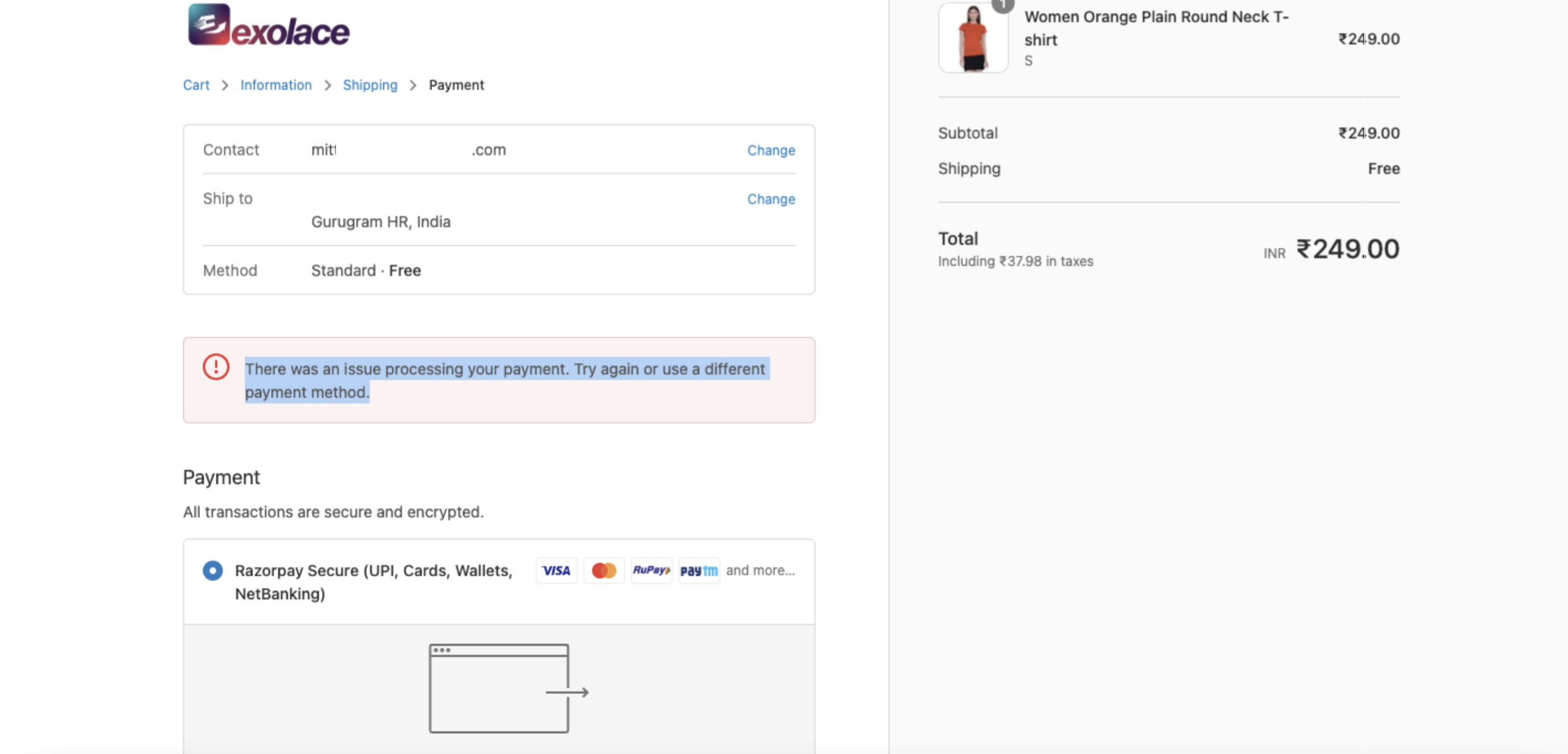 Uninstall and reinstall the All-in-one Razorpay Payment Gateway from your Shopify store to resolve the error.
To uninstall the app:
1. Open your Shopify store in incognito mode.
2. Navigate to **Settings** → **Payments**. Click **Manage on All-in-one Razorpay Payment Gateway**.
3. Go to **Deactivate All-in-one Razorpay Payment Gateway** and click **Uninstall All-in-one Razorpay Payment Gateway**. This uninstalls the All-in-one Razorpay Payment Gateway app.
Follow the [build integration](/docs/payments/payment-gateway/ecommerce-plugins/shopify/integration-steps#1-build-integration) steps to install the plugin again.
**Watch Out!**
Ensure you uninstall and reinstall the app instead of only deactivating it.
If your plugin still does not accept payments, contact [Support team](https://razorpay.com/support/).
You might have only integrated with Razorpay Direct - Credit Card Plugin, which supports card payments only. To accept UPI, Netbanking, Wallets and Cards at checkout, you need to [integrate with All-in-one Razorpay Payment Gateway](/docs/payments/payment-gateway/ecommerce-plugins/shopify/integration-steps), which is Razorpay's full payment gateway app for Shopify.
Active payment method customisations typically cause this issue in your Shopify admin. When adding multiple payment providers, these customisations may conflict and prevent Razorpay from appearing at checkout.
To fix this, follow the steps below:
1. Navigate to **Shopify Admin** → **Settings** → **Payments** → **Payment Method Customizations**.
2. **Disable or remove all customizations** listed under this section.
3. Save the changes and refresh the checkout page.
Once the payment customizations are removed, the Razorpay payment option should reappear at checkout.
If the issue persists, contact our [Support team](https://razorpay.com/support/).
You can test a payment for All-in-one Razorpay Payment Gateway on the Shopify store by switching to test mode. Know more about [how to test a transaction in test mode.](/docs/payments/payment-gateway/ecommerce-plugins/shopify/integration-steps#21-make-a-test-transaction-in-test-mode)
**Handy Tips**
Once you successfully make a test transaction, ensure you uncheck the **Enable test mode** option to accept live payments.
No. It is not possible to rearrange the order payment options via the store settings of the Shopify Dashboard as it is a limitation from Shopify's end.
Razorpay facilitates only payment collection. The partner is solely responsible for sending invoices or payment receipts with GST details to customers. To provide GST-compliant receipts, partners can use [Razorpay Invoice](/docs/payments/invoices) product when collecting payments.
## Account Management
No, currently you can connect only one MID to your Shopify Store.
**Handy Tips**
Make sure you log in using the correct Razorpay merchant id (MID) credentials via the Shopify Dashboard.
No, Shopify currently supports only one Razorpay account integration per store. If you want to integrate a different Razorpay account, you need to [deactivate](#8-how-do-i-uninstall-razorpay-payment-apps) the existing integration first and then [activate](/docs/payments/payment-gateway/ecommerce-plugins/shopify/integration-steps) the new account.
Yes, when customers pay through Razorpay on either of your connected websites, they will be redirected to the website they purchased from.
## Pricing and Settlements
No, there will be no additional charges. Your pricing plan will remain the same as earlier.
Funds will be settled as per the existing settlement schedule. There will be no change to it.
## Verification and Order Processing
Yes. The Razorpay Shopify integration works on payment auto-capture mode, so most Razorpay authorised payments get auto-captured. However, there is a 0.5% chance that an authorised payment encounters a gateway capture failure and gets auto-refunded. Before processing an order, verify the payment status on the [Razorpay Dashboard](/docs/payments/dashboard) or reconcile it from the [reports](/docs/payments/dashboard/reports).
## Features and Limitations
No, Shopify does not support Subscriptions. The Ecommerce platforms that support Subscriptions are Woocommerce, Magento, and Open Cart.
The Shopify All-in-one Razorpay Payment Gateway plugin currently supports only currencies that use 2 decimal units. For example: USD, EUR, INR. It does not support currencies with 0 decimal (for example, JPY) or 3 decimal units (for example, BHD).
Razorpay does not provide a direct plugin integration for accepting payments through Meta Ads. However, you can use Razorpay Payment Pages with [Facebook Pixel and Google Tracking ID](/docs/payments/payment-pages/plugins-add-ons) to track payments and conversions from your Ad campaigns.
No, Razorpay Route API is not supported for Shopify integration. Only the [All-in-one Razorpay Payment Gateway plugin](/docs/payments/payment-gateway/ecommerce-plugins/shopify/integration-steps) is supported for Shopify stores.
Uninstall and reinstall the All-in-one Razorpay Payment Gateway from your Shopify store to resolve the error.
To uninstall the app:
1. Open your Shopify store in incognito mode.
2. Navigate to **Settings** → **Payments**. Click **Manage on All-in-one Razorpay Payment Gateway**.
3. Go to **Deactivate All-in-one Razorpay Payment Gateway** and click **Uninstall All-in-one Razorpay Payment Gateway**. This uninstalls the All-in-one Razorpay Payment Gateway app.
Follow the [build integration](/docs/payments/payment-gateway/ecommerce-plugins/shopify/integration-steps#1-build-integration) steps to install the plugin again.
**Watch Out!**
Ensure you uninstall and reinstall the app instead of only deactivating it.
If your plugin still does not accept payments, contact [Support team](https://razorpay.com/support/).
You might have only integrated with Razorpay Direct - Credit Card Plugin, which supports card payments only. To accept UPI, Netbanking, Wallets and Cards at checkout, you need to [integrate with All-in-one Razorpay Payment Gateway](/docs/payments/payment-gateway/ecommerce-plugins/shopify/integration-steps), which is Razorpay's full payment gateway app for Shopify.
Active payment method customisations typically cause this issue in your Shopify admin. When adding multiple payment providers, these customisations may conflict and prevent Razorpay from appearing at checkout.
To fix this, follow the steps below:
1. Navigate to **Shopify Admin** → **Settings** → **Payments** → **Payment Method Customizations**.
2. **Disable or remove all customizations** listed under this section.
3. Save the changes and refresh the checkout page.
Once the payment customizations are removed, the Razorpay payment option should reappear at checkout.
If the issue persists, contact our [Support team](https://razorpay.com/support/).
You can test a payment for All-in-one Razorpay Payment Gateway on the Shopify store by switching to test mode. Know more about [how to test a transaction in test mode.](/docs/payments/payment-gateway/ecommerce-plugins/shopify/integration-steps#21-make-a-test-transaction-in-test-mode)
**Handy Tips**
Once you successfully make a test transaction, ensure you uncheck the **Enable test mode** option to accept live payments.
No. It is not possible to rearrange the order payment options via the store settings of the Shopify Dashboard as it is a limitation from Shopify's end.
Razorpay facilitates only payment collection. The partner is solely responsible for sending invoices or payment receipts with GST details to customers. To provide GST-compliant receipts, partners can use [Razorpay Invoice](/docs/payments/invoices) product when collecting payments.
## Account Management
No, currently you can connect only one MID to your Shopify Store.
**Handy Tips**
Make sure you log in using the correct Razorpay merchant id (MID) credentials via the Shopify Dashboard.
No, Shopify currently supports only one Razorpay account integration per store. If you want to integrate a different Razorpay account, you need to [deactivate](#8-how-do-i-uninstall-razorpay-payment-apps) the existing integration first and then [activate](/docs/payments/payment-gateway/ecommerce-plugins/shopify/integration-steps) the new account.
Yes, when customers pay through Razorpay on either of your connected websites, they will be redirected to the website they purchased from.
## Pricing and Settlements
No, there will be no additional charges. Your pricing plan will remain the same as earlier.
Funds will be settled as per the existing settlement schedule. There will be no change to it.
## Verification and Order Processing
Yes. The Razorpay Shopify integration works on payment auto-capture mode, so most Razorpay authorised payments get auto-captured. However, there is a 0.5% chance that an authorised payment encounters a gateway capture failure and gets auto-refunded. Before processing an order, verify the payment status on the [Razorpay Dashboard](/docs/payments/dashboard) or reconcile it from the [reports](/docs/payments/dashboard/reports).
## Features and Limitations
No, Shopify does not support Subscriptions. The Ecommerce platforms that support Subscriptions are Woocommerce, Magento, and Open Cart.
The Shopify All-in-one Razorpay Payment Gateway plugin currently supports only currencies that use 2 decimal units. For example: USD, EUR, INR. It does not support currencies with 0 decimal (for example, JPY) or 3 decimal units (for example, BHD).
Razorpay does not provide a direct plugin integration for accepting payments through Meta Ads. However, you can use Razorpay Payment Pages with [Facebook Pixel and Google Tracking ID](/docs/payments/payment-pages/plugins-add-ons) to track payments and conversions from your Ad campaigns.
No, Razorpay Route API is not supported for Shopify integration. Only the [All-in-one Razorpay Payment Gateway plugin](/docs/payments/payment-gateway/ecommerce-plugins/shopify/integration-steps) is supported for Shopify stores.