> ## Documentation Index
> Fetch the complete documentation index at: https://razorpay-881012b3.mintlify.site/llms.txt
> Use this file to discover all available pages before exploring further.

# Reconcile Shopify Orders on Dashboard

> Reconcile payments made on your Shopify store via Dashboard.

<div style={{display:"flex",flexWrap:"wrap",alignItems:"center",gap:"0.35rem 0.9rem",border:"1px solid rgba(128,128,128,0.28)",borderRadius:"0.5rem",padding:"0.45rem 0.75rem",margin:"0 0 1.25rem",fontSize:"0.875rem"}}>
  <span style={{fontWeight:600}}>Available in</span>
  <span>🇮🇳 India</span>
</div>

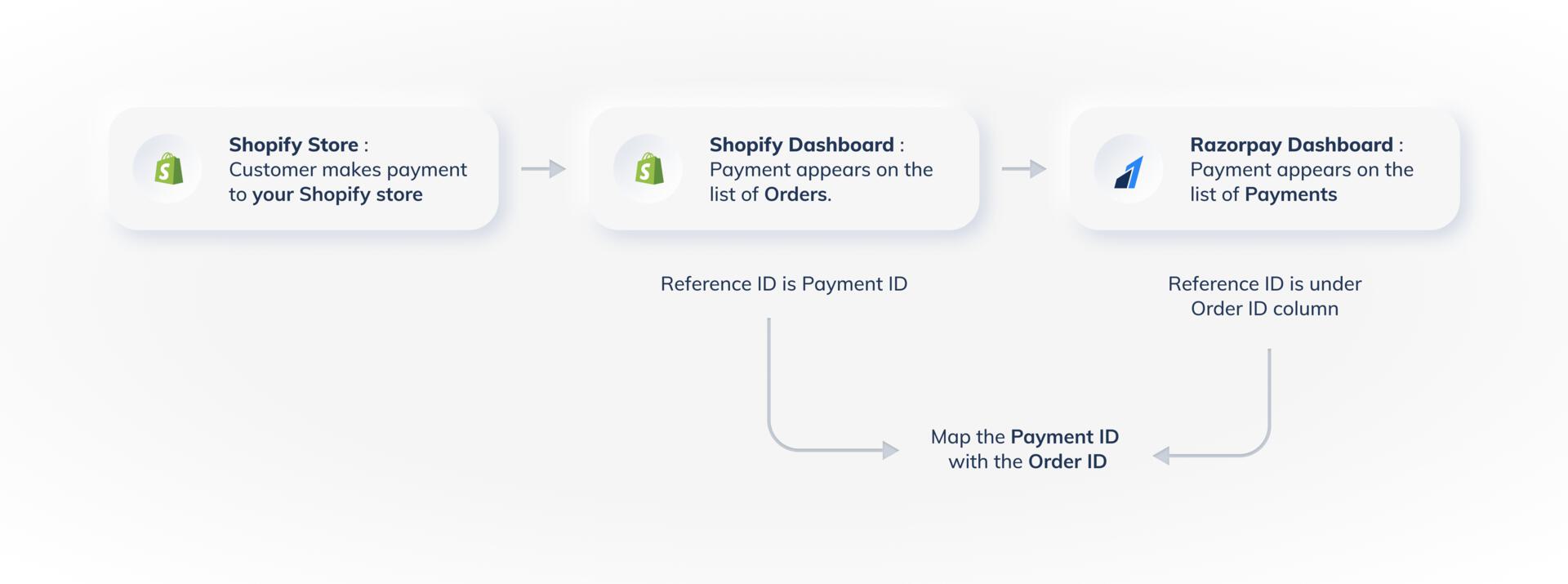
Reconciling payments made on your Shopify store with the data available on your Dashboard is a simple process.

<img class="click-zoom" src="https://razorpay.com/docs/build/browser/assets/images/ecommerce-plugins-shopify-reconciliation-process-flow.jpg" width="800" alt="Reconciliation Process Flow" />

<AccordionGroup>
  <Accordion title="Reconcile a Payment">
    Follow the steps below to reconcile a payment:

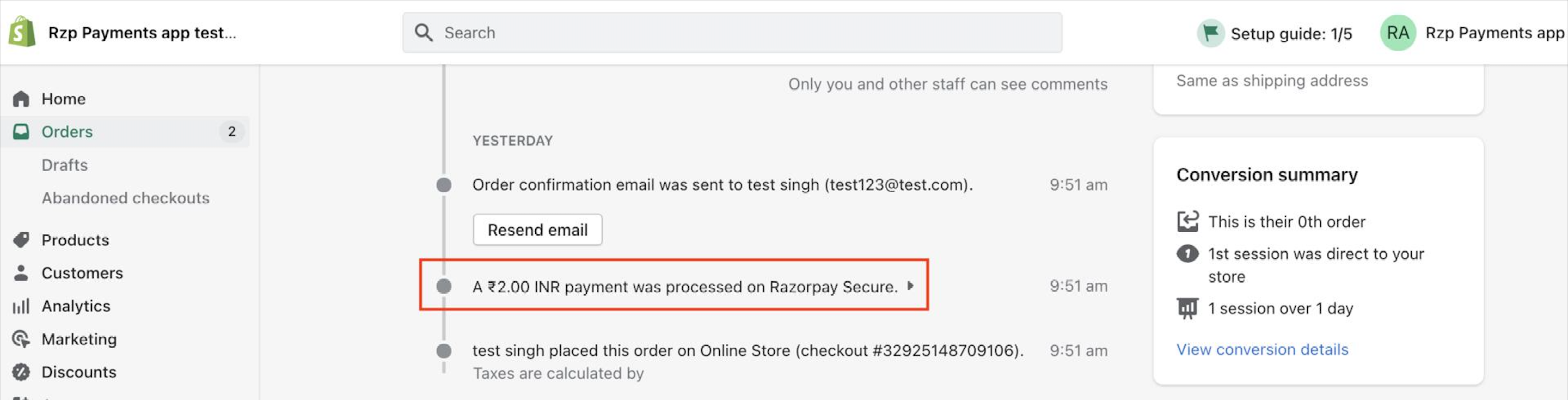
    1. Log in to the [Shopify Dashboard](https://accounts.shopify.com/) and open the **Orders** tab. Click the drop-down to view the All-in-one Razorpay Payment Gateway payment details.
           <img class="click-zoom" src="https://razorpay.com/docs/build/browser/assets/images/shopify-rzp-secure-details.jpg" width="700" alt="View All-in-one Razorpay Payment Gateway details" />
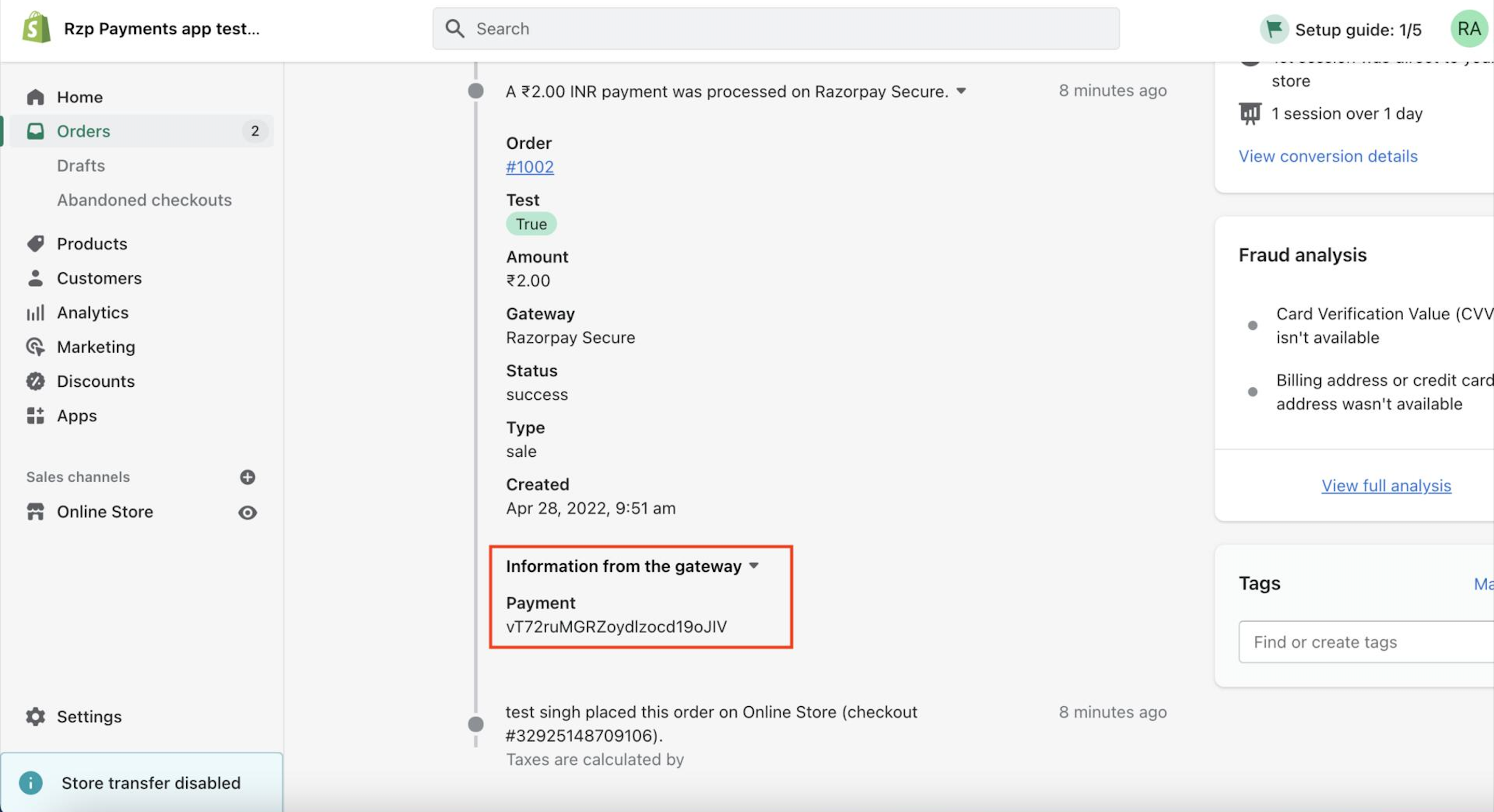
    2. Make a note of the payment id.
           <img class="click-zoom" src="https://razorpay.com/docs/build/browser/assets/images/shopify-payment-details.jpg" width="700" alt="Shopify payment details" />
    3. Log in to the Dashboard and navigate to **Transactions** → **Payments**. The payment appears on the list of payments. The payment id appears under the **Order Id** column.
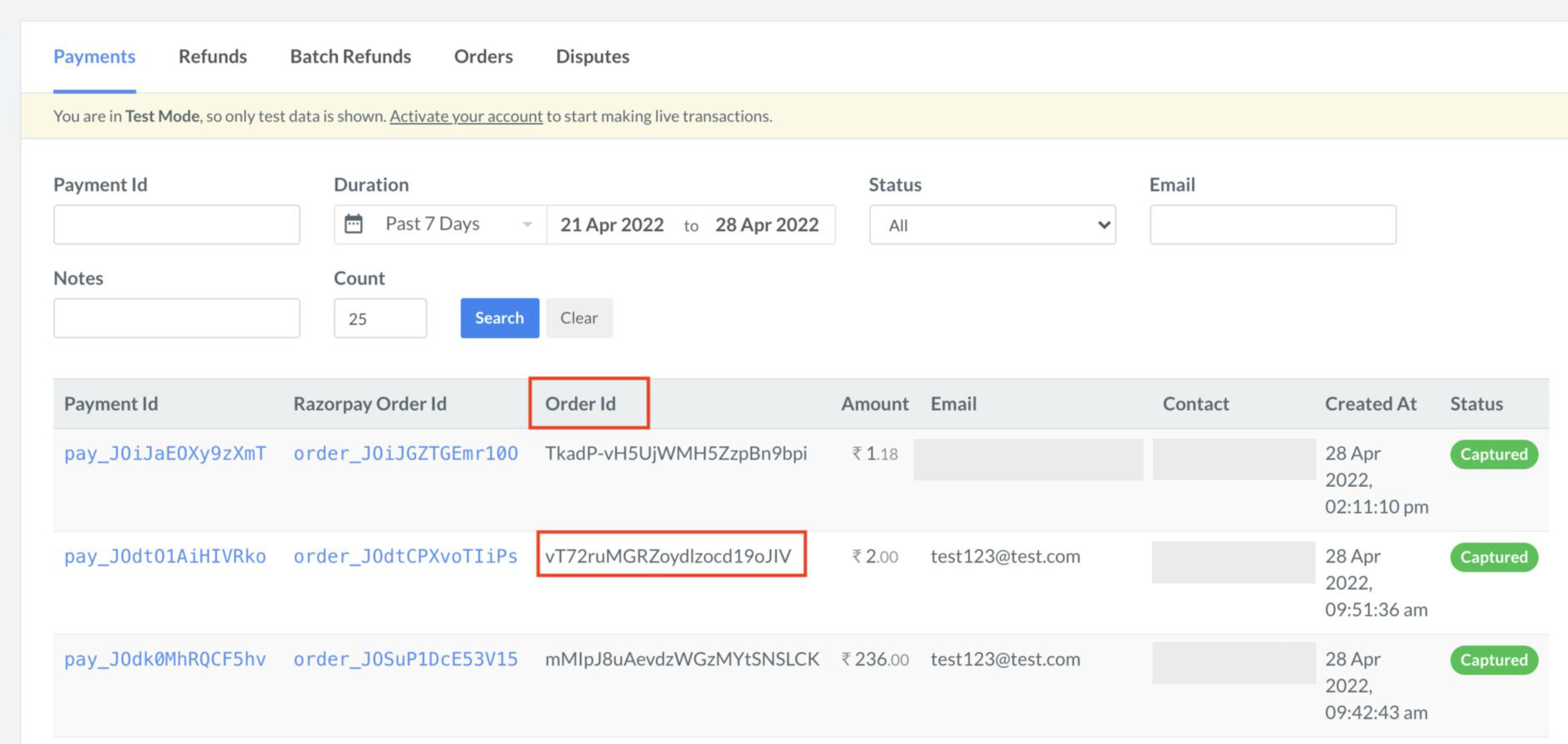
           <img class="click-zoom" src="https://razorpay.com/docs/build/browser/assets/images/shopify-rzp-payment-track.jpg" width="700" alt="View payments on Razorpay Dashboard" />
    4. Match the payment id (on the Shopify Dashboard) with the Order id (on the Razorpay Dashboard) to map the payments.
  </Accordion>

  <Accordion title="Reconcile Multiple Payments">
    Follow the steps below to reconcile multiple payments:

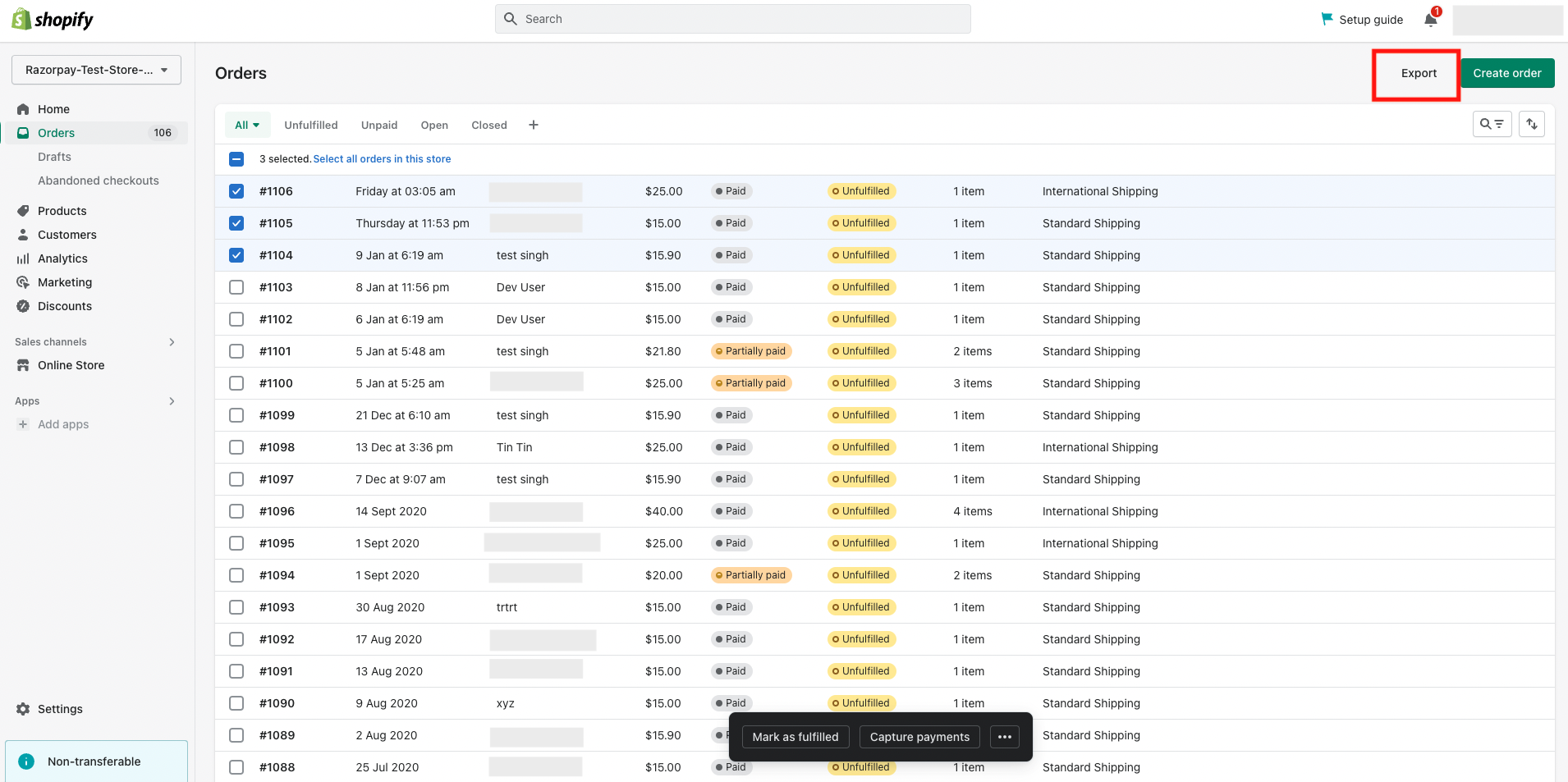
    1. Log in to the [Shopify Dashboard](https://accounts.shopify.com/) and open the **Orders** tab.
    2. Select the required orders or time period.
    3. Click **Export** to export the data. The **Payment References** column in the file contains the payment ids.
           <img src="https://razorpay.com/docs/build/browser/assets/images/shopify-select-orders.jpg" alt="Export Shopify order data" width="800" />
    4. Log in to the Dashboard and navigate to **Reports**.
    5. Select **Shopify Payments Report** in the **Select Report Type** drop-down.
    6. Select the period and format.
    7. Click **Generate Report**.
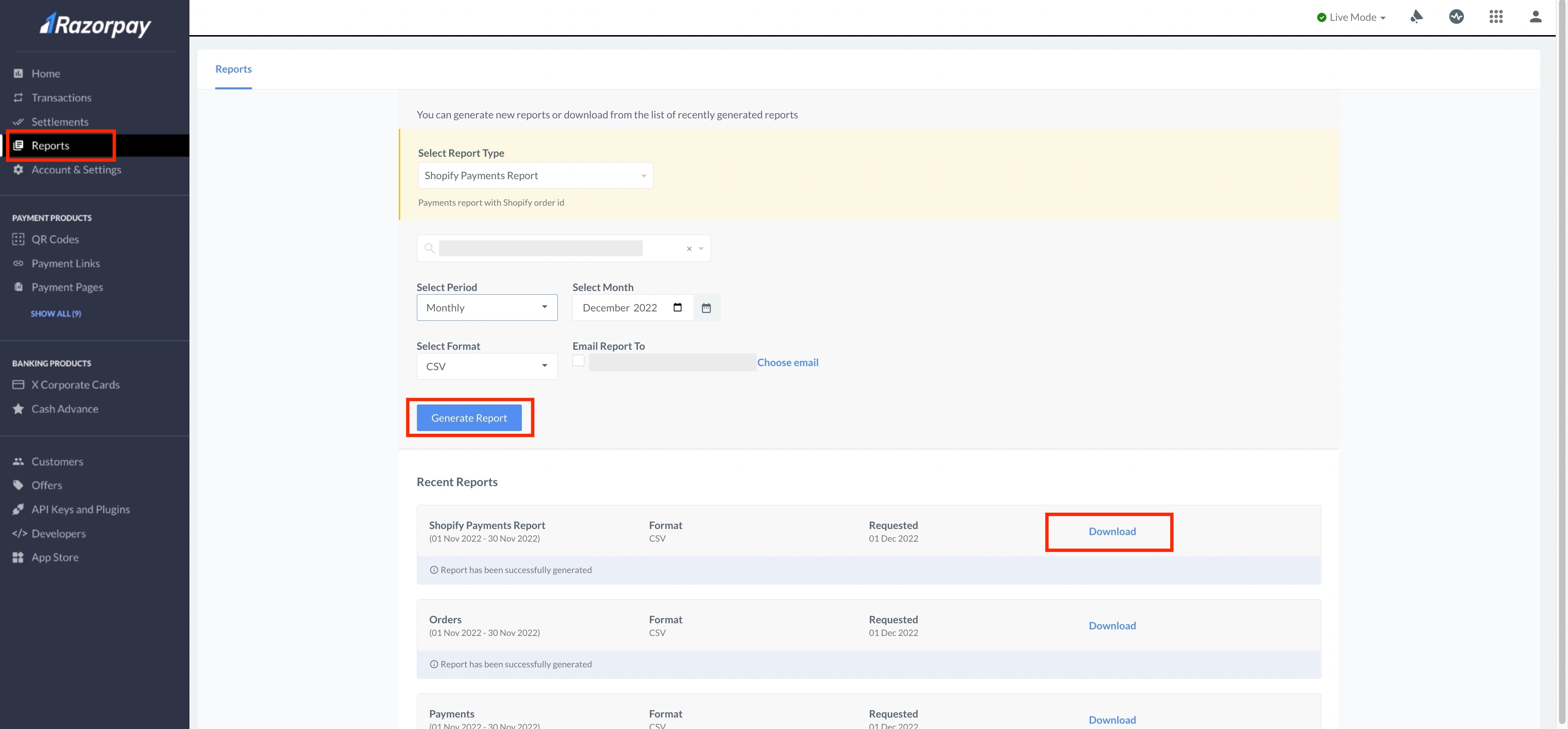
           <img src="https://razorpay.com/docs/build/browser/assets/images/shopify-payments-report.jpg" alt="Download the Shopify Payments Report from Dashboard" width="800" />
    8. Once the report is generated, click **Download**. The **Order ID** column in the file contains the payment ids.
    9. Match the **Payment References** column in the Shopify export with the **Order ID** column in the **Shopify Payments Report** to map the payments.
  </Accordion>
</AccordionGroup>

### Related Information

* [Integrate with Shopify Plugin](/docs/payments/payment-gateway/ecommerce-plugins/shopify)
* [Shopify FAQs](/docs/payments/payment-gateway/ecommerce-plugins/shopify/faqs)