> ## Documentation Index
> Fetch the complete documentation index at: https://razorpay-881012b3.mintlify.site/llms.txt
> Use this file to discover all available pages before exploring further.
# Features
> List of features that will help you increase customer conversion using Affordability Widget.
Available in
🇮🇳 India
Razorpay Affordability Widget consists of the following additional features. These features are available only after you integrate the Affordability Widget on your:
* [Native Website](/docs/payments/payment-gateway/emi²/widget/native-web)
* [WooCommerce Website](/docs/payments/payment-gateway/emi²/widget/woocommerce)
* [Shopify Store](/docs/payments/payment-gateway/emi²/widget/shopify)
* [Android App](/docs/payments/payment-gateway/emi²/widget/android)
## Discount Whisperer
Businesses often struggle to maximise customer engagement and sales due to the lack of visibility for potential offers based on customer behaviour and spending habits.
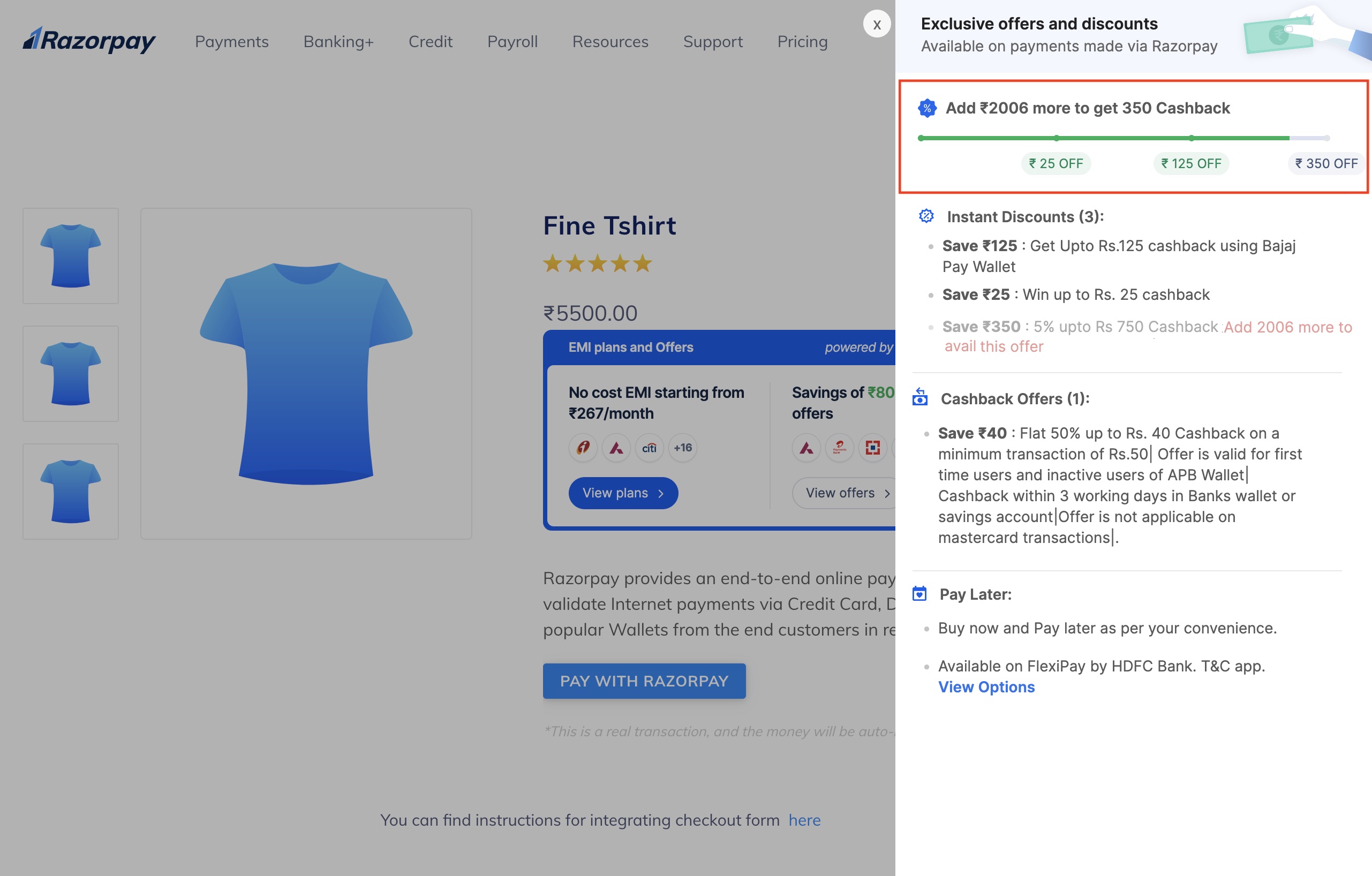
Discount Whisperer is a real-time indicator of potential savings for your customers. It intelligently analyses their spending amount and guides them on unlocking bigger discounts. It also calculates the additional savings they can receive and how much more they can shop for to unlock even bigger discounts, resulting in higher conversions and a boost in average order value.
* Drive higher sales volumes by motivating customers to shop more for greater discounts.
* Increase the likelihood of customers purchasing by highlighting the value they get for their spending, leading to higher conversions.
* Enhance profitability and maximise the value of each transaction with irresistible offers.
* Customers can access extra savings by taking advantage of the offers available to them, ensuring they get the most value out of their shopping experience.
* They receive real value for their money spent, ensuring that every purchase is worthwhile.
* With irresistible offers and guidance, they can shop intelligently, stretching their budget to its potential.
Customers click **View offers** on the widget and view the discounts already unlocked or how much more they can shop for to unlock even bigger discounts.
 * Create a [Razorpay account](https://dashboard.razorpay.com/signup).
* Integrate with the [Razorpay Affordability Widget](/docs/payments/payment-gateway/emi²/widget).
* Create instant discount and cashback offers with minimum order amount via [Razorpay Offers](/docs/payments/offers/create).
**Handy Tips**
Only offers created on the Razorpay Dashboard will appear on the widget.
**Watch Out!**
This is an on-demand feature. Write to us at [affordability-widget@razorpay.com](mailto:affordability-widget@razorpay.com) to get this feature enabled on your account.
| Native | WooCommerce | Shopify | Android |
| ------ | ----------- | ------- | ------- |
| ✓ | ✓ | ✓ | ✓ |
## Eligibility Check
Razorpay offers a pre-eligibility check on EMI² instruments for customers to check their credit eligibility directly from the widget itself which helps customers choose the most relevant EMI² option and complete the purchase faster.
**Handy Tips**
* The eligibility check is performed only for [Debit Card EMI](/docs/payments/payment-methods/emi/debit-card-emi), [Cardless EMI](/docs/payments/payment-methods/emi/credit-card-emi), and [Pay Later](/docs/payments/payment-methods/pay-later).
* It is not applicable for Credit Card EMI as it is a pre-eligible form of credit.
* **Improve Conversion Rates**
* Create a [Razorpay account](https://dashboard.razorpay.com/signup).
* Integrate with the [Razorpay Affordability Widget](/docs/payments/payment-gateway/emi²/widget).
* Create instant discount and cashback offers with minimum order amount via [Razorpay Offers](/docs/payments/offers/create).
**Handy Tips**
Only offers created on the Razorpay Dashboard will appear on the widget.
**Watch Out!**
This is an on-demand feature. Write to us at [affordability-widget@razorpay.com](mailto:affordability-widget@razorpay.com) to get this feature enabled on your account.
| Native | WooCommerce | Shopify | Android |
| ------ | ----------- | ------- | ------- |
| ✓ | ✓ | ✓ | ✓ |
## Eligibility Check
Razorpay offers a pre-eligibility check on EMI² instruments for customers to check their credit eligibility directly from the widget itself which helps customers choose the most relevant EMI² option and complete the purchase faster.
**Handy Tips**
* The eligibility check is performed only for [Debit Card EMI](/docs/payments/payment-methods/emi/debit-card-emi), [Cardless EMI](/docs/payments/payment-methods/emi/credit-card-emi), and [Pay Later](/docs/payments/payment-methods/pay-later).
* It is not applicable for Credit Card EMI as it is a pre-eligible form of credit.
* **Improve Conversion Rates**
Boost conversion rates as customers can check eligibility directly from the widget, eliminating friction and unnecessary ineligible failures in the buying process.
* **Enhance Customer Experience**
The intuitive UI and seamless transitions create a hassle-free experience, boosting customer confidence and purchase completion.
* **OTP Based Flow**
Our eligibility check is safeguarded by a secure OTP flow to eliminate the risk of unauthorised access.
Customers view the product and click **View plans** on the widget. They enter the phone number and OTP to check their eligibility for payment options.
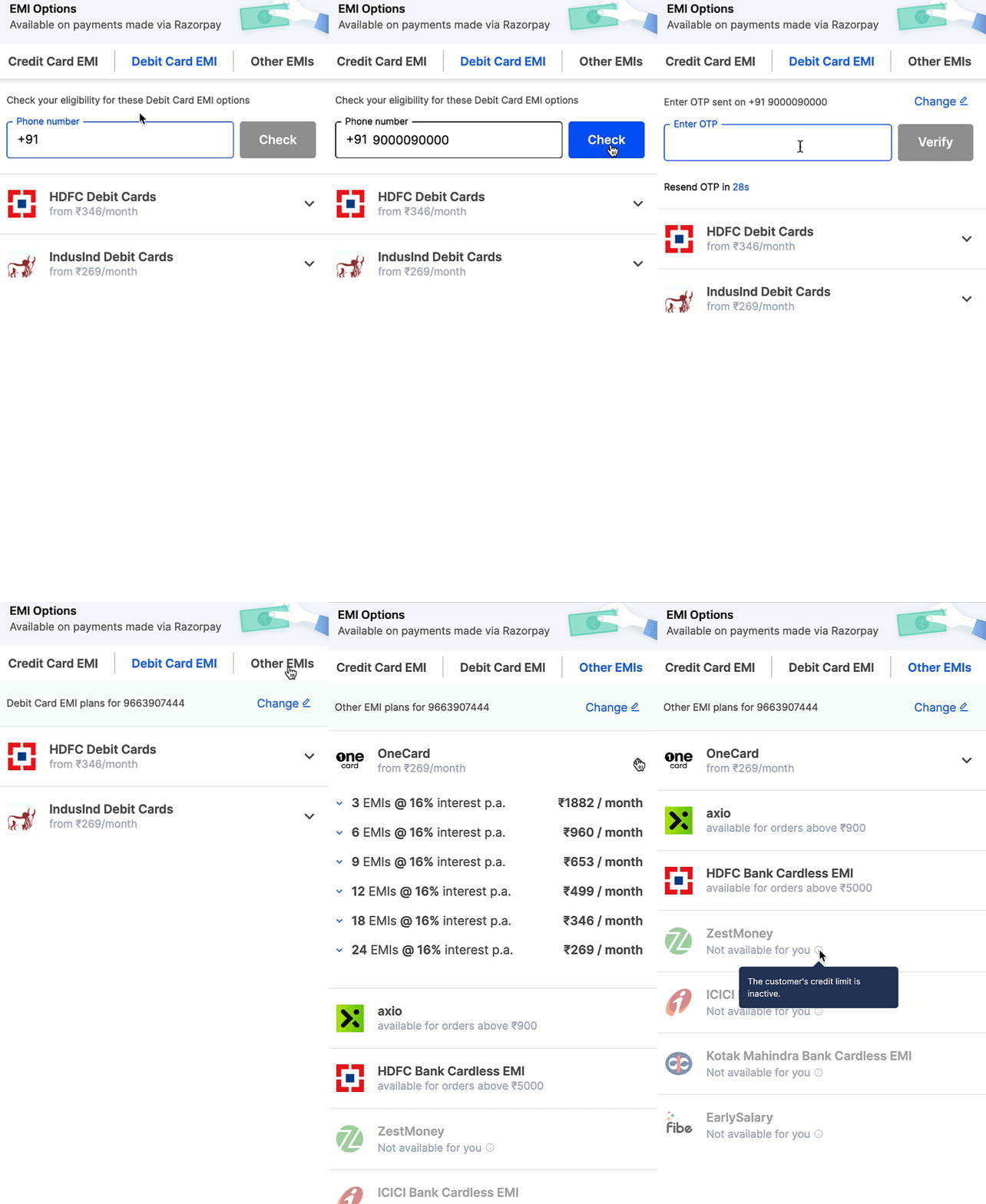 They can clearly differentiate between the eligible and ineligible payment options.
* **Eligible**: The customer selects an eligible payment instrument and proceeds to checkout.
* **Ineligible**: The customer can view the reason for ineligibility as highlighted below.
They can clearly differentiate between the eligible and ineligible payment options.
* **Eligible**: The customer selects an eligible payment instrument and proceeds to checkout.
* **Ineligible**: The customer can view the reason for ineligibility as highlighted below.
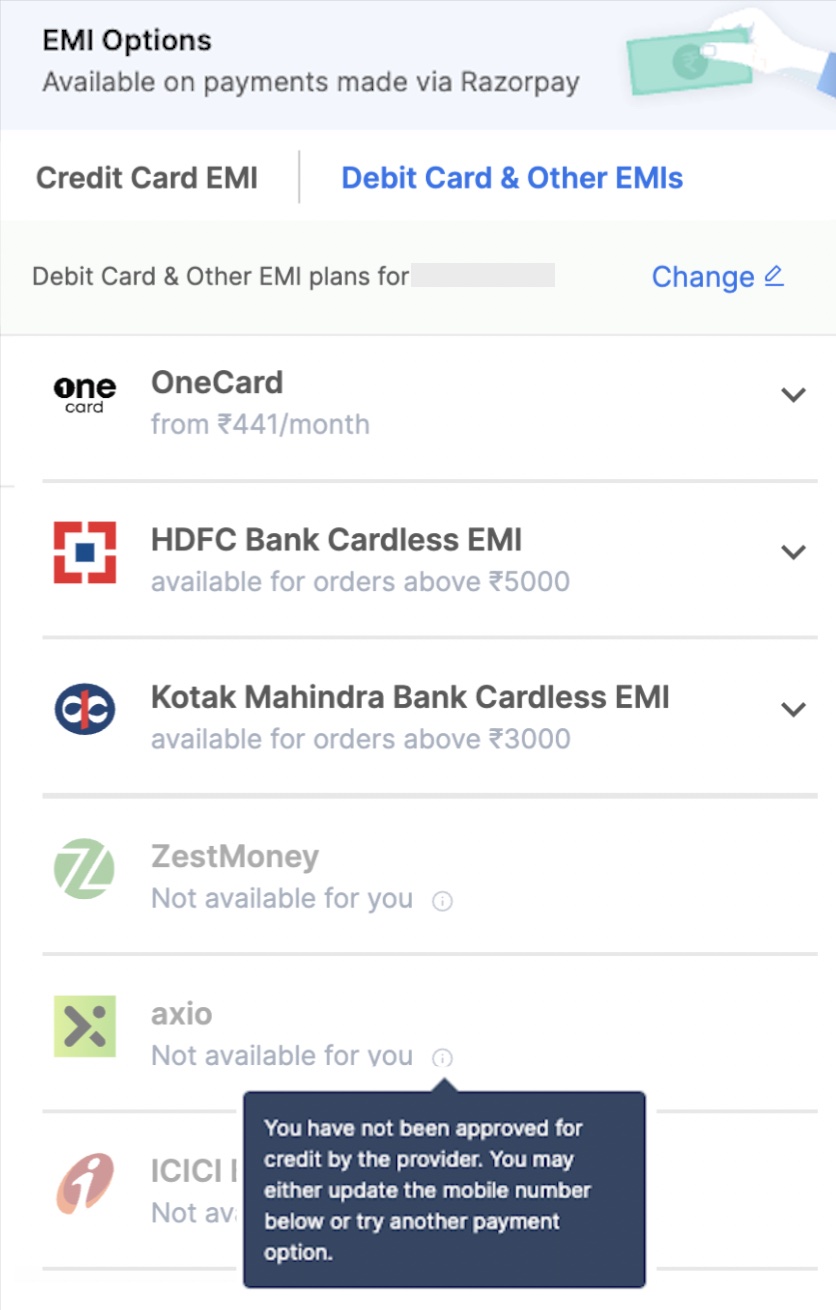 To proceed with the payment in case of ineligibility, the customer can choose to:
* Change the phone number for the chosen payment instrument and try again.
* Opt for an eligible payment instrument.
* Create a [Razorpay account](https://dashboard.razorpay.com/signup).
* Integrate with the [Razorpay Affordability Widget](/docs/payments/payment-gateway/emi²/widget).
**Watch Out!**
This is an on-demand feature. Write to us at [affordability-widget@razorpay.com](mailto:affordability-widget@razorpay.com) to get this feature enabled on your account.
| Native | WooCommerce | Shopify | Android |
| ------ | ----------- | ------- | ------- |
| ✓ | ✓ | ✓ | ✓ |
## Checkout from Widget
Your customers can check the eligibility and complete their purchase directly from the widget itself, eliminating any friction. The auto-selection functionality helps in applying the chosen payment option or offer from the Affordability Widget to the payment checkout page, which helps businesses avoid confusion and reduce the risk of abandoned carts.
* **Improved Conversion Rates**
To proceed with the payment in case of ineligibility, the customer can choose to:
* Change the phone number for the chosen payment instrument and try again.
* Opt for an eligible payment instrument.
* Create a [Razorpay account](https://dashboard.razorpay.com/signup).
* Integrate with the [Razorpay Affordability Widget](/docs/payments/payment-gateway/emi²/widget).
**Watch Out!**
This is an on-demand feature. Write to us at [affordability-widget@razorpay.com](mailto:affordability-widget@razorpay.com) to get this feature enabled on your account.
| Native | WooCommerce | Shopify | Android |
| ------ | ----------- | ------- | ------- |
| ✓ | ✓ | ✓ | ✓ |
## Checkout from Widget
Your customers can check the eligibility and complete their purchase directly from the widget itself, eliminating any friction. The auto-selection functionality helps in applying the chosen payment option or offer from the Affordability Widget to the payment checkout page, which helps businesses avoid confusion and reduce the risk of abandoned carts.
* **Improved Conversion Rates**
The improved Affordability Widget simplifies the checkout process, leading to more customers completing their purchases and thus higher conversion rates.
* **Frictionless Customer Experience**
The widget provides a seamless and hassle-free experience, boosting customer confidence and encouraging them to finalise their purchases with ease.
* **Auto-Selection Convenience**
The widget's auto-selection functionality automatically applies the chosen payment option or offer to the checkout, reducing confusion and making the process more convenient.
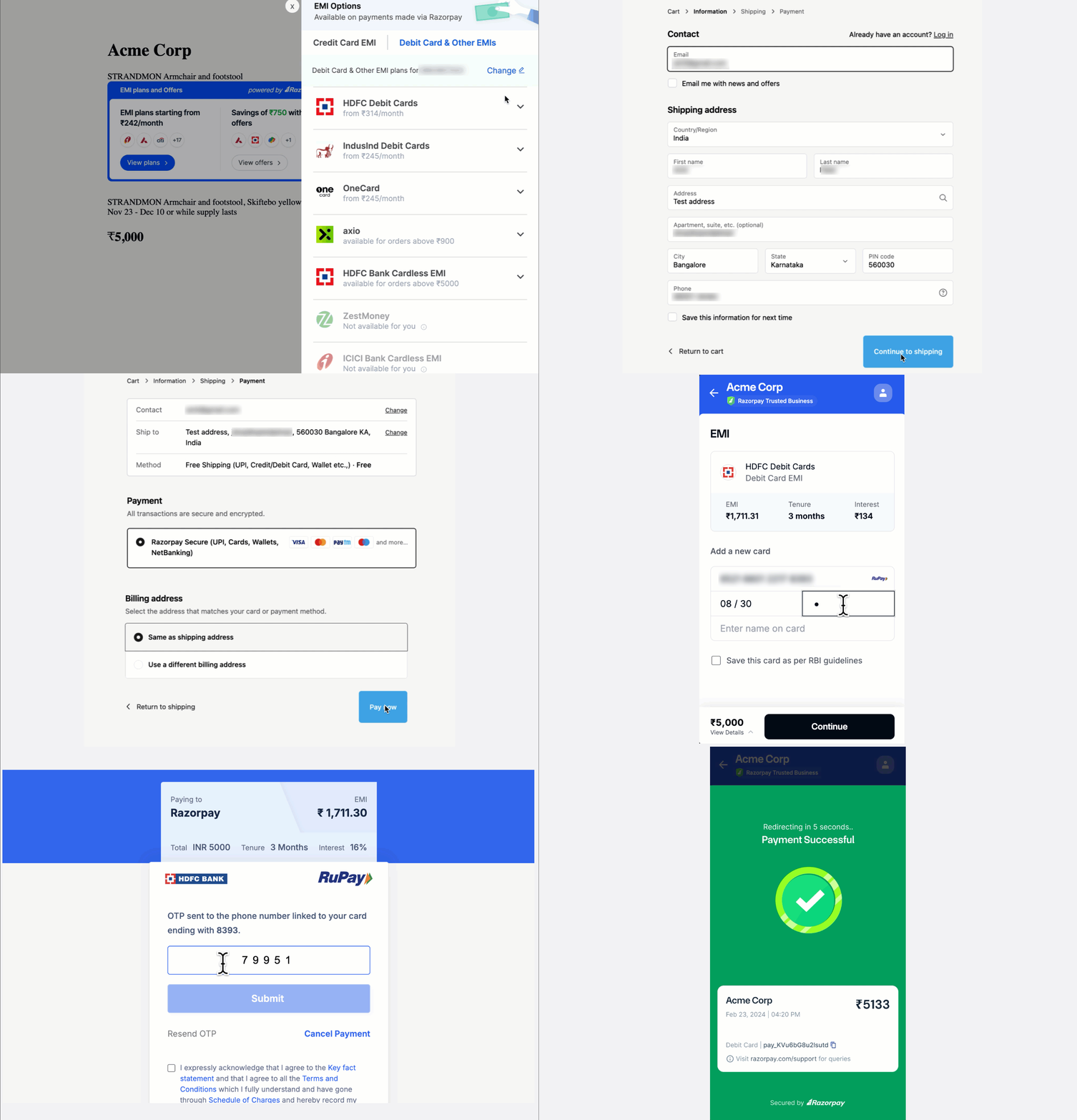
Customers view the existing plans and offers on the widget, choose an eligible payment instrument or offer and click **Buy Now**. They are redirected to your checkout page, where they enter their contact and shipping details and proceed to checkout.
They are then redirected to the Razorpay checkout if you have integrated the widget with our [Standard Checkout](/docs/payments/payment-gateway/emi²/widget/standard-integration). If not, they are redirected to your custom-built checkout. Once redirected to our Standard Checkout, the payment option or offer the customer selects on the widget appears pre-selected on checkout. They enter the relevant details and complete the payment.
 * Create a [Razorpay account](https://dashboard.razorpay.com/signup).
* Integrate with the [Razorpay Affordability Widget](/docs/payments/payment-gateway/emi²/widget/native-web).
* Integrate with [Razorpay Standard Checkout](/docs/payments/payment-gateway/web-integration/standard).
* Integrate Checkout from Widget using [Standard Integration](/docs/payments/payment-gateway/emi²/widget/standard-integration).
**Handy Tips**
If you have a [custom-built checkout](/docs/payments/payment-gateway/web-integration/custom), integrate with checkout from widget using [Custom Integration](/docs/payments/payment-gateway/emi²/widget/custom-integration).
**Watch Out!**
This is an on-demand feature. Write to us at [affordability-widget@razorpay.com](mailto:affordability-widget@razorpay.com) to get this feature enabled on your account.
| Native | WooCommerce | Shopify | Android |
| ------ | ----------- | ------- | ------- |
| ✓ | x | x | x |
* Create a [Razorpay account](https://dashboard.razorpay.com/signup).
* Integrate with the [Razorpay Affordability Widget](/docs/payments/payment-gateway/emi²/widget/native-web).
* Integrate with [Razorpay Standard Checkout](/docs/payments/payment-gateway/web-integration/standard).
* Integrate Checkout from Widget using [Standard Integration](/docs/payments/payment-gateway/emi²/widget/standard-integration).
**Handy Tips**
If you have a [custom-built checkout](/docs/payments/payment-gateway/web-integration/custom), integrate with checkout from widget using [Custom Integration](/docs/payments/payment-gateway/emi²/widget/custom-integration).
**Watch Out!**
This is an on-demand feature. Write to us at [affordability-widget@razorpay.com](mailto:affordability-widget@razorpay.com) to get this feature enabled on your account.
| Native | WooCommerce | Shopify | Android |
| ------ | ----------- | ------- | ------- |
| ✓ | x | x | x |