> ## Documentation Index
> Fetch the complete documentation index at: https://razorpay-881012b3.mintlify.site/llms.txt
> Use this file to discover all available pages before exploring further.
# 1. Build Integration for UPI Intent
> Steps to integrate S2S JSON V1 and accept payments using UPI Intent.
Available in
🇮🇳 India
In case of UPI as there is no redirect involved when the customer completes the payment, you should keep polling Razorpay APIs to get the latest status of the payment.
## Intent Flow Integration
The integration consists of the following steps.
**1.1** [Create an Order](#1-1-create-an-order).
**1.2** [Create a Payment](#1-2-create-a-payment).
**1.3** [Handle Payment Success and Failure](#1-3-handle-payment-success-and-failure).
**1.4** [Verify Payment Signature](#1-4-verify-payment-signature).
**1.5** [Verify Payment Status](#1-5-verify-payment-status).
**Watch Out!**
Do not hardcode the URL returned in the API responses.
### 1.1 Create an Order
Order is an important step in the payment process.
* An order should be created for every payment.
* You can create an order using the Orders API. It is a server-side API call.
* The order\_id received in the response should be passed to the checkout.
#### Sample Code
**Order is an important step in the payment process.**
* An order should be created for every payment.
* You can create an order using the [Orders API](#api-sample-code). It is a server-side API call. Know how to [authenticate](/docs/payments/dashboard/account-settings/api-keys#generate-api-keys) Orders API.
* The `order_id` received in the response should be passed to the checkout. This ties the order with the payment and secures the request from being tampered.
**Watch Out!**
Payments made without an `order_id` cannot be captured and will be automatically refunded. You must create an order before initiating payments to ensure proper payment processing.
You can create an order:
* Using the sample code on the Razorpay Postman Public Workspace.
* By manually integrating the API sample codes on your server.
#### Razorpay Postman Public Workspace
You can use the Postman workspace below to create an order:

**Handy Tips**
Under the **Authorization** section in Postman, select **Basic Auth** and add the Key Id and secret as the Username and Password, respectively.
#### API Sample Code
Use this endpoint to create an order using the Orders API.
`POST /orders`
```bash Curl theme={null}
curl -X POST https://api.razorpay.com/v1/orders
-U [YOUR_KEY_ID]:[YOUR_KEY_SECRET]
-H 'content-type:application/json'
-d '{
"amount": 500,
"currency": "INR",
"receipt": "qwsaq1",
"partial_payment": true,
"first_payment_min_amount": 230,
"notes": {
"key1": "value3",
"key2": "value2"
}
}'
```
```java Java theme={null}
RazorpayClient razorpay = new RazorpayClient("[YOUR_KEY_ID]", "[YOUR_KEY_SECRET]");
JSONObject orderRequest = new JSONObject();
orderRequest.put("amount",50000);
orderRequest.put("currency","INR");
orderRequest.put("receipt", "receipt#1");
JSONObject notes = new JSONObject();
notes.put("notes_key_1","Tea, Earl Grey, Hot");
notes.put("notes_key_1","Tea, Earl Grey, Hot");
orderRequest.put("notes",notes);
Order order = instance.orders.create(orderRequest);
```
```python Python theme={null}
import razorpay
client = razorpay.Client(auth=("YOUR_ID", "YOUR_SECRET"))
client.order.create({
"amount": 50000,
"currency": "INR",
"receipt": "receipt#1",
"partial_payment": False,
"notes": {
"key1": "value3",
"key2": "value2"
}
})
```
```php PHP theme={null}
$api = new Api($key_id, $secret);
$api->order->create(array('receipt' => '123', 'amount' => 100, 'currency' => 'INR', 'notes'=> array('key1'=> 'value3','key2'=> 'value2')));
```
```csharp .NET theme={null}
RazorpayClient client = new RazorpayClient("[YOUR_KEY_ID]", "[YOUR_KEY_SECRET]");
Dictionary orderRequest = new Dictionary();
orderRequest.Add("amount", 50000);
orderRequest.Add("currency", "INR");
orderRequest.Add("receipt", "receipt#1");
Dictionary notes = new Dictionary();
notes.Add("notes_key_1", "Tea, Earl Grey, Hot");
notes.Add("notes_key_2", "Tea, Earl Grey, Hot");
orderRequest.Add("notes", notes);
Order order = client.Order.Create(orderRequest);
```
```ruby Ruby theme={null}
require "razorpay"
Razorpay.setup('YOUR_KEY_ID', 'YOUR_SECRET')
para_attr = {
"amount": 50000,
"currency": "INR",
"receipt": "receipt#1",
"notes": {
"key1": "value3",
"key2": "value2"
}
}
Razorpay::Order.create(para_attr)
```
```javascript Node.js theme={null}
var instance = new Razorpay({ key_id: 'YOUR_KEY_ID', key_secret: 'YOUR_SECRET' })
instance.orders.create({
"amount": 50000,
"currency": "INR",
"receipt": "receipt#1",
"partial_payment": false,
"notes": {
"key1": "value3",
"key2": "value2"
}
})
```
```go Go theme={null}
import ( razorpay "github.com/razorpay/razorpay-go" )
client := razorpay.NewClient("YOUR_KEY_ID", "YOUR_SECRET")
data := map[string]interface{}{
"amount": 50000,
"currency": "INR",
"receipt": "some_receipt_id",
"partial_payment": false,
"notes": map[string]interface{}{
"key1": "value1",
"key2": "value2",
},
}
body, err := client.Order.Create(data, nil)
```
```json Success Response theme={null}
{
"id": "order_IluGWxBm9U8zJ8",
"entity": "order",
"amount": 5000,
"amount_paid": 0,
"amount_due": 5000,
"currency": "INR",
"receipt": "rcptid_11",
"offer_id": null,
"status": "created",
"attempts": 0,
"notes": [],
"created_at": 1642662092
}
```
```json Failure Response theme={null}
{
"error": {
"code": "BAD_REQUEST_ERROR",
"description": "Order amount less than minimum amount allowed",
"source": "business",
"step": "payment_initiation",
"reason": "input_validation_failed",
"metadata": {},
"field": "amount"
}
}
```
`amount` *mandatory*
: `integer` Payment amount in the smallest currency subunit. For example, if the amount to be charged is ₹299, then pass `29900` in this field. In the case of three decimal currencies, such as KWD, BHD and OMR, to accept a payment of 295.991, pass the value as 295990. And in the case of zero decimal currencies such as JPY, to accept a payment of 295, pass the value as 295.
**Watch Out!**
As per payment guidelines, you should pass the last decimal number as 0 for three decimal currency payments. For example, if you want to charge a customer 99.991 KD for a transaction, you should pass the value for the amount parameter as `99990` and not `99991`.
`currency` *mandatory*
: `string` The currency in which the transaction should be made. See the [list of supported currencies](/docs/payments/international-payments#supported-currencies). Length must be 3 characters.
**Handy Tips**
Razorpay has added support for zero decimal currencies, such as JPY and three decimal currencies, such as KWD, BHD and OMR, allowing businesses to accept international payments in these currencies. Know more about [Currency Conversion](/docs/payments/international-payments/currency-conversion) (May 2024).
`receipt` *optional*
: `string` Your receipt id for this order should be passed here. Maximum length is 40 characters.
`notes` *optional*
: `json object` Key-value pair that can be used to store additional information about the entity. Maximum 15 key-value pairs, 256 characters (maximum) each. For example, `"note_key": "Beam me up Scotty”`.
`partial_payment` *optional*
: `boolean` Indicates whether the customer can make a partial payment. Possible values:
* `true`: The customer can make partial payments.
* `false` (default): The customer cannot make partial payments.
`first_payment_min_amount` *optional*
: `integer` Minimum amount that must be paid by the customer as the first partial payment. For example, if an amount of ₹7000 is to be received from the customer in two installments of #1 - ₹5000, #2 - ₹2000 then you can set this value as `500000`. This parameter should be passed only if `partial_payment` is `true`.
Know more about [Orders API](/docs/api/orders).
Descriptions for the response parameters are present in the [Orders Entity](/docs/api/orders/entity) parameters table.
The error response parameters are available in the [API Reference Guide](/docs/api/orders/create).
### 1.2 Create a Payment
Once an order is created, your next step is to create a payment.
#### Sample Code
The following API will create a payment with `upi` with `intent` flow.
`POST /payments/create/json`
```bash Curl theme={null}
curl -u [YOUR_KEY_ID]:[YOUR_KEY_SECRET] \
-X POST https://api.razorpay.com/v1/payments/create/json \
-H "Content-Type: application/json" \
-d '{
"amount": 100,
"currency": "INR",
"order_id": "order_Ky7DOsYy3TVfLS",
"email": "gaurav.kumar@example.com",
"contact": "9090909090",
"method": "upi",
"upi":{
"flow":"intent"
},
"ip": "192.168.0.103",
"referer": "http",
"user_agent": "Mozilla/5.0",
"description": "Test payment",
"notes": {
"note_key": "value1"
}
}'
```
```java Java theme={null}
RazorpayClient razorpay = new RazorpayClient("[YOUR_KEY_ID]", "[YOUR_KEY_SECRET]");
JSONObject paymentRequest = new JSONObject();
paymentRequest.put("amount", 500);
paymentRequest.put("currency", "INR");
paymentRequest.put("order_id", "order_JZluwjknyWdhnU");
paymentRequest.put("email", "gaurav.kumar@example.com");
paymentRequest.put("contact", "9123456789");
paymentRequest.put("method", "upi");
paymentRequest.put("ip", "192.168.0.103");
paymentRequest.put("referer", "http");
paymentRequest.put("user_agent", "Mozilla/5.0");
paymentRequest.put("description", "Test flow");
JSONObject notes = new JSONObject();
notes.put("purpose", "UPI test payment");
JSONObject upi = new JSONObject();
upi.put("flow", "intent");
paymentRequest.put("notes", notes);
paymentRequest.put("upi", upi);
Payment payment = instance.payments.createUpi(paymentRequest);
```
```php PHP theme={null}
$api = new Api($key_id, $secret);
$api->payment->createUpi(array("amount" => 200,"currency" => "INR","order_id" => "order_Jhgp4wIVHQrg5H","email" => "gaurav.kumar@example.com","contact" => "9123456789","method" => "upi","customer_id" => "cust_EIW4T2etiweBmG","ip" => "192.168.0.103","referer" => "http","user_agent" => "Mozilla/5.0","description" => "Test flow","notes" => array("note_key" => "value1"),"upi" => array("flow" => "intent")));
```
```javascript Node.js theme={null}
var instance = new Razorpay({ key_id: 'YOUR_KEY_ID', key_secret: 'YOUR_SECRET' })
instance.payments.createUpi({
"amount": 100,
"currency": "INR",
"order_id": "order_Ee0biRtLOqzRjP",
"email": "gaurav.kumar@example.com",
"contact": "9090909090",
"method": "upi",
"ip": "192.168.0.103",
"referer": "http",
"user_agent": "Mozilla/5.0",
"description": "Test flow",
"notes": {
"purpose": "UPI test payment"
},
"upi": {
"flow": "intent"
}
});
```
```go Go theme={null}
import ( razorpay "github.com/razorpay/razorpay-go" )
client := razorpay.NewClient("YOUR_KEY_ID", "YOUR_SECRET")
para_attr: = map[string] interface {} {
"amount": 100,
"currency": "INR",
"order_id": "order_Ee0biRtLOqzRjP",
"email": "gaurav.kumar@example.com",
"contact": "9090909090",
"method": "upi",
"ip": "192.168.0.103",
"referer": "http",
"user_agent": "Mozilla/5.0",
"description": "Test flow",
"notes": map[string] interface {} {
"purpose": "UPI test payment",
},
"upi": map[string] interface {} {
"flow": "intent",
},
}
body, err: = client.Payment.CreateUpi(para_attr, nil)
```
```ruby Ruby theme={null}
require "razorpay"
Razorpay.setup('YOUR_KEY_ID', 'YOUR_SECRET')
para_attr = {
"amount": 100,
"currency": "INR",
"order_id": "order_Ee0biRtLOqzRjP",
"email": "gaurav.kumar@example.com",
"contact": "9090909090",
"method": "upi",
"ip": "192.168.0.103",
"referer": "http",
"user_agent": "Mozilla/5.0",
"description": "Test flow",
"notes": {
"purpose": "UPI test payment"
},
"upi": {
"flow": "intent"
}
}
Razorpay::Payment.create_upi(para_attr)
```
```python Python theme={null}
import razorpay
client = razorpay.Client(auth=("YOUR_ID", "YOUR_SECRET"))
client.payment.createUpi(
{
"amount": 100,
"currency": "INR",
"order_id": "order_Ee0biRtLOqzRjP",
"email": "gaurav.kumar@example.com",
"contact": "9090909090",
"method": "upi",
"ip": "192.168.0.103",
"referer": "http",
"user_agent": "Mozilla/5.0",
"description": "Test flow",
"notes": {"purpose": "UPI test payment"},
"upi": {
"flow": "intent"
},
}
)
```
```csharp .NET theme={null}
RazorpayClient client = new RazorpayClient("[YOUR_KEY_ID]", "[YOUR_KEY_SECRET]");
Dictionary paymentRequest = new Dictionary();
paymentRequest.Add("amount",500);
paymentRequest.Add("currency","INR");
paymentRequest.Add("order_id", "order_Z6t7VFTb9xHeOs");
paymentRequest.Add("email", "gaurav.kumar@example.com");
paymentRequest.Add("contact", "9000090000");
paymentRequest.Add("method", "upi");
paymentRequest.Add("ip", "192.168.0.103");
paymentRequest.Add("referer", "http");
paymentRequest.Add("user_agent", "Mozilla/5.0");
paymentRequest.Add("description", "Test flow");
Dictionary notes = new Dictionary();
notes.Add("purpose","UPI test payment");
Dictionary upi = new Dictionary();
upi.Add("flow","intent");
paymentRequest.Add("notes",notes);
paymentRequest.Add("upi",upi);
Payment payment = client.Payment.CreateUpi(paymentRequest);
```
```json Response theme={null}
{
"razorpay_payment_id": "pay_ERNEungCtXpZqM",
"next": [
{
"action": "intent",
"url": "upi://pay?pa=upi@razopay&pn=acme&tr=QTeEWVyigzIBlUD&tn=razorpay&am=100&cu=INR&mc=5411"
},
{
"action": "poll",
"url": "https://api.razorpay.com/v1/payments/pay_ERNEungCtXpZqM"
}
]
}
```
The `next` array contains the following objects:
`action`
: `string` The action you need to perform next. In this case, the value is `intent`.
`url`
: `string` Contains the URL that the customer should be redirected. This is commonly done by rendering the URL returned by Razorpay in the form of a button or a link for the customer to use.
`action`
: `string` The action that you need to take to fetch the status of the payment. In this case the value is `poll`.
`url`
: `string` Contains the URL that you need to keep polling to fetch the status of the payment, either `authorized` or `failed`.
### 1.3 Handle Payment Success and Failure
Once the payment is completed by the customer, a `POST` request is made to the `callback_url` provided in the payment request. The data contained in this request will depend on whether the payment was a **success** or a **failure** of the payment made by the customer.
#### Success Callback
If the payment made by the customer is successful, the following fields are sent:
* `razorpay_payment_id`
* `razorpay_order_id`
* `razorpay_signature`
```json Callback Example theme={null}
{
"razorpay_payment_id": "pay_29QQoUBi66xm2f",
"razorpay_order_id": "order_9A33XWu170gUtm",
"razorpay_signature": "9ef4dffbfd84f1318f6739a3ce19f9d85851857ae648f114332d8401e0949a3d"
}
```
#### Failure Callback
If the payment has failed, the callback will contain details of the error. Refer to [errors](/docs/api#errors) for details.
### 1.4 Verify Payment Signature
This is a mandatory step to confirm the authenticity of the details returned to the Checkout form for successful payments.
1. Create a signature in your server using the following attributes:
* `order_id`: Retrieve the `order_id` from your server. Do not use the `razorpay_order_id` returned by Checkout.
* `razorpay_payment_id`: Returned by Checkout.
* `key_secret`: Available in your server. The `key_secret` that was generated from the [Dashboard](/docs/payments/dashboard/account-settings/api-keys#generate-api-keys).
2. Use the SHA256 algorithm, the `razorpay_payment_id` and the `order_id` to construct a HMAC hex digest as shown below:
```html HMAC Hex Digest theme={null}
generated_signature = hmac_sha256(order_id + "|" + razorpay_payment_id, secret);
if (generated_signature == razorpay_signature) {
payment is successful
}
```
3. If the signature you generate on your server matches the `razorpay_signature` returned to you by the Checkout form, the payment received is from an authentic source.
Given below is the sample code for payment signature verification:
```java Java theme={null}
RazorpayClient razorpay = new RazorpayClient("[YOUR_KEY_ID]", "[YOUR_KEY_SECRET]");
String secret = "EnLs21M47BllR3X8PSFtjtbd";
JSONObject options = new JSONObject();
options.put("razorpay_order_id", "order_IEIaMR65cu6nz3");
options.put("razorpay_payment_id", "pay_IH4NVgf4Dreq1l");
options.put("razorpay_signature", "0d4e745a1838664ad6c9c9902212a32d627d68e917290b0ad5f08ff4561bc50f");
boolean status = Utils.verifyPaymentSignature(options, secret);
```
```php PHP theme={null}
$api = new Api($key_id, $secret);
$api->utility->verifyPaymentSignature(array('razorpay_order_id' => $razorpayOrderId, 'razorpay_payment_id' => $razorpayPaymentId, 'razorpay_signature' => $razorpaySignature));
```
```ruby Ruby theme={null}
require "razorpay"
Razorpay.setup('YOUR_KEY_ID', 'YOUR_SECRET')
payment_response = {
razorpay_order_id: 'order_IEIaMR65cu6nz3',
razorpay_payment_id: 'pay_IH4NVgf4Dreq1l',
razorpay_signature: '0d4e745a1838664ad6c9c9902212a32d627d68e917290b0ad5f08ff4561bc50f'
}
Razorpay::Utility.verify_payment_signature(payment_response)
```
```python Python theme={null}
import razorpay
client = razorpay.Client(auth=("YOUR_ID", "YOUR_SECRET"))
client.utility.verify_payment_signature({
'razorpay_order_id': razorpay_order_id,
'razorpay_payment_id': razorpay_payment_id,
'razorpay_signature': razorpay_signature
})
```
```c .NET theme={null}
RazorpayClient client = new RazorpayClient("[YOUR_KEY_ID]", "[YOUR_KEY_SECRET]");
Dictionary options = new Dictionary();
options.Add("razorpay_order_id", "order_IEIaMR65");
options.Add("razorpay_payment_id", "pay_IH4NVgf4Dreq1l");
options.Add("razorpay_signature", "0d4e745a1838664ad6c9c9902212a32d627d68e917290b0ad5f08ff4561bc50");
Utils.verifyPaymentSignature(options);
```
```javascript Node.js theme={null}
var instance = new Razorpay({ key_id: 'YOUR_KEY_ID', key_secret: 'YOUR_SECRET' })
var { validatePaymentVerification, validateWebhookSignature } = require('./dist/utils/razorpay-utils');
validatePaymentVerification({"order_id": razorpayOrderId, "payment_id": razorpayPaymentId }, signature, secret);
```
```go Go theme={null}
import ( razorpay "github.com/razorpay/razorpay-go" )
client := razorpay.NewClient("YOUR_KEY_ID", "YOUR_SECRET")
params := map[string]interface{}{
"razorpay_order_id": "order_IEIaMR65cu6nz3",
"razorpay_payment_id": "pay_IH4NVgf4Dreq1l",
}
signature := "0d4e745a1838664ad6c9c9902212a32d627d68e917290b0ad5f08ff4561bc50f";
secret := "EnLs21M47BllR3X8PSFtjtbd";
utils.VerifyPaymentSignature(params, signature, secret)
```
After you have completed the integration, you can [set up webhooks](/docs/webhooks/setup-edit-payments), make test payments, replace the test key with the live key and integrate with other [APIs](/docs/api).
### 1.5 Verify Payment Status
**Handy Tips**
On the Razorpay Dashboard, ensure that the payment status is `captured`. Refer to the payment capture settings page to know how to [capture payments automatically](/docs/payments/payments/capture-settings).
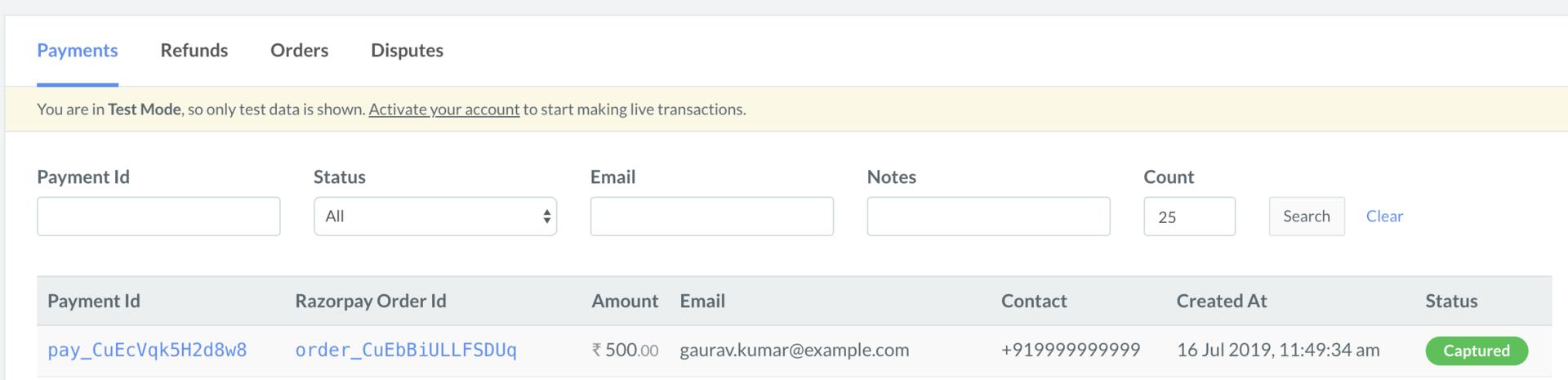
To verify the payment status from the Razorpay Dashboard:
1. Log in to the Razorpay Dashboard and navigate to **Transactions** → **Payments**.
2. Check if a **Payment Id** has been generated and note the status. In case of a successful payment, the status is marked as **Captured**.
 You can use Razorpay webhooks to configure and receive notifications when a specific event occurs. When one of these events is triggered, we send an HTTP POST payload in JSON to the webhook's configured URL. Know how to [set up webhooks.](/docs/webhooks/setup-edit-payments)
#### Example
If you have subscribed to the `order.paid` webhook event, you will receive a notification every time a customer pays you for an order.
[Poll Payment APIs](/docs/api/payments/fetch-all-payments) to check the payment status.
## Next Steps
[Step 2: Test Integration](/docs/payments/payment-gateway/s2s-integration/json/v1/test-integration)
You can use Razorpay webhooks to configure and receive notifications when a specific event occurs. When one of these events is triggered, we send an HTTP POST payload in JSON to the webhook's configured URL. Know how to [set up webhooks.](/docs/webhooks/setup-edit-payments)
#### Example
If you have subscribed to the `order.paid` webhook event, you will receive a notification every time a customer pays you for an order.
[Poll Payment APIs](/docs/api/payments/fetch-all-payments) to check the payment status.
## Next Steps
[Step 2: Test Integration](/docs/payments/payment-gateway/s2s-integration/json/v1/test-integration)