> ## Documentation Index
> Fetch the complete documentation index at: https://razorpay-881012b3.mintlify.site/llms.txt
> Use this file to discover all available pages before exploring further.
# CRED Pay
> Accept payments from your customer using CRED on your website or app.
Available in🇮🇳 India
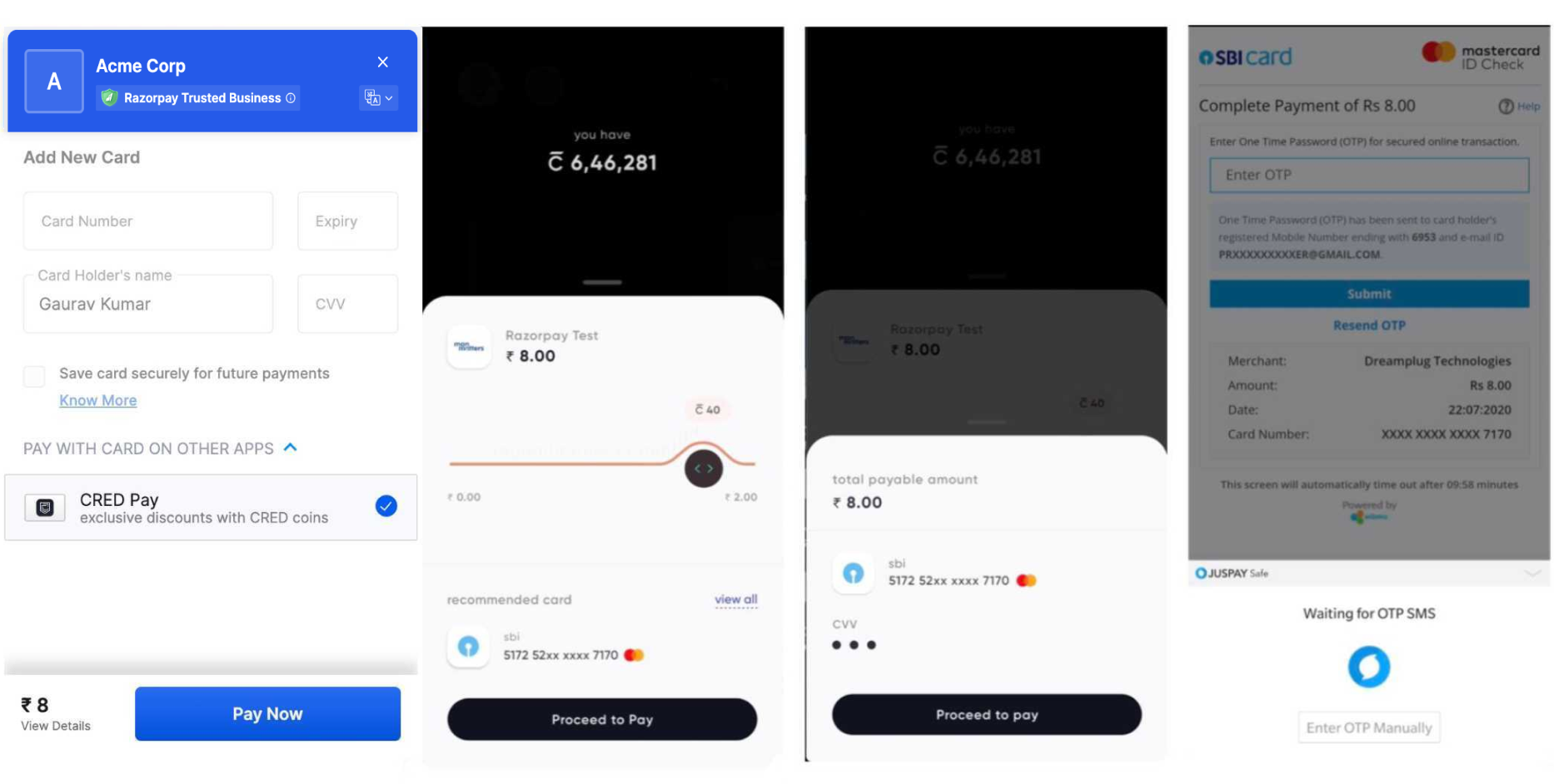
Your customers can make payments on your website or app using a combination of CRED Coins and Credit Cards saved on CRED.
For example, if a customer has shopped on your website for ₹10, they can choose to redeem CRED Coins worth say, ₹2 and pay the rest ₹8 using credit cards saved on CRED.
### Advantages
* Customers can redeem their CRED Coins on websites.
* Customers can access the cards they have saved on CRED to make payments on your website or app.
* CRED recommends which credit card customers can use based on the credit limit, due date and reward points.
## Workflow
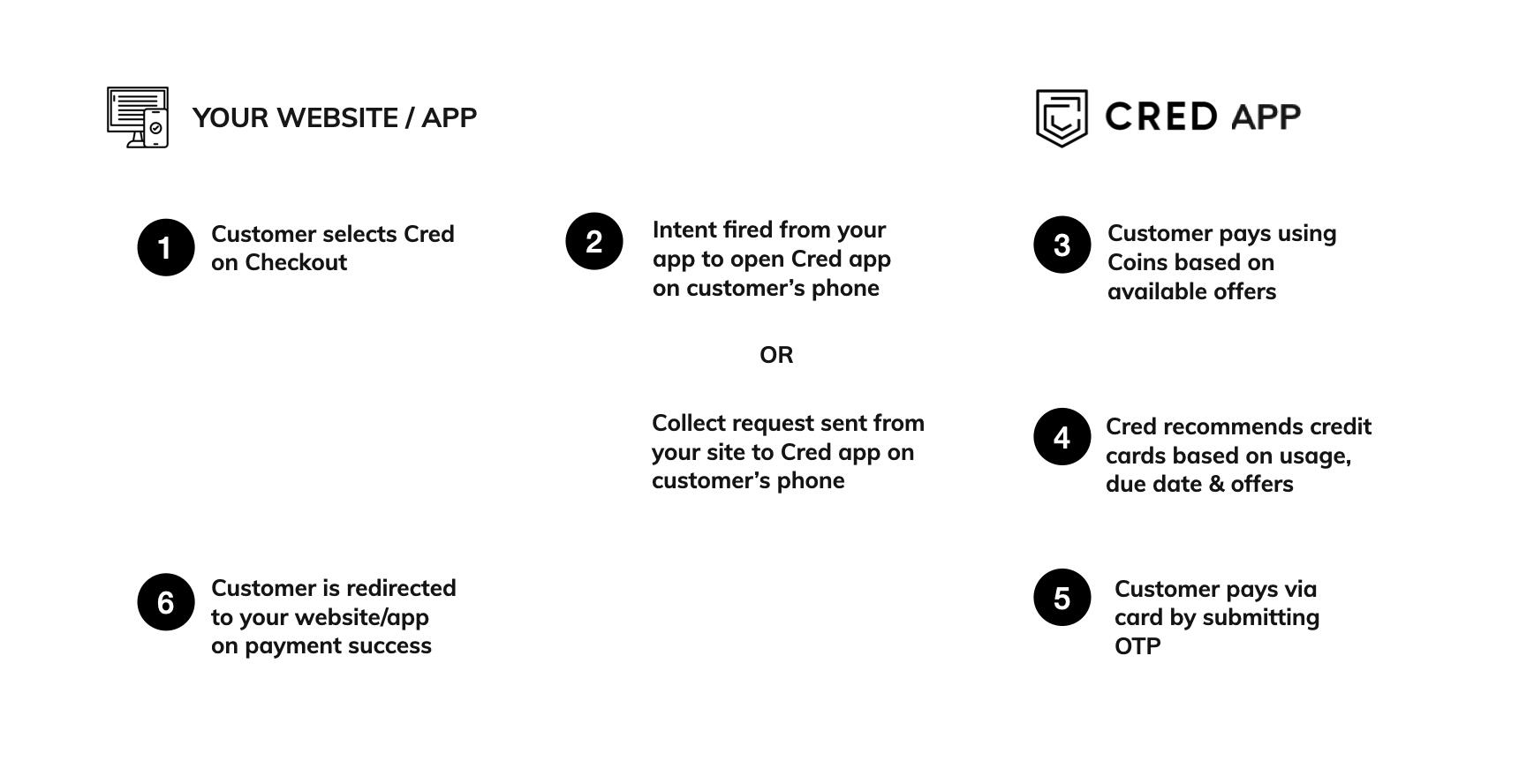
This diagram explains the workflow:
**Feature Request**
This is an on-demand feature. Please raise a request with our [Support team](https://razorpay.com/support/#request) to get this feature activated on your Razorpay account.
## Prerequisite
* Sign up for a Razorpay account.
* Generate API Keys
* Follow the [Razorpay S2S Integration documentation](/docs/payments/payment-gateway/s2s-integration).
## Integrate CRED
To add CRED Pay as a payment method, you need to:
* Pass the `app_offer` parameter in Orders API.
* Pass the `method` and `provider` parameters in Create Payments API.
#### Pass app\_offer Parameter in Order
You must create an order using Orders API. In the response, you obtain an `order_id` which you must pass to Checkout.
`POST /orders`
```bash Curl theme={null}
curl -u [YOUR_KEY_ID]:[YOUR_KEY_SECRET] \
-X POST https://api.razorpay.com/v1/orders \
-H "content-type: application/json" \
-d '{
"amount": 1000,
"currency": "INR",
"receipt": "receipt#1",
"app_offer": true
}'
```
```python Python theme={null}
import razorpay
client = razorpay.Client(auth=("YOUR_ID", "YOUR_SECRET"))
client.order.create({
"amount": 1000,
"currency": "INR",
"receipt": "receipt#1",
"app_offer": true
})
```
```php PHP theme={null}
$api = new Api($key_id, $secret);
$api->order->create(array('receipt' => 'receipt#1', 'amount' => 1000, 'currency' => 'INR', 'app_offer'=> true));
```
```csharp .NET theme={null}
RazorpayClient client = new RazorpayClient("[YOUR_KEY_ID]", "[YOUR_KEY_SECRET]");
Dictionary options = new Dictionary();
options.Add("amount", 1000); // amount in the smallest currency unit
options.Add("receipt", "receipt#1");
options.Add("currency", "INR");
options.Add("app_offer", true);
Order order = client.Order.Create(options);
```
```javascript Node.js theme={null}
var instance = new Razorpay({ key_id: 'YOUR_KEY_ID', key_secret: 'YOUR_SECRET' })
instance.orders.create({
amount: 1000,
currency: "INR",
receipt: "receipt#1",
app_offer: true
})
```
```go go theme={null}
import ( razorpay "github.com/razorpay/razorpay-go" )
client := razorpay.NewClient("YOUR_KEY_ID", "YOUR_SECRET")
data := map[string]interface{}{
"amount": 1000,
"currency": "INR",
"receipt": "receipt#1",
"app_offer": true
}
body, err := client.Order.Create(data, nil)
```
```ruby Ruby theme={null}
require "razorpay"
Razorpay.setup('YOUR_KEY_ID', 'YOUR_SECRET')
order = Razorpay::Order.create amount: 1000, currency: 'INR', receipt: 'receipt#1', app_offer: true
```
```java Java theme={null}
RazorpayClient razorpay = new RazorpayClient("[YOUR_KEY_ID]", "[YOUR_KEY_SECRET]");
JSONObject orderRequest = new JSONObject();
orderRequest.put("amount", 1000); // amount in the smallest currency unit
orderRequest.put("currency", "INR");
orderRequest.put("receipt", "receipt#1");
orderRequest.put("app_offer", true);
Order order = razorpay.orders.create(orderRequest);
```
```json Response theme={null}
{
"id": "order_FNPoKwCtPyhJOt",
"entity": "order",
"amount": 1000,
"amount_paid": 0,
"amount_due": 1000,
"currency": "INR",
"receipt": null,
"status": "created",
"attempts": 0,
"notes": [],
"created_at": 1596703420
}
```
#### Request Parameters
`amount` *mandatory*
: `integer` The transaction amount, expressed in the currency sub-unit, such as paise (in case of INR). For example, for an actual amount of ₹299.35, the value of this field should be `29935`.
`currency` *mandatory*
: `string` The currency in which the transaction should be made. See the [list of supported currencies](/docs/payments/international-payments#supported-currencies). Default is `INR`.
`app_offer` *optional*
: `boolean` Allow/disallow customers from using CRED coins to make payments. This is used to prevent double discounting scenarios where customers have already availed discounts using voucher/coupon and you do not want them to redeem Coins as well. Possible values:
* `true`: Customer not allowed to use CRED coins to make payment.
* `false` (default): Customer can use CRED coins to make payment.
`receipt` *optional*
: `string` Your receipt id for this order should be passed here. Maximum length is 40 characters.
`notes` *optional*
: `object` Key-value pair that can be used to store additional information about the entity. Maximum 15 key-value pairs, 256 characters (maximum) each. For example, `"note_key": "Beam me up Scotty”`.
#### Pass method and provider Parameters in Create Payments API
```bash Create Payment theme={null}
curl -X POST https://api.razorpay.com/v1/payments/create/json \
-u [YOUR_KEY_ID]:[YOUR_KEY_SECRET]
-H 'content-type: application/json'
-d '{
"amount": 1000,
"currency": "INR",
"contact": 9900988990,
"email": "gaurav.kumar@example.com",
"order_id": "order_4xbQrmEoA5WJ0G",
"method": "app",
"provider": "cred",
"app_present": "false"
}'
```
```json Response theme={null}
{
"razorpay_payment_id": "pay_xxxx",
"next": [
{
"action": "poll",
"url": "https://api.razorpay.com/v1/payments/pay_xxx/status"
}
]
}
```
#### Request Parameters
Along with the other Create Payment API request parameters, you must pass:
`method` *mandatory*
: `string` The method used to make the payment. Here, it must be `app`.
`provider` *mandatory if method=app*
: `string` Name of the PSP app. Here, it must be `cred`.
`app_present` *mandatory if app=cred*
: `boolean` Sets the payment flow as collect. Possible values:
* `true`: Opens CRED app on customer's device.
* `false` (default): Sends a push notification to customer's device.
 ### Advantages
* Customers can redeem their CRED Coins on websites.
* Customers can access the cards they have saved on CRED to make payments on your website or app.
* CRED recommends which credit card customers can use based on the credit limit, due date and reward points.
## Workflow
This diagram explains the workflow:
### Advantages
* Customers can redeem their CRED Coins on websites.
* Customers can access the cards they have saved on CRED to make payments on your website or app.
* CRED recommends which credit card customers can use based on the credit limit, due date and reward points.
## Workflow
This diagram explains the workflow: