> ## Documentation Index
> Fetch the complete documentation index at: https://razorpay-881012b3.mintlify.site/llms.txt
> Use this file to discover all available pages before exploring further.

# UPI Payment Links

> Check how to create UPI Payment Link to accept UPI payments.

<div style={{display:"flex",flexWrap:"wrap",alignItems:"center",gap:"0.35rem 0.9rem",border:"1px solid rgba(128,128,128,0.28)",borderRadius:"0.5rem",padding:"0.45rem 0.75rem",margin:"0 0 1.25rem",fontSize:"0.875rem"}}>
  <span style={{fontWeight:600}}>Available in</span>
  <span>🇮🇳 India</span>
</div>

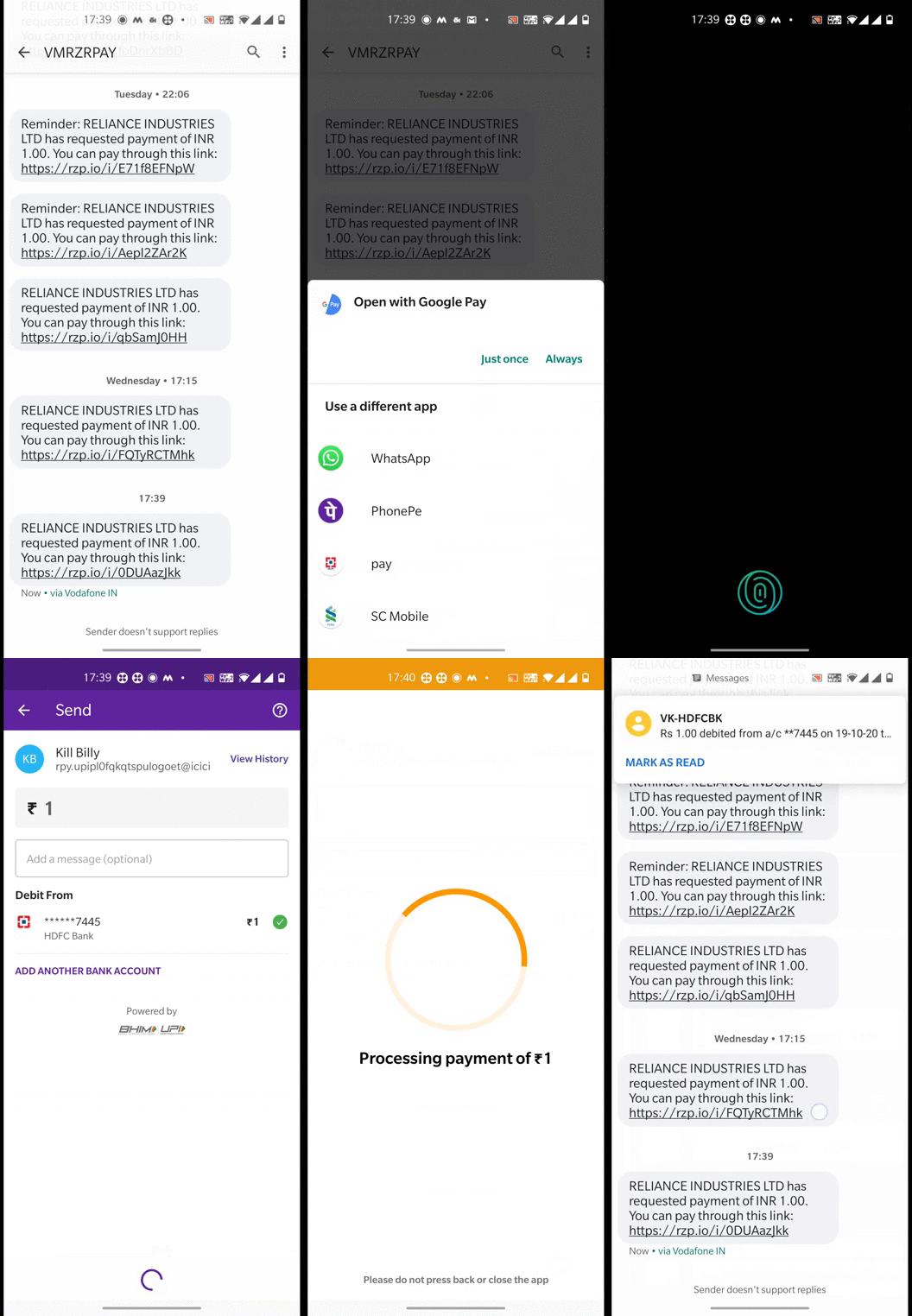
You can send the UPI Payment Links as URLs to your customers to accept UPI payments. When the customers click on the URL, a list of UPI apps installed on their mobile device is displayed. Customers can select the UPI app of their choice to complete the payment. You can also use [Standard Payment Links](/docs/payments/payment-links/standard) to receive payments using payment methods such as netbanking, cards and UPI.

<Info>
  **Handy Tips**

  * This feature works only on Android mobile devices.
  * UPI Payment Links will work only in **Live Mode**.
  * **Enable Partial Payments** feature is not applicable for UPI Payment Links.
</Info>

## Advantages

* UPI is a popular payment method that helps customers to make quick payments.
* Customers do not have to enter card details, netbanking login details, thus avoiding manual errors and failed payments.
* UPI payments have a high success rate compared to other payment methods.

## Supported Features

UPI Payment Links support the following features: [Reminders](/docs/payments/payment-links/reminders) and [Batch Upload](/docs/payments/payment-links/batch).

## Payment Link States

Know about the different [UPI Payment Link states](/docs/payments/payment-links/states#upi-payment-links).

## Create

Create a UPI Payment Link from the [Dashboard](/docs/payments/payment-links/create#create-a-upi-payment-link) or using the [APIs](/docs/api/payments/payment-links/create-upi).

## Customer Interaction

Watch this video to see the customer flow for UPI Payment Links.<br />

<video width="300" controls="" height="400">
  <source src="https://razorpay.com/docs/build/browser/assets/images/payment-links-upi-customer-payment.mp4" type="video/mp4" />

  customer flow for UPI Payment Links
</video>

## UPI Apps Preinstalled/Not Installed

<Tabs>
  <Tab title="UPI Apps Preinstalled">
    Watch this video to see how the UPI Payment Link works when your customers have UPI apps installed on their devices.

    <img src="https://razorpay.com/docs/build/browser/assets/images/payment-links-upi-payment.gif" alt="UPI Payment Link - customer interaction with preinstalled upi apps" width="300" />
  </Tab>

  <Tab title="UPI Apps not Installed">
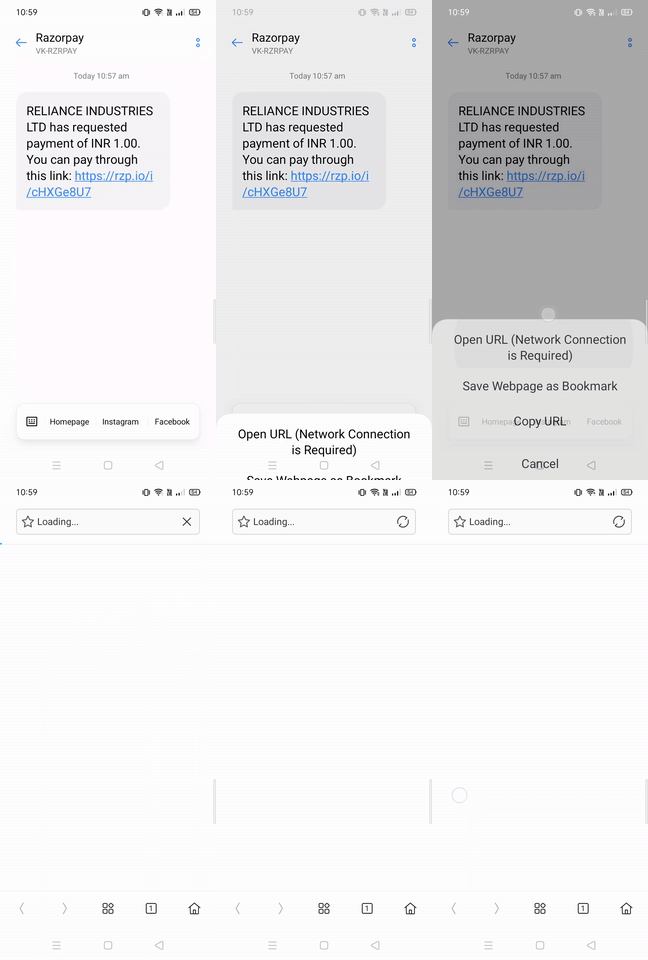
    Watch this video to see how the UPI Payment Link works when your customers do not have UPI apps installed on their devices.

    <img src="https://razorpay.com/docs/build/browser/assets/images/payment-links-upi-pl-no-apps.gif" alt="UPI Payment Link - customer interaction without upi apps" width="300" />

    Your customer can install any UPI app and try again to make the payment.
  </Tab>
</Tabs>

### Paid, Expired or Cancelled Payment Links

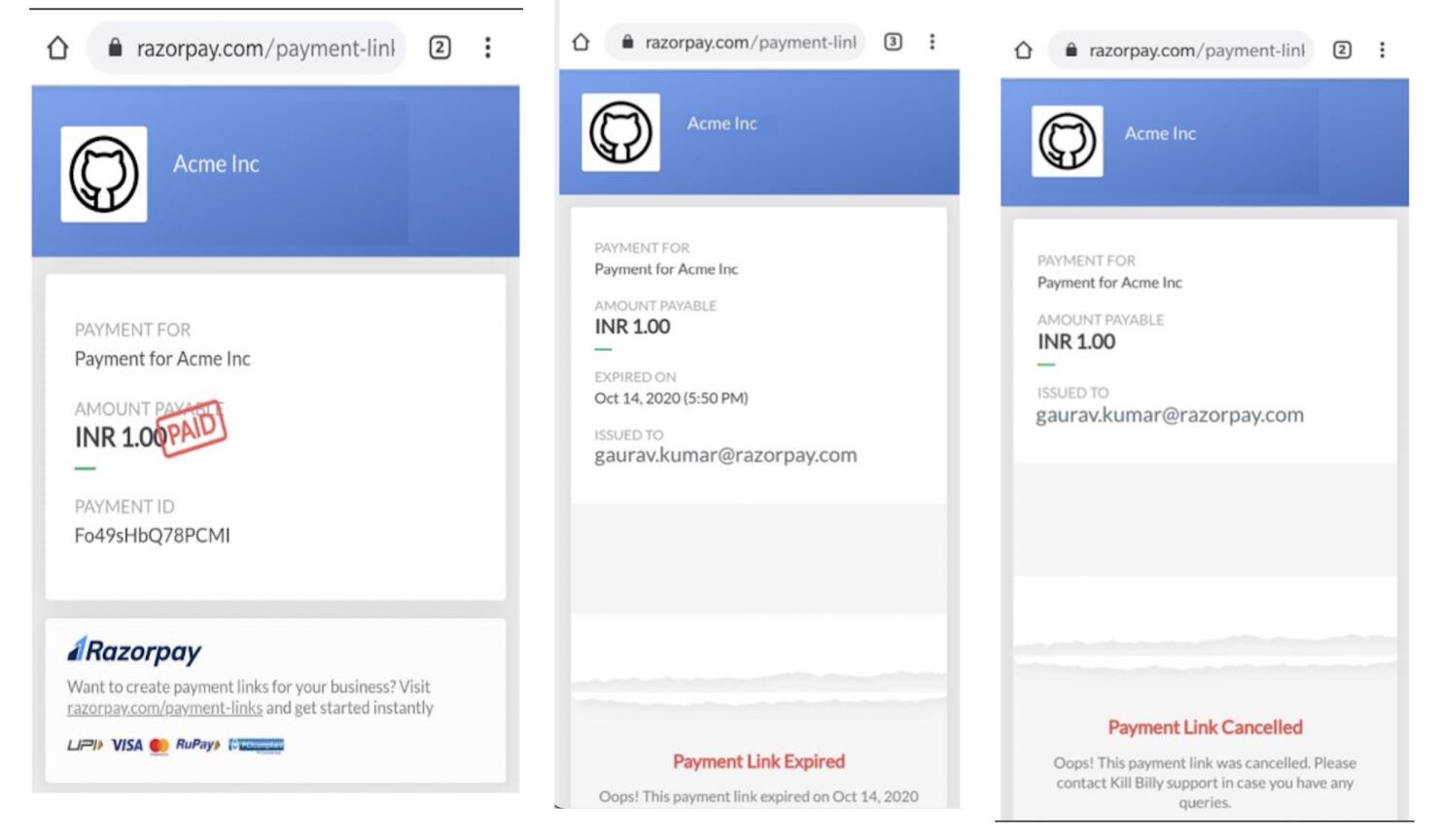
When customers attempt payment for paid, expired or cancelled Payment Links, the respective statuses are displayed. They are not allowed to make payments using such links.

<img src="https://razorpay.com/docs/build/browser/assets/images/payment-links-upi-status.jpg" alt="UPI Payment Link - other upi payment statuses" width="600" />

#### Related Information

* [How Payment Links Work](/docs/payments/payment-links/how-it-works)
* [Payment Links States](/docs/payments/payment-links/states)
* [Standard Payment Links](/docs/payments/payment-links/standard)
* [Create a Payment Link](/docs/payments/payment-links/create)
* [FAQs](/docs/payments/payment-links/faqs)
