> ## Documentation Index
> Fetch the complete documentation index at: https://razorpay-881012b3.mintlify.site/llms.txt
> Use this file to discover all available pages before exploring further.
# Bank Transfer on Hosted Checkout
> Offer bank transfer as a payment method to customers on Razorpay Hosted Checkout.
Available in
🇮🇳 India
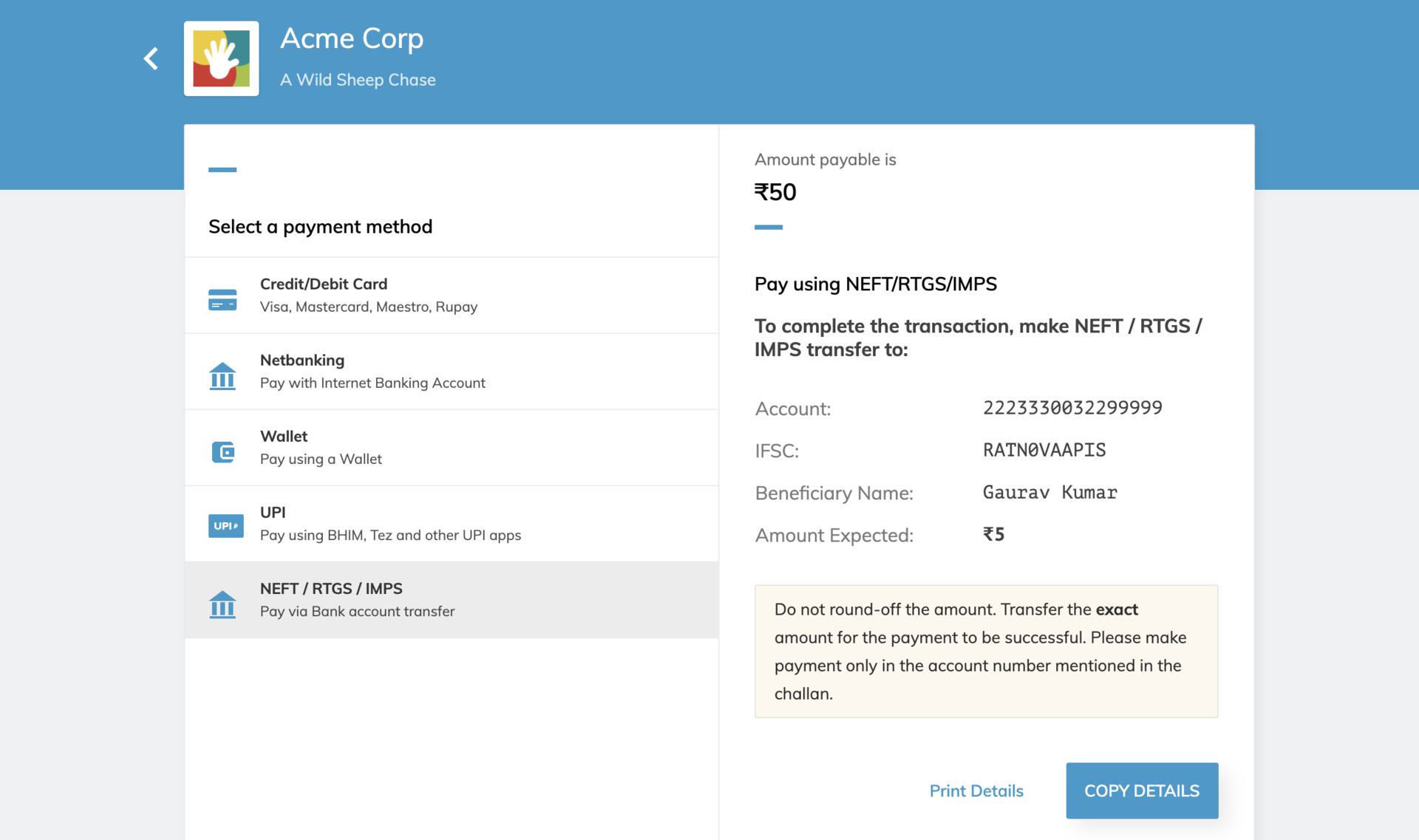
You can now accept payments from customers in the form of online bank transfers, using the Razorpay Checkout form.
 ## How it Works
1. Customer selects bank transfer as the payment method on Hosted Checkout.
2. A virtual bank account is created with bank account number and IFSC details and displayed to the customer.
3. Customer copies these details and make a netbanking payment from their online banking portal.
These virtual bank accounts are linked to the bank account you have registered with Razorpay. The money will be settled to your account as per the settlement schedule.
**Feature Request**
This is an on-demand feature. Please raise a request with our [Support team](https://razorpay.com/support/#request) to get this feature activated on your Razorpay account.
You can choose:
* [**Method 1: Create New Virtual Bank Account Per Order**](#method-1-create-new-virtual-bank-account-per)
* [**Method 2: Create New Virtual Bank Account Per Customer**](#method-2-create-new-virtual-bank-account-per)
## Method 1: Create New Virtual Bank Account Per Order
This creates a new virtual bank account every time a customer selects bank transfer as the payment method on Hosted Checkout.
### Integration
The bank transfer payment method will appear for the [payment gateway](/docs/payments/payment-gateway/web-integration/hosted) and products such as Payment Links, Payment Pages and Subscriptions.
| | Approval | Integration |
| ------------------------------------------------------------- | -------- | ------------ |
| Payment Gateway | ✓ | ✓ |
| Products such as Payment Links, Payment Pages, Invoices, etc. | ✓ | Not Required |
Complete the following steps to integrate this payment method on your Razorpay Hosted Checkout Integration:
1. Create Order.
2. Pass `method` and `order_id` to Hosted Checkout.
3. Subscribe to webhooks event.
### Step 1: Create an Order
**Order is an important step in the payment process.**
* An order should be created for every payment.
* You can create an order using the [Orders API](#api-sample-code). It is a server-side API call. Know how to [authenticate](/docs/payments/dashboard/account-settings/api-keys#generate-api-keys) Orders API.
* The `order_id` received in the response should be passed to the checkout. This ties the order with the payment and secures the request from being tampered.
**Watch Out!**
Payments made without an `order_id` cannot be captured and will be automatically refunded. You must create an order before initiating payments to ensure proper payment processing.
You can create an order:
* Using the sample code on the Razorpay Postman Public Workspace.
* By manually integrating the API sample codes on your server.
#### Razorpay Postman Public Workspace
You can use the Postman workspace below to create an order:

**Handy Tips**
Under the **Authorization** section in Postman, select **Basic Auth** and add the Key Id and secret as the Username and Password, respectively.
#### API Sample Code
Use this endpoint to create an order using the Orders API.
`POST /orders`
```bash Curl theme={null}
curl -X POST https://api.razorpay.com/v1/orders
-U [YOUR_KEY_ID]:[YOUR_KEY_SECRET]
-H 'content-type:application/json'
-d '{
"amount": 500,
"currency": "INR",
"receipt": "qwsaq1",
"partial_payment": true,
"first_payment_min_amount": 230,
"notes": {
"key1": "value3",
"key2": "value2"
}
}'
```
```java Java theme={null}
RazorpayClient razorpay = new RazorpayClient("[YOUR_KEY_ID]", "[YOUR_KEY_SECRET]");
JSONObject orderRequest = new JSONObject();
orderRequest.put("amount",50000);
orderRequest.put("currency","INR");
orderRequest.put("receipt", "receipt#1");
JSONObject notes = new JSONObject();
notes.put("notes_key_1","Tea, Earl Grey, Hot");
notes.put("notes_key_1","Tea, Earl Grey, Hot");
orderRequest.put("notes",notes);
Order order = instance.orders.create(orderRequest);
```
```python Python theme={null}
import razorpay
client = razorpay.Client(auth=("YOUR_ID", "YOUR_SECRET"))
client.order.create({
"amount": 50000,
"currency": "INR",
"receipt": "receipt#1",
"partial_payment": False,
"notes": {
"key1": "value3",
"key2": "value2"
}
})
```
```php PHP theme={null}
$api = new Api($key_id, $secret);
$api->order->create(array('receipt' => '123', 'amount' => 100, 'currency' => 'INR', 'notes'=> array('key1'=> 'value3','key2'=> 'value2')));
```
```csharp .NET theme={null}
RazorpayClient client = new RazorpayClient("[YOUR_KEY_ID]", "[YOUR_KEY_SECRET]");
Dictionary orderRequest = new Dictionary();
orderRequest.Add("amount", 50000);
orderRequest.Add("currency", "INR");
orderRequest.Add("receipt", "receipt#1");
Dictionary notes = new Dictionary();
notes.Add("notes_key_1", "Tea, Earl Grey, Hot");
notes.Add("notes_key_2", "Tea, Earl Grey, Hot");
orderRequest.Add("notes", notes);
Order order = client.Order.Create(orderRequest);
```
```ruby Ruby theme={null}
require "razorpay"
Razorpay.setup('YOUR_KEY_ID', 'YOUR_SECRET')
para_attr = {
"amount": 50000,
"currency": "INR",
"receipt": "receipt#1",
"notes": {
"key1": "value3",
"key2": "value2"
}
}
Razorpay::Order.create(para_attr)
```
```javascript Node.js theme={null}
var instance = new Razorpay({ key_id: 'YOUR_KEY_ID', key_secret: 'YOUR_SECRET' })
instance.orders.create({
"amount": 50000,
"currency": "INR",
"receipt": "receipt#1",
"partial_payment": false,
"notes": {
"key1": "value3",
"key2": "value2"
}
})
```
```go Go theme={null}
import ( razorpay "github.com/razorpay/razorpay-go" )
client := razorpay.NewClient("YOUR_KEY_ID", "YOUR_SECRET")
data := map[string]interface{}{
"amount": 50000,
"currency": "INR",
"receipt": "some_receipt_id",
"partial_payment": false,
"notes": map[string]interface{}{
"key1": "value1",
"key2": "value2",
},
}
body, err := client.Order.Create(data, nil)
```
```json Success Response theme={null}
{
"id": "order_IluGWxBm9U8zJ8",
"entity": "order",
"amount": 5000,
"amount_paid": 0,
"amount_due": 5000,
"currency": "INR",
"receipt": "rcptid_11",
"offer_id": null,
"status": "created",
"attempts": 0,
"notes": [],
"created_at": 1642662092
}
```
```json Failure Response theme={null}
{
"error": {
"code": "BAD_REQUEST_ERROR",
"description": "Order amount less than minimum amount allowed",
"source": "business",
"step": "payment_initiation",
"reason": "input_validation_failed",
"metadata": {},
"field": "amount"
}
}
```
`amount` *mandatory*
: `integer` Payment amount in the smallest currency subunit. For example, if the amount to be charged is ₹299, then pass `29900` in this field. In the case of three decimal currencies, such as KWD, BHD and OMR, to accept a payment of 295.991, pass the value as 295990. And in the case of zero decimal currencies such as JPY, to accept a payment of 295, pass the value as 295.
**Watch Out!**
As per payment guidelines, you should pass the last decimal number as 0 for three decimal currency payments. For example, if you want to charge a customer 99.991 KD for a transaction, you should pass the value for the amount parameter as `99990` and not `99991`.
`currency` *mandatory*
: `string` The currency in which the transaction should be made. See the [list of supported currencies](/docs/payments/international-payments#supported-currencies). Length must be 3 characters.
**Handy Tips**
Razorpay has added support for zero decimal currencies, such as JPY and three decimal currencies, such as KWD, BHD and OMR, allowing businesses to accept international payments in these currencies. Know more about [Currency Conversion](/docs/payments/international-payments/currency-conversion) (May 2024).
`receipt` *optional*
: `string` Your receipt id for this order should be passed here. Maximum length is 40 characters.
`notes` *optional*
: `json object` Key-value pair that can be used to store additional information about the entity. Maximum 15 key-value pairs, 256 characters (maximum) each. For example, `"note_key": "Beam me up Scotty”`.
`partial_payment` *optional*
: `boolean` Indicates whether the customer can make a partial payment. Possible values:
* `true`: The customer can make partial payments.
* `false` (default): The customer cannot make partial payments.
`first_payment_min_amount` *optional*
: `integer` Minimum amount that must be paid by the customer as the first partial payment. For example, if an amount of ₹7000 is to be received from the customer in two installments of #1 - ₹5000, #2 - ₹2000 then you can set this value as `500000`. This parameter should be passed only if `partial_payment` is `true`.
Know more about [Orders API](/docs/api/orders).
Descriptions for the response parameters are present in the [Orders Entity](/docs/api/orders/entity) parameters table.
The error response parameters are available in the [API Reference Guide](/docs/api/orders/create).
### Step 2: Add `method` parameter to Hosted Checkout
Update your integration with the `method` and `order` parameters as shown below. This will display bank transfer as a payment method.
```html Hosted Checkout theme={null}
```
#### Request Parameter
`method[smartcollect]` *mandatory*
: `boolean` Display bank transfer payment method on Checkout. Possible values:
* `true`: Bank transfer payment method is displayed on Checkout.
* `false`: Bank transfer payment method is not displayed on Checkout.
### Step 3: Subscribe to Webhook Event
You must subscribe to the `virtual_account.credited` webhook event on the Dashboard to receive notifications whenever customers make payments using bank transfers. Know how to [set up webhooks](/docs/webhooks/setup-edit-payments#set-up-webhooks).
#### Sample Payload
```json virtual_account.credited theme={null}
{
"entity": "event",
"account_id": "acc_BFQ7uQEaa7j2z7",
"event": "virtual_account.credited",
"contains": [
"payment",
"virtual_account",
"bank_transfer"
],
"payload": {
"payment": {
"entity": {
"id": "pay_DETA2KrOlhqQzF",
"entity": "payment",
"amount": 50000,
"currency": "INR",
"status": "captured",
"order_id": "order_DBJOWzybf0sJbb",
"invoice_id": null,
"international": false,
"method": "bank_transfer",
"amount_refunded": 0,
"amount_transferred": 0,
"refund_status": null,
"captured": true,
"description": "NA",
"card_id": null,
"bank": null,
"wallet": null,
"vpa": null,
"email": "gaurav.kumar@example.com",
"contact": "+919000090000",
"customer_id": "cust_1Aa00000000004",
"notes": [],
"fee": 731,
"tax": 112,
"error_code": null,
"error_description": null,
"created_at": 1567675983
}
},
"virtual_account": {
"entity": {
"id": "va_DET8z3wBxfPB5L",
"name": "Acme Corp",
"entity": "virtual_account",
"status": "active",
"description": "Virtual Account to test webhook",
"amount_expected": null,
"notes": {
"Important": "Notes for Internal Reference"
},
"amount_paid": 50000,
"customer_id": "cust_1Aa00000000004",
"close_by": null,
"closed_at": null,
"created_at": 1567675923,
"receivers": [
{
"id": "ba_DET8z5Z5ghv4hW",
"entity": "bank_account",
"ifsc": "RATN0VAAPIS",
"bank_name": "RBL Bank",
"name": "Acme Corp",
"account_number": "1112220006712324"
}
]
}
},
"bank_transfer": {
"entity": {
"id": "bt_DETA2KSUJ3uCM9",
"entity": "bank_transfer",
"payment_id": "pay_DETA2KrOlhqQzF",
"mode": "NEFT",
"bank_reference": "156767598340",
"amount": 50000,
"payer_bank_account": {
"id": "ba_DETA2UuuKtKLR1",
"entity": "bank_account",
"ifsc": "KKBK0000007",
"bank_name": "Kotak Mahindra Bank",
"name": "Gaurav Kumar",
"account_number": "765432123456789"
},
"virtual_account_id": "va_DET8z3wBxfPB5L"
}
}
},
"created_at": 1567675983
}
```
## Method 2: Create New Virtual Bank Account Per Customer
This ensures that each customer will be allocated a unique virtual bank account, whenever they use bank transfer method on Hosted Checkout. This method requires specific integration steps, which are mentioned in the following section.
### Integration
The bank transfer payment method will appear for the [payment gateway](/docs/payments/payment-gateway/web-integration/hosted) and products such as Payment Links, Invoices and Subscriptions.
| | Approval | Integration |
| ------------------------------------------------------------- | -------- | ------------ |
| Payment Gateway | ✓ | ✓ |
| Products such as Payment Links, Payment Pages, Invoices, etc. | ✓ | Not Required |
Complete the following steps to integrate this payment method on your Razorpay Hosted Checkout Integration:
1. Create a Customer.
2. Create an Order.
3. Pass `method`, `customer_id` and `order_id` to Hosted Checkout.
4. Subscribe to webhooks event.
### Step 1: Create a Customer
You must create a customer using the Customers ID. You can also do same using the Dashboard.
The following endpoint creates or add a customer with basic details such as name and contact details. You can use this API for various Razorpay Solution offerings.
`POST /customers`
```bash Curl theme={null}
curl -u [YOUR_KEY_ID]:[YOUR_KEY_SECRET] \
-X POST https://api.razorpay.com/v1/customers \
-H "Content-Type: application/json" \
-d '{
"name": "",
"contact": "",
"email": "",
"fail_existing": "0",
"notes": {
"notes_key_1": "Tea, Earl Grey, Hot",
"notes_key_2": "Tea, Earl Grey… decaf."
}
}'
```
```java Java theme={null}
RazorpayClient razorpay = new RazorpayClient("[YOUR_KEY_ID]", "[YOUR_KEY_SECRET]");
JSONObject customerRequest = new JSONObject();
customerRequest.put("name","");
customerRequest.put("contact","");
customerRequest.put("email","");
customerRequest.put("fail_existing", "0");
JSONObject notes = new JSONObject();
notes.put("notes_key_1","Tea, Earl Grey, Hot");
notes.put("notes_key_2","Tea, Earl Grey… decaf.");
customerRequest.put("notes",notes);
Customer customer = razorpay.customers.create(customerRequest);
```
```python Python theme={null}
import razorpay
client = razorpay.Client(auth=("YOUR_ID", "YOUR_SECRET"))
client.customer.create({
"name": "",
"contact": "",
"email": "",
"fail_existing": "0",
"notes": {
"notes_key_1": "Tea, Earl Grey, Hot",
"notes_key_2": "Tea, Earl Grey… decaf."
}
})
```
```go Go theme={null}
import ( razorpay "github.com/razorpay/razorpay-go" )
client := razorpay.NewClient("YOUR_KEY_ID", "YOUR_SECRET")
data := map[string]interface{}{
"name": "",
"contact": "",
"email": "",
"fail_existing": "0",
"notes": map[string]interface{}{
"notes_key_1": "Tea, Earl Grey, Hot",
"notes_key_2": "Tea, Earl Grey… decaf.",
},
}
body, err := client.Customer.Create(data, nil)
```
```php PHP theme={null}
$api = new Api($key_id, $secret);
$api->customer->create(array('name' => '', 'email' => '','contact'=>'','notes'=> array('notes_key_1'=> 'Tea, Earl Grey, Hot','notes_key_2'=> 'Tea, Earl Grey… decaf'));
```
```csharp .NET theme={null}
RazorpayClient client = new RazorpayClient("[YOUR_KEY_ID]", "[YOUR_KEY_SECRET]");
Dictionary options = new Dictionary();
options.Add("name", "");
options.Add("contact", "");
options.Add("email", "");
options.Add("fail_existing", "0");
Customer customer = Customer.Create(options);
```
```ruby Ruby theme={null}
require "razorpay"
Razorpay.setup('YOUR_KEY_ID', 'YOUR_SECRET')
Razorpay::Customer.create({
"name": "",
"contact": "",
"email": "",
"fail_existing": "0",
"notes": {
"notes_key_1": "Tea, Earl Grey, Hot",
"notes_key_2": "Tea, Earl Grey… decaf."
}
})
```
```javascript Node.js theme={null}
var instance = new Razorpay({ key_id: 'YOUR_KEY_ID', key_secret: 'YOUR_SECRET' })
instance.customers.create({
name: "",
contact: "",
email: "",
fail_existing: "0",
notes: {
notes_key_1: "Tea, Earl Grey, Hot",
notes_key_2: "Tea, Earl Grey… decaf."
}
})
```
```json Success Response theme={null}
{
"id" : "cust_1Aa00000000004",
"entity": "customer",
"name" : "",
"email" : "",
"contact" : "",
"gstin": null,
"notes": {
"notes_key_1":"Tea, Earl Grey, Hot",
"notes_key_2":"Tea, Earl Grey… decaf."
},
"created_at ": 1234567890
}
```
```json Failure Response theme={null}
{
"error": {
"code": "BAD_REQUEST_ERROR",
"description": "Contact number should be at least 8 digits, including country code",
"source": "business",
"step": "NA",
"reason": "invalid_contact_number",
"metadata": {},
"field": "contact"
}
}
```
#### Request Parameters
`name` *optional*
: `string` Customer's name. Alphanumeric value with period (.), apostrophe ('), forward slash (/), at (@) and parentheses are allowed. The name must be between 3-50 characters in length. For example, `Gaurav Kumar`.
`contact ` *optional*
: `string` The customer's phone number. A maximum length of 15 characters including country code. For example, `+919876543210`.
`email ` *optional*
: `string` The customer's email address. A maximum length of 64 characters. For example, `gaurav.kumar@example.com`.
`fail_existing` *optional*
: `string` Possible values:
* `1` (default): If a customer with the same details already exists, throws an error.
* `0`: If a customer with the same details already exists, fetches details of the existing customer.
`gstin` *optional*
: `string` Customer's GST number, if available. For example, `29XAbbA4369J1PA`.
`notes` *optional*
: `object` This is a key-value pair that can be used to store additional information about the entity. It can hold a maximum of 15 key-value pairs, 256 characters (maximum) each. For example, `"note_key": "Beam me up Scotty”`.
#### Request Parameters
`id`
: `string` Unique identifier of the customer. For example, `cust_1Aa00000000004`.
`name`
: `string` Customer's name. Alphanumeric, with period (.), apostrophe ('), forward slash (/), at (@) and parentheses allowed. The name must be between 3-50 characters in length. For example, `Gaurav Kumar`.
`contact`
: `string` The customer's phone number. A maximum length of 15 characters including country code. For example, `+919876543210`.
`email`
: `string` The customer's email address. A maximum length of 64 characters. For example, `gaurav.kumar@example.com`.
`gstin`
: `string` GST number linked to the customer. For example, `29XAbbA4369J1PA`.
`notes`
: `json object` This is a key-value pair that can be used to store additional information about the entity. It can hold a maximum of 15 key-value pairs, 256 characters (maximum) each. For example, `"note_key": "Beam me up Scotty”`.
`created_at`
: `integer` UNIX timestamp, when the customer was created. For example, `1234567890`.
Pass the `customer_id` available in the response to Checkout.
### Step 2: Create an Order
**Order is an important step in the payment process.**
* An order should be created for every payment.
* You can create an order using the [Orders API](#api-sample-code). It is a server-side API call. Know how to [authenticate](/docs/payments/dashboard/account-settings/api-keys#generate-api-keys) Orders API.
* The `order_id` received in the response should be passed to the checkout. This ties the order with the payment and secures the request from being tampered.
**Watch Out!**
Payments made without an `order_id` cannot be captured and will be automatically refunded. You must create an order before initiating payments to ensure proper payment processing.
You can create an order:
* Using the sample code on the Razorpay Postman Public Workspace.
* By manually integrating the API sample codes on your server.
#### Razorpay Postman Public Workspace
You can use the Postman workspace below to create an order:

**Handy Tips**
Under the **Authorization** section in Postman, select **Basic Auth** and add the Key Id and secret as the Username and Password, respectively.
#### API Sample Code
Use this endpoint to create an order using the Orders API.
`POST /orders`
```bash Curl theme={null}
curl -X POST https://api.razorpay.com/v1/orders
-U [YOUR_KEY_ID]:[YOUR_KEY_SECRET]
-H 'content-type:application/json'
-d '{
"amount": 500,
"currency": "INR",
"receipt": "qwsaq1",
"partial_payment": true,
"first_payment_min_amount": 230,
"notes": {
"key1": "value3",
"key2": "value2"
}
}'
```
```java Java theme={null}
RazorpayClient razorpay = new RazorpayClient("[YOUR_KEY_ID]", "[YOUR_KEY_SECRET]");
JSONObject orderRequest = new JSONObject();
orderRequest.put("amount",50000);
orderRequest.put("currency","INR");
orderRequest.put("receipt", "receipt#1");
JSONObject notes = new JSONObject();
notes.put("notes_key_1","Tea, Earl Grey, Hot");
notes.put("notes_key_1","Tea, Earl Grey, Hot");
orderRequest.put("notes",notes);
Order order = instance.orders.create(orderRequest);
```
```python Python theme={null}
import razorpay
client = razorpay.Client(auth=("YOUR_ID", "YOUR_SECRET"))
client.order.create({
"amount": 50000,
"currency": "INR",
"receipt": "receipt#1",
"partial_payment": False,
"notes": {
"key1": "value3",
"key2": "value2"
}
})
```
```php PHP theme={null}
$api = new Api($key_id, $secret);
$api->order->create(array('receipt' => '123', 'amount' => 100, 'currency' => 'INR', 'notes'=> array('key1'=> 'value3','key2'=> 'value2')));
```
```csharp .NET theme={null}
RazorpayClient client = new RazorpayClient("[YOUR_KEY_ID]", "[YOUR_KEY_SECRET]");
Dictionary orderRequest = new Dictionary();
orderRequest.Add("amount", 50000);
orderRequest.Add("currency", "INR");
orderRequest.Add("receipt", "receipt#1");
Dictionary notes = new Dictionary();
notes.Add("notes_key_1", "Tea, Earl Grey, Hot");
notes.Add("notes_key_2", "Tea, Earl Grey, Hot");
orderRequest.Add("notes", notes);
Order order = client.Order.Create(orderRequest);
```
```ruby Ruby theme={null}
require "razorpay"
Razorpay.setup('YOUR_KEY_ID', 'YOUR_SECRET')
para_attr = {
"amount": 50000,
"currency": "INR",
"receipt": "receipt#1",
"notes": {
"key1": "value3",
"key2": "value2"
}
}
Razorpay::Order.create(para_attr)
```
```javascript Node.js theme={null}
var instance = new Razorpay({ key_id: 'YOUR_KEY_ID', key_secret: 'YOUR_SECRET' })
instance.orders.create({
"amount": 50000,
"currency": "INR",
"receipt": "receipt#1",
"partial_payment": false,
"notes": {
"key1": "value3",
"key2": "value2"
}
})
```
```go Go theme={null}
import ( razorpay "github.com/razorpay/razorpay-go" )
client := razorpay.NewClient("YOUR_KEY_ID", "YOUR_SECRET")
data := map[string]interface{}{
"amount": 50000,
"currency": "INR",
"receipt": "some_receipt_id",
"partial_payment": false,
"notes": map[string]interface{}{
"key1": "value1",
"key2": "value2",
},
}
body, err := client.Order.Create(data, nil)
```
```json Success Response theme={null}
{
"id": "order_IluGWxBm9U8zJ8",
"entity": "order",
"amount": 5000,
"amount_paid": 0,
"amount_due": 5000,
"currency": "INR",
"receipt": "rcptid_11",
"offer_id": null,
"status": "created",
"attempts": 0,
"notes": [],
"created_at": 1642662092
}
```
```json Failure Response theme={null}
{
"error": {
"code": "BAD_REQUEST_ERROR",
"description": "Order amount less than minimum amount allowed",
"source": "business",
"step": "payment_initiation",
"reason": "input_validation_failed",
"metadata": {},
"field": "amount"
}
}
```
`amount` *mandatory*
: `integer` Payment amount in the smallest currency subunit. For example, if the amount to be charged is ₹299, then pass `29900` in this field. In the case of three decimal currencies, such as KWD, BHD and OMR, to accept a payment of 295.991, pass the value as 295990. And in the case of zero decimal currencies such as JPY, to accept a payment of 295, pass the value as 295.
**Watch Out!**
As per payment guidelines, you should pass the last decimal number as 0 for three decimal currency payments. For example, if you want to charge a customer 99.991 KD for a transaction, you should pass the value for the amount parameter as `99990` and not `99991`.
`currency` *mandatory*
: `string` The currency in which the transaction should be made. See the [list of supported currencies](/docs/payments/international-payments#supported-currencies). Length must be 3 characters.
**Handy Tips**
Razorpay has added support for zero decimal currencies, such as JPY and three decimal currencies, such as KWD, BHD and OMR, allowing businesses to accept international payments in these currencies. Know more about [Currency Conversion](/docs/payments/international-payments/currency-conversion) (May 2024).
`receipt` *optional*
: `string` Your receipt id for this order should be passed here. Maximum length is 40 characters.
`notes` *optional*
: `json object` Key-value pair that can be used to store additional information about the entity. Maximum 15 key-value pairs, 256 characters (maximum) each. For example, `"note_key": "Beam me up Scotty”`.
`partial_payment` *optional*
: `boolean` Indicates whether the customer can make a partial payment. Possible values:
* `true`: The customer can make partial payments.
* `false` (default): The customer cannot make partial payments.
`first_payment_min_amount` *optional*
: `integer` Minimum amount that must be paid by the customer as the first partial payment. For example, if an amount of ₹7000 is to be received from the customer in two installments of #1 - ₹5000, #2 - ₹2000 then you can set this value as `500000`. This parameter should be passed only if `partial_payment` is `true`.
Know more about [Orders API](/docs/api/orders).
Descriptions for the response parameters are present in the [Orders Entity](/docs/api/orders/entity) parameters table.
The error response parameters are available in the [API Reference Guide](/docs/api/orders/create).
### Step 3: Pass `customer_id` and `order_id` to Hosted Checkout
You must pass the `customer_id` and `order_id` generated in the previous steps to Checkout, as shown below:
```html Hosted Checkout theme={null}
```
#### Request Parameter
`method[smartcollect]` *mandatory*
: `boolean` Display bank transfer payment method on Checkout. Possible values:
* `true`: Bank transfer payment method is displayed on Checkout.
* `false`: Bank transfer payment method is not displayed on Checkout.
`customer_id` *mandatory*
: `string` Unique identifier of the customer to whom the virtual account has been allocated. [Generated in Step 1](#step-1-create-a-customer).
`order_id` *mandatory*
: `string` Unique identifier of the order. [Generated in Step 2](#step-2-create-an-order).
**Read More**: [List of parameters for Hosted Checkout](/docs/payments/payment-gateway/web-integration/hosted/integration-steps#1-build-integration).
#### Subscribe to Webhook Event
You must subscribe to the `virtual_account.credited` webhook event on the Dashboard to receive notifications whenever customers make payments using bank transfers. Know how to [set up webhooks](/docs/webhooks/setup-edit-payments#set-up-webhooks).
#### Sample Payload
```json virtual_account.credited theme={null}
{
"entity": "event",
"account_id": "acc_BFQ7uQEaa7j2z7",
"event": "virtual_account.credited",
"contains": [
"payment",
"virtual_account",
"bank_transfer"
],
"payload": {
"payment": {
"entity": {
"id": "pay_DETA2KrOlhqQzF",
"entity": "payment",
"amount": 50000,
"currency": "INR",
"status": "captured",
"order_id": "order_DBJOWzybf0sJbb",
"invoice_id": null,
"international": false,
"method": "bank_transfer",
"amount_refunded": 0,
"amount_transferred": 0,
"refund_status": null,
"captured": true,
"description": "NA",
"card_id": null,
"bank": null,
"wallet": null,
"vpa": null,
"email": "gaurav.kumar@example.com",
"contact": "+919000090000",
"customer_id": "cust_1Aa00000000004",
"notes": [],
"fee": 731,
"tax": 112,
"error_code": null,
"error_description": null,
"created_at": 1567675983
}
},
"virtual_account": {
"entity": {
"id": "va_DET8z3wBxfPB5L",
"name": "Acme Corp",
"entity": "virtual_account",
"status": "active",
"description": "Virtual Account to test webhook",
"amount_expected": null,
"notes": {
"Important": "Notes for Internal Reference"
},
"amount_paid": 50000,
"customer_id": "cust_1Aa00000000004",
"close_by": null,
"closed_at": null,
"created_at": 1567675923,
"receivers": [
{
"id": "ba_DET8z5Z5ghv4hW",
"entity": "bank_account",
"ifsc": "RATN0VAAPIS",
"bank_name": "RBL Bank",
"name": "Acme Corp",
"account_number": "1112220006712324"
}
]
}
},
"bank_transfer": {
"entity": {
"id": "bt_DETA2KSUJ3uCM9",
"entity": "bank_transfer",
"payment_id": "pay_DETA2KrOlhqQzF",
"mode": "NEFT",
"bank_reference": "156767598340",
"amount": 50000,
"payer_bank_account": {
"id": "ba_DETA2UuuKtKLR1",
"entity": "bank_account",
"ifsc": "KKBK0000007",
"bank_name": "Kotak Mahindra Bank",
"name": "Gaurav Kumar",
"account_number": "765432123456789"
},
"virtual_account_id": "va_DET8z3wBxfPB5L"
}
}
},
"created_at": 1567675983
}
```
### Try It Out
To understand how your customers can transfer money to you:
1. [Launch our demo Standard Checkout.](https://razorpay.com/demo/smartcollect/)
2. Provide your phone number and email address.
3. Select **Bank Transfer** as your payment method.
4. Click **Copy Details** to copy the account number, IFSC and Beneficiary Name.
5. Go to your preferred netbanking portal, enter the copied details and initiate an online bank transfer.
**Live Payment**
This initiates a live payment. The amount will be refunded within 5-7 days.
## How it Works
1. Customer selects bank transfer as the payment method on Hosted Checkout.
2. A virtual bank account is created with bank account number and IFSC details and displayed to the customer.
3. Customer copies these details and make a netbanking payment from their online banking portal.
These virtual bank accounts are linked to the bank account you have registered with Razorpay. The money will be settled to your account as per the settlement schedule.
**Feature Request**
This is an on-demand feature. Please raise a request with our [Support team](https://razorpay.com/support/#request) to get this feature activated on your Razorpay account.
You can choose:
* [**Method 1: Create New Virtual Bank Account Per Order**](#method-1-create-new-virtual-bank-account-per)
* [**Method 2: Create New Virtual Bank Account Per Customer**](#method-2-create-new-virtual-bank-account-per)
## Method 1: Create New Virtual Bank Account Per Order
This creates a new virtual bank account every time a customer selects bank transfer as the payment method on Hosted Checkout.
### Integration
The bank transfer payment method will appear for the [payment gateway](/docs/payments/payment-gateway/web-integration/hosted) and products such as Payment Links, Payment Pages and Subscriptions.
| | Approval | Integration |
| ------------------------------------------------------------- | -------- | ------------ |
| Payment Gateway | ✓ | ✓ |
| Products such as Payment Links, Payment Pages, Invoices, etc. | ✓ | Not Required |
Complete the following steps to integrate this payment method on your Razorpay Hosted Checkout Integration:
1. Create Order.
2. Pass `method` and `order_id` to Hosted Checkout.
3. Subscribe to webhooks event.
### Step 1: Create an Order
**Order is an important step in the payment process.**
* An order should be created for every payment.
* You can create an order using the [Orders API](#api-sample-code). It is a server-side API call. Know how to [authenticate](/docs/payments/dashboard/account-settings/api-keys#generate-api-keys) Orders API.
* The `order_id` received in the response should be passed to the checkout. This ties the order with the payment and secures the request from being tampered.
**Watch Out!**
Payments made without an `order_id` cannot be captured and will be automatically refunded. You must create an order before initiating payments to ensure proper payment processing.
You can create an order:
* Using the sample code on the Razorpay Postman Public Workspace.
* By manually integrating the API sample codes on your server.
#### Razorpay Postman Public Workspace
You can use the Postman workspace below to create an order:

**Handy Tips**
Under the **Authorization** section in Postman, select **Basic Auth** and add the Key Id and secret as the Username and Password, respectively.
#### API Sample Code
Use this endpoint to create an order using the Orders API.
`POST /orders`
```bash Curl theme={null}
curl -X POST https://api.razorpay.com/v1/orders
-U [YOUR_KEY_ID]:[YOUR_KEY_SECRET]
-H 'content-type:application/json'
-d '{
"amount": 500,
"currency": "INR",
"receipt": "qwsaq1",
"partial_payment": true,
"first_payment_min_amount": 230,
"notes": {
"key1": "value3",
"key2": "value2"
}
}'
```
```java Java theme={null}
RazorpayClient razorpay = new RazorpayClient("[YOUR_KEY_ID]", "[YOUR_KEY_SECRET]");
JSONObject orderRequest = new JSONObject();
orderRequest.put("amount",50000);
orderRequest.put("currency","INR");
orderRequest.put("receipt", "receipt#1");
JSONObject notes = new JSONObject();
notes.put("notes_key_1","Tea, Earl Grey, Hot");
notes.put("notes_key_1","Tea, Earl Grey, Hot");
orderRequest.put("notes",notes);
Order order = instance.orders.create(orderRequest);
```
```python Python theme={null}
import razorpay
client = razorpay.Client(auth=("YOUR_ID", "YOUR_SECRET"))
client.order.create({
"amount": 50000,
"currency": "INR",
"receipt": "receipt#1",
"partial_payment": False,
"notes": {
"key1": "value3",
"key2": "value2"
}
})
```
```php PHP theme={null}
$api = new Api($key_id, $secret);
$api->order->create(array('receipt' => '123', 'amount' => 100, 'currency' => 'INR', 'notes'=> array('key1'=> 'value3','key2'=> 'value2')));
```
```csharp .NET theme={null}
RazorpayClient client = new RazorpayClient("[YOUR_KEY_ID]", "[YOUR_KEY_SECRET]");
Dictionary orderRequest = new Dictionary();
orderRequest.Add("amount", 50000);
orderRequest.Add("currency", "INR");
orderRequest.Add("receipt", "receipt#1");
Dictionary notes = new Dictionary();
notes.Add("notes_key_1", "Tea, Earl Grey, Hot");
notes.Add("notes_key_2", "Tea, Earl Grey, Hot");
orderRequest.Add("notes", notes);
Order order = client.Order.Create(orderRequest);
```
```ruby Ruby theme={null}
require "razorpay"
Razorpay.setup('YOUR_KEY_ID', 'YOUR_SECRET')
para_attr = {
"amount": 50000,
"currency": "INR",
"receipt": "receipt#1",
"notes": {
"key1": "value3",
"key2": "value2"
}
}
Razorpay::Order.create(para_attr)
```
```javascript Node.js theme={null}
var instance = new Razorpay({ key_id: 'YOUR_KEY_ID', key_secret: 'YOUR_SECRET' })
instance.orders.create({
"amount": 50000,
"currency": "INR",
"receipt": "receipt#1",
"partial_payment": false,
"notes": {
"key1": "value3",
"key2": "value2"
}
})
```
```go Go theme={null}
import ( razorpay "github.com/razorpay/razorpay-go" )
client := razorpay.NewClient("YOUR_KEY_ID", "YOUR_SECRET")
data := map[string]interface{}{
"amount": 50000,
"currency": "INR",
"receipt": "some_receipt_id",
"partial_payment": false,
"notes": map[string]interface{}{
"key1": "value1",
"key2": "value2",
},
}
body, err := client.Order.Create(data, nil)
```
```json Success Response theme={null}
{
"id": "order_IluGWxBm9U8zJ8",
"entity": "order",
"amount": 5000,
"amount_paid": 0,
"amount_due": 5000,
"currency": "INR",
"receipt": "rcptid_11",
"offer_id": null,
"status": "created",
"attempts": 0,
"notes": [],
"created_at": 1642662092
}
```
```json Failure Response theme={null}
{
"error": {
"code": "BAD_REQUEST_ERROR",
"description": "Order amount less than minimum amount allowed",
"source": "business",
"step": "payment_initiation",
"reason": "input_validation_failed",
"metadata": {},
"field": "amount"
}
}
```
`amount` *mandatory*
: `integer` Payment amount in the smallest currency subunit. For example, if the amount to be charged is ₹299, then pass `29900` in this field. In the case of three decimal currencies, such as KWD, BHD and OMR, to accept a payment of 295.991, pass the value as 295990. And in the case of zero decimal currencies such as JPY, to accept a payment of 295, pass the value as 295.
**Watch Out!**
As per payment guidelines, you should pass the last decimal number as 0 for three decimal currency payments. For example, if you want to charge a customer 99.991 KD for a transaction, you should pass the value for the amount parameter as `99990` and not `99991`.
`currency` *mandatory*
: `string` The currency in which the transaction should be made. See the [list of supported currencies](/docs/payments/international-payments#supported-currencies). Length must be 3 characters.
**Handy Tips**
Razorpay has added support for zero decimal currencies, such as JPY and three decimal currencies, such as KWD, BHD and OMR, allowing businesses to accept international payments in these currencies. Know more about [Currency Conversion](/docs/payments/international-payments/currency-conversion) (May 2024).
`receipt` *optional*
: `string` Your receipt id for this order should be passed here. Maximum length is 40 characters.
`notes` *optional*
: `json object` Key-value pair that can be used to store additional information about the entity. Maximum 15 key-value pairs, 256 characters (maximum) each. For example, `"note_key": "Beam me up Scotty”`.
`partial_payment` *optional*
: `boolean` Indicates whether the customer can make a partial payment. Possible values:
* `true`: The customer can make partial payments.
* `false` (default): The customer cannot make partial payments.
`first_payment_min_amount` *optional*
: `integer` Minimum amount that must be paid by the customer as the first partial payment. For example, if an amount of ₹7000 is to be received from the customer in two installments of #1 - ₹5000, #2 - ₹2000 then you can set this value as `500000`. This parameter should be passed only if `partial_payment` is `true`.
Know more about [Orders API](/docs/api/orders).
Descriptions for the response parameters are present in the [Orders Entity](/docs/api/orders/entity) parameters table.
The error response parameters are available in the [API Reference Guide](/docs/api/orders/create).
### Step 2: Add `method` parameter to Hosted Checkout
Update your integration with the `method` and `order` parameters as shown below. This will display bank transfer as a payment method.
```html Hosted Checkout theme={null}
```
#### Request Parameter
`method[smartcollect]` *mandatory*
: `boolean` Display bank transfer payment method on Checkout. Possible values:
* `true`: Bank transfer payment method is displayed on Checkout.
* `false`: Bank transfer payment method is not displayed on Checkout.
### Step 3: Subscribe to Webhook Event
You must subscribe to the `virtual_account.credited` webhook event on the Dashboard to receive notifications whenever customers make payments using bank transfers. Know how to [set up webhooks](/docs/webhooks/setup-edit-payments#set-up-webhooks).
#### Sample Payload
```json virtual_account.credited theme={null}
{
"entity": "event",
"account_id": "acc_BFQ7uQEaa7j2z7",
"event": "virtual_account.credited",
"contains": [
"payment",
"virtual_account",
"bank_transfer"
],
"payload": {
"payment": {
"entity": {
"id": "pay_DETA2KrOlhqQzF",
"entity": "payment",
"amount": 50000,
"currency": "INR",
"status": "captured",
"order_id": "order_DBJOWzybf0sJbb",
"invoice_id": null,
"international": false,
"method": "bank_transfer",
"amount_refunded": 0,
"amount_transferred": 0,
"refund_status": null,
"captured": true,
"description": "NA",
"card_id": null,
"bank": null,
"wallet": null,
"vpa": null,
"email": "gaurav.kumar@example.com",
"contact": "+919000090000",
"customer_id": "cust_1Aa00000000004",
"notes": [],
"fee": 731,
"tax": 112,
"error_code": null,
"error_description": null,
"created_at": 1567675983
}
},
"virtual_account": {
"entity": {
"id": "va_DET8z3wBxfPB5L",
"name": "Acme Corp",
"entity": "virtual_account",
"status": "active",
"description": "Virtual Account to test webhook",
"amount_expected": null,
"notes": {
"Important": "Notes for Internal Reference"
},
"amount_paid": 50000,
"customer_id": "cust_1Aa00000000004",
"close_by": null,
"closed_at": null,
"created_at": 1567675923,
"receivers": [
{
"id": "ba_DET8z5Z5ghv4hW",
"entity": "bank_account",
"ifsc": "RATN0VAAPIS",
"bank_name": "RBL Bank",
"name": "Acme Corp",
"account_number": "1112220006712324"
}
]
}
},
"bank_transfer": {
"entity": {
"id": "bt_DETA2KSUJ3uCM9",
"entity": "bank_transfer",
"payment_id": "pay_DETA2KrOlhqQzF",
"mode": "NEFT",
"bank_reference": "156767598340",
"amount": 50000,
"payer_bank_account": {
"id": "ba_DETA2UuuKtKLR1",
"entity": "bank_account",
"ifsc": "KKBK0000007",
"bank_name": "Kotak Mahindra Bank",
"name": "Gaurav Kumar",
"account_number": "765432123456789"
},
"virtual_account_id": "va_DET8z3wBxfPB5L"
}
}
},
"created_at": 1567675983
}
```
## Method 2: Create New Virtual Bank Account Per Customer
This ensures that each customer will be allocated a unique virtual bank account, whenever they use bank transfer method on Hosted Checkout. This method requires specific integration steps, which are mentioned in the following section.
### Integration
The bank transfer payment method will appear for the [payment gateway](/docs/payments/payment-gateway/web-integration/hosted) and products such as Payment Links, Invoices and Subscriptions.
| | Approval | Integration |
| ------------------------------------------------------------- | -------- | ------------ |
| Payment Gateway | ✓ | ✓ |
| Products such as Payment Links, Payment Pages, Invoices, etc. | ✓ | Not Required |
Complete the following steps to integrate this payment method on your Razorpay Hosted Checkout Integration:
1. Create a Customer.
2. Create an Order.
3. Pass `method`, `customer_id` and `order_id` to Hosted Checkout.
4. Subscribe to webhooks event.
### Step 1: Create a Customer
You must create a customer using the Customers ID. You can also do same using the Dashboard.
The following endpoint creates or add a customer with basic details such as name and contact details. You can use this API for various Razorpay Solution offerings.
`POST /customers`
```bash Curl theme={null}
curl -u [YOUR_KEY_ID]:[YOUR_KEY_SECRET] \
-X POST https://api.razorpay.com/v1/customers \
-H "Content-Type: application/json" \
-d '{
"name": "",
"contact": "",
"email": "",
"fail_existing": "0",
"notes": {
"notes_key_1": "Tea, Earl Grey, Hot",
"notes_key_2": "Tea, Earl Grey… decaf."
}
}'
```
```java Java theme={null}
RazorpayClient razorpay = new RazorpayClient("[YOUR_KEY_ID]", "[YOUR_KEY_SECRET]");
JSONObject customerRequest = new JSONObject();
customerRequest.put("name","");
customerRequest.put("contact","");
customerRequest.put("email","");
customerRequest.put("fail_existing", "0");
JSONObject notes = new JSONObject();
notes.put("notes_key_1","Tea, Earl Grey, Hot");
notes.put("notes_key_2","Tea, Earl Grey… decaf.");
customerRequest.put("notes",notes);
Customer customer = razorpay.customers.create(customerRequest);
```
```python Python theme={null}
import razorpay
client = razorpay.Client(auth=("YOUR_ID", "YOUR_SECRET"))
client.customer.create({
"name": "",
"contact": "",
"email": "",
"fail_existing": "0",
"notes": {
"notes_key_1": "Tea, Earl Grey, Hot",
"notes_key_2": "Tea, Earl Grey… decaf."
}
})
```
```go Go theme={null}
import ( razorpay "github.com/razorpay/razorpay-go" )
client := razorpay.NewClient("YOUR_KEY_ID", "YOUR_SECRET")
data := map[string]interface{}{
"name": "",
"contact": "",
"email": "",
"fail_existing": "0",
"notes": map[string]interface{}{
"notes_key_1": "Tea, Earl Grey, Hot",
"notes_key_2": "Tea, Earl Grey… decaf.",
},
}
body, err := client.Customer.Create(data, nil)
```
```php PHP theme={null}
$api = new Api($key_id, $secret);
$api->customer->create(array('name' => '', 'email' => '','contact'=>'','notes'=> array('notes_key_1'=> 'Tea, Earl Grey, Hot','notes_key_2'=> 'Tea, Earl Grey… decaf'));
```
```csharp .NET theme={null}
RazorpayClient client = new RazorpayClient("[YOUR_KEY_ID]", "[YOUR_KEY_SECRET]");
Dictionary options = new Dictionary();
options.Add("name", "");
options.Add("contact", "");
options.Add("email", "");
options.Add("fail_existing", "0");
Customer customer = Customer.Create(options);
```
```ruby Ruby theme={null}
require "razorpay"
Razorpay.setup('YOUR_KEY_ID', 'YOUR_SECRET')
Razorpay::Customer.create({
"name": "",
"contact": "",
"email": "",
"fail_existing": "0",
"notes": {
"notes_key_1": "Tea, Earl Grey, Hot",
"notes_key_2": "Tea, Earl Grey… decaf."
}
})
```
```javascript Node.js theme={null}
var instance = new Razorpay({ key_id: 'YOUR_KEY_ID', key_secret: 'YOUR_SECRET' })
instance.customers.create({
name: "",
contact: "",
email: "",
fail_existing: "0",
notes: {
notes_key_1: "Tea, Earl Grey, Hot",
notes_key_2: "Tea, Earl Grey… decaf."
}
})
```
```json Success Response theme={null}
{
"id" : "cust_1Aa00000000004",
"entity": "customer",
"name" : "",
"email" : "",
"contact" : "",
"gstin": null,
"notes": {
"notes_key_1":"Tea, Earl Grey, Hot",
"notes_key_2":"Tea, Earl Grey… decaf."
},
"created_at ": 1234567890
}
```
```json Failure Response theme={null}
{
"error": {
"code": "BAD_REQUEST_ERROR",
"description": "Contact number should be at least 8 digits, including country code",
"source": "business",
"step": "NA",
"reason": "invalid_contact_number",
"metadata": {},
"field": "contact"
}
}
```
#### Request Parameters
`name` *optional*
: `string` Customer's name. Alphanumeric value with period (.), apostrophe ('), forward slash (/), at (@) and parentheses are allowed. The name must be between 3-50 characters in length. For example, `Gaurav Kumar`.
`contact ` *optional*
: `string` The customer's phone number. A maximum length of 15 characters including country code. For example, `+919876543210`.
`email ` *optional*
: `string` The customer's email address. A maximum length of 64 characters. For example, `gaurav.kumar@example.com`.
`fail_existing` *optional*
: `string` Possible values:
* `1` (default): If a customer with the same details already exists, throws an error.
* `0`: If a customer with the same details already exists, fetches details of the existing customer.
`gstin` *optional*
: `string` Customer's GST number, if available. For example, `29XAbbA4369J1PA`.
`notes` *optional*
: `object` This is a key-value pair that can be used to store additional information about the entity. It can hold a maximum of 15 key-value pairs, 256 characters (maximum) each. For example, `"note_key": "Beam me up Scotty”`.
#### Request Parameters
`id`
: `string` Unique identifier of the customer. For example, `cust_1Aa00000000004`.
`name`
: `string` Customer's name. Alphanumeric, with period (.), apostrophe ('), forward slash (/), at (@) and parentheses allowed. The name must be between 3-50 characters in length. For example, `Gaurav Kumar`.
`contact`
: `string` The customer's phone number. A maximum length of 15 characters including country code. For example, `+919876543210`.
`email`
: `string` The customer's email address. A maximum length of 64 characters. For example, `gaurav.kumar@example.com`.
`gstin`
: `string` GST number linked to the customer. For example, `29XAbbA4369J1PA`.
`notes`
: `json object` This is a key-value pair that can be used to store additional information about the entity. It can hold a maximum of 15 key-value pairs, 256 characters (maximum) each. For example, `"note_key": "Beam me up Scotty”`.
`created_at`
: `integer` UNIX timestamp, when the customer was created. For example, `1234567890`.
Pass the `customer_id` available in the response to Checkout.
### Step 2: Create an Order
**Order is an important step in the payment process.**
* An order should be created for every payment.
* You can create an order using the [Orders API](#api-sample-code). It is a server-side API call. Know how to [authenticate](/docs/payments/dashboard/account-settings/api-keys#generate-api-keys) Orders API.
* The `order_id` received in the response should be passed to the checkout. This ties the order with the payment and secures the request from being tampered.
**Watch Out!**
Payments made without an `order_id` cannot be captured and will be automatically refunded. You must create an order before initiating payments to ensure proper payment processing.
You can create an order:
* Using the sample code on the Razorpay Postman Public Workspace.
* By manually integrating the API sample codes on your server.
#### Razorpay Postman Public Workspace
You can use the Postman workspace below to create an order:

**Handy Tips**
Under the **Authorization** section in Postman, select **Basic Auth** and add the Key Id and secret as the Username and Password, respectively.
#### API Sample Code
Use this endpoint to create an order using the Orders API.
`POST /orders`
```bash Curl theme={null}
curl -X POST https://api.razorpay.com/v1/orders
-U [YOUR_KEY_ID]:[YOUR_KEY_SECRET]
-H 'content-type:application/json'
-d '{
"amount": 500,
"currency": "INR",
"receipt": "qwsaq1",
"partial_payment": true,
"first_payment_min_amount": 230,
"notes": {
"key1": "value3",
"key2": "value2"
}
}'
```
```java Java theme={null}
RazorpayClient razorpay = new RazorpayClient("[YOUR_KEY_ID]", "[YOUR_KEY_SECRET]");
JSONObject orderRequest = new JSONObject();
orderRequest.put("amount",50000);
orderRequest.put("currency","INR");
orderRequest.put("receipt", "receipt#1");
JSONObject notes = new JSONObject();
notes.put("notes_key_1","Tea, Earl Grey, Hot");
notes.put("notes_key_1","Tea, Earl Grey, Hot");
orderRequest.put("notes",notes);
Order order = instance.orders.create(orderRequest);
```
```python Python theme={null}
import razorpay
client = razorpay.Client(auth=("YOUR_ID", "YOUR_SECRET"))
client.order.create({
"amount": 50000,
"currency": "INR",
"receipt": "receipt#1",
"partial_payment": False,
"notes": {
"key1": "value3",
"key2": "value2"
}
})
```
```php PHP theme={null}
$api = new Api($key_id, $secret);
$api->order->create(array('receipt' => '123', 'amount' => 100, 'currency' => 'INR', 'notes'=> array('key1'=> 'value3','key2'=> 'value2')));
```
```csharp .NET theme={null}
RazorpayClient client = new RazorpayClient("[YOUR_KEY_ID]", "[YOUR_KEY_SECRET]");
Dictionary orderRequest = new Dictionary();
orderRequest.Add("amount", 50000);
orderRequest.Add("currency", "INR");
orderRequest.Add("receipt", "receipt#1");
Dictionary notes = new Dictionary();
notes.Add("notes_key_1", "Tea, Earl Grey, Hot");
notes.Add("notes_key_2", "Tea, Earl Grey, Hot");
orderRequest.Add("notes", notes);
Order order = client.Order.Create(orderRequest);
```
```ruby Ruby theme={null}
require "razorpay"
Razorpay.setup('YOUR_KEY_ID', 'YOUR_SECRET')
para_attr = {
"amount": 50000,
"currency": "INR",
"receipt": "receipt#1",
"notes": {
"key1": "value3",
"key2": "value2"
}
}
Razorpay::Order.create(para_attr)
```
```javascript Node.js theme={null}
var instance = new Razorpay({ key_id: 'YOUR_KEY_ID', key_secret: 'YOUR_SECRET' })
instance.orders.create({
"amount": 50000,
"currency": "INR",
"receipt": "receipt#1",
"partial_payment": false,
"notes": {
"key1": "value3",
"key2": "value2"
}
})
```
```go Go theme={null}
import ( razorpay "github.com/razorpay/razorpay-go" )
client := razorpay.NewClient("YOUR_KEY_ID", "YOUR_SECRET")
data := map[string]interface{}{
"amount": 50000,
"currency": "INR",
"receipt": "some_receipt_id",
"partial_payment": false,
"notes": map[string]interface{}{
"key1": "value1",
"key2": "value2",
},
}
body, err := client.Order.Create(data, nil)
```
```json Success Response theme={null}
{
"id": "order_IluGWxBm9U8zJ8",
"entity": "order",
"amount": 5000,
"amount_paid": 0,
"amount_due": 5000,
"currency": "INR",
"receipt": "rcptid_11",
"offer_id": null,
"status": "created",
"attempts": 0,
"notes": [],
"created_at": 1642662092
}
```
```json Failure Response theme={null}
{
"error": {
"code": "BAD_REQUEST_ERROR",
"description": "Order amount less than minimum amount allowed",
"source": "business",
"step": "payment_initiation",
"reason": "input_validation_failed",
"metadata": {},
"field": "amount"
}
}
```
`amount` *mandatory*
: `integer` Payment amount in the smallest currency subunit. For example, if the amount to be charged is ₹299, then pass `29900` in this field. In the case of three decimal currencies, such as KWD, BHD and OMR, to accept a payment of 295.991, pass the value as 295990. And in the case of zero decimal currencies such as JPY, to accept a payment of 295, pass the value as 295.
**Watch Out!**
As per payment guidelines, you should pass the last decimal number as 0 for three decimal currency payments. For example, if you want to charge a customer 99.991 KD for a transaction, you should pass the value for the amount parameter as `99990` and not `99991`.
`currency` *mandatory*
: `string` The currency in which the transaction should be made. See the [list of supported currencies](/docs/payments/international-payments#supported-currencies). Length must be 3 characters.
**Handy Tips**
Razorpay has added support for zero decimal currencies, such as JPY and three decimal currencies, such as KWD, BHD and OMR, allowing businesses to accept international payments in these currencies. Know more about [Currency Conversion](/docs/payments/international-payments/currency-conversion) (May 2024).
`receipt` *optional*
: `string` Your receipt id for this order should be passed here. Maximum length is 40 characters.
`notes` *optional*
: `json object` Key-value pair that can be used to store additional information about the entity. Maximum 15 key-value pairs, 256 characters (maximum) each. For example, `"note_key": "Beam me up Scotty”`.
`partial_payment` *optional*
: `boolean` Indicates whether the customer can make a partial payment. Possible values:
* `true`: The customer can make partial payments.
* `false` (default): The customer cannot make partial payments.
`first_payment_min_amount` *optional*
: `integer` Minimum amount that must be paid by the customer as the first partial payment. For example, if an amount of ₹7000 is to be received from the customer in two installments of #1 - ₹5000, #2 - ₹2000 then you can set this value as `500000`. This parameter should be passed only if `partial_payment` is `true`.
Know more about [Orders API](/docs/api/orders).
Descriptions for the response parameters are present in the [Orders Entity](/docs/api/orders/entity) parameters table.
The error response parameters are available in the [API Reference Guide](/docs/api/orders/create).
### Step 3: Pass `customer_id` and `order_id` to Hosted Checkout
You must pass the `customer_id` and `order_id` generated in the previous steps to Checkout, as shown below:
```html Hosted Checkout theme={null}
```
#### Request Parameter
`method[smartcollect]` *mandatory*
: `boolean` Display bank transfer payment method on Checkout. Possible values:
* `true`: Bank transfer payment method is displayed on Checkout.
* `false`: Bank transfer payment method is not displayed on Checkout.
`customer_id` *mandatory*
: `string` Unique identifier of the customer to whom the virtual account has been allocated. [Generated in Step 1](#step-1-create-a-customer).
`order_id` *mandatory*
: `string` Unique identifier of the order. [Generated in Step 2](#step-2-create-an-order).
**Read More**: [List of parameters for Hosted Checkout](/docs/payments/payment-gateway/web-integration/hosted/integration-steps#1-build-integration).
#### Subscribe to Webhook Event
You must subscribe to the `virtual_account.credited` webhook event on the Dashboard to receive notifications whenever customers make payments using bank transfers. Know how to [set up webhooks](/docs/webhooks/setup-edit-payments#set-up-webhooks).
#### Sample Payload
```json virtual_account.credited theme={null}
{
"entity": "event",
"account_id": "acc_BFQ7uQEaa7j2z7",
"event": "virtual_account.credited",
"contains": [
"payment",
"virtual_account",
"bank_transfer"
],
"payload": {
"payment": {
"entity": {
"id": "pay_DETA2KrOlhqQzF",
"entity": "payment",
"amount": 50000,
"currency": "INR",
"status": "captured",
"order_id": "order_DBJOWzybf0sJbb",
"invoice_id": null,
"international": false,
"method": "bank_transfer",
"amount_refunded": 0,
"amount_transferred": 0,
"refund_status": null,
"captured": true,
"description": "NA",
"card_id": null,
"bank": null,
"wallet": null,
"vpa": null,
"email": "gaurav.kumar@example.com",
"contact": "+919000090000",
"customer_id": "cust_1Aa00000000004",
"notes": [],
"fee": 731,
"tax": 112,
"error_code": null,
"error_description": null,
"created_at": 1567675983
}
},
"virtual_account": {
"entity": {
"id": "va_DET8z3wBxfPB5L",
"name": "Acme Corp",
"entity": "virtual_account",
"status": "active",
"description": "Virtual Account to test webhook",
"amount_expected": null,
"notes": {
"Important": "Notes for Internal Reference"
},
"amount_paid": 50000,
"customer_id": "cust_1Aa00000000004",
"close_by": null,
"closed_at": null,
"created_at": 1567675923,
"receivers": [
{
"id": "ba_DET8z5Z5ghv4hW",
"entity": "bank_account",
"ifsc": "RATN0VAAPIS",
"bank_name": "RBL Bank",
"name": "Acme Corp",
"account_number": "1112220006712324"
}
]
}
},
"bank_transfer": {
"entity": {
"id": "bt_DETA2KSUJ3uCM9",
"entity": "bank_transfer",
"payment_id": "pay_DETA2KrOlhqQzF",
"mode": "NEFT",
"bank_reference": "156767598340",
"amount": 50000,
"payer_bank_account": {
"id": "ba_DETA2UuuKtKLR1",
"entity": "bank_account",
"ifsc": "KKBK0000007",
"bank_name": "Kotak Mahindra Bank",
"name": "Gaurav Kumar",
"account_number": "765432123456789"
},
"virtual_account_id": "va_DET8z3wBxfPB5L"
}
}
},
"created_at": 1567675983
}
```
### Try It Out
To understand how your customers can transfer money to you:
1. [Launch our demo Standard Checkout.](https://razorpay.com/demo/smartcollect/)
2. Provide your phone number and email address.
3. Select **Bank Transfer** as your payment method.
4. Click **Copy Details** to copy the account number, IFSC and Beneficiary Name.
5. Go to your preferred netbanking portal, enter the copied details and initiate an online bank transfer.
**Live Payment**
This initiates a live payment. The amount will be refunded within 5-7 days.