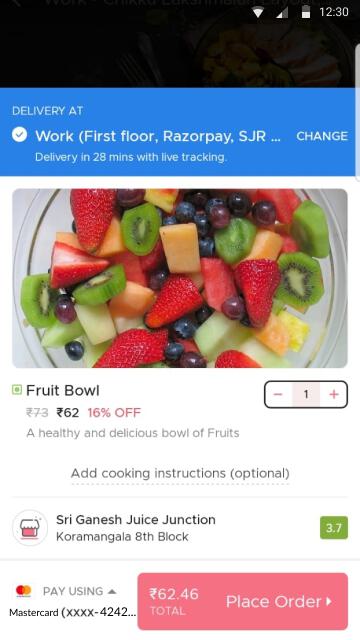
 2. If the card is a non-INR card, the user is directed to the Currency Conversion screen to change the currency.
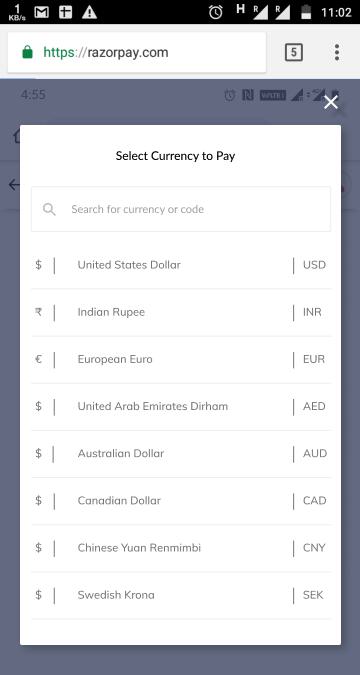
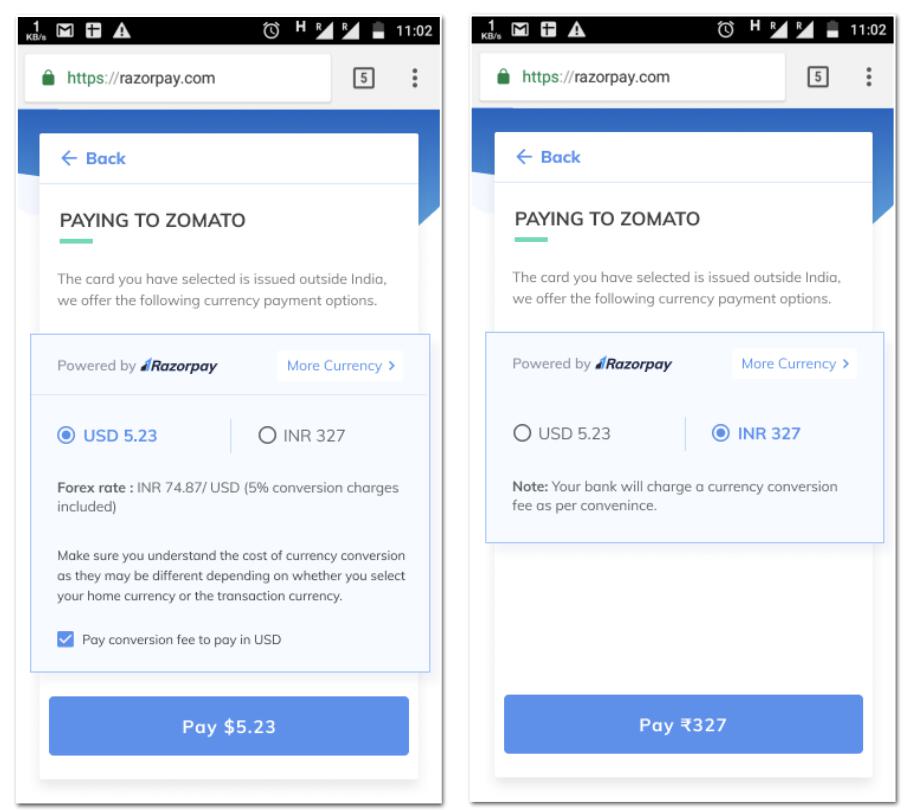 3. The users also get the option to change the currency as per their choice. Based on the selected currency, the amount is displayed. The user can check the amount in the selected currency and proceed to make the payment.
 ### Disable Dynamic Currency Conversion
The DCC feature is available by default for all the S2S integrations. Please contact the [Support Team](https://razorpay.com/support/#request) if you want to disable it.
### Related Information
* [DCC Custom Checkout Payment Flow](/docs/payments/payment-methods/cards/dynamic-currency-conversion/custom-integration)
* [International Payment Support](/docs/payments/international-payments)
### Disable Dynamic Currency Conversion
The DCC feature is available by default for all the S2S integrations. Please contact the [Support Team](https://razorpay.com/support/#request) if you want to disable it.
### Related Information
* [DCC Custom Checkout Payment Flow](/docs/payments/payment-methods/cards/dynamic-currency-conversion/custom-integration)
* [International Payment Support](/docs/payments/international-payments)