> ## Documentation Index
> Fetch the complete documentation index at: https://razorpay-881012b3.mintlify.site/llms.txt
> Use this file to discover all available pages before exploring further.
# Highlight axio on Checkout
> Configure and highlight axio as a payment method on Razorpay Checkout.
Available in🇮🇳 India
After [axio payment method is enabled](/docs/payments/payment-methods/emi/cardless-emi), it appears as a Cardless EMI provider under EMI on Razorpay Standard Checkout. You can highlight **axio** on the Razorpay Checkout using a configuration and make it more prominent.
Follow these steps to highlight axio on Razorpay Checkout:
1. [Configure payment methods](#1-configure-payment-methods).
2. [Build configuration](#2-build-the-configuration).
## 1. Configure Payment Methods
Based on how you want to control the payment methods at the Checkout, there are two different ways to pass the configuration to Checkout: **Options Parameter** and **Global Settings**.
Pass the configuration to the `options` parameter of the Checkout code at run time. *Use it when you want to modify the order of the payment methods for a particular set of payments while rendering the Checkout.*
Create a global setting of the payments as a **Configuration ID**. *Use it when you want to fix the order of the payment methods on all the instances of Checkout.* Check the [Sample Code](#sample-code).
**Attention Plugin Users**
If you are using one of our [plugins](/docs/payments/payment-gateway/ecommerce-plugins) to accept payments, you can highlight axio on Checkout only by creating a global setting of the payments as a **Configuration ID**. Contact our [Support Team](https://razorpay.com/support/#raise-a-request) for more details about Configuration ID.
## 2. Build Configuration
Using the `display` config, you can put together all the modules, that is, `blocks`, `sequence`, `preferences`, `hide` instruments as shown below:
You can pass the `display` config in the Checkout options or the Orders API request using the `checkout_config_id` parameter.
```javascript display config theme={null}
let config = {
display: {
blocks: {
walnutBlock: {
name: "Pay With Axio", // The title of the block
instruments: [{
"method": "cardless_emi",
"providers": ["walnut369"]
}] // The list of instruments
},
},
sequence: ["block.walnutBlock"], // The sequence in which blocks and methods should be shown
preferences: {
show_default_blocks: true // Should Checkout show its default blocks?
}
}
};
```
```javascript JavaScript Checkout options theme={null}
// beginning of the Checkout code
.....
let options = {
key: "[YOUR_KEY_ID]",
amount: 60000,
currency: "INR",
config: {
display: {
blocks: {
walnutBlock: {
name: "Pay With axio", // The title of the block
instruments: [{
"method": "cardless_emi",
"providers": ["walnut369"]
}] // The list of instruments
},
},
sequence: ["block.walnutBlock"], // The sequence in which blocks and methods should be shown
preferences: {
show_default_blocks: true // Should Checkout show its default blocks?
}
}
}
};
let razorpay = new Razorpay(options);
razorpay.open();
....
//rest of the Checkout code
```
```bash Orders Sample Request theme={null}
//Contact our Support Team to get your `checkout_config_id` parameter.
curl -u [YOUR_KEY_ID]:[YOUR_KEY_SECRET] \
-X POST https://api.razorpay.com/v1/orders \
-H "content-type: application/json" \
-d '{
"amount": 50000,
"currency": "INR",
"receipt": "receipt#1",
"checkout_config_id": "config_Ep0eOCwdSfgkco",
"notes": {
"reference_no": "IBFA10106201500002"
}
}'
```
```java Java theme={null}
RazorpayClient razorpay = new RazorpayClient("[YOUR_KEY_ID]", "[YOUR_KEY_SECRET]");
JSONObject orderRequest = new JSONObject();
orderRequest.put("amount", 1000); // amount in the smallest currency unit
orderRequest.put("currency", "INR");
orderRequest.put("checkout_config_id", "config_Ep0eOCwdSfgkco");
Order order = razorpayclient.orders.create(orderRequest);
System.out.print(order);
```
```python Python theme={null}
import razorpay
client = razorpay.Client(auth=("YOUR_ID", "YOUR_SECRET"))
client.order.create({
"amount": 50000,
"currency": "INR",
"receipt": "receipt#1",
"checkout_config_id": "config_Ep0eOCwdSfgkco"
})
```
```php PHP theme={null}
$api = new Api($key_id, $secret);
$api->order->create(array('amount' => 100, 'currency' => 'INR', checkout_config_id=> 'config_Ep0eOCwdSfgkco'));
```
```csharp .NET theme={null}
RazorpayClient client = new RazorpayClient("[YOUR_KEY_ID]", "[YOUR_KEY_SECRET]");
Dictionary options = new Dictionary();
options.Add("amount", 50000); // amount in the smallest currency unit
options.Add("receipt", "receipt#1");
options.Add("currency", "INR");
options.Add("checkout_config_id", "config_Ep0eOCwdSfgkco");
Order order = client.Order.Create(options);
```
```ruby Ruby theme={null}
require "razorpay"
Razorpay.setup('YOUR_KEY_ID', 'YOUR_SECRET')
order = Razorpay::Order.create amount: 50000, currency: 'INR', receipt: 'receipt#1', checkout_config_id: 'config_Ep0eOCwdSfgkco'
```
```javascript Node.js theme={null}
var instance = new Razorpay({ key_id: 'YOUR_KEY_ID', key_secret: 'YOUR_SECRET' })
instance.orders.create({
amount: 50000,
currency: "INR",
receipt: "receipt#1",
checkout_config_id: "config_Ep0eOCwdSfgkco"
})
```
```go Go theme={null}
import ( razorpay "github.com/razorpay/razorpay-go" )
client := razorpay.NewClient("YOUR_KEY_ID", "YOUR_SECRET")
data := map[string]interface{}{
"amount": 50000,
"currency": "INR",
"receipt": "receipt#1",
"checkout_config_id": "config_Ep0eOCwdSfgkco"
}
body, err := client.Order.Create(data, nil)
```
Know more about [Orders API](/docs/api/orders).
## Sample Code
```html Highlight axio on Standard Checkout theme={null}
```
### Related Information
[Configure Payment Methods](/docs/payments/payment-gateway/web-integration/standard/configure-payment-methods) on Razorpay Checkout
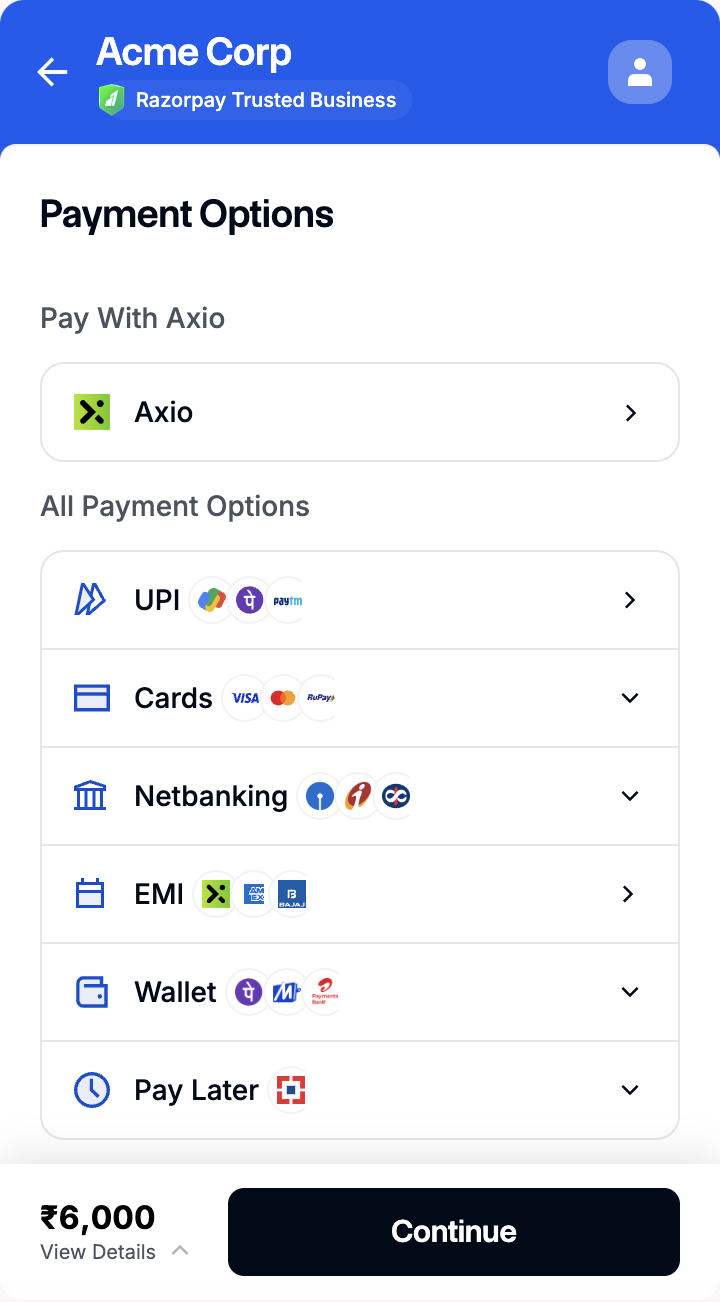 Follow these steps to highlight axio on Razorpay Checkout:
1. [Configure payment methods](#1-configure-payment-methods).
2. [Build configuration](#2-build-the-configuration).
## 1. Configure Payment Methods
Based on how you want to control the payment methods at the Checkout, there are two different ways to pass the configuration to Checkout: **Options Parameter** and **Global Settings**.
Follow these steps to highlight axio on Razorpay Checkout:
1. [Configure payment methods](#1-configure-payment-methods).
2. [Build configuration](#2-build-the-configuration).
## 1. Configure Payment Methods
Based on how you want to control the payment methods at the Checkout, there are two different ways to pass the configuration to Checkout: **Options Parameter** and **Global Settings**.