> ## Documentation Index
> Fetch the complete documentation index at: https://razorpay-881012b3.mintlify.site/llms.txt
> Use this file to discover all available pages before exploring further.
# Sodexo
> Accept payments using Sodexo meal cards for food and beverage orders.
Available in🇮🇳 India
Accept payments using Sodexo meal cards for food and beverage purchases with Razorpay Optimizer. By incorporating Sodexo meal card payments, businesses can offer customers a seamless and familiar payment experience, expanding the range of payment options available for food and beverage purchases.
## Add Sodexo as a Payment Method
**Handy Tips**
Sodexo integration is supported on all checkout types: [standard](/docs/payments/payment-gateway/web-integration/standard), [custom](/docs/payments/payment-gateway/web-integration/custom), and [server-to-server (S2S)](/docs/payments/payment-gateway/s2s-integration).
Follow the steps given below on the Razorpay Dashboard:
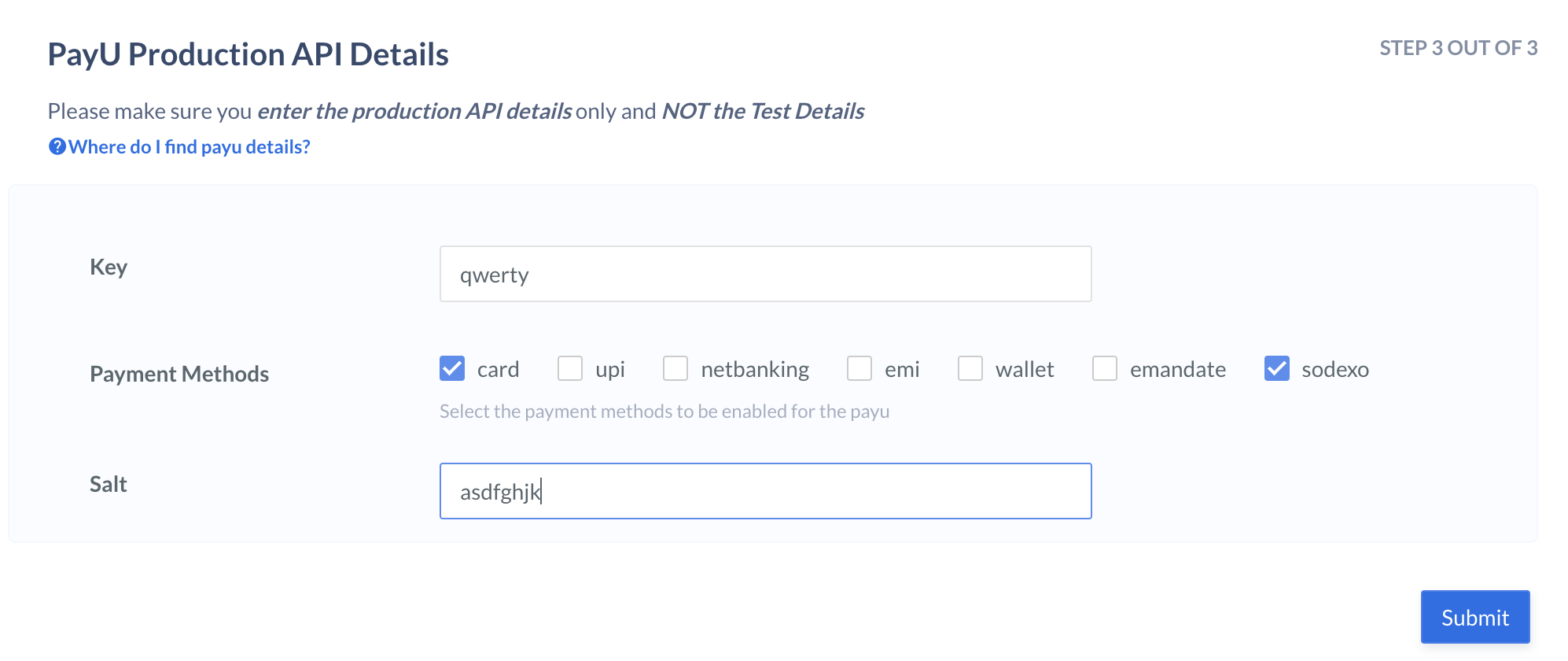
1. Enable [Optimizer](/docs/payments/optimizer) on your Razorpay account.
2. Log in to the Dashboard and navigate to **Optimizer**.
3. [Add PayU as a payment provider](/docs/payments/optimizer/payu-instant#add-payu-as-a-payment-provider).
4. Select `card` and `sodexo` payment methods and submit.
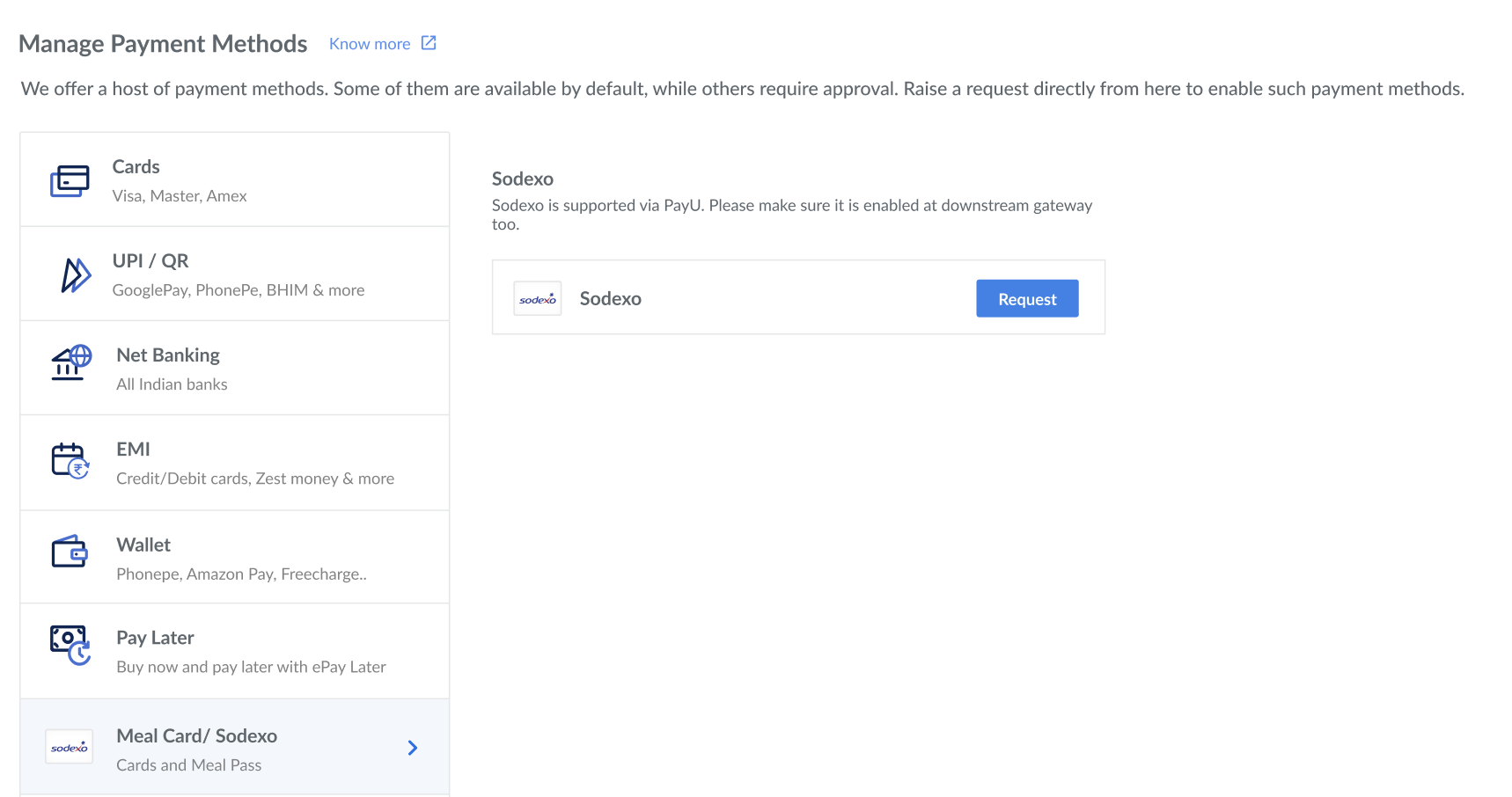
1. On the Razorpay Dashboard, navigate to **Account & Settings**.
2. Select **Sodexo** from the list of payment methods and click **Request**. Know more about [how to request for a payment method](/docs/payments/dashboard/account-settings/payment-methods#request-for-payment-methods).
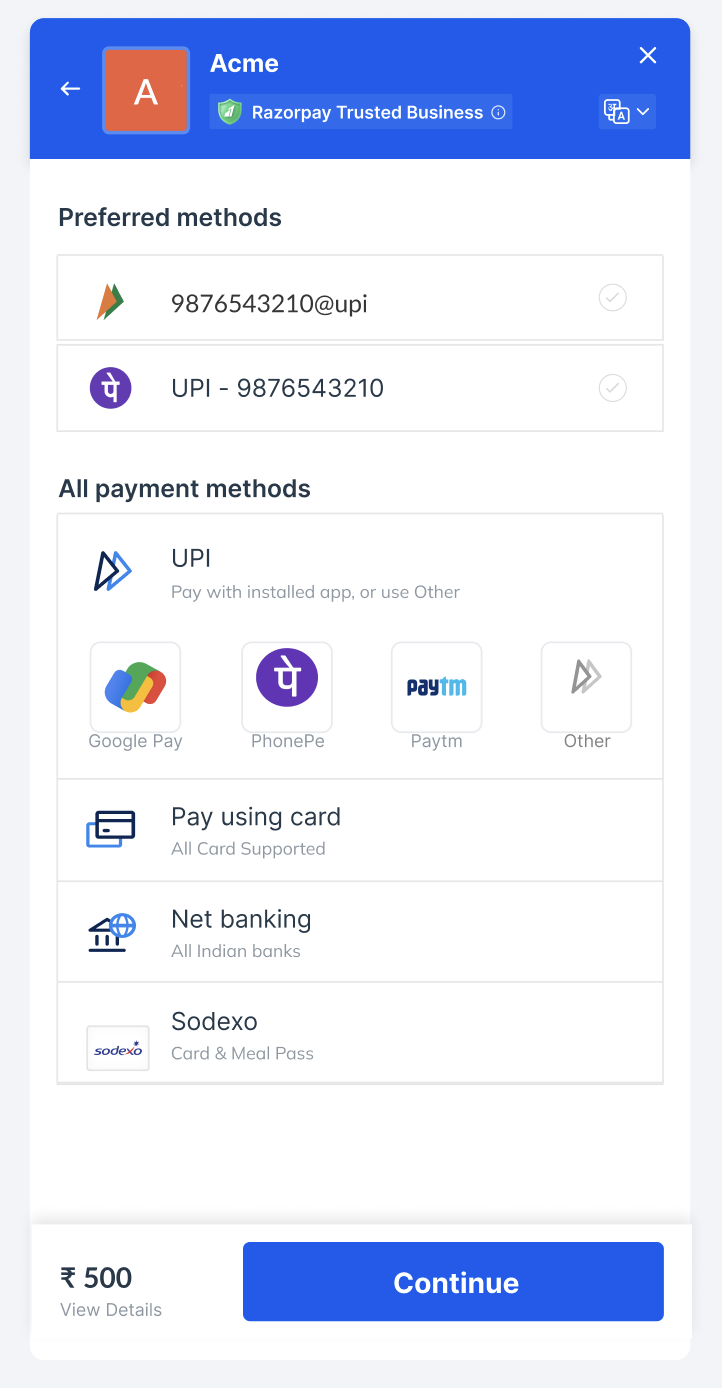
After the completion of the above steps, Sodexo appears on the Razorpay Checkout.
 After the completion of the above steps, Sodexo appears on the Razorpay Checkout.
 ## Add Sodexo as a Payment Method