> ## Documentation Index
> Fetch the complete documentation index at: https://razorpay-881012b3.mintlify.site/llms.txt
> Use this file to discover all available pages before exploring further.
# UPI Intent
> Accept payments from your customers via UPI app on your mobile that supports the Intent flow using Razorpay.
Available in
🇮🇳 India
You can make UPI payments easier for your customers by enabling UPI Intent on your application Checkout.
### Benefits
Enjoy the benefits such as higher conversion rates, decrease in abandoned carts and a decrease in time to complete the payment. Your customers are also benefited in the following ways:
* No need to handle push or SMS notifications.
* No need to switch between applications to complete a payment (merchant, SMS and app).
* No need to remember their VPAs.
## Understand Intent flow
The payment flow for UPI Intent payments is given below.
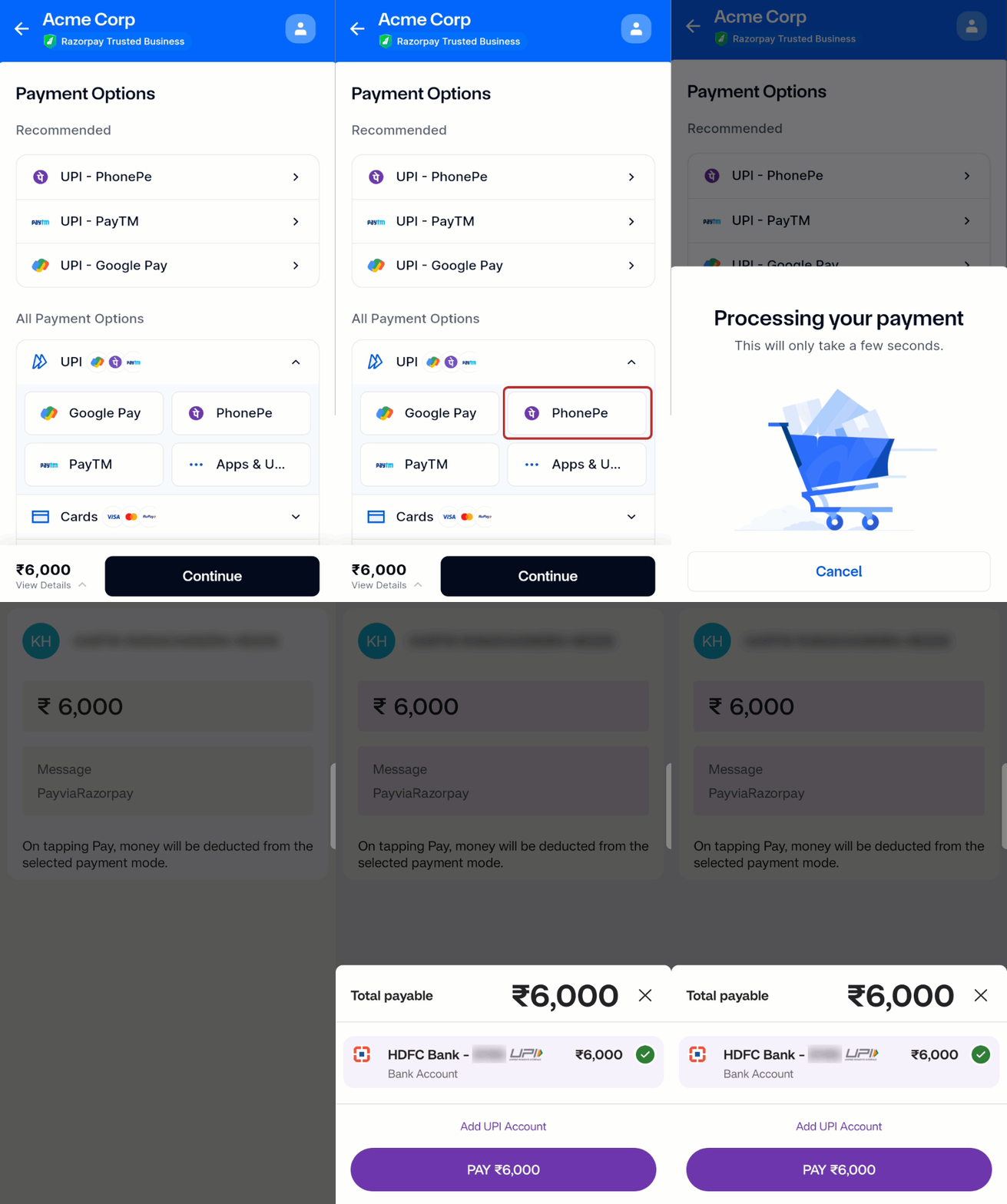
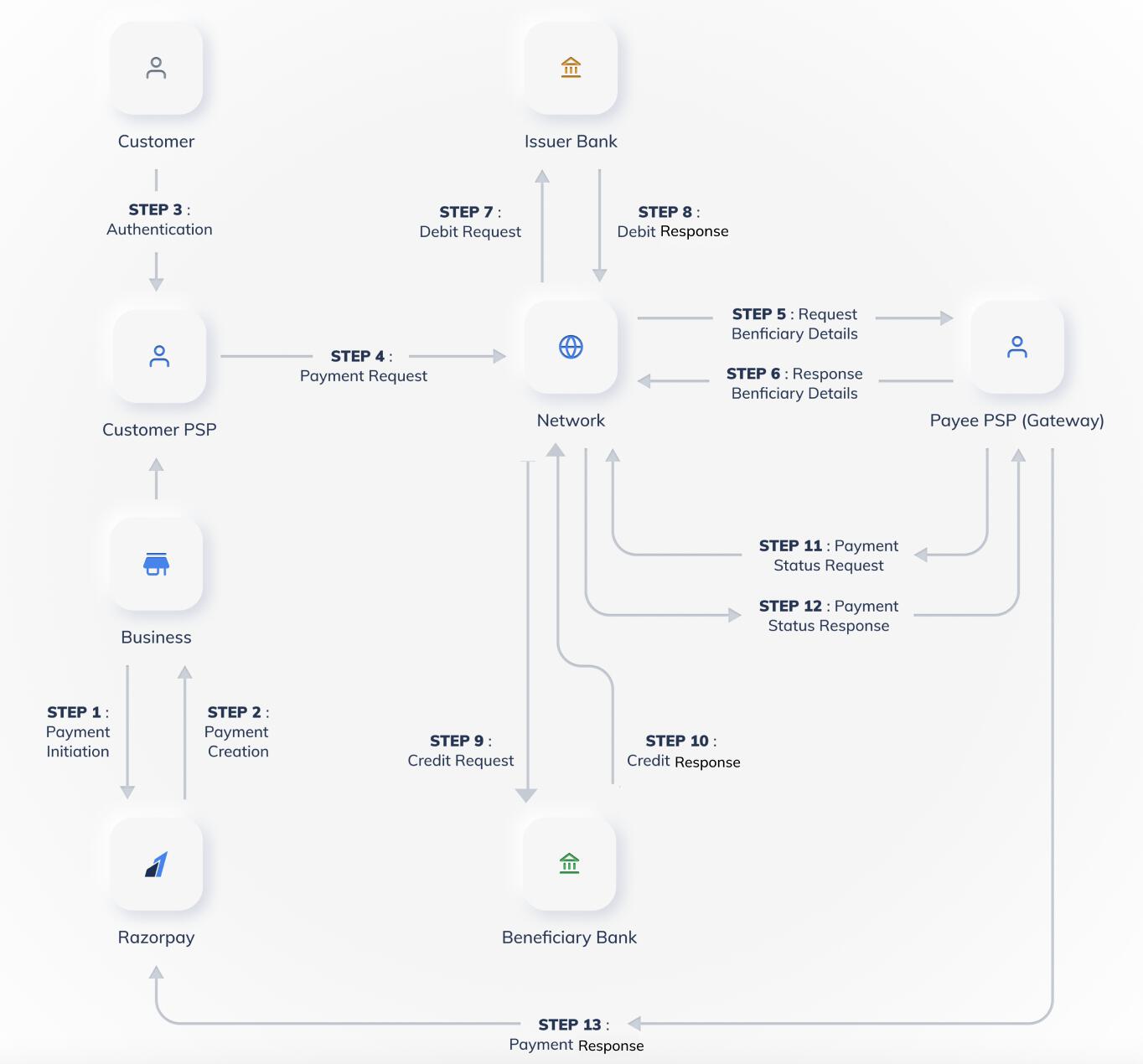 1. In the UPI Intent flow, the customer selects UPI as the payment method on your website or app. A list of UPI apps supporting the intent flow is displayed.
**Watch Out!**
By default, the top PSP (Payment Service Provider) apps appear on the customer's mobile irrespective of the installation status of the UPI apps.
2. The customers select their preferred app. The UPI app opens with pre-populated payment details.
3. The customers enter their UPI PIN to complete their transactions.
4. After the payment is successful, the customers are redirected to your app or website.
UPI Intent is supported on **mWeb (Android and iOS)** and **Mobile App (WebView)**. On **Desktop Web**, UPI Intent is not supported, a QR code is automatically displayed instead.
| Platform | Procedure |
| ------------------------ | -------------------------------------------------------------------------------------------------------------------------------------------------------------------------------------------------------------------------------------------------------------------------------------------------------------------------------------------------------------------------------------------------------- |
| **mWeb** | Customers are redirected to their preferred UPI app to complete the payment. For the complete integration guide, refer to [UPI Intent on Mobile Web](/docs/payments/payment-gateway/web-integration/custom/payment-methods/upi-intent-mweb). |
| **Mobile App (WebView)** | UPI Intent requires deep link handling in your Android or iOS app to launch UPI apps from the WebView. For the complete integration guide, refer to [UPI Intent in WebView: Android](/docs/payments/payment-gateway/web-integration/custom/features/webview/upi-intent-android) and [UPI Intent in WebView: iOS](/docs/payments/payment-gateway/web-integration/custom/features/webview/upi-intent-ios). |
| **Desktop Web** | UPI Intent is not supported. A QR code is automatically displayed for customers to scan with their preferred UPI app. No additional code changes are required. |
## Integrate on Android, iOS and Mobile Web
Use the Android SDK to support UPI Intent payments when a payment is processed through Razorpay in a WebView inside an app.
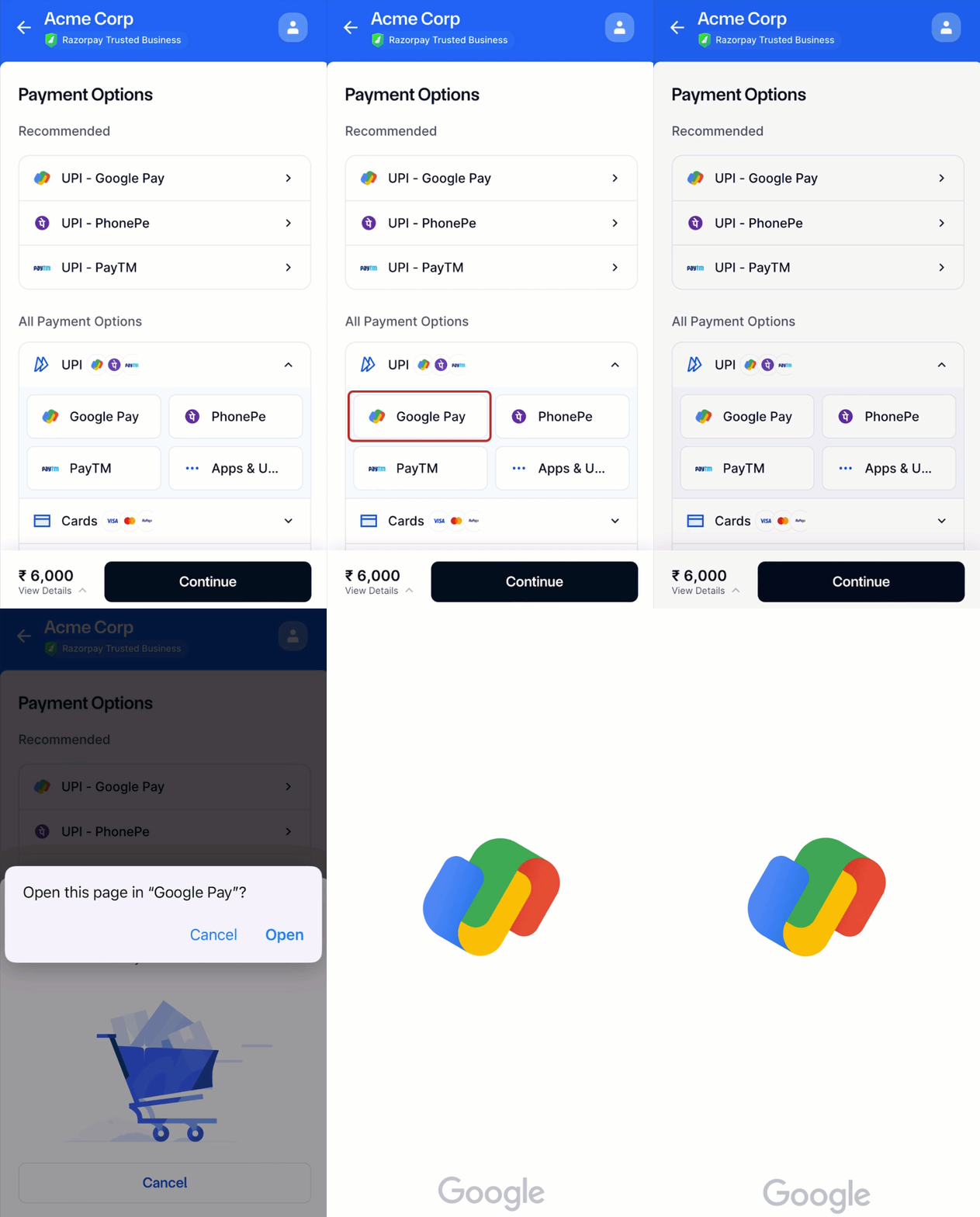
1. In the UPI Intent flow, the customer selects UPI as the payment method on your website or app. A list of UPI apps supporting the intent flow is displayed.
**Watch Out!**
By default, the top PSP (Payment Service Provider) apps appear on the customer's mobile irrespective of the installation status of the UPI apps.
2. The customers select their preferred app. The UPI app opens with pre-populated payment details.
3. The customers enter their UPI PIN to complete their transactions.
4. After the payment is successful, the customers are redirected to your app or website.
UPI Intent is supported on **mWeb (Android and iOS)** and **Mobile App (WebView)**. On **Desktop Web**, UPI Intent is not supported, a QR code is automatically displayed instead.
| Platform | Procedure |
| ------------------------ | -------------------------------------------------------------------------------------------------------------------------------------------------------------------------------------------------------------------------------------------------------------------------------------------------------------------------------------------------------------------------------------------------------- |
| **mWeb** | Customers are redirected to their preferred UPI app to complete the payment. For the complete integration guide, refer to [UPI Intent on Mobile Web](/docs/payments/payment-gateway/web-integration/custom/payment-methods/upi-intent-mweb). |
| **Mobile App (WebView)** | UPI Intent requires deep link handling in your Android or iOS app to launch UPI apps from the WebView. For the complete integration guide, refer to [UPI Intent in WebView: Android](/docs/payments/payment-gateway/web-integration/custom/features/webview/upi-intent-android) and [UPI Intent in WebView: iOS](/docs/payments/payment-gateway/web-integration/custom/features/webview/upi-intent-ios). |
| **Desktop Web** | UPI Intent is not supported. A QR code is automatically displayed for customers to scan with their preferred UPI app. No additional code changes are required. |
## Integrate on Android, iOS and Mobile Web
Use the Android SDK to support UPI Intent payments when a payment is processed through Razorpay in a WebView inside an app.
 #### Installation
[Download the JAR file](https://rzp-1415-prod-mobile.s3.amazonaws.com/android/googlepay-sdk/tez-client-api-0.9.4.aar) and include it in the `libs` folder.
#### Initialisation
To initiate the SDK, call the Razorpay class constructor in your project and pass `key` as Razorpay API key and `webView` as the object that handles the payment flow.
```java Java theme={null}
import com.razorpay.Razorpay
Razorpay razorpay = new Razorpay(key, webView, activity);
```
```java Kotlin theme={null}
import com.razorpay.Razorpay;
val razorpay = Razorpay(key, webview, activity)
```
#### Passing Result to Razorpay
After UPI is selected as the payment method, Razorpay invokes the **Intent Flow** page that lists all the available intent flows for the user to select and make the payment. Upon payment completion, the UPI app returns the result back to your `activity` in `onActivityResult` method. This should be passed to Razorpay as shown below:
```java Java theme={null}
@Override
protected void onActivityResult(int requestCode, int resultCode, Intent data) {
super.onActivityResult(requestCode, resultCode, data);
if (requestCode == Razorpay.UPI_INTENT_REQUEST_CODE) {
razorpay.onActivityResult(requestCode, resultCode, data);
}
}
```
```java Kotlin theme={null}
override fun onActivityResult(requestCode: Int, resultCode: Int, data: Intent?) {
super.onActivityResult(requestCode, resultCode, data)
if (requestCode == Razorpay.UPI_INTENT_REQUEST_CODE) {
razorpay.onActivityResult(requestCode, resultCode, data)
}
}
```
Refer to the [list of supported UPI intent apps for Android SDK](/docs/payments/payment-methods/upi/supported-apps).
Use the iOS Standard SDK to support UPI Intent payments on your iOS apps.
#### Installation
[Download the JAR file](https://rzp-1415-prod-mobile.s3.amazonaws.com/android/googlepay-sdk/tez-client-api-0.9.4.aar) and include it in the `libs` folder.
#### Initialisation
To initiate the SDK, call the Razorpay class constructor in your project and pass `key` as Razorpay API key and `webView` as the object that handles the payment flow.
```java Java theme={null}
import com.razorpay.Razorpay
Razorpay razorpay = new Razorpay(key, webView, activity);
```
```java Kotlin theme={null}
import com.razorpay.Razorpay;
val razorpay = Razorpay(key, webview, activity)
```
#### Passing Result to Razorpay
After UPI is selected as the payment method, Razorpay invokes the **Intent Flow** page that lists all the available intent flows for the user to select and make the payment. Upon payment completion, the UPI app returns the result back to your `activity` in `onActivityResult` method. This should be passed to Razorpay as shown below:
```java Java theme={null}
@Override
protected void onActivityResult(int requestCode, int resultCode, Intent data) {
super.onActivityResult(requestCode, resultCode, data);
if (requestCode == Razorpay.UPI_INTENT_REQUEST_CODE) {
razorpay.onActivityResult(requestCode, resultCode, data);
}
}
```
```java Kotlin theme={null}
override fun onActivityResult(requestCode: Int, resultCode: Int, data: Intent?) {
super.onActivityResult(requestCode, resultCode, data)
if (requestCode == Razorpay.UPI_INTENT_REQUEST_CODE) {
razorpay.onActivityResult(requestCode, resultCode, data)
}
}
```
Refer to the [list of supported UPI intent apps for Android SDK](/docs/payments/payment-methods/upi/supported-apps).
Use the iOS Standard SDK to support UPI Intent payments on your iOS apps.
 #### Prerequisites
* Sign up for a Razorpay account.
* [Generate API Keys](/docs/payments/dashboard/account-settings/api-keys#generate-api-keys) from the Dashboard.
#### iOS Standard Checkout
To enable UPI Intent on your iOS app's Standard Checkout:
1. Ensure that the [latest version of the iOS Standard SDK](/docs/payments/payment-gateway/ios-integration/standard#list-of-razorpay-ios-standard-sdk-versions-last) is integrated with your app.
2. Your iOS app must seek permission from the device to open the UPI PSP app that the customer selects on Checkout. For this, you must make the following changes in your iOS app's info.plist file.
```xml info.plist theme={null}
LSApplicationQueriesSchemes
tez
phonepe
paytmmp
credpay
mobikwik
in.fampay.app
bhim
amazonpay
navi
kiwi
payzapp
jupiter
omnicard
icici
popclubapp
sbiyono
myjio
slice-upi
bobupi
shriramone
indusmobile
whatsapp
kotakbank
```
#### UPI Intent on Recurring Payments
Configure and initiate a recurring payment transaction on UPI Intent:
```swift ViewController.swift theme={null}
let options: [String:Any] = [
"key": "YOUR_KEY_ID",
"order_id": "order_DBJOWzybfXXXX",
"customer_id": "cust_BtQNqzmBlXXXX",
"prefill": [
"contact": "+919000090000",
"email": "gaurav.kumar@example.com"
],
"image": "https://cdn.razorpay.com/logos/F9Yhfb7ZXjXmIQ_medium.jpg",
"amount": 10000, // Amount should match the order amount
"currency": "INR",
"recurring": 1 // This key value pair is mandatory for Intent Recurring Payment.
]
```
```objectivec ViewController.m theme={null}
NSDictionary *options = @{
@"key": @"YOUR_KEY_ID",
@"order_id": @"order_DBJOWzybfXXXX",
@"customer_id": @"cust_BtQNqzmBlXXXX",
@"prefill": @{
@"contact": @"+919000090000",
@"email": @"gaurav.kumar@example.com"
},
@"image": @"https://cdn.razorpay.com/logos/F9Yhfb7ZXjXmIQ_medium.jpg",
@"amount": @(10000), // Amount should match the order amount
@"currency": @"INR",
@"recurring": @(1) // This key value pair is mandatory for Intent Recurring Payment.
};
```
Using Razorpay you can let your customers make UPI Intent payments on your mobile website.
For example, when the customer selects a UPI PSP, the PSP app opens automatically. Customers can then proceed with the payment without navigating away from your mobile website. This leads to a faster checkout experience with higher success rates.
**Feature Enablement**
The UPI Intent feature is usually available by default. If you are unable to access this feature, [contact our Support Team](https://razorpay.com/support/#request) to get this enabled on your account.
#### Features
* The UPI intent on mobile web is available at Razorpay Standard Checkout and other products such as Payment Links, Payment Pages and Invoices.
* It works for UPI PSP apps.
**Watch Out!**
By default, the top PSP apps appear on the customer's mobile irrespective of the installation status of the UPI apps.
* It works on Android and iOS smartphones.
#### Prerequisites
* [Sign up](https://dashboard.razorpay.com/#/access/signup) for a Razorpay account.
* [Generate API Keys](/docs/payments/dashboard/account-settings/api-keys) from the Dashboard.
* Integrate Razorpay Standard Checkout on your [Website](/docs/payments/payment-gateway/web-integration/standard).
#### Standard Checkout
UPI Intent for mobile websites works automatically if the intent flow is enabled on your account. You can enable UPI Intent in WebView on your [Android app](/docs/payments/payment-gateway/web-integration/standard/webview/upi-intent-android)or [iOS app](/docs/payments/payment-gateway/web-integration/standard/webview/upi-intent-ios).
### List of Supported UPI Intent Apps
Given below is the list of supported UPI apps for Mobile Web:
#### Android
| Sr. No | App Name |
| ------ | ---------------- |
| 1 | Google Pay |
| 2 | PhonePe |
| 3 | CRED |
| 4 | PayTM |
| 5 | BHIM |
| 6 | AmazonPay |
| 7 | iMobile by ICICI |
| 8 | PayZapp |
| 9 | Mobikwik |
| 10 | Navi |
#### iOS
| Sr. No | App Name |
| ------ | ---------- |
| 1 | Google Pay |
| 2 | PhonePe |
| 3 | CRED |
| 4 | PayTM |
| 5 | BHIM |
## Best Practices
Following are the best practices to be followed to accept online payments using UPI intent flow.
You must show the list of UPI apps in 2 sections:
* Top performing apps (GPAY > PhonePe > Paytm > BHIM)
* Other apps
### Related Information
* [UPI Error Codes](/docs/errors)
* [UPI Transaction Limits](/docs/payments/payment-methods/transaction-limits/upi)
#### Prerequisites
* Sign up for a Razorpay account.
* [Generate API Keys](/docs/payments/dashboard/account-settings/api-keys#generate-api-keys) from the Dashboard.
#### iOS Standard Checkout
To enable UPI Intent on your iOS app's Standard Checkout:
1. Ensure that the [latest version of the iOS Standard SDK](/docs/payments/payment-gateway/ios-integration/standard#list-of-razorpay-ios-standard-sdk-versions-last) is integrated with your app.
2. Your iOS app must seek permission from the device to open the UPI PSP app that the customer selects on Checkout. For this, you must make the following changes in your iOS app's info.plist file.
```xml info.plist theme={null}
LSApplicationQueriesSchemes
tez
phonepe
paytmmp
credpay
mobikwik
in.fampay.app
bhim
amazonpay
navi
kiwi
payzapp
jupiter
omnicard
icici
popclubapp
sbiyono
myjio
slice-upi
bobupi
shriramone
indusmobile
whatsapp
kotakbank
```
#### UPI Intent on Recurring Payments
Configure and initiate a recurring payment transaction on UPI Intent:
```swift ViewController.swift theme={null}
let options: [String:Any] = [
"key": "YOUR_KEY_ID",
"order_id": "order_DBJOWzybfXXXX",
"customer_id": "cust_BtQNqzmBlXXXX",
"prefill": [
"contact": "+919000090000",
"email": "gaurav.kumar@example.com"
],
"image": "https://cdn.razorpay.com/logos/F9Yhfb7ZXjXmIQ_medium.jpg",
"amount": 10000, // Amount should match the order amount
"currency": "INR",
"recurring": 1 // This key value pair is mandatory for Intent Recurring Payment.
]
```
```objectivec ViewController.m theme={null}
NSDictionary *options = @{
@"key": @"YOUR_KEY_ID",
@"order_id": @"order_DBJOWzybfXXXX",
@"customer_id": @"cust_BtQNqzmBlXXXX",
@"prefill": @{
@"contact": @"+919000090000",
@"email": @"gaurav.kumar@example.com"
},
@"image": @"https://cdn.razorpay.com/logos/F9Yhfb7ZXjXmIQ_medium.jpg",
@"amount": @(10000), // Amount should match the order amount
@"currency": @"INR",
@"recurring": @(1) // This key value pair is mandatory for Intent Recurring Payment.
};
```
Using Razorpay you can let your customers make UPI Intent payments on your mobile website.
For example, when the customer selects a UPI PSP, the PSP app opens automatically. Customers can then proceed with the payment without navigating away from your mobile website. This leads to a faster checkout experience with higher success rates.
**Feature Enablement**
The UPI Intent feature is usually available by default. If you are unable to access this feature, [contact our Support Team](https://razorpay.com/support/#request) to get this enabled on your account.
#### Features
* The UPI intent on mobile web is available at Razorpay Standard Checkout and other products such as Payment Links, Payment Pages and Invoices.
* It works for UPI PSP apps.
**Watch Out!**
By default, the top PSP apps appear on the customer's mobile irrespective of the installation status of the UPI apps.
* It works on Android and iOS smartphones.
#### Prerequisites
* [Sign up](https://dashboard.razorpay.com/#/access/signup) for a Razorpay account.
* [Generate API Keys](/docs/payments/dashboard/account-settings/api-keys) from the Dashboard.
* Integrate Razorpay Standard Checkout on your [Website](/docs/payments/payment-gateway/web-integration/standard).
#### Standard Checkout
UPI Intent for mobile websites works automatically if the intent flow is enabled on your account. You can enable UPI Intent in WebView on your [Android app](/docs/payments/payment-gateway/web-integration/standard/webview/upi-intent-android)or [iOS app](/docs/payments/payment-gateway/web-integration/standard/webview/upi-intent-ios).
### List of Supported UPI Intent Apps
Given below is the list of supported UPI apps for Mobile Web:
#### Android
| Sr. No | App Name |
| ------ | ---------------- |
| 1 | Google Pay |
| 2 | PhonePe |
| 3 | CRED |
| 4 | PayTM |
| 5 | BHIM |
| 6 | AmazonPay |
| 7 | iMobile by ICICI |
| 8 | PayZapp |
| 9 | Mobikwik |
| 10 | Navi |
#### iOS
| Sr. No | App Name |
| ------ | ---------- |
| 1 | Google Pay |
| 2 | PhonePe |
| 3 | CRED |
| 4 | PayTM |
| 5 | BHIM |
## Best Practices
Following are the best practices to be followed to accept online payments using UPI intent flow.
You must show the list of UPI apps in 2 sections:
* Top performing apps (GPAY > PhonePe > Paytm > BHIM)
* Other apps
### Related Information
* [UPI Error Codes](/docs/errors)
* [UPI Transaction Limits](/docs/payments/payment-methods/transaction-limits/upi)