> ## Documentation Index
> Fetch the complete documentation index at: https://razorpay-881012b3.mintlify.site/llms.txt
> Use this file to discover all available pages before exploring further.

# Integrate Payment Pages With Zapier

> Connect Razorpay Payment Pages with Zapier to automate workflows, sync data across apps like Mailchimp, Google Sheets and CRMs without writing any code.

<div style={{display:"flex",flexWrap:"wrap",alignItems:"center",gap:"0.35rem 0.9rem",border:"1px solid rgba(128,128,128,0.28)",borderRadius:"0.5rem",padding:"0.45rem 0.75rem",margin:"0 0 1.25rem",fontSize:"0.875rem"}}>
  <span style={{fontWeight:600}}>Available in</span>
  <span>🇮🇳 India</span>
</div>

Integrate Razorpay Payment Pages with [Zapier](https://zapier.com/) and move data between applications with triggers and actions. Zapier is a tool that helps you automate repetitive tasks between two or more apps without using a single line of code. When an event happens in one app, Zapier can tell another app to perform a particular action.

## Use Cases

Following are a few examples where you can use Payment Pages-Zapier integration:

* Send automated notifications from popular email automation tools like Mailchimp or Gmail for new Razorpay payments.
* Update your customer data in your CRM tools like Hubspot or Salesforce without any hassle.
* Sync information seamlessly between your accounting apps like Zoho Books or Tally.
* Enrol students in learning courses with new successful payments on Razorpay.
* Add newly-captured Razorpay payments to rows in Google Sheets.
* Send SMS messages through messaging tools for new payments made through Razorpay.

## Prerequisites

1. Sign up for a [Razorpay account](https://dashboard.razorpay.com/signup).
2. Sign up for a [Zapier](https://zapier.com/sign-up) account.

## Integration Steps

Watch this video to know how to integrate Razorpay with your Zapier app.

<iframe width="560" height="315" src="https://www.youtube.com/embed/8dVBLa8PEZs" title="YouTube video player" frameBorder="0" allow="accelerometer; autoplay; clipboard-write; encrypted-media; gyroscope; picture-in-picture" allowFullScreen />

To integrate Zapier with your Payment Page:

1. Click on the **Create Zap** button on the top-left of the Zapier Dashboard page.

<Info>
  **What is a Zap**

  A Zap is an automated workflow that connects your apps and services together. Every Zap consists of a trigger step and one or more action steps. When you turn your Zap on, it will run the action steps every time the trigger event occurs.
</Info>

2. Name your Zap.
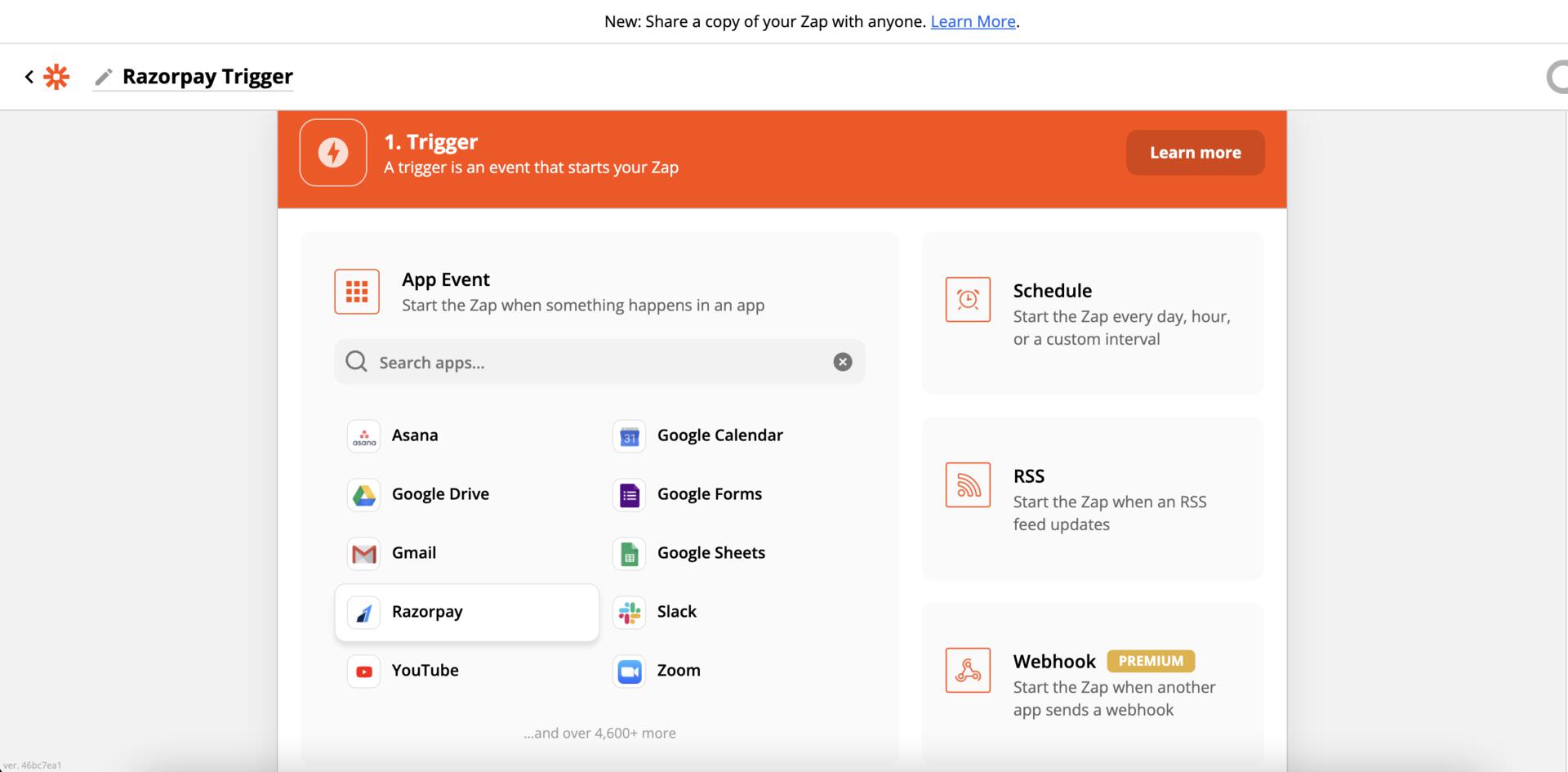
3. Search for the Razorpay option in the list of triggers.
   <img class="click-zoom" src="https://razorpay.com/docs/build/browser/assets/images/zapier-name-zap.jpg" alt="Razorpay Zapier Trigger" width="700" />
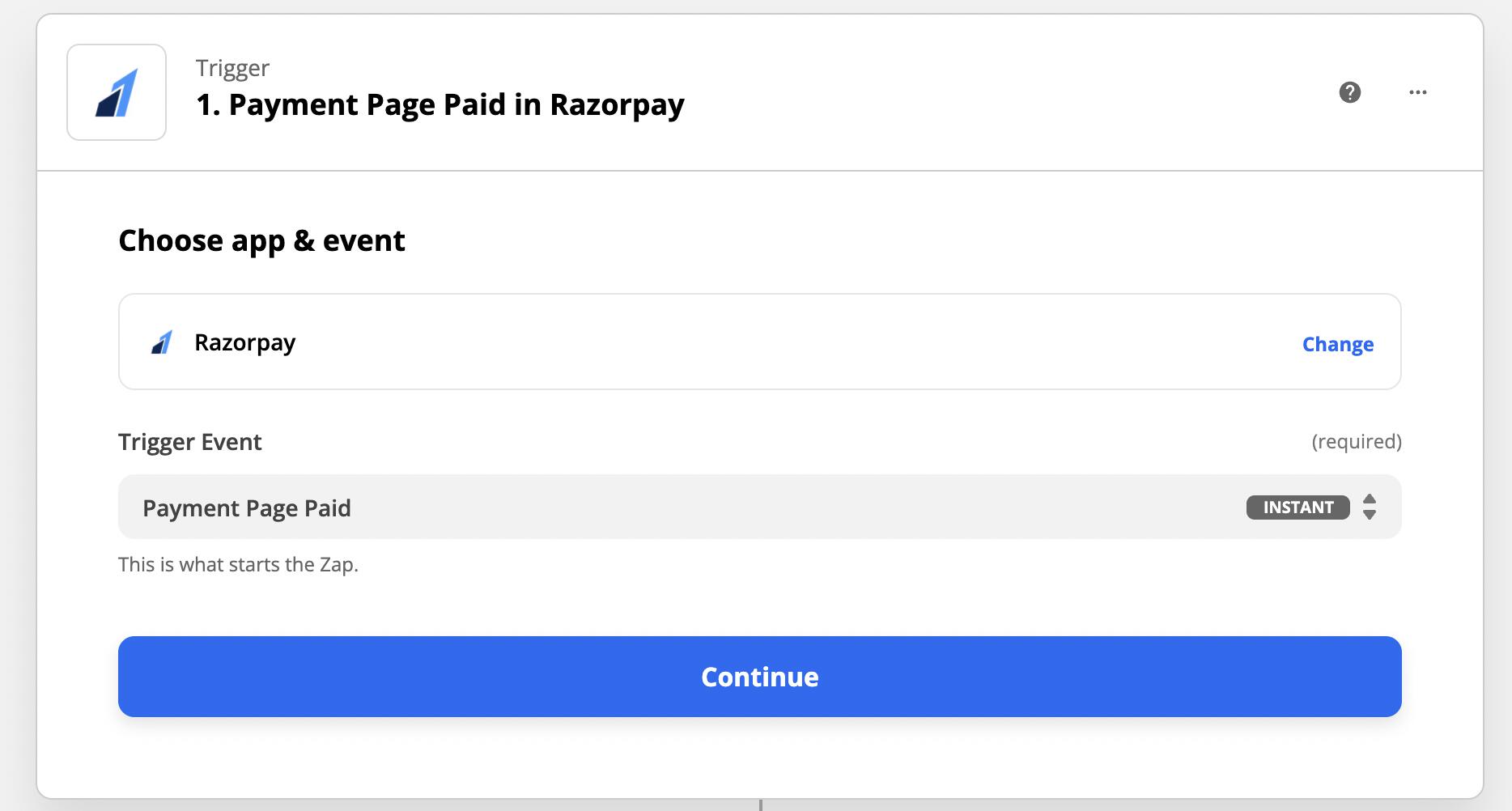
4. Select the **Payment Page Paid** event and click **Continue**.
   <img class="click-zoom" src="https://razorpay.com/docs/build/browser/assets/images/zapier-pp-paid.jpg" alt="Razorpay Payment Page Event" width="600" />
5. Click the **Sign in to Razorpay** button to connect to your Razorpay account through OAuth.
6. You will see this screen if you are logged in, or else you will be prompted to log in.
7. Once authorised, you will be redirected back to the Zapier page. You are now linked to your account.
8. Click **Continue**.
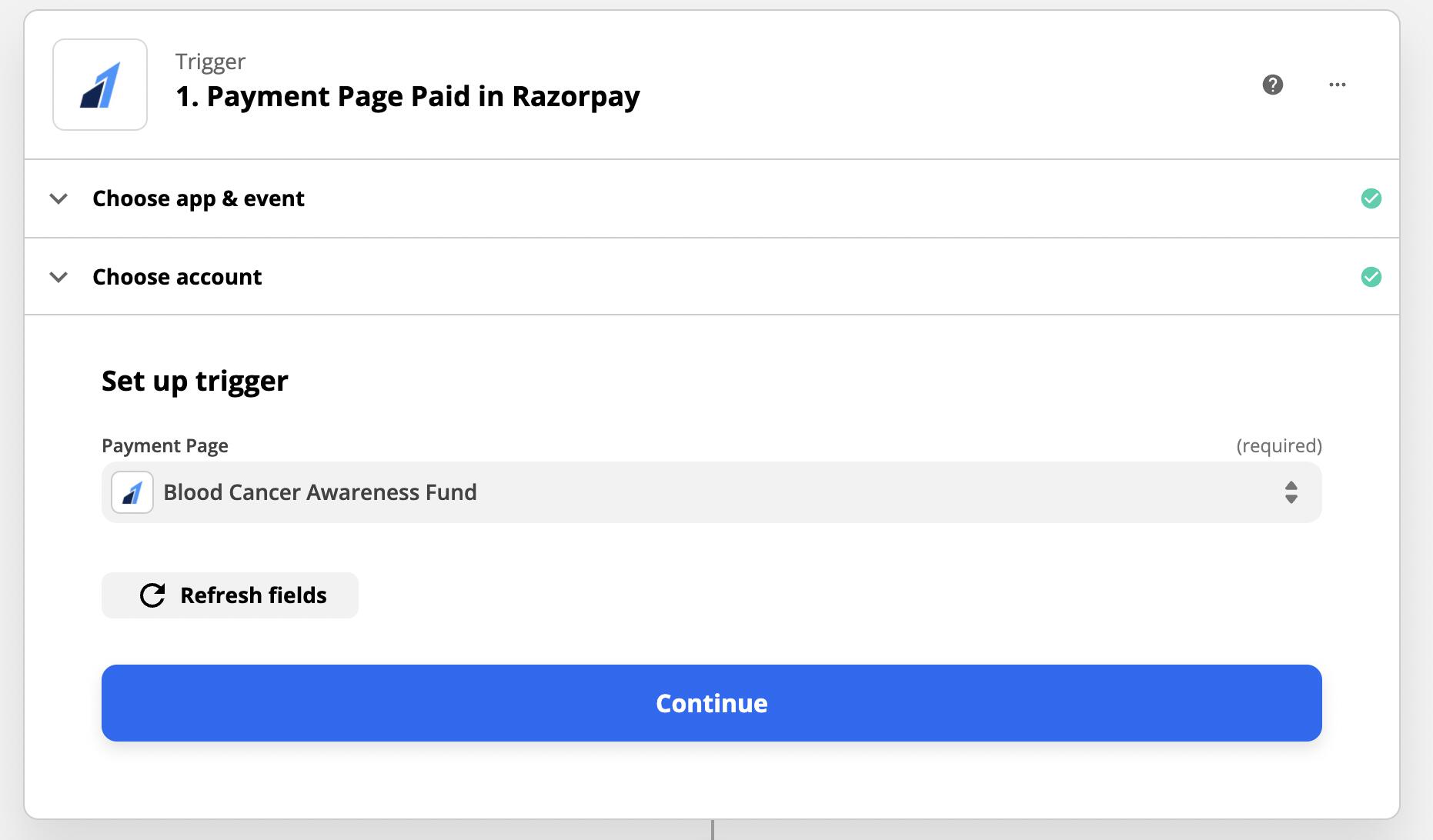
9. Select the Payment Page you wish to set up the trigger for and click **Continue**.
   <img class="click-zoom" src="https://razorpay.com/docs/build/browser/assets/images/zapier-payment-page-select.jpg" alt="Razorpay - Select Account" width="600" />
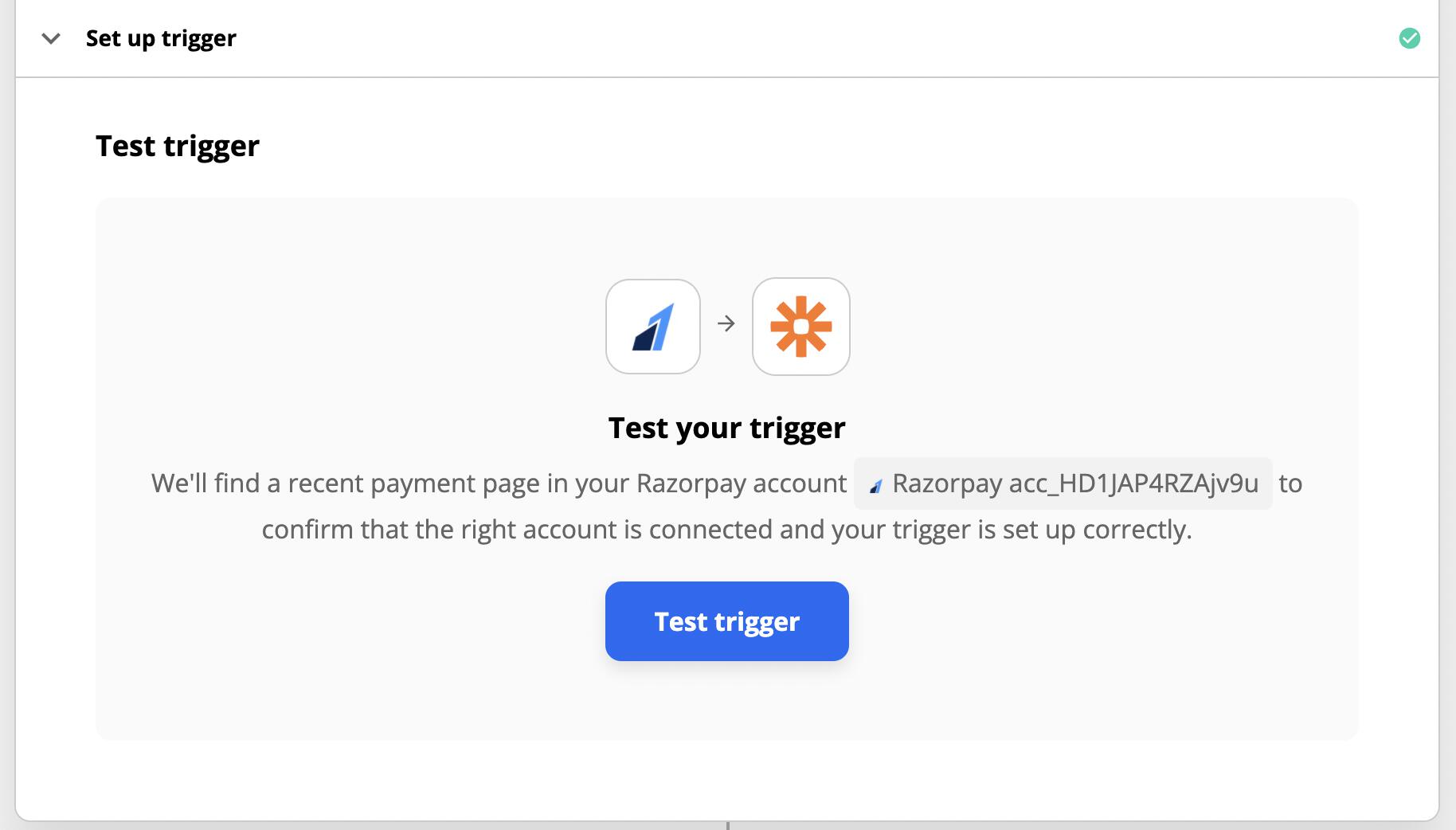
10. Click **Test trigger** for Zapier to run a test trigger.
<Info>
  **Tech Trigger**

  Test trigger is a sample payment that Zapier will pull from your account so that you can continue with the rest of your workflow.
</Info>

<img class="click-zoom" src="https://razorpay.com/docs/build/browser/assets/images/zapier-test-trigger.jpg" alt="Razorpay Test Trigger" width="600" />

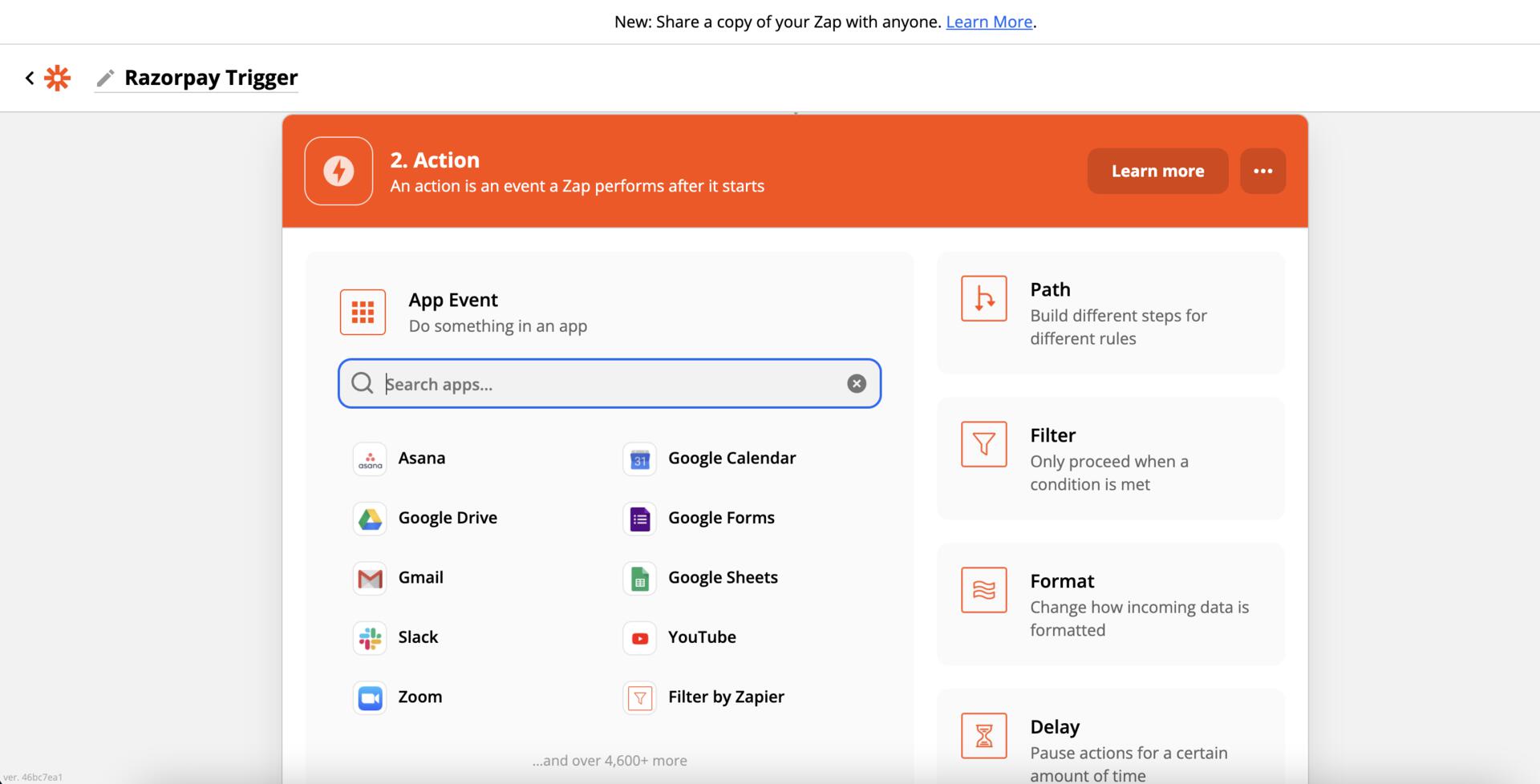
10. To get a test trigger, you need to have at least one success captured payment from the recent 1000 payments. You can repeat the process by choosing from a range of various apps.
<img class="click-zoom" src="https://razorpay.com/docs/build/browser/assets/images/zapier-select-app.jpg" alt="Zapier App  Options" width="700" />
