> ## Documentation Index
> Fetch the complete documentation index at: https://razorpay-881012b3.mintlify.site/llms.txt
> Use this file to discover all available pages before exploring further.
# Search a QR Code
> Search for QR Codes and Payments on the Razorpay Dashboard using filters.
Available in
🇮🇳 India
You can search for QR Codes on the Dashboard by specifying various filters. Know more about [QR Code States](/docs/payments/qr-codes#qr-code-states/).
## Search a QR Code from the Dashboard
To search a QR Code:
1. Log in to the Dashboard.
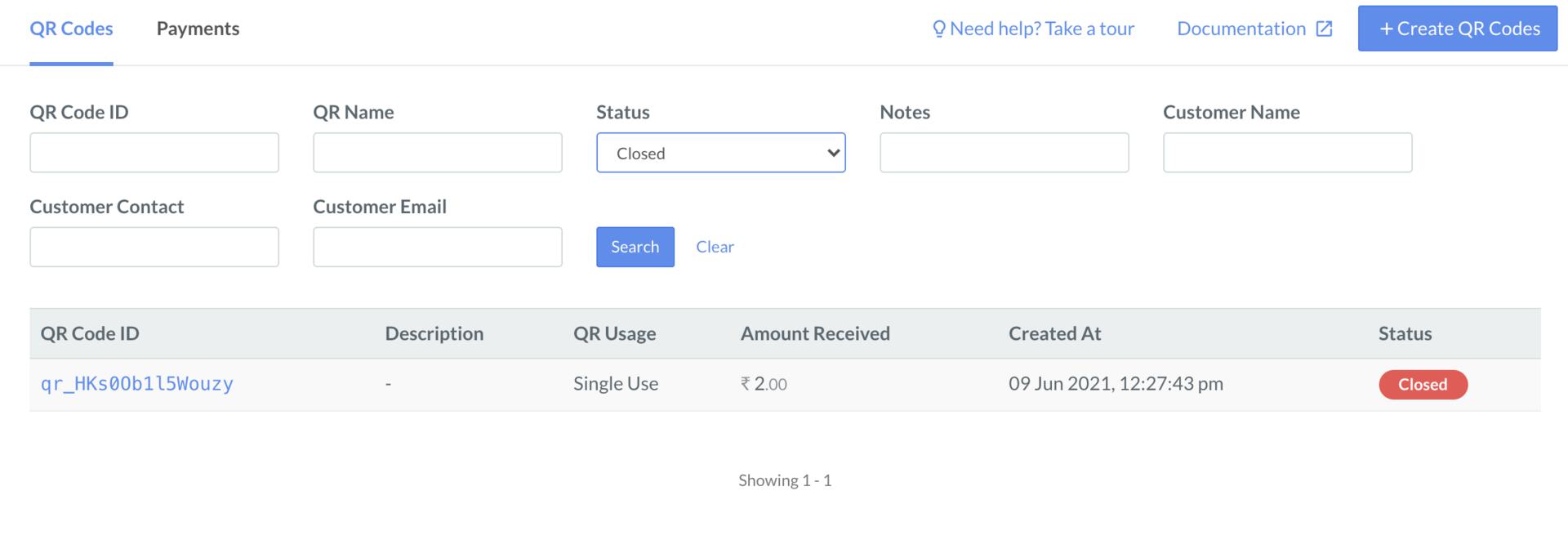
2. Select **QR Codes** from the left menu and search for a QR Code under **QR Codes** by specifying filters.
| Filter | Description |
| ---------------- | --------------------------------------------------------------------------------------- |
| QR Code Id | Unique identifier of the QR Code. |
| QR Name | Name of the QR Code. |
| Status | The status of the QR Code. |
| Notes | Additional information stored in the `Internal Notes` field while creating the QR Code. |
| Customer Name | Name of the customer. |
| Customer Contact | Registered phone number of the customer. |
| Customer Email | Email address of the customer. |
 ## Search Payments
To search payments made using the QR Codes:
1. Log in to the Dashboard.
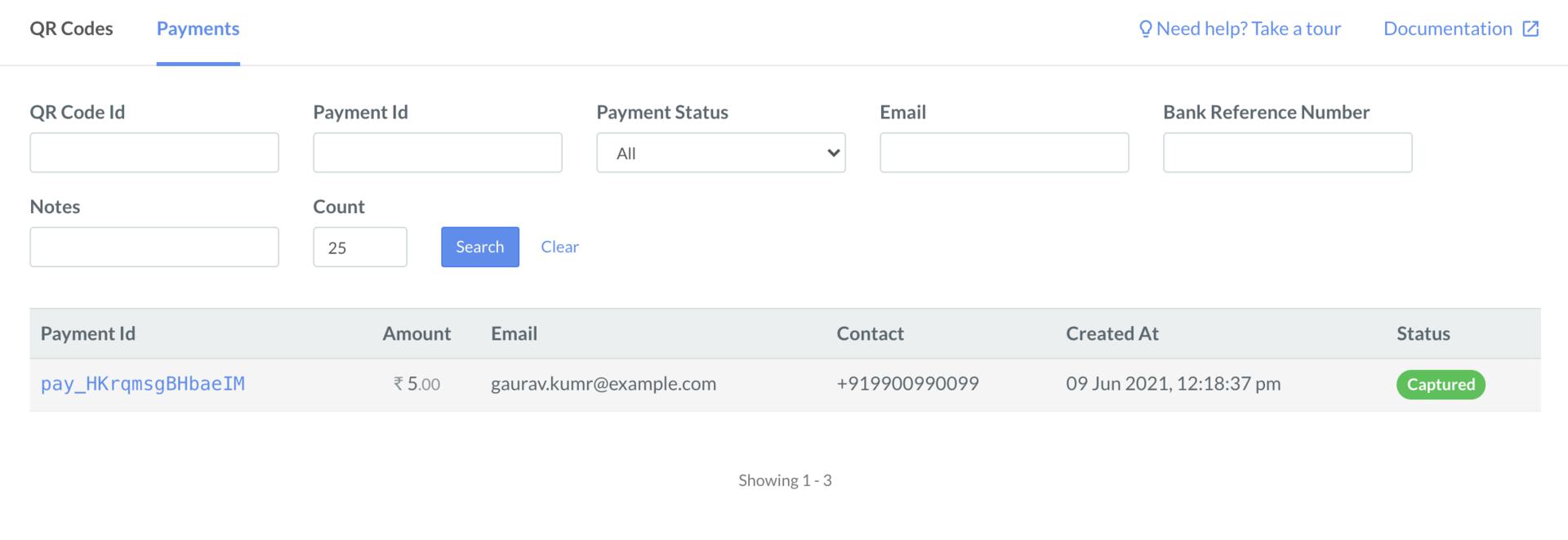
2. Select **QR Codes** from the left menu and search for a payment under **Payments** by specifying filters.
| Filter | Description |
| --------------------- | --------------------------------------------------------------------------------------- |
| QR Code Id | Unique identifier of the QR Code. |
| Payment Id | Unique identifier of the payment. |
| Payment Status | The status of the payment. Know more about [payment states](/docs/payments/payments). |
| Email | Email address of the customer. |
| Bank Reference Number | Unique reference provided by the bank for the payment. |
| Notes | Additional information stored in the `Internal Notes` field while creating the QR Code. |
| Count | Number of records to be shown. |
## Search Payments
To search payments made using the QR Codes:
1. Log in to the Dashboard.
2. Select **QR Codes** from the left menu and search for a payment under **Payments** by specifying filters.
| Filter | Description |
| --------------------- | --------------------------------------------------------------------------------------- |
| QR Code Id | Unique identifier of the QR Code. |
| Payment Id | Unique identifier of the payment. |
| Payment Status | The status of the payment. Know more about [payment states](/docs/payments/payments). |
| Email | Email address of the customer. |
| Bank Reference Number | Unique reference provided by the bank for the payment. |
| Notes | Additional information stored in the `Internal Notes` field while creating the QR Code. |
| Count | Number of records to be shown. |
 ### Related Information
* [QR Codes](/docs/payments/qr-codes)
* [Create a QR Code](/docs/payments/qr-codes/create)
* [Cancel a QR Code](/docs/payments/qr-codes/close)
* [QR Code APIs](/docs/payments/qr-codes/apis)
### Related Information
* [QR Codes](/docs/payments/qr-codes)
* [Create a QR Code](/docs/payments/qr-codes/create)
* [Cancel a QR Code](/docs/payments/qr-codes/close)
* [QR Code APIs](/docs/payments/qr-codes/apis)